
Overview
Creating a single contact is a quick, low-risk way to test how Apollo handles an individual record before you work with larger lists. Use a single contact to validate enrichment results, run a workflow or sequence end to end, and confirm emails reach an inbox you control without running a full CSV import.
Create a single contact when you want to:
- Test a workflow or sequence using a safe, controlled record.
- Verify unsubscribe links, open and click tracking, or deliverability with an email address you control.
- Add a one-off contact without building or cleaning a full CSV file.
When you create a single contact for testing, use an email address on a domain you control. This helps you avoid accidentally emailing real prospects or customers.
Check out the following sections to create a single contact in Apollo.
Create a Single Contact
To create a single contact:
- Launch Apollo and go to People.
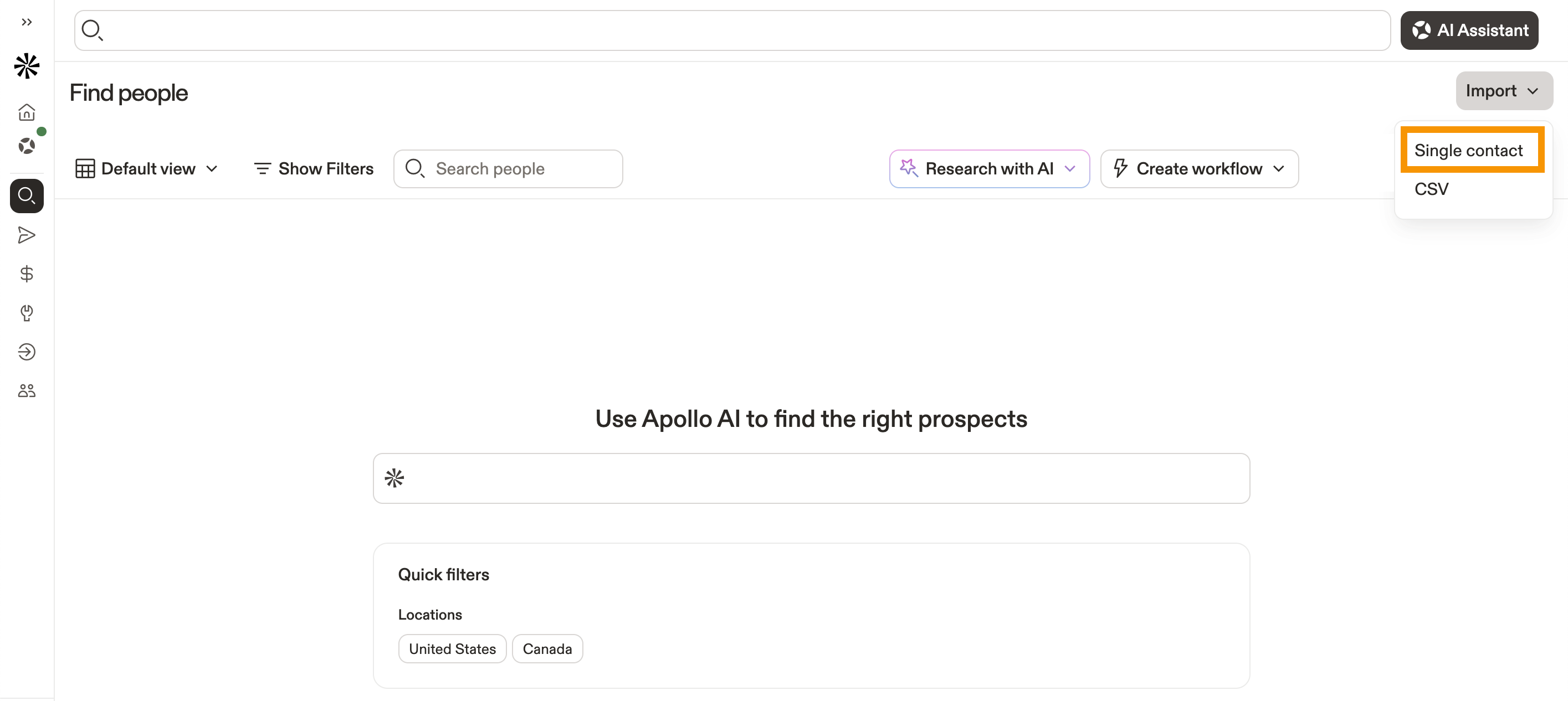
- Click Import > Single contact.
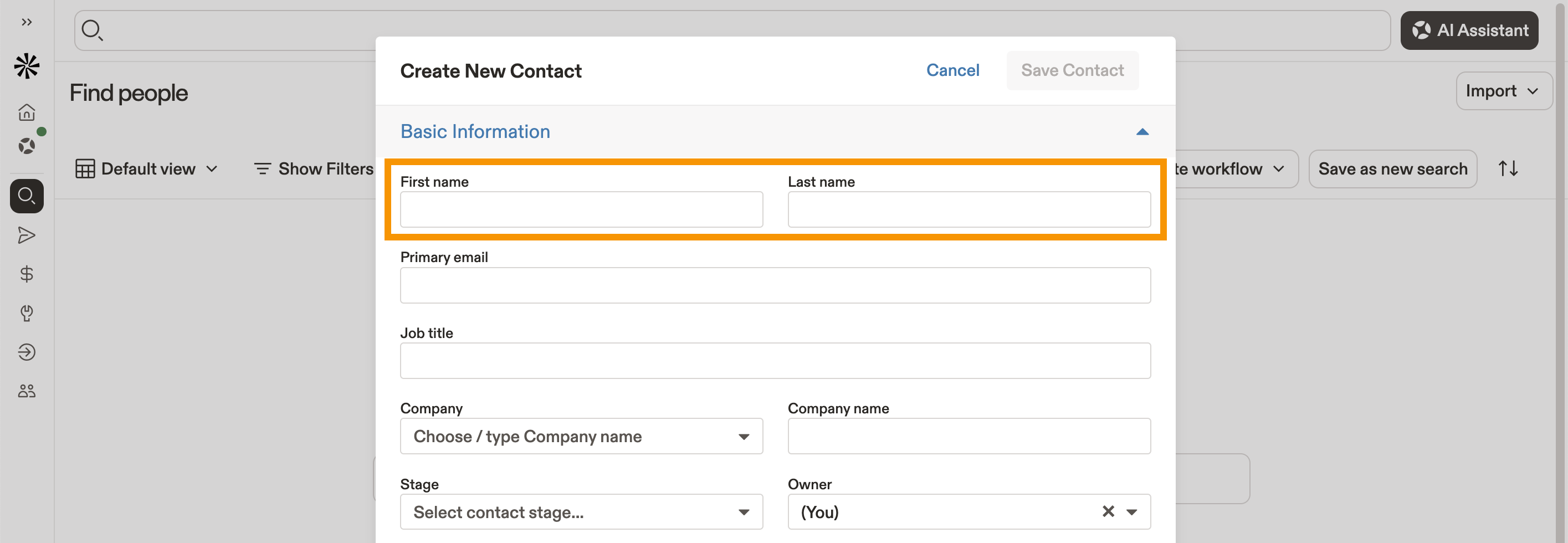
- Enter the required fields:
- First name
- Last name
- (Recommended) Enter an email address.
- Send test emails from a sequence.
- Verify unsubscribe links and tracking.
If you’re using this contact for testing, make sure you enter an email address you can access. This lets you confirm that test messages are delivered correctly and that links, tracking, and formatting work as expected.
- Add any other details, such as:
- Title, account, or phone numbers
- Custom contact fields, like a “Test contact” flag for workflows.
- Click Save contact.
You have now created a single contact.
Apollo saves the record as a standard contact in People, so you can use it in searches, workflows, and sequences like any other contact.
You can view and edit the contact to reach out via email or the dialer, or enrich contact information so you have the most up-to-date data for outreach.
Delete a Test Contact
If you created a single contact just for testing, you can delete it when you’re done so it doesn’t appear in searches, lists, or reports.
To delete a test contact:
- Launch Apollo and go to People.
- Use Search to find the contact by name or email address.
- Click the contact’s name.
- Click Actions > Delete contact.
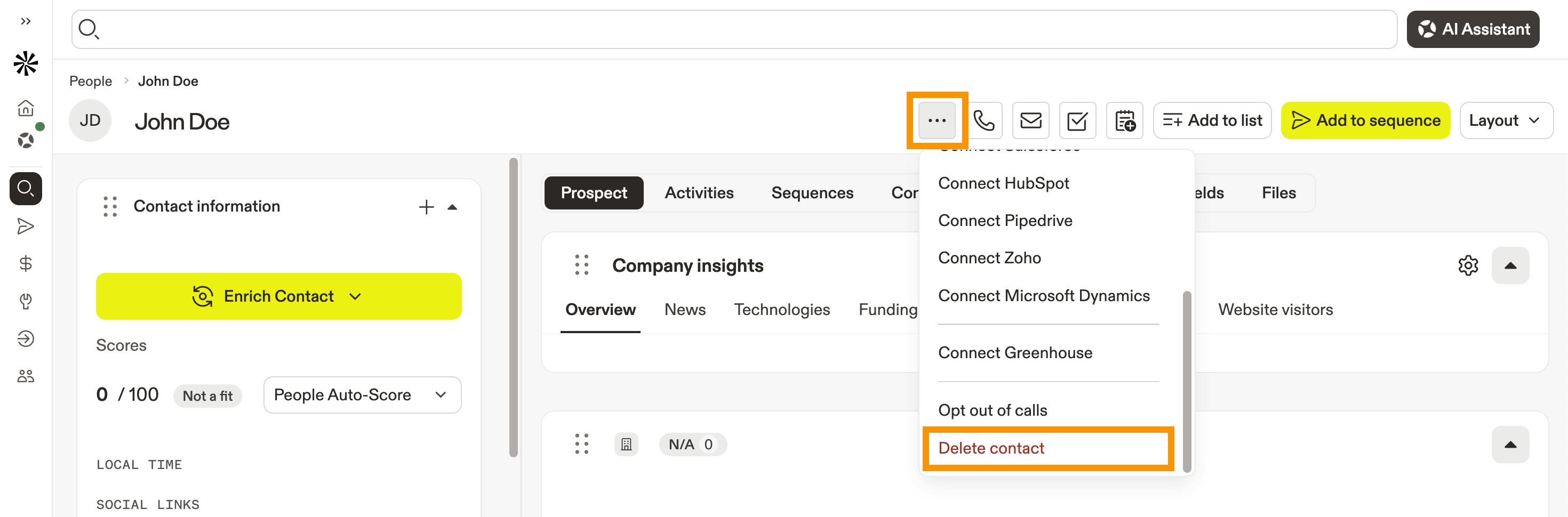
- Click Delete.
You have now deleted your test contact.
Deleting test contacts helps prevent clutter in your reports and keeps your production data reliable.
Next Steps
Once you’ve got a test contact in place, use these next steps to run a clean end-to-end test and keep your data tidy.
| Configure Your Email Unsubscribe Link | Run a real unsubscribe click-through test to confirm the link behaves correctly in an actual sent email (not a test send). |
|---|---|
| Email Deliverability Best Practices | Pressure-test your tracking and sending setup to protect domain reputation while you validate opens, clicks, and mailbox health. |
| Add Contacts to a Sequence | Enroll your new test contact into a sequence to verify step timing, personalization, and task flow start-to-finish. |
| Create Custom Contact Fields | Add a “Test contact” flag your team can filter on to make QA records easy to find (and exclude) across workflows and sequences. |
| View and Edit Contacts | Remove or reset the test contact when you’re done to keep searches, lists, and reporting clean after your experiments. |