
Overview
Organizing tasks in Apollo helps you focus on the right work at the right time. You can sort, filter, group, and review recommended tasks so it is easier to decide what to tackle first.
Tasks are available on all Apollo plans, but free plans don't include dialer or call tasks. If you need access to calls on Apollo, upgrade your plan. If you have questions about upgrading, reach out to the Apollo sales team.
Organize Tasks
Before you work through tasks, organize your task list so you can focus on the right work first.
To organize your tasks:
- Launch Apollo and click Tasks.
- Select the type of tasks you want to work from, like calls or emails. You can switch between different task views. If available, click Recommended to review AI-prioritized tasks.
Apollo shows recommendations after you have more than 30 assigned tasks. Apollo highlights tasks based on signals like recent engagement, multiple email opens, positive call activity, decision-maker involvement, or overdue work with strong context.
To see why a task was recommended, hover over Recommendation next to the task title.

- By default, Apollo sorts your tasks by due date. To further organize your tasks, click Sort > Add Sort.
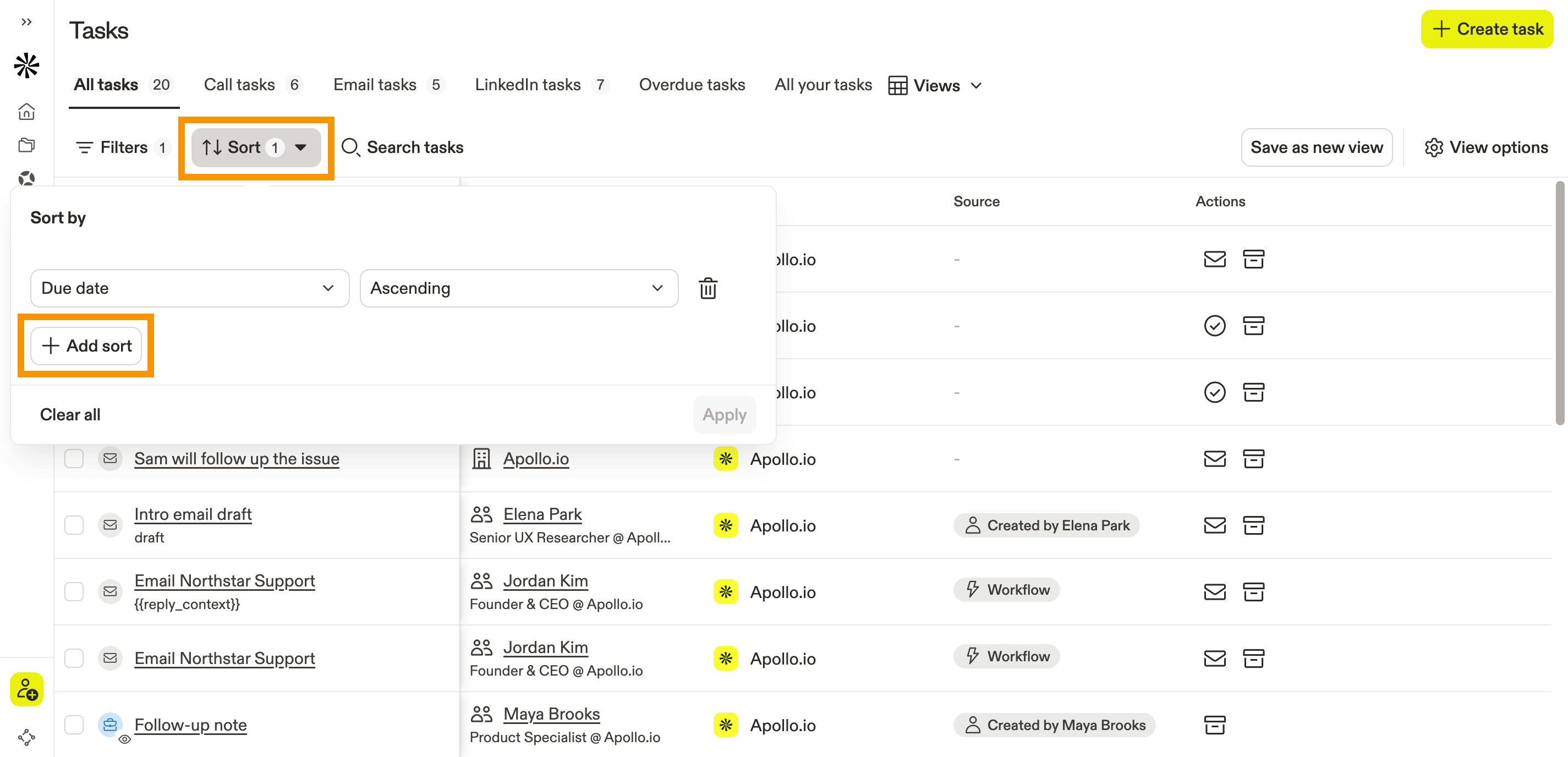
- Select a field like Priority or Company, then choose Ascending or Descending for the sort order.
To sort by more layers, click Add Sort again, then select another column to sort by. For example, sort by Due Date first, then by Company to see urgent tasks organized by the company you're reaching out to.
- When finished, click Apply.
- Click Show Filters and select from the search filters to narrow down your task list.
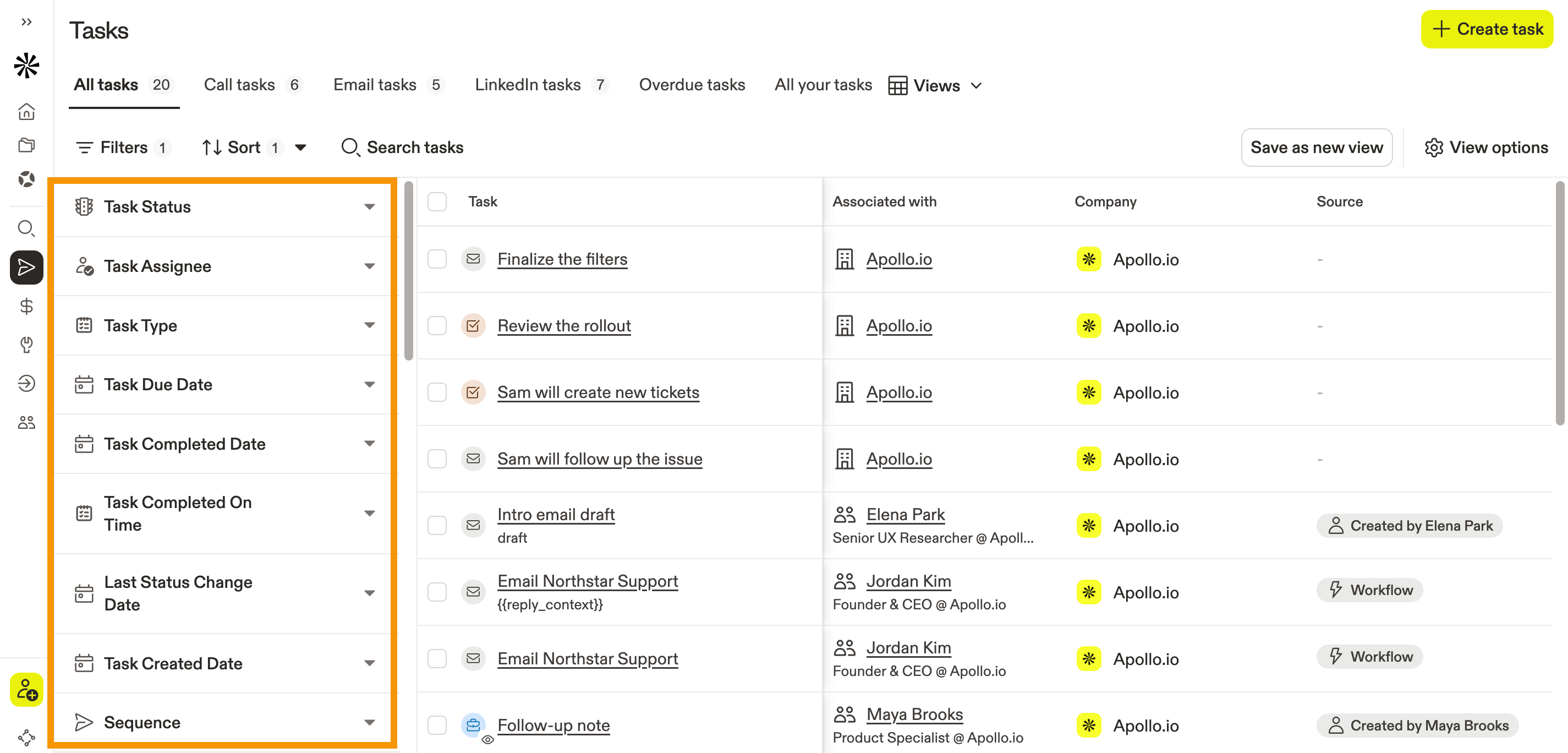
Use a filter often? Click Show Filters, then hover over the filter you want and click the pin icon that appears. Pinned filters move to the top of your filter list so you can find them faster next time.
- To optionally group tasks by a shared field, click View options > Group by, and then choose Due date, Priority, Status, or Type.

You have now organized your tasks and are ready to complete them.
Task Filters
Use task filters to narrow the tasks that appear in your task list. Click a filter to learn more about how and when to use it.
|
Tasks filters |
||
|---|---|---|
| # employees | # employees by dept. | Company |
| Custom fields | Email opened | Founded year |
| Funding | Industry & keywords | Job change |
| Job postings | Job titles | Languages |
| Last status change date | Lists | Location |
| Owner | Persona | Phone status/confidence |
| Playbook | Retail locations | Revenue |
| Scores | Sequence | Stage |
| Task assignee | Task association | Task completed date |
| Task completed on time | Task created date | Task created from |
| Task due date | Task priority | Task starred |
| Task status | Task type | Technologies |
| Time zone | Workflows | |
Task status
The task status filter lets you narrow your task list based on the current status of a task.
To use this filter:
- Click Task status, then select Scheduled, Completed, Archived, Pending, or All.
Task assignee
The task assignee filter lets you narrow your task list by the user assigned to each task.
To use this filter:
- Click Task assignee > Assignee, then select one or more users.
Task type
The task type filter lets you narrow your task list to specific types of tasks.
To use this filter:
- Click Task type, then select one or more task types:
- Call Contact
- Email Contact
- Contact Action Item
- Account Action Item
- Add People on Account
- LinkedIn Actions
- LI: Send connection request
- LI: Send message
- LI: View profile
- LI: Interact with post
- Workflow - Pending Approvals
Task due date
The task due date filter lets you narrow your task list based on when tasks are due.
To use this filter:
- Click Task due date, then select Overdue, Due today, All upcoming, or set a custom date range.
Sequence
Use the sequence filter to include or exclude tasks associated with specific sequences.
To use this filter:
- Click Sequence > Include sequences, then select one or more sequences.
- To exclude sequences, click Advanced > Exclude sequences, then select one or more sequences.
Check out the Search Filters Glossary to learn more about this filter.
Workflows
The workflows filter lets you include or exclude tasks created by specific workflows.
To use this filter:
- Click Workflows > Include tasks created by workflows, then select one or more workflows.
- To remove tasks created by specific workflows, click Exclude tasks created by workflows, then select one or more workflows.
Time zone
Use the time zone filter to narrow tasks based on local time or time zone.
To use this filter:
- Click Time zone.
- Click Local time to:
- Check Working hours only.
- Set a start time and end time.
- Or click Timezone, then select one or more time zones.
Check out the Search Filters Glossary to learn more about this filter.
Task priority
The task priority filter lets you narrow your task list based on task priority.
To use this filter:
- Click Task priority, then select Low, Medium, or High.
Location
Check out the Search Filters Glossary to learn more about this filter.
Lists
Check out the Search Filters Glossary to learn more about this filter.
Phone status/confidence
Check out the Search Filters Glossary to learn more about this filter.
Owner
Check out the Search Filters Glossary to learn more about this filter.
Email opened
Check out the Search Filters Glossary to learn more about this filter.
Company
Check out the Search Filters Glossary to learn more about this filter.
Stage
Check out the Search Filters Glossary to learn more about this filter.
Custom fields
Check out the Search Filters Glossary to learn more about this filter.
Task starred
The task starred filter lets you limit the task list to starred tasks.
To use this filter:
- Click Task starred, then check Starred tasks.
Scores
Check out the Search Filters Glossary to learn more about this filter.
Task completed date
The task completed date filter lets you narrow completed tasks based on when they were completed.
To use this filter:
- Click Task completed date, then set a from date, to date, or both to create a range.
Task completed on time
The task completed on time filter lets you narrow the task list to tasks that were completed on time.
To use this filter:
- Click Task completed on time, then check Task completed on time.
Last status change date
The last status change date filter lets you find tasks based on the date tied to their current status.
To use this filter:
- Click Last status change date, then choose a from date and to date.
- Apollo returns tasks whose current status-related date falls within that range.
The date Apollo checks depends on the task's current status:
- Scheduled: The task due date.
- Completed: The date the task was completed.
- Failed: The date the task failed.
- Skipped: The date the task was skipped.
- Drafted: Drafted tasks don't have a status date and won't match this filter.
For scheduled tasks, this filter uses the task due date, not the date the task became scheduled.
Task created date
The task created date filter lets you narrow tasks based on when they were created.
To use this filter:
- Click Task created date, then set a from date, to date, or both to create a range.
Task association
The task association filter lets you narrow tasks based on the type of record associated with the task.
To use this filter:
- Click Task association, then check Contacts, Accounts, or Deals.
Task created from
The task created from filter lets you narrow tasks based on what caused or created the task.
To use this filter:
- Click Task created from, then select one or more sources:
- Apollo UI
- Email open
- CRM
- Workflows
Playbook
This filter has been deprecated.
Job titles
Check out the Search Filters Glossary to learn more about this filter.
Persona
Check out the Search Filters Glossary to learn more about this filter.
Job change
Check out the Search Filters Glossary to learn more about this filter.
# employees
Check out the Search Filters Glossary to learn more about this filter.
Industry & keywords
Check out the Search Filters Glossary to learn more about this filter.
Technologies
Check out the Search Filters Glossary to learn more about this filter.
# employees by dept.
Check out the Search Filters Glossary to learn more about this filter.
Funding
Check out the Search Filters Glossary to learn more about this filter.
Revenue
Check out the Search Filters Glossary to learn more about this filter.
Founded year
Check out the Search Filters Glossary to learn more about this filter.
Languages
Check out the Search Filters Glossary to learn more about this filter.
Retail locations
Check out the Search Filters Glossary to learn more about this filter.
Job postings
Check out the Search Filters Glossary to learn more about this filter.
Complete a Task
Once your list is organized, you can work through tasks one by one. If you need to update several tasks at once, use bulk actions from the task list instead.
To complete a task:
- Launch Apollo and click Tasks.
- Select how to complete your tasks:
To work through tasks one by one:
- From your sorted task lists, click the task you want to work on.
- Complete the action for that task type:
- For call tasks: Place the call, log the outcome, and add any notes you want to keep.
- For manual email tasks: Review the email, make any updates, and send it.
- For action item tasks: Complete the task instructions, and then update the task when you are done.
- For LinkedIn tasks: Complete the LinkedIn action connected to the task.
- Click Mark as Complete.

- Click the navigation to move to the next task.

- To view your completed tasks, use the Task status search filter and select Completed. This helps you confirm finished work and review recent task activity.
You have now completed a task on Apollo. Check out some next steps to keep up the momentum!
To update multiple tasks at once:
- From the sorted task list, check the tasks you want to update.
- Select the action you want to apply. Available actions may include marking tasks as complete, reassigning them, or archiving them.

You have now completed a task on Apollo in bulk. Check out some next steps to keep up the momentum!
Check out Complete a LinkedIn Task to learn more about completing LinkedIn tasks. If you need tips to turn your LinkedIn connections into revenue-generating conversations, watch Apollo's master class on social selling.
Next Steps
Nice work! Here are a few strong next steps to help your team turn organized task execution into a more repeatable outreach rhythm in Apollo.
| Complete LinkedIn Tasks in a Sequence | Want to go beyond calls and emails? work LinkedIn tasks into your sequence flow to turn social touches into warmer, more timely conversations. |
|---|---|
| Sequences Overview | Ready to connect task work to a bigger motion? build tasks into a sequence strategy to keep every rep following a more consistent outreach cadence. |
| Manage Sequence Rulesets | Cut down on manual follow-up and set rulesets that trigger the right next task to keep your team acting fast when prospects engage. |
| Tasks Overview | Take a step back and see how tasks fit across Apollo to keep your team's daily execution aligned with the full pipeline picture. |