
Overview
Sheets is currently in beta and is only available to select people. Apollo automatically enrolls users as the feature becomes available.
Once you've created a sheet and imported your data, you can transform it row by row with columns. Columns let you research prospects with AI, run calculations with formulas, look up values from other sheets, call external APIs, and enrich records with Apollo data.
You can also manage how your data displays by rearranging, filtering, sorting, and deduplicating your columns, and activate auto-runs and schedules to keep your data current.
Check out the following sections to add and manage columns in a sheet.
Add a Column
To add a column to a sheet:
- Open a sheet, then click Add column.
- Choose a column type.
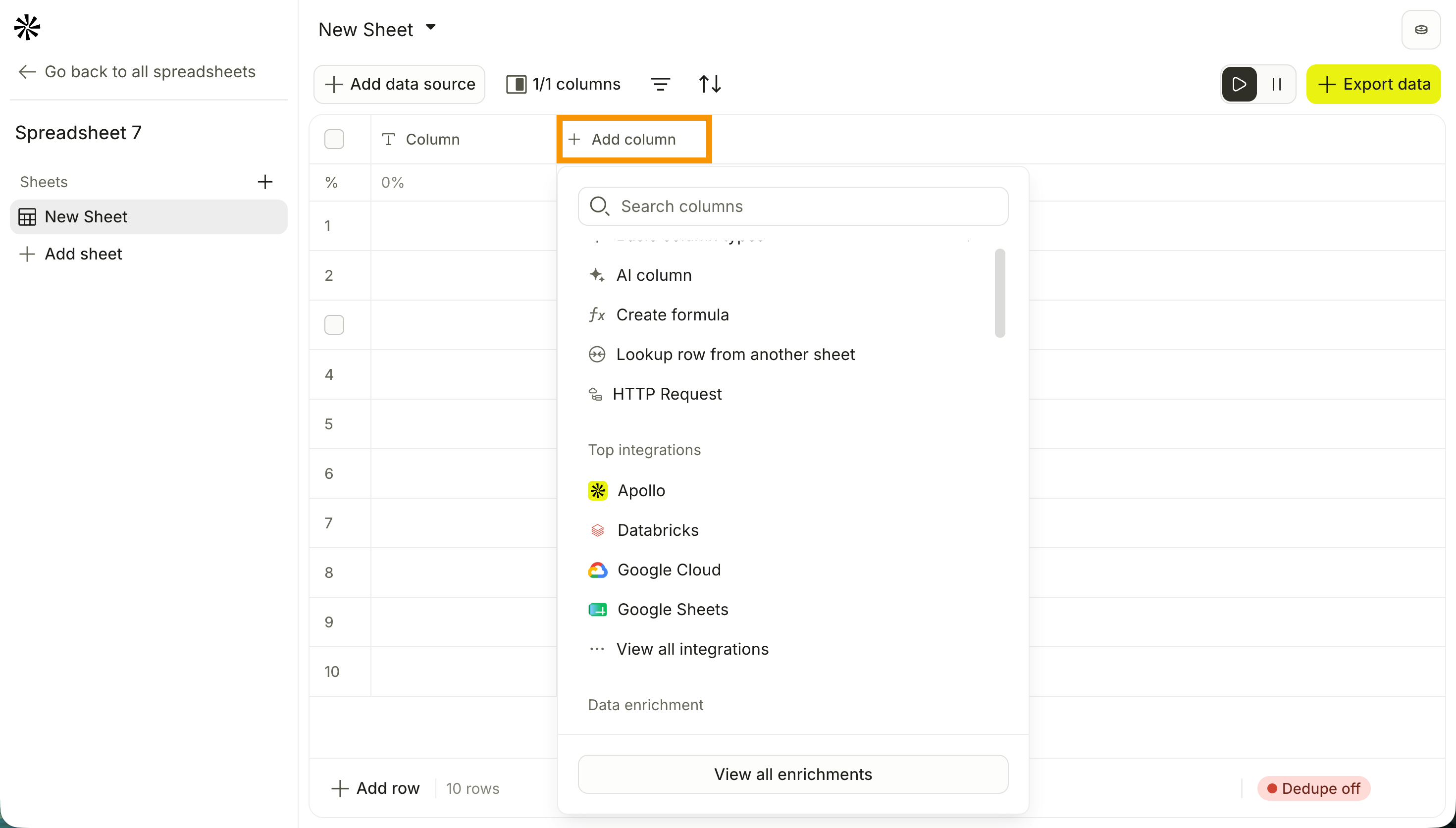
When transforming data with {{ }} in AI prompts, formulas, HTTP request URLs, parameters, headers, or the Only run when condition is met field, keep the following guidelines in mind:
- Type
{{to open a column picker and avoid typos, or type a reference manually. A manual reference must match the column name exactly, for example{{Company Name}}. - Each row resolves a reference to its own value in that column.
{{Email}}might returnalex@example.comon one row andsam@example.comon the next. - You can mix references with literal text, like
{{First Name}} works at {{Company Name}}. Apollo doesn't add spaces automatically, so include them yourself, for exampleappend({{First Name}}, " ", {{Last Name}}). - If a referenced column is blank, the result may be incomplete or fail depending on the column or action. Use a formula like
coalesce({{Mobile Phone}}, {{Direct Dial}}, {{Company Phone}})to fall back to another column when the first is empty. - Only use
{{ }}for column references. For fixed text in a formula, use quotes instead, like"Sales"rather than{{Sales}}, unless Sales is actually a column.
Basic column types
Use a basic column type to add an empty field to your sheet, without AI, formulas, or external data. Choose from text, number, date, date/time, checkbox, select, multi-select, or user, then fill in each row manually.
- Click Basic column types.
- Choose one of the following basic column types: text, number, date, date/time, checkbox, select, multi-select, or user.
AI column
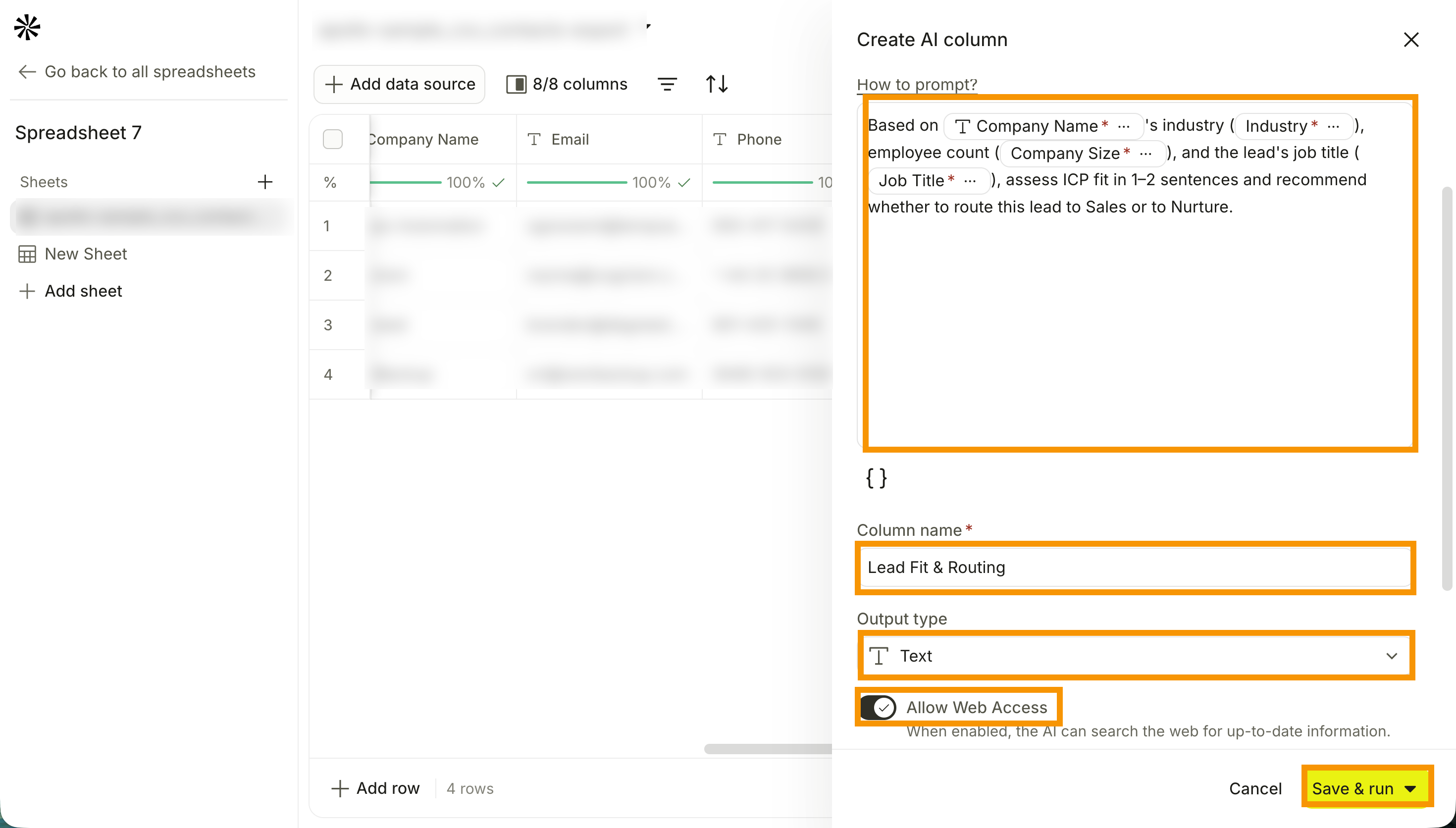
Use AI to generate output from your records. To add an AI column:
- Click AI column.
- Select an AI model. Apollo recommends matching the model to your task:
- OpenAI GPT-5.4 Nano: Use for fast, high-volume, lower-complexity tasks like simple research, classification, formatting, data extraction, and straightforward content generation from Apollo data.
- OpenAI GPT-5.4 Mini: Use for general-purpose tasks. Good for everyday prospect research, summarization, categorization, personalization, and structured data extraction when you want a balance between speed and quality.
- OpenAI GPT-5.5: Use for multi-step analysis, nuanced categorization, deeper research, and more polished content generation.
- Anthropic Claude Haiku 4.5: Use for personalized outreach at scale with Apollo data. Good when you need lightweight personalized messages or lead-qualification outputs.
- Anthropic Claude Sonnet 4.6: Use for deeper analysis and strategic personalization. Good for analyzing data, tailoring messages, and creating more targeted sales recommendations.
- Perplexity Agent: Use when your prompt needs current or open-web information, like recent company news, competitor signals, market events, and enrichment beyond Apollo's data.
- Enter your prompt. Check out AI Prompt Best Practices for guidance.
- Enter a column name.
- Select an output type: text, number, or multi-output.
- (Optional) Toggle on Allow Web Access to let AI search the web for information.
- (Optional) Toggle on Auto-run column to run the column automatically when new rows are added or a value changes.
- (Optional) Toggle on Only run when condition is met to set criteria for running the column, then enter your criteria. Type
{{to add columns or use formulas. - Click Save & run to save the column and run it. Alternatively, click ▾, then click Save & run first ten rows to run only the first ten rows, or Save & don't run to save without running.
Formula column
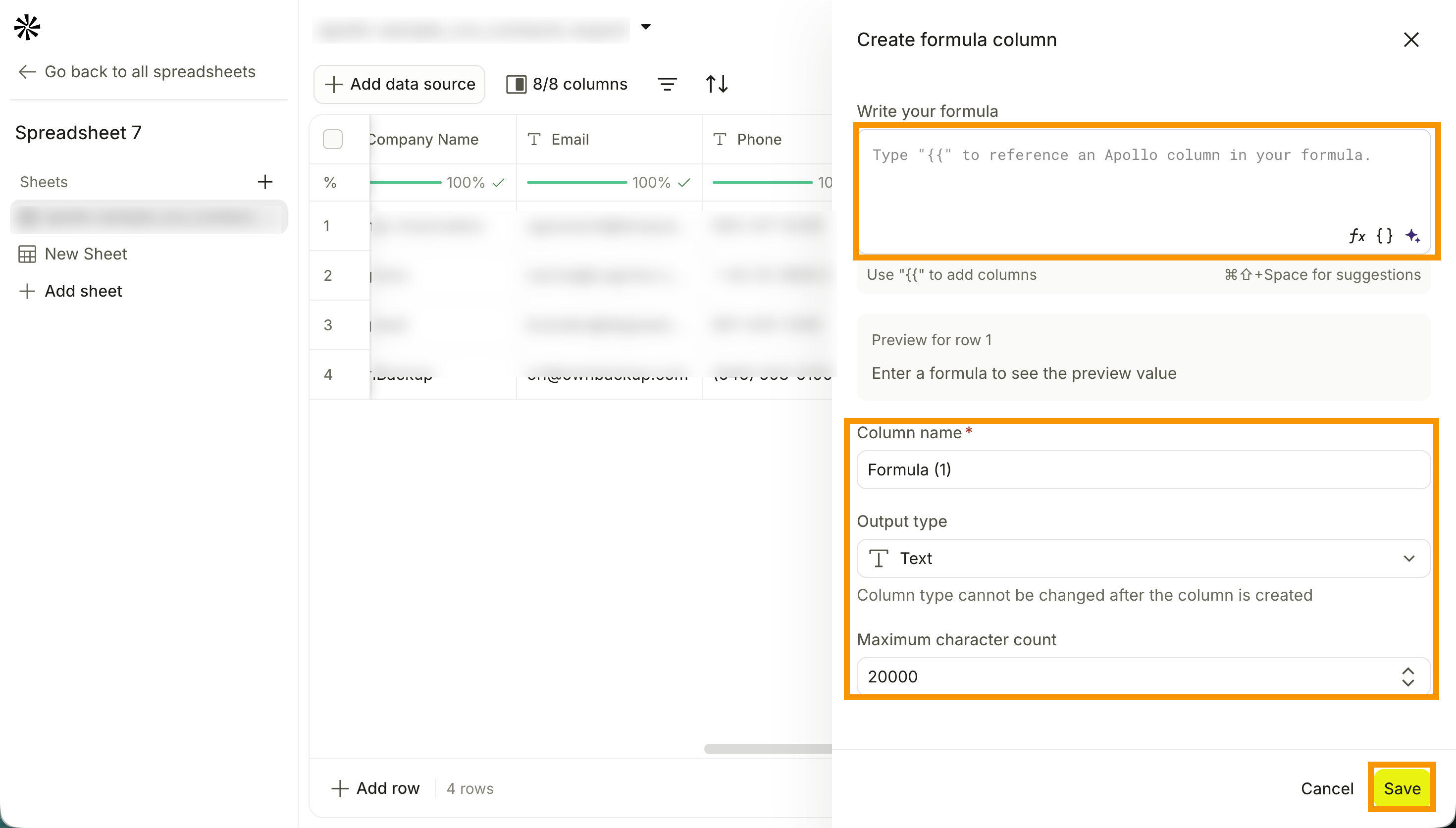
Use a formula to calculate values, transform text, and work with dates across your columns. To add a formula column:
- Click Write formula with AI.
- Enter your prompt and click Generate formula.Apollo generates a formula for you.
- Alternatively, click Create from scratch, then enter your formula. Type
{{to add columns, or click Insert function to add a formula function. - Enter a column name.
- Select an output type: text, number, checkbox, multi-line text, date, date/time, or multi-output.
- Enter a maximum character count to limit the result's characters.
- When you're done, click Save.
The following formulas are available:
Logic
| Formula | Description | Example use case |
|---|---|---|
greaterthan() |
Returns true if the first number is greater than the second. | Flag companies above a headcount threshold. |
greaterthanequals() |
Returns true if the first number is greater than or equal to the second. | Identify accounts at or above a minimum revenue band. |
lessthan() |
Returns true if the first number is less than the second. | Find contacts with a score below a cutoff. |
lessthanequals() |
Returns true if the first number is less than or equal to the second. | Highlight deals at or under a discount limit. |
equals() |
Returns true if both values are equal. | Check whether an industry value equals a target segment. |
or() |
Returns true if any value is true. | Match rows that have either a LinkedIn URL or a website domain. |
and() |
Returns true only if all values are true. | Require both email and company name before exporting a row. |
empty() |
Returns true if the value is blank or empty. | Flag rows missing a required field before enrichment or export. |
not() |
Returns the opposite of a true/false value. | Reverse a Do not contact flag to identify safe-to-contact rows. |
isnull() |
Returns true only when the value is exactly null. | Distinguish a null cell from a cell containing an empty string. |
if() |
Returns the second value when the condition is true; otherwise returns the third value. | Label a row HOT if employee count is above 500; otherwise label it STANDARD. |
ifnot() |
Returns the second value when the condition is false; otherwise returns the third value. | Show MISSING EMAIL when an email field is blank. |
coalesce() |
Returns the first non-empty value from a list. | Use mobile phone if available, otherwise direct dial, otherwise company phone. |
Date
| Formula | Description | Example use case |
|---|---|---|
day() |
Returns the day of the month as a number. | Extract the billing day from a contract start date. |
month() |
Returns the month as a number. | Group rows by the month a deal closed. |
year() |
Returns the four-digit year. | Filter or label records by creation year. |
dateadd() |
Adds N interval units to a date. Supported intervals include year, quarter, month, day, and week. | Add one quarter to a contract start date to find the next review window. |
datediff() |
Returns the difference between two dates using a selected interval. | Calculate how many quarters remain in a fiscal year. |
adddays() |
Adds N days to a date. | Calculate a follow-up date seven days after the first contact. |
addweeks() |
Adds N weeks to a date. | Schedule a check-in two weeks after a kickoff date. |
addmonths() |
Adds N months to a date. | Project a renewal date from a contract start date. |
addyears() |
Adds N years to a date. | Calculate an annual review date. |
subtractdays() |
Subtracts N days from a date. | Find a deadline based on a due date and lead time. |
subtractweeks() |
Subtracts N weeks from a date. | Identify the prep window before a quarterly review. |
subtractmonths() |
Subtracts N months from a date. | Show the previous reporting period start date. |
subtractyears() |
Subtracts N years from a date. | Highlight accounts older than a set tenure threshold. |
diffindays() |
Returns the number of days between two dates. | Calculate how many days a deal has been open. |
diffinweeks() |
Returns the number of weeks between two dates. | Measure sales cycle length in weeks. |
diffinmonths() |
Returns the number of months between two dates. | Show account age in months since first purchase. |
diffinyears() |
Returns the number of years between two dates. | Flag long-term customers active for three or more years. |
todate() |
Converts a date string into a date/time value. The optional second value specifies the date format. | Convert a text-formatted CSV date into a usable date. |
formatdate() |
Formats a date using a selected date pattern, such as YYYY-MM-DD. | Format dates consistently before exporting. |
Text
| Formula | Description | Example use case |
|---|---|---|
append() |
Combines text from two or more values into one string. | Build a full name from a first name and last name column. |
left() |
Returns the first N characters from the left. | Extract the first three characters of a country code. |
right() |
Returns the last N characters from the right. | Capture the extension from a phone number or URL. |
mid() |
Returns N characters starting at a given position. | Pull a specific segment from a structured ID. |
substitute() |
Replaces one piece of text with another. The optional fourth value targets a specific occurrence. | Replace an old domain with a new domain in website URLs. |
find() |
Returns the character position of a substring within text. Returns null if not found. The optional third value sets the start position. | Find where a keyword appears in a job title. |
contains() |
Returns true if the search value exists within the text. | Flag rows where notes mention a competitor. |
lower() |
Converts all characters to lowercase. | Normalize emails or domains before matching. |
upper() |
Converts all characters to uppercase. | Format country or state codes consistently. |
title() |
Capitalizes the first letter of each word. | Clean up company names imported with inconsistent casing. |
plural() |
Returns the plural form of a word. | Format dynamic copy that references multiple items. |
length() |
Returns the number of characters in a string. | Flag descriptions that exceed a character limit. |
jsonextract() |
Extracts a specific value from a JSON object using a path. The path can use dot notation or bracket notation. | Pull one value out of a JSON response returned by an HTTP request column, such as a company's city, status, or ID. |
Math
| Formula | Description | Example use case |
|---|---|---|
sum() |
Adds two or more numbers. | Add revenue values from separate columns. |
diff() |
Subtracts the second number from the first. | Calculate the gap between deal value and quota. |
multiply() |
Multiplies two or more numbers. | Convert a monthly value to an annual value. |
divide() |
Divides the first number by the second. | Calculate a conversion rate from clicks and opens. |
min() |
Returns the smallest of two or more numbers. | Surface the lowest score across multiple scoring columns. |
max() |
Returns the largest of two or more numbers. | Highlight the highest engagement score in a row. |
average() |
Returns the average of two or more numbers. | Average open rates or qualification scores across columns. |
numbervalue() |
Converts a value into a number. It can handle numeric text, percentages, comma-separated numbers, and values with currency symbols. | Convert an imported revenue or headcount field that arrived as text, such as "$1,200,000", into a number you can use in calculations. |
Lookup row from another sheet
Use a lookup column to pull values from another sheet into your current sheet. To add a lookup column:
- Click Lookup row from another sheet.
- Select your target sheet from the dropdown on Select sheet.
- Select your target column from Select a column.
- Select an operator from Select an operator.
- Enter a row value.
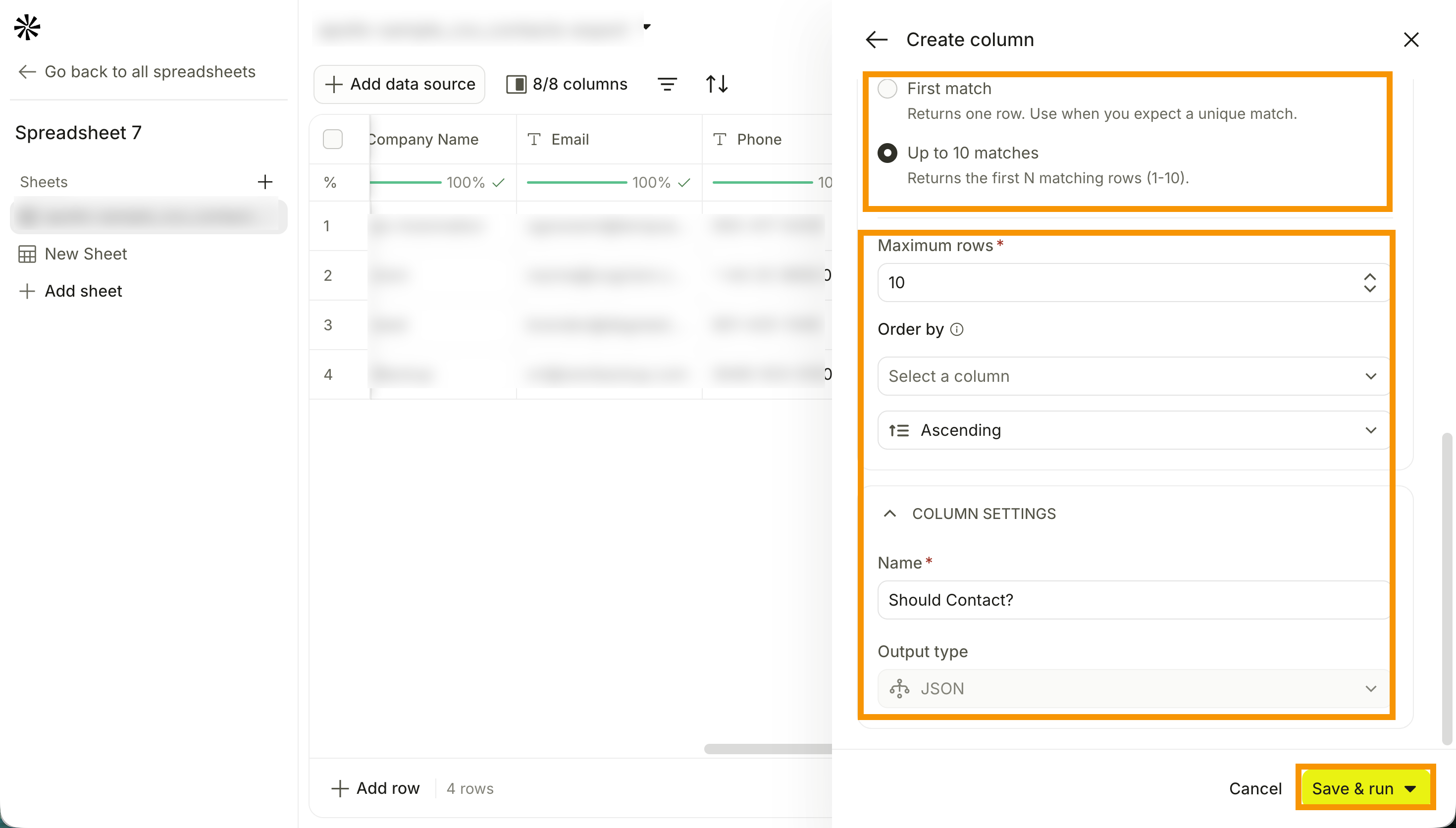
- Select an output shape:
- First match to return the first match.
- Up to 10 matches to return up to the first ten matching rows from the lookup. Enter your maximum rows, then order your columns by selecting a column and choosing ascending or descending. Set the order before running the lookup, since it determines which rows count as the first ten.
- Enter a column name.
- Click Save & run to save the column and run it. Alternatively, click ▾, then click Save & run first ten rows to run only the first ten rows, or Save & don't run to save without running.
HTTP request
Use an HTTP request column to call an external API and bring the response into your sheet. To add an HTTP request column:
- Click HTTP Request.
- Select an HTTP method, then enter the request URL. Type or click
{{to add a variable. - Select an authentication type, then fill in the authentication requirements.
- Click Query Parameter > Add parameter to add a query parameter, then enter the key and value. Type or click
{{to add a dynamic variable. - Click Headers > Add header to add a header, then enter a key and value. Type or click
{{to add a dynamic variable. - (Optional) Click Advanced Settings to set the following:
- Timeout: Set a limit for how long the server waits for a response. You can set up to sixty seconds.
- Large-response behavior: Choose whether responses above 100kb are truncated or failed.
- Enter a column name.
- Choose an output type: JSON or text.
- (Optional) Toggle on Auto-run column to run the column automatically when new rows are added or a value changes.
- (Optional) Toggle on Only run when condition is met to set criteria for running the column, then enter your criteria. Type
{{to add columns or use formulas. - Click Save & run to save the column and run it. Alternatively, click ▾, then click Save & run first ten rows to run only the first ten rows, or Save & don't run to save without running.
Integrations
Add integration columns to call an external API action from your integrations into your sheet.
- Select an integration.
- Select the action you want to add as a column.
- (Optional) Toggle on Optimized coverage mode to include lower-confidence matches inferred from Apollo's data.
- Enter a column name.
- (Optional) Toggle on Auto-run column to run the column automatically when new rows are added or a value changes.
- (Optional) Toggle on Only run when condition is met to set criteria for running the column, then enter your criteria. Type
{{to add columns or use formulas. - Click Save & run to save the column and run it. Alternatively, click ▾, then click Save & run first ten rows to run only the first ten rows, or Save & don't run to save without running.
The following integrations and actions are available:
Apollo
| Available action | Description | When to use it |
|---|---|---|
| Enrich Person | Enriches a person record using Apollo's database. | Use when you want to add or complete person-level fields, such as job title, LinkedIn URL, location, or contact details. |
| Enrich Company | Enriches a company record using Apollo's database. | Use when you want to populate company-level fields, such as industry, employee count, location, technologies, or funding. |
| Enrich Email | Finds or verifies a person's work email using Apollo data. | Use when you have person/company identifiers and need a verified email address. |
| Enrich Phone | Finds or enriches phone data using Apollo data. | Use when you need a phone number or phone-related enrichment for a person. |
| Lookup User | Looks up an Apollo workspace user by identifier, email, or name. | Use when you need to resolve an Apollo user before assigning ownership or routing rows. |
| Clean Domain | Cleans and normalizes a raw domain value. | Use before matching, lookup, enrichment, or export when domains may include prefixes or inconsistent formatting. |
| Resolve Domain | Finds a company's canonical domain from a company name. | Use when you have a company name but need the website/domain for enrichment or matching. |
Prospeo
| Available action | Description | When to use it |
|---|---|---|
| Prospeo Email Finder | Finds a B2B email address using a person's name and company domain. | Use when you know the person and company but don't have an email address. |
| Prospeo Mobile Finder | Finds a mobile number from a LinkedIn profile URL. | Use when you have a LinkedIn URL and need a mobile number. |
| Prospeo LinkedIn Email Finder | Finds a B2B email address from a LinkedIn profile URL. | Use when LinkedIn URL is the main identifier available. |
| Enrich Person | Enriches a person with profile and contact data. | Use when you want broader person enrichment from name/company, LinkedIn URL, or email. |
| Enrich Company | Enriches a company with firmographic details. | Use to fill company fields such as domain, headcount, industry, location, or contact details. |
| Find People at Company | Finds people associated with a company. | Use to build a prospect list for a target company. |
Icypeas
| Available action | Description | When to use it |
|---|---|---|
| Icypeas Email Search | Finds email addresses, including support for Google and Microsoft catchall domains. | Use when other email finders return catchall or uncertain results. |
| Email Verification | Checks whether an email address is deliverable. | Use before exporting contacts or adding them to outreach. |
| Find People at Company | Finds people at a company using a company LinkedIn URL or website. | Use when you have company-level identifiers and need contacts. |
LeadMagic
| Available action | Description | When to use it |
|---|---|---|
| Email Finder | Finds a verified B2B email from person and company inputs. | Use when you have name and company information but need a work email. |
| Mobile Finder | Finds a mobile number from a LinkedIn profile URL. | Use when you need direct mobile contact data from a profile URL. |
| Email Verification | Verifies whether an email address is deliverable. | Use to validate email quality before sending or exporting. |
| Enrich Person | Enriches a person profile with contact and company details. | Use when you want a full person profile from LinkedIn or other identifiers. |
| Enrich Personal Email | Finds personal email addresses from a LinkedIn profile URL. | Use when personal email enrichment is needed for a row. |
| Enrich Company | Enriches a company with firmographic and social details. | Use to complete company records from a domain or company name. |
| Company Funding | Returns funding history, total funding, investors, and latest round details. | Use to qualify companies by funding stage or recent funding activity. |
| Company Technographics | Returns the technology stack used by a company. | Use to qualify accounts based on tools or software they use. |
LimaData
| Available action | Description | When to use it |
|---|---|---|
| LimaData Email Finder | Finds work email addresses using LimaData. | Use as an email-finding option when you have person/company inputs. |
| LimaData Mobile Finder | Finds mobile numbers using LimaData. | Use when you need mobile phone enrichment. |
| Enrich Person | Enriches a person with email, phone, and profile data. | Use for broader contact enrichment from name/company, LinkedIn URL, or email. |
| Enrich Company | Enriches a company with firmographics, tech stack, funding, and growth signals. | Use to complete company-level data from a domain or LinkedIn URL. |
| Find People at Company | Finds people at a company using LimaData. | Use to generate a contact list for a target account. |
Google Sheets
| Available action | Description | When to use it |
|---|---|---|
| Find Row | Searches a Google Sheet for a matching row and returns the first match. | Use to pull values from an existing spreadsheet into a sheet row by matching on a key, such as email or domain. |
Slack
| Available action | Description | When to use it |
|---|---|---|
| Send Message | Sends a Slack message to a channel or user. | Use to send row-based notifications, such as alerting a rep when a lead meets a threshold. This sends a live message when run. |
Snowflake
| Available action | Description | When to use it |
|---|---|---|
| Execute SQL Query | Runs a SQL query against a connected Snowflake warehouse and imports the returned rows into the sheet. | Use to bring data from Snowflake into Sheets for enrichment, analysis, routing, or export, for example a list of target accounts, product usage records, churn-risk accounts, or custom warehouse data. |
Salesforce
| Available action | Description | When to use it |
|---|---|---|
| Lookup record | Looks up a Salesforce record and returns matching data. | Use to check whether a row already exists in Salesforce or to retrieve Salesforce record IDs/fields. |
HubSpot
| Available action | Description | When to use it |
|---|---|---|
| Lookup record | Looks up a HubSpot record and returns matching data. | Use to check whether a row already exists in HubSpot or to retrieve HubSpot record IDs/fields. |
Zoho
| Available action | Description | When to use it |
|---|---|---|
| Lookup record | Looks up a Zoho record and returns matching data. | Use to check whether a row already exists in Zoho or to retrieve Zoho record IDs/fields. |
Data enrichment
A data enrichment column uses waterfall enrichment to look up new data for each row, using identifying information that's already in your sheet. Each enrichment option, such as Enrich Email or Enrich Company, requires specific input fields to run a lookup, like a LinkedIn URL, full name, or company domain.
When you map a column, you're telling Apollo which of your existing sheet columns to use as that identifying information for each row. Apollo then sends that mapped data to your connected waterfall providers and returns the result in a new column.
- Click a data enrichment option.
- Click Data Sources > Add to add a data source. Alternatively, click x to remove a source.
- Click Column Mapping and map each data point to your columns. Each enrichment option requires different data points to run waterfall enrichment.
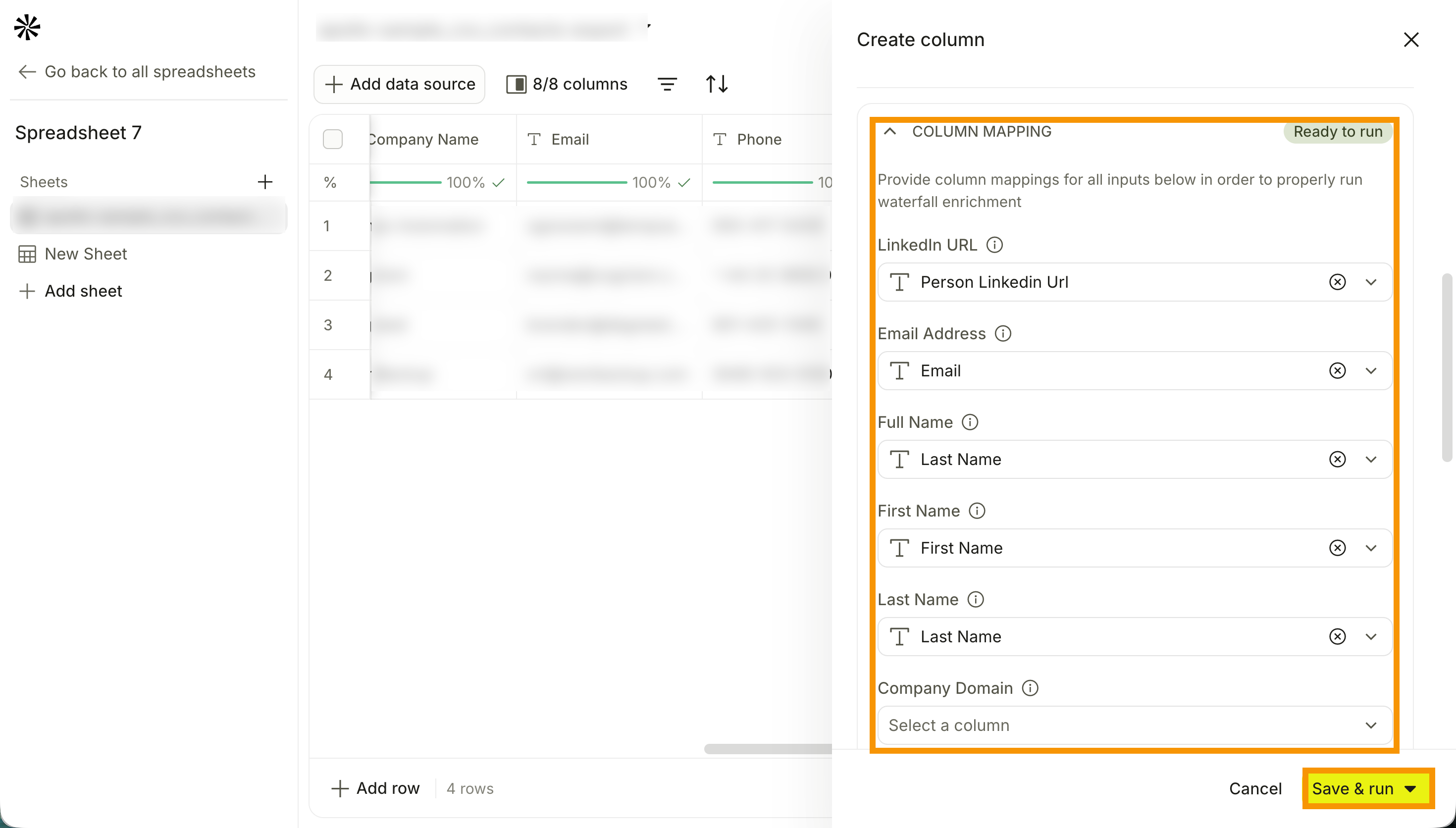
Check out the following table for the mappable input fields:
| Enrichment column | Mappable input fields |
|---|---|
| Enrich Person | LinkedIn URL, Email Address, Full Name, Company Domain, Company Name, Company LinkedIn URL |
| Enrich Job Title | LinkedIn URL, Email Address, Full Name, Company Domain, Company Name, Company LinkedIn URL |
| Enrich Person Full Name | LinkedIn URL, Email Address, Full Name, Company Domain, Company Name, Company LinkedIn URL |
| Enrich First Name | LinkedIn URL, Email Address, Full Name, Company Domain, Company Name, Company LinkedIn URL |
| Enrich Last Name | LinkedIn URL, Email Address, Full Name, Company Domain, Company Name, Company LinkedIn URL |
| Enrich Person LinkedIn URL | LinkedIn URL, Email Address, Full Name, Company Domain, Company Name, Company LinkedIn URL |
| Enrich Person Location | LinkedIn URL, Email Address, Full Name, Company Domain, Company Name, Company LinkedIn URL |
| Enrich Job History | LinkedIn URL, Email Address, Full Name, Company Domain, Company Name, Company LinkedIn URL |
| Enrich Seniority | LinkedIn URL, Email Address, Full Name, Company Domain, Company Name |
| Enrich Company | Domain, Company LinkedIn URL, Company Name |
| Enrich Company Name | Domain, Company LinkedIn URL, Company Name |
| Enrich Company Website URL | Domain, Company LinkedIn URL, Company Name |
| Enrich Company LinkedIn URL | Domain, Company LinkedIn URL, Company Name |
| Enrich Company Location | Domain, Company LinkedIn URL, Company Name |
| Enrich Company Description | Domain, Company LinkedIn URL, Company Name |
| Enrich Company Keywords | Domain, Company LinkedIn URL, Company Name |
| Enrich Company Technologies | Domain, Company LinkedIn URL, Company Name |
| Enrich Company Phone Number | Domain, Company LinkedIn URL, Company Name |
| Enrich Company Twitter URL | Domain, Company LinkedIn URL, Company Name |
| Enrich Company Facebook URL | Domain, Company LinkedIn URL, Company Name |
| Enrich Company Competitors | Domain, Company LinkedIn URL, Company Name |
| Enrich Company SIC Codes | Domain, Company LinkedIn URL, Company Name |
| Enrich Company NAICS Codes | Domain, Company LinkedIn URL, Company Name |
| Enrich Revenue | Domain, Company LinkedIn URL, Company Name |
| Enrich Employee Size | Domain, Company LinkedIn URL, Company Name |
| Enrich Industry | Domain, Company LinkedIn URL, Company Name |
| Enrich Total Funding | Domain, Company LinkedIn URL, Company Name |
| Enrich Job Posting | Domain, Company LinkedIn URL, Company Name |
| Enrich Ownership Status | Domain, Company LinkedIn URL, Company Name |
| Enrich Stock Ticker | Domain, Company LinkedIn URL, Company Name |
| Enrich Founded Year | Domain, Company LinkedIn URL, Company Name |
| Enrich Company Domain | Company Name (primary), Domain (cleaned) (optional), Domain, Company LinkedIn URL |
| Enrich Email | LinkedIn URL, Full Name, Company Domain, First Name, Last Name, Company Name |
| Enrich Phone | LinkedIn URL, Full Name, Company Domain, First Name, Last Name, Email |
- (Optional) Toggle on Optimized coverage mode to include lower-confidence matches inferred from Apollo's data.
- Enter a column name.
- (Optional) Toggle on Auto-run column to run the column automatically when new rows are added or a value changes.
- (Optional) Toggle on Schedule run, then enter your preferred cadence and time.
- (Optional) Toggle on Only run when condition is met to set criteria for running the column, then enter your criteria. Type
{{to add columns or use formulas. - Click Save & run to save the column and run it. Alternatively, click ▾, then click Save & run first ten rows to run only the first ten rows, or Save & don't run to save without running.
You have now added a column to your sheet.
Manage Your Columns
You can control how your data displays by rearranging, filtering, and sorting your columns. You can also add rows and remove duplicates.
Changes to column visibility and order are private by default and only apply to your view. Click Save for everyone to apply your changes to everyone who uses the sheet. If you close your browser without saving, your own settings are lost too.
Rearrange Columns
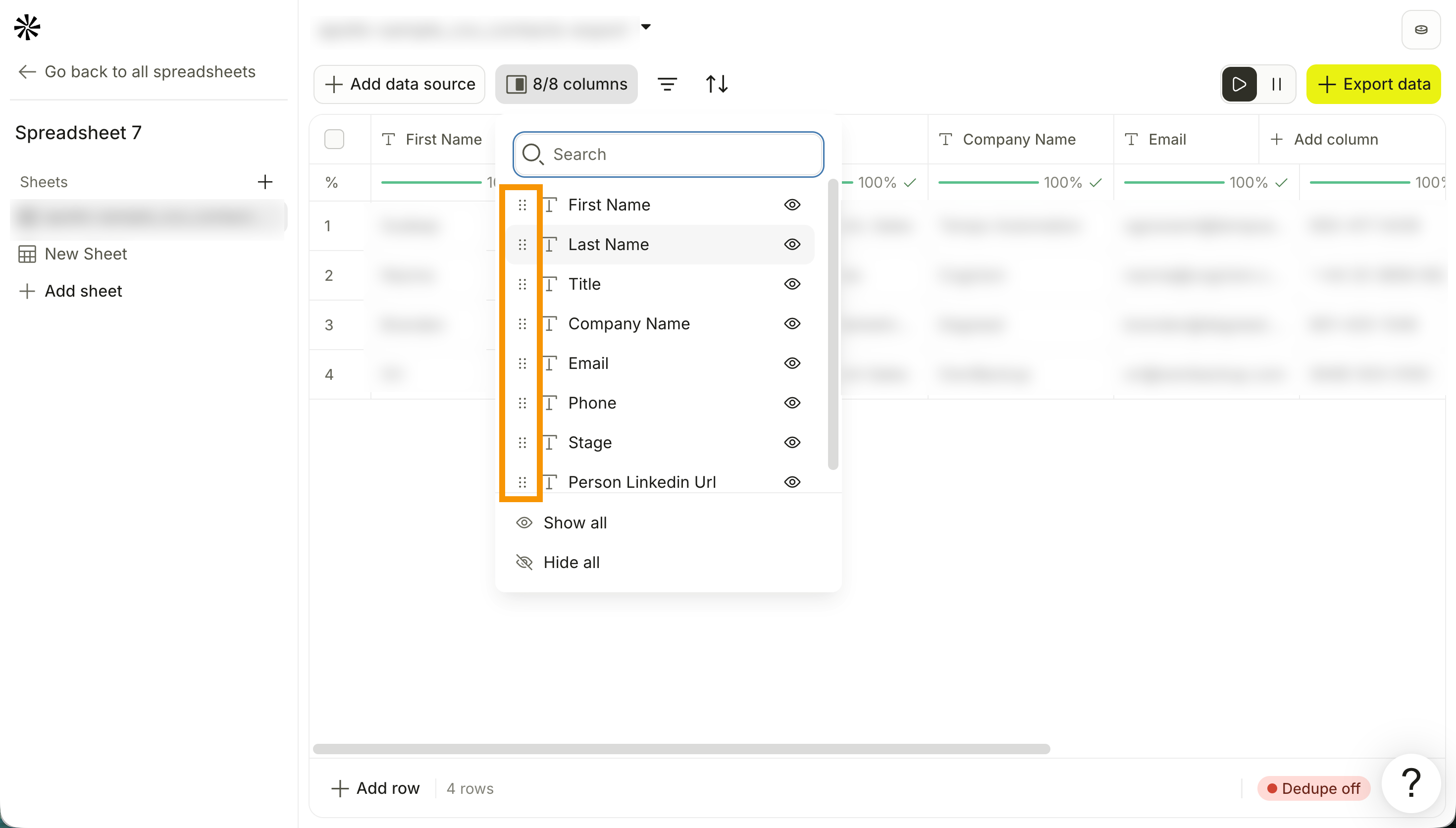
- Click Columns.
- Click and drag the hamburger icon to reorganize your columns.
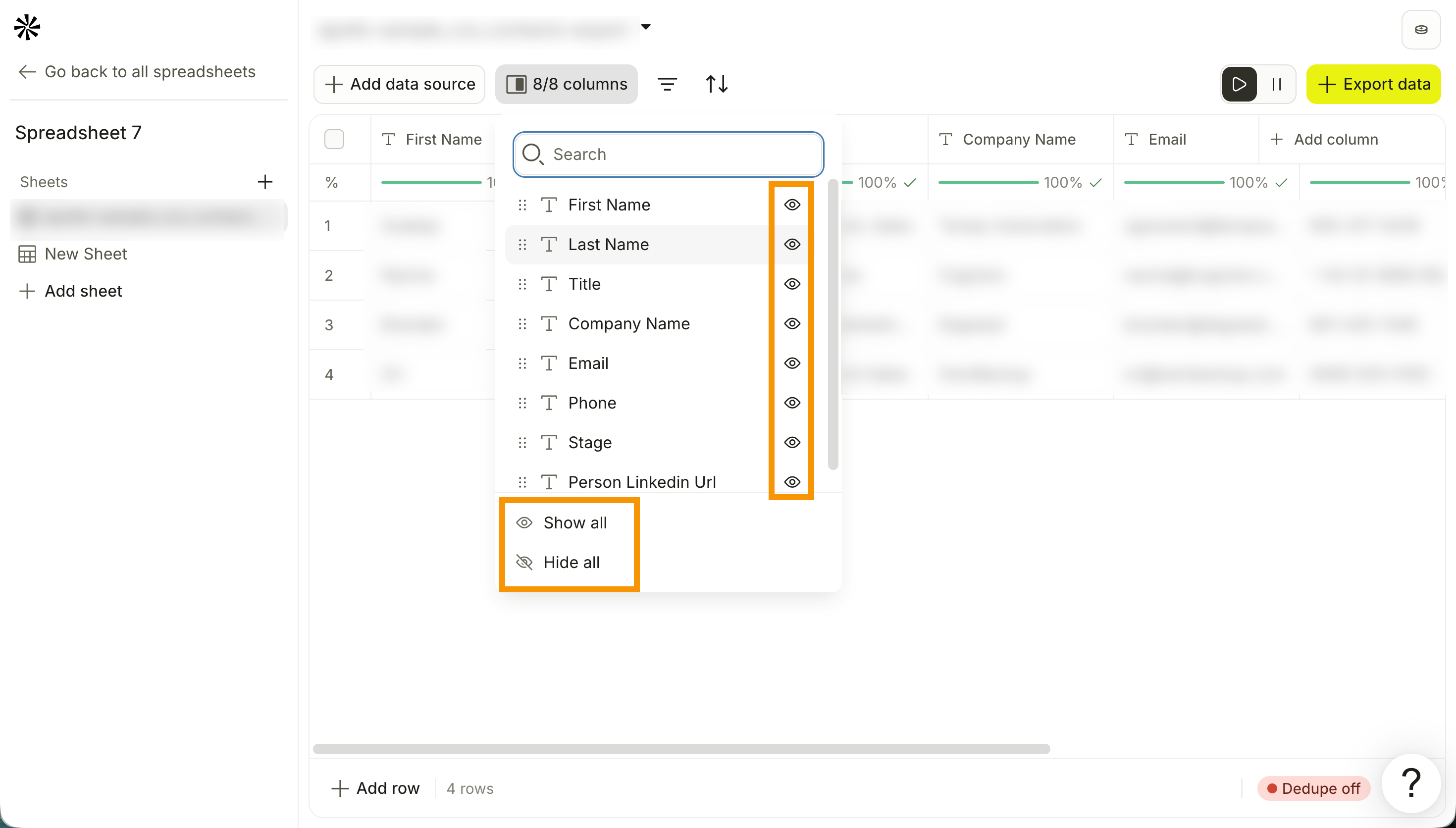
- Click Hide to hide a column, or Show to unhide a column. Click Show all to show every column, or Hide all to hide every column.
Filter Columns
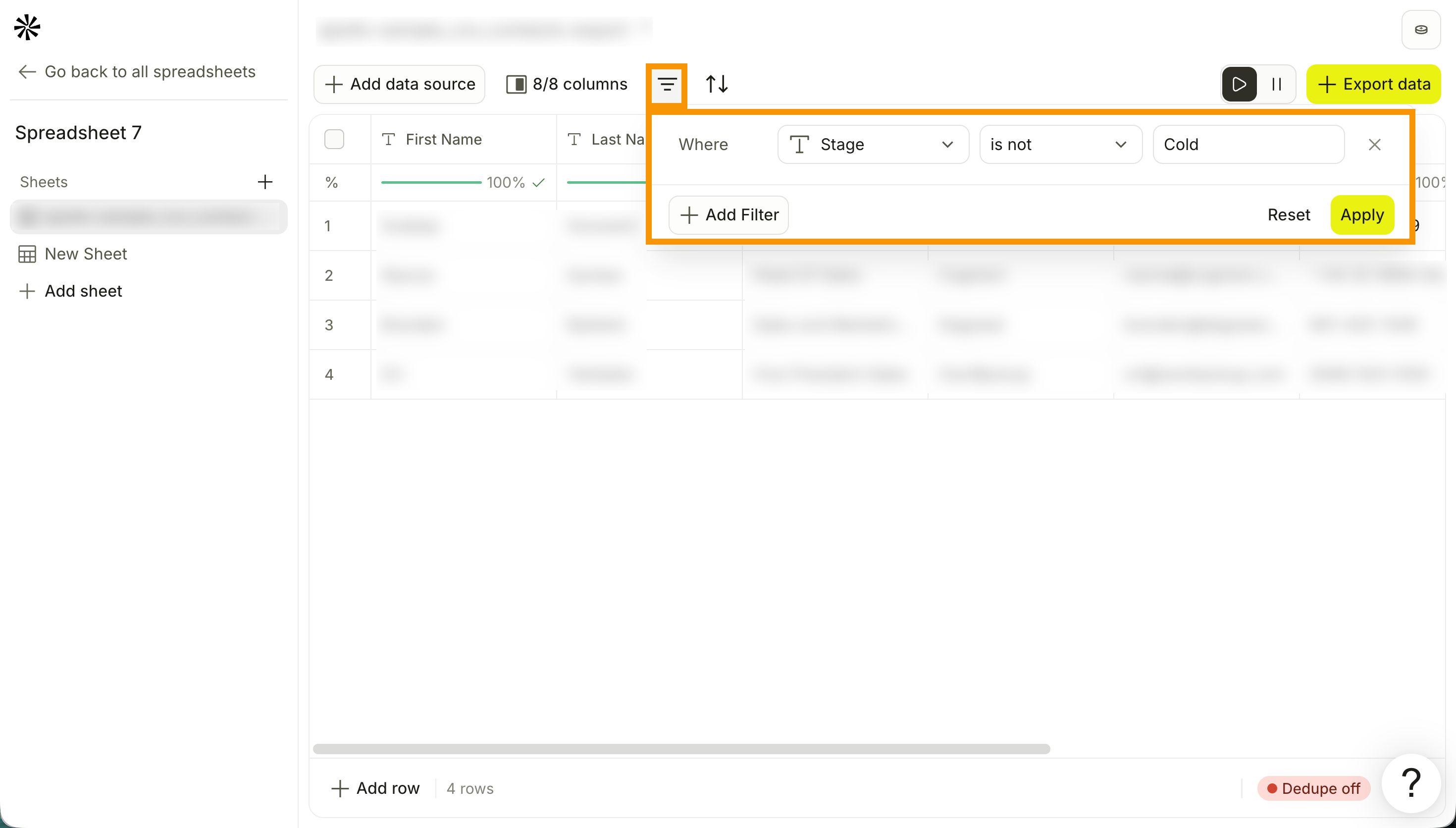
- Click Filter.
- Select a column, operator, and value. Click Add Filter to add more filters.
- Click Reset to reset your filters, or Apply to apply them.
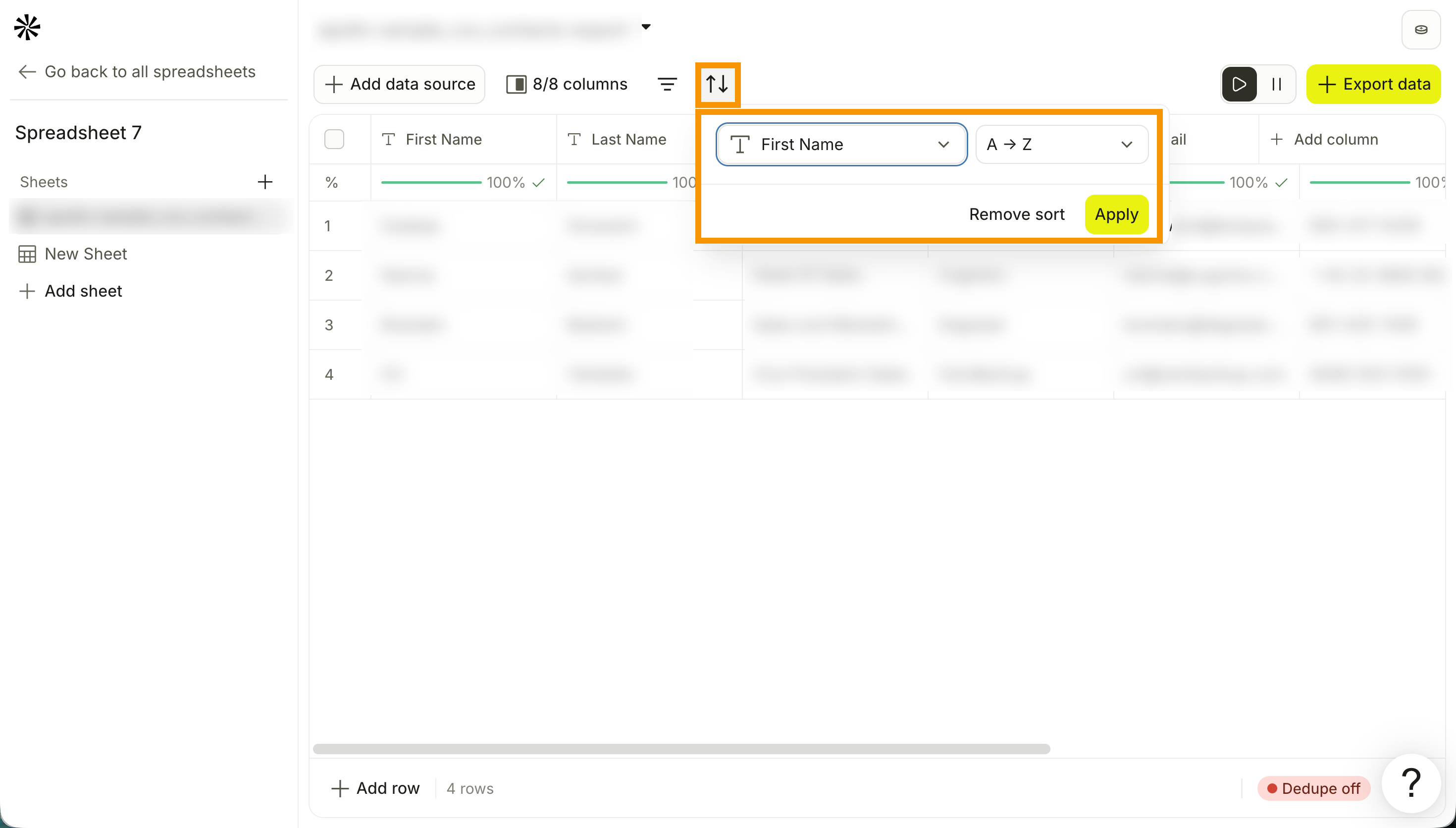
Sort by Column
- Click Sort.
- Select a column.
- Select a sort option.
- Click Remove sort to remove the sorting option, or Apply to apply it.
Add Rows
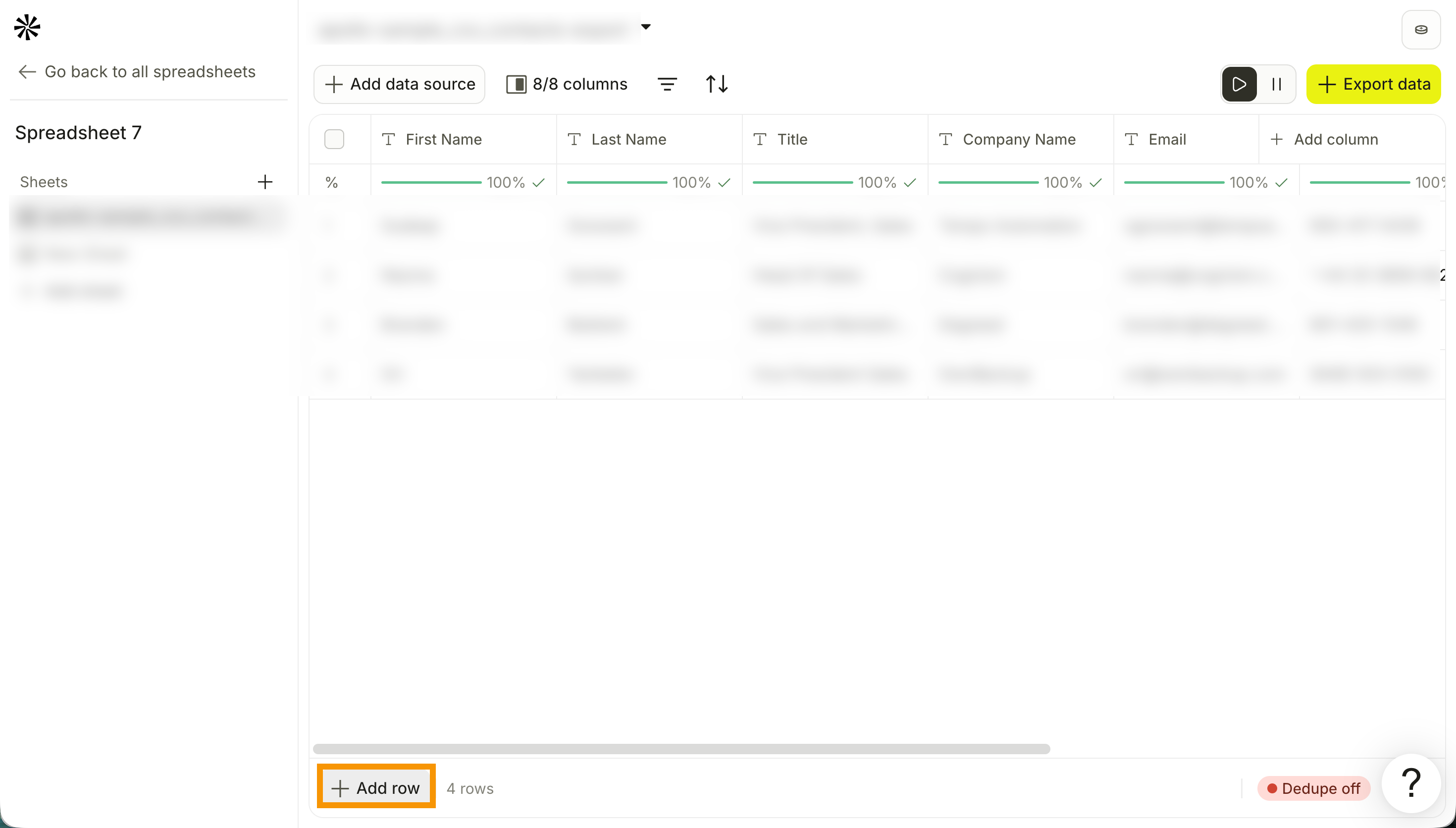
Click Add row to add more rows to your sheet.
Deduplicate Your Sheet
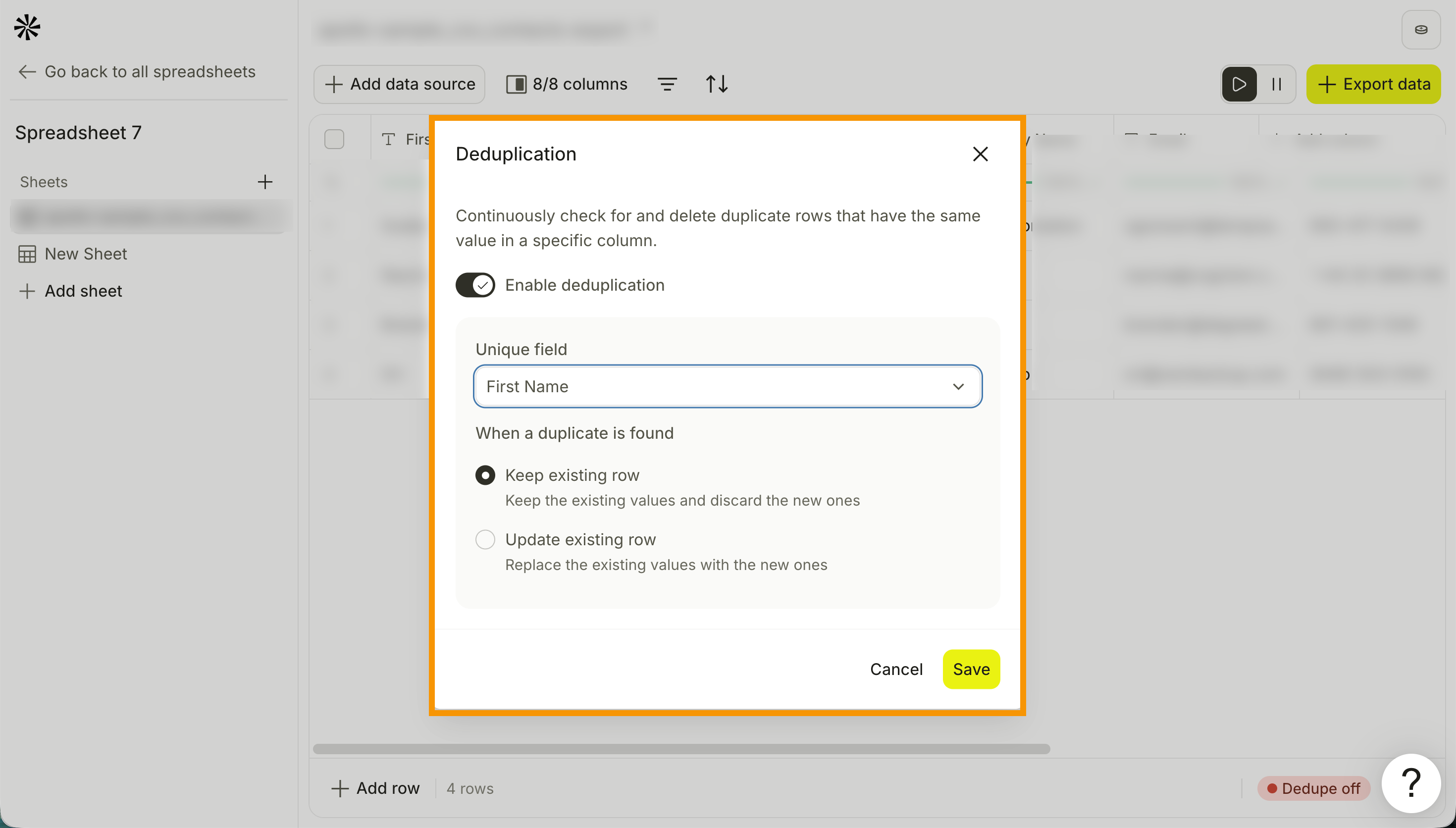
Use deduplication to make sure your sheet doesn't process or export the same record twice. Select a column that uniquely identifies each record, such as email, LinkedIn URL, company domain, CRM ID, or external record ID, so Apollo can detect duplicates and decide how to handle them.
- Click Dedupe.
- Toggle on Enable deduplication.
- Select a unique field from the dropdown.
- Select whether to Keep existing row to keep existing values, or Update existing row to replace existing values when a duplicate is found.
- Click Save.
You have now managed your columns.
Activate Auto-Runs and Schedules
Many column types support auto-runs and schedules, which keep your data current without manual reruns. You can activate or pause these at the column level.
- Click Play to activate auto-runs and schedules at the column level.
- Click Pause to deactivate auto-runs and schedules at the column level.
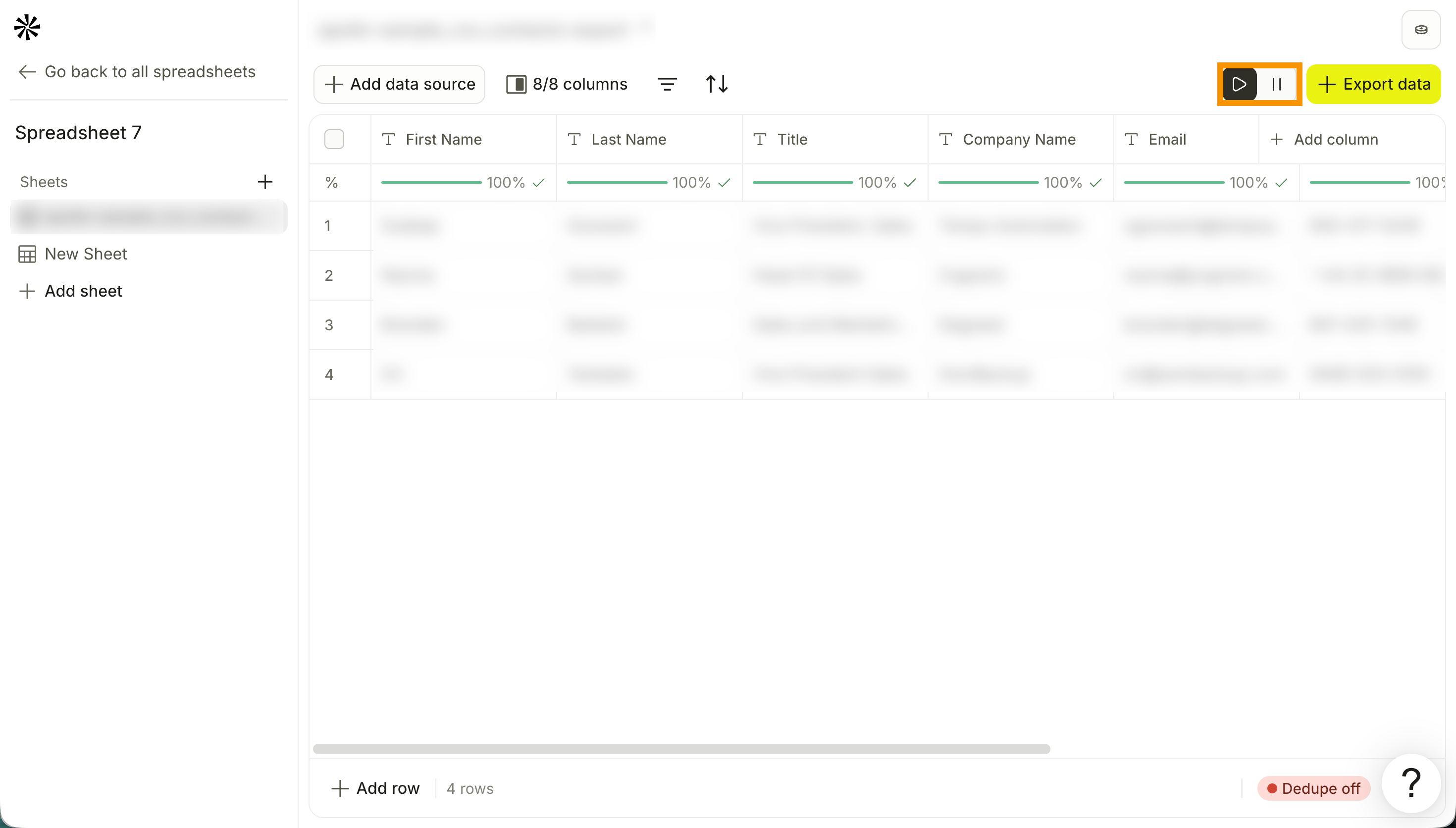
You set auto-run, schedule, and conditional-run behavior when you create a column. This section controls whether those behaviors are active. Check out Export and Automate a Sheet to schedule a full sheet as a repeatable workflow.
You have now activated auto-runs and schedules.
Next Steps
Now that your data is transformed and enriched, here's where to go next.
| Export and Automate a Sheet | Push your transformed data to Apollo, your CRM, or a sequence, then schedule your sheet to run as a repeatable workflow. |
|---|---|
| Create a Sheet and Import Data | Pull more records into your sheet from an Apollo search, a CSV, a webhook, or a connected integration. |
| Waterfall Enrichment Overview | See how waterfall enrichment works to get the strongest match rates from your data enrichment columns. |
| AI Prompt Best Practices | Sharpen your prompts to get more accurate, useful output from your AI columns. |
| AI Research Overview | Explore AI research across Apollo to see how AI columns connect to your broader prospecting workflow. |