
Overview
Use Apollo with Slack to get work done right from your Slack workspace using natural language. You can message Apollo to find and research prospects, engage meaningfully, receive notifications, and help you keep work moving without switching between tools.
Here's what you can do:
- Find people and companies that match your criteria.
- Refine or expand prospect searches.
- Research people and companies.
- Enrich contacts with verified emails and phone numbers.
- Add contacts to lists and sequences.
- Export prospect data to a CSV.
- Ask questions about your Apollo data and sequence performance.
- Take simple actions on sequences, such as pausing a sequence.
Apollo can also proactively recommend your next best steps directly on Slack to improve outbound efforts. These automated recommendations, called agents, run on a schedule and can help you discover leads, create sequences, and optimize existing sequences.
To get started, an admin from your workspace should connect Slack to Apollo. Then people in your workspace can use Apollo on Slack.
The Apollo Slack app is available on all Apollo plans. Agents are available on professional and organization plans.
If you need access to agents, upgrade your plan. If you have questions about upgrading, reach out to the sales team.
Connect Slack to Apollo
The Slack integration is a team-wide integration, and only admin on Apollo can connect the integration. If you aren't an admin, reach out to an Apollo admin at your organization for help.
Once connected, all users in your Apollo workspace can use Apollo on Slack and configure Slack notifications. Each user can only take actions on Slack that they already have permission to perform in Apollo, with the same plan, permission, and credit limits guardrails.
To set up the integration:
- Launch Apollo and click Settings > Integrations. Alternatively, click AI Assistant > Channels.
- Click Connect beside Slack.
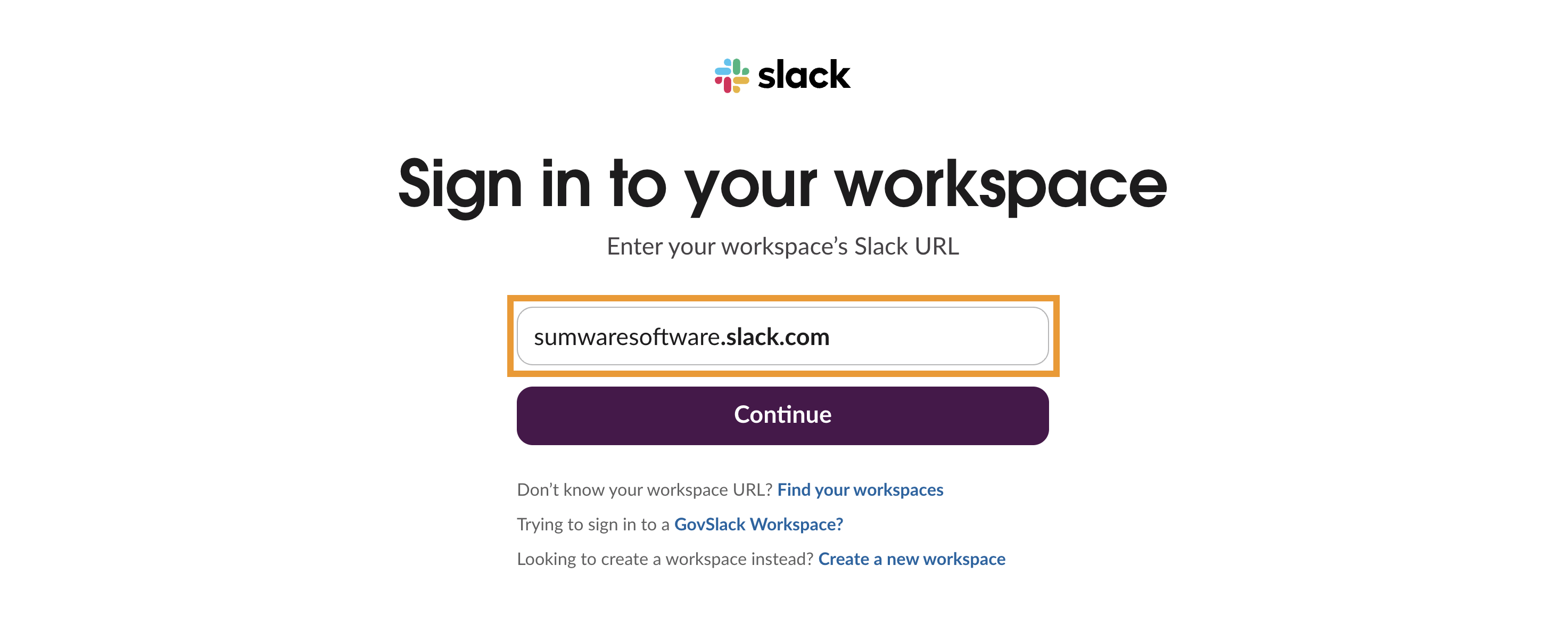
- If you aren't already logged in, sign in to your Slack workspace and click Continue.
- Review the required permissions, and click Allow.
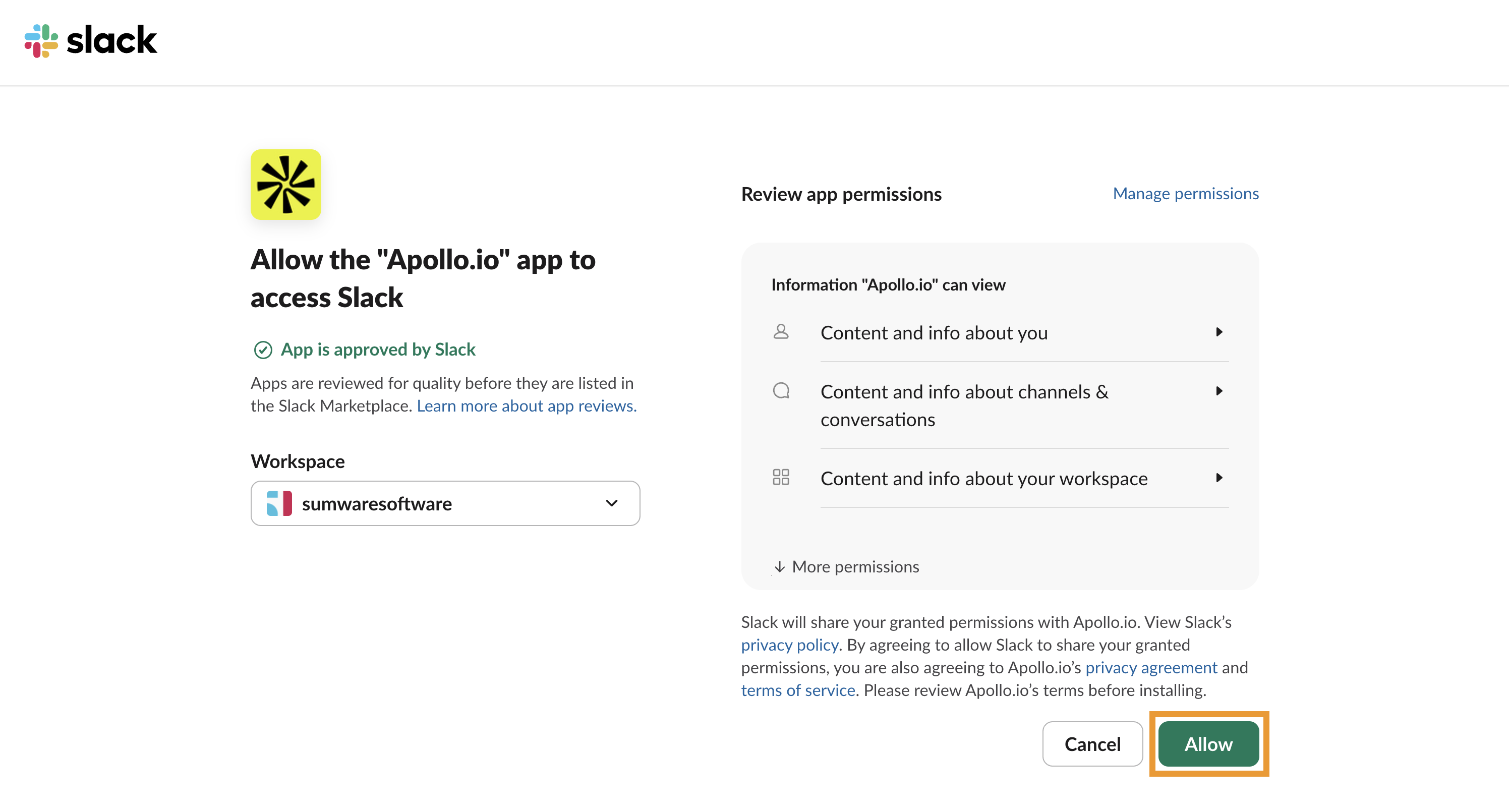
You have now connected Slack to Apollo.
You and your users are ready to use Apollo on Slack. Each user can also configure AI assistant notifications for Slack.
Back to TopUse Apollo on Slack
To use Apollo on Slack:
- Open Slack and click Agents & apps > Apollo.io.
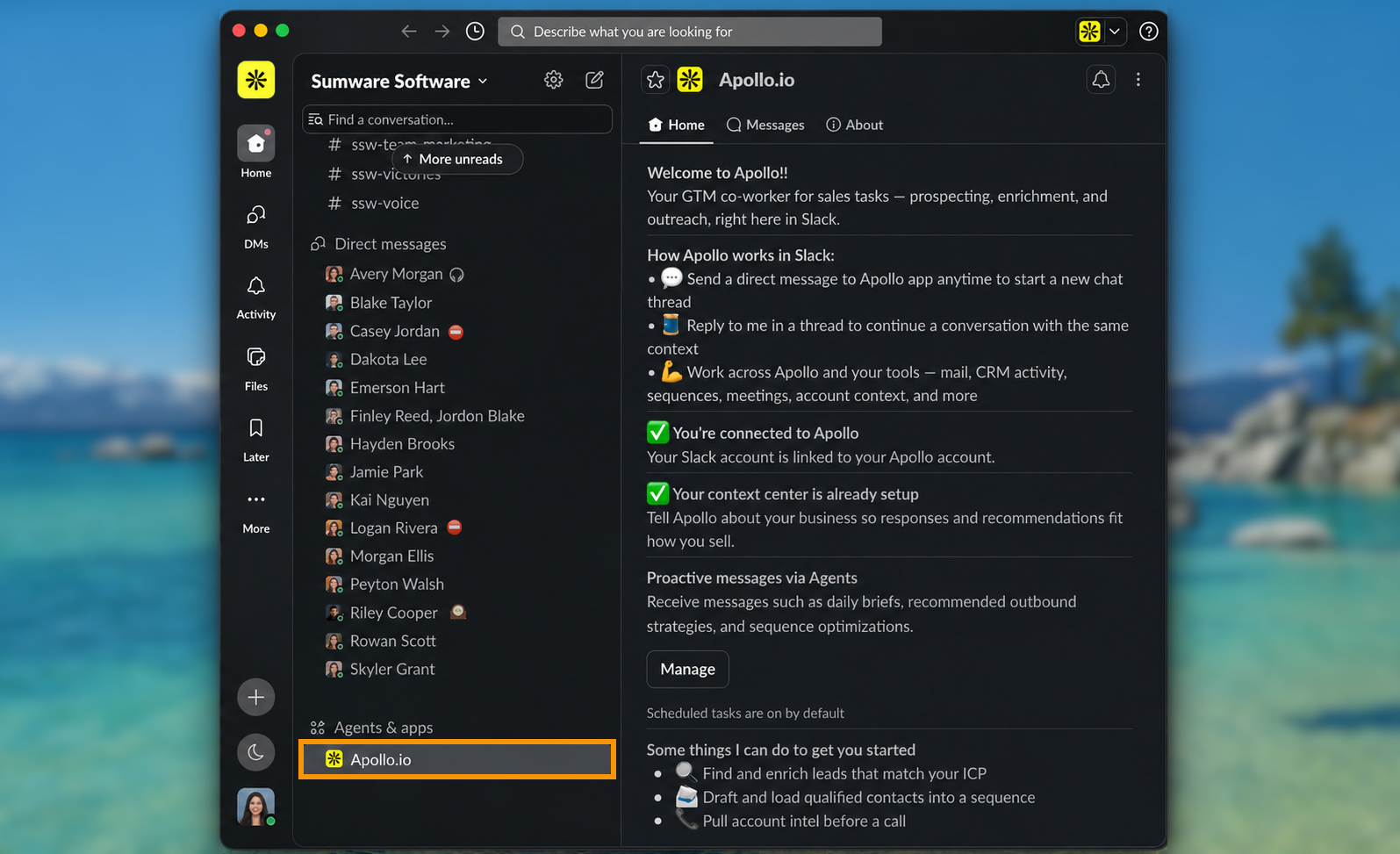
On professional and organization plans, Apollo can proactively identify useful next steps and send recommendations to you in Slack. These agents run automatically on a schedule and can help you discover leads, create outbound sequences, or improve sequences that are already running.
Click Manage to set up an agent. Then when Apollo has a recommendation, review it in Slack and choose whether to move forward. Once you approve a recommendation, Apollo continues the work for you. Agents also run in the AI assistant, so they don't require Slack to work.
- Click Messages to start a new thread with Apollo.
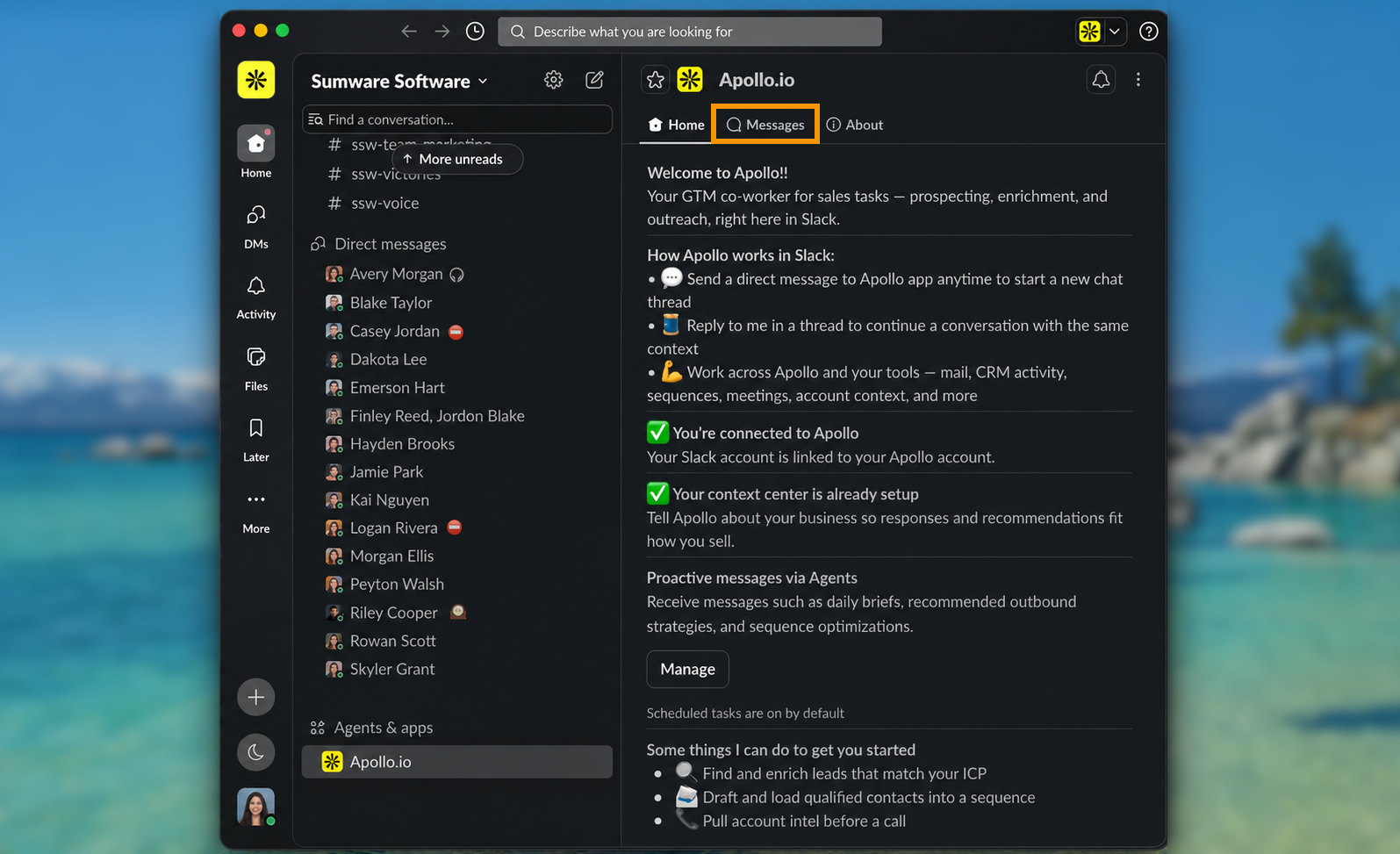
- Describe what you want to do in natural language. Apollo works on your request and returns results with suggested next steps.
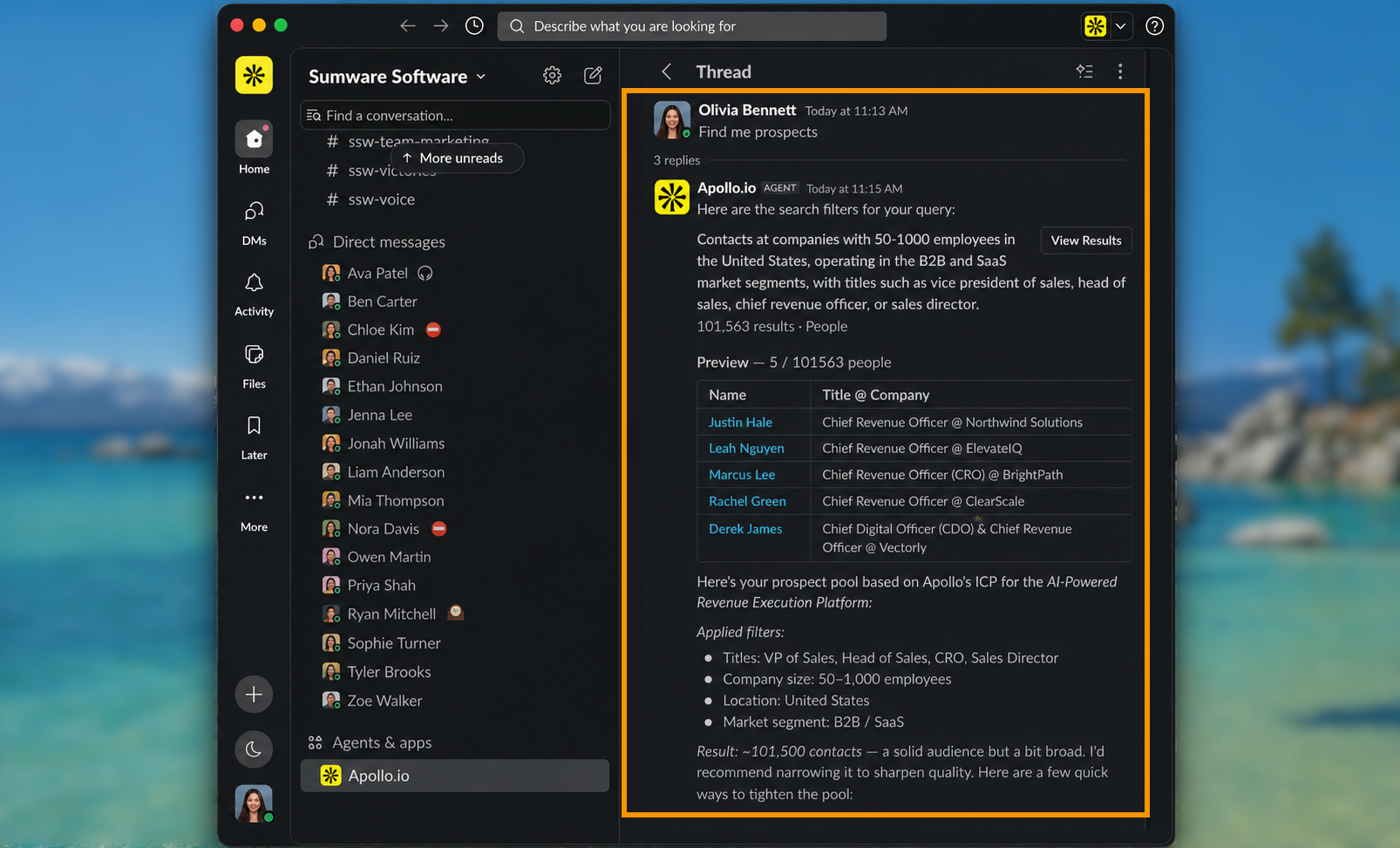
Here are a few example requests to help get you started:
Find 5 VPs of sales in San Francisco who work at software companies with 100-500 employees.
Find decision makers at these companies and enrich them with verified emails and phone numbers.
Add these contacts to my Q2 Outreach list.
Add the first 10 contacts to my Mid-Market Outbound sequence.
What's the reply rate for my Healthcare CFOs sequence?
Export these prospects to a CSV.
For the best results, chain your requests and be specific: for example, ask Apollo to find prospects that match specific criteria. From there, you can continue working in the thread to refine your search, enrich contacts with emails and phone numbers, add contacts to a list or sequence, or export the results to a CSV.
- Review the results Apollo returns in the thread.
- Select a suggested next step, or reply with another instruction to continue working.
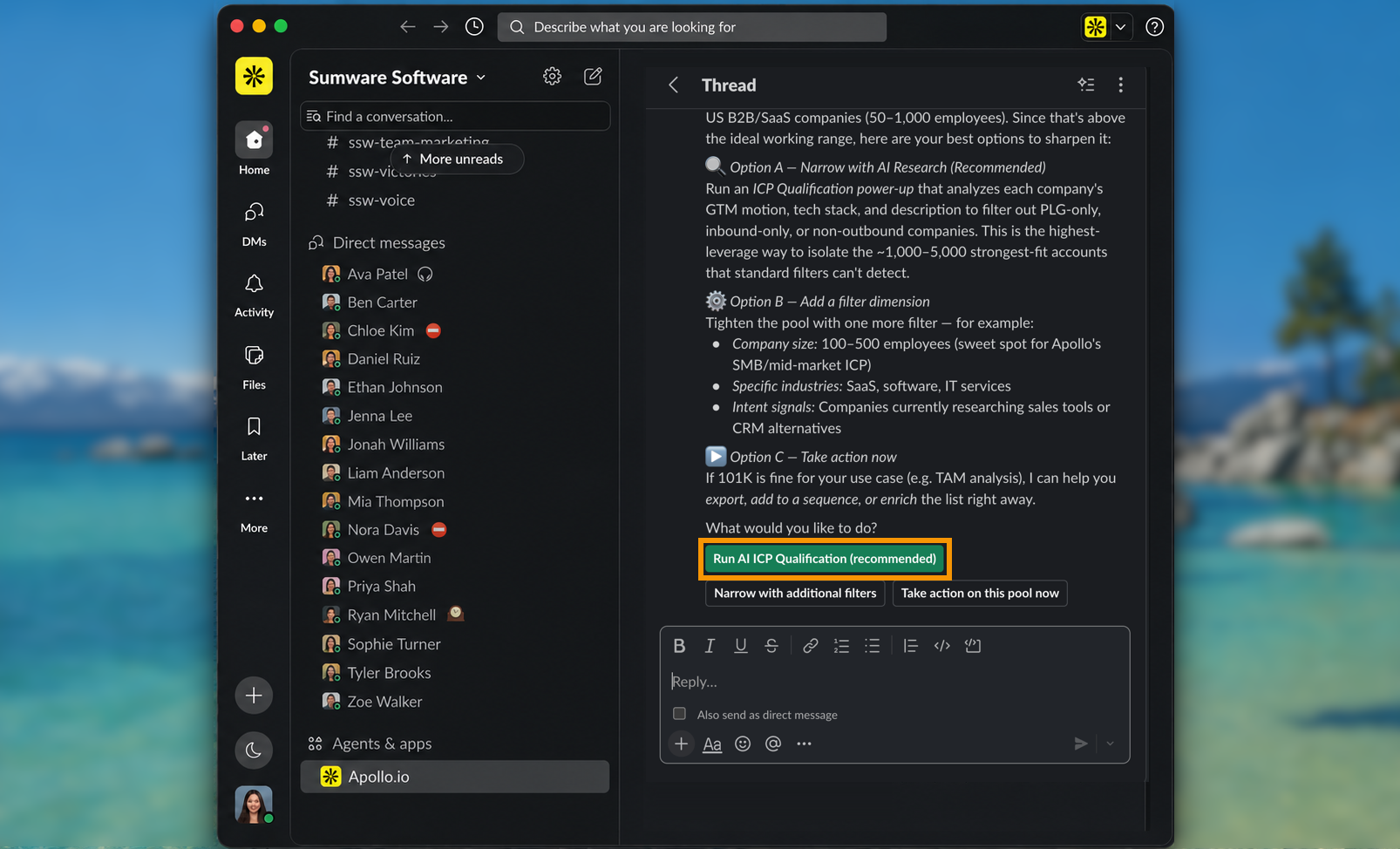
- To start a new chat, back out and message Apollo again.
You have now used Apollo on Slack.
Your conversation is saved in Apollo on the AI assistant so you can return to the platform and continue your work there at any time.
You can also receive AI assistant notifications over Slack for scheduled agent runs and long-running tasks.
Back to TopReceive AI Assistant Notifications on Slack
Once Slack is connected, choose which AI assistant updates Apollo sends to you over Slack.
To configure AI assistant notifications:
- Launch Apollo and click AI Assistant > Channels.
- Confirm Slack shows as Connected.
- Toggle the Slack notifications you want to receive:
- Notify me about scheduled threads: receive updates from scheduled agent runs, including completed work, blockers, and requests for approval.
- Notify me about long-running tasks: receive updates when longer AI assistant tasks complete, encounter a blocker, or need your approval.
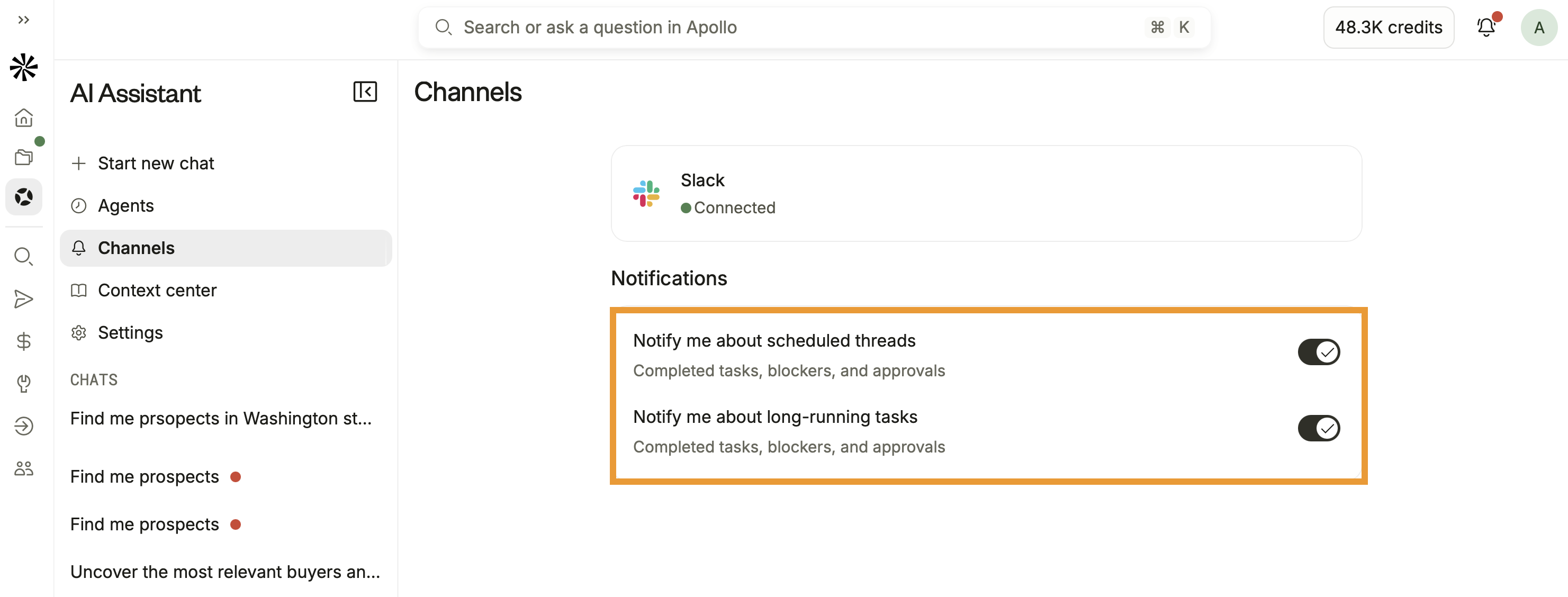
Apollo sends the selected AI assistant updates to you in Slack. For scheduled agent runs, you can respond to the notification in Slack and continue working with Apollo in the same thread.
These settings control notifications from the AI assistant. To manage other Apollo notifications sent to Slack, including daily digests or data request notifications, configure your Apollo notifications.
Back to TopNext Steps
If you're wiring Apollo into Slack, these next steps will help you turn notifications into a clean, high-signal workflow for your team.
| Configure Notifications on Apollo | If Slack's firing off too many random updates, configure your Apollo notifications to route just the critical alerts and tasks into the right channels so your team can act fast without drowning in noise. |
|---|---|
| Workflows Overview | Once Slack is wired up, design your Apollo workflows to connect automation with clear Slack cues so reps always know which actions are on them and which are handled behind the scenes. |
| Create a Workflow | When you're ready to operationalize things, create a workflow step by step to trigger Slack alerts off key milestones like new leads, stalled deals, or manual review tasks so nothing important slips past your team. |
| Use the Outbound Copilot | If your team doesn't want to start from a blank canvas, use the outbound copilot to spin up AI-powered workflows that feed the right contacts into sequences and surface only the high-value Slack nudges that deserve attention. |
| How to Use Workflows to Automate Your Sales Process | For a deeper push into best practices, walk through this workflows course to turn your Slack notifications and automations into a tight sales engine that books more meetings with far less busywork. |