
Overview
Manage and organize your team's sequences so they are easy to find, maintain, and reuse. You can update sequence settings, share or clone sequences, group them with folders and tags, add frequently used sequences to your favorites, and use filters to find the sequences you need.
The actions available to you depend on your Apollo plan, permission profile, and access to the sequence. Apollo hides or disables actions you can't use. If you need access, reach out to an Apollo admin at your organization.
Check out the following sections to manage existing sequences and organize your team's sequence library.
Manage a Sequence
To manage an existing sequence:
- Launch Apollo and click Sequences.
- Toggle Activate on or off to activate or deactivate the sequence. You need edit access and permission to activate sequences. Archived sequences can't be activated.
- Click … beside the sequence, then choose an action:

| Action | Description |
|---|---|
| Edit | Update the sequence name, owner, tags, schedule, ruleset, or other settings. You need edit access to the sequence. |
| Clone | Create a copy that you can customize without changing the original sequence. You need permission to create sequences, but you don't need edit access to the original sequence. |
| Move to folder | Move the sequence to a folder. You need edit access, and your plan must include Access folders. |
| Add to favorites or Remove from favorites | Add or remove the sequence from your personal favorites. Favorites must be included in your plan. |
| Share | Review sharing settings or share the sequence with specific colleagues, teams, or everyone at your organization. You need full access or admin access to change sharing settings. |
| Archive or Unarchive | Archive or restore a sequence. You need full access or admin access. |
You have now completed the selected sequence action.
Check multiple sequences to add or remove tags, move them to a folder, archive or unarchive them, or export them. Moving sequences requires edit access to every selected sequence, while archiving requires full access. Admins can override these access requirements.
For activation, deactivation, cloning, sharing, reassignment, and favorites, update sequences individually.
Organize Sequences
Use folders to build a shared hierarchy for sequences, or use tags to group related sequences across folders.
Use folders and subfolders to group sequences by region, industry, audience, campaign, department, or another structure that reflects how your team works. The number next to each folder includes sequences stored in that folder and its subfolders.
Choose an action to create and manage sequence folders.
Create a Folder
Create a folder to group related sequences and make them easier for your team to find.
To create a folder:
- Click Sequences.
- Click Show Filters > Folders > New folder.
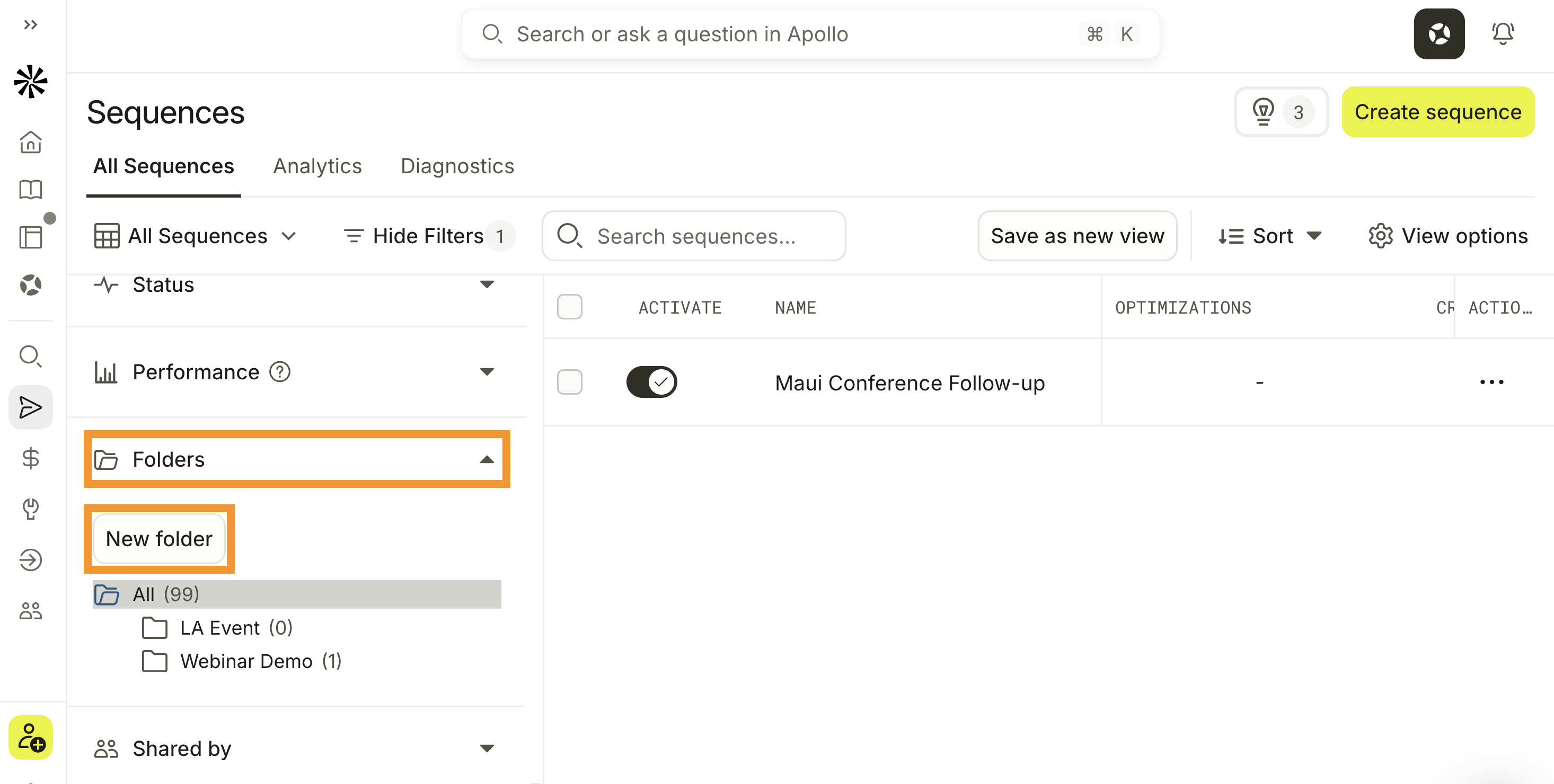
- Enter a folder name, then click Save.
You have now created a folder.
Move a Sequence to a Folder
Move an individual sequence into the folder that best matches its campaign, audience, or purpose.
To move an individual sequence:
- Click … beside the sequence, then click Move to folder.
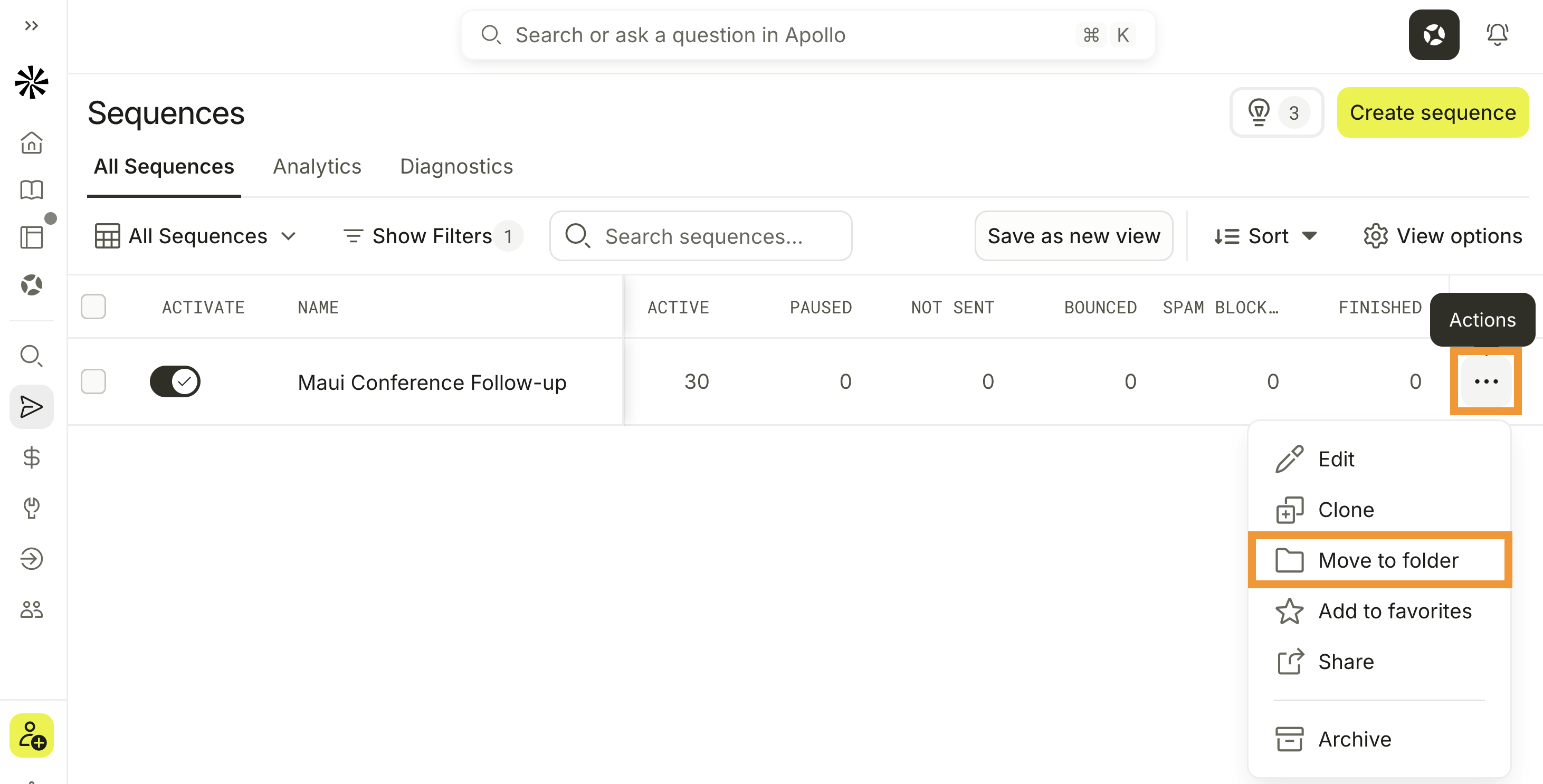
- Select a folder, then click Move Here.
You have now moved the sequence to a folder.
To remove a sequence from its current folder, follow the same steps and move it to All.
Move Multiple Sequences to a Folder
Move multiple sequences at once when they belong in the same folder.
To move multiple sequences:
- Check each sequence you want to move.
- Click the Folder.
- Select a folder, then click Move Here.
You have now moved multiple sequences to a folder.
Organize Folders
Reorder folders or use subfolders to create a hierarchy that reflects how your team works.
Drag folders to reorder them. To create a subfolder, drag one folder onto another folder. When you move a folder, its subfolders and sequences move with it.
To rename a folder, click … beside the folder, then click Rename. Renaming a folder doesn't affect its sequences or subfolders.
Delete a Folder
Remove a folder without deleting the sequences it contains.
To delete a folder, click … beside the folder, then click Delete and confirm.
If you delete a folder, Apollo also deletes its subfolders. Apollo doesn't delete the sequences they contain and moves them to All.
Use tags to categorize sequences by topic, campaign, audience, or another shared attribute. Tags are shared with your team and can group related sequences across folders. You can add, remove, and filter with tags.
Choose an action to organize sequences with tags.
Add Tags to Sequences
Add tags to one or more sequences to group them by a shared attribute.
To add tags to sequences:
- Click Sequences, then check each sequence you want to tag.
- Click Tag > Add Tags.
- From the dropdown, select one or more existing tags.
- To create a tag, enter a new tag name, then click Create new tag “…”.

You have now added tags to the selected sequences.
Remove Tags from Sequences
Remove tags that no longer apply to one or more sequences.
To remove tags from sequences:
- Click Sequences, then check each sequence you want to update.
- Click Tag > Remove Tags.
- Select the tags you want to remove.
You have now removed the tags from the selected sequences.
Filter Sequences by Tag
Filter by tags to find sequences that share an attribute.
To filter sequences by tag:
- Click Sequences.
- Click Show Filters, then select Tags.
- Select one or more tags.
You have now filtered sequences by tag.
Filter Sequences
Use filters to narrow the sequence library and focus on the sequences that are most relevant to your work.
To filter your sequences:
- Click Sequences.
- Click Show Filters.
- Select one or more filters.

You have now filtered your sequences. Apollo stores the filters in the page URL, so you can copy the URL to share the filtered results.
Favorite sequences you use frequently so they're easier to find. Click … > Add to favorites to add a sequence to your favorites. To find your favorite sequences, click Show Filters, then select Starred.
Next Steps
Learn more about creating, maintaining, and reviewing sequences:
| Create a Sequence | Create and configure a sequence for your outreach. |
|---|---|
| Archive a Sequence | Archive or restore a sequence that your team no longer actively uses. |
| Add Contacts to a Sequence | Add contacts to a sequence to begin your outreach. |
| Report on Sequences | Review sequence performance and identify opportunities to improve your outreach. |