
Overview
Scores help you identify the prospects most likely to convert into buyers by ranking them against attributes of your ideal customers. When you search for people or companies, Apollo assigns a score to each prospect based on how well they match the score.
You can filter by scores to quickly hone in on customers.
Check out the following section to use scores on Apollo.
Use a Score Filter
Did you know? Apollo uses auto-score as your primary score by default. If you create a custom score, set it as your primary score.
To use a score filter:
- Launch Apollo and click Search > People or Companies.
- Click Show Filters > Scores.
- Select a minimum score rating:
- ⭐️ Excellent
- 😄 Good
- 🙂 Fair
- ✖️ Not a fit
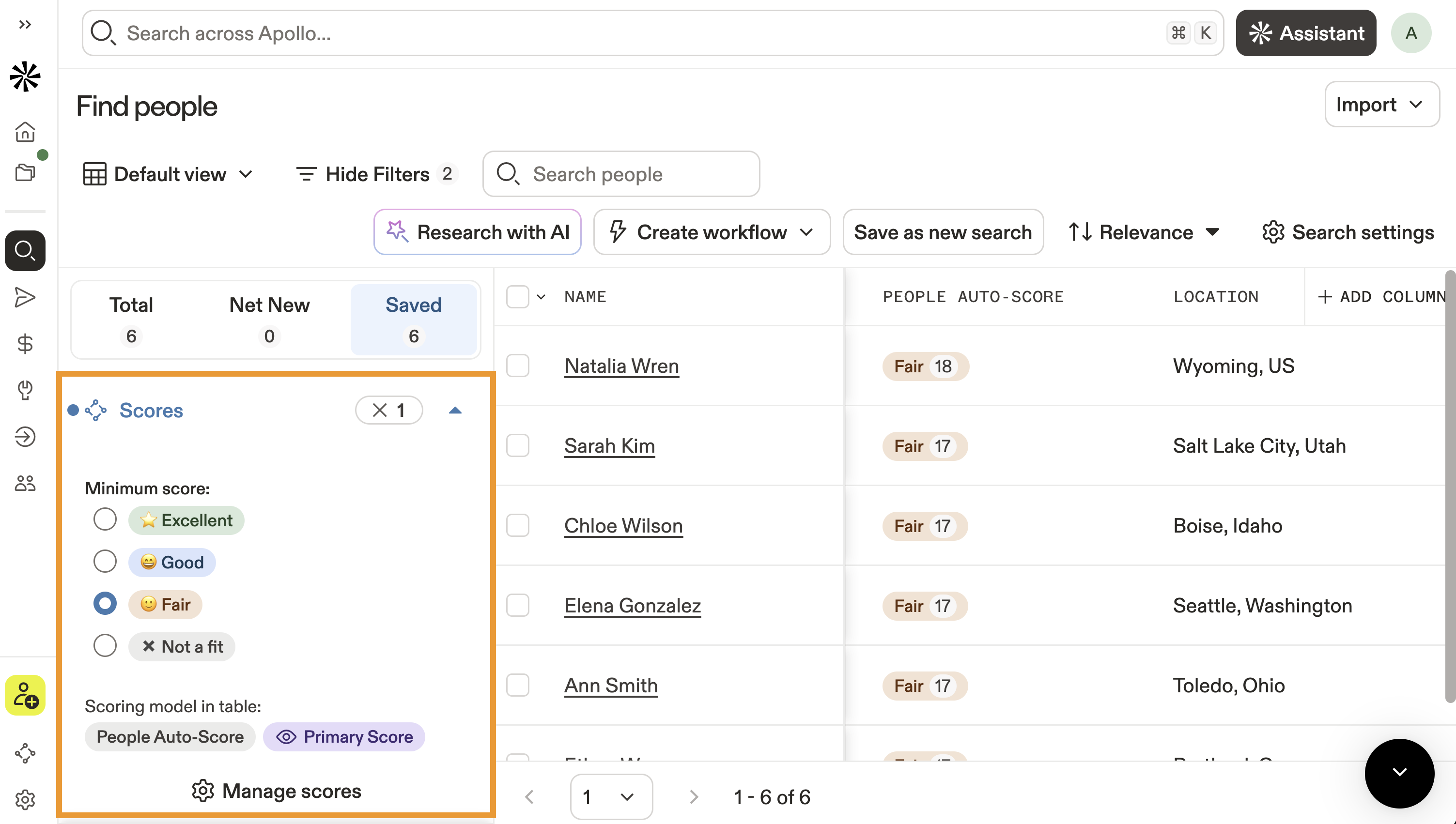
- Apollo updates your search results based on the score you select.
Apollo uses your primary score when you prospect. Prospects earn points for the criteria they match in that score, and Apollo combines those points to calculate an overall score. The score, such as excellent or good, reflects how that total score compares to the maximum possible score for the model.
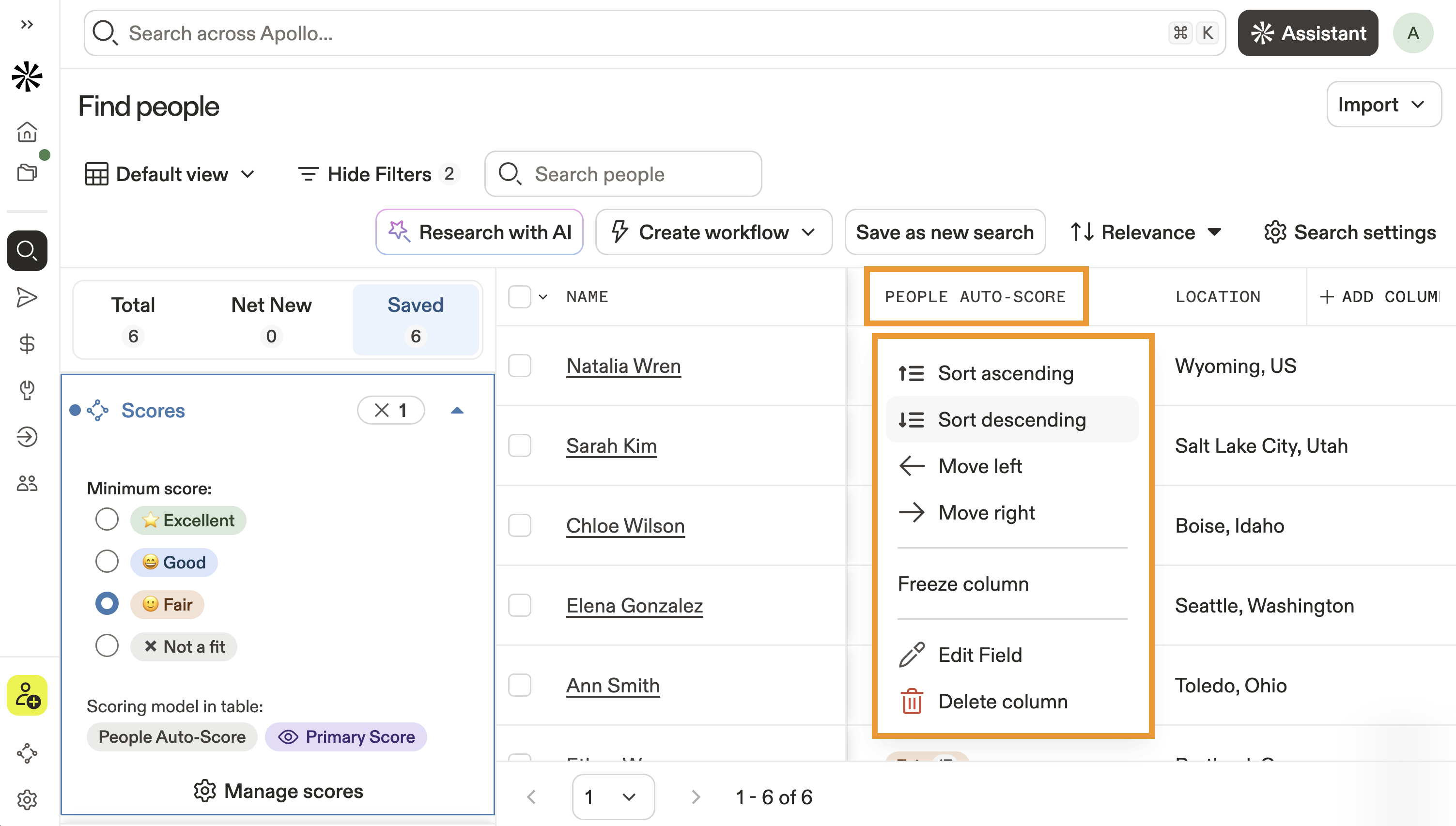
- Click the score column then select ascending or descending to sort by lowest or highest scores.
- Click a person or company. Apollo shares more about the score, including the filters or signals that contributed to the rating.
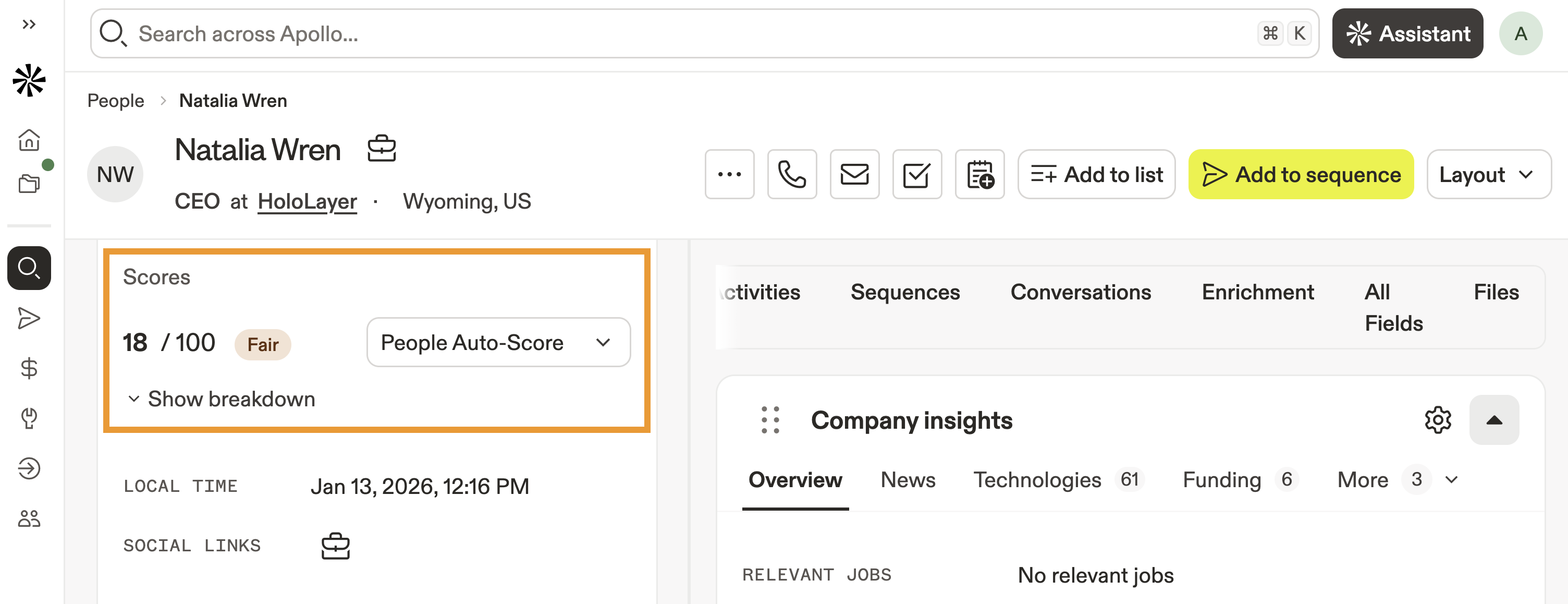
You have now used scores on Apollo.
Check out Search Filters Overview to learn more about the scores filter and all of the available search filters.
Next Steps
Ready to put scores to work? These next moves help you turn high-fit prospects into action fast.
| Scores Overview | Get aligned on how scores work and what signals matter by understanding score ratings and signals to make sure your team is prioritizing the right prospects. |
|---|---|
| Create a Score | Fine-tune fit for your ICP by creating a custom score to reflect the attributes that actually drive conversions for your business. |
| Search Filters Overview | Layer scores with firmographics and intent by combining the scores filter with other search filters to zero in on your best-fit accounts. |
| Save and Share a Search or Set a Search Alert | Lock in your scoring logic by saving and subscribing to a scored search so you never miss newly qualified prospects. |
| Add Contacts to a Sequence | Move fast on top scores by adding high-rated contacts to a sequence to start outreach while intent is high. |