
Overview
Custom fields allow you to capture individualized research about a contact, account, or internal user and leverage them in Apollo sequence email templates for real-time personalization.
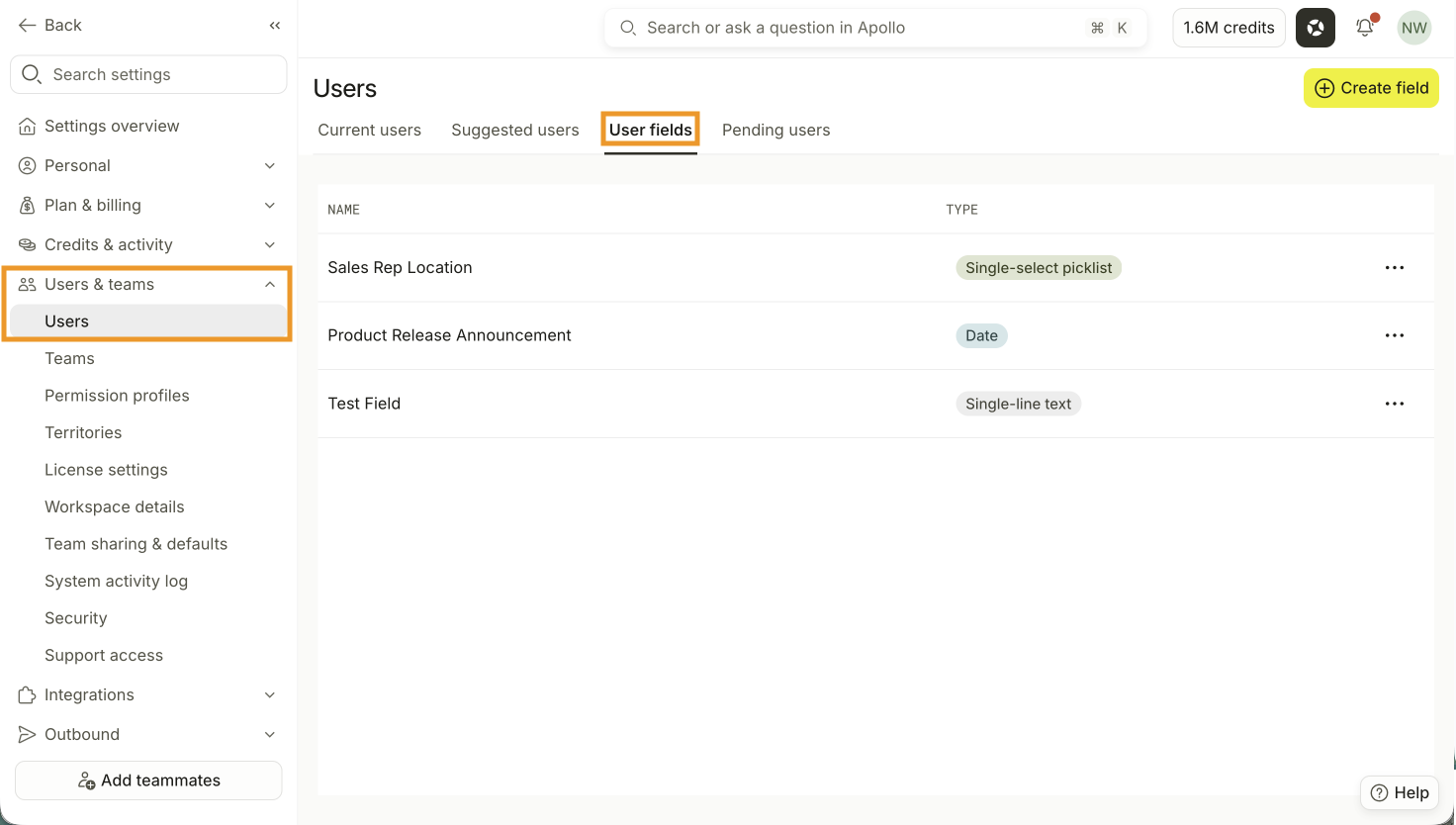
Custom user fields let you include custom information about internal employees in their Apollo profiles. Go to Users settings, then click User fields to manage them.
Check out the following sections to learn how to create, edit, and delete custom user fields.
Create a Custom User Field
To create a new custom user field in Apollo:
- Launch Apollo and go to Settings > Users & teams > Users > User fields.
- Click Create field.
- Give your new custom field a descriptive name.
- Select a field type from the dropdown. The available field types include:
| Field Name | Description |
|---|---|
| Single-line text | Allows you to include a single line of text for the field. You must specify the maximum number of characters for the field. |
| Multi-line text | Allows you to include a string of text that spans multiple lines. You must specify the maximum number of characters for the field. Line breaks count against the total character count. |
| Number | Allows you to include a number with or without decimals. You can't use non-numeric characters. |
| Date | Allows you to type a date in the format of Month/Day/Year or select a date with the calendar widget. |
| Date/Time | Allows you to type a date in the format of Month/Day/Year or select a date with the calendar widget. Allows you to select a time in half-hour increments from the dropdown. |
| Checkbox | Allows you to specify either True or False within the field's dropdown. |
| Picklist | Allows you to include an existing picklist or create a new picklist with defined values. You can only select one value from the picklist. For additional information about creating picklists, see Create Global Picklists. |
| Picklist (Multi-Select) | Allows you to include an existing picklist or create a new picklist with defined values. You can select multiple values from the picklist. For additional information about creating picklists, see Create Global Picklists. |
| Lookup-User | Allows you to specify a user from your account via a dropdown. |
You can't change the field type for a custom field after you create it.
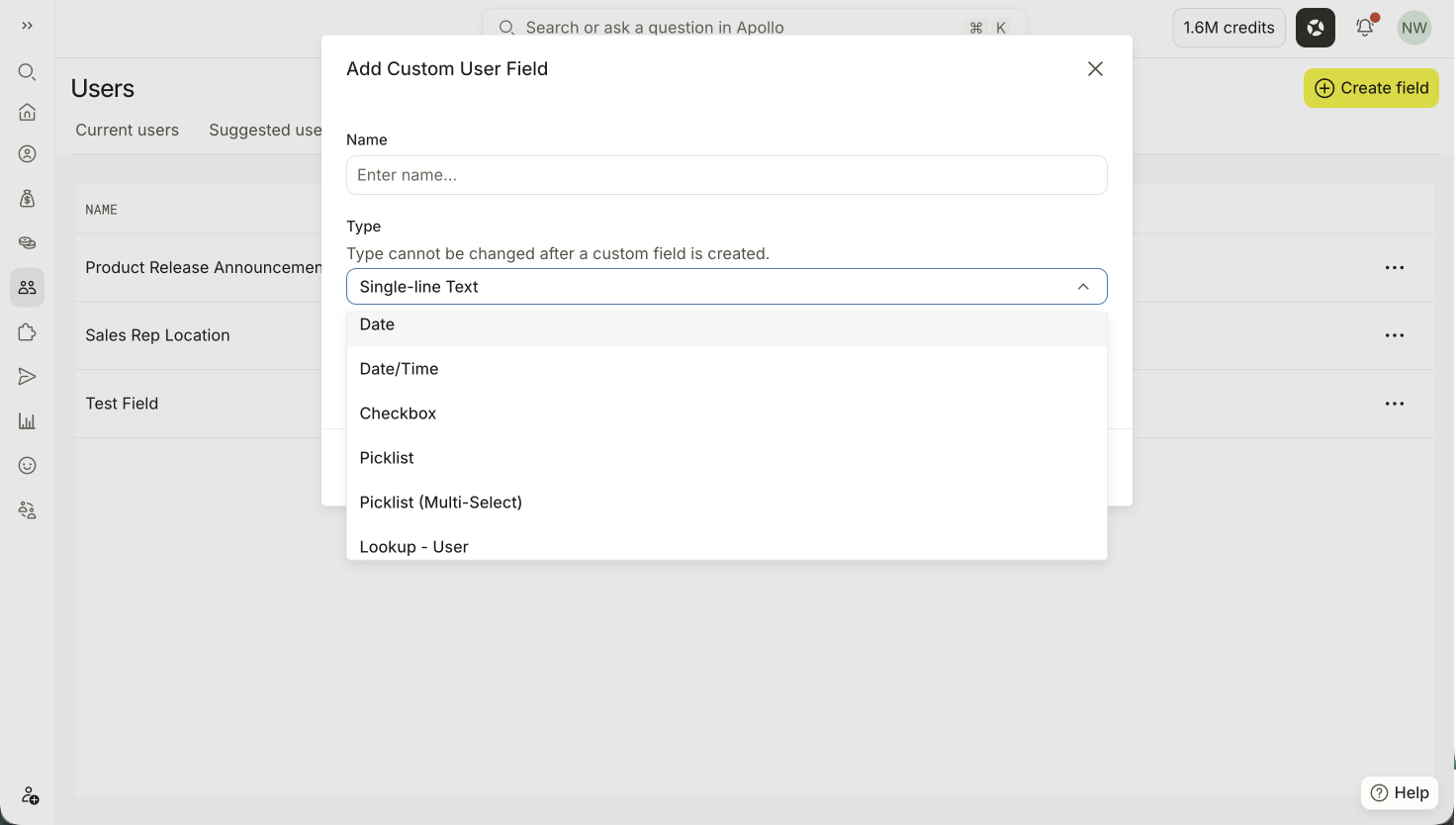
- Click Save once you're done.
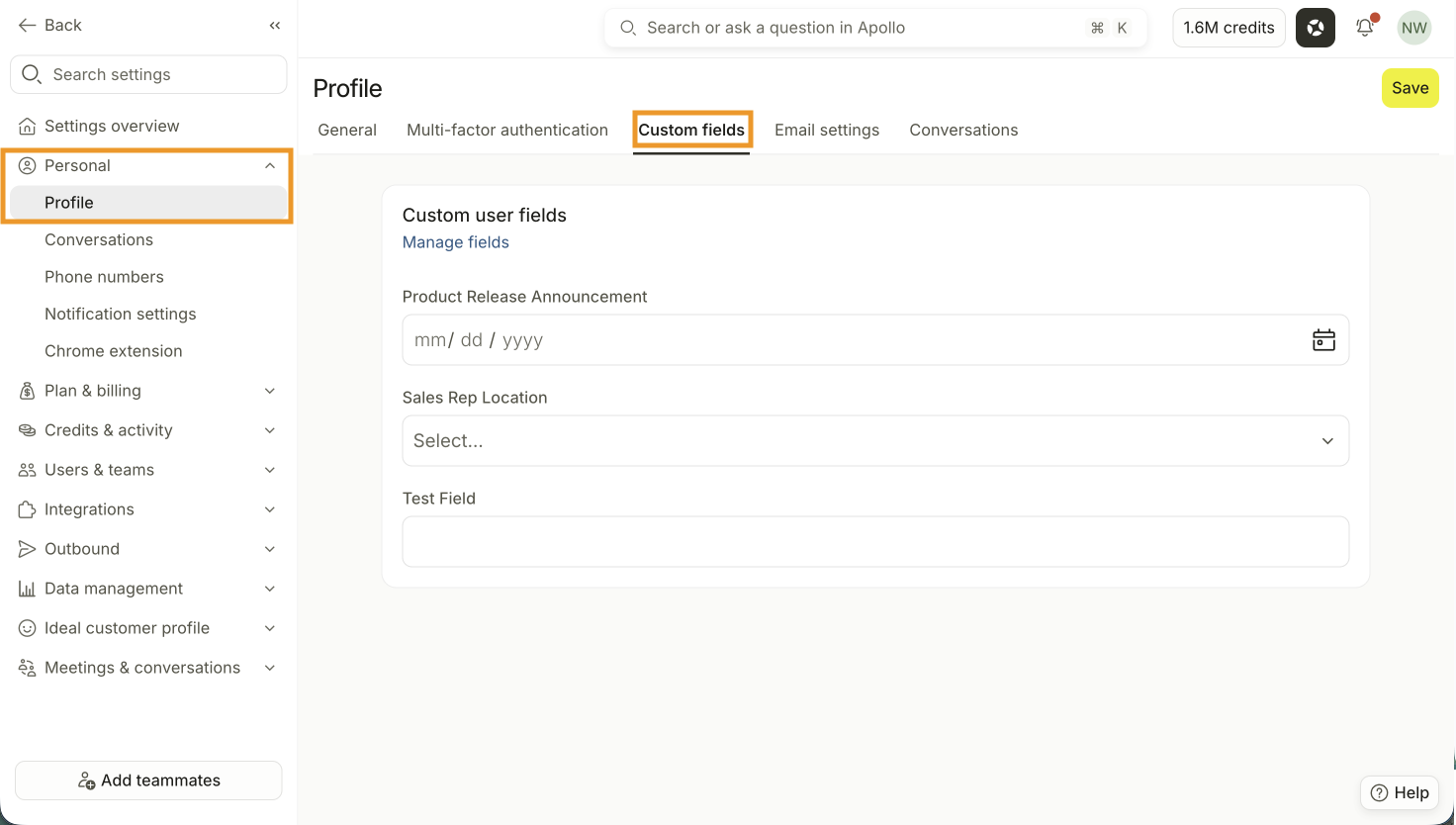
You can also access and fill in custom user fields from the Custom fields tab of any user's profile.
Edit a Custom User Field
To edit a custom user field:
- Launch Apollo and go to Settings > Users & teams > Users > User fields.
- Click ... > Edit next to the custom field you want to update.
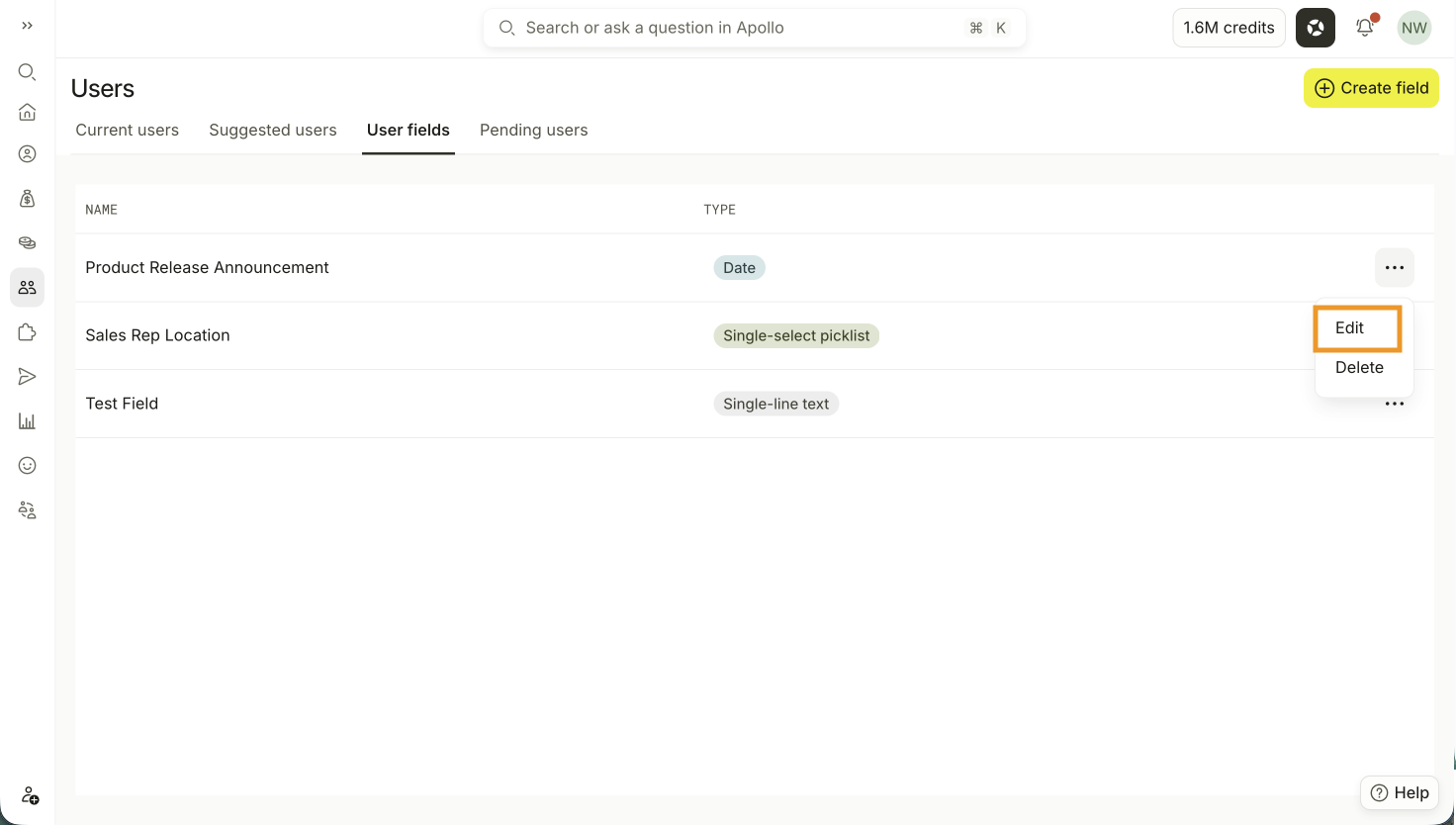
- You can update your custom field's name. If your custom field type is single-line text, multi-line text, or picklist, you can also update your max character length or picklist options.
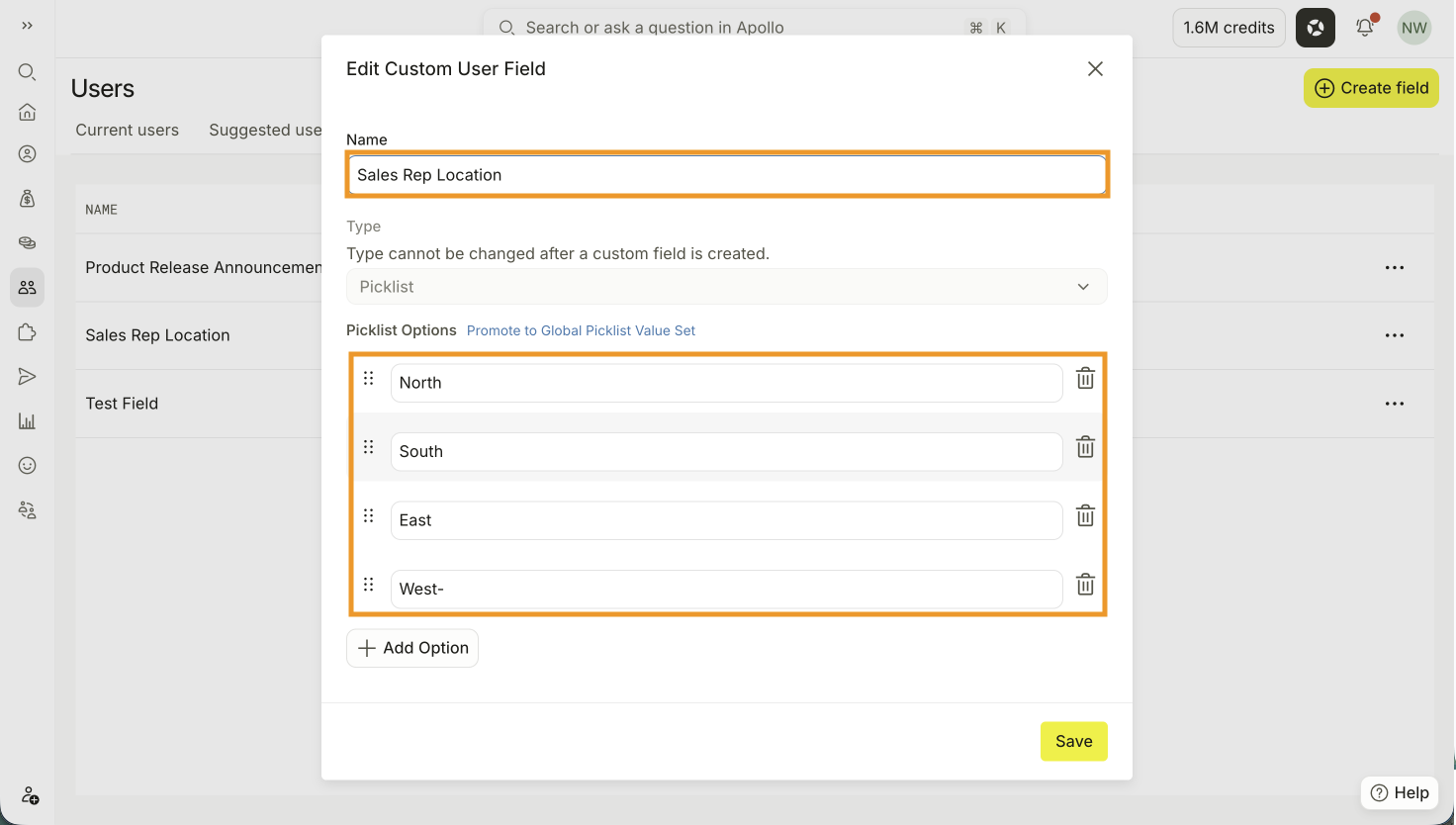
- Click Save when you're done.
Delete a Custom User Field
To delete a custom user field:
- Launch Apollo and go to Settings > Users & teams > Users > User fields.
- Click ... > Delete next to the custom field you want to remove.
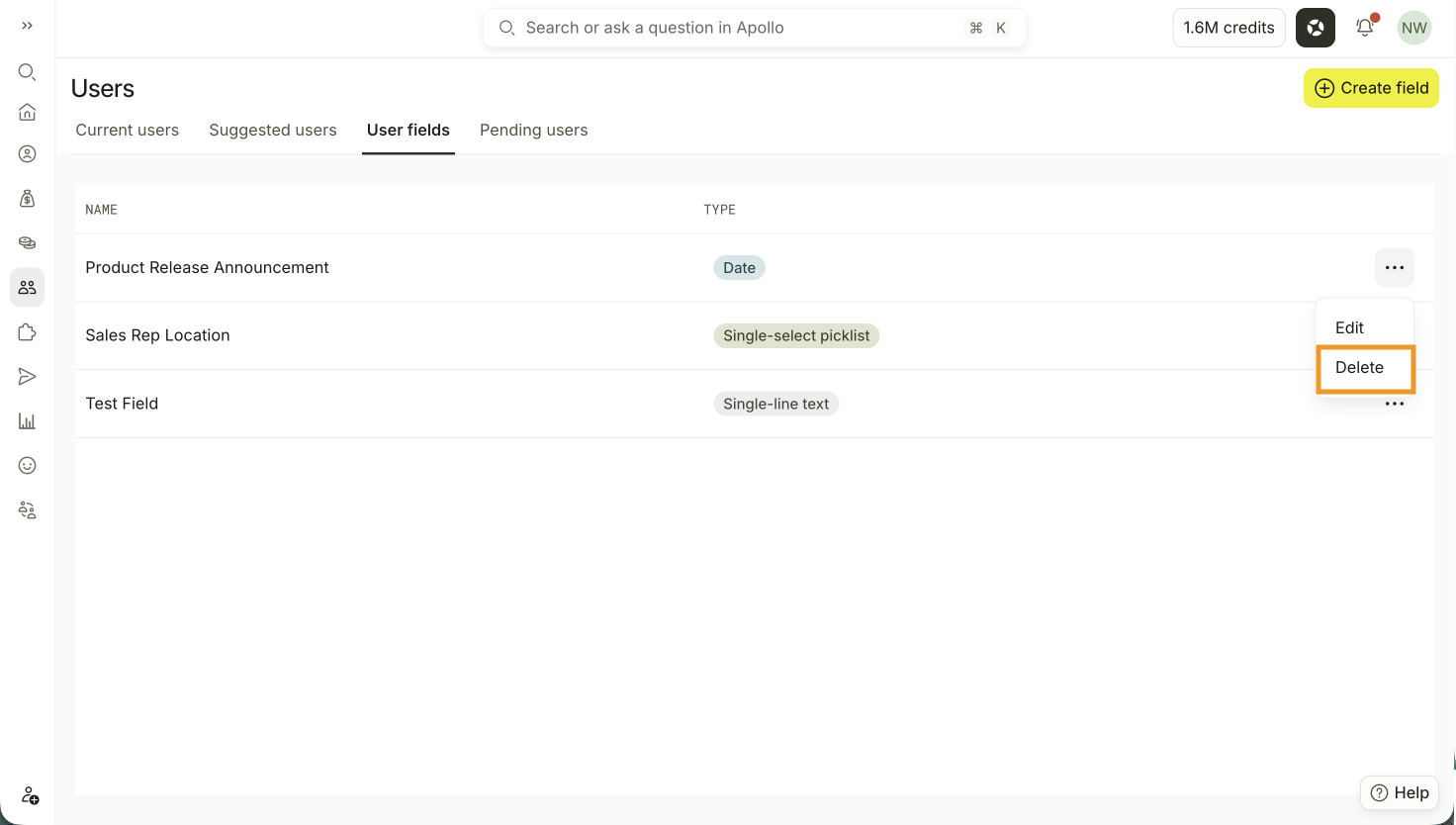
- Click Delete again to confirm you want to delete this custom field.
Next Steps
Now that you created your user fields, here's how to extend custom fields across the rest of your Apollo workspace.
| Create Custom Contact Fields | Custom user fields are just one piece of the picture. Create custom contact fields to capture prospect-specific details your team can reuse in emails, sequences, and AI research so personalization scales beyond what Apollo's default fields cover. |
|---|---|
| Create Custom Account Fields | Need the same flexibility at the company level? Build custom account fields to store company-specific insights and map them to your CRM so your team has the right context for every account without digging across multiple tools. |
| Create and Use Global Picklists to Standardize Data Across Custom Fields | Using picklist field types in your user fields? Create a shared global picklist your whole team can attach to any contact, account, or user field so everyone selects from the same options and your data stays consistent across the workspace. |
| Use Custom Dynamic Variables | Once your custom fields are in place, put them to work in outreach. Insert user, contact, and account custom fields as dynamic variables directly into sequence email templates to personalize messaging at scale without manually editing each send. |
| Add, Manage, and Deactivate Users | Custom user fields are only as useful as the user profiles they live on. Invite new users, update profiles, and deactivate accounts to keep your workspace current so your team's custom field data stays accurate and attributable to the right people. |