
Overview
You may encounter duplicate records when you prospect in Apollo, sync your CRM to Apollo, or import records via CSV. Though duplicates often contain data similar to the original contact or account records, they are separate records with distinct activity logs.
You should merge duplicate records to consolidate data and ensure Apollo logs all relevant contact or account activity in one record. Apollo notifies you if a record is a potential duplicate in the contact or account profile.
Despite our best efforts, Apollo is never entirely free of duplicate contact records. Apollo experiences around a 1% duplication rate in our database.
The following sections detail how to merge duplicate contact and account records in Apollo and preserve your source of truth.
Merge Contacts
You have the following options to merge individual contacts:
- Merge during people search.
- Merge from the contact profile.
- Merge during contact CSV import.
To merge contact records directly from search:
- Launch Apollo and click People.
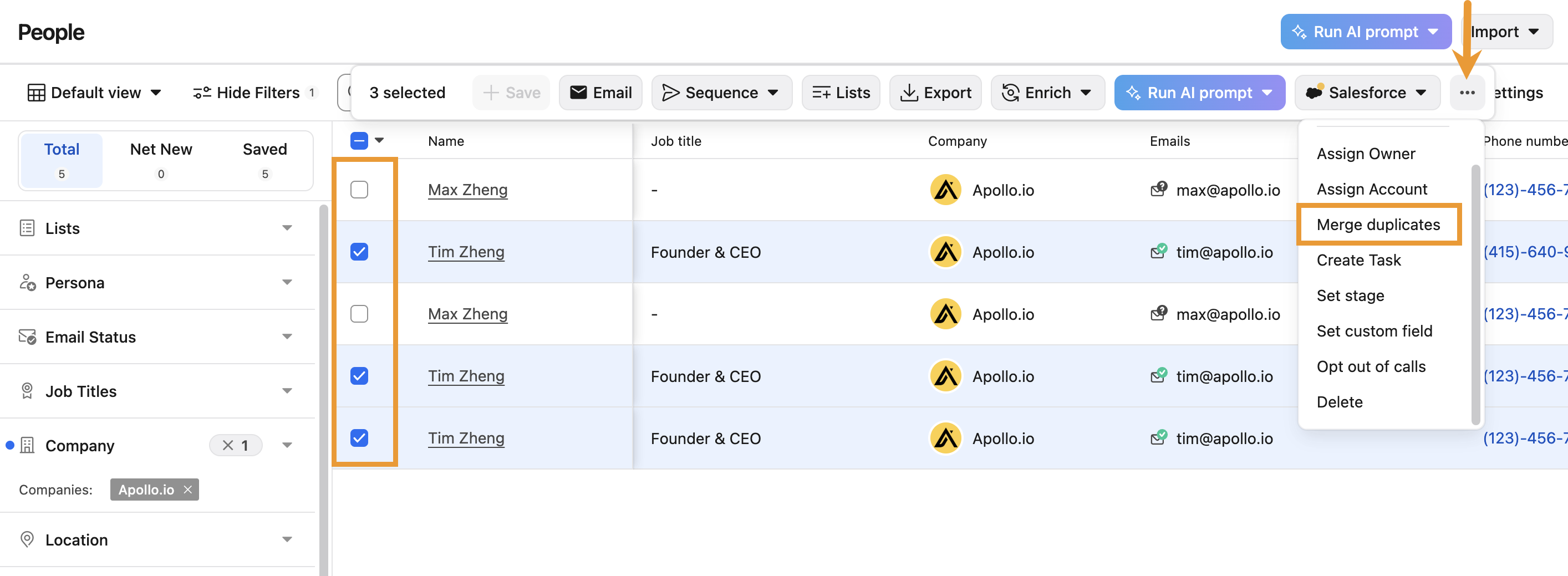
- Click the checkbox for each contact record that you want to merge. Then, click ... > Merge duplicates.
- Apollo merges the duplicate records into a single primary record. Choose the primary record from the drop-down, then click Merge.
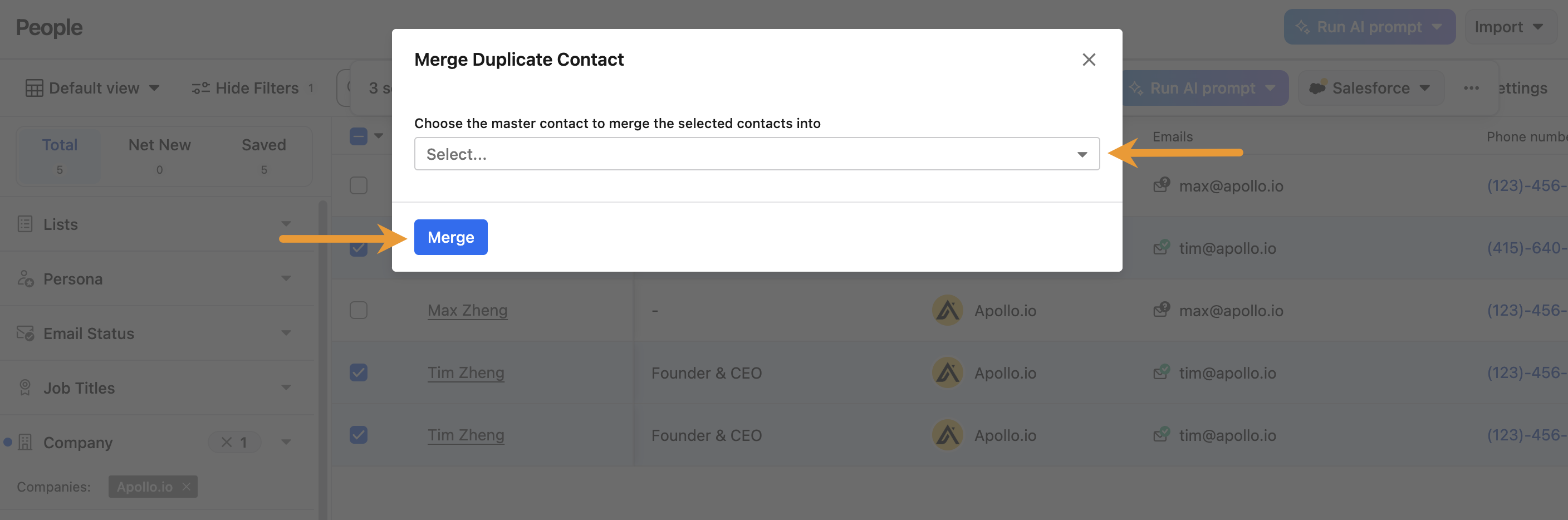
Check out the Explore Merge Settings for CRM Integrations section for more details about deleting duplicate records in your integrated CRM as part of the data sync.
- Click Yes to merge the contact records.
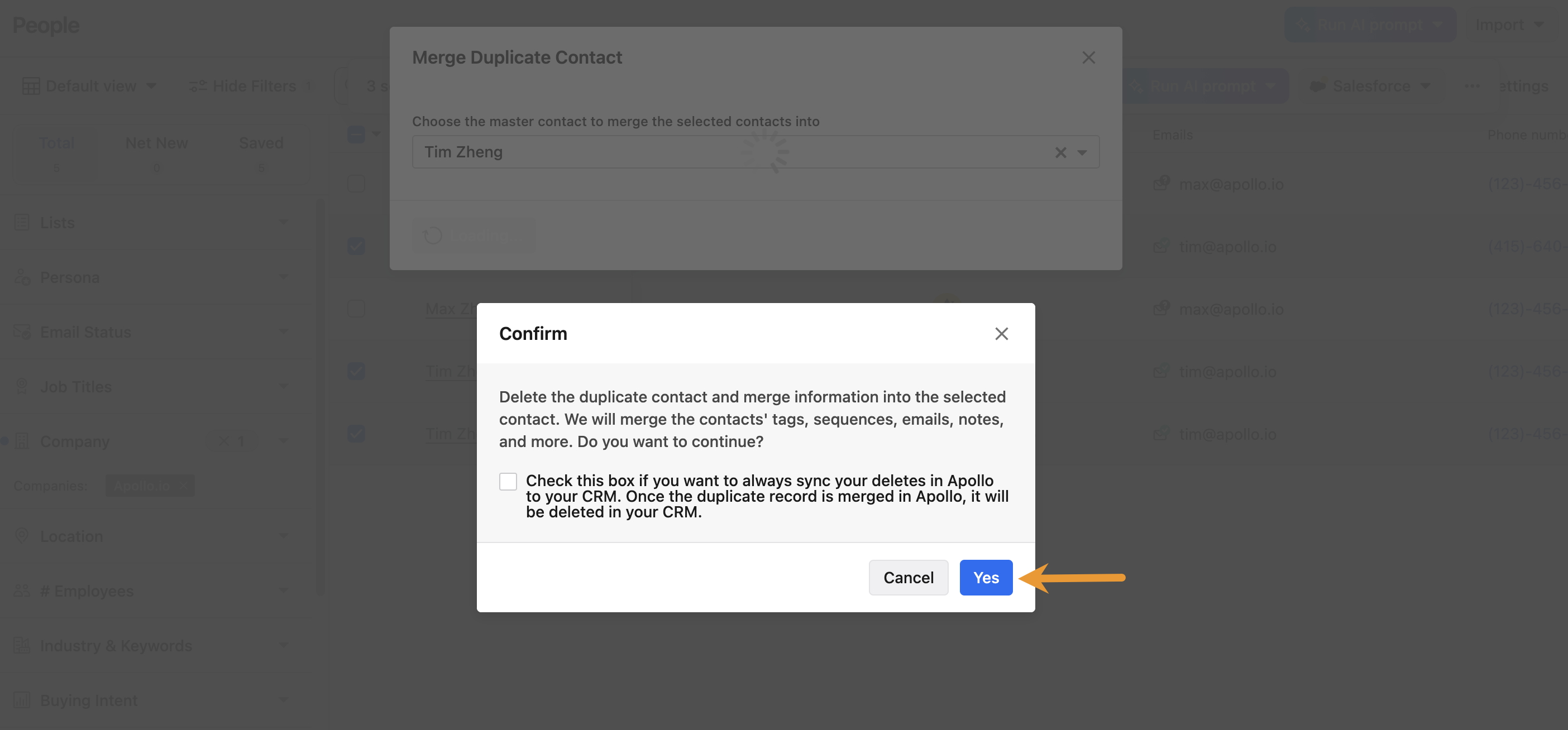
You've successfully merged the contact records.
To merge contact records directly from the contact profile:
- Launch Apollo and click People. Click a contact's name to access their record.
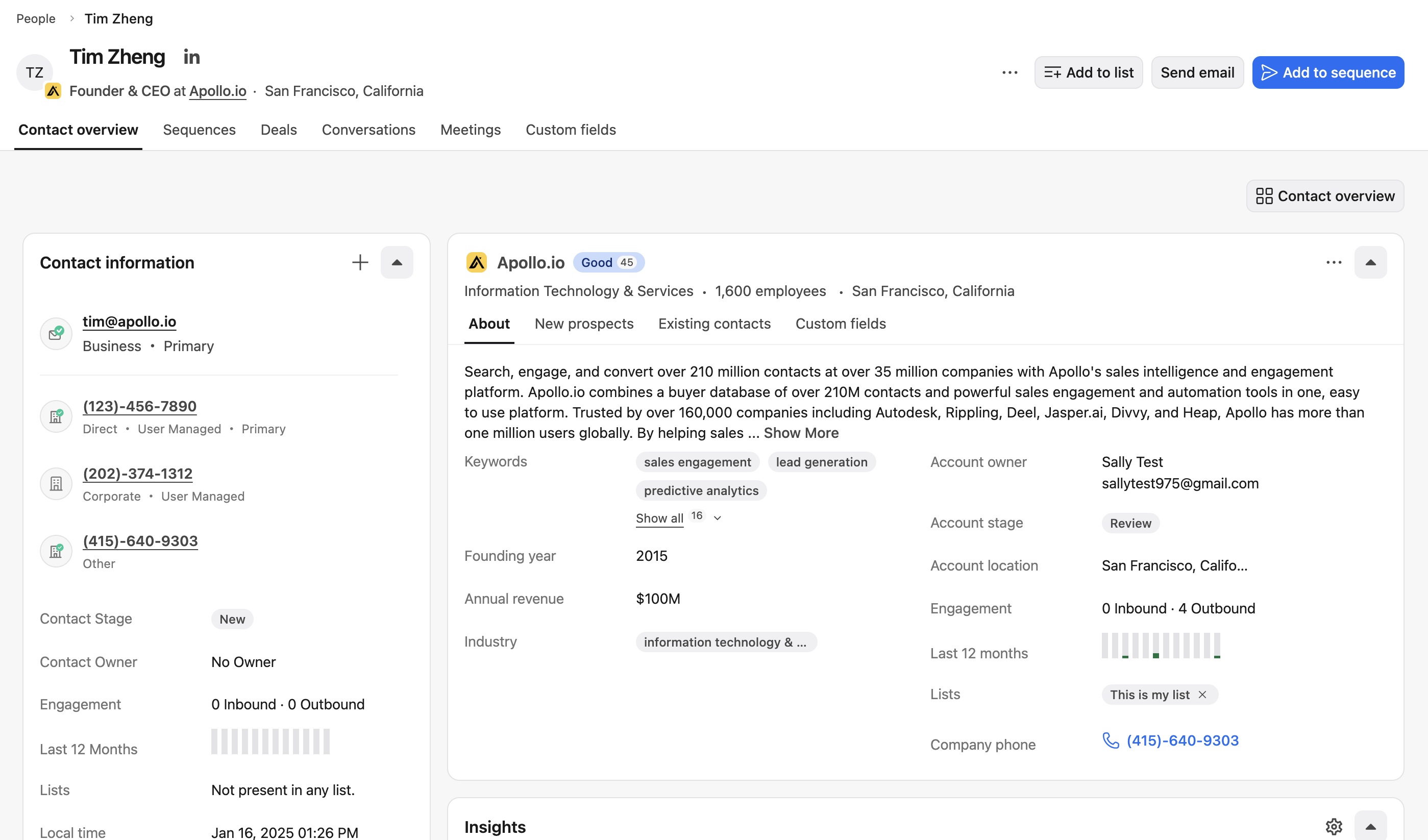
- If a contact has duplicate records, Apollo displays a banner at the top of the Contact information section of the contact's page. Click Merge duplicate contacts.

Check out the Explore Merge Settings for CRM Integrations section for more details about deleting duplicate records in your integrated CRM as part of the data sync.
- Click Yes to merge the contact records.
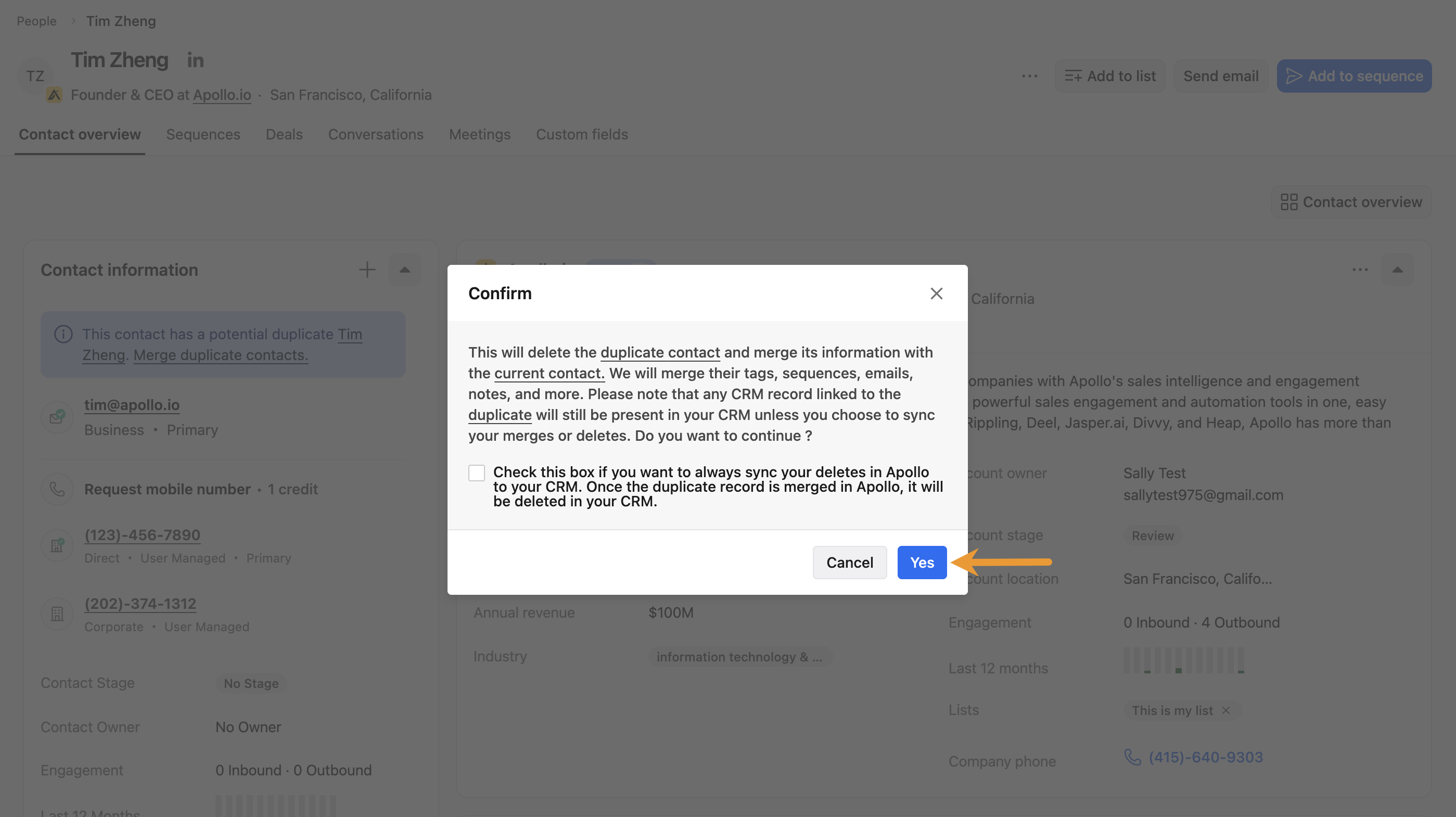
You've successfully merged the contact records. Apollo removes the duplicate records banner from the contact's profile.
Follow the steps outlined in Import a CSV of Contacts or Import a CSV of Accounts to prevent Apollo from creating duplicate records during import. Apollo identifies duplicate contacts by first name, last name, company, email, or LinkedIn URL, and duplicate accounts by account domain. Select Update the existing record when importing a CSV for Apollo to add CSV data to existing records when a matching duplicate is found.

Merge Accounts
To merge account records:
- Launch Apollo and click Companies. Then, click a company's name to access the record.
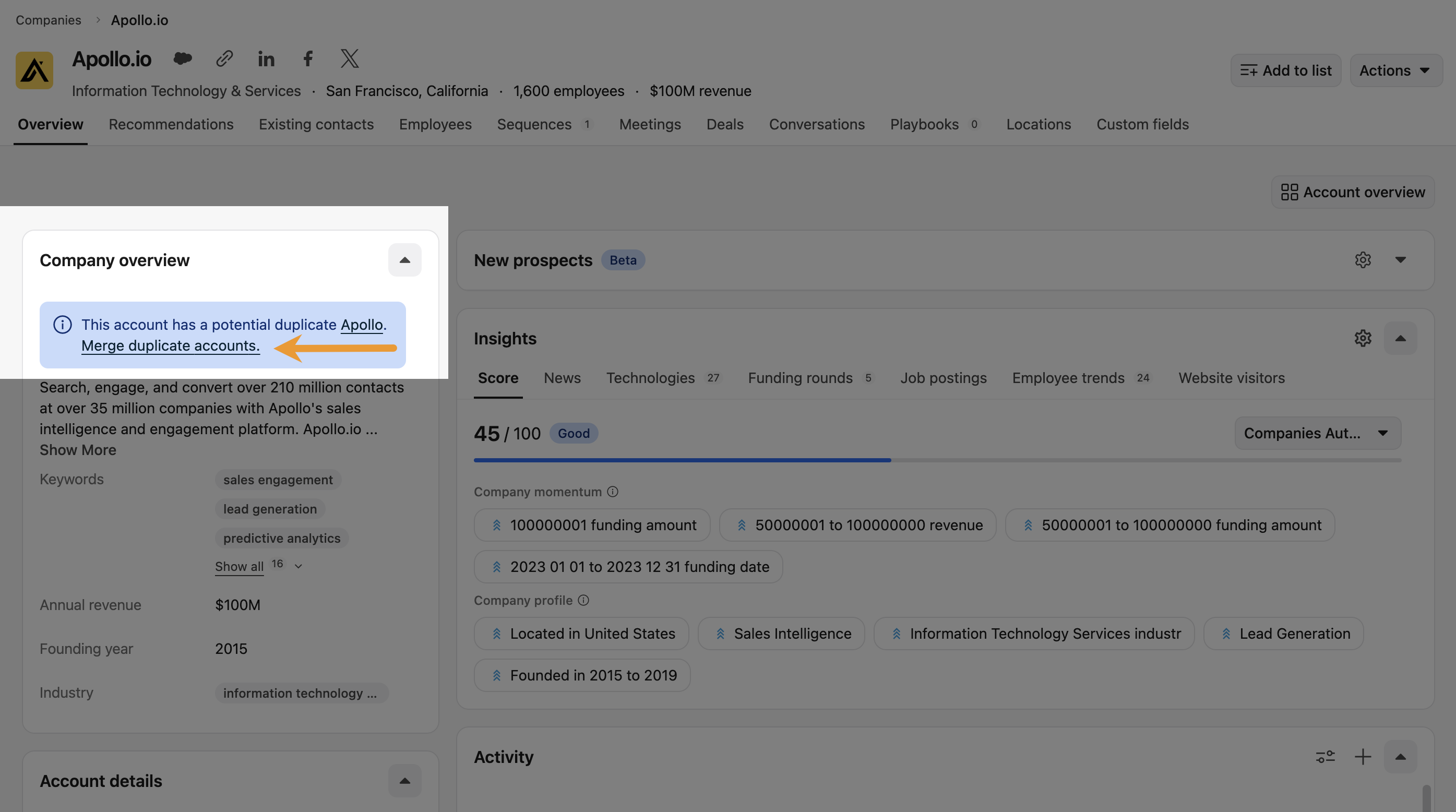
- If an account has duplicate records, Apollo displays a banner at the top of the Company overview section of the account's page. Click Merge duplicate accounts.
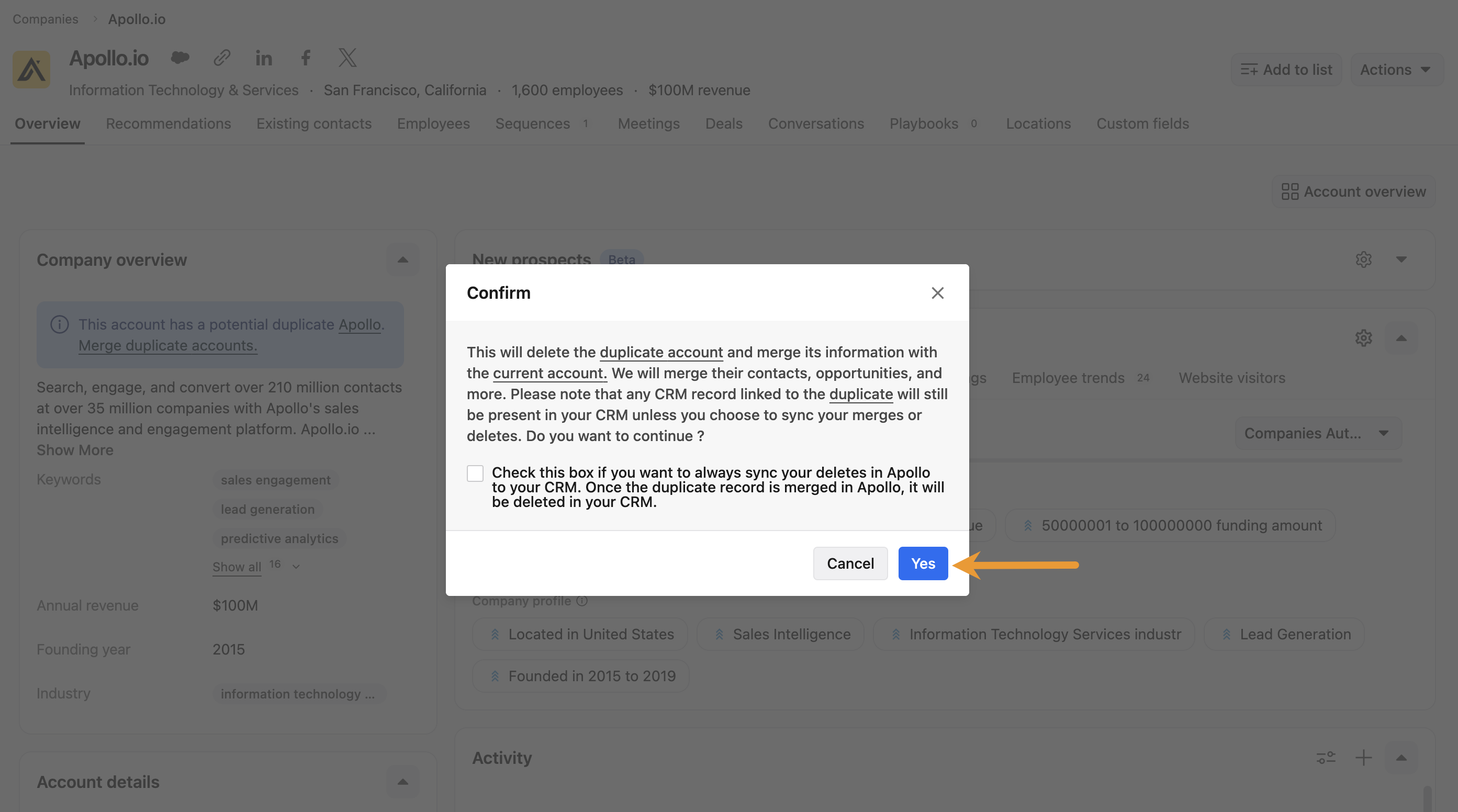
Check out the Explore Merge Settings for CRM Integrations section for more details about deleting duplicate records in your integrated CRM as part of the data sync.
- Click Yes to merge the account records.
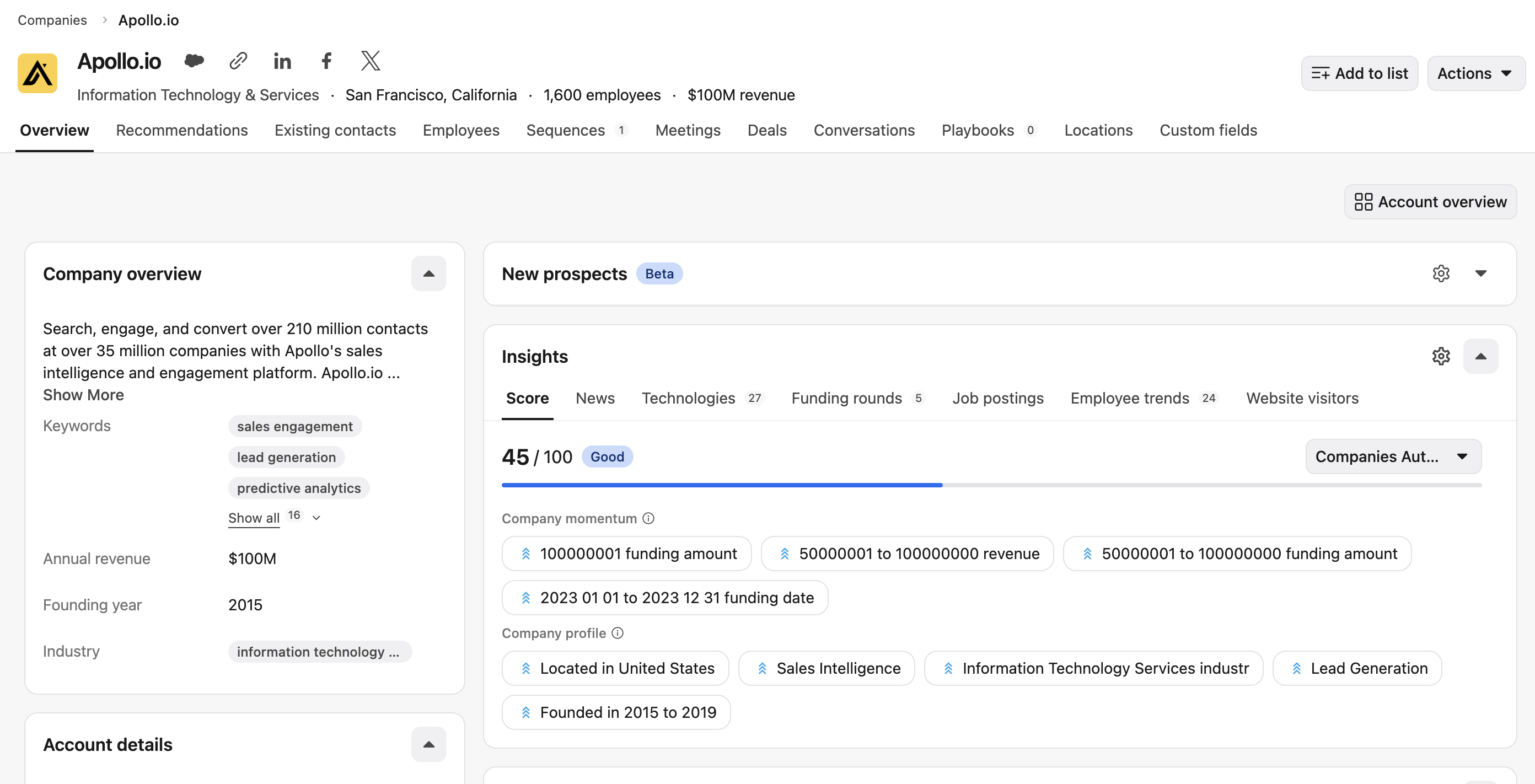
You've successfully merged the account records. Apollo removes the duplicate records banner from the account's page.
Explore Merge Settings for CRM Integrations
Before integrating your CRM with Apollo for the first time, clean up and remove duplicate records from your CRM first. This helps prevent Apollo from creating duplicate records during the initial integration.
If you've already connected Salesforce or HubSpot to Apollo and encounter duplicate records after a sync, you can enable merge sync and deletion sync settings to make duplicate cleanup easier. When enabled, manual record merges and deletions sync automatically between Apollo and your connected CRM.
Learn more about configuring advanced data sync options for Salesforce and HubSpot integrations.
Next Steps
Check out the following resources to learn more about key sync settings for CRM integrations:
| Important Information About The Salesforce Integration | Review key Salesforce integration considerations to ensure merged records sync correctly and prevent duplicates from resurfacing in your CRM. |
|---|---|
| Important Information About The HubSpot Integration | Go over important HubSpot integration details to keep your cleaned data aligned and avoid conflicting updates between systems. |
| Configure Salesforce Pull Settings | Adjust Salesforce pull settings to control exactly which records flow into Apollo and maintain a single source of truth. |
| Configure Salesforce Push Settings | Fine-tune Salesforce push settings to send only the right updates back to your CRM and protect your newly merged data. |
| Configure HubSpot Sync Settings | Set up HubSpot sync settings to keep contact and company data consistent across platforms as your team scales outreach. |