
Overview
If you use Apollo for data and Outreach for engagement, you can integrate Apollo with your Outreach account to unlock huge benefits:
- Unified data management: Push Apollo contacts directly into Outreach.
- Ease of execution: Quickly deploy enriched Apollo contacts into your Outreach sequences.
- Streamlined workflow: Remove unnecessary steps when working between Apollo and Outreach.
- Automatic synchronization: Contacts you push from Apollo automatically sync with corresponding fields in Outreach.
Consolidating tech stacks? If you're moving away from Outreach to Apollo, Apollo can help migrate your Outreach sequences so your prospecting doesn't miss a beat.
Check out the following sections to learn how to connect Outreach to Apollo.
Connect Outreach to Apollo
You can only connect one Outreach account to Apollo at a time. Make sure to connect an admin Outreach account so your team can access all Outreach sequences from Apollo. Additionally, ensure you have permission to create prospects in Outreach before you connect the integration to Apollo. If you don't have this permission, contact an Outreach admin for help.
To connect Outreach to Apollo:
- Launch Apollo and click Settings > Integrations.
- Click Outreach.
- Click New Authentication, and log into Outreach to authenticate your account.
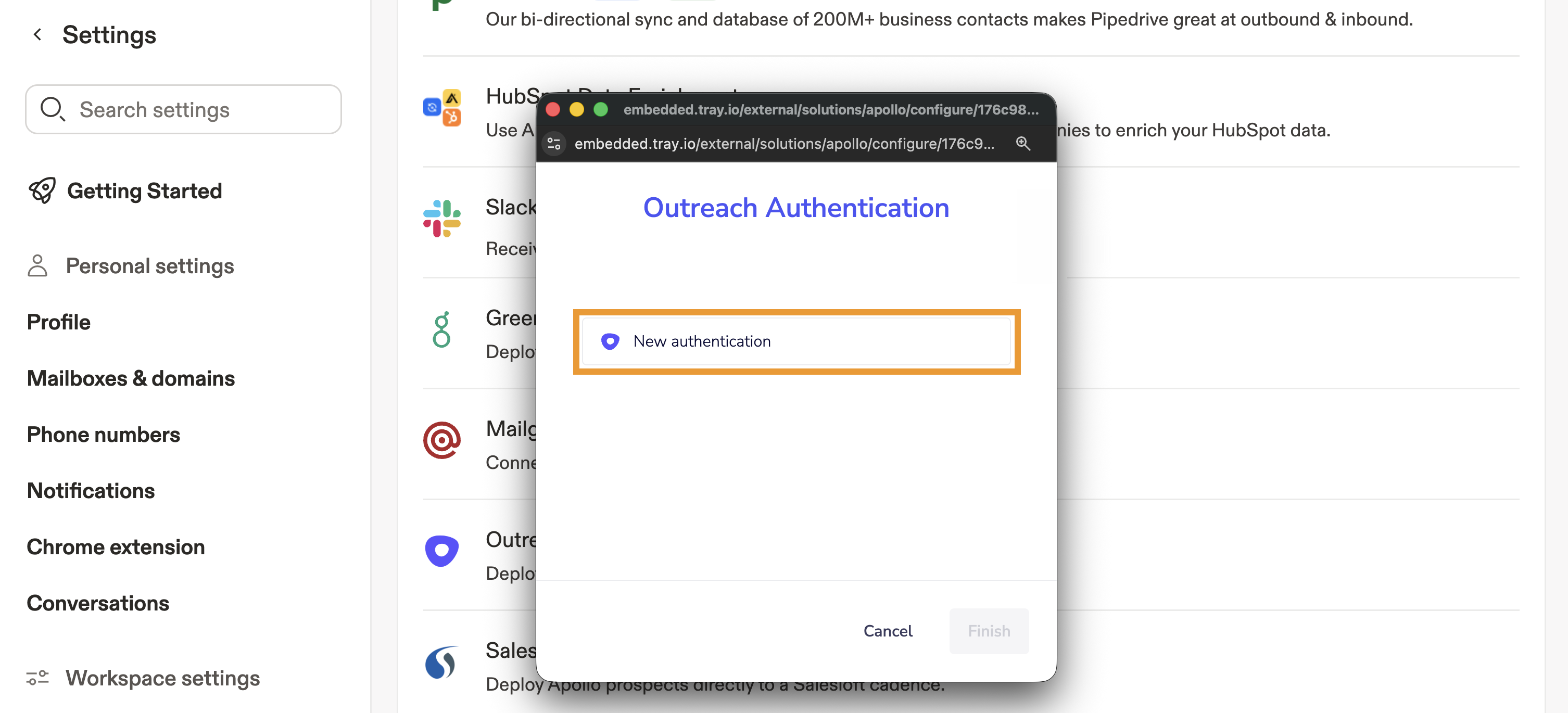
- Click Finish.
Outreach is now connected to Apollo.
Sync New Contacts to Outreach
When you push contacts to Outreach, the following fields will sync as long as they're also present in Apollo: first name, last name, LinkedIn URL, website URL, title, city, state, country, email, phone, street, postal code, and time zone.
Once you integrate Outreach with Apollo, you can push net-new contacts directly to Outreach while prospecting in Apollo.
To sync new contacts to Outreach:
- Launch Apollo and navigate to People.
- Use search filters to find your ideal prospects.
- Click Net New to review new prospects.
- Check the prospects you want to push to Outreach, then click Save.
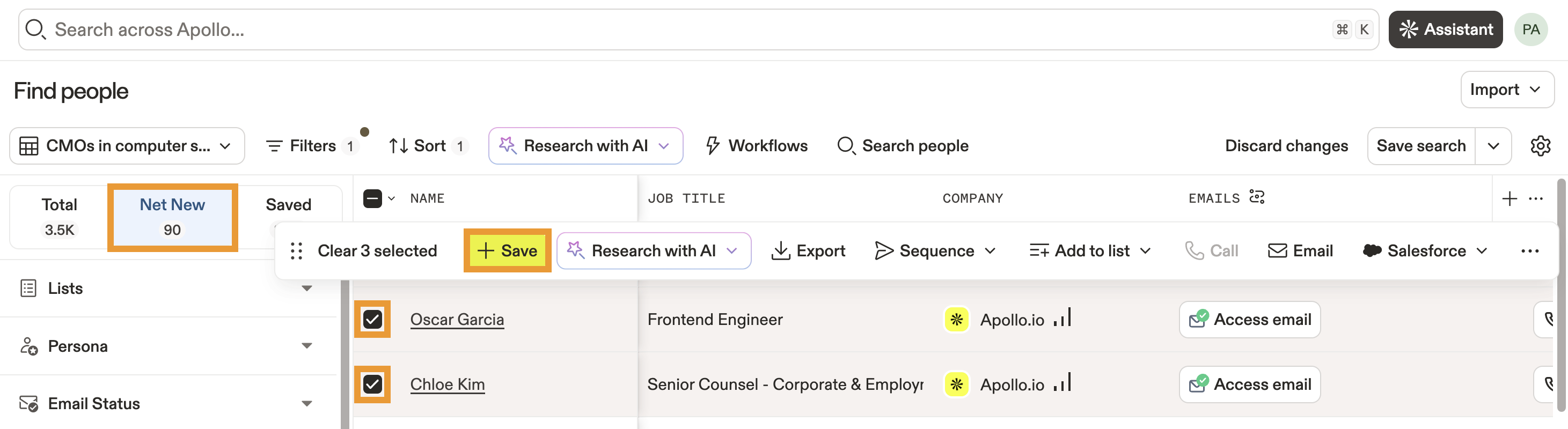
- Click Add to Outreach, then click Push new contacts to Outreach.
- (Optional) Add selected prospects to one of your Outreach sequences. Select an Outreach sequence and the email address you want to use for sending sequence messages.
- If you can't find your Outreach sequence, click Refresh to resync Outreach sequences and mailboxes.

By default, send emails from shows all mailboxes in Outreach. If you're an Apollo admin, you can adjust your team's permission profiles to show all or certain mailboxes per user. Go to Settings > Users and teams > Permission profiles, then open the permission profile you want to edit. Under email permissions, click Can send emails from and select one of the following options:
- All users: All mailboxes from Outreach.
- Self only: Mailboxes related to the signed-in user. Apollo shows all mailboxes from Outreach having a matching email with the user's email address or their mailboxes on Apollo.
- Other users on the same team: Mailboxes in Outreach that belong to users on the same Apollo team as the signed-in user.
- When finished, click Save.
Apollo pushes the contacts to Outreach.
When you save and push a contact into Outreach, Apollo creates a shortcut between the two platforms. Click Outreach on a contact in Apollo to access the same contact in Outreach. No Outreach option? You may need to retry pushing this contact to Outreach. Click ... > Push to Outreach.

Next Steps
If you're connecting Apollo and Outreach, here are a few solid next steps to tighten how you work with contacts and accounts across both tools.
| Migrate Your Outreach Sequences to Apollo | If you're consolidating tools, you can migrate your Outreach sequences into Apollo to keep proven messaging intact while you shift engagement into a single platform. |
|---|---|
| View and Edit Contacts | You can view and edit contacts in Apollo to clean up records, tweak ownership, and keep the people you push into Outreach fully up to date. |
| View and Edit Accounts | You can view and edit accounts in Apollo to understand each company in context, align owners, and keep account data tight for both Apollo and Outreach workflows. |
| Search Filters Overview | You can tune Apollo search filters to zero in on the exact people and accounts you want before saving them as contacts and pushing them into Outreach. |