
Overview
A tracking subdomain is a secondary domain, or subdomain, that Apollo uses to route tracking pixels, letting you reliably record opens, clicks, and unsubscribes without touching your main site.
In Apollo, you can create and connect a custom tracking subdomain in seconds, protecting your primary domain's reputation and boosting your email delivery rates. You can even set up multiple subdomains so each person on the team can use the one that matches their mailbox.
Apollo recommends one tracking subdomain per sending domain. For example, if you manage user1@domain.org and user2@domain.org, plus user1@trydomain.org and user2@trydomain.org, you'd create two subdomains, one for the mailboxes on domain.org and one for those on trydomain.org.
Custom tracking subdomains are only one part of the equation. To reach your contact's inbox consistently, follow email deliverability best practices and read Apollo's book Outbound Sales. Follow Apollo's recommended sending limits to maintain your domain reputation.
Check out the following sections to create, connect, and manage a new tracking subdomain.
Create and Connect a Custom Subdomain
To create and connect a custom subdomain:
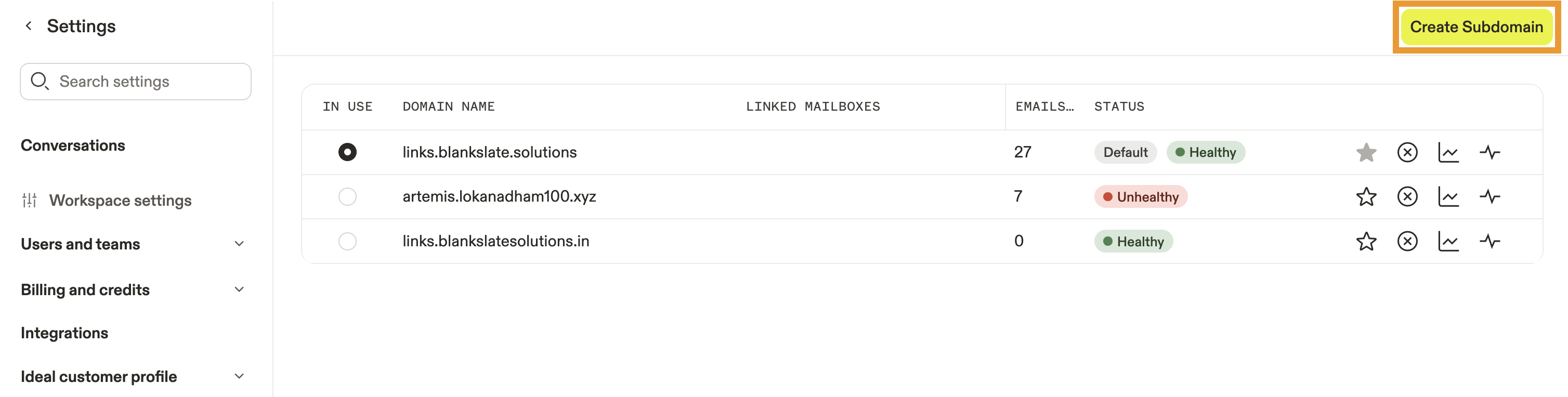
- Launch Apollo and click Settings > Team email & sequences > Tracking Subdomains.
- Click Create Subdomain.
- Enter your tracking subdomain URL.
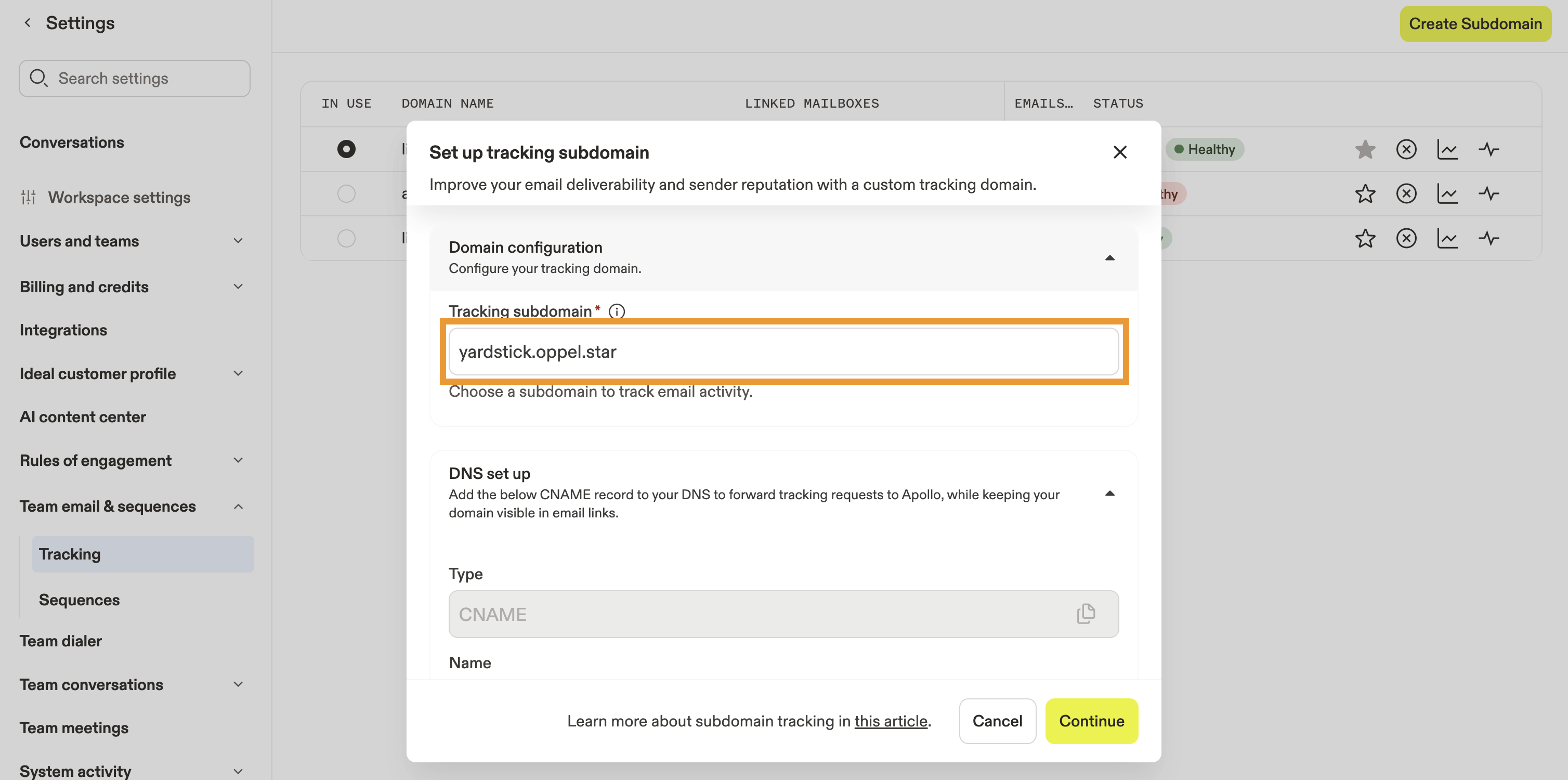
Apollo recommends you use a short, brand-friendly tracking subdomain name like track or go. Avoid special characters or numbers.
- Next, choose whether to automatically or manually add the DNS records:
With automatic addition, Apollo automatically generates a CNAME record for you.
- Select Automatic addition then click Continue. Apollo automatically detects your domain provider. Log in to your domain provider or use an API key to authorize the connection.

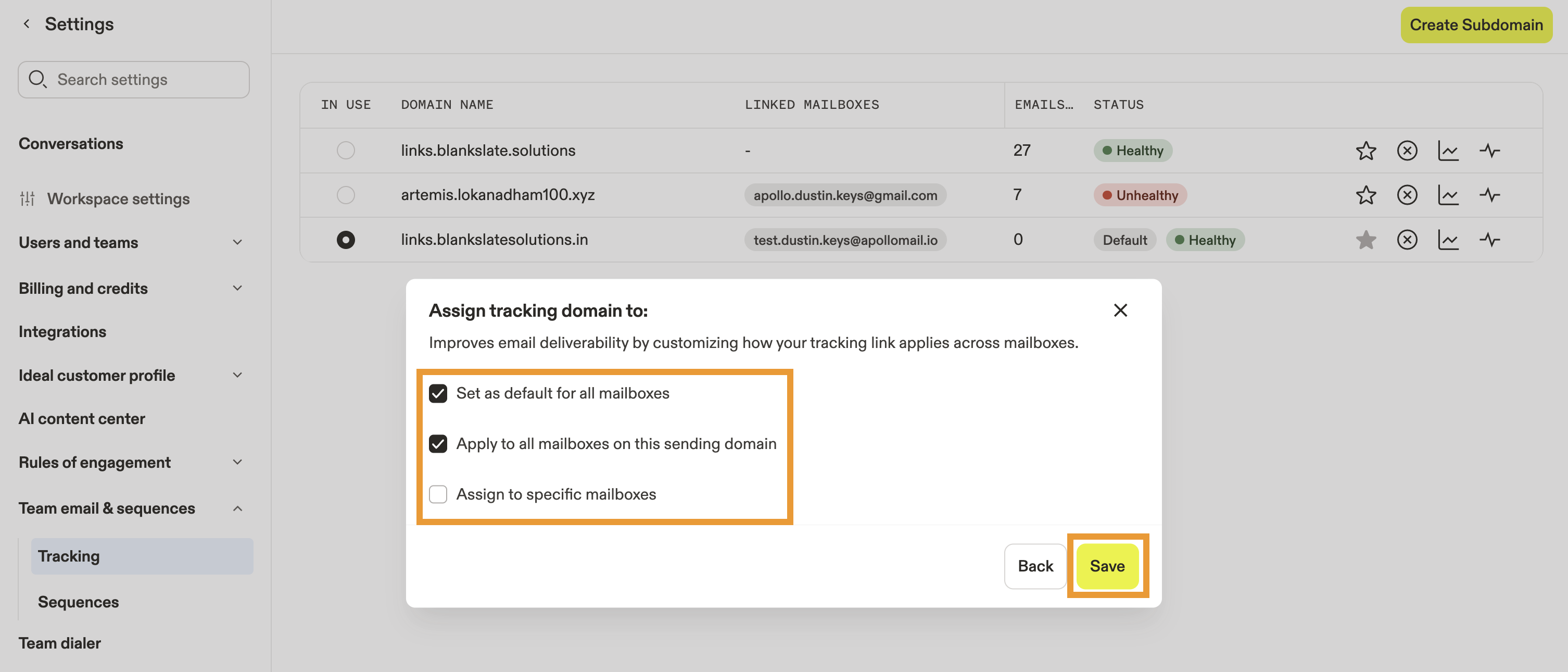
- Next, choose how to apply the tracking domain:
- Set as default for all mailboxes: Make this tracking subdomain the default for all mailboxes on Apollo.
- Apply to all mailboxes on this sending domain: Set this tracking subdomain for all mailboxes on the sending domain.
- Assign to specific mailboxes: Choose one or more mailboxes from the dropdown.
- When finished, click Save.
You have now connected a custom tracking subdomain.
As a best practice, check your subdomain settings 24 hours after you finish setup to ensure a healthy connection. When you've successfully connected a tracking domain, Apollo shows a healthy status for the subdomain.

Did you know? You can connect multiple subdomains on Apollo. Each user with a linked mailbox can choose which connected subdomain to use for each mailbox. Apollo recommends that the subdomain match the domain of your linked mailbox. However, if that tracking subdomain is unhealthy, you should consider deleting the tracking subdomain and creating another one instead. If you connect several tracking subdomains, Apollo will use the one set as default as the fallback when no option is chosen.
With manual addition, you need to manually create a tracking subdomain in your domain provider, then add the DNS records from Apollo.
- Access your domain management account to create the tracking subdomain.
Each domain provider has a different domain management settings. If you need help creating a CNAME record, visit the knowledge base for your domain provider and search for create CNAME.
- Manually copy each DNS record to your domain provider. Then select Manual addition in Apollo.
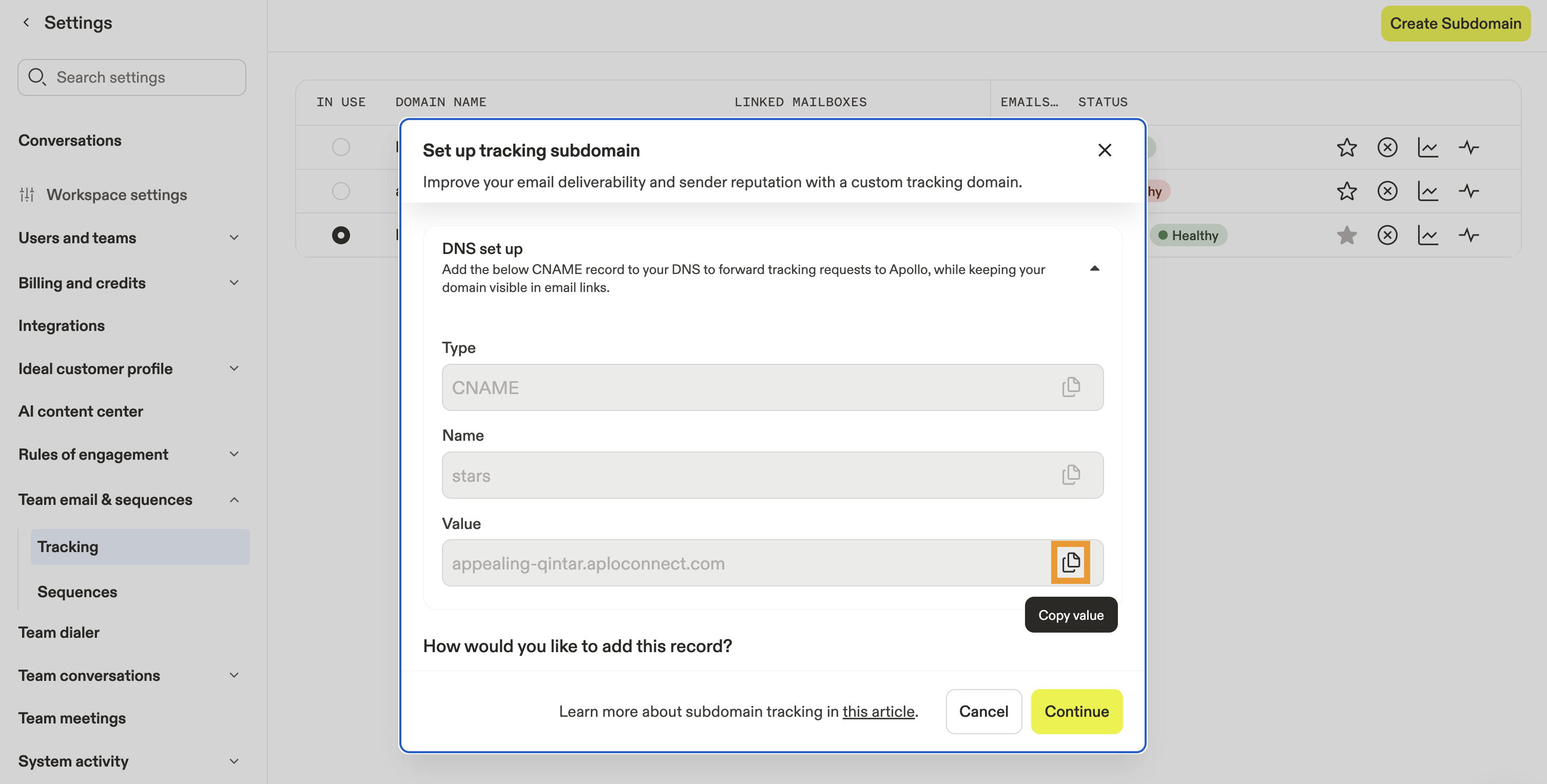
The following provides more details about the type of information you'll need to create the tracking subdomain on your domain provider:
| Field | Definition | Field value | Notes |
|---|---|---|---|
| DNS record type | DNS records include essential information about your domain or host. To set up a tracking subdomain, you need to select the record type: Canonical Name (CNAME). | CNAME | A CNAME record maps an alias name to a canonical domain name. |
| Host/Host Name/Name | Choose any name that isn't directly related to your website. This name will become the subdomain in the URL that you create: subdomain.yourdomain.com. | subdomainexample |
|
| Value/Data/Points To | The value you enter establishes the connection between your subdomain and the Apollo tracking servers. | Copy the custom value from the tracking subdomain settings in Apollo. | Click Settings > Sales engagement > Tracking subdomains > + New Subdomain. Manually copy the value from Apollo. |
| TTL | TTL (time-to-live) refers to how often your subdomain information will be rechecked by relevant servers. | Leave as default. | You can leave this field as whatever value your domain provider uses by default. |
As an example, here's a CNAME record from a GoDaddy account:
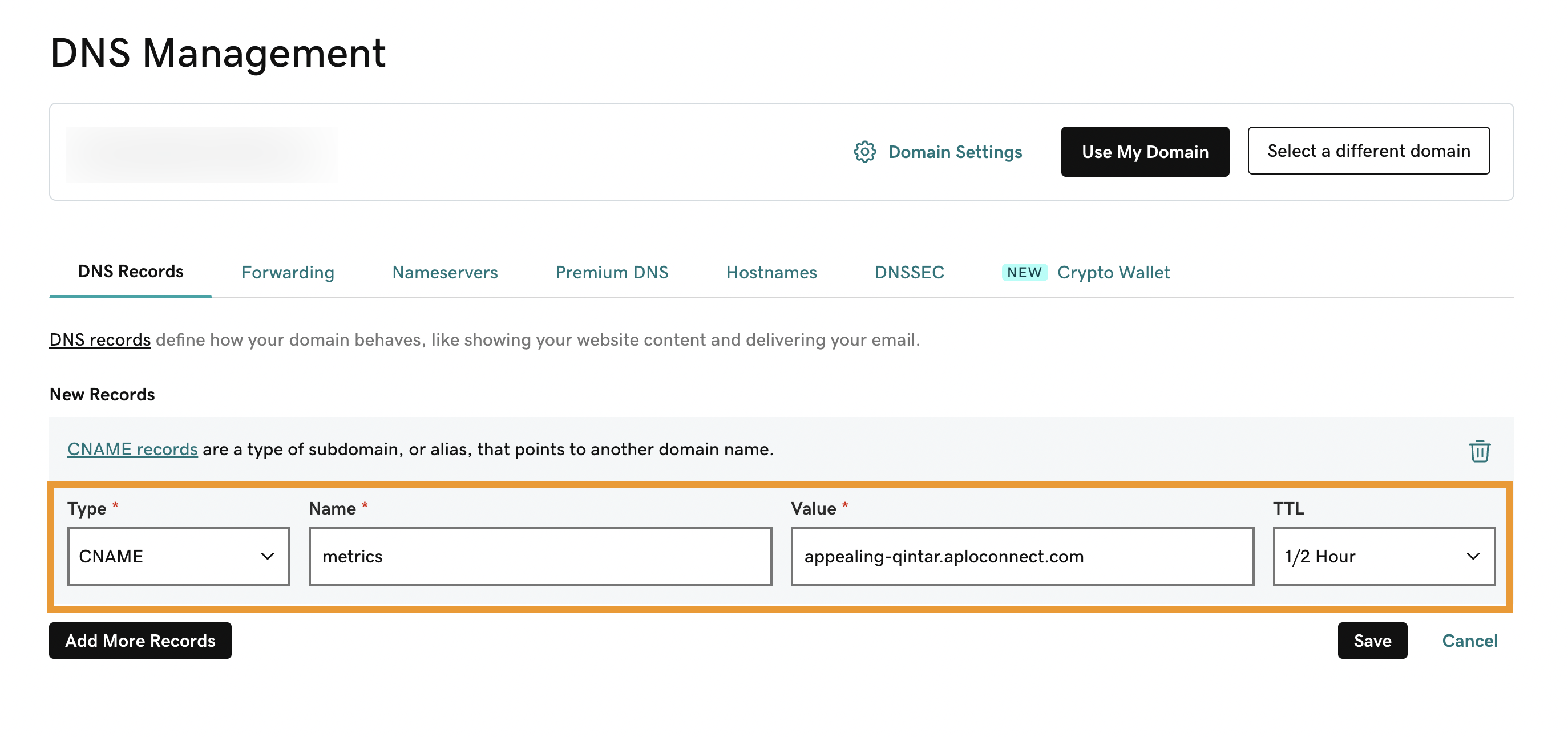
If you manage your DNS through platforms like AWS or cPanel, consult their subdomain support guides to ensure you're following the latest, provider-specific instructions.
- Once you create and save your CNAME record in your domain provider, it can take between 2-24 hours to fully propagate. When finished, click Continue in Apollo, and Apollo checks the records for validity.
- Next, choose how to apply the tracking domain:
- Set as default for all mailboxes: Make this tracking subdomain the default for all mailboxes on Apollo.
- Apply to all mailboxes on this sending domain: Set this tracking subdomain for all mailboxes on the sending domain.
- Assign to specific mailboxes: Choose one or more mailboxes from the dropdown.
- When finished, click Save.
You have now connected a custom tracking subdomain.
As a best practice, check your subdomain settings 24 hours after you finish setup to ensure a healthy connection. When you've successfully connected a tracking domain, Apollo shows a healthy status for the subdomain.
Did you know? You can connect multiple subdomains on Apollo. Each user with a linked mailbox can choose which connected subdomain to use for each mailbox. Apollo recommends that the subdomain match the domain of your linked mailbox. However, if that tracking subdomain is unhealthy, you should consider deleting the tracking subdomain and creating another one instead. If you connect several tracking subdomains, Apollo will use the one set as default as the fallback when no option is chosen.
View Tracking Statistics
You can access Apollo's tracking statistics to monitor your emails' performance through open, click, and unsubscribe rates.
To view email tracking statistics:
- Click ... beside the tracking subdomain. Then, click Check Stats.
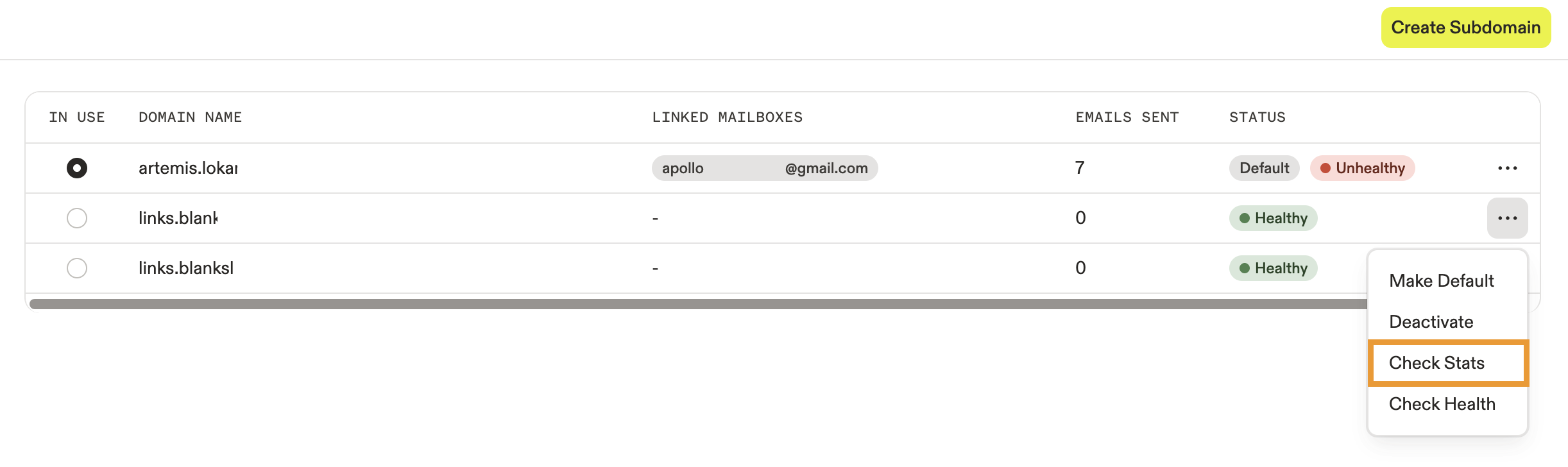
Stats include key statistics related to the performance of the emails sent with the default tracking subdomain, like spamblock rate. Learn more about email tracking on Apollo.
Few contacts open an email immediately after you send it. For this reason, Apollo tracking stats reflect data from the previous week and month rather than from the current week and month.
Deactivate a Tracking Subdomain
If your tracking subdomain is healthy, your recipients' email servers aren't flagging your emails as spam. When you check email statistics in Apollo, you should see high open rates and low bounce rates. If your tracking subdomain is unhealthy, your recipients' email servers are flagging your emails as spam.
You can expect that email servers will still occasionally flag your emails as spam. If you start to see a dramatic decrease in your open rates or an increase in spam-blocked emails, set up a new custom tracking subdomain. Then, deactivate the current tracking subdomain to remove it from your options and reset your deliverability. Remember to follow email deliverability best practices to avoid spam filters.
To deactivate a tracking subdomain:
- Click ✕ beside the tracking subdomain. Choose a tracking subdomain to replace this one, then click Deactivate.
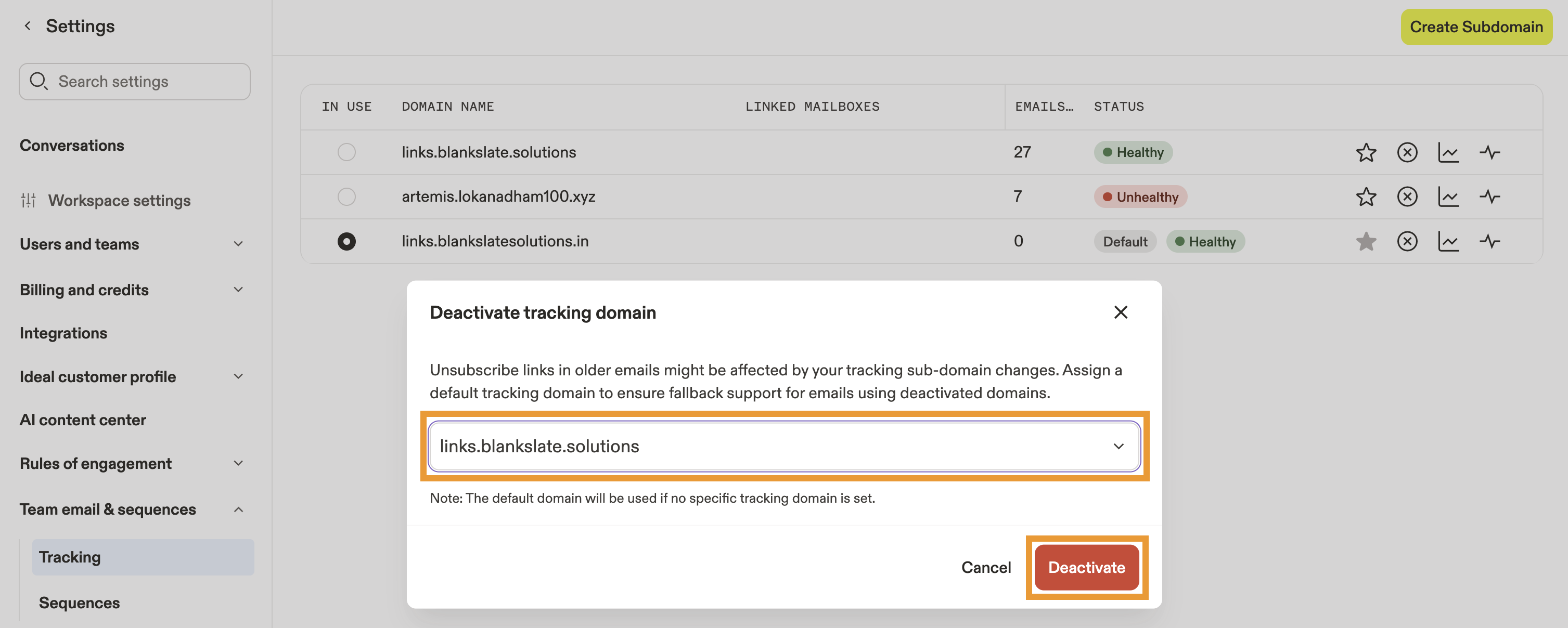
You have now deactivated a tracking subdomain.
Tracking links that utilize your custom tracking subdomain don't expire unless you delete the domain.
Troubleshoot Errors
After you connect your tracking subdomain to Apollo, encountering an error message or seeing an “unhealthy” status usually boils down to one of two primary reasons:
CAA permission error
Apollo uses Let's Encrypt for tracking domains. If your team has set up a CAA record and you haven't listed Let's Encrypt, contact your DNS admin to update your CAA settings.
After you've given Let's Encrypt permission, follow reconnect the tracking subdomain to Apollo.
CNAME error
There are several potential causes for CNAME errors. To fix the issue:
- Check for spelling mistakes.
- Confirm that you filled in all the required fields in your domain management account.
- If you've just created a CNAME record, wait 24 hours for changes to fully propagate. Then try connecting your custom subdomain to Apollo again.
- If the problem persists, contact your domain provider's support team. Your account may have been deleted or deactivated on their end.
If you're still having issues connecting a custom subdomain to Apollo, help is only a message away. Reach out to Apollo support for assistance.
Next Steps
Here are some next steps to help you boost your email deliverability and protect your domain reputation:
| Set Up Domain Authentication | To ensure your team's emails are authenticated so they can reach inboxes consistently, configure your DNS records. |
|---|---|
| Troubleshoot Domain Authentication | If you run into domain authentication issues, troubleshoot and diagnose errors to swiftly resolve SPF, DKIM, or DMARC issues and keep your email deliverability on track. |
| Email Deliverability Best Practices | Always follow email deliverability best practices to help your emails dodge spam filters and maintain a healthy sending reputation. |
| Set up Lookalike Domains to Protect Your Primary Domain | Use lookalike domains to safeguard your primary domain's reputation and prevent deliverability risks for your team. |
| How to Send Cold Emails in Apollo | Watch Apollo Academy's How to Send Cold Emails webinar to pick up proven strategies to find the right leads, research your leads to craft the right message, and add them to a multichannel sequence. |
| Join the Apollo Community | Ask questions, swap tips, and connect with other Apollo users to grow your knowledge and solve problems faster together! |