
Overview
Sheets is currently in beta and is only available to select people. Apollo automatically enrolls users as the feature becomes available.
A sheet is a spreadsheet workspace where you can pull Apollo and third-party data into one place, then enrich and transform it row by row. A sheet is a separate workspace, so you can pull in and manipulate data without affecting your Apollo records. Data only writes back to Apollo, your CRM, or your sales engagement platform when you export it.
A spreadsheet is the overall workspace, similar to an Excel workbook. Each spreadsheet can hold multiple sheets, and sheets within the same spreadsheet can reference each other's data.
You can build a sheet from scratch, from an Apollo search, from an agentic web search, from a CSV, from a webhook, from your saved Apollo records, or from a connected integration like Salesforce or HubSpot.
Check out the following sections to create a sheet and import your data.
Create a Sheet
To create a sheet:
- Launch Apollo and click Sheets.
- Click Create Spreadsheet, then choose how you want to build your sheet.
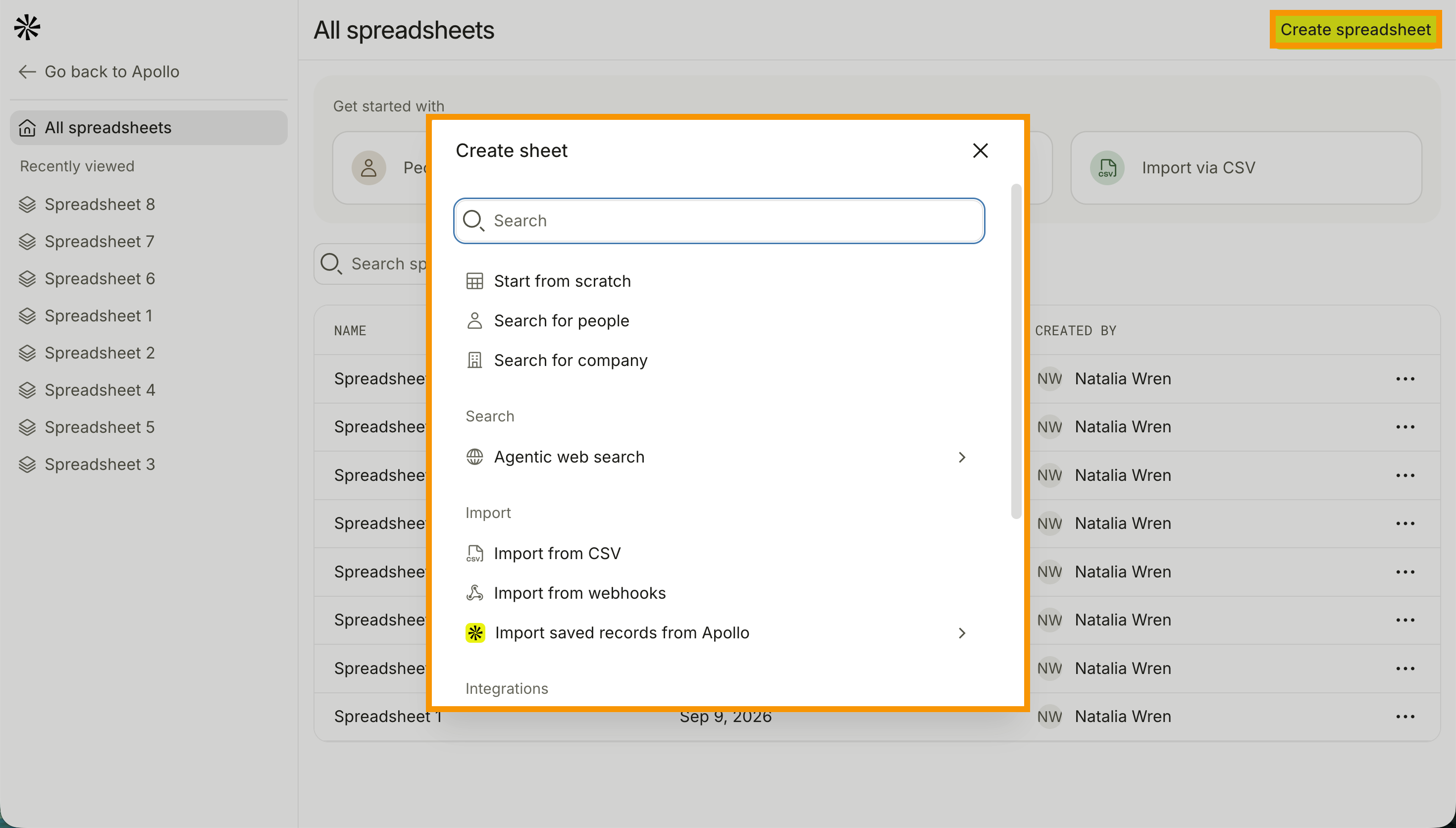
Importing from Salesforce, HubSpot, Zoho, Databricks, Google Cloud, or Google Sheets needs a connected account first. If no connection exists, click Add account or Connect during the import flow to authenticate, or check out the relevant CRM integration article to connect your account first.
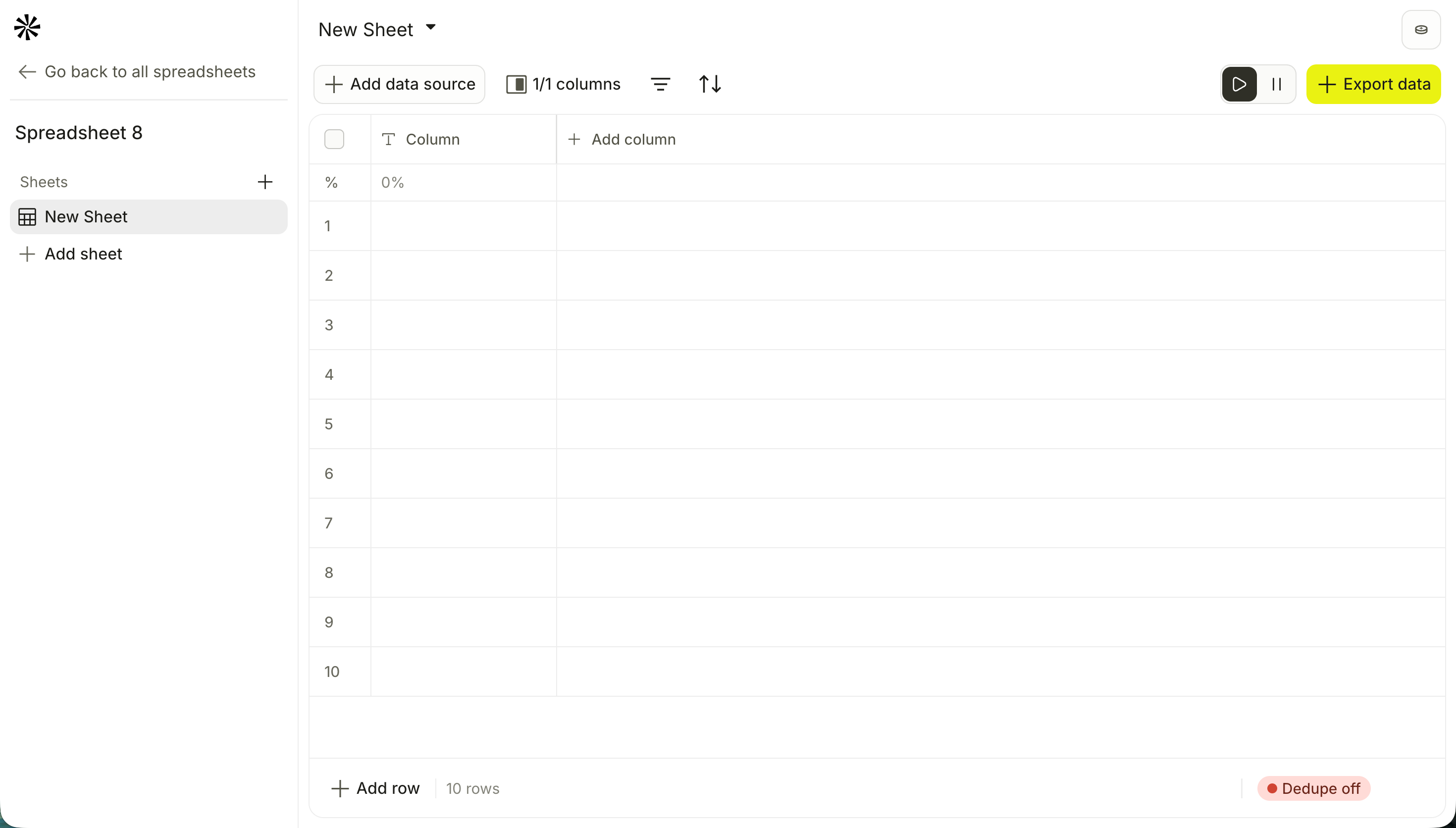
Start from scratch
Search for people
Search Apollo's full database of people, including contacts you haven't saved to your workspace yet.
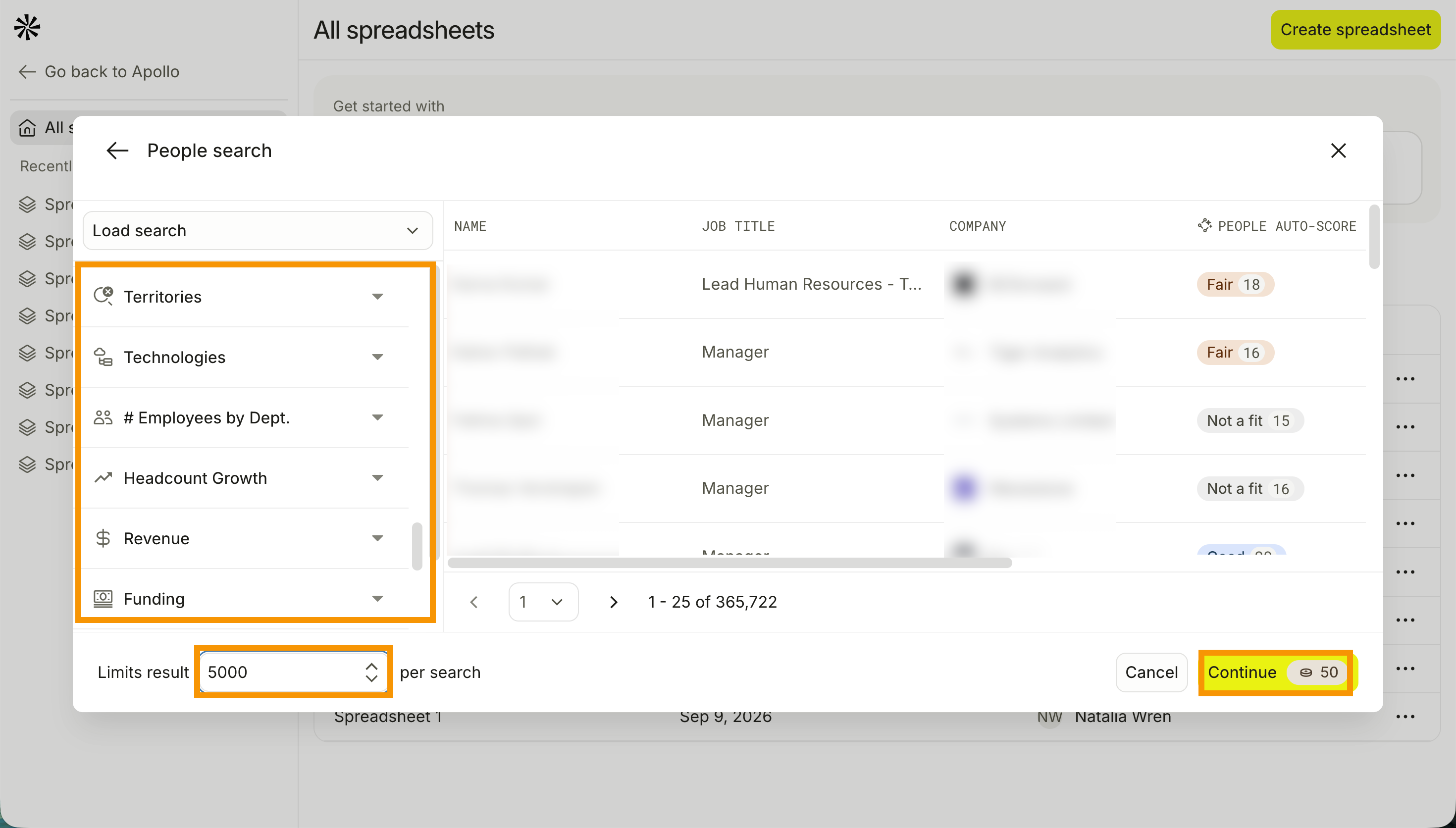
- Click Search for people.
- Apply your search filters to narrow your results.
- Enter a number on Limit result to limit your maximum results.
- When you're done, click Continue to add your results to your sheet. Apollo charges credits based on your results, so double-check your results before adding them.
Search for companies
Search Apollo's full database of companies, including companies you haven't saved to your workspace yet.
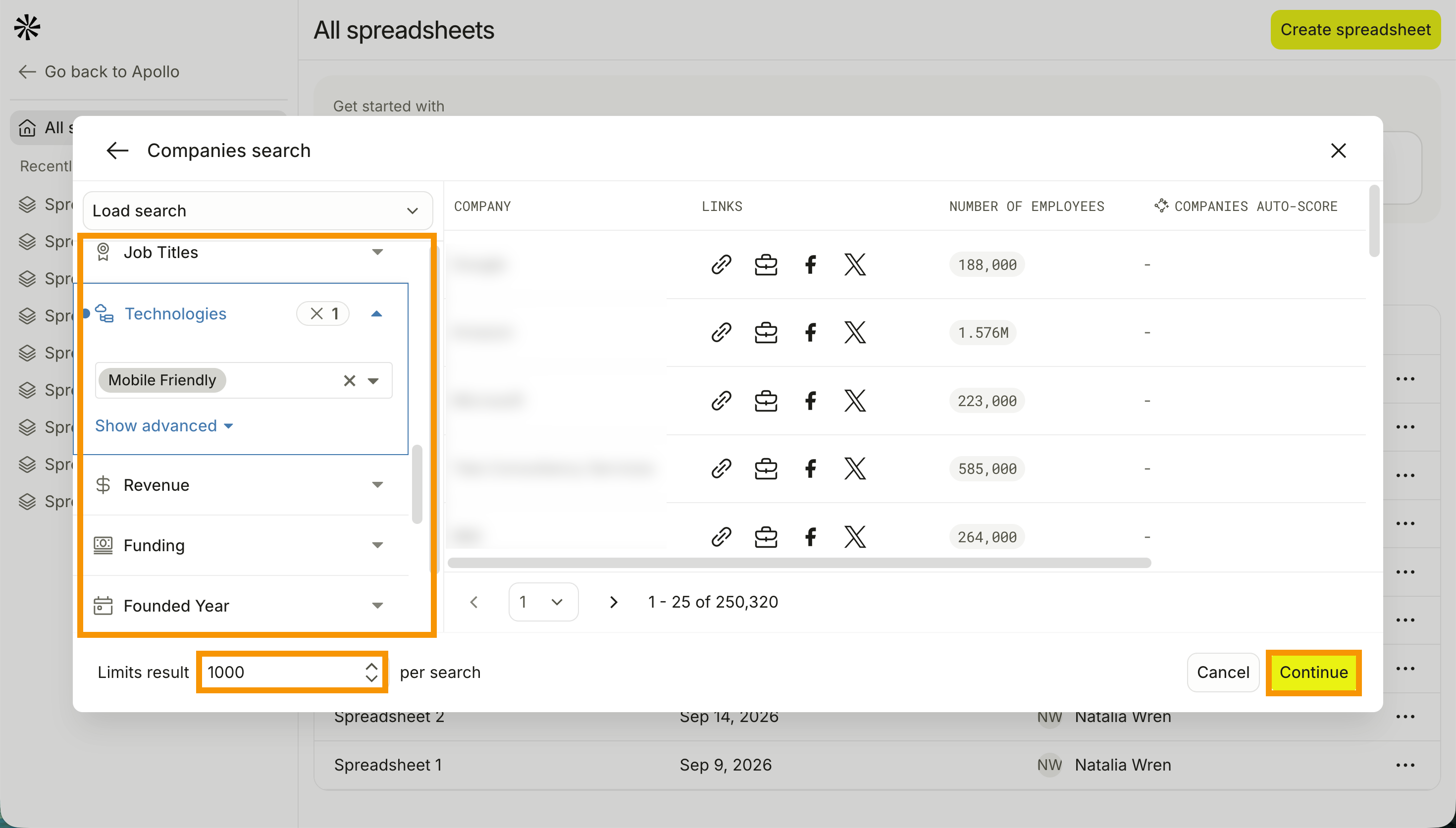
- Click Search for company.
- Apply your search filters to narrow your results.
- Enter a number on Limit result to limit your maximum results.
- When you're done, click Continue to add your results to your sheet. Apollo charges credits based on your results, so double-check your results before adding them.
Agentic web search
Use an AI agent to search the web for people or companies that match a description you provide.
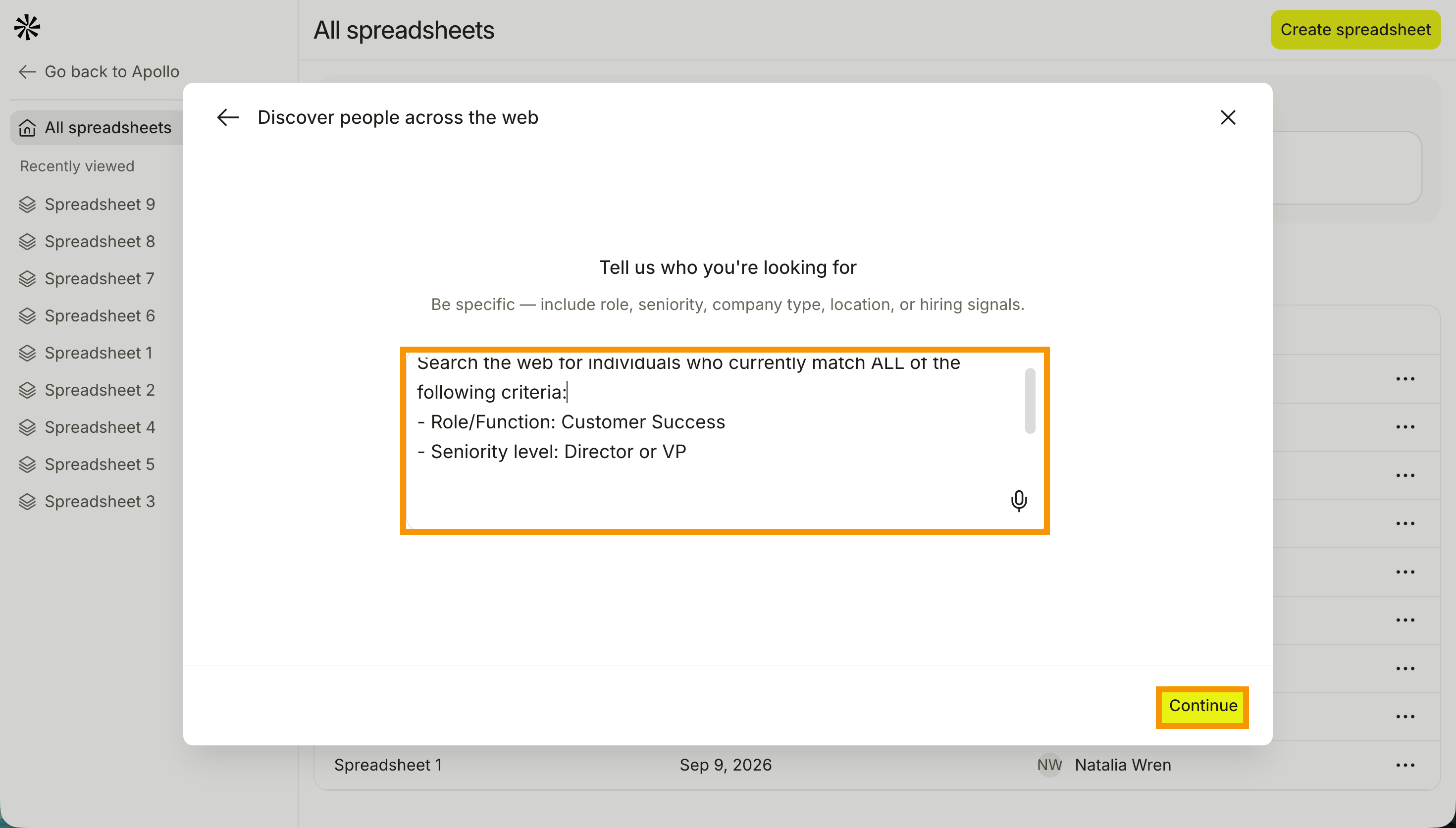
- Click Discover people from across the web or Discover companies from across the web to search with an agent.
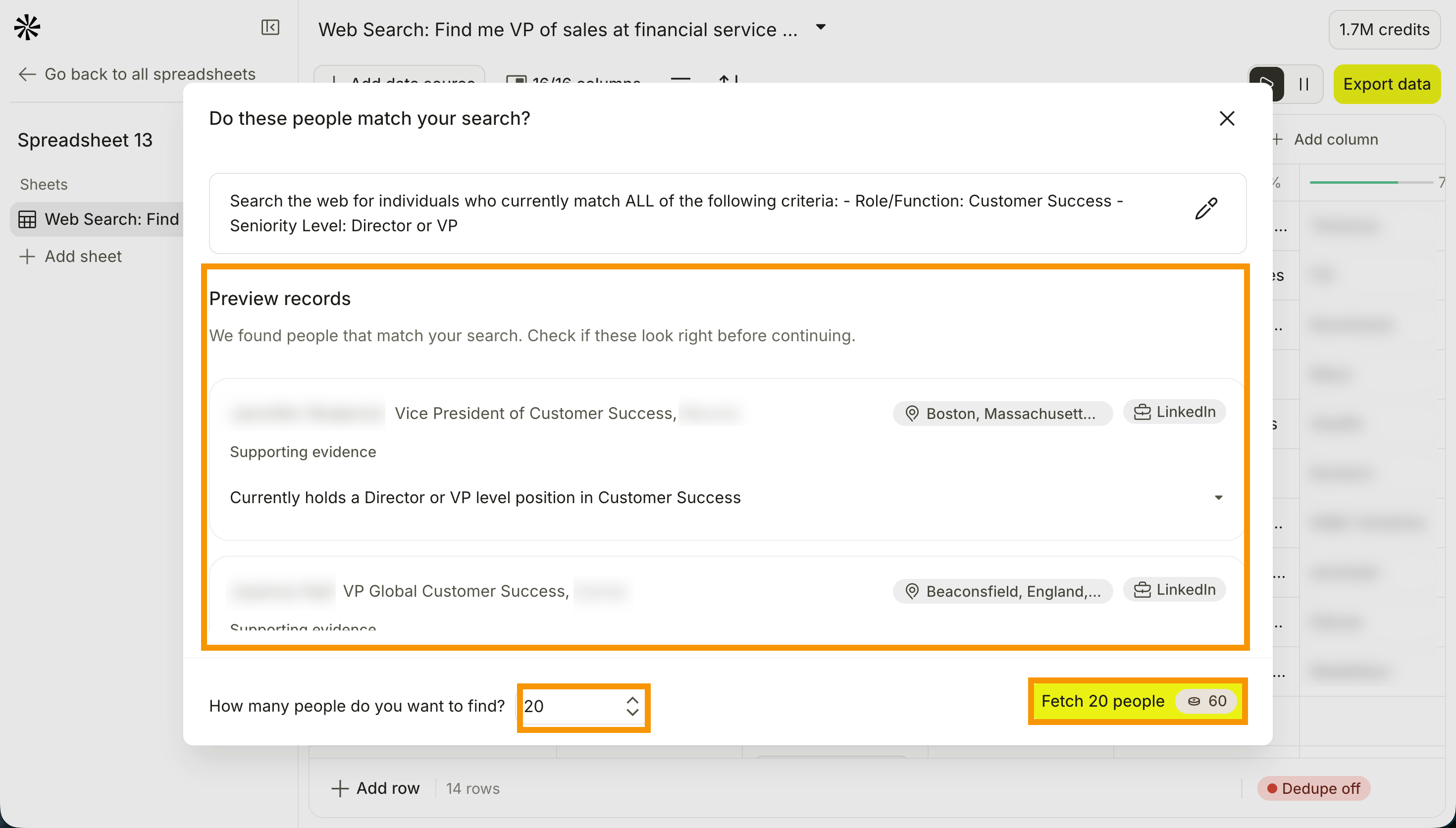
- Enter the profile of the people or companies you need, then click Continue. Apollo previews the people or companies that match your search criteria.
- Enter your preferred number of results in How many people do you want to find.
- When you're done, click Fetch people to add your results to your sheet.
Apollo doesn't keep a history of agentic web searches. Each search returns a fresh set of results, so add the results you want to your sheet before you start a new search.
Import from CSV
CSV imports are subject to the following limits:
- Each CSV file can be up to 50 MB.
- Depending on your plan, you may have a rolling import limit of 100,000 rows per seven days.
- CSV columns count toward your sheet's column limit: 20 columns on the Free Plan and 250 columns on the Paid Plan.
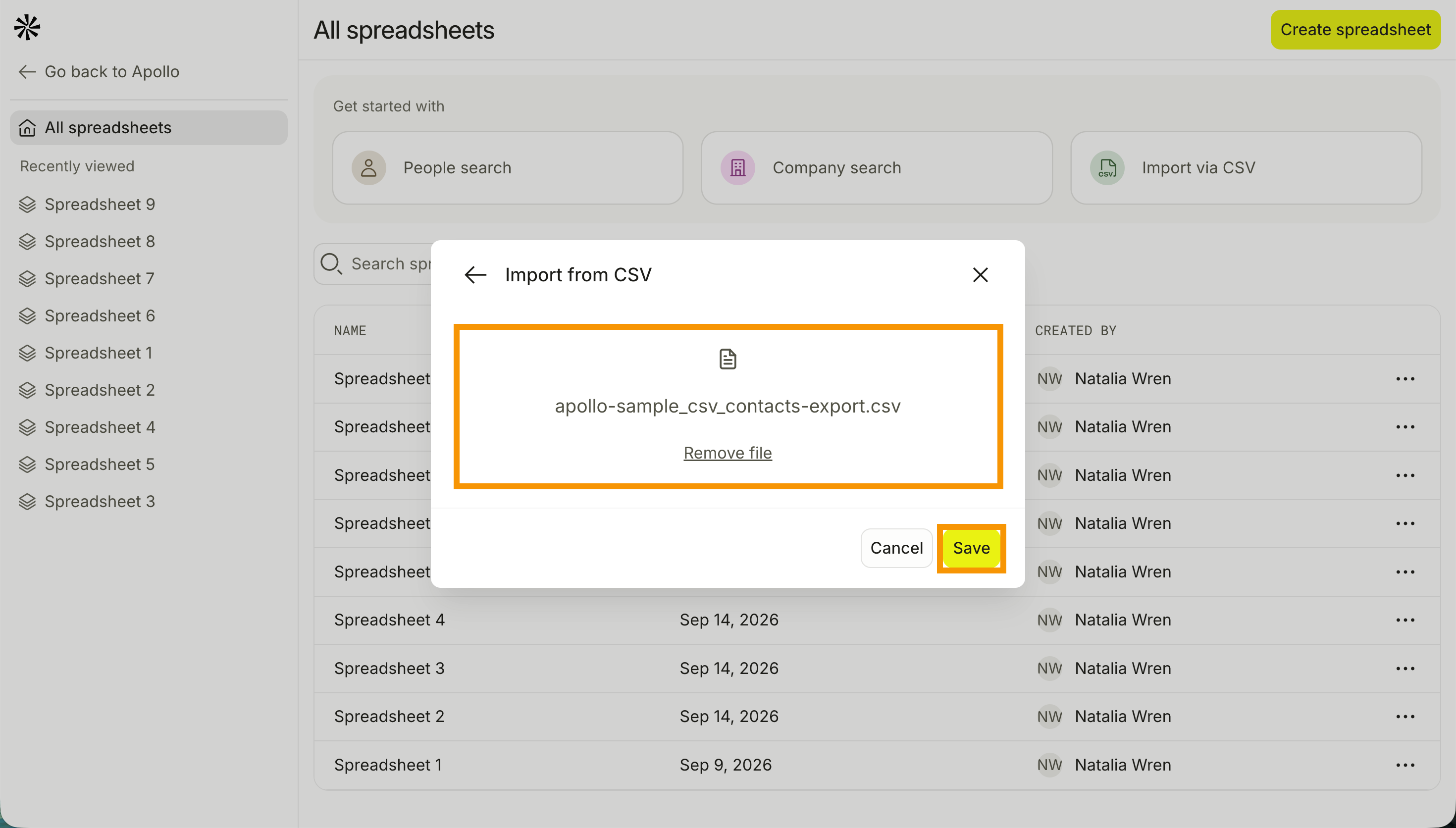
- Drag and drop your CSV file, or click choose a file and select a CSV from your device.
- Click Continue. Apollo adds your CSV data to your sheet.
Import from webhooks
Create a webhook endpoint that receives data pushed from an external system, then adds each incoming request as a new row in your sheet.
Webhook imports are subject to the following limits:
- Each request can be up to 1 MB.
- Apollo accepts up to 10 requests per second, per endpoint.
- Apollo accepts up to 20 requests per hour on the Free Plan, and 1,000 requests per hour on Paid Plans.
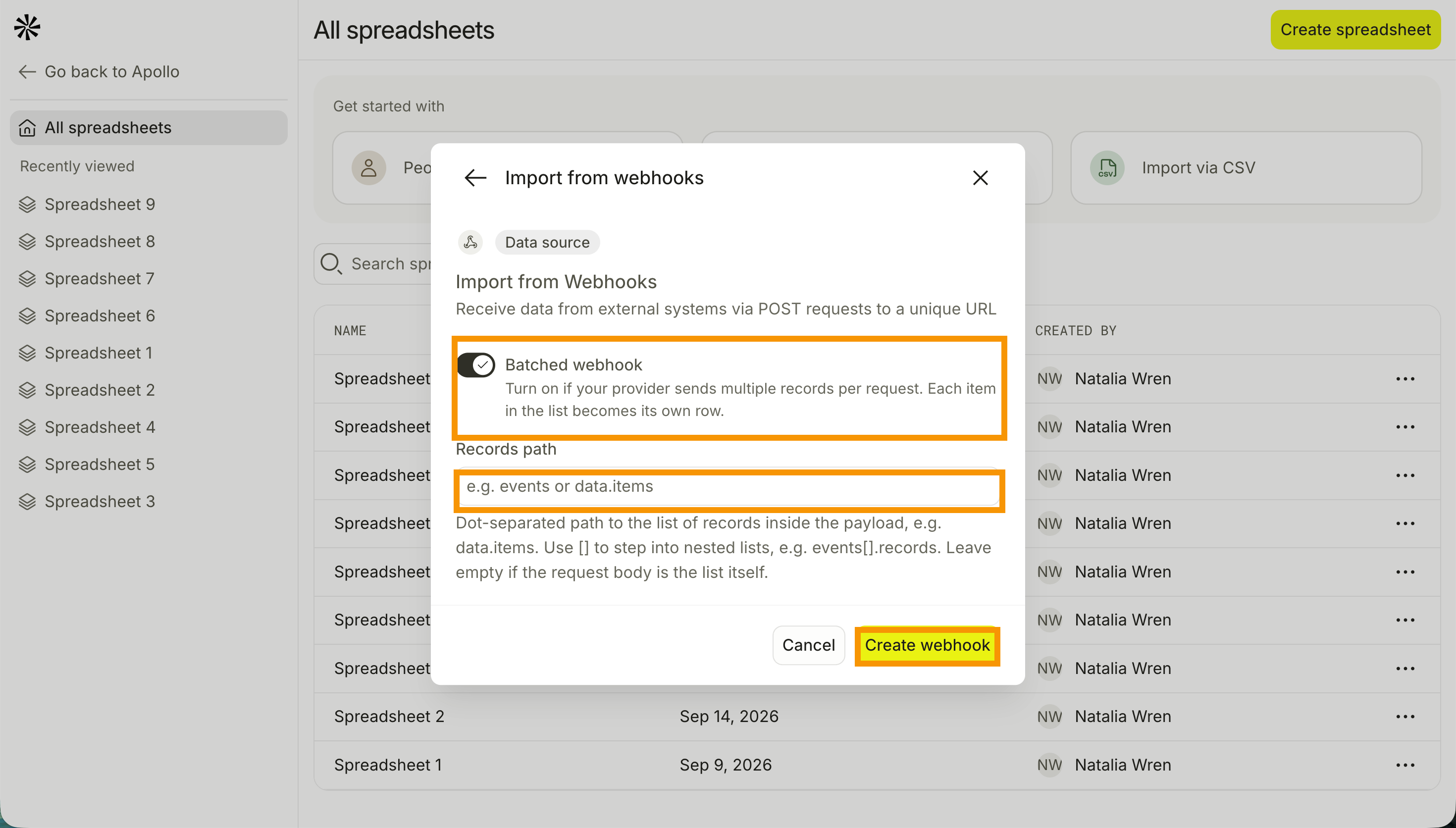
- Click Import from webhooks.
- (Optional) Toggle on Batched webhook to generate a row for each item your provider sends when they send multiple records per request, then add a records path.
- Click Create webhook.
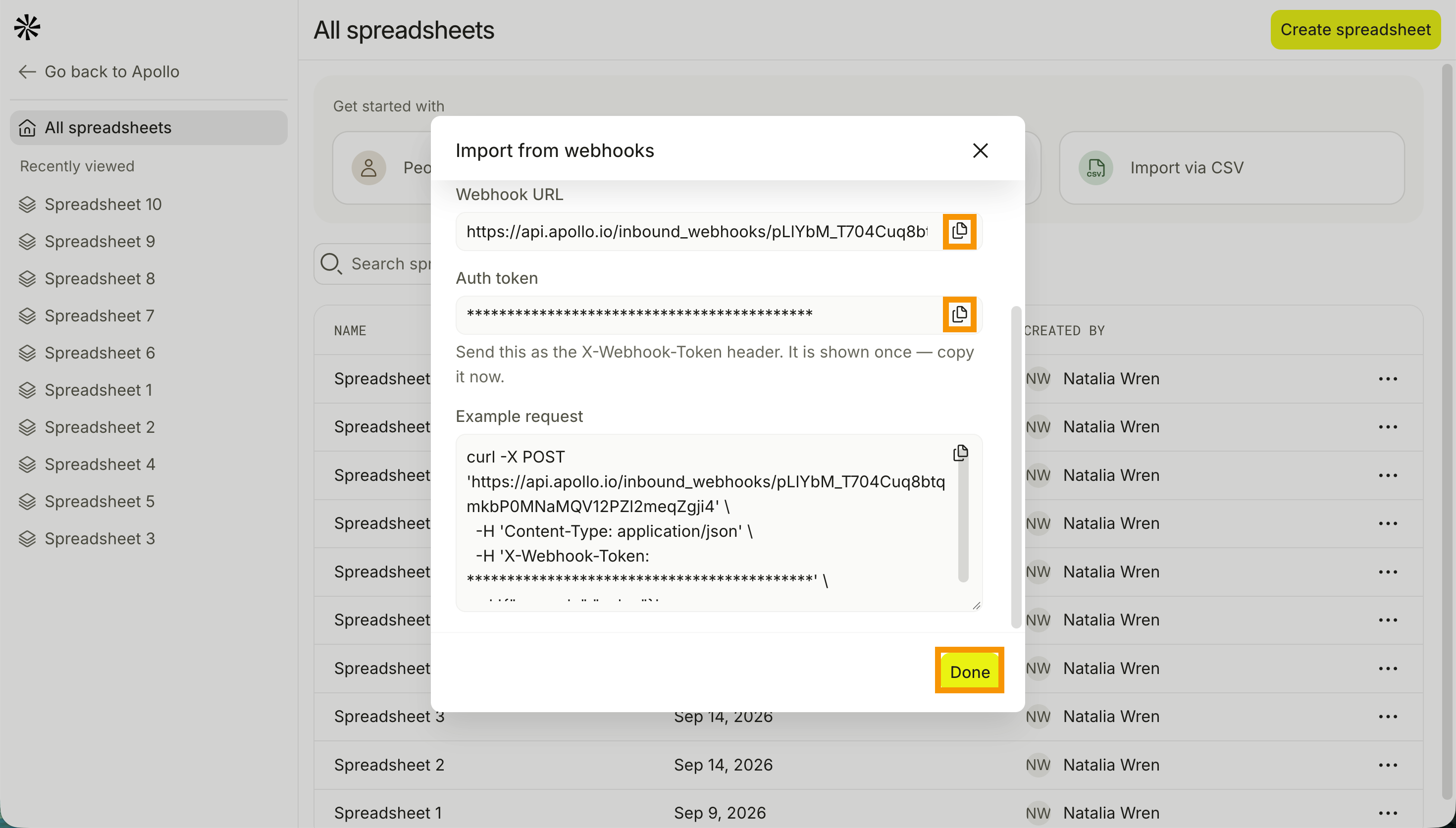
- Apollo provides the webhook URL and auth token. The auth token only appears once. Click Copy to copy the webhook URL or auth token, then provide it to your webhook. Apollo also shows an example request.
- When you're done, click Done.
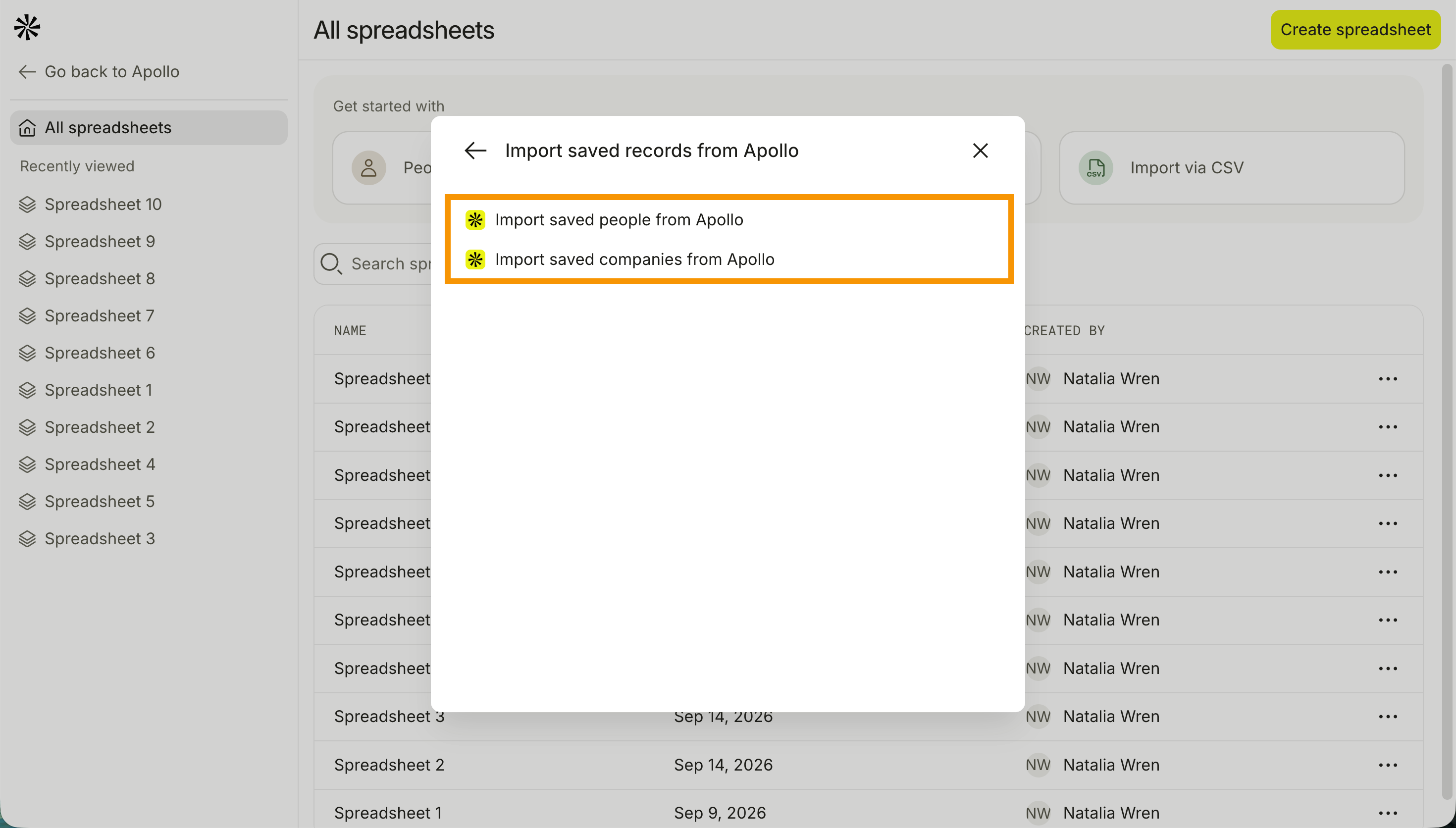
Import saved records from Apollo
Import the people or companies already saved to your Apollo workspace.
- Click Import saved people from Apollo or Import saved companies from Apollo to import from your saved searches.
- Apply your search filters to narrow your results.
- When you're done, click Continue to add your results to your sheet.
Salesforce, HubSpot, and Zoho
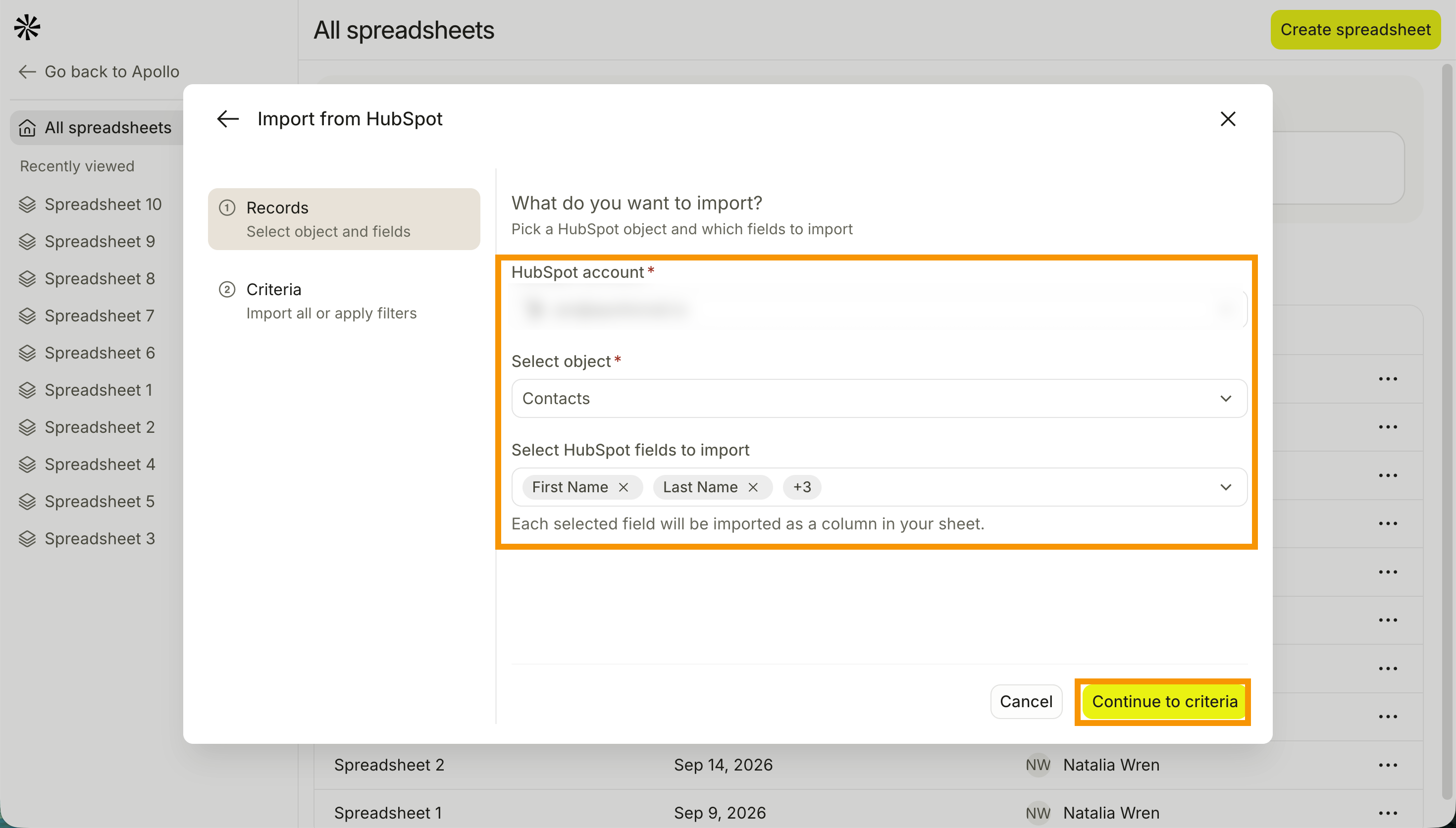
The import flow is the same for Salesforce, HubSpot, and Zoho.
- Click Salesforce, HubSpot, or Zoho.
- Select your account, or click Add account to connect one.
- Select a target object from your account.
- Select the fields you want to import to your sheet.
- Click Continue to criteria to set criteria for your import.
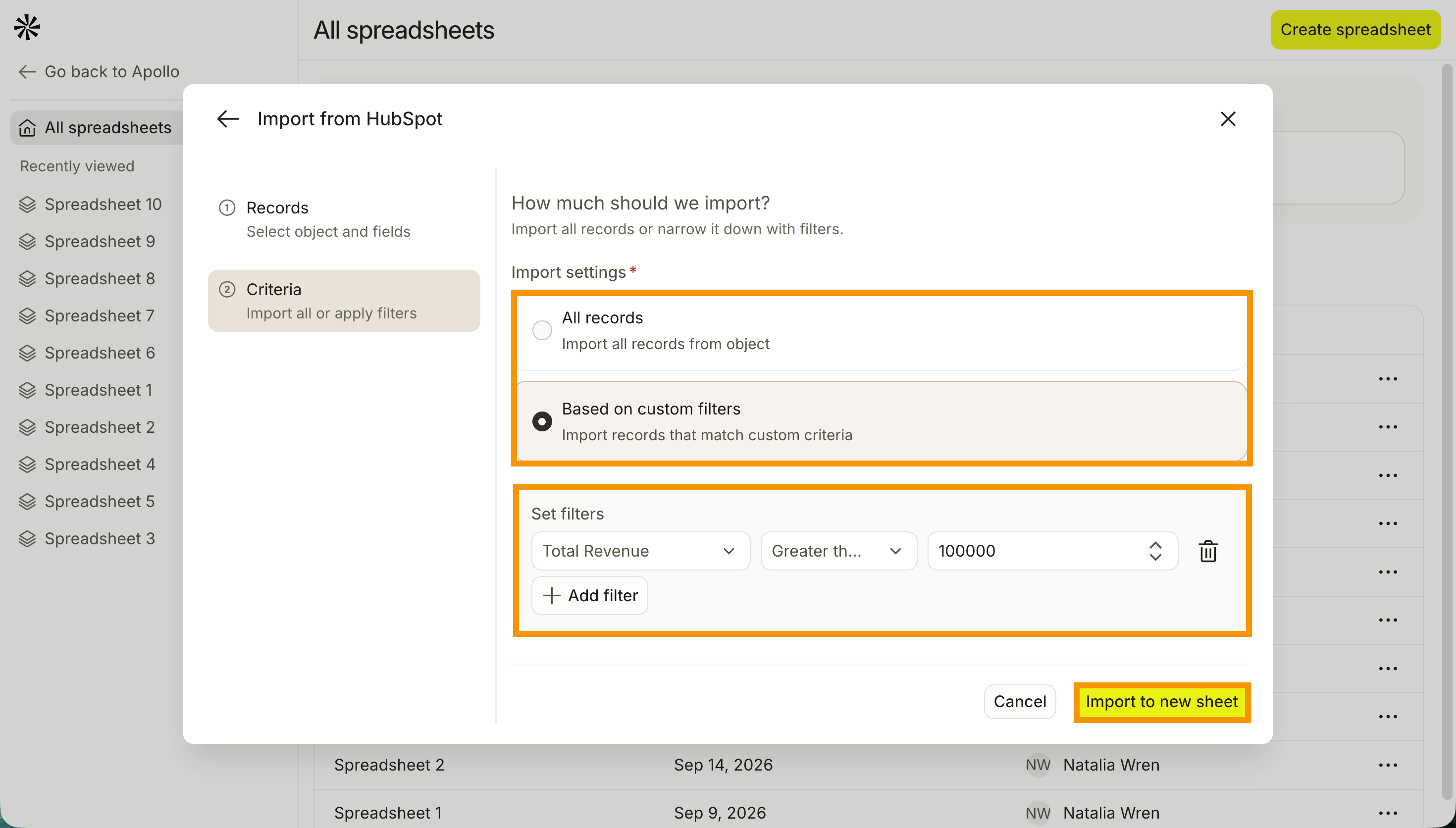
- Click All records to import every record from the object, or click Based on custom filters to import only records that match your criteria. To filter, click Add filter, then select a field and operator and enter a value.
- Click Remove filter to remove a filter.
- Click Import to new sheet to add them to a new sheet.
Databricks
Query a Databricks Vector Search index for each row and add the results as a new column in your sheet.
- Click Databricks.
- Click Scan Vector Search Index or Query Vector Search Index.
- Click Connect to connect your account if no connection exists.
- Configure the required fields.
- Enter a column name.
- (Optional) Toggle on Auto-run column to run the column automatically when new rows are added or a value changes.
- (Optional) Toggle on Schedule run, then enter your preferred cadence and time.
- (Optional) Toggle on Only run when condition is met to set criteria for running the column, then enter your criteria. Type
{{to add columns or use formulas. - Click Save & run to save the column and run it. Alternatively, click ▾, then click Save & run first ten rows to run only the first ten rows, or Save & don't run to save without running.
Google Cloud
Run an SQL query against your Google Cloud data and import the results.
Google Cloud imports aren't an incremental sync. Every time you run the query, Apollo pulls the full result set again rather than only new or changed rows. Re-running the same query can create duplicate rows in your sheet.
- Click Google Cloud.
- Click Run Query.
- Click Connect to connect your account if no connection exists.
- Enter your SQL query.
- Enter a location.
- Limit your results by entering a number in Limit results per run.
- Click Import to new sheet to add them to a new sheet.
Google Sheets
Import rows from an existing Google Sheet by reading a worksheet directly or finding rows that match specific criteria.
- Click Google Sheets.
- Click Read Rows or Find Rows.
- Click Connect to connect your account if no connection exists.
- Enter the spreadsheet ID.
You can find the spreadsheet ID in your Google Sheet's URL. For example, in https://docs.google.com/spreadsheets/d/3zKT8b0pVjDLoZ3-rcftLoLnqDyhKDxVAU-npv8vefjg/edit, the spreadsheet ID is 3zKT8b0pVjDLoZ3-rcftLoLnqDyhKDxVAU-npv8vefjg.
- Enter the worksheet name.
- Enter a range. Omit the range to read all data.
- (Optional) Toggle on Has Headers if the first row of the sheet has headers. Apollo returns rows as objects with header keys.
- Click Import to new sheet to add them to a new sheet.
You have now created a sheet.
Delete a Sheet
To delete a sheet:
- Launch Apollo and click Sheets.
- Click ... next to a sheet, then click Delete. Apollo asks you to confirm the deletion. Click Delete to delete the sheet.
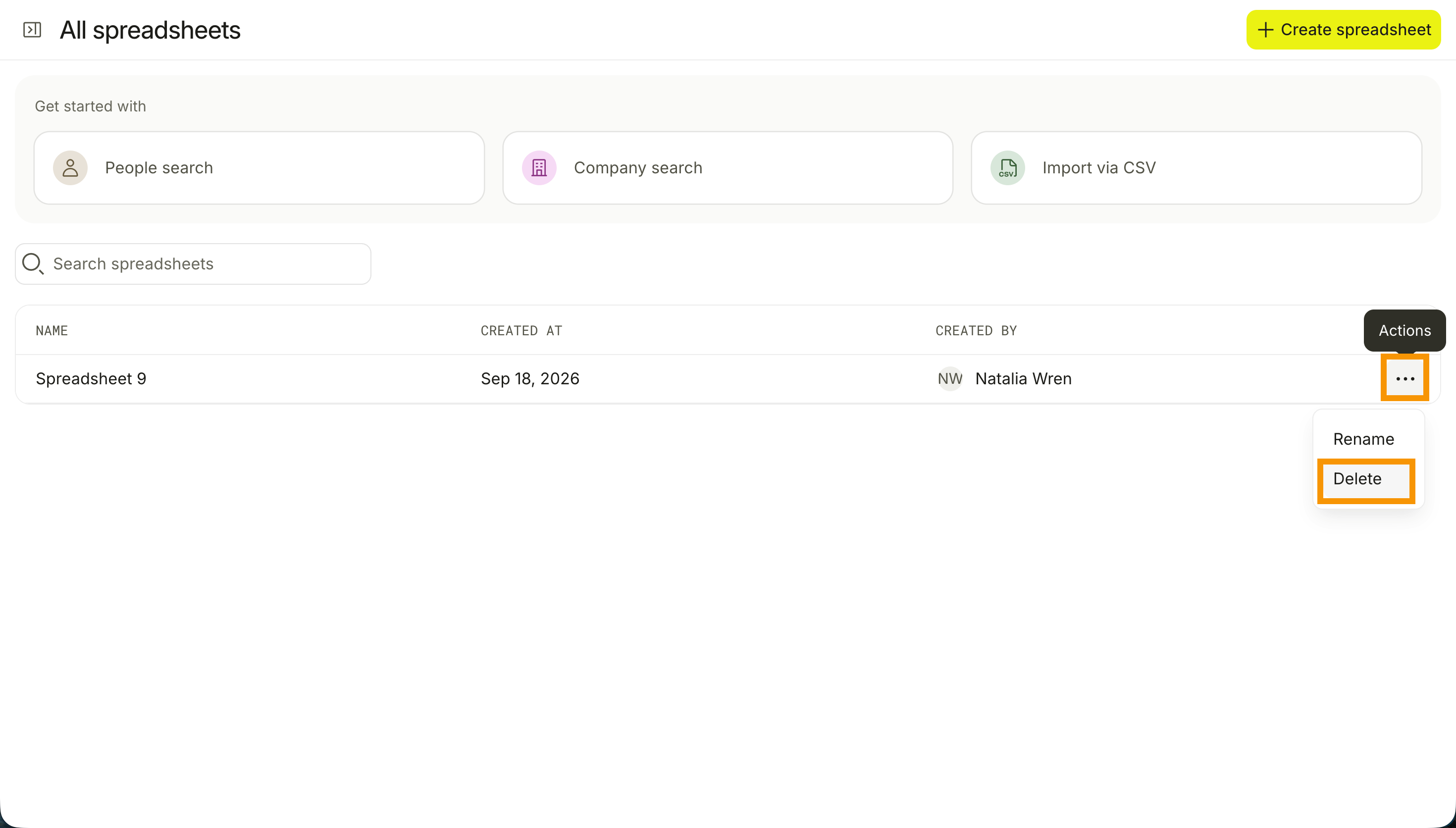
Deleted sheets can't be recovered. Double-check that you've selected the right sheet before you confirm.
You have now deleted a sheet.
Add a Sheet to an Existing Spreadsheet
You can add more sheets to an existing spreadsheet. To add a sheet:
- Open a spreadsheet, then click + or Add sheet.
- Apollo adds a new sheet to your spreadsheet, giving you another place to organize related data. Sheets in the same spreadsheet can reference each other.
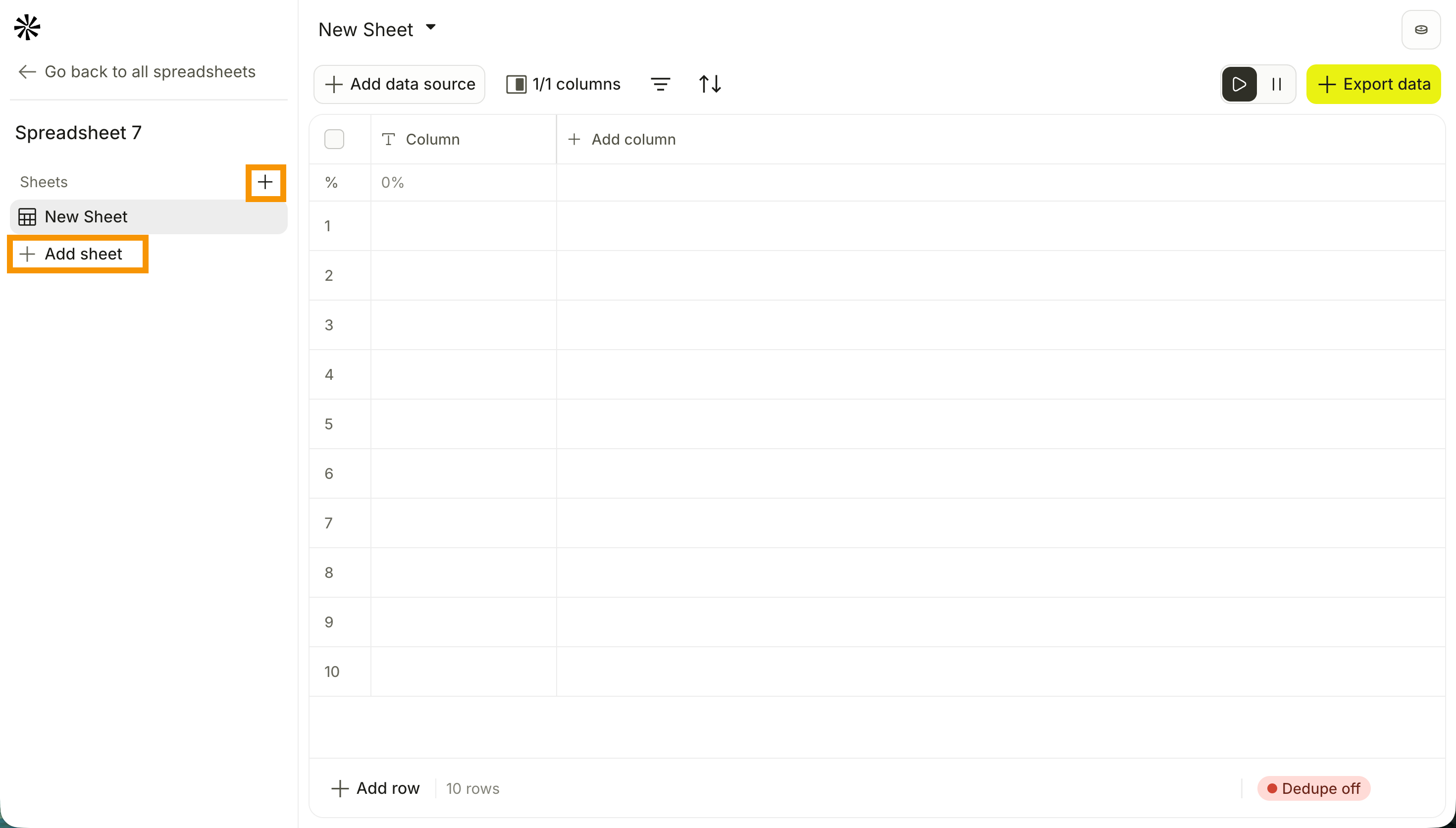
You have now added a sheet to an existing spreadsheet.
Add a Data Source to an Existing Sheet
You can add more than one data source to the same sheet. Each data source you add appends its own rows to the sheet and creates its own set of data source columns, so you can combine records from multiple sources, like a CSV import and a saved Apollo search, without losing track of where each column's data came from.
To add a data source:
- Open a sheet, then click Add data source on your current sheet.
- Select a data source, then follow the same steps as creating a sheet from that source.
One data source, Search for people in companies, is only available here. It finds people at the companies already in your sheet. Click it, select a target sheet, then choose the LinkedIn column or Company domain column to identify companies. Set a maximum result per company, add filters if needed, then click Continue and Import to new sheet.
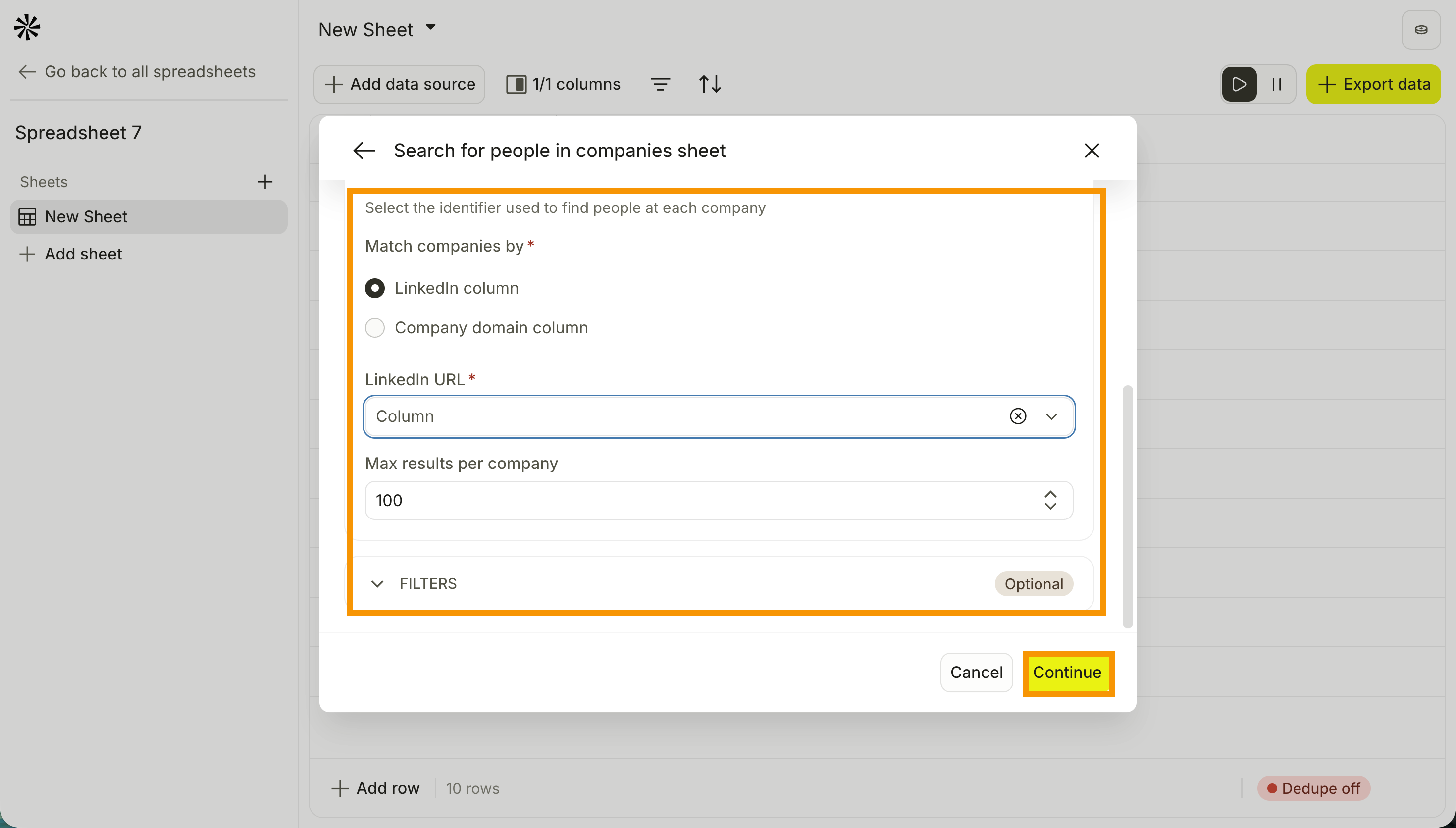
You have now added a data source to your sheet.
Next Steps
Now that your data is in a sheet, here's where to go next to transform, enrich, and export it.
| Sheets Overview | Get the big picture on Sheets to understand how pulling in, transforming, exporting, and scheduling data fit together. |
|---|---|
| Transform Data with Columns | Add AI, formula, lookup, and enrichment columns to research, categorize, and clean your data row by row. |
| Export and Automate a Sheet | Push your results to Apollo, your CRM, or a sequence, then schedule your sheet to run as a repeatable workflow. |
| Waterfall Enrichment Overview | See how waterfall enrichment works to get the most out of the enrichment columns you add to a sheet. |
| Use Search Filters to Find Prospects | Refine your people and company searches to pull exactly the right records into your sheet. |