
Overview
The Salesforce integration error log gives you visibility into sync issues between Apollo and Salesforce. Use the log to review failed sync attempts, investigate errors in detail, filter errors by timeframe, and retry records that didn't sync successfully.
Check out the following sections to access the error log and resolve common sync errors.
Use the Error Log
To use the Salesforce integration error log:
- Launch Apollo and click Settings > Integrations > Salesforce > Error Logs.
- (Optional) Click Show filters to find errors by type or date range.
- Apollo shows sync errors from the integration.
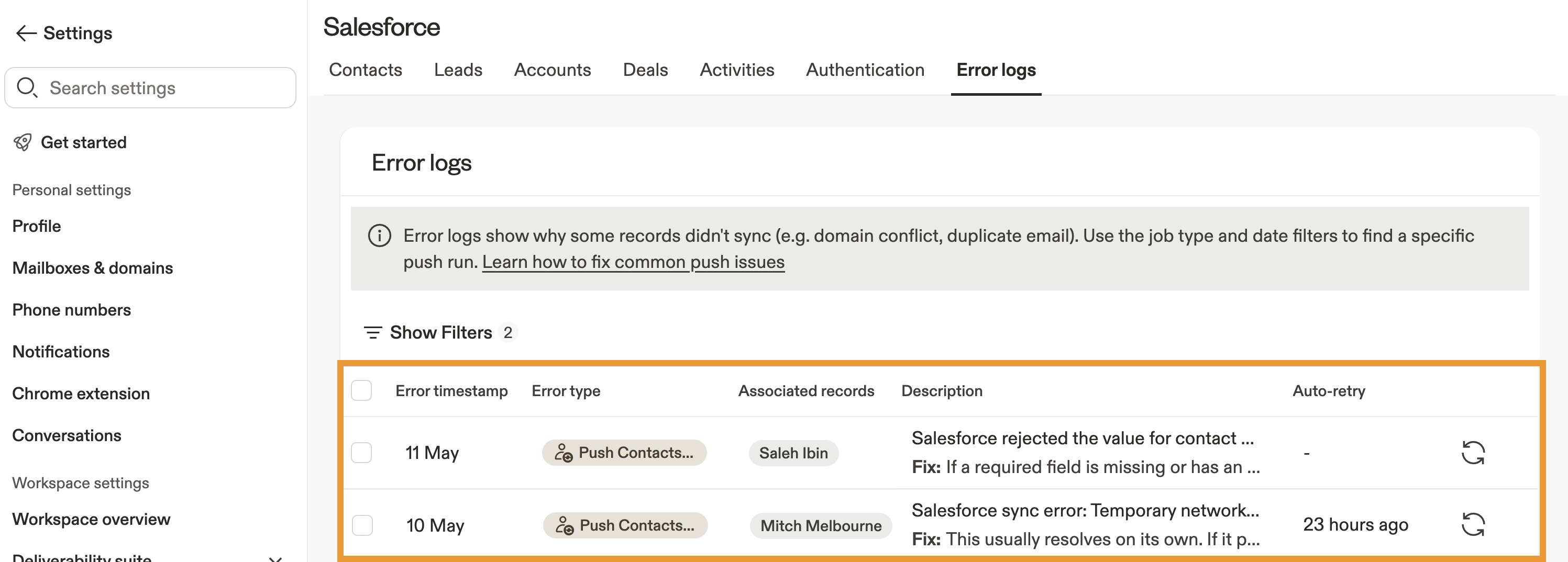
- Hover over the error for more information.
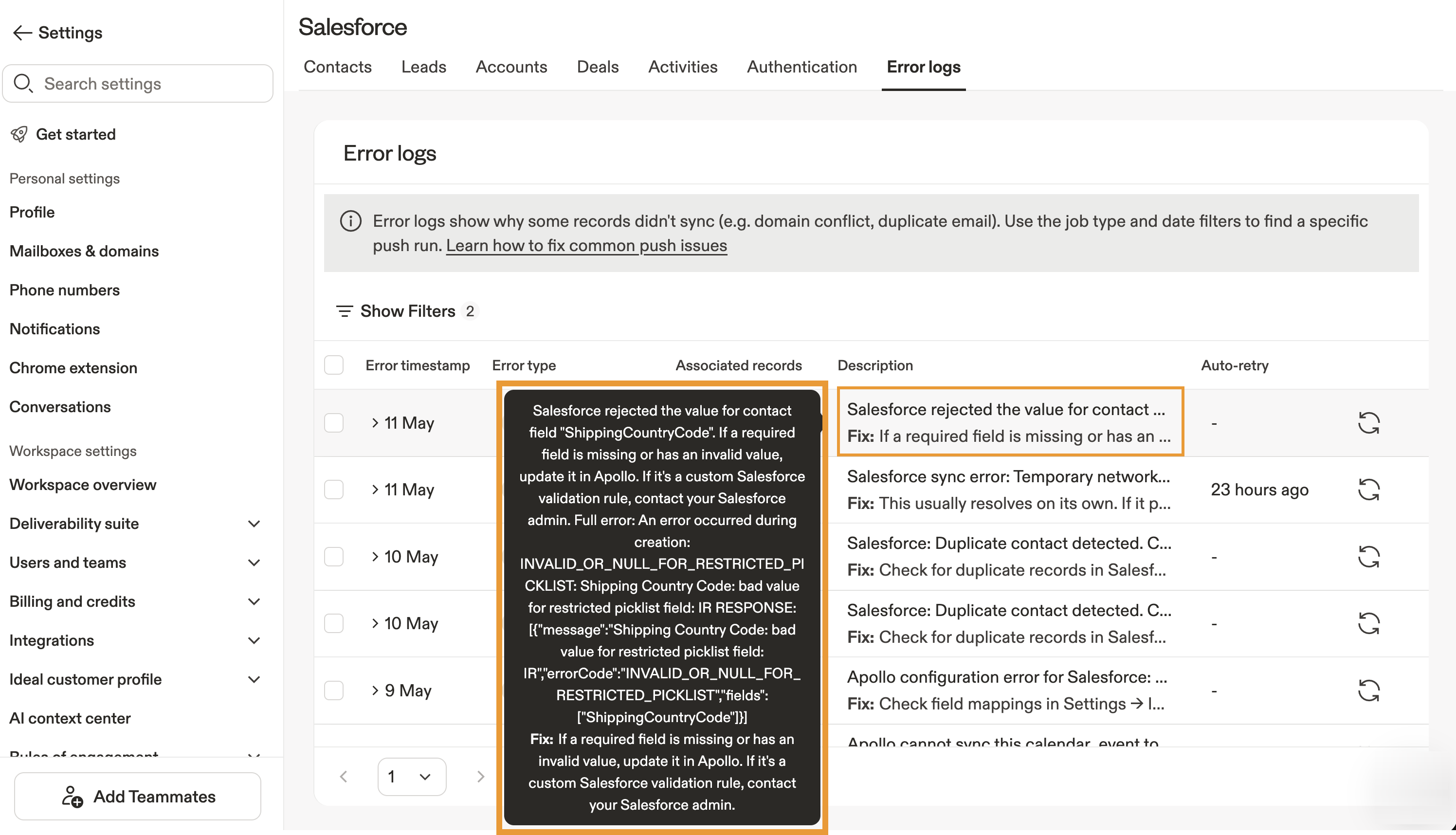
- Each error includes a description, the full error, and a suggested fix:
Example
Salesforce rejected the value for contact field "ShippingCountryCode". If a required field is missing or has an invalid value, update it in Apollo. If it's a custom Salesforce validation rule, contact your Salesforce admin.
Full error: INVALID_OR_NULL_FOR_RESTRICTED_PICKLIST: Shipping Country Code: bad value for restricted picklist field: IR
Fix: If a required field is missing or has an invalid value, update it in Apollo. If it's a custom Salesforce validation rule, contact your Salesforce admin.
- Apollo indicates the last automatic sync attempt and whether it will automatically retry syncing again.
- Alternatively, click ⟳ to manually retry after correcting an error.
Apollo automatically attempts to retry a failed push — up to five times. If retrying doesn't work, address the source of the error, then manually retry the sync.
You have now used the Salesforce integration error log on Apollo.
Check out some common sync errors and how to resolve them.
Common Errors
| Common Salesforce sync errors | ||
|---|---|---|
| No Participant as Contact/Lead in Salesforce | DUPLICATES_DETECTED | We could not find the contact collection |
| STORAGE_LIMIT_EXCEEDED | INVALID_OR_NULL_FOR_RESTRICTED_PICKLIST | |
No Participant as Contact/Lead in Salesforce
This error means Apollo can't sync the calendar event to Salesforce because the related person doesn't exist as a contact or lead in Salesforce.
To resolve this error, push the contact to Salesforce first. After the contact exists in Salesforce as a contact or lead, retry syncing the calendar event.
DUPLICATES_DETECTED
This error means Salesforce identified a possible duplicate record and blocked Apollo from creating a new one.
To resolve this error, search Salesforce for an existing lead, contact, or account that matches the record Apollo attempted to create. If the existing record should be used, update or sync with that record instead. If the new record should still be allowed, ask your Salesforce admin to review the active duplicate rules in Salesforce.
We could not find the contact collection
This error means Apollo connected to Salesforce successfully, but the connected Salesforce user doesn't have access to Contacts.
To resolve this error, reconnect Salesforce using a user with the correct Salesforce permissions. In Salesforce, confirm the connected user has access to the Contact object and any required fields for syncing.
STORAGE_LIMIT_EXCEEDED
This error means Salesforce has reached its storage limit and can't accept new or updated records from Apollo.
To resolve this error, ask a Salesforce admin to review storage usage in Salesforce under Setup > Storage Usage. Delete or archive unnecessary records, files, activities, or attachments. Once storage space is available, retry the sync in Apollo.
INVALID_OR_NULL_FOR_RESTRICTED_PICKLIST
This error means Apollo sent a value to Salesforce that isn't allowed for a restricted picklist field.
To resolve this error, review the error details to identify the affected field and rejected value. Then check the allowed picklist values in Salesforce and update the Apollo value, Salesforce picklist configuration, or field mapping so the values match exactly between both platforms. This commonly occurs with industry, country, state, lead source, lead status, and custom picklist fields.
Next Steps
Now that you can use the Salesforce error log, here are a few ways to clean up sync issues and keep your CRM data moving.
| Salesforce Integration Overview | Need the bigger picture? Review how Salesforce sync works to understand the settings, records, and workflows that can affect sync errors. |
|---|---|
| Map Default Apollo Fields To Salesforce | Field values causing trouble? Map default fields to Salesforce to keep contact, lead, and account data aligned across both systems. |
| Link Custom Salesforce Fields To Custom Apollo Fields | Your team can connect custom fields across Apollo and Salesforce to prevent missing or mismatched values from blocking syncs. |
| Configure Salesforce Push Settings | Want more control over what Apollo creates in Salesforce? Configure push settings to manage how contacts, accounts, deals, and activities sync. |
| Merge Duplicate Records To Consolidate Your Data | Duplicate records slowing you down? Merge duplicate records to clean up CRM data and reduce avoidable sync conflicts. |