
Overview
You can integrate your Zoom, Google Meet, or Microsoft Teams account with Apollo, then use conversations on Apollo to access and share your video call recordings. You can also import Gong calls into Apollo to centralize recordings from another source. Conversations on Apollo allow you to more effectively manage and analyze your video call recordings without juggling multiple apps.
You can play and share your recordings, create video clips, and take action on tasks with automatic transcripts and AI-written summaries. You can also access account and attendee data from each recording.
As a team leader, you can rate a team member's call effectiveness with custom scorecards, and create video call playlists to train and onboard new employees. Use conversations to coach, train, and lead teams to scale successful conversations and increase call conversions.
This article details how to record your video conversations, but if you also use Apollo's dialer, Apollo can automatically record the calls made using the dialer too. Check out Set Dialer Preferences to start recording your phone calls.
Check out the following sections to set up and use conversations.
Enable the Apollo Recorder for Your Team
If you haven't already, connect your mailbox and encourage your team to connect their mailboxes. Apollo automatically sends the recorder to meetings based on the schedules of connected mailboxes. Apollo won't auto-record for anyone who hasn't connected their mailbox.
When accessing conversations for the first time, Apollo's set-up wizard walks you through the most important settings and team permissions for conversations. If you've already set up conversations, check out the Configure Conversation Settings section to learn how to update your team's settings.
To access the wizard and set your team's permissions:
- Launch Apollo and click Conversations.
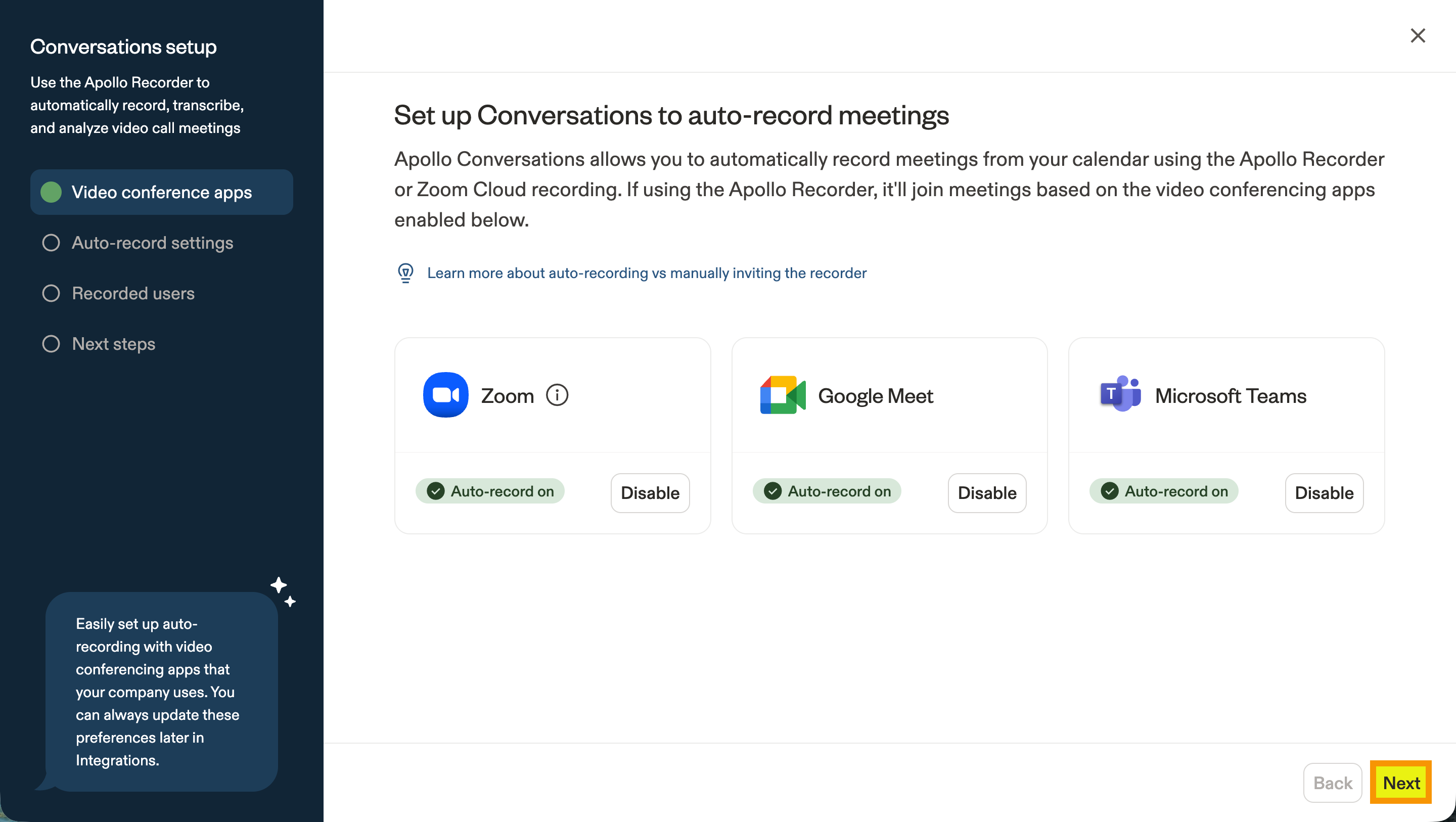
- Click Enable auto-record to automatically record video meetings for certain video conferencing platforms, or Disable to turn off automatic recording. When you enable auto-recording, Apollo detects upcoming meetings based on the schedules of your team's connected mailboxes and automatically schedules the Apollo recorder to join eligible meetings. When finished, click Next.
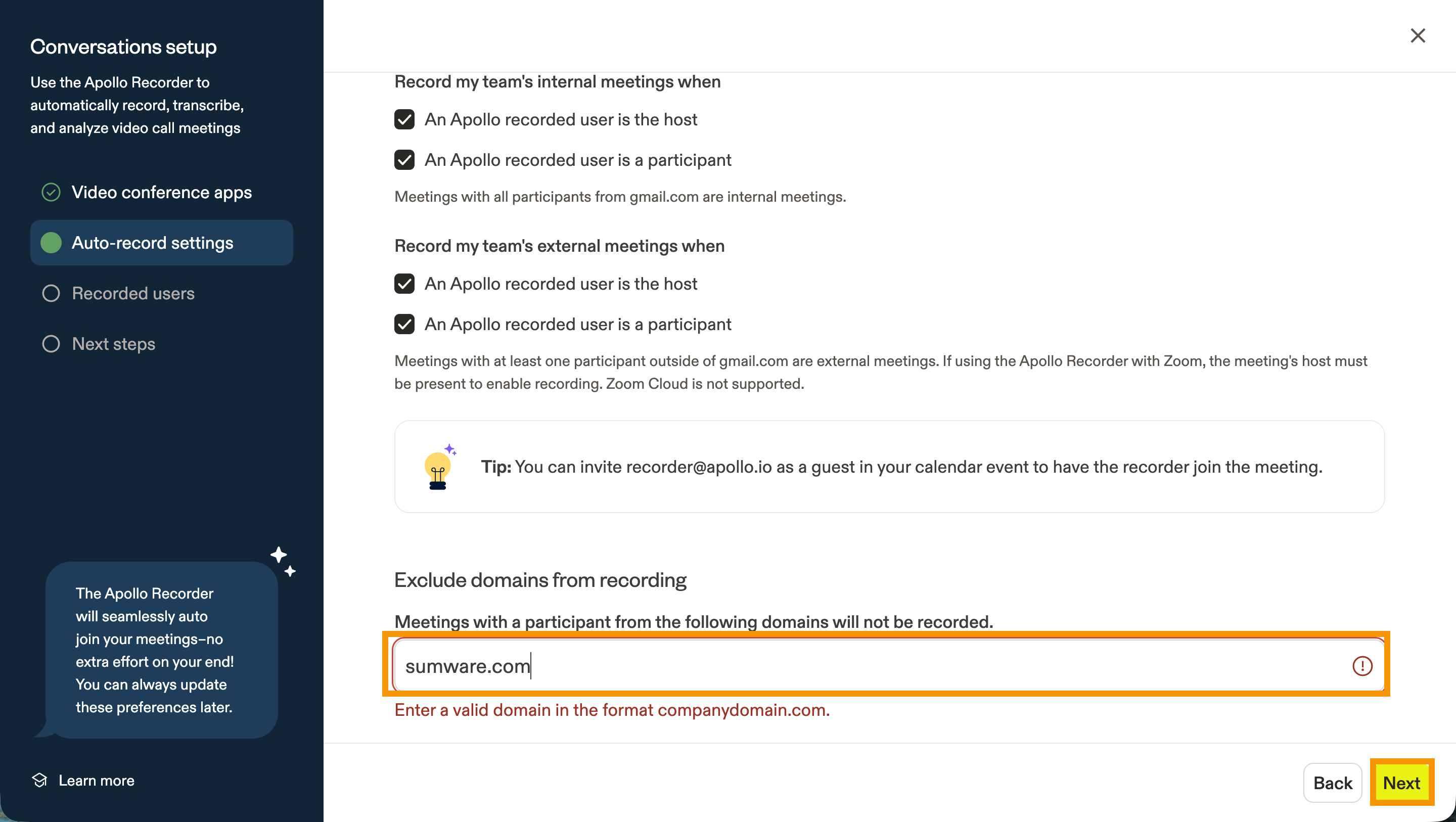
- Choose whether to record all video meetings, only meetings that are internal to your organization, or only meetings that involve external participants. To record all meetings regardless of the host or participants, check every setting.
- (Optional) To avoid recording video meetings that involve certain organizations, enter their domain names in the Exclude domains from recording field and press Enter. This adds them to an exclusion list, which means Apollo won't record meetings when they participate. When finished, click Next.
- Decide whether newly added users on your team's Apollo account should automatically be recorded. You can also allow users to enable conversation recording for themselves, or restrict recording to only users that are manually added by admins. Check each existing user you want to add as a recorded user. When finished, click Next.
Your team is now ready to record conversations. You can further refine conversations settings, including adding trackers (keywords) and recording consent messages for conversations.
Configure Conversation Settings
With conversations set up, you can add trackers, update your team's recording settings, and add a recording consent message:
Trackers are sets of keywords that Apollo detects in your recordings to help you identify and surface the most important parts of each call. Apollo creates prebuilt trackers for you, but you can edit and add trackers. To edit trackers:
- Launch Apollo and click Settings > Conversations. Then, click the Trackers tab.
- Click Edit next to a tracker to add or edit keywords.

- Enter new keywords to track in the Keywords field. Click Track when mentioned by to set whether you track keywords from internal, external, or all participants.

- Click Save tracker.
- (Optional) To delete the tracker, click Delete tracker.
To create a new tracker:
- Launch Apollo and click Settings > Conversations. Then, click the Trackers tab.
- Click Add tracker.

- Select Prebuilt or New trackers.
- For prebuilt, select a template on the left. Make any edits you need and click Save tracker.

- For new trackers, give your tracker a name, type your keywords into the text box, and add the type of participants you want to track.

- Click Save tracker.
You've now added trackers to your conversations.
You can determine which video meetings you record in Apollo. To change the recording settings for conversations:
- Launch Apollo and click Settings > Conversations.
- Choose which types of conversations to record. To ensure you record as many eligible meetings as possible, check all options for internal and external meetings. Then, click Save.

- To avoid recording calls that involve certain organizations, enter their domain names and press Enter. Click Save.
For example, if you knowexample.comdoesn't agree to recorded meetings, add them to the exclusion list and Apollo won't record meetings when they participate.
- The Apollo recorder needs to join your meeting to record. To change the recorder's name, enter a new name, then click Save. Be aware that all meeting participants can see the recorder's name.

- Click Save.
Want the flexibility to record some internal calls, but not all? Consider creating a waiting room in your video meeting app. The host can then decide whether to admit the Apollo recorder or not!
In some countries and US states, you need permission from all participants before recording calls. To support compliance, Apollo lets you direct participants to a consent page before they join the meeting, send a chat message to inform participants that the meeting is being recorded, send email notifications in advance, and play an audio announcement at the start of the call.
| Recording Consent | Steps |
|---|---|
| Consent page |
By Popular Consent
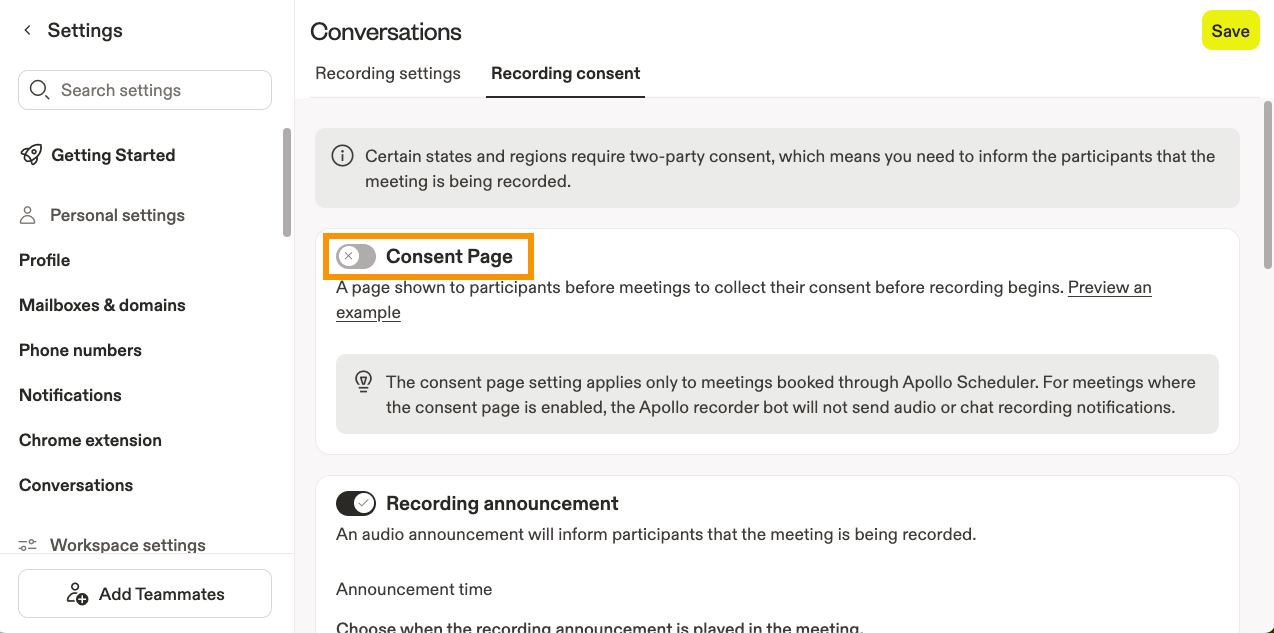
The consent page applies only to meetings booked through Apollo’s scheduler. For meetings where the consent page is enabled, Apollo’s recorder bot will not send audio or chat recording notifications. To direct users to the consent page:
You've now added a consent page to your recorded meetings. |
| Recording announcement |
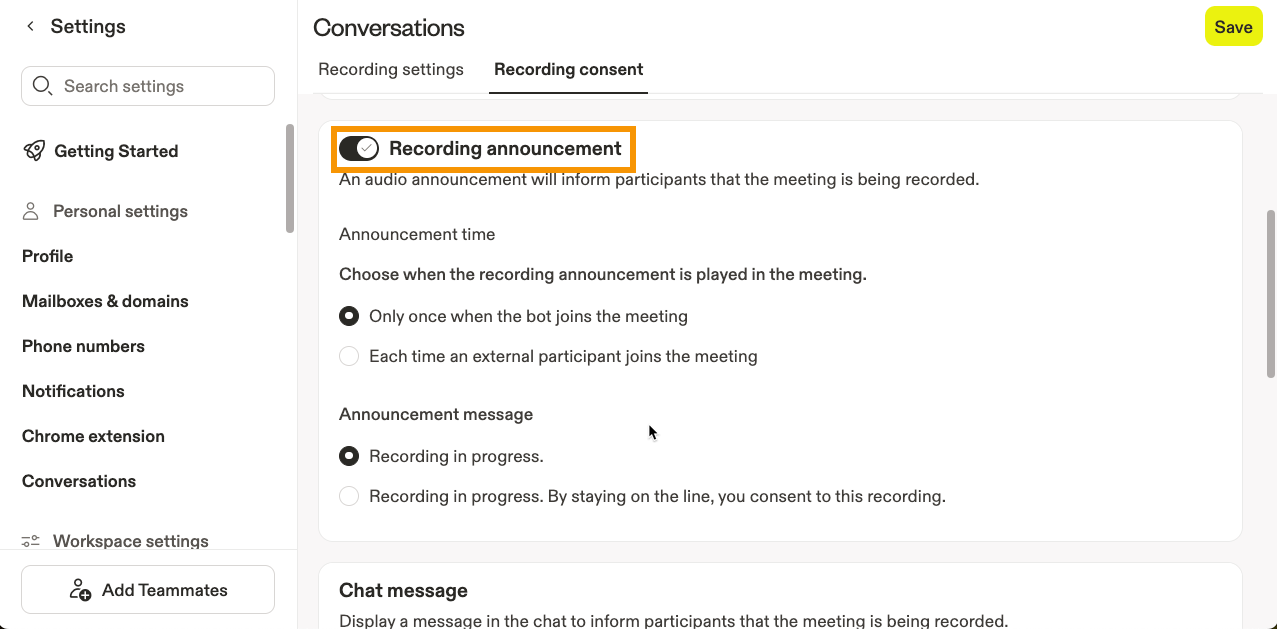
To add a consent announcement:
You've now added a consent announcement to your recorded meetings. |
| Email notification |
To add an advanced email notification:
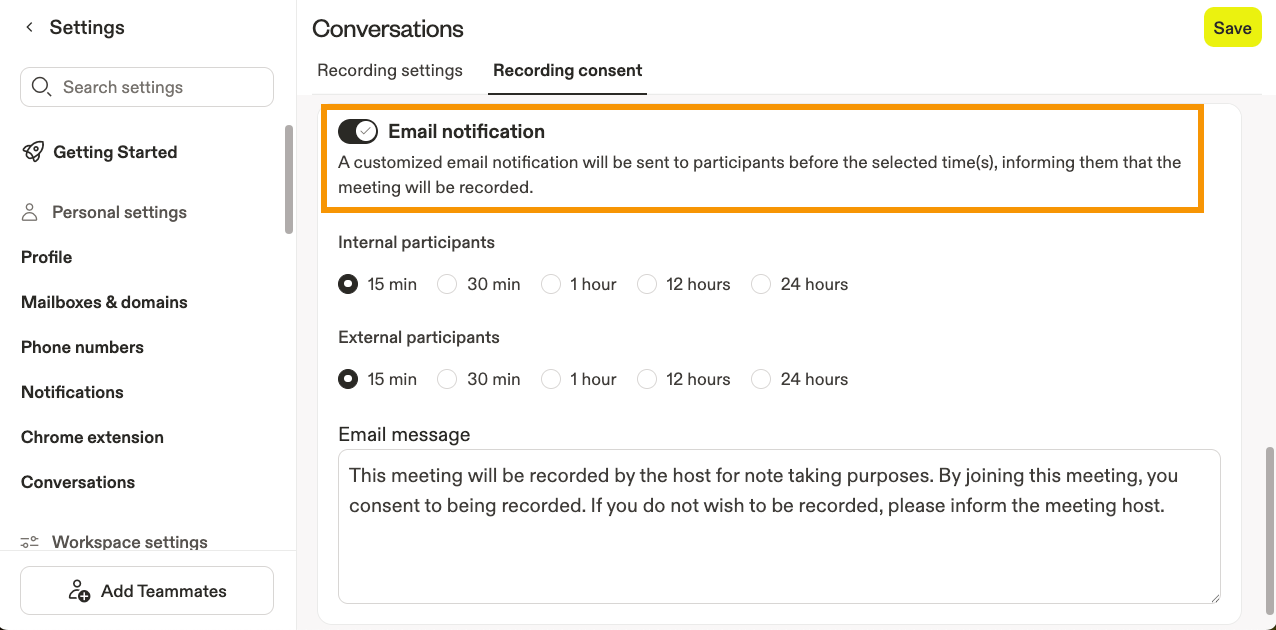
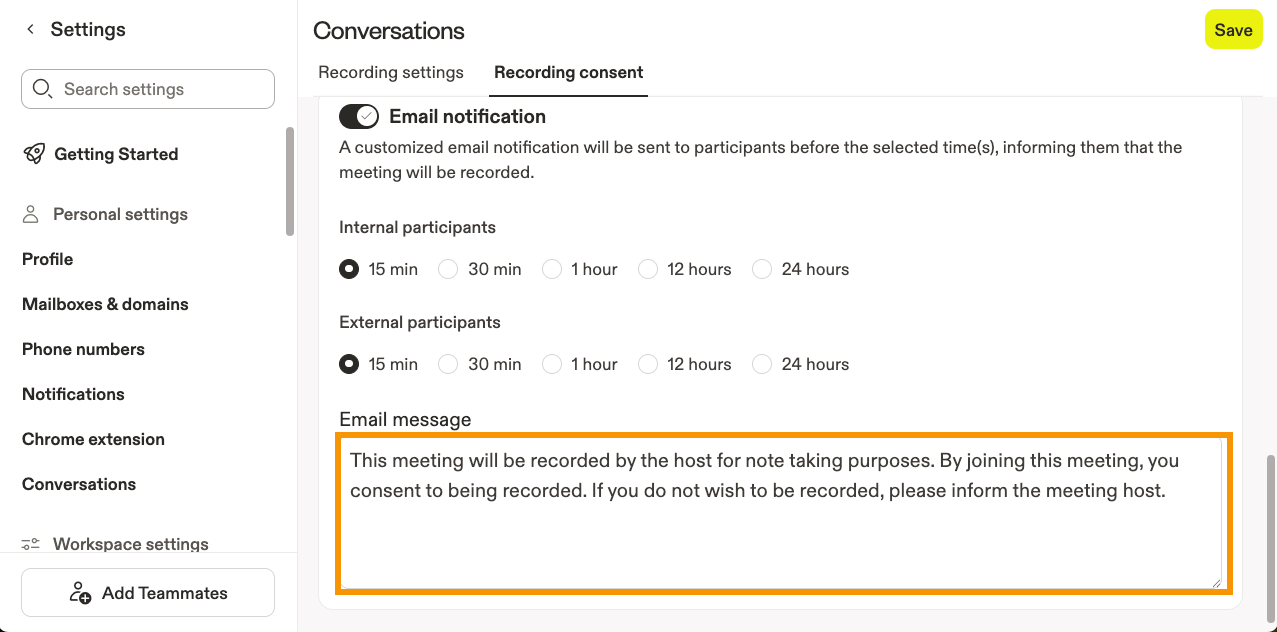
You've now added a consent email notification to your recorded meetings. |
| Chat message |
To send a chat message to inform participants the meeting is being recorded:
Chatty by Default
If your team uses Google Meet or Microsoft Teams and the internal meetings chat message setting is enabled, Apollo sends a chat message each time a new participant joins the meeting.
You've now added a recording consent chat message. |
Deactivate Conversations
If you run into issues with conversations, check out the guidance in Troubleshoot Conversations.
If you're an admin, you can disconnect your video conferencing app from Apollo and stop recording video calls at any time.
To disconnect a video conferencing app and stop recording conversations in Apollo:
- Launch Apollo and click Settings > Integrations.
- Click Disconnect for the integration you want to remove.
- Click Disconnect CI to confirm.
You've now disconnected your account from Apollo. If you want to set up the integration again, follow the steps in the Enable the Apollo Recorder for Your Team section. When you reconnect, Apollo won't display any calls that your team recorded when the integration was disconnected.
Next Steps
Once your team has Conversations set up, these resources can help you share recordings, coach reps, automate follow-up, and keep CRM data cleaner.
| Access And Share Conversations | Now that calls are recording, filter, clip, and share your recordings to keep teammates and stakeholders aligned on the moments that matter. |
|---|---|
| Coach Teams With Conversations | Want more repeatable wins from strong calls? Build playlists and score calls with custom scorecards to give reps feedback they can actually use. |
| Send Follow-Up Emails With AI | Don’t let post-call momentum stall. Auto-draft personalized follow-up emails to recap key points and keep next steps moving. |
| Auto-Populate CRM Fields Using Conversation Recordings | Map conversation details into CRM fields to reduce manual updates and keep account, contact, and deal records accurate. |
| Troubleshoot Conversations: Why Did My Meeting Not Record? | Missing a meeting you expected to capture? Check why a meeting didn’t record to fix setup gaps before your team loses another valuable call. |