
Overview
When you prospect on Apollo, you can customize the layout to make your results easier to scan and act on. Choose which fields and columns appear, change their order, and organize results around the information that matters most to you.
Customize your layout to cut through the clutter and keep the information you need front and center.
Check out the following sections to customize your view on Apollo.
Customize Your Layout
Depending on where you're at on Apollo, you can customize your layout for a unique view:
People and companies
To customize your layout:
- Choose what you're looking at
- Add or remove information
- Sort or reposition a column
- Adjust more settings
- Choose what you're looking at
- Add or remove information
- Sort results or reposition a column
- Adjust more settings
- By default, Apollo shows your prospecting in the standard layout. Click Default view to switch to a saved search or a layout you've previously saved.
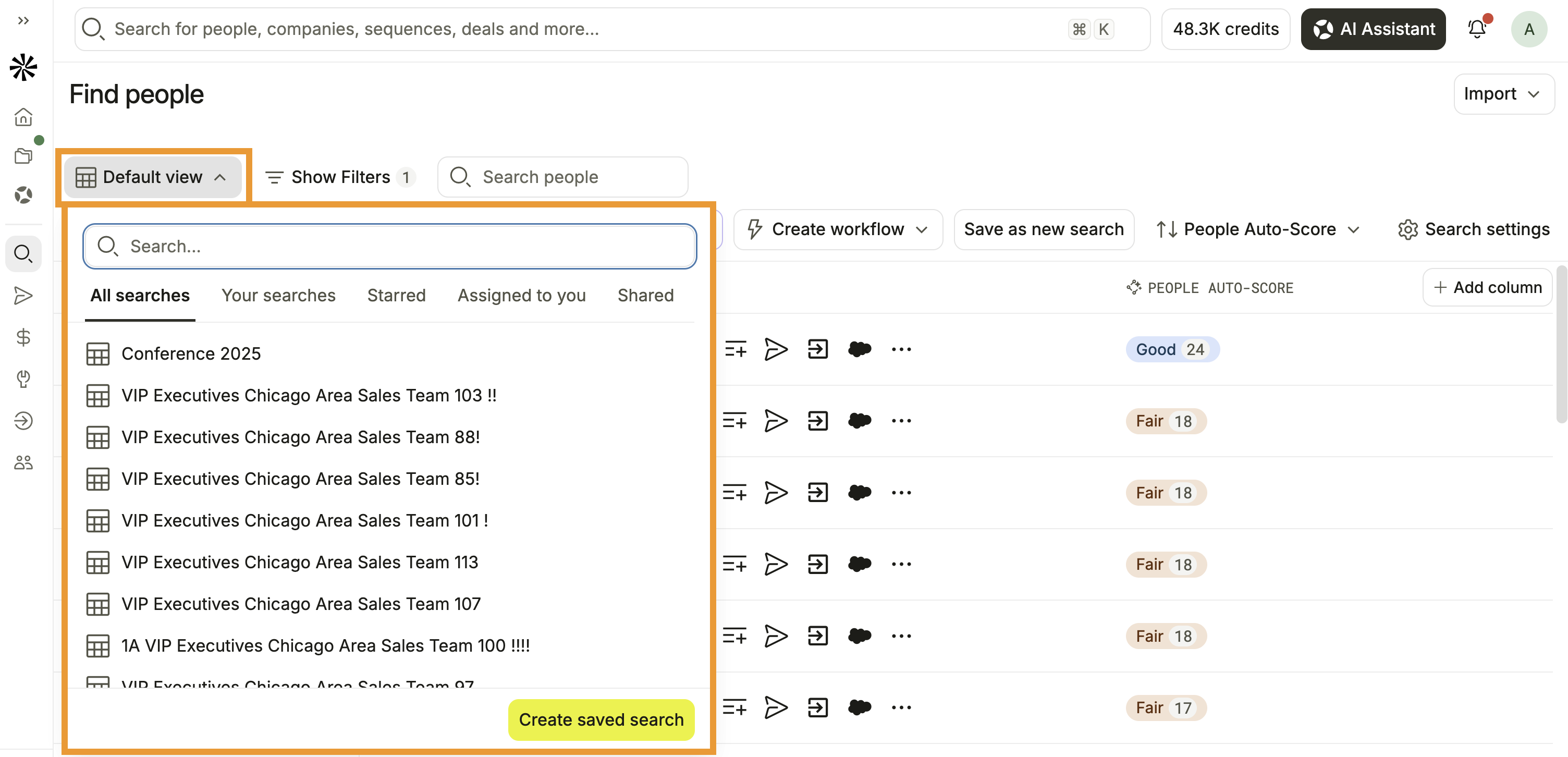
- Select a view.
- All searches: All saved searches and layouts available to you, including default and those shared by your team.
- Your searches: Saved searches and layouts created by you.
- Starred: Saved searches and layouts pinned by you.
- Assigned to you: Searches and layouts assigned to you through Settings > Team sharing & defaults.
- Shared: Searches and layouts shared by your team.
Learn how to create a saved search.
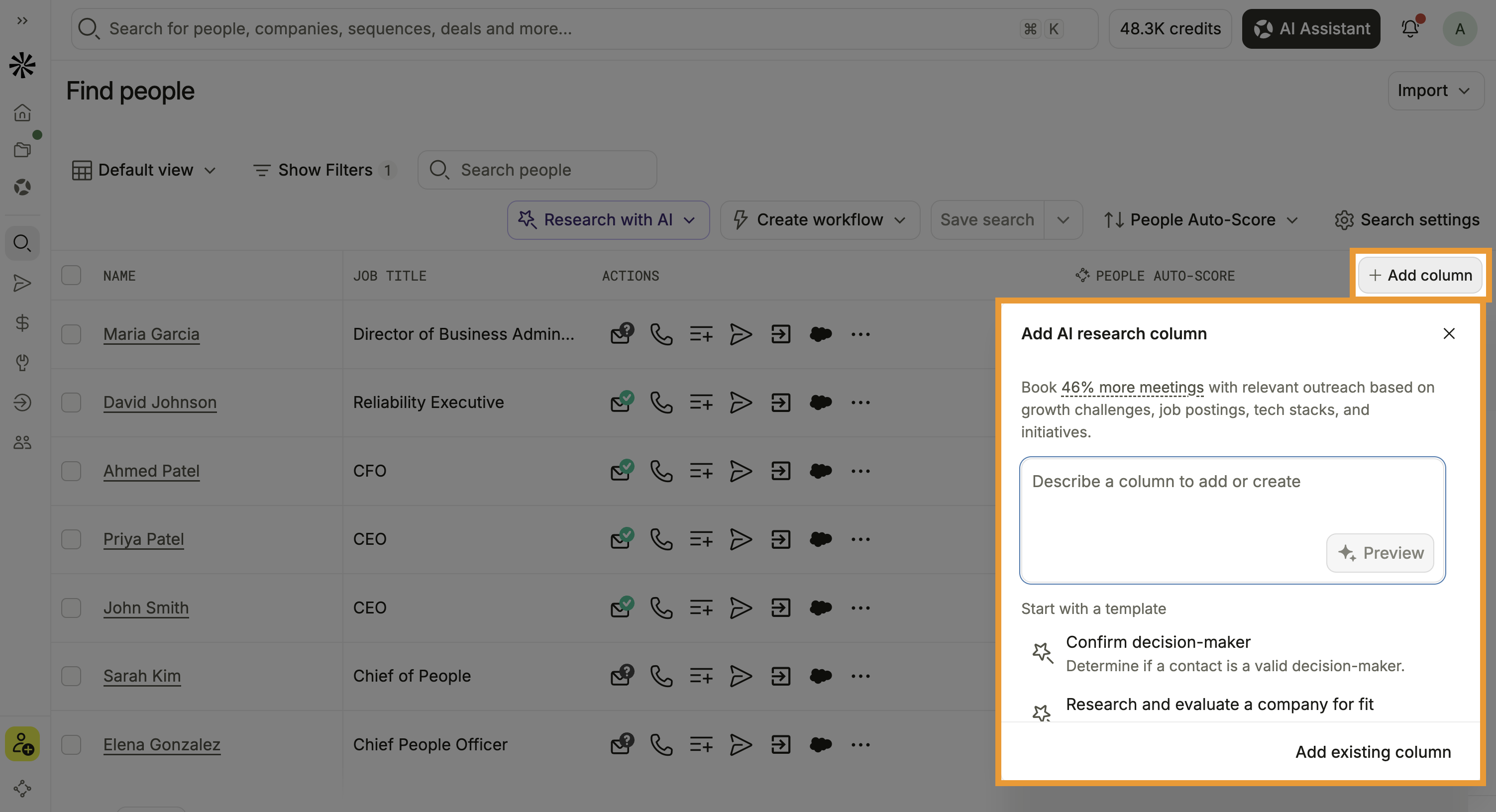
- To add more information to your current view, click Add column.
- For AI research, describe the type of insights you want to achieve, or start with a template from Apollo.
- Alternatively, click Add existing column to add existing information to your view, like specific fields or existing AI research.
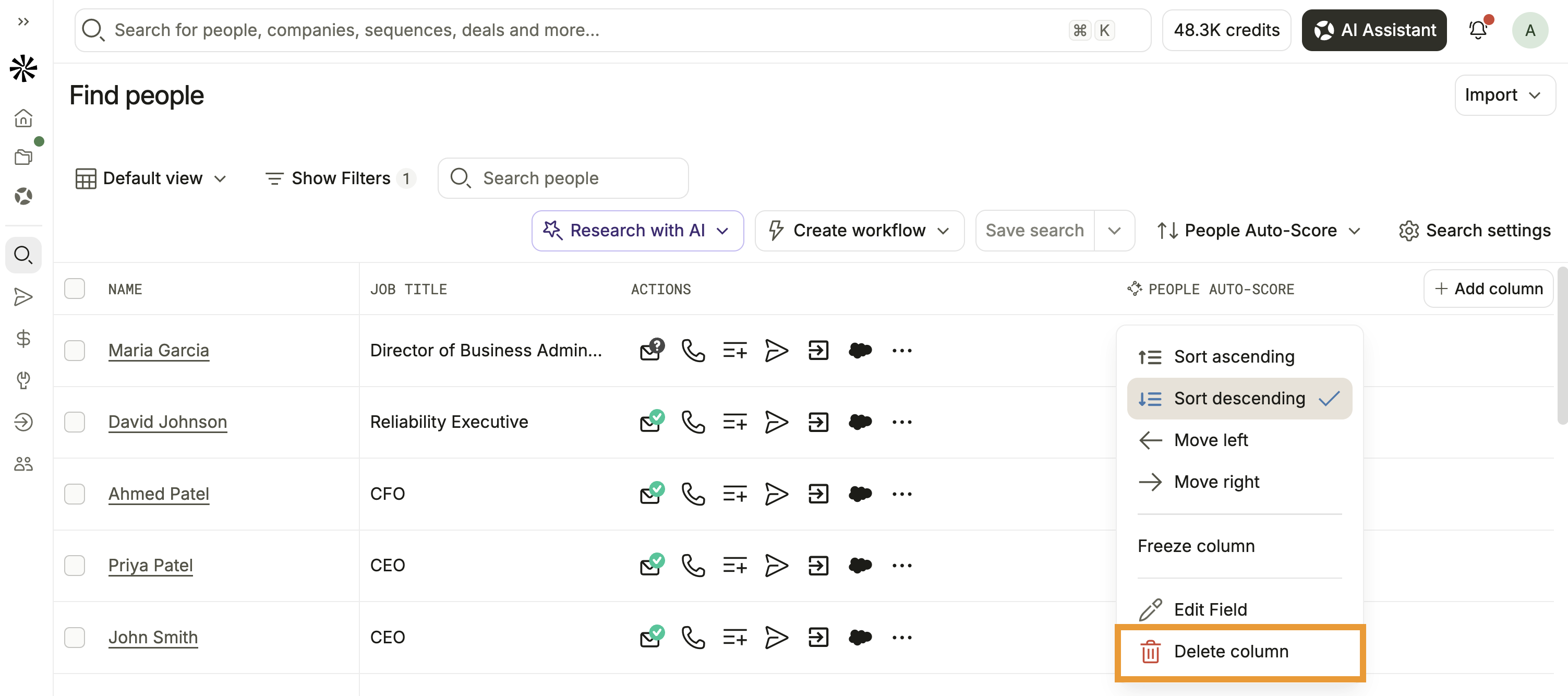
- To remove information from your view, click any column then click Delete column. This only removes the column from your view and doesn't affect information on the record-level.
- Click any column to sort your prospecting results by that field. Then click Sort ascending to sort Z-A, or Sort descending to sort A-Z.
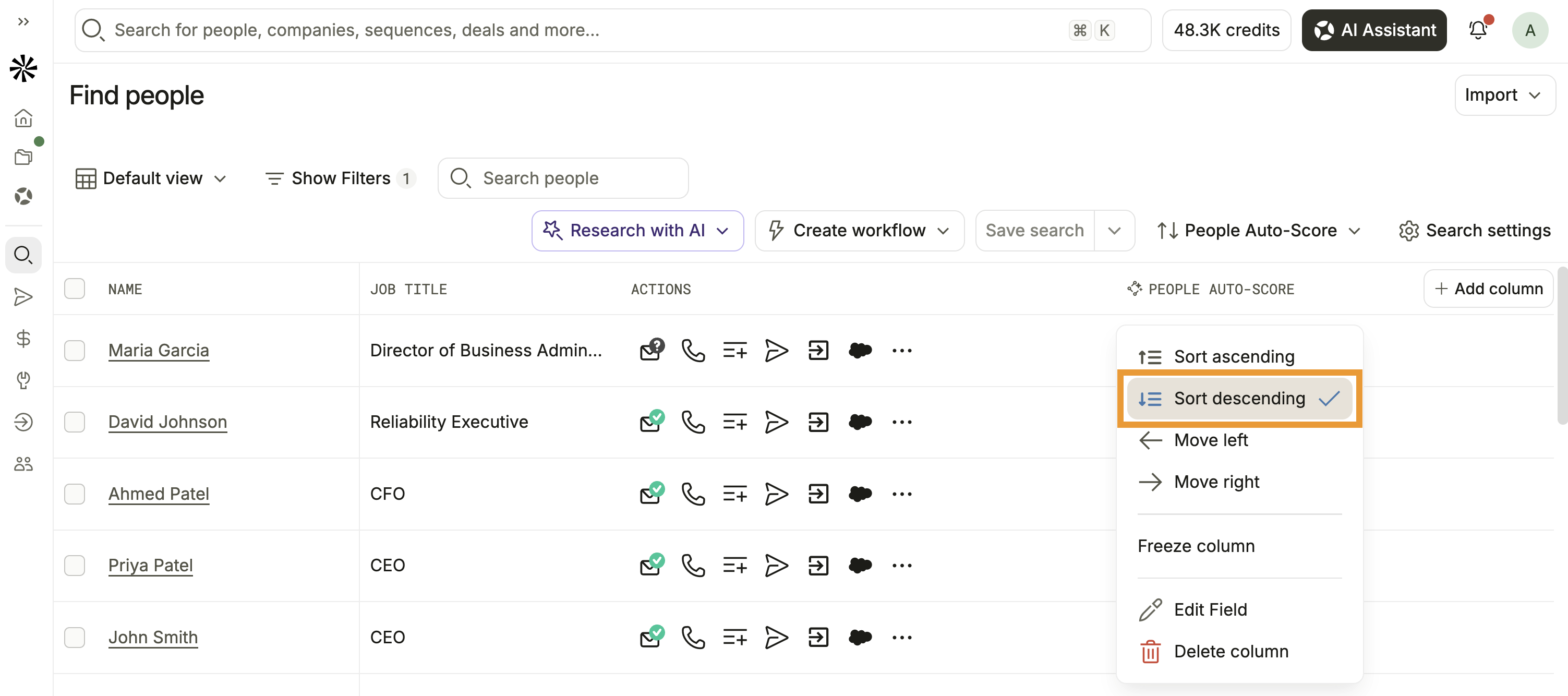
- To move a column, click and drag the column. Alternatively, click the column then select Move left or Move right.
- To adjust a column's width, click and drag the edge of the column.
- Click Search settings to adjust fields, filters, visibility and sharing, or subscription alerts.
- Fields: Add or remove information from your prospecting view.
- Filters: Add or remove filters from your search.
- Visibility and sharing: Share a saved search or layout with teammates.
- Subscription alerts: Create a search alert and Apollo notifies you of the newest people or companies that fit your saved search filters. You can subscribe to daily, weekly, or monthly email alerts to stay up to date on new prospects.
Deals
To customize your layout:
- Launch Apollo and click Deals.
- Click View options.
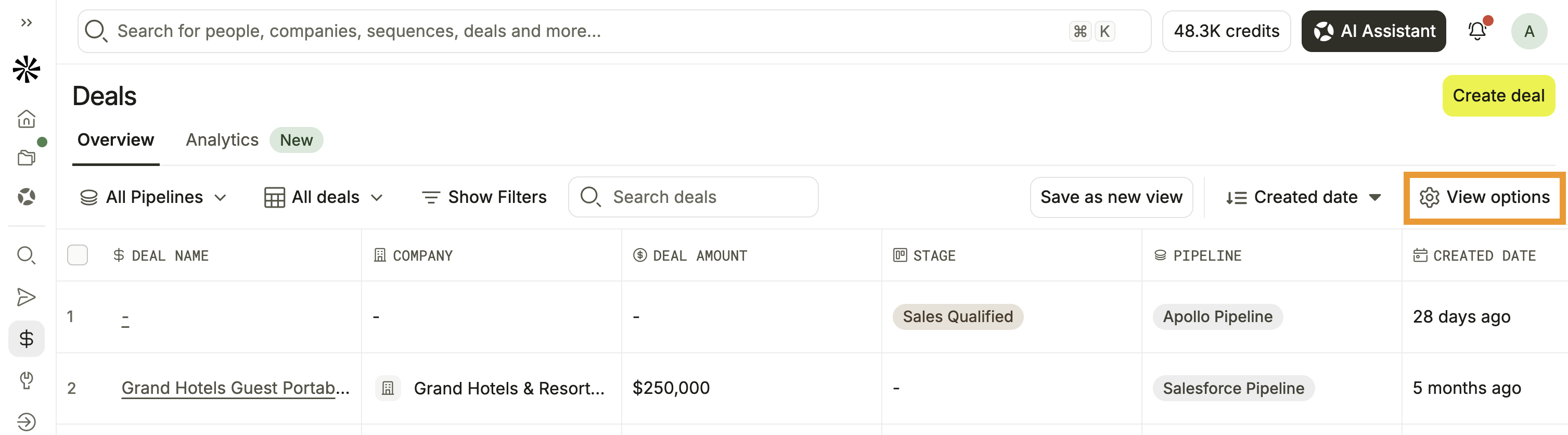
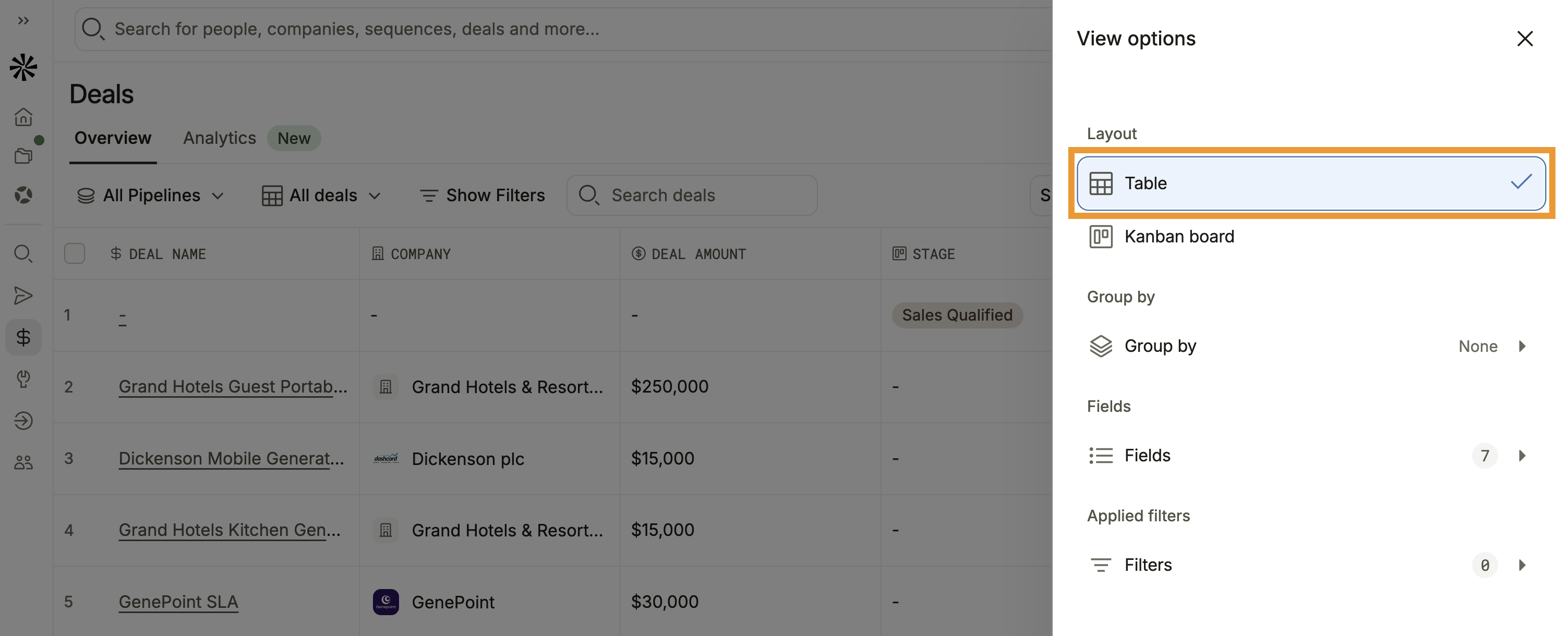
- Click Fields to add or remove columns.
- Click Filters to filter your view.
- Click Group by then select a stage to order your deals by stage.
- Select Table or Kanban to adjust your layout.
- Table: Displays deals in rows and columns so you can scan and compare details.
- Kanban: Displays deals as cards grouped by stage so you can quickly see where deals are in your pipeline.
- Click any column to sort your view by that field. Then click Sort ascending to sort Z-A, or Sort descending to sort A-Z.
- To move a column, click and drag the column. Alternatively, click the column then select Move left or Move right.
- To adjust a column's width, click and drag the edge of the column.
Sequences
To customize your layout:
- Launch Apollo and click Sequences.
- By default, Apollo shows sequences in a standard layout. Click All sequences to switch to a new view or a view you've previously saved.
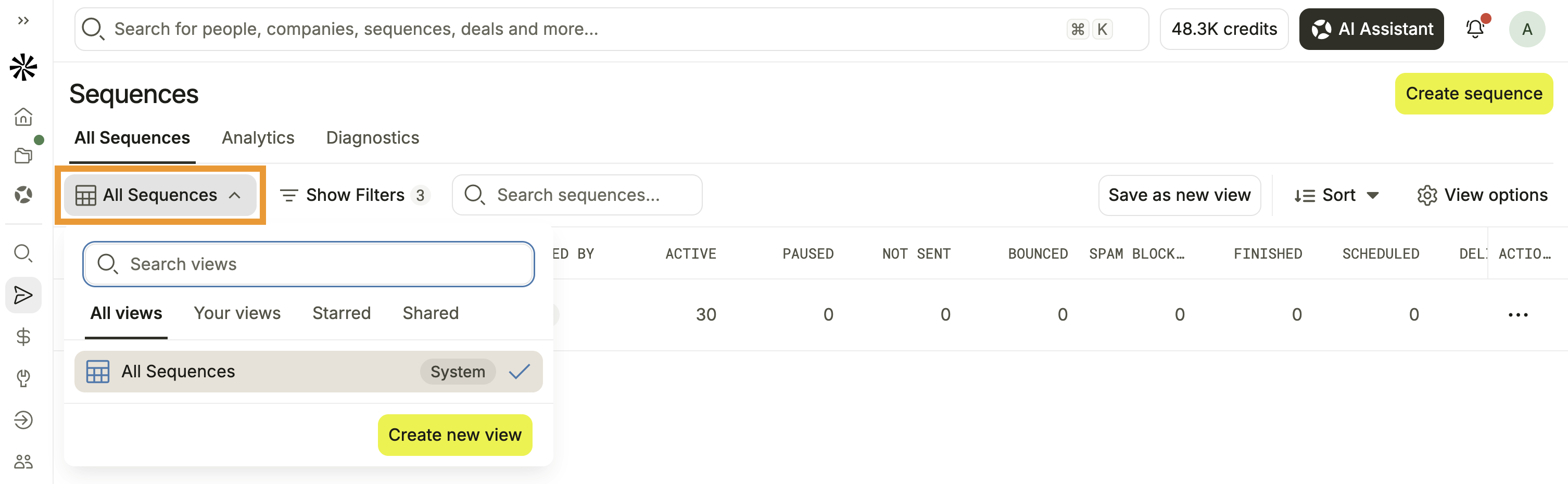
- Select a view.
- All views: All sequence views available to you, including default and those shared by your team.
- Your views: Saved views created by you.
- Starred: Views pinned by you.
- Shared: Views shared with you.
- Click View options to add or remove information.
- Click Fields to add or remove fields from your layout.
- Click Filters to adjust filters for your layout.
- Click any column to sort your layout by that field. Then click Sort ascending to sort Z-A, or Sort descending to sort A-Z.
- To move a column, click and drag the column. Alternatively, click the column then select Move left or Move right.
- To adjust a column's width, click and drag the edge of the column.
Emails
To customize your layout:
- Launch Apollo and click Emails.
- By default, Apollo shows emails in a standard layout. Click My inbox to switch to a new view or a view you've previously saved.
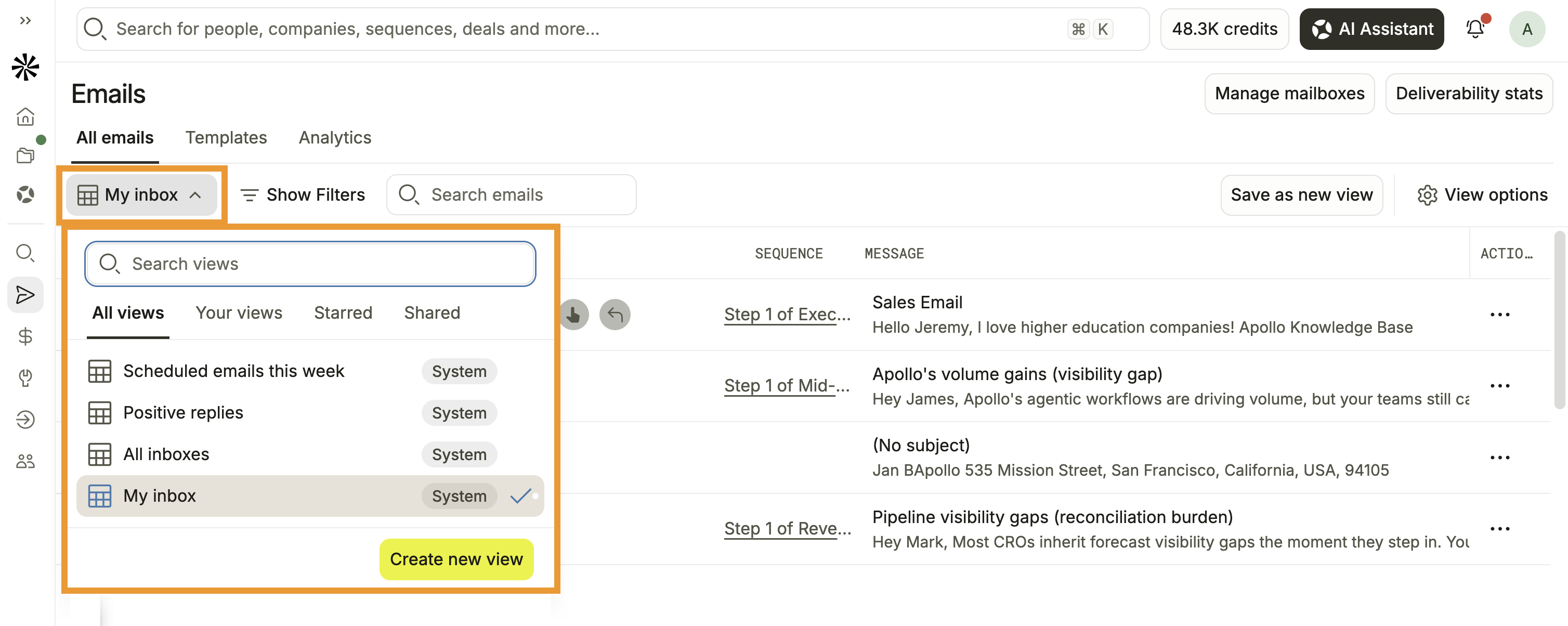
- Select a view.
- All views: All email views available to you, including default and those shared by your team.
- Your views: Saved views created by you.
- Starred: Views pinned by you.
- Shared: Views shared with you.
- Click View options to add or remove information.
- Click Fields to add or remove fields from your layout.
- Click Filters to adjust filters for your layout.
- To move a column, click and drag the column. Alternatively, click the column then select Move left or Move right.
- To adjust a column's width, click and drag the edge of the column.
Calls
To customize your layout:
- Launch Apollo and click Calls.
- By default, Apollo shows calls in a standard layout. Click All phone calls to switch to a new view or a view you've previously saved.
- Select a view.
- All views: All call views available to you, including default and those shared by your team.
- Your views: Saved views created by you.
- Starred: Views pinned by you.
- Shared: Views shared with you.
- Click View options to add or remove information.
- Click Fields to add or remove fields from your layout.
- Click Filters to adjust filters for your layout.
- To move a column, click and drag the column. Alternatively, click the column then select Move left or Move right.
- To adjust a column's width, click and drag the edge of the column.
Tasks
To customize your layout:
- Launch Apollo and click Tasks.
- By default, Apollo shows tasks in a standard layout. Click My tasks to switch to a new view or a view you've previously saved.
- Select a view.
- All views: All task views available to you, including default and those shared by your team.
- Your views: Saved views created by you.
- Starred: Views pinned by you.
- Shared: Views shared with you.
- Click View options to add or remove information.
- Click Fields to add or remove fields from your layout.
- Click Filters to adjust filters for your layout.
- To move a column, click and drag the column. Alternatively, click the column then select Move left or Move right.
- To adjust a column's width, click and drag the edge of the column.
Lists
To customize your layout:
- Launch Apollo and click Lists.
- By default, Apollo shows lists in a standard layout. Click My lists to switch to a new view or a view you've previously saved.
- Select a view.
- All views: All list views available to you, including default and those shared by your team.
- Your views: Saved views created by you.
- Starred: Views pinned by you.
- Shared: Views shared with you.
- Click View options to add or remove information.
- Click Fields to add or remove fields from your layout.
- Click Filters to adjust filters for your layout.
- To move a column, click and drag the column. Alternatively, click the column then select Move left or Move right.
- To adjust a column's width, click and drag the edge of the column.
Workflows
To customize your layout:
- Launch Apollo and click Workflows.
- Click Settings to add or remove information.
- Click Fields to add or remove fields from your layout.
- To move a column, click and drag the column. Alternatively, click the column then select Move left or Move right.
- To adjust a column's width, click and drag the edge of the column.
Next Steps
Keep building on your custom layouts with a few ways to make the information you surface even more useful.
| Save and Share a Search or Set a Search Alert | Found a prospecting view that works? Save and share your search to reuse your filters and layout, collaborate with teammates, and get alerts when new prospects match. |
|---|---|
| AI Research Overview | Add AI research to your prospecting to surface custom insights alongside Apollo data and give your team more context for qualifying and engaging prospects. |
| Sequences Overview | Put your sequences to work to engage priority prospects across email, calls, social touches, and other tasks while keeping outreach organized. |
| Deals Overview | Track your deals in Apollo to organize opportunities, monitor pipeline progress, and keep the details your team needs close at hand. |
| Workflows Overview | Automate actions with workflows to move prospects into lists and sequences, assign tasks, update records, and reduce repetitive work for your team. |