
Overview
Unlink a connected mailbox when you no longer want to use it with Apollo.
When you unlink a mailbox, you can reassign its scheduled emails to another connected mailbox. This is useful when you retire a mailbox, offboard a teammate, or make room for a different mailbox.
Check out the following sections to unlink a mailbox from Apollo.
Unlink a Mailbox
You can unlink your own mailbox at any time. Apollo admins can also unlink mailboxes for other people on their team.
If an authentication or token-validation error disconnects your mailbox, reconnect it instead of unlinking it. Apollo temporarily pauses the mailbox for up to forty-eight hours before unlinking it, so reconnect as soon as possible and within forty-eight hours to preserve your sending schedule and warm-up continuity.
When you reconnect, Apollo refreshes the credentials on the existing mailbox connection. This preserves sequences, sent history, stats, contact associations, tracking, domain authentication records, blocklist checks, and warm-up state. This applies to Gmail, Outlook/Microsoft, and mailboxes connected through Nylas.
If your email provider requires administrator consent, multi-factor authentication (MFA) enrollment, account reactivation, or a different OAuth connection method, complete those requirements with your provider first. Then reconnect the mailbox in Apollo.
To unlink a mailbox from Apollo:
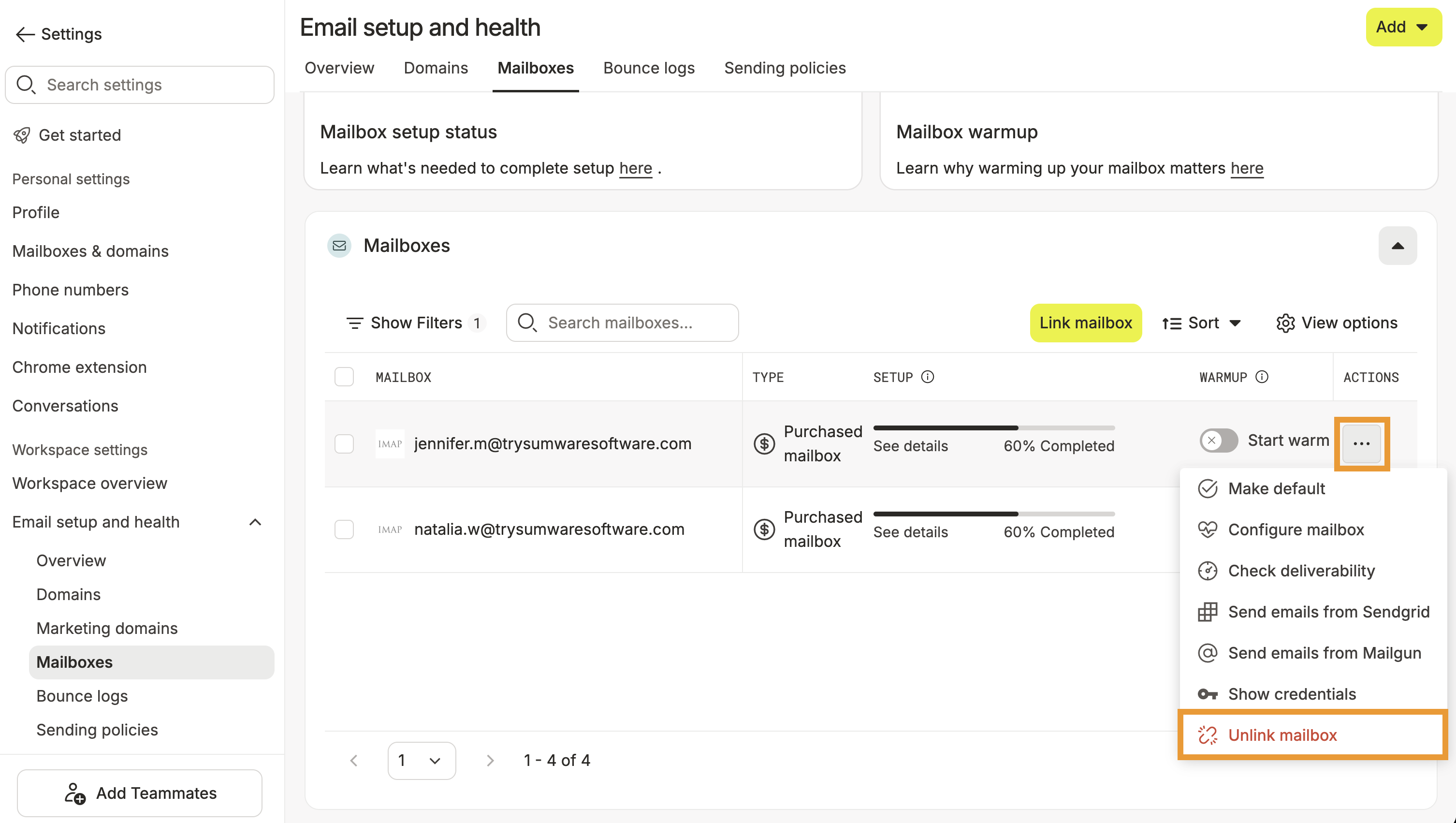
- Launch Apollo and click Settings > Email setup and health.
- Use the filters to find the mailbox you want to unlink.
- Click … beside the mailbox > Unlink mailbox.
- To reassign scheduled emails, select a forwarding mailbox. This option appears when your team has more than one connected mailbox.
- Click Unlink mailbox.
You have now unlinked a mailbox from Apollo.
If you purchased the mailbox through Apollo, unlinking it doesn't delete the purchased mailbox or stop future billing. To completely remove the mailbox and stop future billing, you also need to delete it.
Go to Settings > Mailboxes. Find the unlinked mailbox in your team's purchased mailboxes, then click … > Delete mailbox. Confirm the deletion.
Deleting the purchased mailbox stops future billing immediately. Apollo doesn't prorate or refund credits already used for the current billing period. You need permission to manage domain and mailbox purchases to delete a purchased mailbox.
If you're unlinking a mailbox because a teammate left your organization, also deactivate their Apollo account to remove their access to Apollo.
Next Steps
Keep your team's mailbox setup organized with these related resources.
| Add, Deactivate, and Reactivate Users | Is someone leaving your organization? Deactivate their Apollo account to remove their access and complete the offboarding process. |
|---|---|
| Link Your Mailbox to Apollo | Link a new mailbox when you want to replace a retired mailbox or add another mailbox to Apollo. |
| Manage Mailboxes and Domains on Apollo | Monitor your team's mailboxes and domains to identify setup, connection, and deliverability issues that could affect outbound emails. |
| Configure Email Sending Limits | Configure sending limits for each connected mailbox to control email volume and protect your team's sender reputation. |