
Overview
In a successful cold call campaign, you should always leave a voicemail when a contact doesn't answer your call with the dialer. If you don't want to spend valuable time repeatedly leaving the same message, use voicemail drops on Apollo to automatically leave a recorded message.
You can record a standard set of voicemails in Apollo to make your outreach more efficient and effective. Then drop the recordings at the end of your voice calls when there's no response.
Check out the following sections to use voicemail drops on Apollo.
Record a Voicemail Drop
Voicemail drops may be subject to local laws and regulations governing prerecorded messages. In some regions, you may need prior consent before leaving a prerecorded voicemail message.
You're responsible for ensuring your use of voicemail drops complies with all applicable laws in your jurisdiction. When in doubt, consult your legal team before using this feature at scale.
Before recording a voicemail drop, take time to script your voicemails in the same way you would script your calls. Well-scripted voicemails provide a high-quality touch in the sales process and lead to more callbacks from contacts.
To record a voicemail drop:
- Launch Apollo and click Settings > Phone numbers.
- Click Create new voicemail.
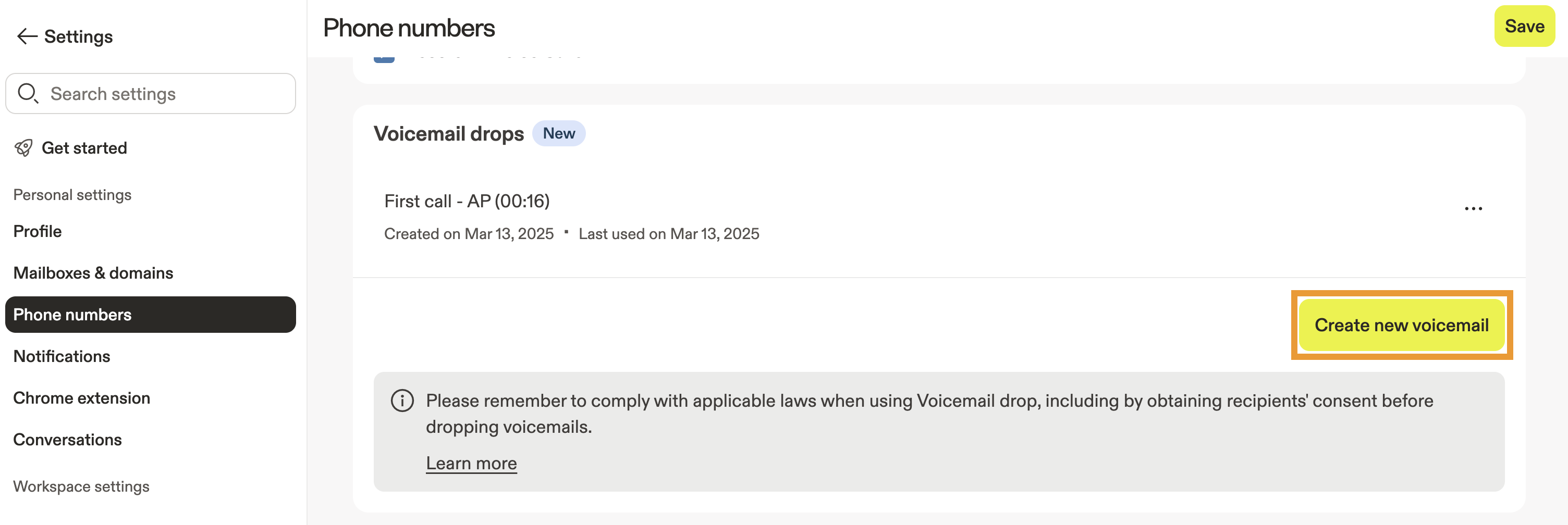
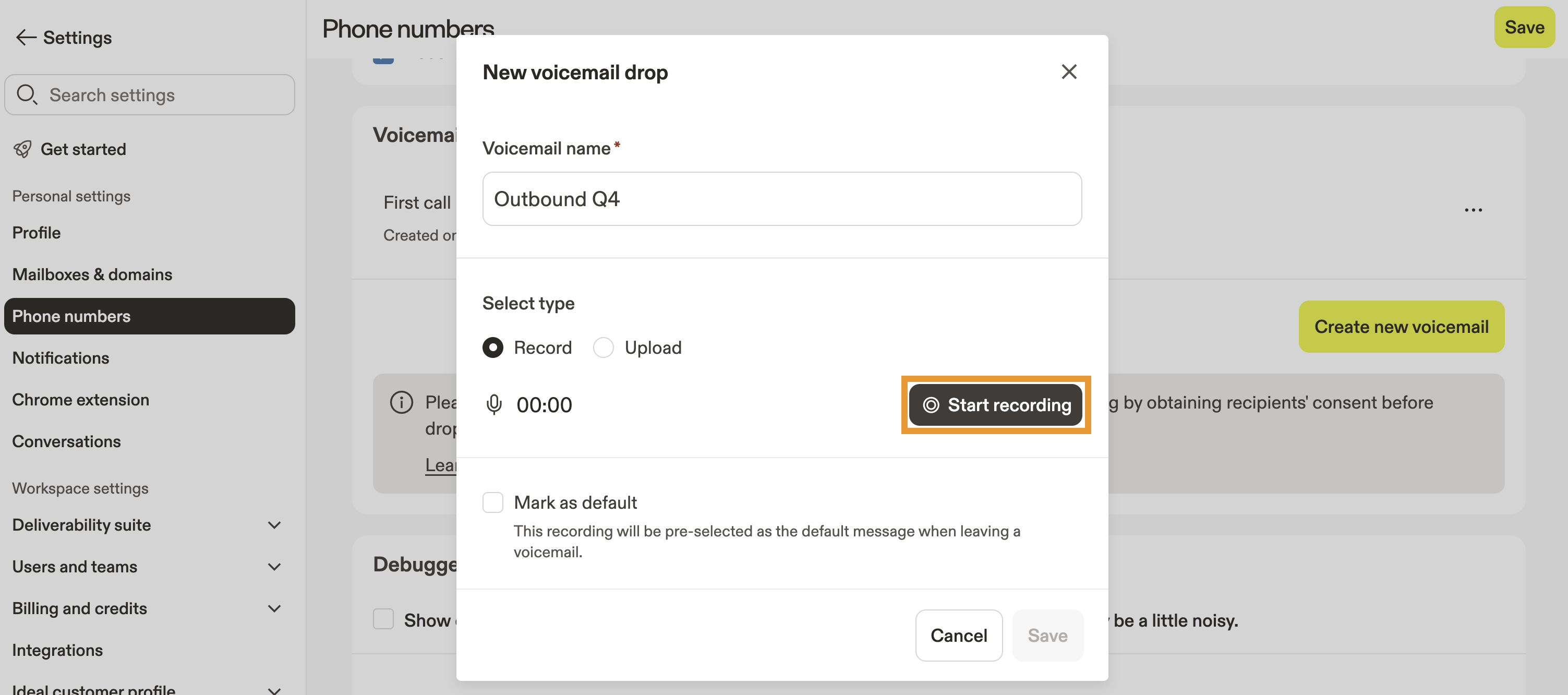
- Name your voicemail.
- To record the voicemail in Apollo, click Start recording.
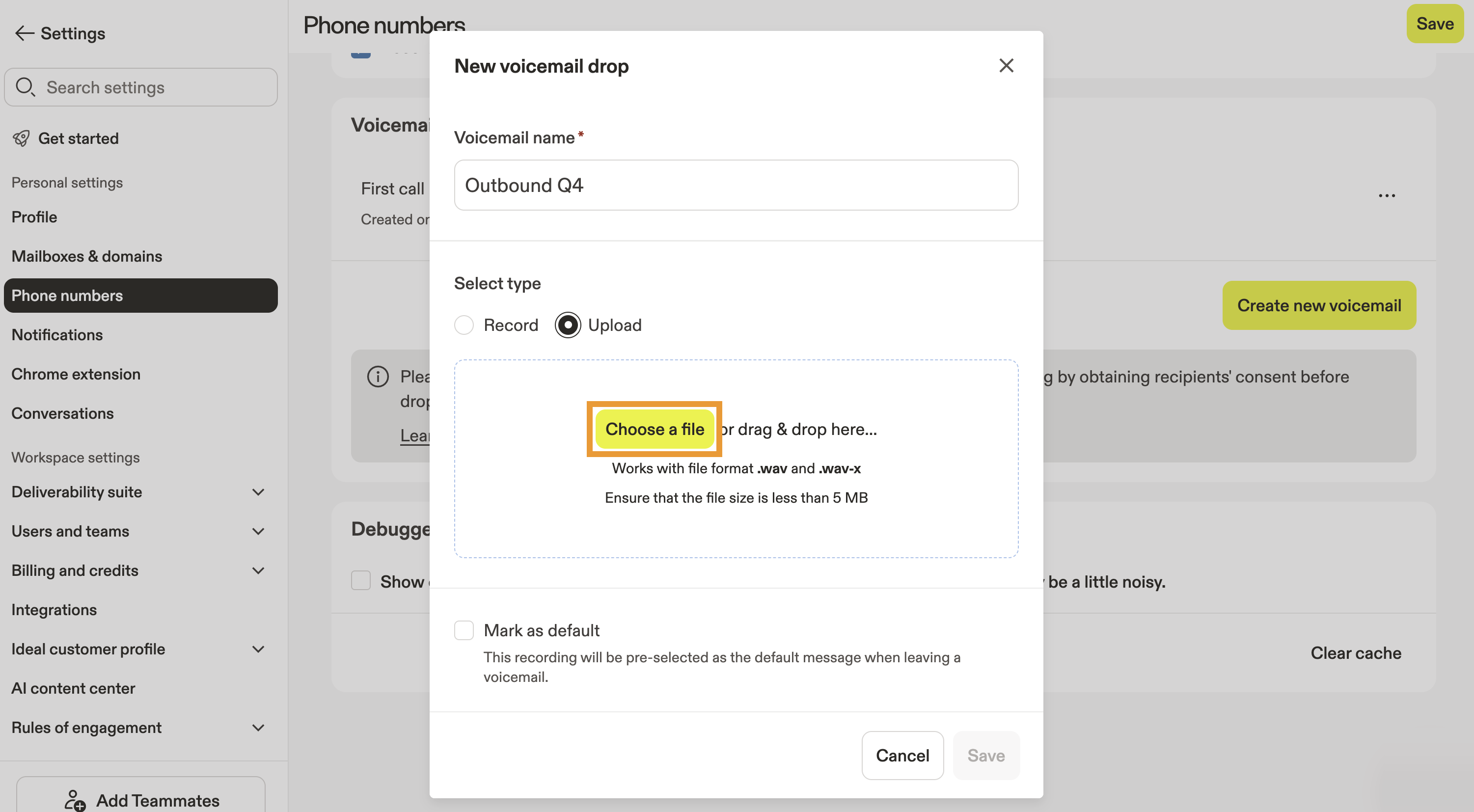
- Alternatively, click Upload to use an existing recording. The audio file must be 5MB or less in size and in
.wavor.wav-xformat.
- Click Play to hear your recording, or click Delete to try again.
- (Optional) Check Mark as default to make the voicemail your default recording. If you record multiple voicemail drops, Apollo uses the default voicemail unless you manually choose another recording when you leave a voicemail.
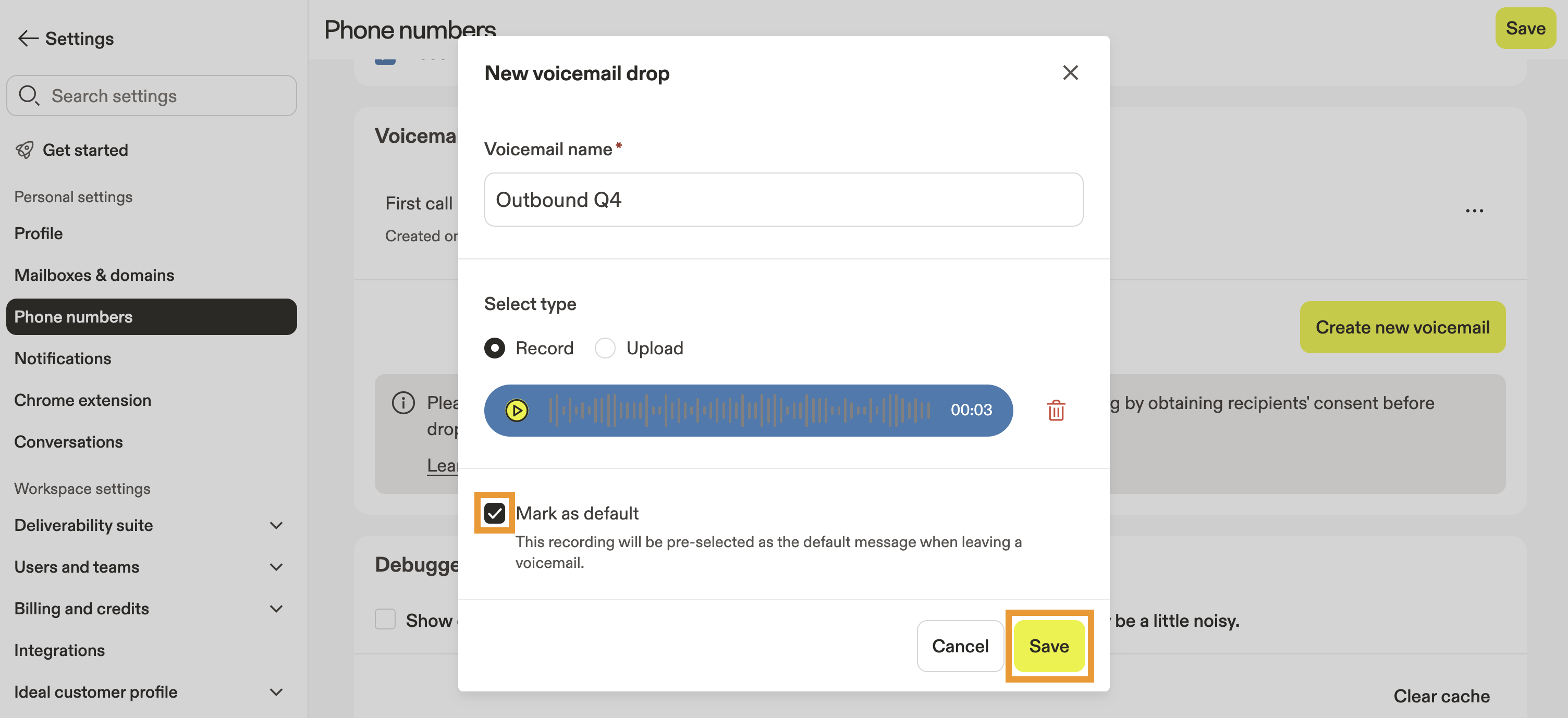
- When finished, click Save.
You have now created a voicemail drop. You can record additional voicemails as needed.
Now you're ready to use your voicemail drop when dialing prospects.
To edit or delete a voicemail recording:
- Launch Apollo and click Settings > Phone numbers.
- Click ... beside the voicemail > Edit.
- Click ... > Delete to remove it.
Use a Voicemail Drop
To use a voicemail drop:
- To end a call in Apollo with a voicemail drop, click Drop voicemail.

- Use your default recording or choose a recording from the dropdown, then click Leave voicemail and hang up.
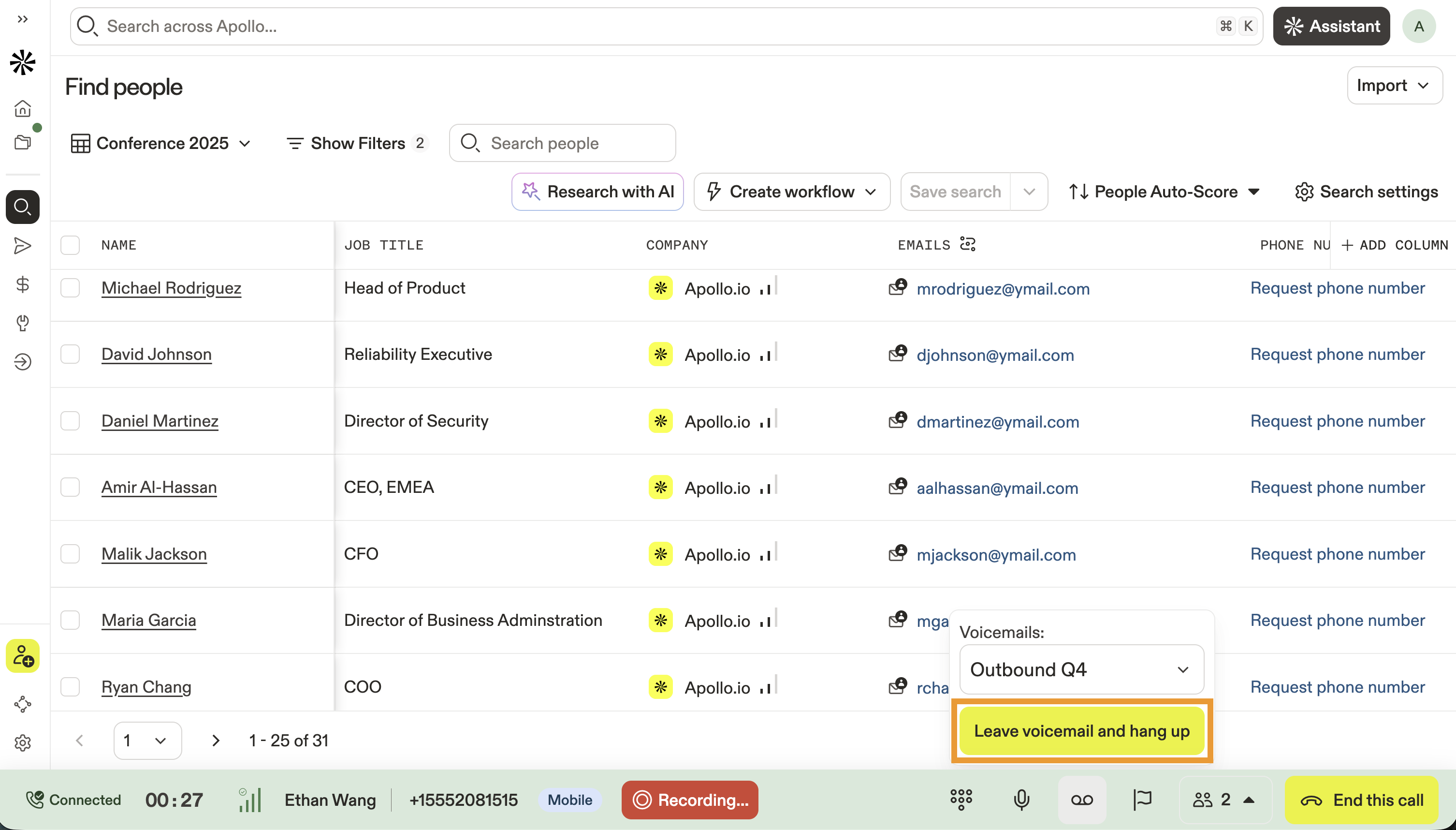
- To automatically drop voicemail, use parallel dialing to call multiple prospects at a time. Then Apollo automatically leaves voicemail on unanswered calls.
You have now used a voicemail drop.
If you use call recording with the dialer and leave a voicemail drop, the call isn't recorded.
Next Steps
Want to keep momentum going after setting up voicemail drops? These resources help you tighten your calling flow and get more callbacks.
| Configure the Dialer | Dial in your call setup when you configure the dialer to control voicemail behavior, call flow, and rep experience at scale. |
|---|---|
| Script Your Calls | Tighten what prospects hear when you script your calls to keep live pitches and voicemail drops consistent and callback-focused. |
| Sequences Overview | Put voicemail drops into motion when you build sequences that combine calls, voicemails, and follow-ups into one clean workflow. |
| Set Dialer Preferences | Make sure nothing surprises your team when you set dialer preferences to align call recording, voicemails, and compliance rules. |