
Overview
Parallel and power dialing help you reach more prospects in less time by automating call workflows across multiple saved contacts. You can use either version of bulk dialing on Apollo.
Wondering which to use?
| Parallel dialing |
The parallel dialer calls multiple contacts at the same time and connects you to the first person who answers. ✓ Apollo recommends parallel dialing for most people because it helps you reach more prospects faster while still keeping you focused on one live conversation at a time. |
|---|---|
| Power dialing |
The power dialer calls one contact at a time in your queue and automatically moves to the next after each call ends. Power dialing is best when you want a more controlled calling pace, or need extra time to review prospect context, leave manual voicemails, or carefully log call outcomes between calls. |
You can only use parallel or power dialing with saved contacts, not net-new prospects. To call people in bulk, first save them as prospects to your Apollo account.
Parallel and power dialing require the advanced dialer add-on for your Apollo plan. If you need to dial multiple people at once, get the add-on. If you have questions about upgrading, reach out to the Apollo sales team.
Check out the following sections to use parallel or power dialing on Apollo.
Use Parallel Dialing
Before you get started with parallel dialing, understand and follow calling best practices. Familiarize yourself with local laws like the Telephone Consumer Protection Act (TCPA), and seek consent to call prospects if required in your state or country.
Use parallel dialing to call multiple contacts at the same time and instantly connect with the first person who answers.
To use parallel dialing:
- Launch Apollo and click People > Saved.
- Alternatively, click Tasks > Call tasks, or click Calls > Upcoming calls.
- Check each contact you want to dial, then click Call.
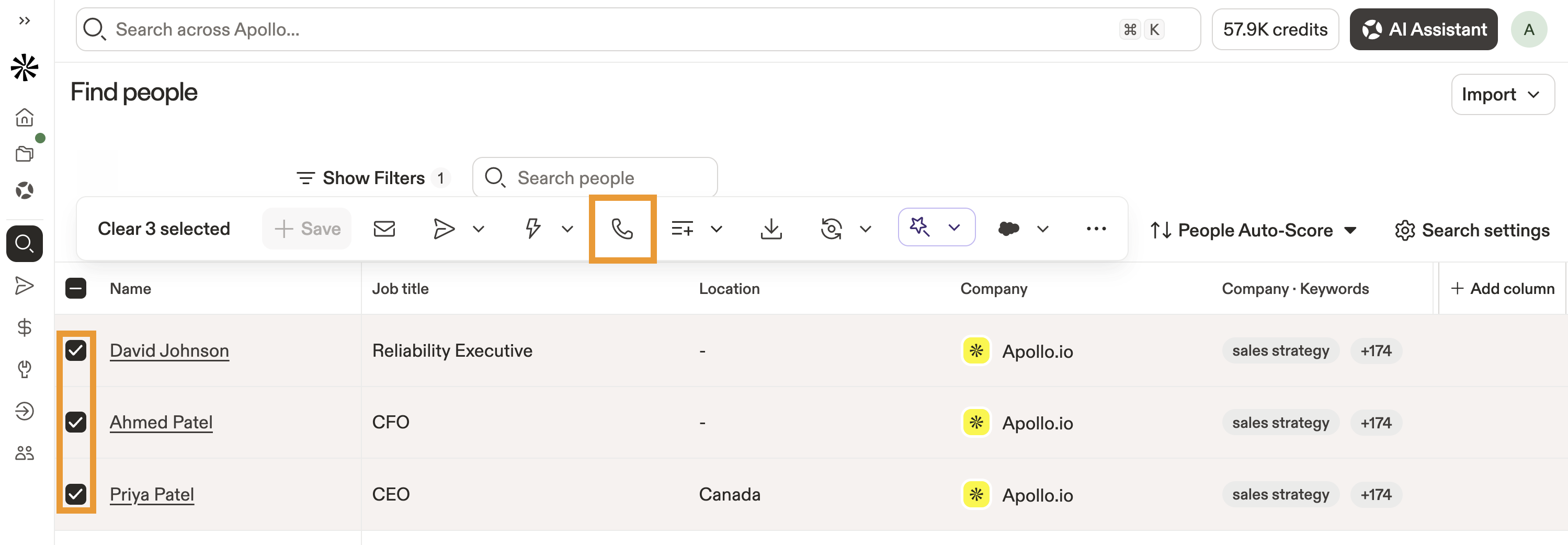
- Select Parallel dialing.
- Next, choose the maximum number of calls you want to dial at once. Apollo recommends three, but allows up to five active calls at once. You're only ever connected to one live conversation at a time — whoever answers first.
- Select the phone number you want to dial from. You can choose one or more of your Apollo phone numbers, a phone number that's local to the contact, or both. If you select multiple numbers, Apollo evenly distributes calls across them.
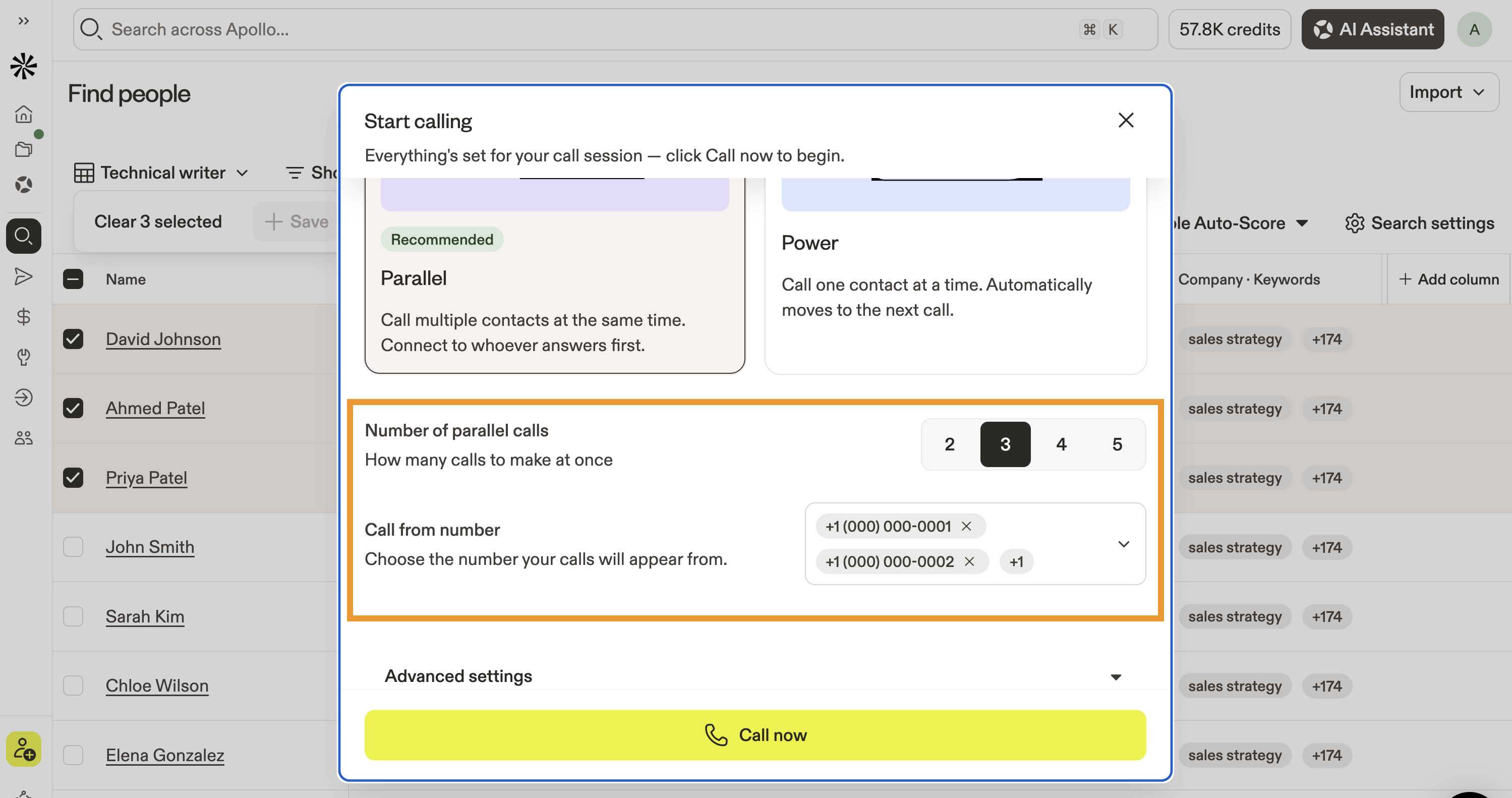
- (Optional) Click Advanced settings.
- Select the types of numbers you want to dial, like mobile, business, HQ, or other. Apollo prioritizes the phone type according to the order you select. For example, if you select mobile number first, but it doesn't work for a particular contact, Apollo moves on to their business number, if available.
Apollo skips contacts that don't have phone numbers.
- Select the voicemail drop you want to leave on unanswered calls. Alternatively, leave it blank to manually leave a voicemail.
If you choose not to use voicemail drops, you can skip numbers if voicemail is detected. However, Apollo is unable to differentiate between a voicemail and an interactive voice response (IVR) system. If you rely on connecting to IVRs as part of your outreach, you shouldn't skip numbers when voicemail is detected.
- (Optional) Check Continue calling the next numbers after voicemail drop to automatically call a contact's additional phone numbers after leaving voicemail. For example, if you leave a voicemail drop on a mobile number, Apollo calls the next available number for the contact. This option is only available with voicemail drops.
- Select whether the call task should automatically be marked as completed on voicemail drop:
- If Yes: Select a disposition like
Left Voicemail, and add any optional notes.
- If Yes: Select a disposition like
- Check Record connected calls to record all your calls.
You can configure the dialer to record calls, but location-based recording rules govern how you can record calls in various locations. That means if an admin at your org has blocked recording in a certain locale, and you dial a prospect there with recording enabled, the call won't record.
- Check Disable waiting music to disable hold music and play a beep when the call connects.
- Next, select whether the task should automatically be marked as complete on calls not connected:
- If Yes: Select a disposition like
Bad / Wrong Number, and add any optional notes. You can't preselect a disposition here for contacts who simply don't pick up. This setting only applies when Apollo marks the call as not connected, such as for bad, missing, or out-of-service numbers.
Not connected means Apollo was unable to complete the call due to a bad, missing, or out of service phone number.
- When finished, click Call now.
Once you set your dialing preferences, Apollo remembers the setup for the next time you make calls. You can always edit the configuration if needed.
- Apollo dials your contacts in the order in which you selected them.
- When a contact answers, Apollo opens the call, giving you easy access to contextual information about the contact.
When a contact answers, Apollo stops dialing other contacts in the call queue. This allows you to complete your call with the current prospect.
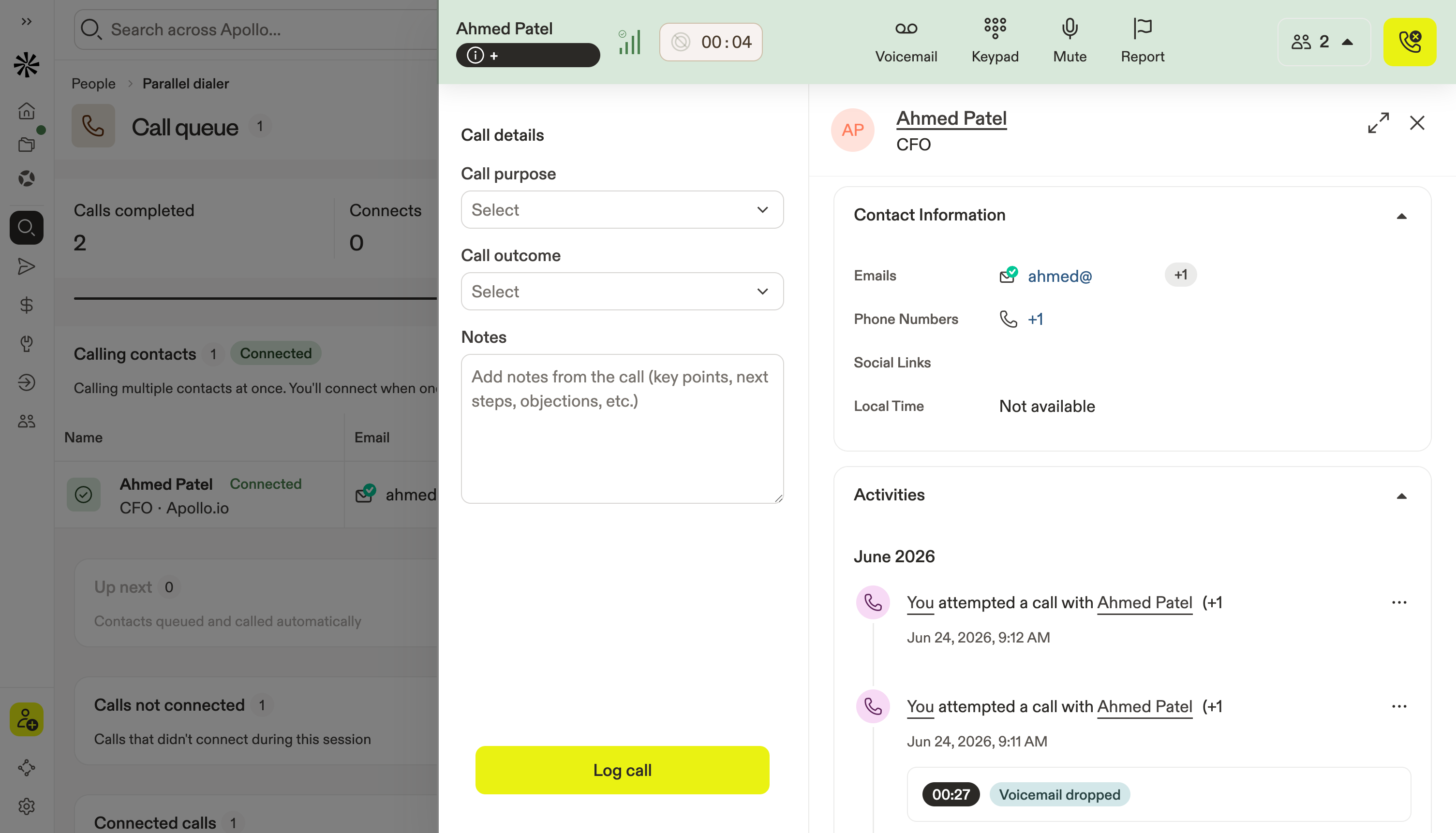
Apollo uses noise suppression by default to reduce keyboard clicks, background chatter, and other ambient noise so the person on the call can hear you more clearly. To turn noise suppression off or back on during an active call, click ⌄ > Noise removal. Apollo remembers your choice for future calls.
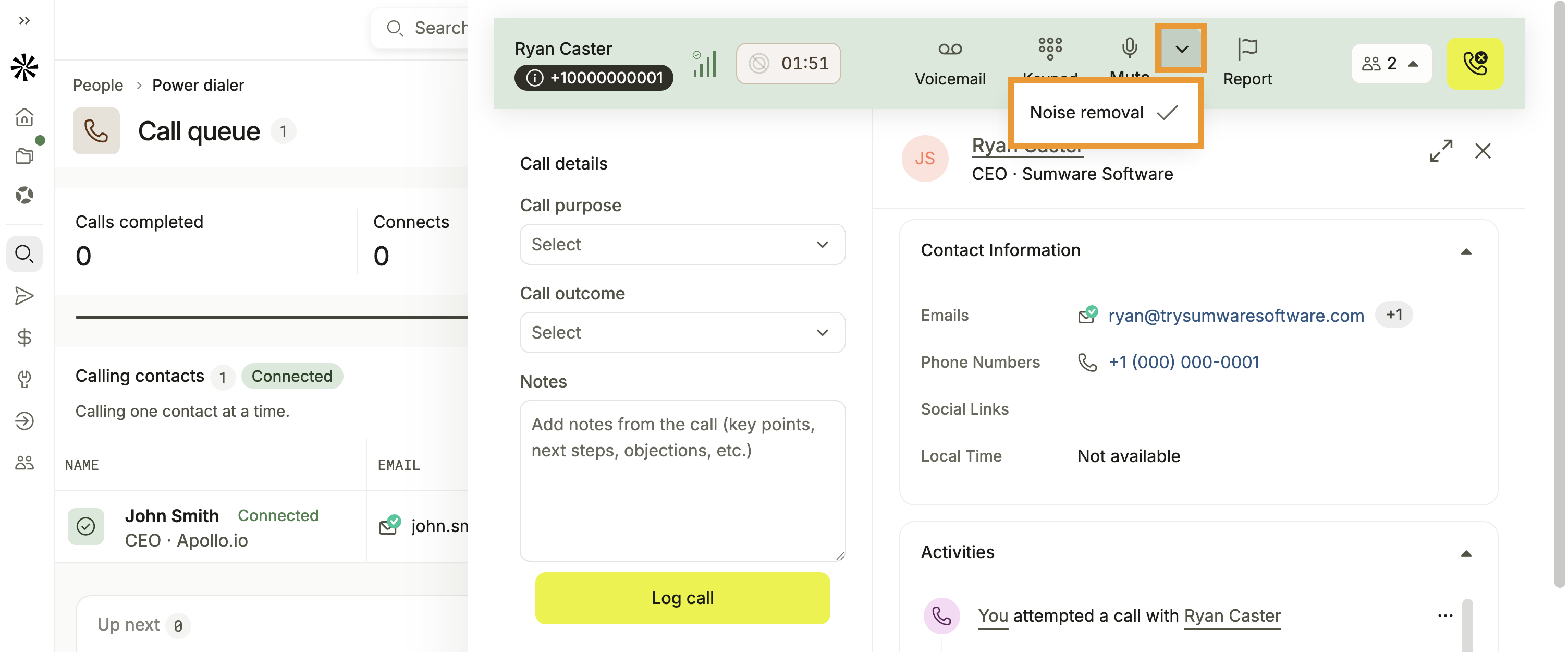
- During or after the call, select a call purpose and call disposition, and add notes to track takeaways.
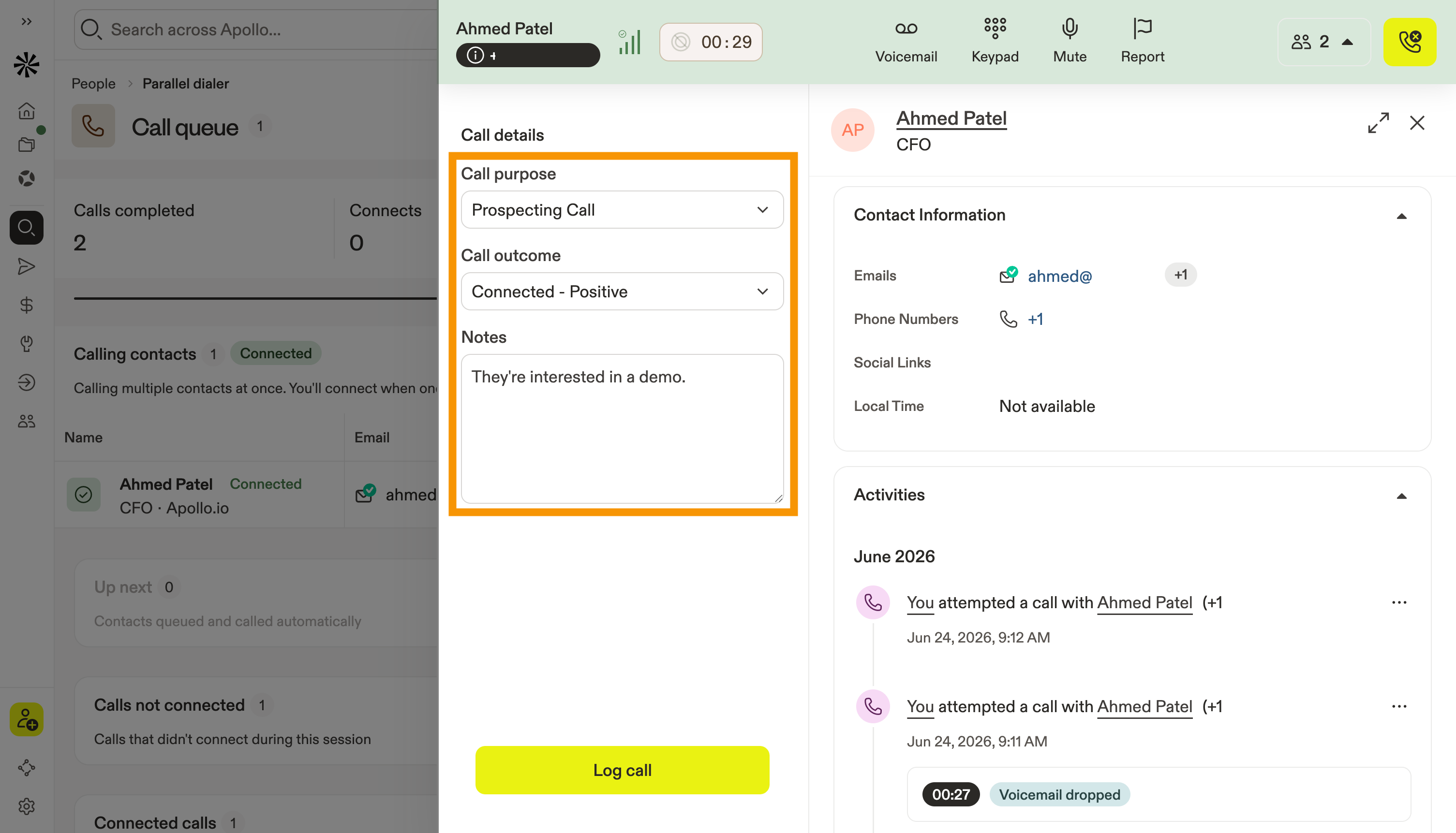
- Click Log call to record the details.
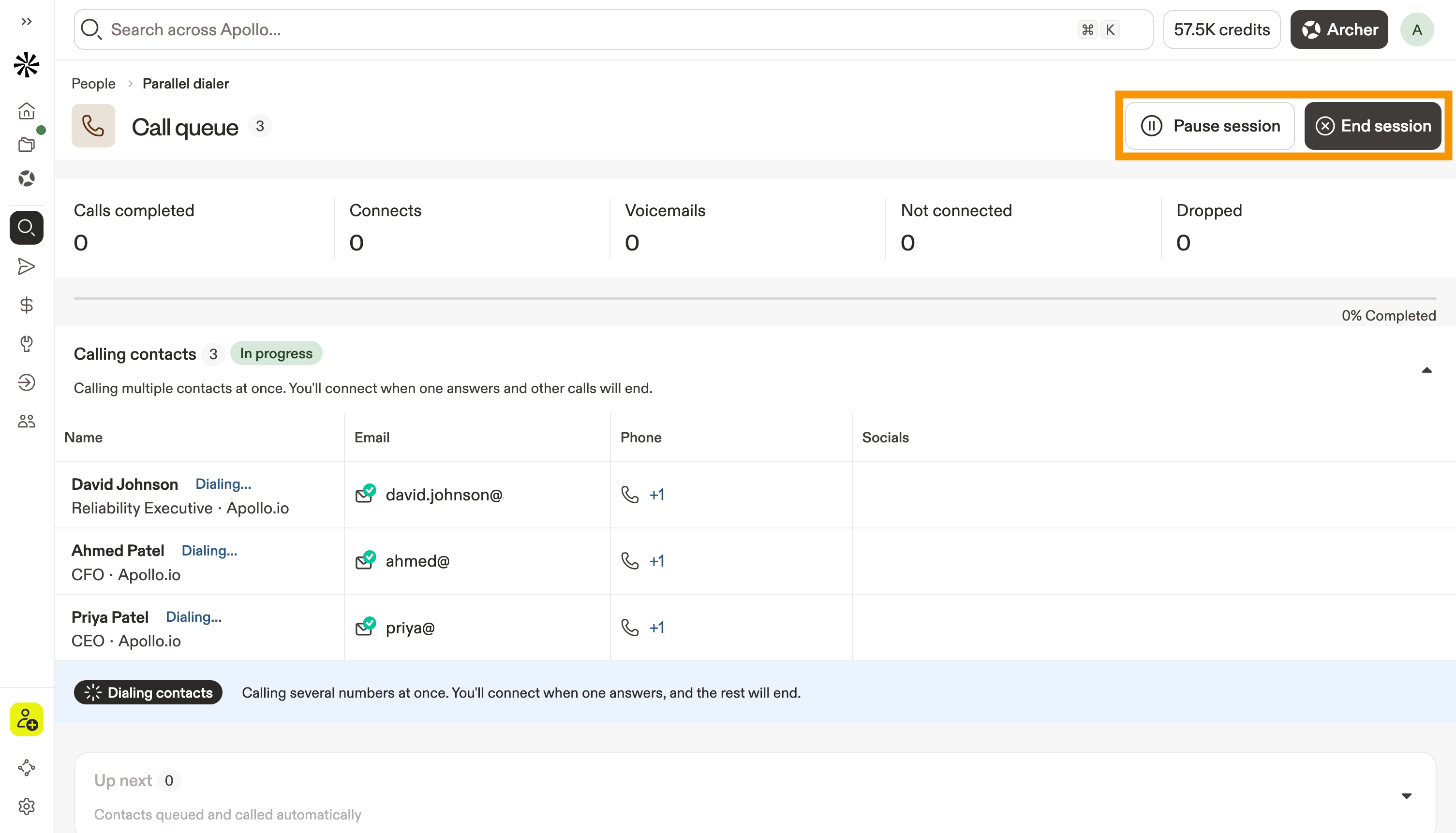
- When the call ends, Apollo automatically resumes calling people in your queue. Click Pause session or Stop session to end the current call queue.
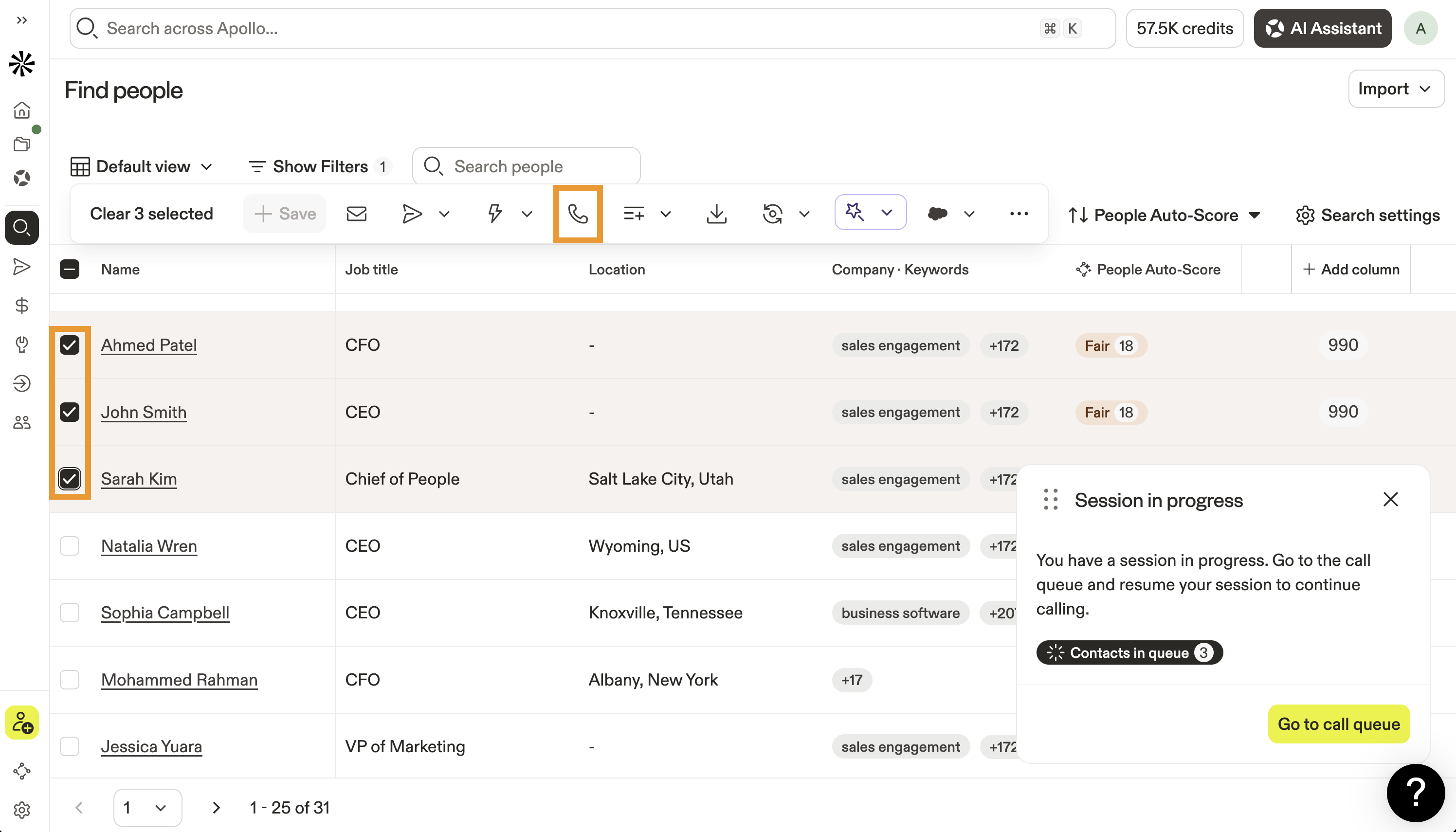
- To add more contacts to your queue, navigate to a list or search. Select additional contacts then click Call.
- Apollo adds them to your call queue.
You have now used the parallel dialer.
Check out some FAQs or next best actions to keep up the momentum.
Use Power Dialing
Use power dialing to call contacts one at a time in sequence, automatically moving to the next prospect as soon as each call ends.
To use power dialing:
- Launch Apollo and click People > Saved.
- Alternatively, click Tasks > Call tasks, or click Calls > Upcoming calls.
- Check each contact you want to dial, then click Call.
- Next, select the phone number you want to dial from. You can dial from one of your Apollo phone numbers, or use a phone number that's local to the contact. If you purchased multiple numbers on Apollo, check two or more numbers, and the dialer evenly distributes calls across them.
- Select Power dialer.
- Next, select the types of numbers you want to dial, like mobile, business, or HQ. Apollo prioritizes the phone type according to the order you select. For example, if you select mobile number first, but it doesn't work for a contact, Apollo moves on to business.
Apollo skips contacts that don't have phone numbers.
- Select the voicemail drop you want to leave on unanswered calls. Alternatively, leave the option blank to manually leave a voicemail.
If you choose not to use voicemail drops, you can skip numbers if voicemail is detected. However, Apollo is unable to differentiate between a voicemail and an interactive voice response (IVR) system. If you rely on connecting to IVRs as part of your outreach, you shouldn't skip numbers when voicemail is detected.
- (Optional) Check Continue calling the next numbers after voicemail drop to automatically call a contact's additional phone numbers after leaving voicemail. For example, if you leave a voicemail drop on a mobile number, Apollo calls the next available number for the contact. This option is only available with voicemail drop.
- Select whether the call task should automatically be marked as completed on voicemail drop:
- If Yes: Select a disposition like
Left Voicemail, and add any optional notes.
- If Yes: Select a disposition like
- (Optional) Check Disable waiting music to disable hold music and play a beep when the call connects.
- (Optional) Check Record connected calls.
You can configure the dialer to record calls, but location-based recording rules govern how you can record calls in various locations. That means if an admin at your org has blocked recording in a certain locale, and you dial a prospect there with recording enabled, the call won't record.
- Next, select whether the task should automatically be marked as complete on calls not connected:
- If Yes: Select a disposition like
Bad / Wrong Number, and add any optional notes. You can't preselect a disposition here for contacts who simply don't pick up. This setting only applies when Apollo marks the call as not connected, such as for bad, missing, or out-of-service numbers.
- If Yes: Select a disposition like
Not connected means Apollo was unable to complete the call due to a bad, missing, or out of service phone number.
- When finished, click Call now.
Once you set your dialing preferences, Apollo remembers the setup for the next time you make calls. You can always edit the configuration if needed.
- Apollo dials your contacts in the order in which you selected them.
- When a contact answers, Apollo opens the call activity log and contact profile, giving you easy access to contextual information to complete the call.
When a contact answers, Apollo stops dialing other contacts in the call queue. This allows you to complete your call with the current prospect.
Apollo uses noise suppression by default to reduce keyboard clicks, background chatter, and other ambient noise so the person on the call can hear you more clearly. To turn noise suppression off or back on during an active call, click ⌄ > Noise removal. Apollo remembers your choice for future calls.
- During or after the call, select a call purpose and call disposition, and add notes to track takeaways.
- When finished, click Log call to record the call details.
- When a call ends, Apollo resumes calling prospects in the call queue. Click Pause session or Stop session to end the current call queue.
- To add more contacts to your queue, navigate to a list or search. Select additional contacts then click Call.
- Apollo adds them to your call queue.
You have now used the power dialer.
Check out some FAQs or next best actions to keep up the momentum.
FAQs
Frequently asked questions |
||
|---|---|---|
| What's the difference between parallel and power dialing? | With parallel dialing, what happens when two prospects answer simultaneously? | What's the latency when calling multiple numbers simultaneously? |
| With parallel dialing, what happens if a contact doesn't answer the call? | If a call doesn't connect and no voicemail is left, how is the call logged? | Does the dialer automatically assign a call disposition, or do I need to select one? |
What's the difference between parallel and power dialing?
Parallel dialing calls multiple contacts at once and connects you to whoever answers first. This allows you to dial prospects faster, increasing the chances of connecting to a live call.
Power dialing calls one person at a time in your call queue, proceeding to the next when no one answers or the current call ends. This ensures faster dialing since you don't need to manually click through each prospect in your list.
With either, you're only ever connected to one live call at a time.
You can switch between parallel and power dialing at any time. When you start a new call session, just select which dialing method you prefer.
What's the latency when calling multiple numbers simultaneously?
The latency is approximately three seconds if you use a voicemail drop. If you don't use voicemail drops, latency is significantly reduced. Latency depends on how quickly Apollo detects a human voice. Your prospect doesn't hear any beep or notification that indicates they're being connected to you.
With parallel dialing, what happens if a contact doesn't answer the call?
It depends on which phone number types you selected to dial. If you selected mobile and business, for instance, Apollo next attempts business if mobile is unsuccessful. However, if the call to mobile reaches a voicemail, Apollo won't proceed to the home number. Apollo considers both a prospect's answer and reaching their voicemail as opportunities to leave a message. If no one answers, Apollo moves to the next number type in your queue.
Does the dialer automatically assign a call disposition, or do I need to select one?
- If you selected a voicemail drop, Apollo automatically assigns the left voicemail call disposition.
- If you haven't selected a voicemail drop, you need to manually select the call disposition and add any call notes.
If a call doesn't connect and no voicemail is left, how is the call logged?
If the call doesn't connect and you don't select a voicemail drop, it's logged as not connected. Apollo marks the call task incomplete until you take further action. Apollo only assigns a call disposition if it successfully leaves a voicemail.
With parallel dialing, what happens when two prospects answer simultaneously?
Apollo connects you to the first prospect who answers and automatically disconnects the remaining calls. You're only ever connected to one live conversation at a time.
Next Steps
You're dialing faster already—here are a few ways to keep that momentum going and turn more calls into conversations.
| Make and Receive Calls | Want to get even smoother on calls? Learn how to make calls to net-new prospects and how to handle inbound conversations without missing a beat. |
|---|---|
| Record and Leave Voicemail Drops | Missing prospects? Record and leave voicemail drops to keep your outreach consistent and save time between attempts. |
| Use Purposes and Dispositions to Understand Call Outcomes | After each call, track call outcomes with dispositions to spot patterns and improve how your team connects and converts. |
| Get an Apollo Phone Number | Looking to boost pickup rates? Set up local or multiple phone numbers to improve answer rates and scale your dialing strategy. |
| Cold Calling Best Practices | Want better conversations, not just more dials? Apply proven cold calling techniques to build trust, stay compliant, and book more meetings. |