
Overview
Domain authentication is critical to keeping your domain safe and ensuring high email deliverability rates. When you don't properly configure DNS records like SPF, DMARC, and DKIM, your emails are at risk of being labeled as spam.
If you're having trouble authenticating domain records, a few troubleshooting steps can get you back on track.
Review Diagnose and Fix Domain Authentication to get started with diagnosing domain errors.
To check the status of your DNS records on Apollo, navigate to Sequences > Diagnostics.
Check out the following sections to troubleshoot SPF, DKIM, or DMARC authentication.
Error Glossary
After you link your mailbox to Apollo, you may see SPF, DKIM, or DMARC error messages indicating an issue with your mailbox domain's DNS configuration. Use the following glossary to find an error message, understand what it means, and explore tips to resolve it.
If you recently updated your SPF, DKIM, or DMARC records, allow 24-72 hours for the changes to propagate. External tools may show a valid record before Apollo finishes its authentication check. After the changes propagate, go to Sequences > Diagnostics, then click ⟳ beside your mailbox to refresh the check.
SPF, or sender policy framework, specifies which mail servers can send email on behalf of your domain. SPF helps prevent email spoofing, where someone sends email that appears to come from your domain.
| Error | Description | Solution |
|---|---|---|
We couldn't detect any active SPF record for your domain. Please visit https://dmarcguide.globalcyberalliance.org to fix this. |
Apollo couldn't find an SPF record for your domain. | Publish one SPF record on your sending domain. Review Set Up Email Domain Authentication for help. |
Multiple SPF records detected. Please ensure you only have one SPF record for your domain. |
Your domain publishes more than one SPF record. Receiving mail servers might not know which record to use. | Merge all authorized senders into one SPF record, then remove the duplicate records. |
Your SPF record contains the +all tag. It is strongly recommended that this be changed to -all. The +all tag states that any source is allowed to send mail on behalf of your domain, which is a significant security risk and will be treated as such by many mailbox providers |
The +all tag allows any server to send email on behalf of your domain. |
Add every authorized sender to your SPF record, then replace +all with -all. |
Your SPF record doesn't include your sending IP address. Update the record to include your email service provider's authorized sending IP address(es). |
The server that sent Apollo's test email isn't authorized in your SPF record. | Add your email provider's authorized sending IP addresses or SPF include record. |
Your SPF record doesn't include your sending IP address. We detected that this email was sent through {host} ({ip}). Ask whoever manages this server (your email host, security gateway, or marketing platform) for their SPF include record, then add it to your domain's SPF record. |
Apollo identified the host and IP address that sent the test email, but your SPF record doesn't authorize them. | Ask the service that manages the identified host for its SPF include record, then add it to your domain's SPF record. |
Your SPF record ends with '?all', which does not enforce sending IP authentication. Update your SPF record to use '-all' and include your authorized sending IP address(es). |
The ?all tag applies a neutral result to servers that aren't included in your SPF record. |
Add every authorized sender to your SPF record, then replace ?all with -all. |
Your SPF record uses '~all', which allows unauthorized senders but marks them as suspicious. Update your SPF record to use '-all' and include your authorized sending IP address(es). |
The ~all tag applies a soft fail to servers that aren't included in your SPF record. |
Confirm that your SPF record includes every authorized sender. When you're ready to enforce the record, replace ~all with -all. |
No SPF record was found for your sending domain. Publish an SPF record that includes your email service provider's authorized sending IP address(es) and ends with '-all'. See Domain Authentication Errors for more help. |
Apollo's test email didn't find an SPF record on your sending domain. | Publish one SPF record on the domain used by your connected mailbox. Include your email provider's authorized senders and end the record with -all. |
Your SPF record has a permanent DNS lookup error. Common causes include: too many DNS lookups (SPF allows up to 10 include/redirect lookups), multiple SPF records published for the same domain, syntax errors in the record, or too many void lookups. Review your SPF record to resolve the issue, and see Domain Authentication Errors for more help. |
A permanent DNS or SPF configuration error prevents receiving mail servers from evaluating your record. | Check for more than 10 DNS lookups, duplicate records, syntax errors, and excessive void lookups. Update the record, then refresh diagnostics after the changes propagate. |
Your SPF record has a temporary DNS lookup error. Try again later. If the error persists, common causes include: too many DNS lookups (SPF allows up to 10 include/redirect lookups), multiple SPF records published for the same domain, syntax errors, or too many void lookups. See Domain Authentication Errors for more help. |
A temporary DNS issue prevented Apollo from evaluating your SPF record. | Try again later. If the error continues, check for more than 10 DNS lookups, duplicate records, syntax errors, and excessive void lookups. |
Apollo was unable to send an email to verify your SPF record due to your email sending limits. Check your limits and either raise them temporarily or try again later. |
Your mailbox reached its sending limit before Apollo could send the verification email. | Wait for your limits to reset or temporarily increase your sending limit, then run diagnostics again. |
Apollo was unable to receive the email response from your email provider. Please try again later. |
Apollo didn't receive a response to the verification email before the check timed out. | Try again later. If the error continues, confirm that your mailbox is connected and can send and receive email. |
Apollo has not yet received the automated email required to check your SPF record. This process may take up to 24 hours. |
Apollo is waiting for the verification email used to check your SPF record. | Wait up to 24 hours. If the check remains pending, click ⟳ beside your mailbox to refresh diagnostics. |
We couldn't determine the SPF status of your domain. Please try again later. |
Apollo couldn't determine the result of the SPF check. | Try again later. If the error continues, confirm that your SPF record is published through the DNS provider that manages your domain's authoritative nameservers. |
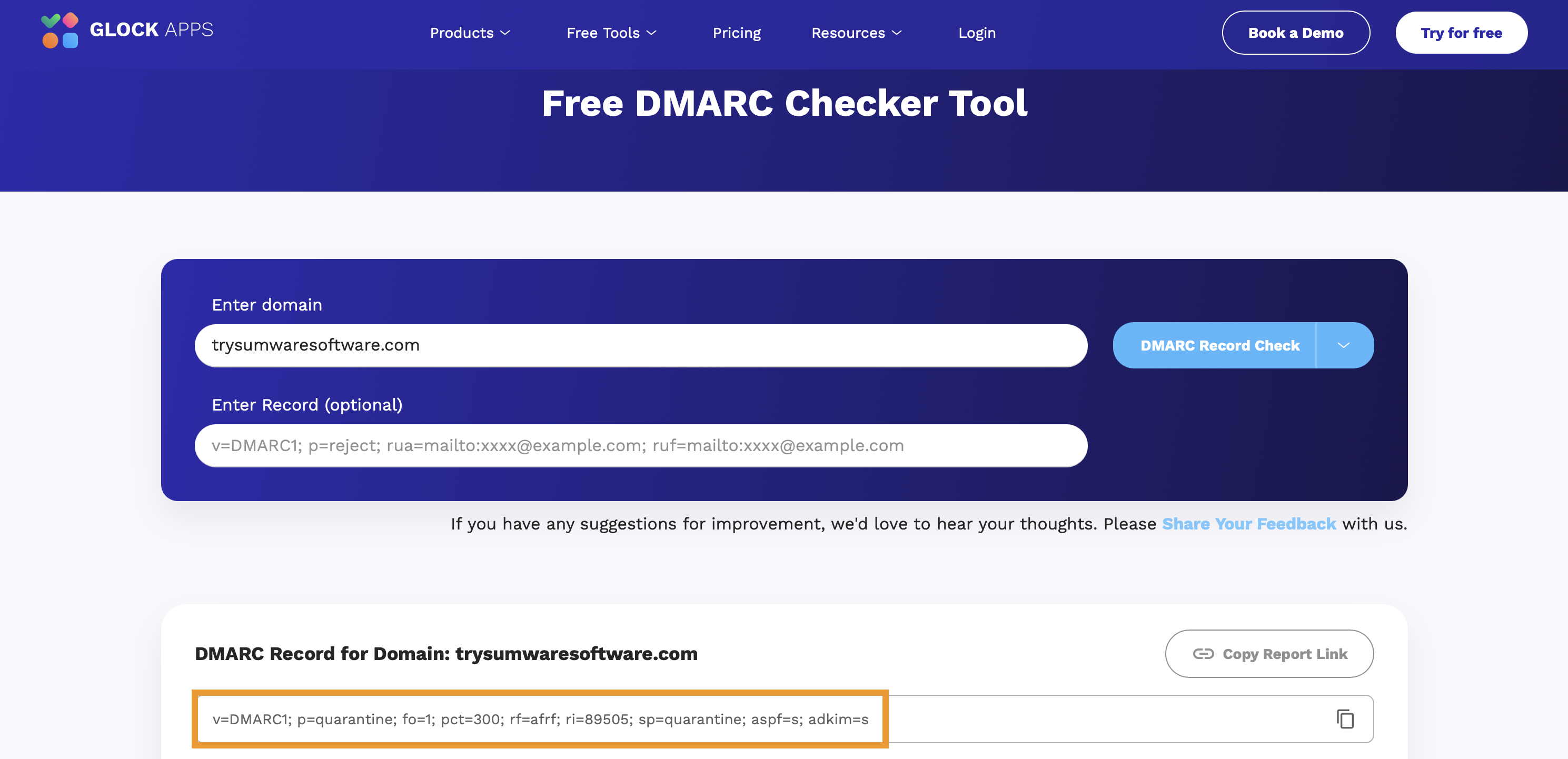
DMARC, or domain-based message authentication, reporting, and conformance, tells receiving mail servers how to handle messages that fail SPF or DKIM checks.
| Error | Description | Solution |
|---|---|---|
Your DMARC record is not set up. Check out Set Up Email Domain Authentication to get started. |
Apollo couldn't find a DMARC record at _dmarc for your domain. |
Publish one DMARC record. Review Set Up Email Domain Authentication for help. |
Multiple DMARC records detected. Remove or merge the duplicate records so only one DMARC record is published at _dmarc. Receivers ignore DMARC when multiple records are present. |
Your domain publishes more than one DMARC record. Receiving mail servers ignore DMARC when they find multiple records. | Remove the duplicate records or merge their required tags into one record at _dmarc. |
Your DMARC record is incorrectly formatted and missing semicolons. |
Apollo can't separate the tags in your DMARC record. | Add a semicolon between each tag in the DMARC record. |
Your DMARC record is incorrectly formatted. It should begin with v=DMARC1, using the specific capitalization. |
The first tag in your DMARC record isn't exactly v=DMARC1. |
Update the first tag to v=DMARC1, including the capitalization. |
Your domain is at the highest DMARC enforcement level (reject), but does not specify an email address to receive DMARC aggregate reports. To maintain full visibility into potential authentication or delivery issues, add a 'rua' tag to receive DMARC aggregate reports. See Domain Authentication Errors for more help. |
Your DMARC policy rejects messages that fail authentication, but you don't receive aggregate reports. | Add a valid rua=mailto: tag to receive aggregate DMARC reports. |
Your domain is at the second DMARC enforcement level (quarantine), but does not specify an email address to receive DMARC aggregate reports. Please add a 'rua' tag to receive DMARC aggregate reports. See Domain Authentication Errors for more help. |
Your DMARC policy quarantines messages that fail authentication, but you don't receive aggregate reports. | Add a valid rua=mailto: tag to receive aggregate DMARC reports. |
Your domain is at the 'none' DMARC enforcement level, which is insufficient for email sending. Review your DMARC reports, then advance to 'p=quarantine' and eventually 'p=reject'. See Domain Authentication Errors for more help. |
Your DMARC record monitors authentication but doesn't instruct receiving mail servers to quarantine or reject messages that fail. | Review your DMARC reports. When your legitimate mail passes authentication, update the policy to p=quarantine, then move to p=reject. |
Your domain is at the 'none' DMARC enforcement level, which is insufficient for email sending. To monitor authentication performance and identify issues before increasing enforcement, please add a 'rua' tag to receive DMARC aggregate reports, then advance to 'p=quarantine' and eventually 'p=reject'. See Domain Authentication Errors for more help. |
Your DMARC record only monitors authentication and doesn't send aggregate reports. | Add a valid rua=mailto: tag and review your reports. Then update the policy to p=quarantine and eventually p=reject. |
Invalid DMARC policy specified, the record must be p=none/p=quarantine/p=reject. |
The DMARC record contains an unsupported policy value. | Set the policy to p=none, p=quarantine, or p=reject. |
The second tag in your DMARC record must be p=none/p=quarantine/p=reject |
The policy tag isn't the second tag in your DMARC record. | Place p=none, p=quarantine, or p=reject immediately after v=DMARC1. |
Each email address under the rua tag should contain a mailto: prefix. Example: rua=mailto:dmarc@apollo.io,mailto:report@apollo.io. |
One or more aggregate-report addresses are missing the required mailto: prefix. |
Add mailto: before each email address in the rua tag. |
Your rua tag contains invalid email addresses. |
One or more aggregate-report addresses in the rua tag aren't valid. |
Correct or remove the invalid email addresses. Include mailto: before each remaining address. |
Your ruf tag contains invalid email addresses. |
One or more forensic-report addresses in the ruf tag aren't valid. |
Correct or remove the invalid email addresses. Include mailto: before each remaining address. |
DKIM, or DomainKeys Identified Mail, adds a cryptographic signature to outgoing messages. Receiving mail servers use the signature to verify that a message came from your domain and wasn't changed in transit.
| Error | Description | Solution |
|---|---|---|
A DKIM DNS record exists for your domain, but your outbound email is not being signed with a DKIM signature. Confirm that DKIM signing is enabled with your email service provider. See Domain Authentication Errors for more help. |
Your domain has a DKIM record, but your email provider isn't adding a DKIM signature to outgoing messages. | Enable DKIM signing through your email provider's admin settings. Then send another test after the change takes effect. |
No DKIM signature was detected on your outbound email, and no DKIM DNS record could be verified for your domain. Set up DKIM with your email service provider and publish the corresponding DNS record. Check out Set Up Email Domain Authentication to get started. |
Apollo couldn't find a DKIM signature on the test email or verify a DKIM record for your domain. | Set up DKIM through your email provider, publish the DNS record it provides, and enable DKIM signing. |
Multiple DKIM key records were detected at the signing selector, and the signature could not be verified. Remove stale keys or publish each active key under a different selector. |
The signing selector points to multiple DKIM keys, and Apollo can't verify the signature. | Remove stale keys or publish each active key under a different selector. |
Your outbound email is signed with a DKIM key, but the signature is not cryptographically valid. The public key published at '{selector}._domainkey.{domain}' does not match the signature on your message. Regenerate your DKIM keys and update your DNS record, or check whether an intermediary (forwarding service or mailing list) is modifying the message in transit. See Domain Authentication Errors for more help. |
The public DKIM key in DNS doesn't validate the signature on the test email. A forwarding service or mailing list might also have changed the message. | Regenerate the DKIM keys and publish the updated public key. If the keys match, check whether an intermediary changes outgoing messages. |
Your outbound email is signed with a valid DKIM key, but the signing domain ('d={x}') does not align with your sending domain ('{domain}'). Update your DKIM setup so that the 'd=' domain matches or is a parent of your sending domain. See Domain Authentication Errors for more help. |
The DKIM signature is valid, but its signing domain doesn't align with the domain in your email address. | Update your DKIM configuration so the d= domain matches your sending domain or is its parent domain. |
Multiple active DKIM key records were detected at the signing selector. Your current signature is valid, but receivers may select different keys. Remove stale keys or publish each active key under a different selector. |
The current signature is valid, but the signing selector points to more than one active key. | Remove stale keys or publish each active key under a different selector. |
Apollo was unable to send an email to verify your DKIM record due to your email sending limits. Check your limits and either raise them temporarily or try again later. |
Your mailbox reached its sending limit before Apollo could send the verification email. | Wait for your limits to reset or temporarily increase your sending limit, then run diagnostics again. |
Apollo was unable to receive the email response from your email provider. Please try again later. |
Apollo didn't receive a response to the verification email before the check timed out. | Try again later. If the error continues, confirm that your mailbox is connected and can send and receive email. |
Apollo has not yet received the automated email required to check your DKIM record. This process may take up to 24 hours. |
Apollo is waiting for the verification email used to check your DKIM signature. | Wait up to 24 hours. If the check remains pending, click ⟳ beside your mailbox to refresh diagnostics. |
Looking for more email deliverability tips? Join Apollo's Email Deliverability 101 webinar to learn from seasoned sales pros about the ABCs of linking your mailbox, how to set up domains for maximum deliverability, and how to monitor the health of your email performance.
For more tips, check out Apollo's Avoid Spam Filters and Email Deliverability Checklist. To dig deeper, read the email deliverability chapter of Apollo's book Outbound Sales.
Next Steps
Want to get even more out of your email setup? Here are a few ways to keep your deliverability and sending health in great shape:
| Email Deliverability Best Practices | Follow email deliverability best practices to reduce spam flags and increase your reach. |
|---|---|
| Set Up a Custom Tracking Subdomain | As a best practice, connect a tracking subdomain to protect your primary domain and improve open and click tracking accuracy. |
| Monitor the Deliverability Score of a Connected Mailbox | Check the deliverability score of your mailbox to catch warning signs early and act on recommendations to maintain healthy sending metrics. |
| Configure Email Sending Limits | Use the email sending limits to keep daily outbound volume safe and protect your sender reputation. |
| Use Email Warmup to Improve Email Deliverability | Use email warmup for new or existing domains to automatically build your sender reputation safely over time. |