
Overview
While you can always manually map stages between Apollo and Salesforce, you can also use auto-mapping to make the job easier. If an unmapped stage in Apollo matches an unmapped value in Salesforce, then Apollo automatically maps them together. Additionally, for Salesforce values that don't have a matching stage in the platform, Apollo creates one for you.
Apollo won't overwrite any mappings you created before running the auto-mapping feature. Apollo only automatically map stages that aren't already mapped.
Check out the following sections to create and map stages between Salesforce and Apollo.
Automatically Map Stages
Only people with permission to edit integrations settings can configure Salesforce integration. If you want to automatically map your stages, reach out to an Apollo admin for help.
To automatically map your Apollo stages to your Salesforce fields:
- Launch Apollo and click Settings > Integrations > Salesforce.
- Select Contacts, Leads, or Accounts, then click Stages.
- Select a Salesforce field, then click Auto-map all stages.
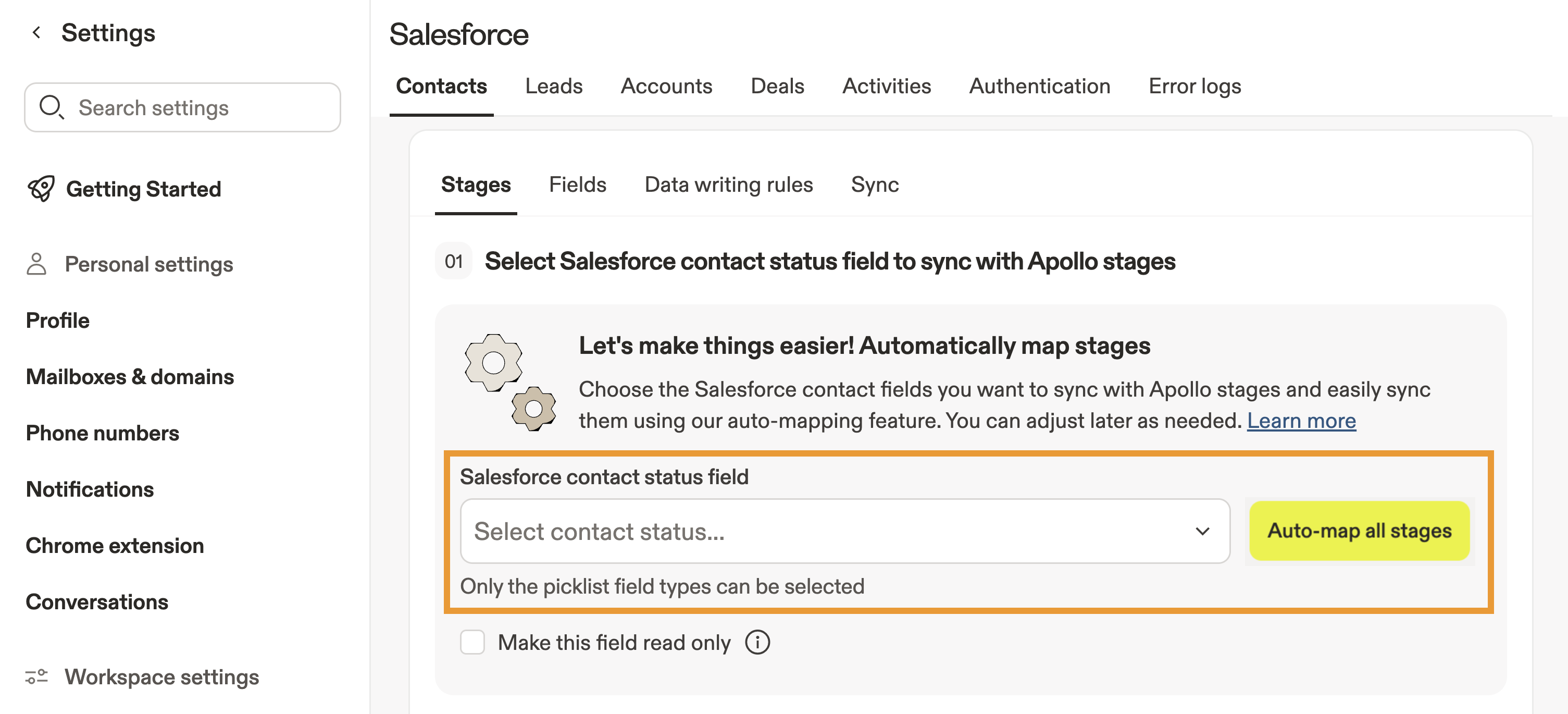
- Apollo automatically maps the status field you selected. Repeat this process for any additional mappings you want to create. Then go to Integrations > Salesforce and select contacts, accounts, leads, or deals. Then click Push all to apply Apollo stage data to existing Salesforce records or Pull all to apply Salesforce stage data to existing Apollo records.
If Salesforce sends a value that doesn't match any existing stage in Apollo, Apollo automatically creates a new stage and maps the two together. However, if Salesforce sends a value that does match an existing Apollo stage, but that stage is already mapped to a different Salesforce value, Apollo won't create a new mapping. It also won't create a duplicate stage, since that would incorrectly replicate an existing one.
Best Practices
To prevent stage mapping errors between Salesforce and Apollo:
- Map all stages 1:1.
- Map each stage in your CRM to a corresponding stage in Apollo.
- Don't map more than 1 stage to the same field in Salesforce.
- Make sure the stage name matches.
- This is important to remember if you plan to automatically create and map stages. However, you can also manually map stages that don't share the same name.
- Stay on top of housekeeping.
- Delete old or unused stages.
- Move the contacts from the old stages into the correct, active, mapped stage.
Next Steps
Here are a few helpful next steps to keep your Salesforce ↔ Apollo setup clean, mapped, and syncing smoothly.
| Manage Salesforce Integration Credentials | You can update your team or personal Salesforce credentials to ensure Apollo always syncs with the correct permissions and ownership rules. |
|---|---|
| Integrate Salesforce with Apollo | If you're still connecting systems, you can connect the Salesforce integration to unlock two-way syncing of contacts, accounts, and activities. |
| Configure Salesforce Push Settings | Your team can finetune Salesforce push settings to control exactly which Apollo updates sync back into Salesforce for cleaner CRM workflows. |
| Map Default Apollo Fields to Salesforce | You can review and align default field mappings to keep key contact, account, and deal fields synced correctly across both systems. |
| Link Custom Salesforce Fields to Custom Apollo Fields | If you rely on custom fields, you can connect Salesforce custom fields to Apollo custom fields to keep all your extra data synced without manual cleanup. |