
Overview
Integrate Salesforce with Apollo to sync your CRM data, enrich records with up-to-date contact and company information, and help your team avoid duplicate outreach across systems.
To connect Salesforce with Apollo, install the Apollo managed package on Salesforce, set up a dedicated integration user, then connect Salesforce in Apollo. Once connected, you can configure your stages, fields, and sync settings to control how data moves between Salesforce and Apollo.
Check out the following sections to integrate Salesforce with Apollo.
Before You Start
Before you connect Salesforce to Apollo:
- You need Salesforce admin access to install the Apollo managed package and complete setup for your team in Salesforce.
- You need permission to edit CRM integrations on Apollo.
- You can connect a production Salesforce org or a sandbox to your Apollo account, but you can't connect both at the same time.
On paid Apollo plans, after you first connect Salesforce, you have 6 hours to configure your field mapping and inbound / outbound sync settings before syncing is automatically enabled.
During this window, you can't manually pull Salesforce records. After 6 hours, syncing starts automatically.
You can still update your Salesforce sync settings at any time. Go to Settings > Integrations > Salesforce to review or change your configuration.
Connect Apollo to Salesforce
To connect this integration, you need permission to edit CRM integrations on Apollo. If you don't have permission, reach out to an admin on Apollo for help.
To connect Apollo to Salesforce:
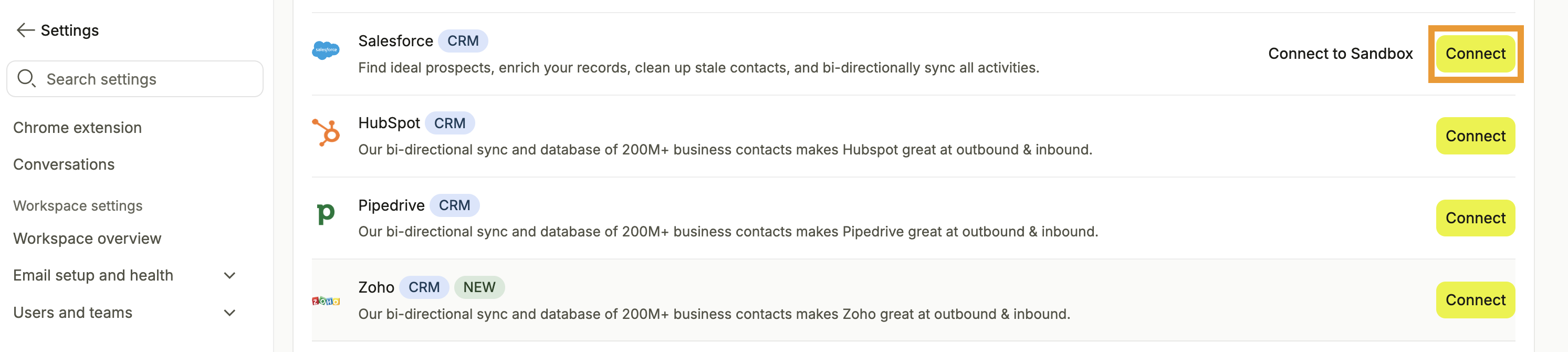
- Launch Apollo and click Settings > Integrations > Salesforce.
- Click Connect to connect a production Salesforce org, or Connect to Sandbox to connect a sandbox.
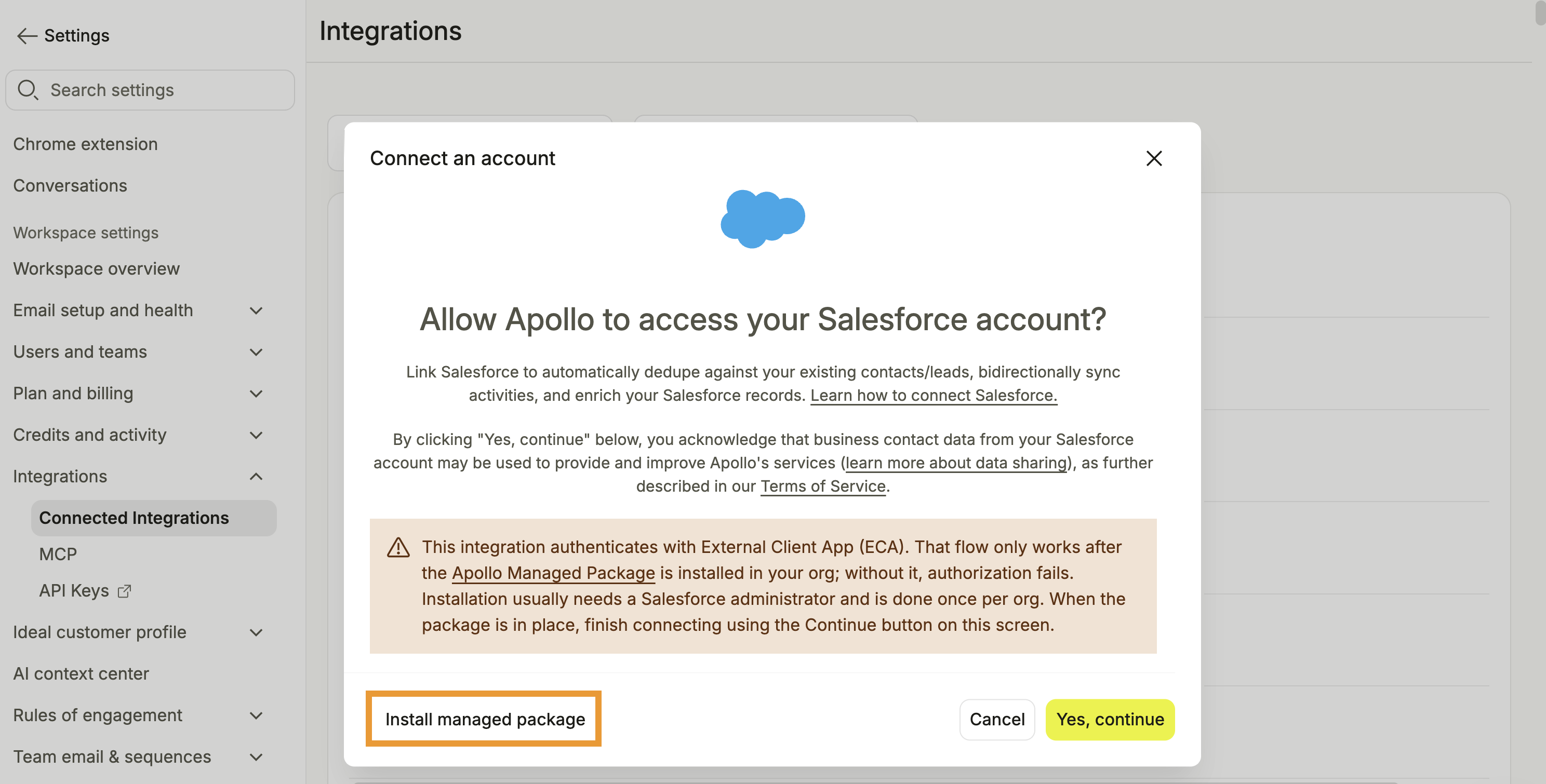
- Click Install Managed Package. Apollo redirects you to the Salesforce AppExchange.
- Click Get It Now on the Apollo app.
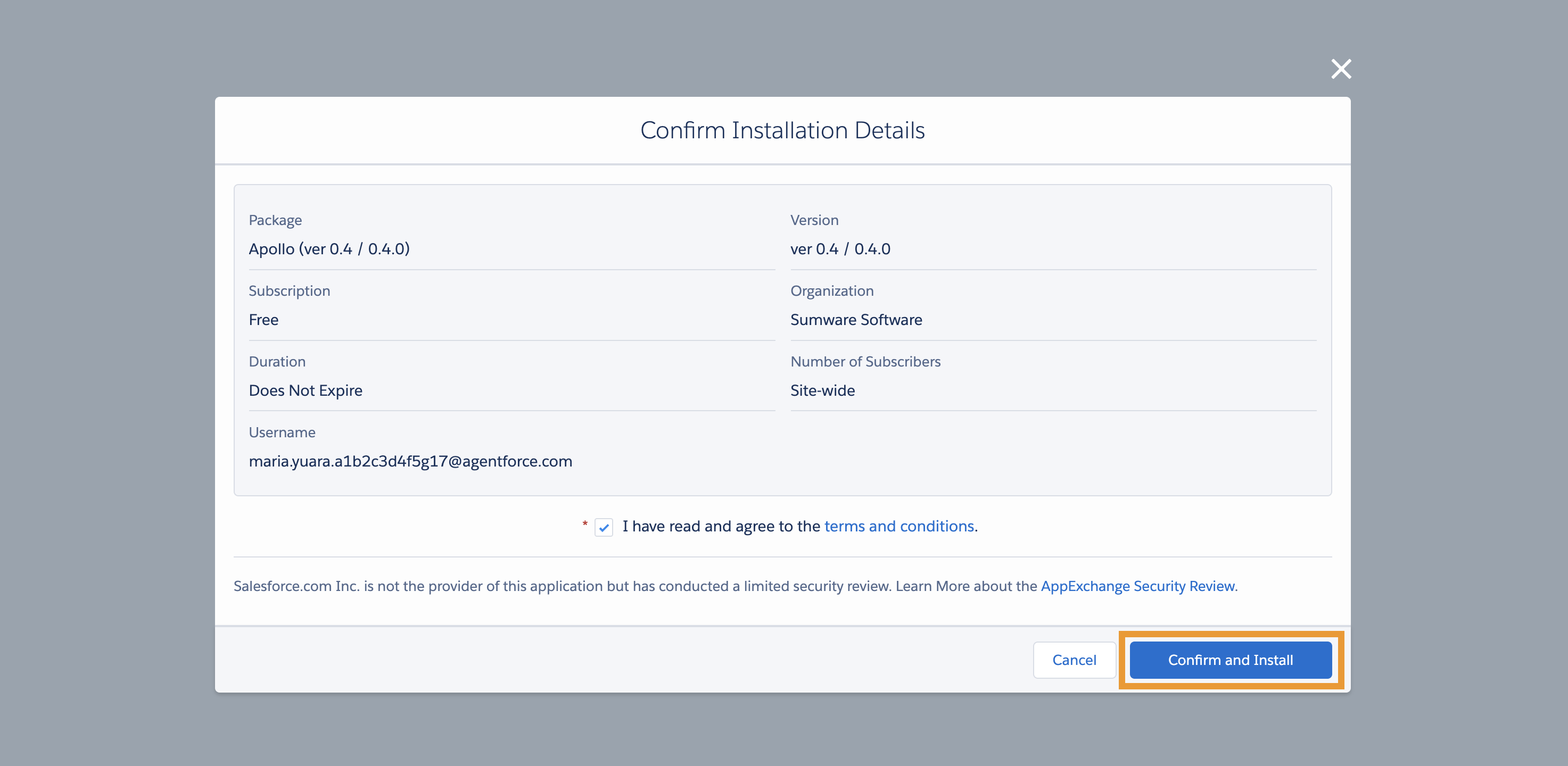
- Confirm the Salesforce account where you want to install the managed package, and agree to the terms and conditions. Click Confirm and install.
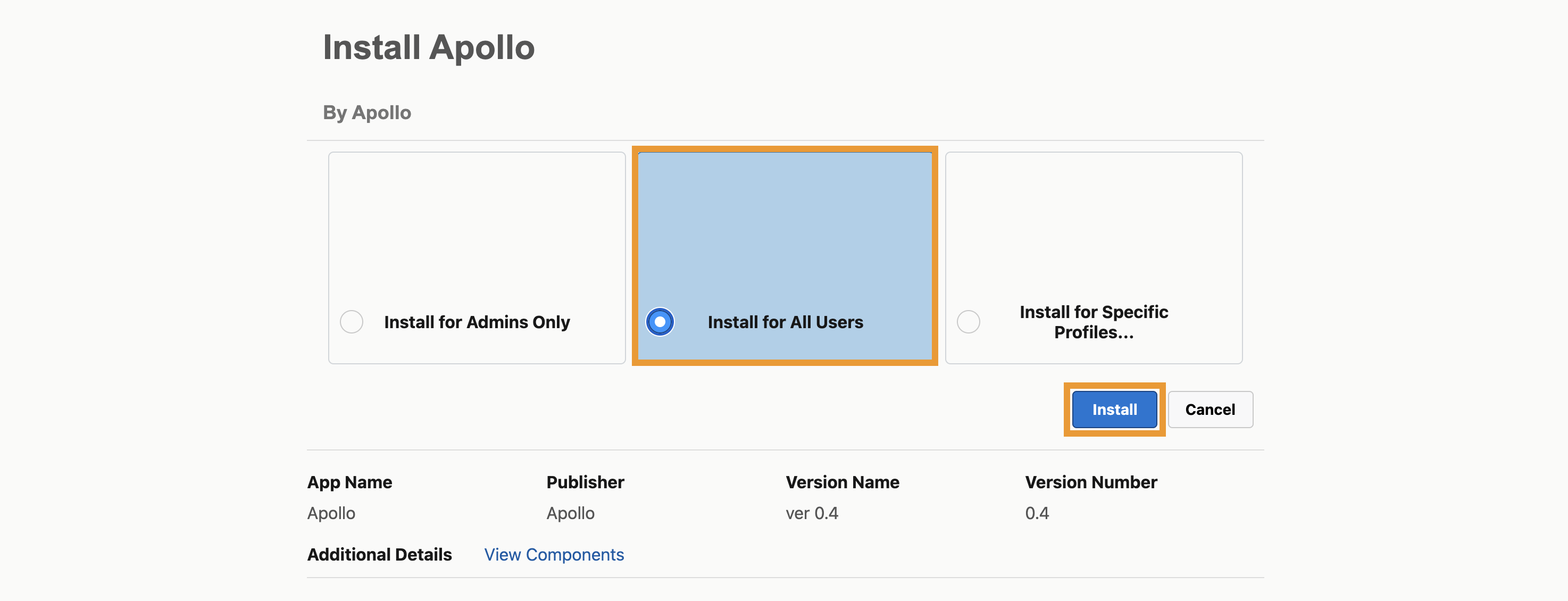
- Choose who to install the managed package for: Apollo strongly recommends installing it for all users or for specific profiles that include your Apollo users.
- Click Install.
- Installation may take a few minutes. When installation is complete, click Done.
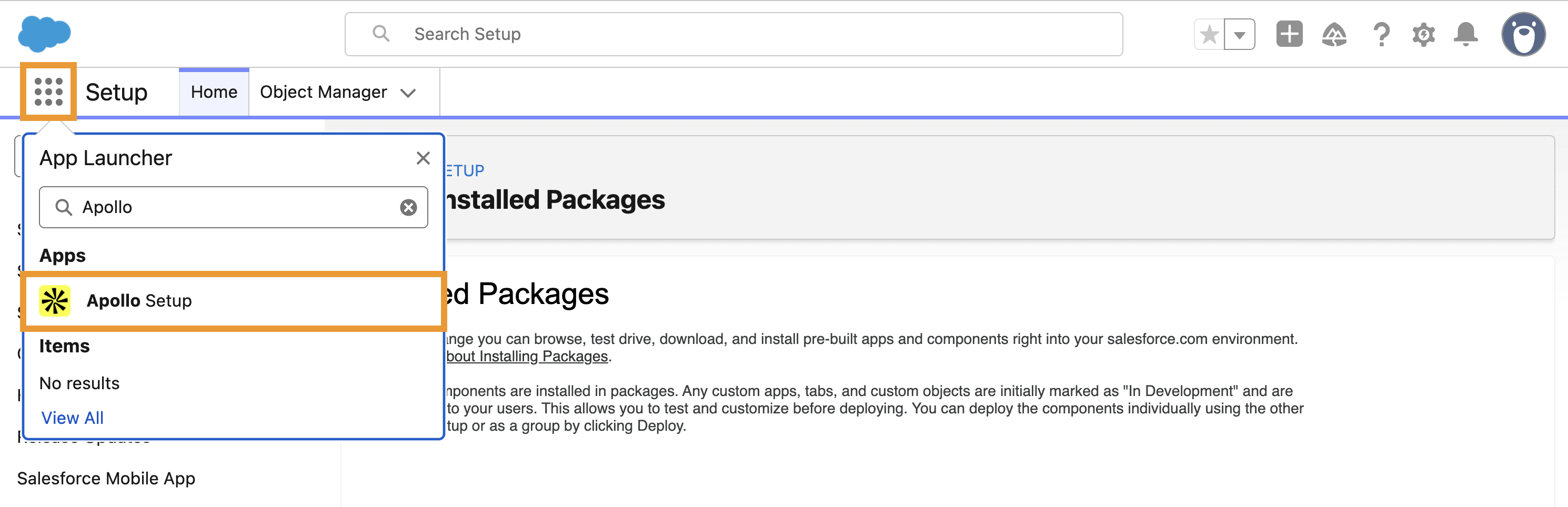
- Next, in Salesforce, open the App Launcher and search for the Apollo Setup app.
- Click Get Started.
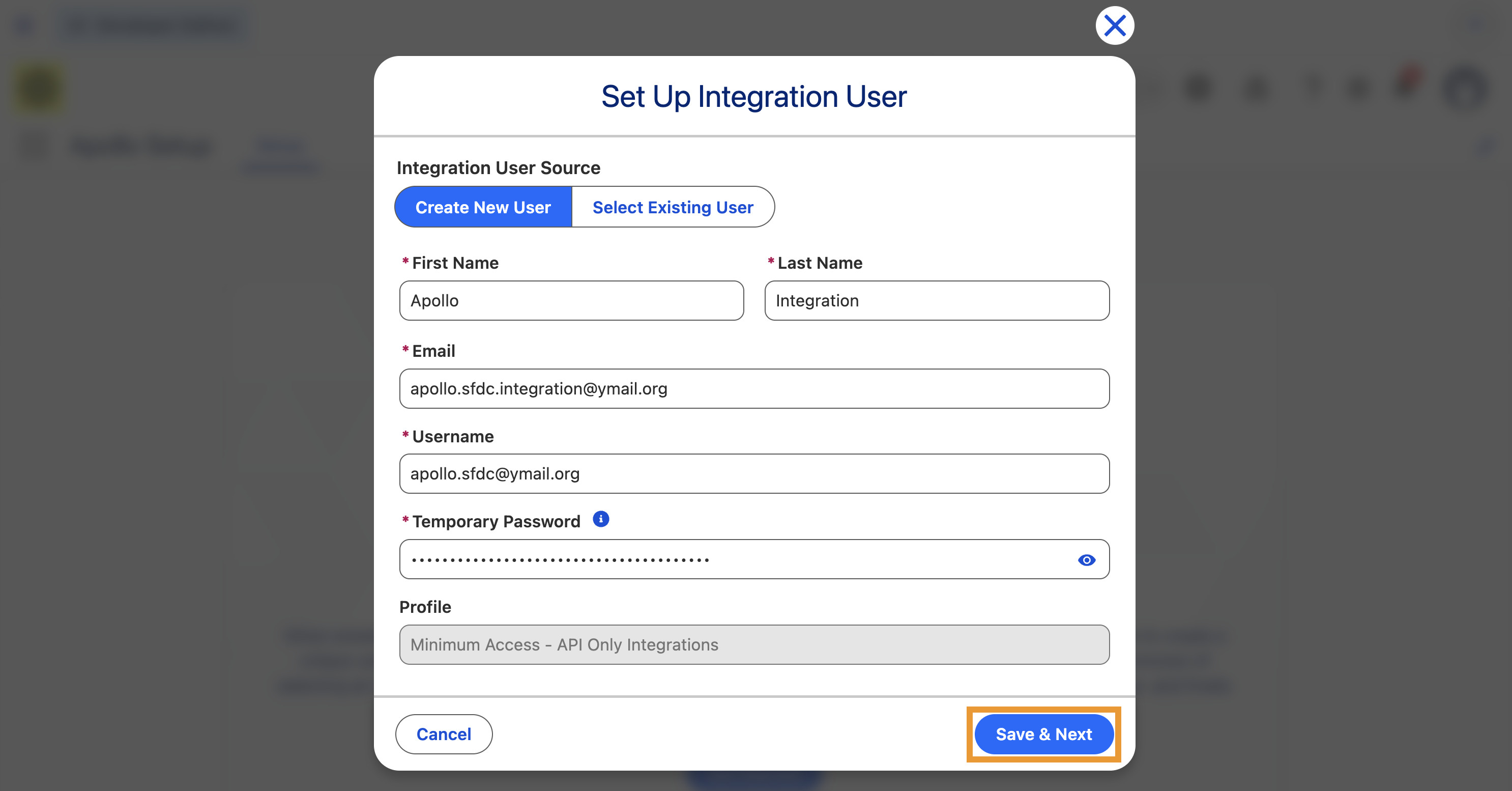
- Create a new integration user, or select an existing integration user if you already have one.
- If you're creating a new integration user, use a name that clearly identifies the account as an Apollo integration.
- For the email address, Apollo recommends using a shared administrator mailbox or integration-specific alias that your organization can continue to access if individual employees leave.
- Use a unique username for the integration user. The username must be formatted like an email address, but it doesn't need to be a working email address.
- Use a unique, secure password that isn't shared with a personal Salesforce account.
- Click Save and next.
- Review the default permissions for the integration user. Apollo strongly recommends keeping all default permissions as selected to prevent sync issues. If you plan to map custom Salesforce fields in Apollo, grant the integration user access to those fields. Click Assign & save.
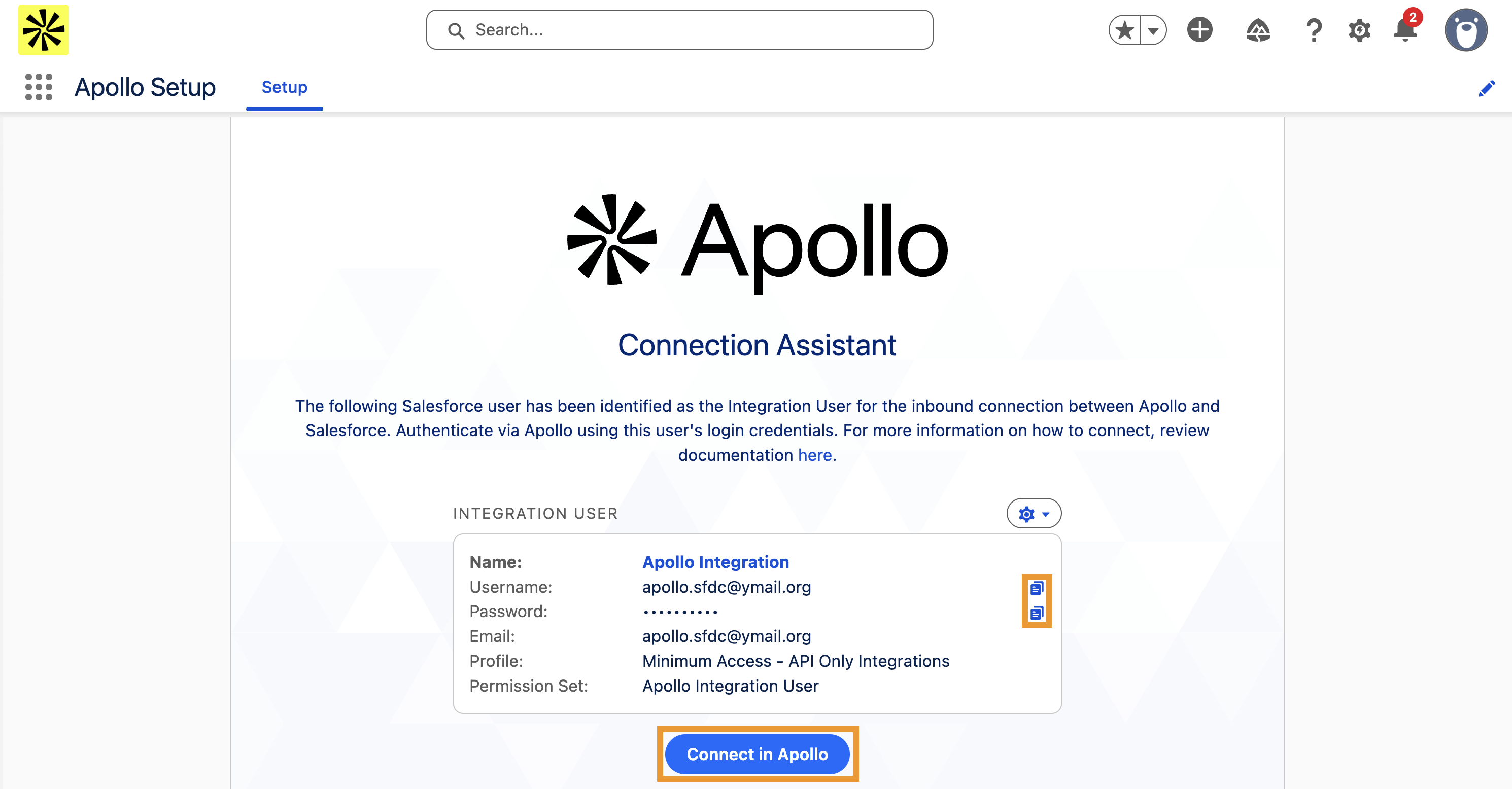
- Copy the integration username and password to a secure location, then click Connect in Apollo.
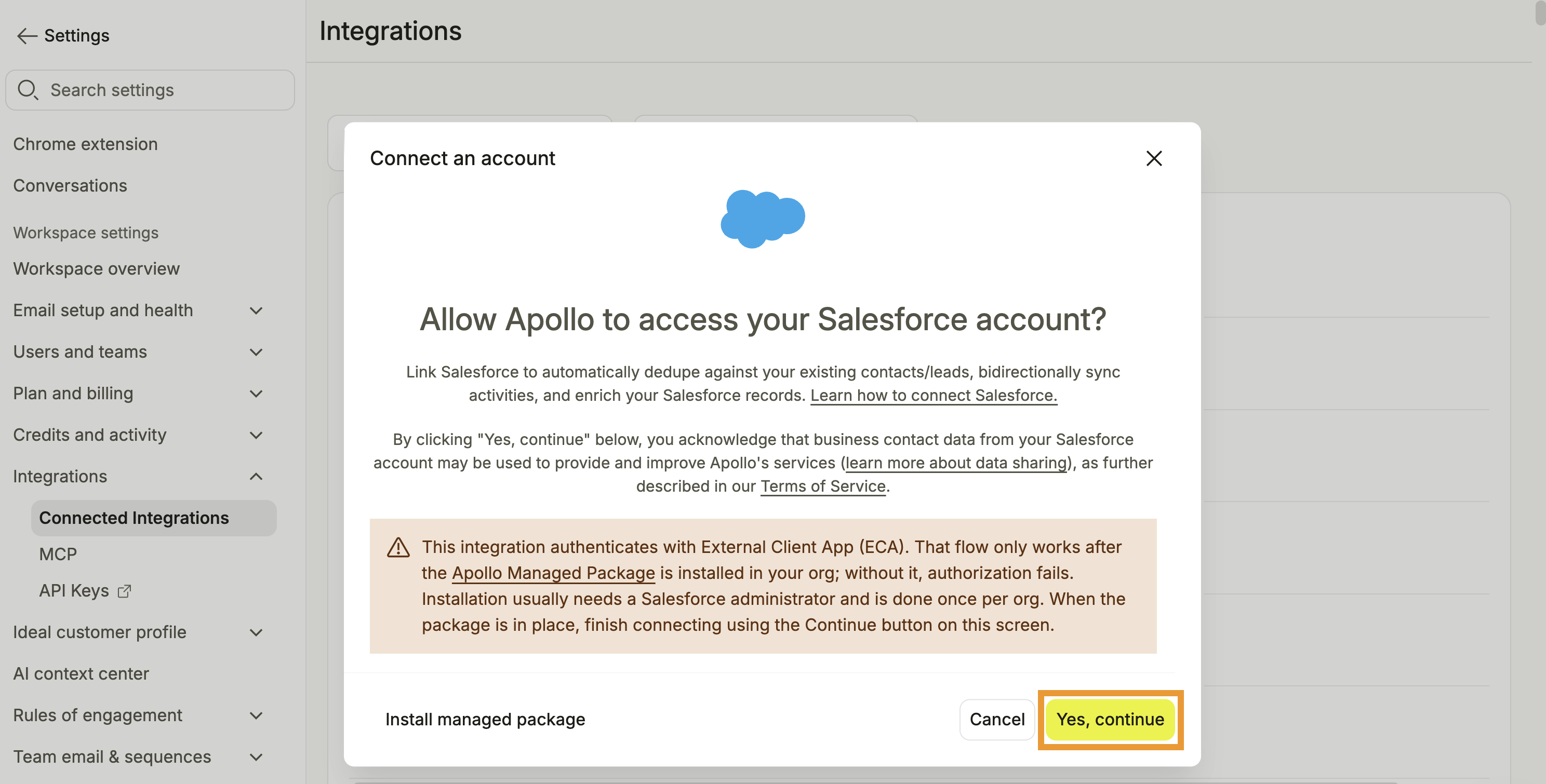
- On Apollo, select Salesforce and click Connect > Yes, Continue.
- Log in to Salesforce using the integration username and password you copied from the previous step.
For this initial team integration setup, don't use your personal Salesforce account. Log in with the dedicated integration user you configured earlier so Apollo can establish the account-wide Salesforce connection.
After the team connection is complete, individual Apollo users can still connect their personal Salesforce accounts to access private or shared Salesforce views or to manually sync records to Salesforce.
You have now connected Salesforce to Apollo using the dedicated integration user. The Apollo admin who completed the connection becomes the team sync user for the new connection. Team sync uses that Apollo user's Salesforce connection for account-wide syncing. If needed, admins can review or change team sync authentication in the Salesforce authentication settings.
Apollo begins pulling eligible Salesforce records based on your pull settings. On paid Apollo plans, syncing begins automatically after the 6-hour configuration window.
Next, map your stages and fields between platforms, and configure pull settings and push settings to control how data syncs between Salesforce and Apollo.
For a new managed-package connection, the Apollo admin who connected Salesforce using the dedicated integration user becomes the team sync user. Team sync uses that Apollo user's Salesforce connection for account-wide syncing. Individual Apollo users don't need to connect their personal Salesforce accounts for standard Salesforce data sync.
Individual users can still connect their personal Salesforce accounts to access private or shared Salesforce views in Apollo. If your team uses Salesforce Created By to track record ownership, when users connect their personal Salesforce accounts, your admin can map Apollo's created_by field to Salesforce CreatedById. Then, Apollo can sync the Apollo user who originally created the record as the Salesforce Created By user.
FAQs
|
Frequently asked questions |
||
| What happens if I miss the 6-hour configuration window? | What's the difference between the Salesforce integration user and team sync user? | Can I change the team sync user after I connect Salesforce? |
| Does every Apollo user need to connect their Salesforce account? | Why did Salesforce authorize my admin account instead of the integration user? | Why did Salesforce authentication stop working after it was connected? |
| Why does syncing fail for specific custom fields? | Why did all Salesforce syncing stop? | |
What happens if I miss the 6-hour configuration window?
After the 6-hour configuration window ends, Salesforce syncing is automatically enabled. You can still update your stages and fields or configure your pull settings and push settings at any time after syncing begins.
What's the difference between the Salesforce integration user and team sync user?
The integration user is the dedicated Salesforce account you create or select during managed package setup. It provides the Salesforce permissions Apollo uses for the connection.
The team sync user is the Apollo admin who connected Salesforce using that integration user.
Can I change the team sync user after I connect Salesforce?
Yes, an admin can select another Apollo user for team sync if that user has already connected Salesforce with the permissions required for the integration. Go to Settings > Integrations > Salesforce > Authentication, then select the Apollo user whose Salesforce connection Apollo should use for team sync.
Does every Apollo user need to connect their Salesforce account?
Not necessarily. Individual Apollo users don't need to connect their personal Salesforce accounts for standard account-wide Salesforce syncing. Personal Salesforce accounts are separate from integration setup: users can still connect their personal Salesforce accounts to access private or shared Salesforce views or to manually sync records from Apollo to Salesforce.
Personal Salesforce credentials can also support your team's record ownership workflow. If your team uses Salesforce Created By as its ownership signal, an admin can map Apollo's created_by field to Salesforce CreatedById. Apollo can then sync the Apollo user who originally created a supported new record as the Salesforce Created By user. For example, if Rep A creates a contact in Apollo and Rep B later syncs it to Salesforce, Salesforce can show Rep A in Created By.
Why did Salesforce authorize my admin account instead of the integration user?
An active Salesforce admin session can cause the authorization flow to skip the login step. Log out of Salesforce before running the setup wizard, or run setup in a private or incognito browser window. When prompted, log in with the integration user's Salesforce credentials.
Why did Salesforce authentication stop working after it was connected?
First, confirm that the Apollo managed package is still installed in your Salesforce org. If it was uninstalled, reinstall the package, run setup again, and reconnect Salesforce in Apollo.
If the package is still installed but the integration user's credentials no longer work, reset the integration user's password in Salesforce and reconnect Salesforce in Apollo.
Why does syncing fail for specific custom fields?
The integration user may not have permission to access those custom fields. In Salesforce, open the managed package permission set and grant access to each custom field Apollo needs to sync.
Why did all Salesforce syncing stop?
Check whether the integration user was deactivated or deleted in Salesforce. Reactivate the integration user, or create a new integration user with the setup wizard and reconnect Salesforce in Apollo.
Next Steps
Now that Salesforce is connected, use these resources to fine-tune your sync and keep data moving cleanly between both platforms.
| Map Default Apollo Fields to Salesforce | Start with the foundation and map default Apollo fields to Salesforce to keep contact, lead, account, and deal data aligned across both systems. |
|---|---|
| Configure Salesforce Pull Settings | Want tighter control over what enters Apollo? Configure Salesforce pull settings to decide which CRM records and activities your team works with in Apollo. |
| Configure Salesforce Push Settings | You can configure Salesforce push settings to control which Apollo contacts, accounts, deals, and activities are written back to your CRM. |
| Use the Salesforce Integration Error Log | If syncs start failing, use the Salesforce integration error log to pinpoint failed records, understand the cause, and retry them after fixing the issue. |