
Overview
Custom objects bring Salesforce data that doesn't fit Apollo's standard contacts or accounts into Apollo. Examples include campaign members, subscriptions, and product instances.
Admins select a Salesforce object, map its fields, and associate its records with Apollo contacts or accounts. Apollo then regularly syncs new and updated records from Salesforce. Reps can use custom object fields to filter people or companies, such as to find contacts in a specific campaign or accounts on a specific product tier.
Custom object data is read-only in Apollo. Each custom object syncs with one Salesforce object and can be associated only with contacts or accounts. You can't create lists from custom object records, associate custom objects with each other, or use their data to trigger workflows.
Custom objects are included with the organization plans on Apollo for customers who are connected to Salesforce. You can create up to 10 custom objects, import up to 5 million records per object, and map up to 250 fields per object.
If you need access to custom objects, upgrade your plan. If you have questions about your limits or upgrading, reach out to the sales team.
Check out the following sections to create and sync a custom object from Salesforce.
Create a Custom Object
To create a custom object:
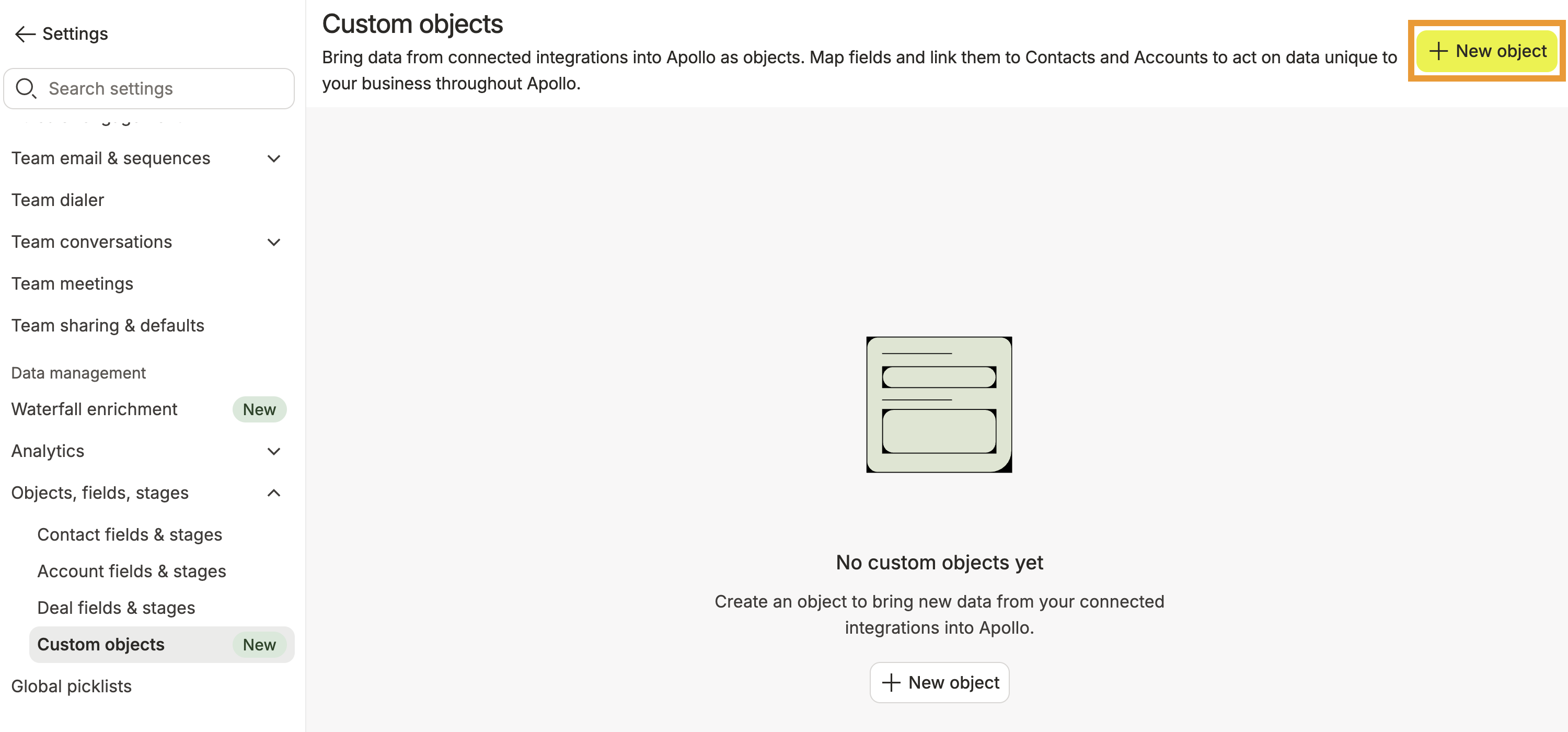
- Launch Apollo, and click Settings > Objects, fields, stages > Custom objects.
- Click New object.
- Select a data source from Salesforce, such as Campaign Member.
- Apollo matches the object name to the data source in Salesforce, but you can edit the name if needed.
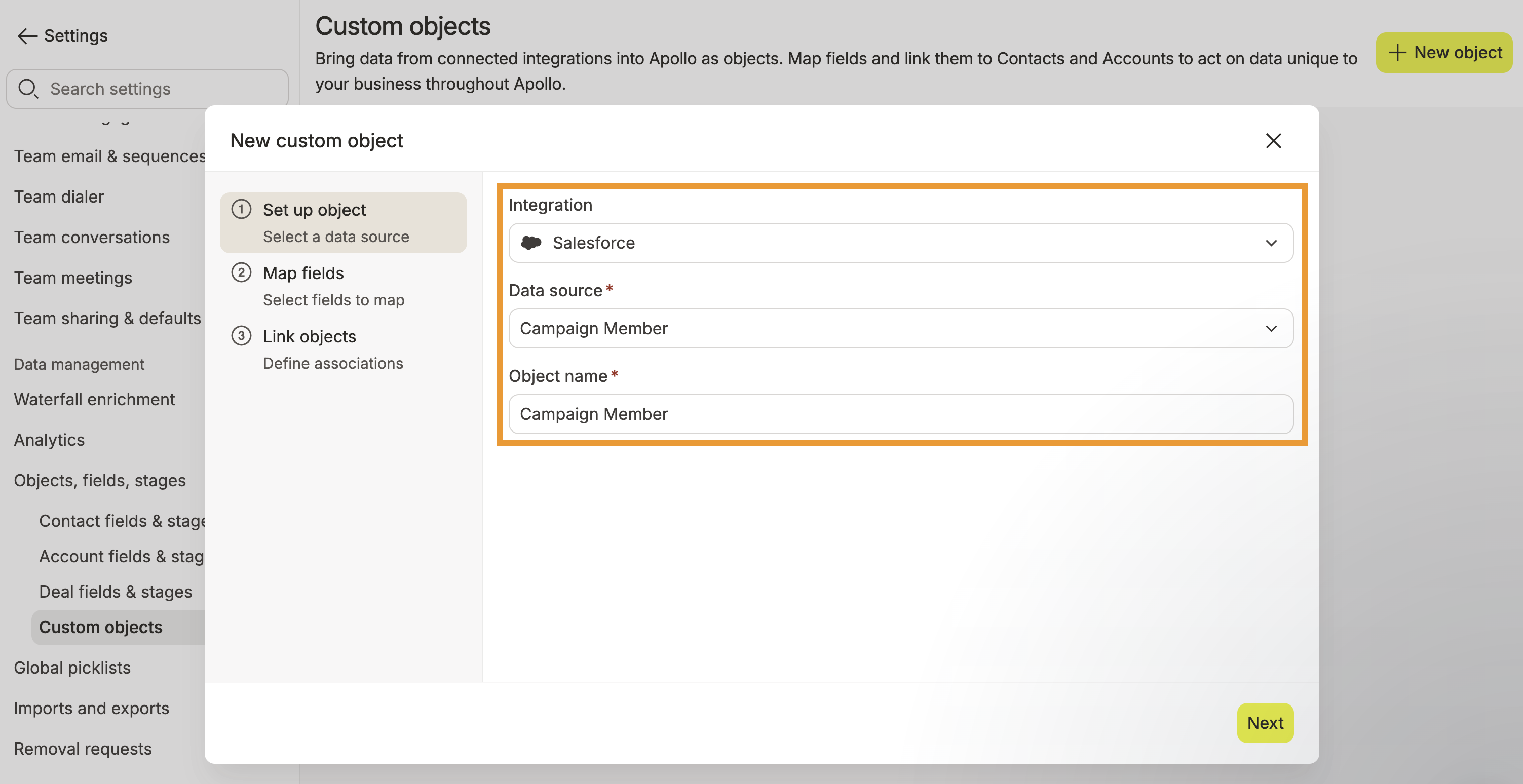
- Click Next.
- Select Salesforce fields to import into the custom object. Choose fields that your team wants to view or use as filters in Apollo, such as status, product tier, subscription type, or response date. For supported relationships, you can also select fields from associated Salesforce records, such as Campaign Name or Campaign Type for a Campaign Member. Be sure to also select the contact ID or account ID field used to associate the imported records in the next step.
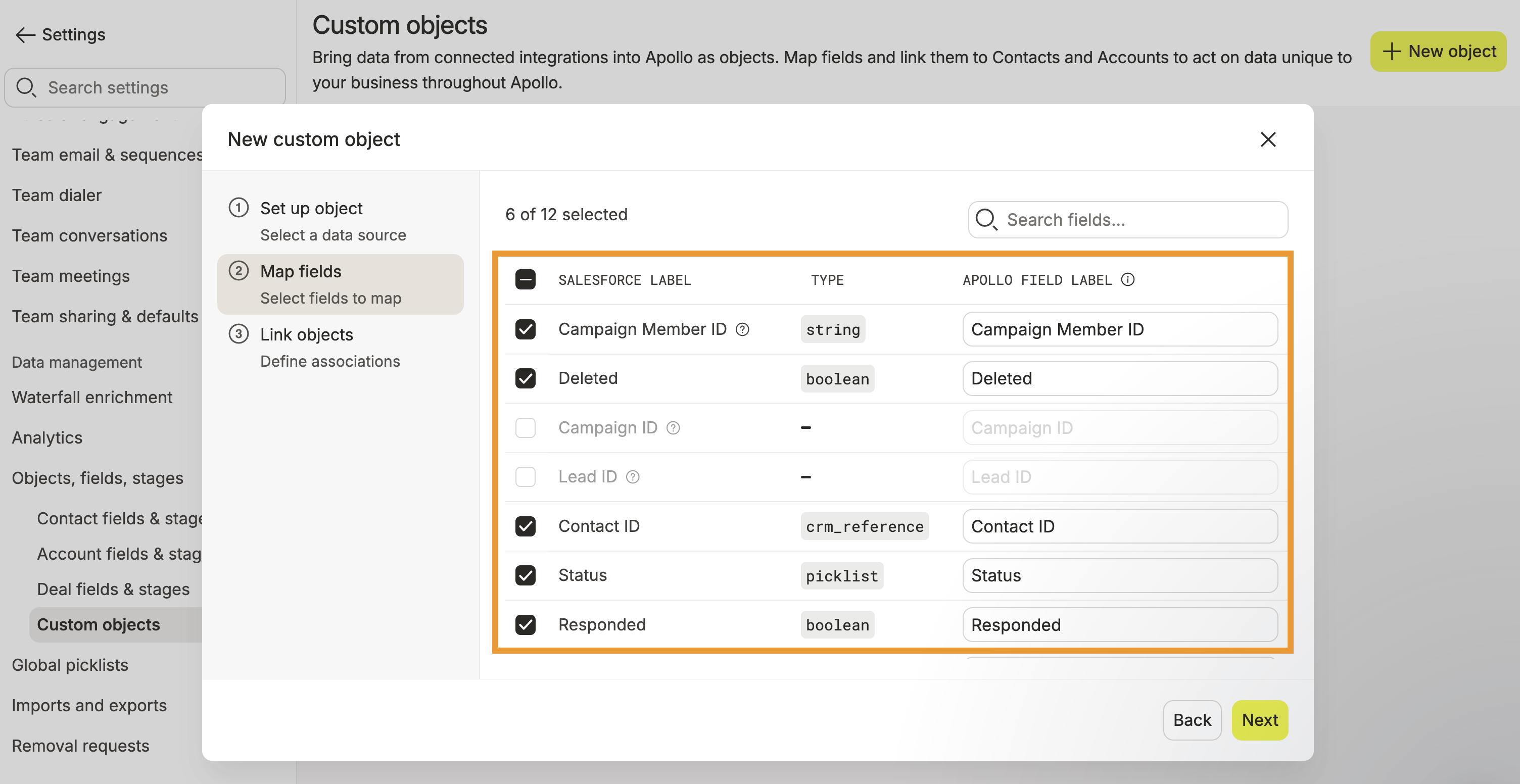
Some Salesforce relationship fields, such as Campaign ID or Lead ID, can't be imported directly into an Apollo custom object. However, for supported relationships, you can import fields from the associated Salesforce record. For example, when syncing Campaign Member records, you can import fields from the related campaign, such as Campaign Name or Campaign Type.
- Click Next.
- Select which imported fields hold the IDs that link your object to contacts or accounts. Choose at least one association to continue.
Custom objects must be associated with at least one contact or account. If the Salesforce object doesn't contain a contact or account lookup field, you can't complete setup until an association is available because Apollo won't know which contacts or accounts the imported records belong to.
- Finally, verify the field that uniquely identifies each record.
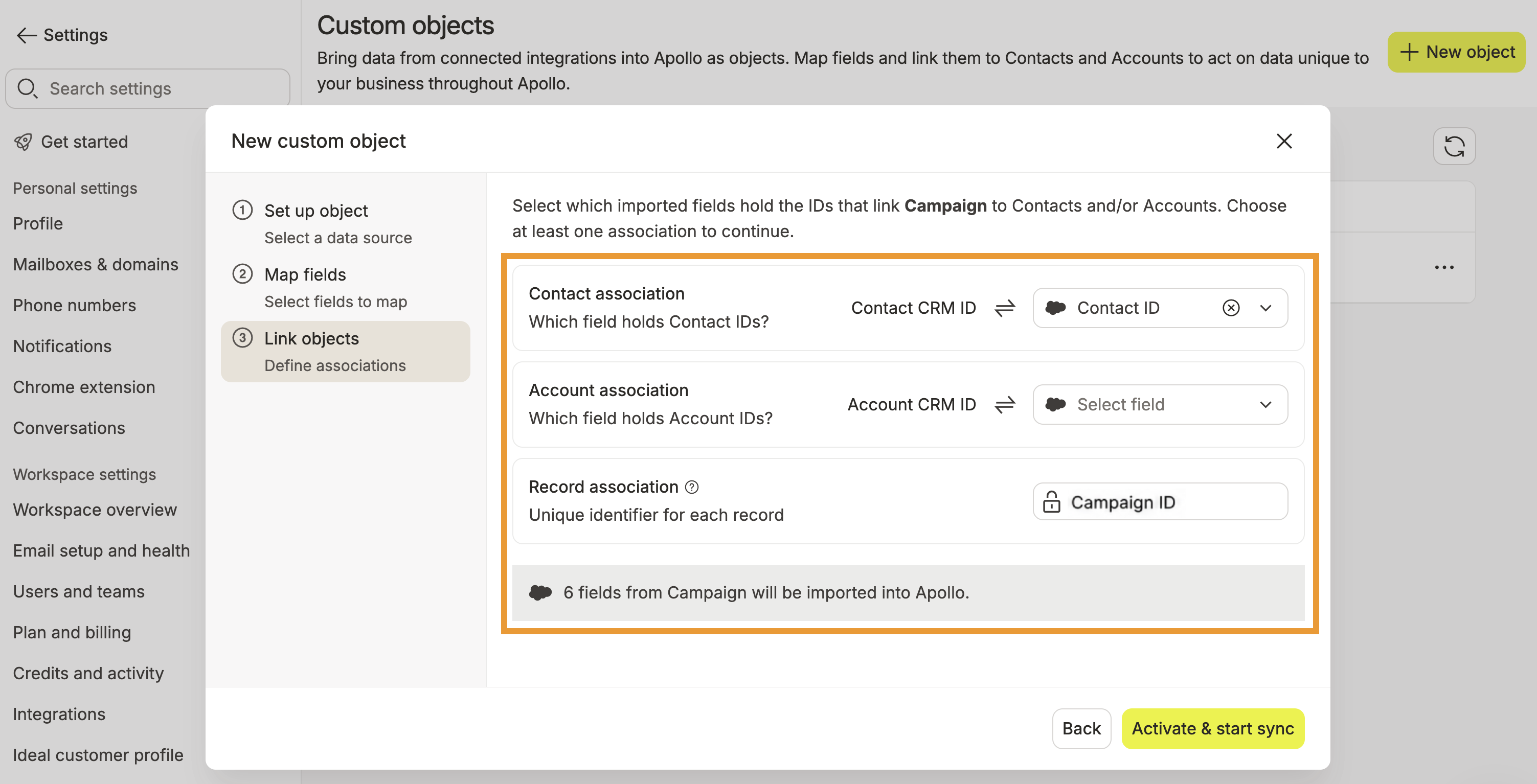
- When finished, click Activate and start sync.
You have now created a custom object on Apollo.
Apollo starts syncing records from Salesforce immediately. You can check the status by clicking the custom object from Settings > Objects, fields, stages > Custom objects. Apollo shows the date last synced, the number of fields and records synced, and the current sync status. After the initial sync, Apollo incrementally syncs new and updated Salesforce records every 15 minutes. Click . . . > Sync now to manually check for updates.
Depending on how many records you have in your object, it may take several hours for the initial sync to complete.
Next, filter prospects by your custom object on Apollo.
Use a Custom Object Filter
You can only filter saved contacts or accounts with custom object filters.
To use a custom object filter:
- Launch Apollo and click People or Companies > Saved.
- Click Show filters > More filters, then select the object under custom object.
- Click Add field filter, then select a field like
Responded.
Pro-tip: Click 📌 to pin the filter for quick use later.
Filter options change based on the field type. For example, a date field includes date-based conditions, while a boolean field like Responded lets you filter by values such as Yes or No.
- Configure the field filter. For example, for the
Respondedfield, select Is exactly, then select Yes. - Click Apply filters.
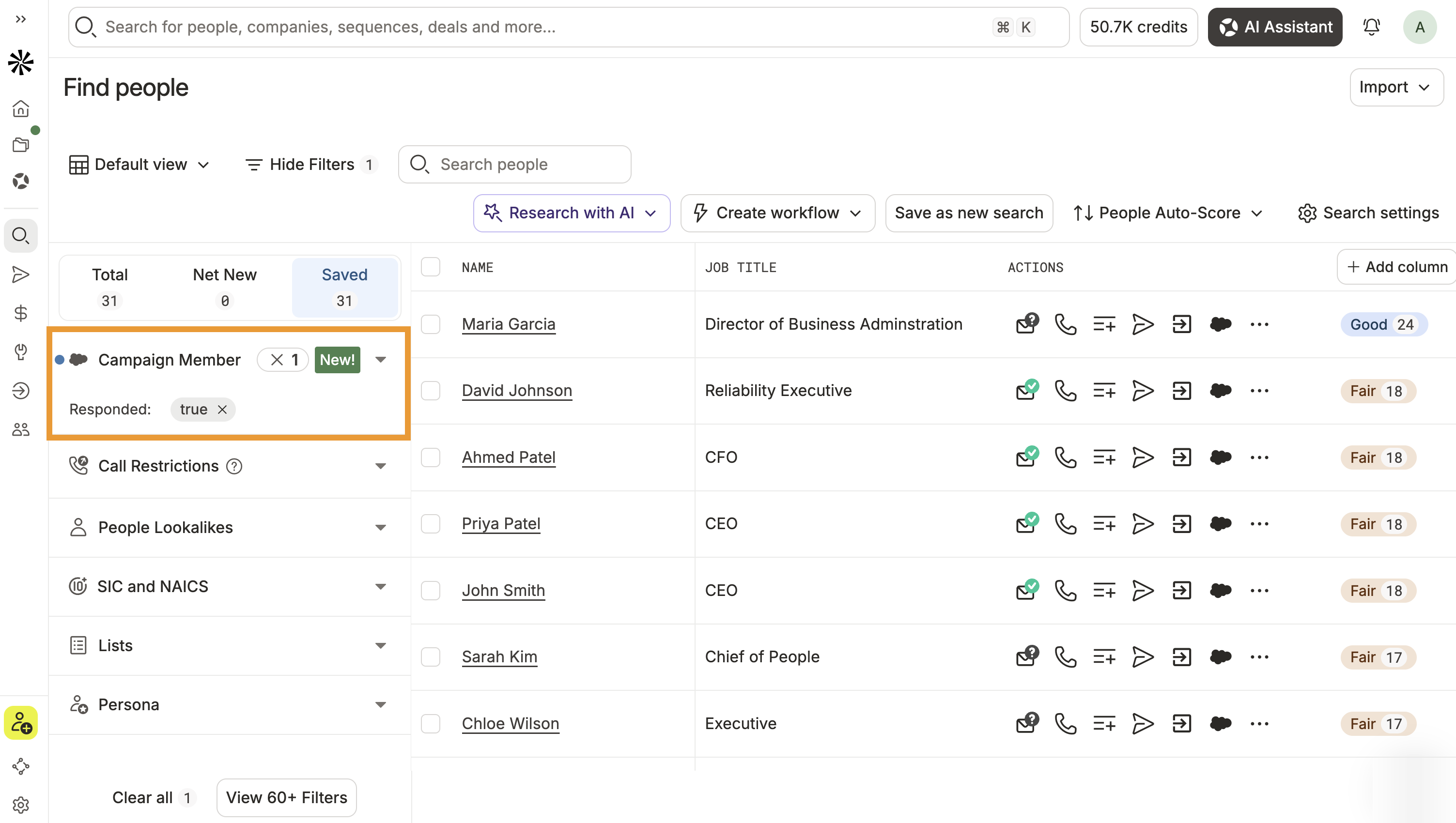
Apollo filters your saved contacts or accounts based on the custom object fields you selected.
You have now used custom object data to identify relevant prospects. Next, select the results you want to act on:
- Save contacts or accounts to a list to organize the records for follow-up.
- Enrich prospect data to access additional contact or company details before reaching out.
- Add contacts to a sequence to automate outreach across email, calls, and other engagement steps.
- Use the dialer to call selected contacts directly from Apollo.
FAQs
|
Frequently asked questions |
||
| How do I view custom object data on a contact or account? | How do I map additional fields from my custom object? | What if my Salesforce object is associated with both contacts and leads? |
| Can a custom object be associated with both contacts and accounts? | How frequently does Apollo sync new or updated custom object data? | How long does the initial custom object sync take? |
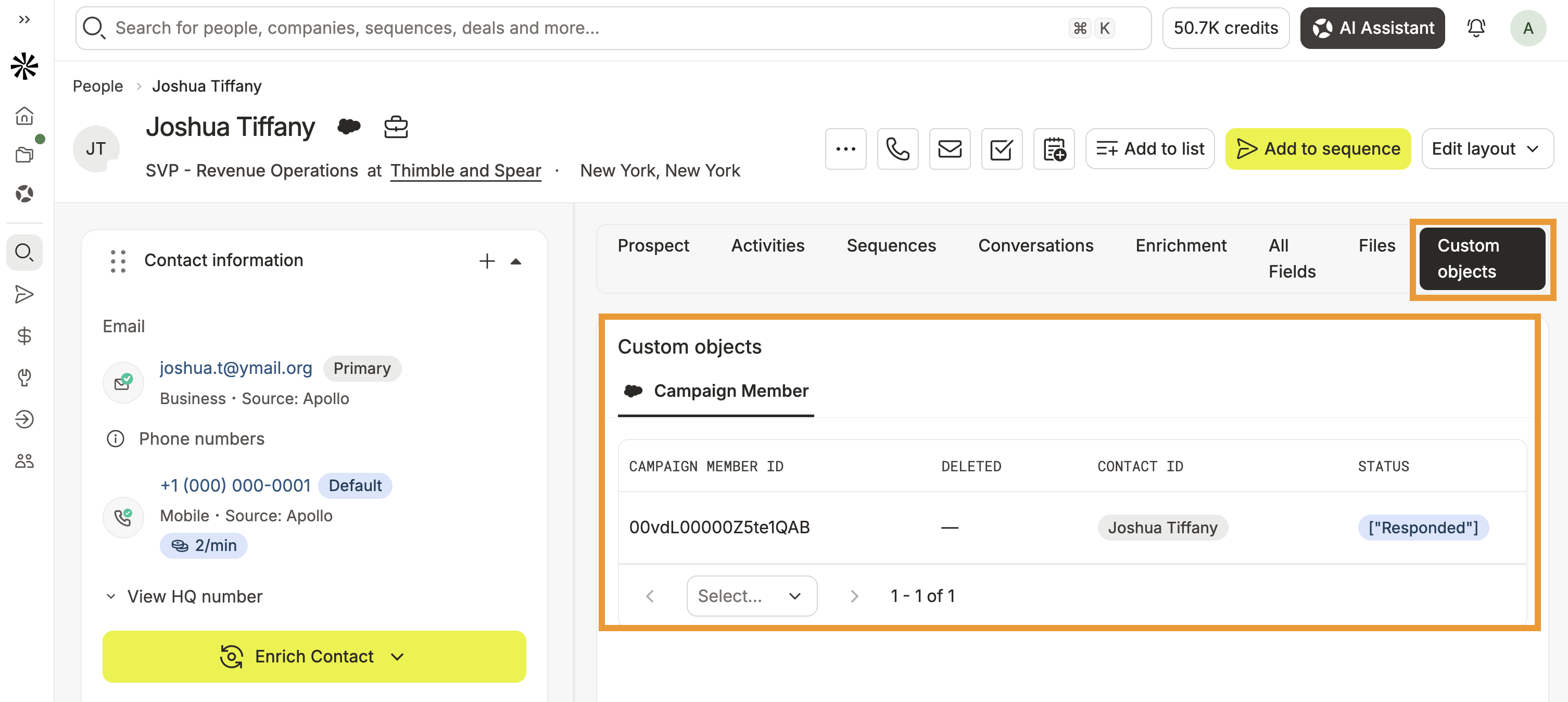
How do I view custom object data on a contact or account?
Open the contact or account in Apollo, then click Custom objects to view the custom object records associated with it.
Can a custom object be associated with both contacts and accounts?
Yes, you can associate a custom object with both contacts and accounts when the Salesforce object contains supported contact and account lookup fields.
How do I map additional fields from my custom object?
Click Settings > Objects, fields, stages > Custom objects. Click . . . > Edit for the custom object you want to update, then select the additional Salesforce fields you want to import.
What if my Salesforce object is associated with both contacts and leads?
If your Salesforce object has a Lead ID field, Apollo automatically associates it with Apollo contacts that were synced from Salesforce leads. You don't need to map Lead ID when configuring the custom object's associations.
How frequently does Apollo sync new or updated custom object data?
Apollo incrementally syncs custom object data every 15 minutes. If you add new records or update existing records in Salesforce, the changes should appear in Apollo after the next incremental sync.
How long does the initial custom object sync take?
The initial sync time depends on the number of records in your custom object. Smaller syncs may complete quickly, while larger custom objects may take several hours to finish syncing.
You can check the current sync status from Settings > Objects, fields, stages > Custom objects.
Next Steps
Keep building on your custom object setup with these next steps.
| Salesforce Integration Overview | Explore how Salesforce syncs with Apollo to keep your objects, fields, and records aligned across both systems. |
|---|---|
| Search Filters Overview | Apply search filters to combine custom object data with other prospect criteria and focus on the right saved contacts or accounts. |
| AI Assistant Overview | Search with the AI assistant to turn natural-language requests into custom object filters without clicking through every setting. |
| Enrichment Overview | Choose an enrichment workflow to fill data gaps and give your team stronger prospect context before outreach. |
| Add Contacts to a Sequence | Add filtered contacts to a sequence to automate email, call, social, and task-based outreach for the audience you've identified. |