
Overview
You can export deals from Apollo to a CSV to analyze your pipeline, share deal data with your team, or use your Apollo deal data in other tools that support CSV files.
You need access to deals and permission to export CSV files to export deals. If you don't see the export option, contact your Apollo admin to review your permissions.
Check out the following sections to export deals to a CSV and learn which fields Apollo includes in your export.
Export Deals to a CSV
To export deals to a CSV:
- Launch Apollo and click Deals.
- Check one or more deals. Then click Export.
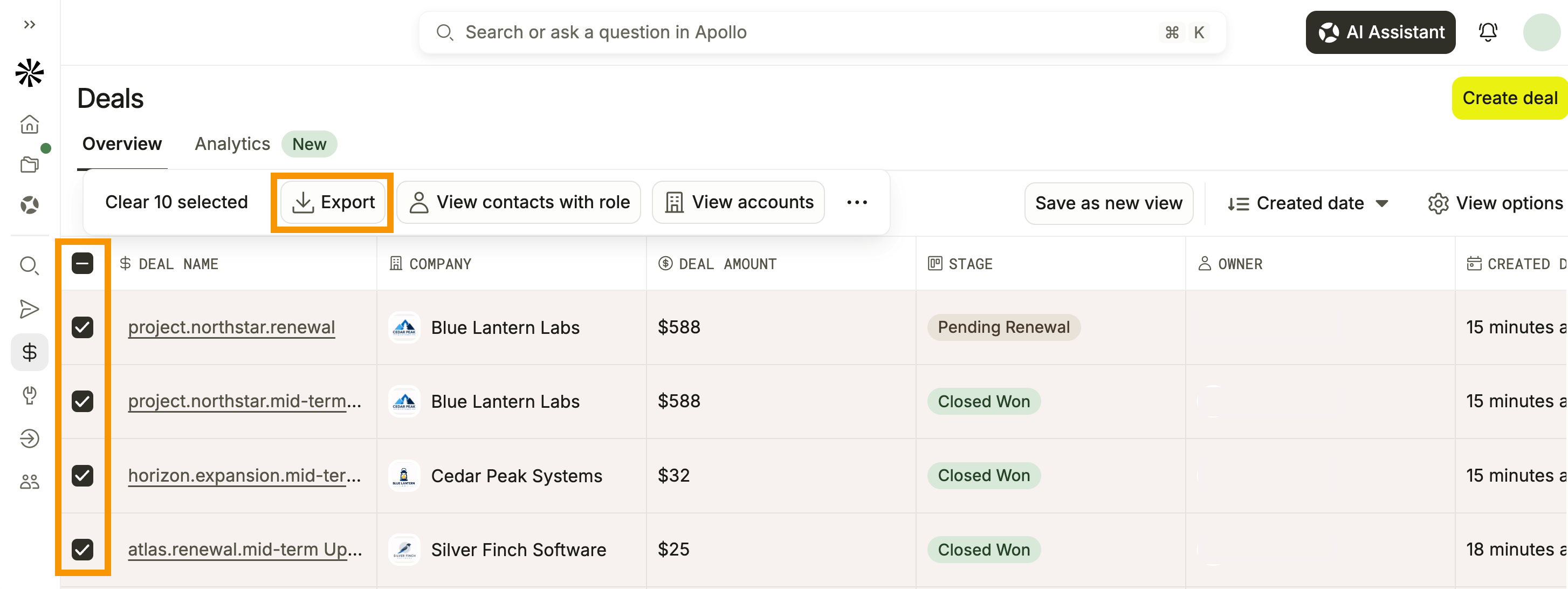
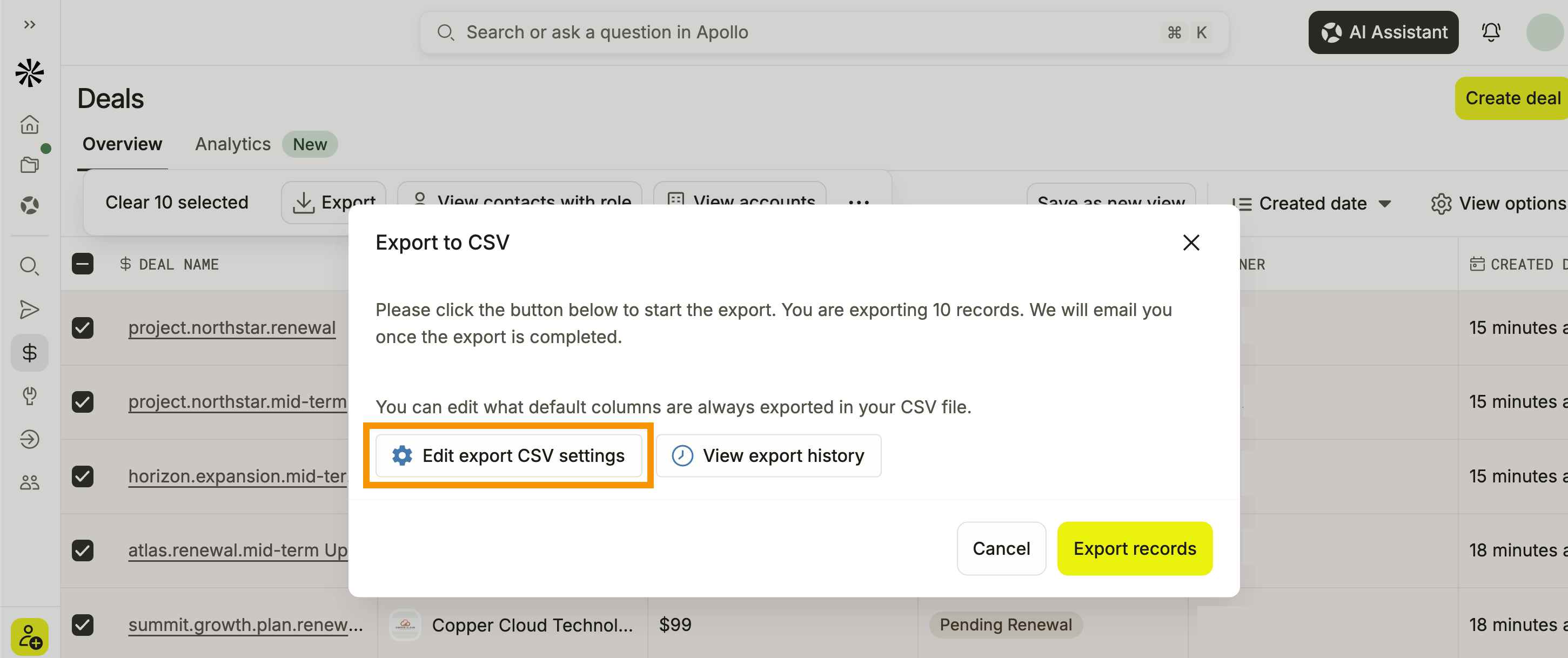
- (Optional) Click Edit export CSV settings to choose which default and custom deal fields Apollo includes in your CSV. Changes to deal export settings apply to your user account.
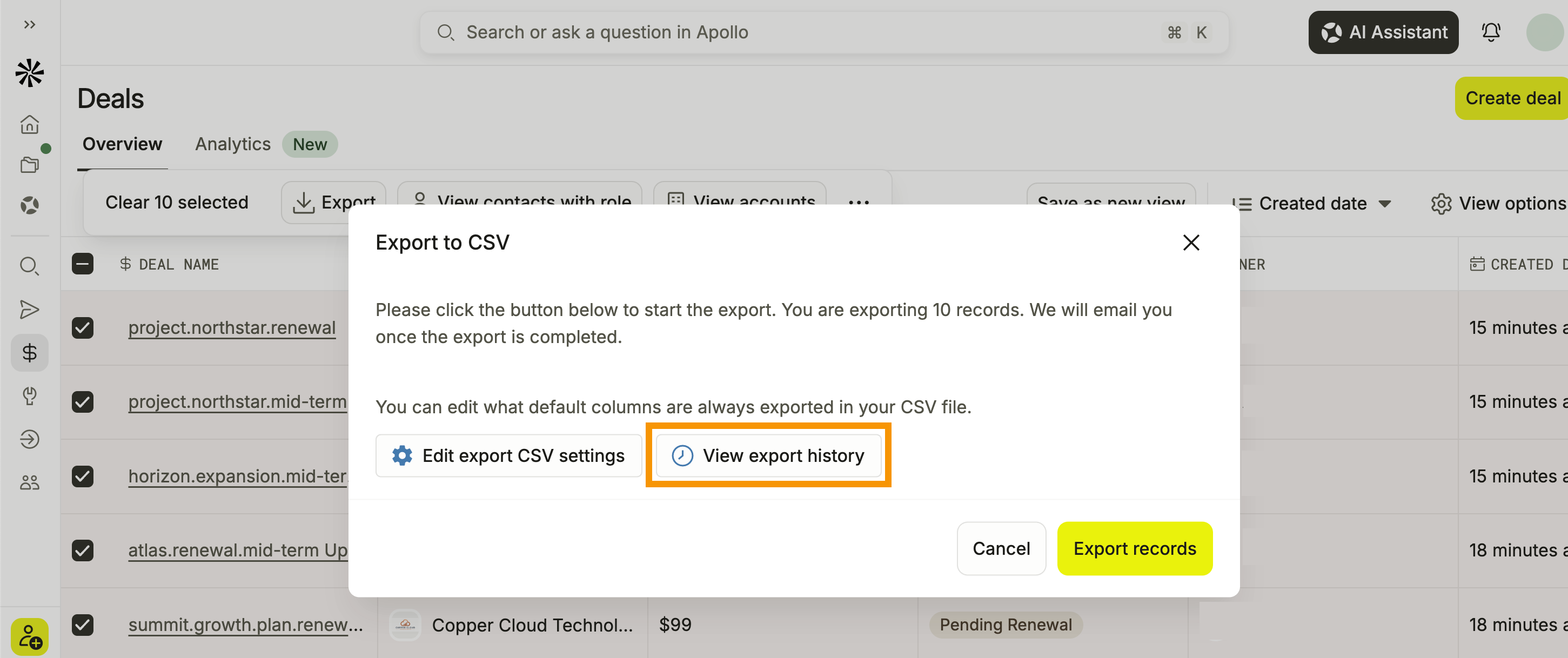
- (Optional) Click View export history to open your previous CSV exports in a new tab.
- When finished, click Export records.
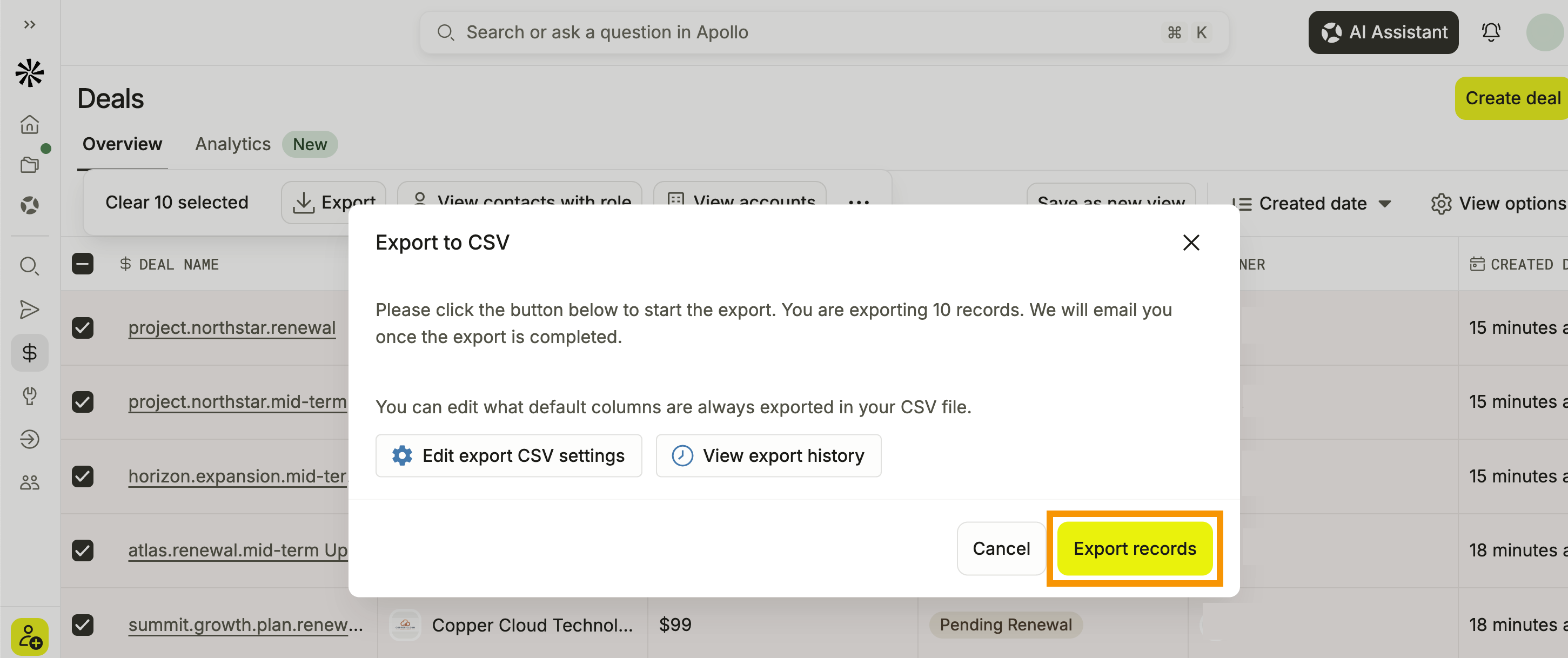
Apollo processes your CSV after you start the export. You can close the export window while Apollo processes the file. Apollo emails you when the export is complete, and you can also check previous deal exports from Settings > Imports & Exports > CSV Exports > Deals.
- When the export finishes processing, click Download.
You have now exported deals to a CSV.
CSV exports might not retain the sort order displayed in Apollo. After exporting, open the file in Excel, Google Sheets, Apple Numbers, or another spreadsheet application to sort the data as needed.
Spreadsheet apps may also reformat fields such as currency values, long IDs, or dates. To preserve formatting, import or format those columns appropriately before editing the file.
Available Export Fields
Apollo includes the following standard fields in deal CSV exports by default. Your team's deal custom fields are also included and can be managed from deal export settings.
| Deal Export Fields | ||
|---|---|---|
| Deal Name | Company Name | Amount |
| Deal Stage | Deal Owner | Deal Created Date |
| Deal Close Date | Apollo Record Id | Custom fields |
Deal Name
The name of the deal in Apollo.
Company Name
The name of the company associated with the deal.
Amount
The monetary value assigned to the deal.
Deal Stage
The stage the deal currently occupies in your sales process.
Deal Owner
The Apollo user assigned as the owner of the deal.
Deal Created Date
The date the deal was created.
Deal Close Date
The close date associated with the deal.
Apollo Record Id
The unique Apollo identifier for the exported deal record. Use this ID to reference or match the deal across exports and other systems.
Custom fields
Your team's deal custom fields. Apollo automatically makes deal custom fields available for CSV exports, and you can deselect individual custom fields in CSV Export Settings when you don't want them included.
Next Steps
Here are a few quick next steps to help you keep working with deals and CSV exports in Apollo.
| Access and Manage Deals | Keep your pipeline data accurate before your next export. Access and manage deals to review deal details, update stages and ownership, and manage deal activity in Apollo. |
|---|---|
| Export Contacts to a CSV | Export prospect data for reporting, analysis, or use in other tools. Export contacts to a CSV to work with contact and company data outside Apollo. |
| Export Accounts to a CSV | Export company-level data alongside your deal data. Export accounts to a CSV to analyze or share your Apollo account data in other tools. |
| Report on Deals | Track pipeline performance directly in Apollo. Report on deals to review pipeline health, forecasted revenue, and deal performance metrics. |