
Overview
Export accounts to a CSV when you want to review account data outside Apollo, share account lists with your team, or move account records into another tool that supports CSV imports.
In Apollo, saved companies are called accounts. You don't need to save companies before exporting them. You can export selected companies from search results. When you export companies that aren't already in your workspace, Apollo automatically saves them as part of the export process.
Check out the following sections to export accounts to a CSV.
Export Accounts
To export accounts to a CSV:
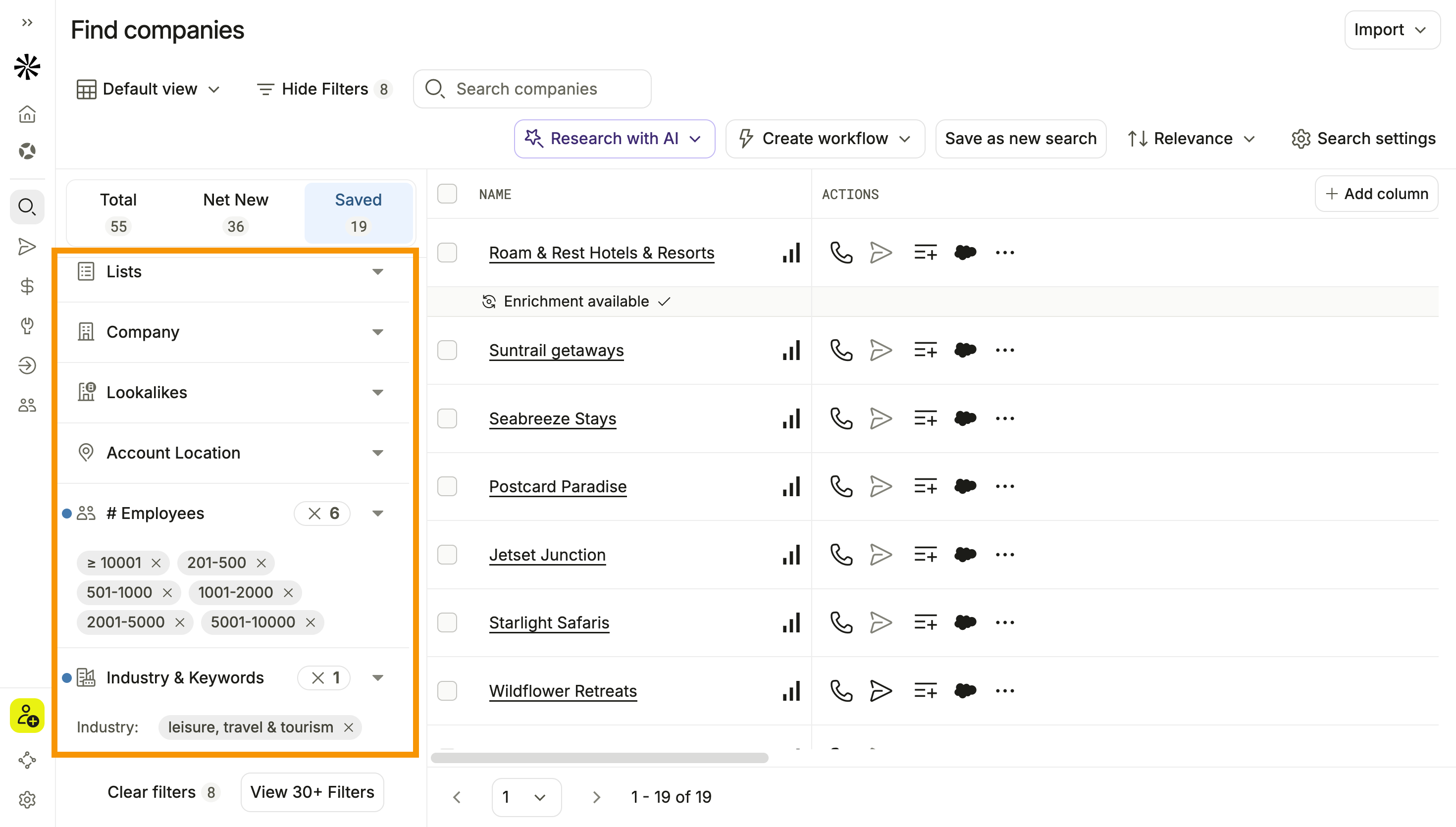
- Check one or more companies or accounts, then click Export.
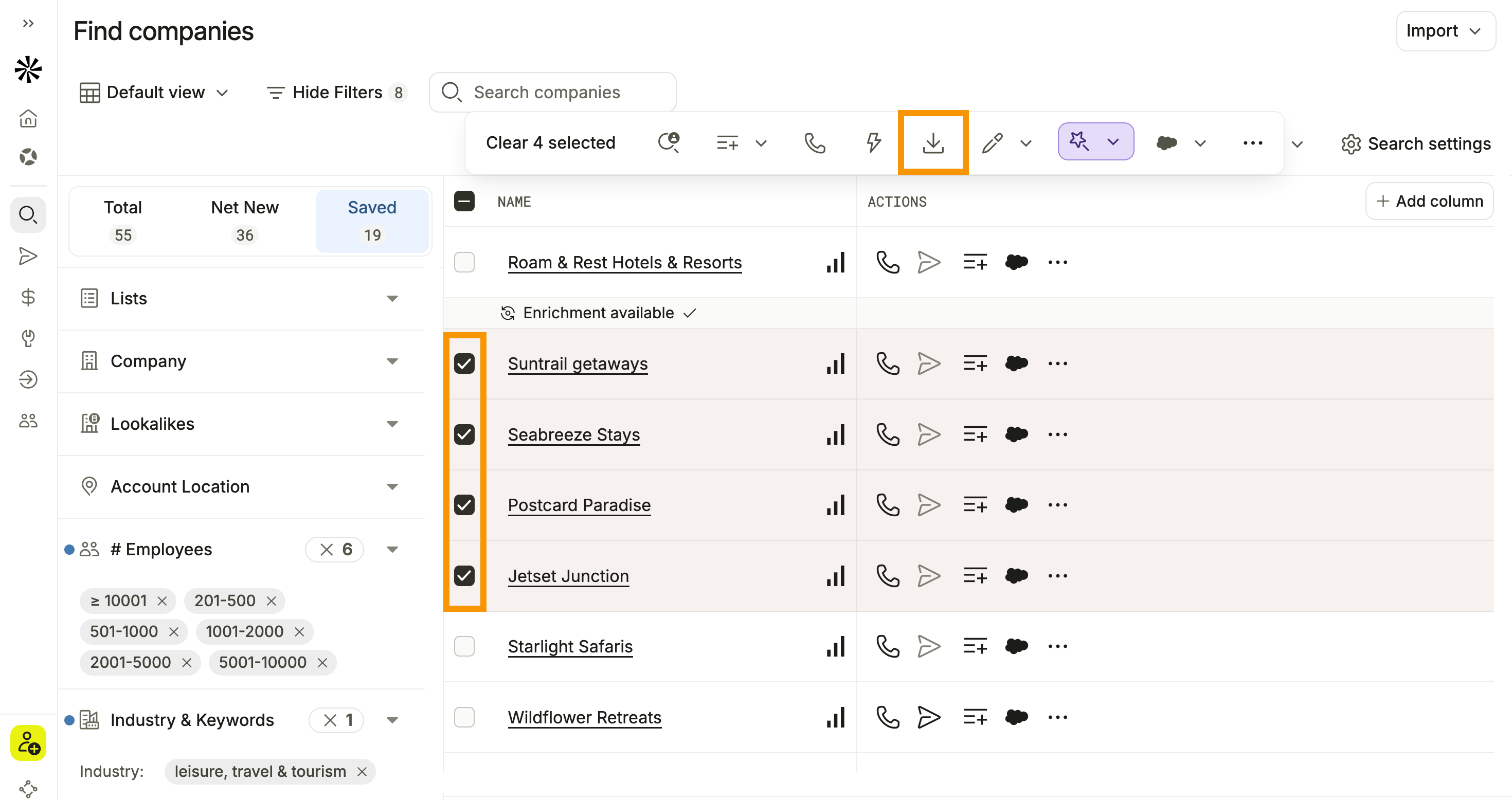
- (Optional) Click Edit export CSV settings to adjust the included fields on the export.
- Click Export records.
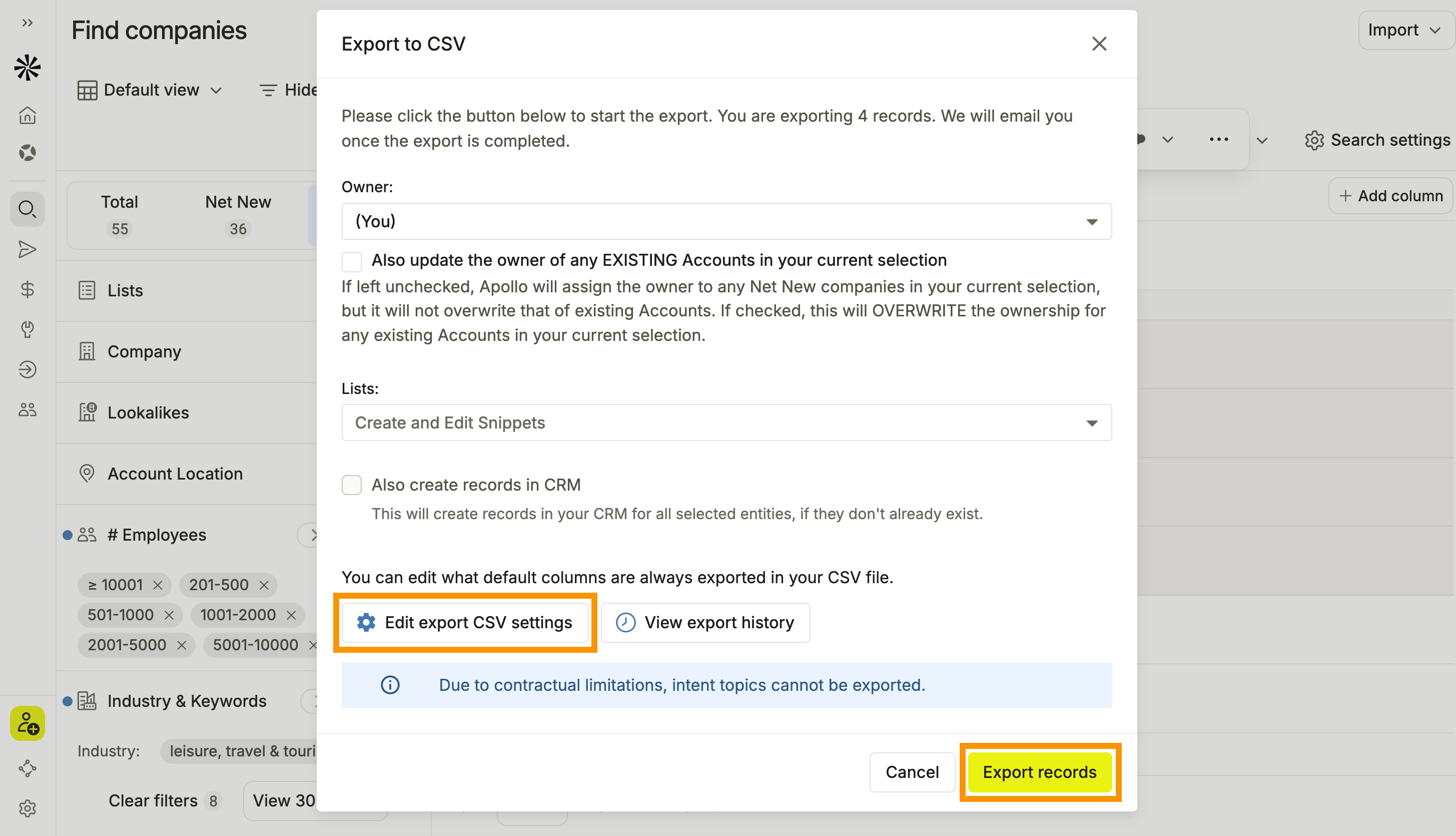
- Click Download.
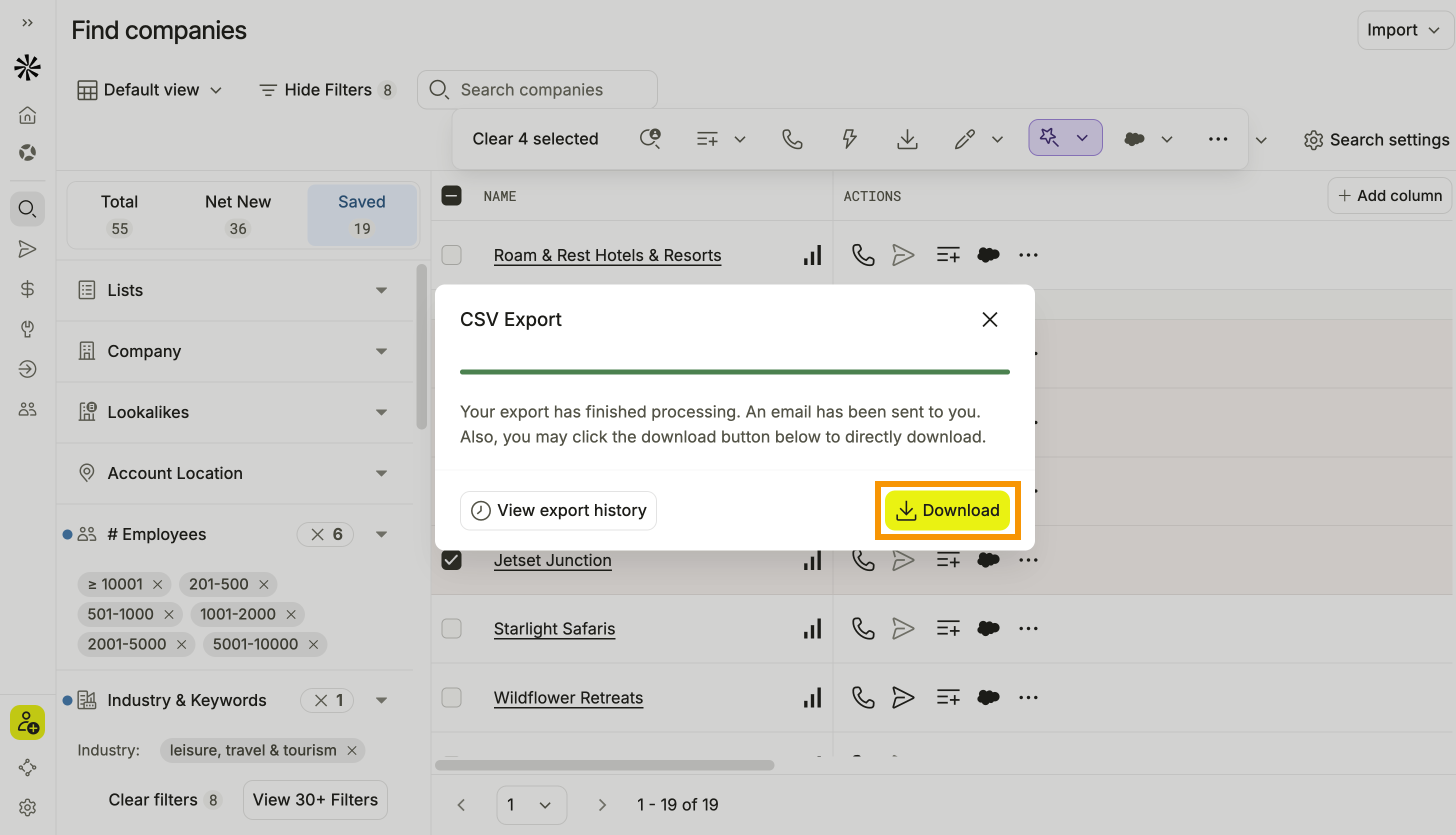
You have now exported your accounts to a CSV. You can review the file, share it with your team, or import the account data into another tool.
To download the file later, click View export history, then click Download.
CSV exports might not retain the sort order displayed in Apollo. After exporting, open the file in Excel, Google Sheets, Apple Numbers, or another spreadsheet application to sort the data as needed.
Spreadsheet applications may automatically format fields like ZIP codes, phone numbers, long IDs, and dates. To preserve the original formatting, import or format those columns as text before you edit the file.
Available Export Fields
Learn more about each field that you can configure to be exported:
You may see different field options when you export accounts than when you export contacts. Some fields are only available for specific export types, while others may not be available for either export.
If a field is missing from your export, confirm that the field is supported in the CSV export settings and include it when you export again. If a field isn't selected in your export settings, its column appears blank in the exported CSV, even if data exists in Apollo.
Account Export Fields |
||
|---|---|---|
| # employees | Account owner | Account stage |
| Annual revenue | Apollo account ID | Apollo record ID |
| Company address | Company city | Company country |
| Company LinkedIn URL | Company name | Company name for emails |
| Company phone | Company postal code | Company state |
| Company street | Facebook URL | Founded year |
| Industry | Keywords | Last raised at |
| Latest funding | Latest funding amount | Lists |
| Logo URL | NAICS codes | Number of retail locations |
| Parent company (Apollo data - organization ID) | Parent company (Apollo data) | Primary intent score |
| Primary intent topic | Secondary intent score | Secondary intent topic |
| Short description | SIC codes | Technologies |
| Total funding | Twitter URL | Website |
Company name
The name of the account in Apollo.
Company name for emails
The company name value intended for use in email personalization, often a cleaned version of company name.
Account stage
The account's stage in Apollo. Stages help teams track where prospects and accounts are in their outbound or sales process.
Lists
The Apollo lists that include the account. Lists help you organize saved contacts and accounts for prospecting, workflows, and outreach.
# employees
The number of employees at the company. Use this field to understand company size and segment accounts by headcount.
Industry
The industry associated with the company.
Account owner
The Apollo user assigned as the owner of the account.
Website
The company's website URL.
Company LinkedIn URL
The LinkedIn URL associated with the company.
Facebook URL
The Facebook URL associated with the company.
Twitter URL
The X (formerly Twitter) URL associated with the company.
Company street
The street associated with the company's address.
Company city
The city associated with the company.
Company state
The state or region associated with the company.
Company country
The country associated with the company. Use this field to segment, filter, or route accounts by country.
Company postal code
The postal or ZIP code associated with the company.
Company address
The street address associated with the company. Use this with company city, company state, company country, and company postal code for the full company location.
Keywords
Keywords associated with the company.
Company phone
The phone number associated with the company.
Technologies
The technologies Apollo associates with the company.
Total funding
The total amount of funding associated with the company.
Latest funding
The most recent funding round or funding type associated with the company.
Latest funding amount
The amount associated with the company's latest funding round.
Last raised at
The date and time in UTC when the company last raised funding.
Annual revenue
The company's yearly revenue. Use annual revenue to evaluate company size, prioritize accounts, and refine prospecting segments.
Number of retail locations
The estimated number of physical retail locations associated with the company.
Apollo account ID
The unique Apollo identifier for the account. Use this ID to reference or match the account across exports, imports, and connected systems.
Apollo record ID
The unique Apollo identifier for the exported record; this should match the account ID.
SIC codes
The Standard Industrial Classification (SIC) codes associated with the company. Use SIC codes to classify companies by industry and support industry-based segmentation.
NAICS codes
The North American Industry Classification System (NAICS) codes associated with the company.
Short description
A short description of the company and its business.
Founded year
The year the company was founded.
Logo URL
The URL for the company's logo image.
Parent company (Apollo data)
The parent company associated with the account in Apollo, when the company is a subsidiary.
Parent company (Apollo data - organization ID)
The Apollo organization ID for the parent company associated with the account.
Primary intent topic
The strongest buying intent topic associated with the account. Buying intent topics represent areas of interest that companies may be researching.
Primary intent score
The strongest buying intent score associated with the account. Buying intent helps identify companies researching relevant topics so your team can prioritize outreach.
Secondary intent topic
The second strongest buying intent topic associated with the account.
Secondary intent score
The second strongest buying intent score associated with the account.
Next Steps
Learn more about accounts, company search, and CSV workflows in Apollo.
| Search for Companies | Use Search for Companies to identify target organizations and narrow results with advanced filters before saving or exporting records. |
|---|---|
| View and Edit Accounts | Keep account records accurate by reviewing company information and making updates as needed. |
| Save Contacts and Accounts | Save people and companies to Apollo so you can organize, manage, and engage with your records. |
| Import a CSV of Accounts | Add account records to Apollo in bulk by importing a CSV file. |
| Create and Assign Permission Profiles | Manage account export access by creating permission profiles and assigning them to team members. |
| Export Contacts to a CSV | Export contact data to a CSV file and configure export settings that meet your team's needs. |