
Overview
Scores help you rank prospects according to the attributes that define your ideal customers. Apollo generates highly accurate auto-scores without any manual setup. However, you can also create custom scores to define and control the signals that rank prospects.
The number of scores you can create depends on your Apollo plan. If you need to create additional scores, upgrade your plan. If you have questions about upgrading, reach out to the Apollo sales team.
Check out the following sections to create a custom score.
Create a Custom Score
To create a custom score:
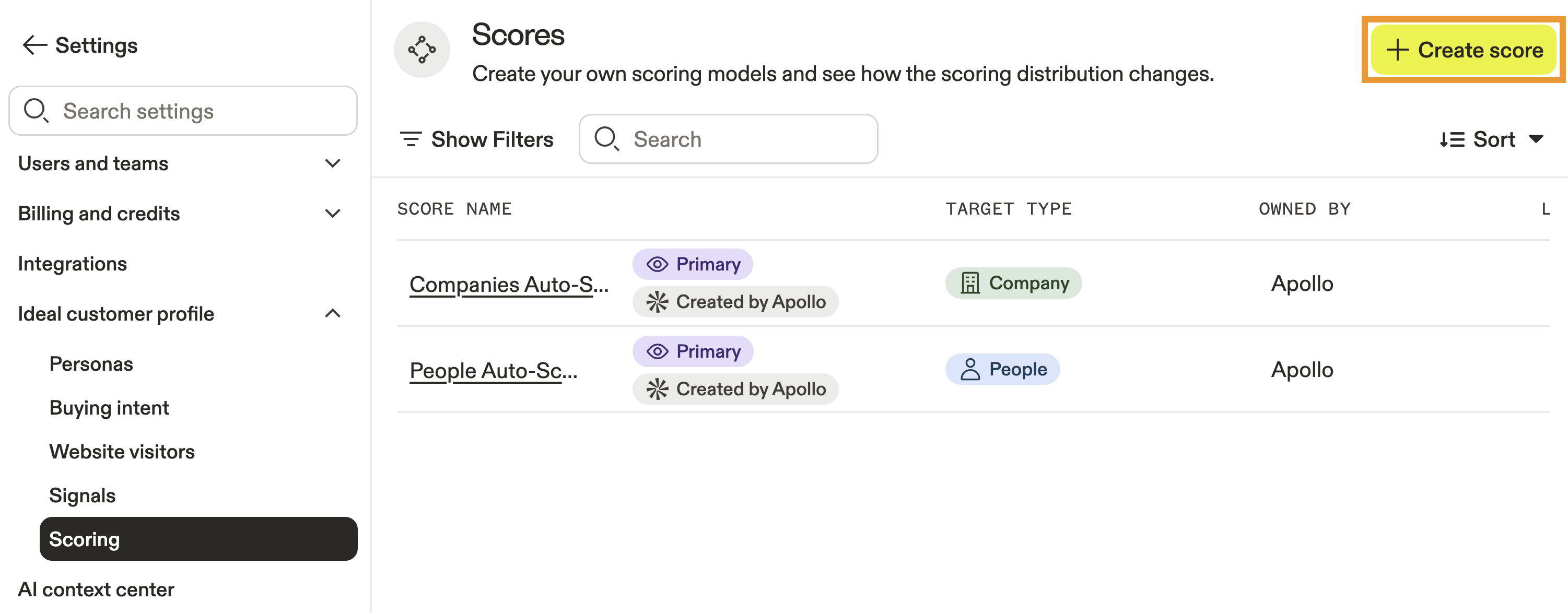
- Launch Apollo and click Settings > Ideal customer profile > Scoring.
- Click Create score.
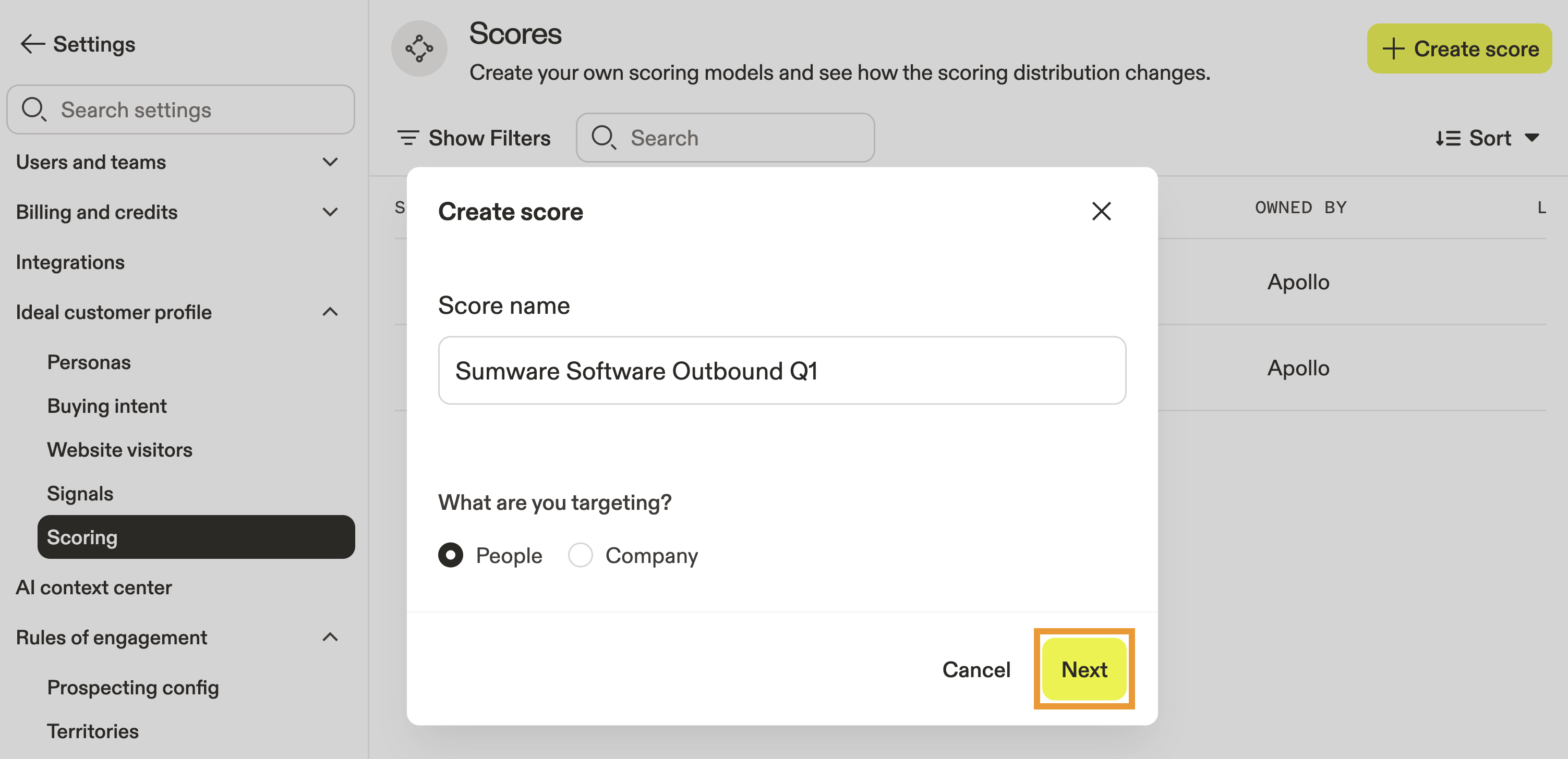
- Give your score a name, then select whether to target people or companies.
- Click Next.
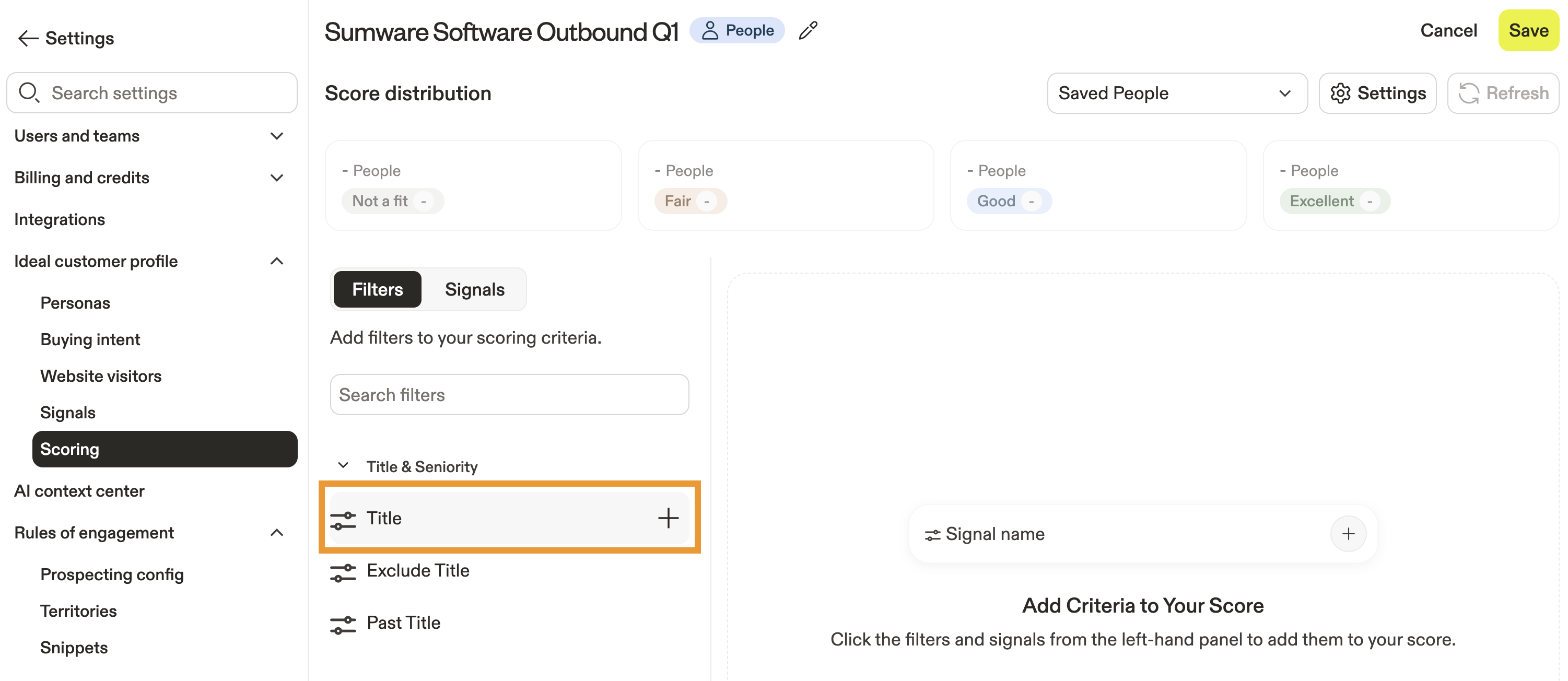
- Next, add filters and signals that determine the score's criteria. Select a filter like
# employees, or click Signals to select a signal.
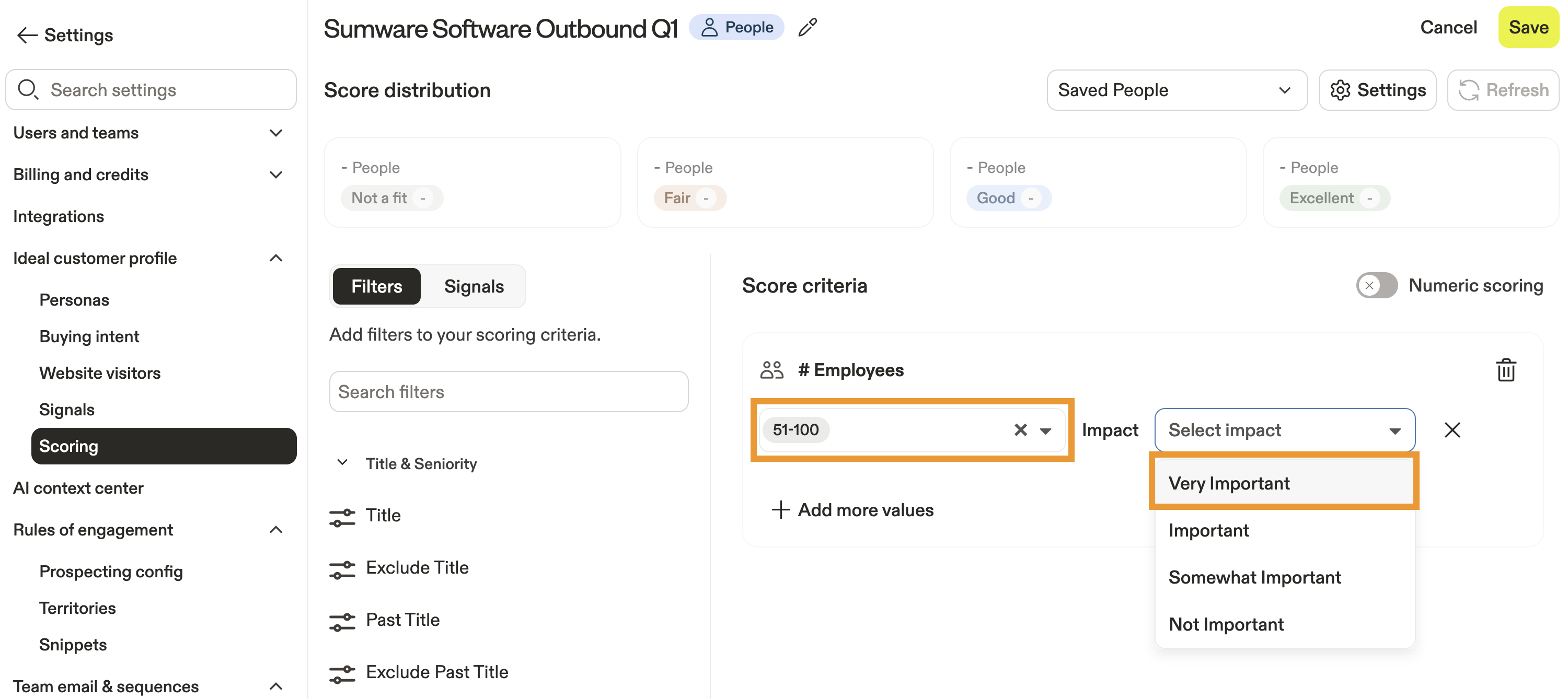
- Next, select a value for the score or signal like
51-100. - Add an impact to the filter from
Very importanttoNot important.
- (Optional) Alternatively, toggle Numeric scoring to use a numeric impact from
0to20, with20being the most impact.
If you select multiple values on certain filters or signals, like # employees, Apollo only matches the prospect to one criterion. For example, if you add criteria where "51-200 employees" = 10 points and "201-500 employees" = 15 points, then a company with 75 employees only matches "51-200 employees" and receives 10 points.
Other filters or signals, like job title, aren't mutually exclusive and can match to more than one criterion. For example, if you add criteria where job title "Product" = 10 points and "Manager" = 15 points, then a prospect with a "Job Manager" title receives 25 points.
- (Optional) Click Add more values to assign additional values to the filter.
- Select to add additional filters and signals to build the score criteria.
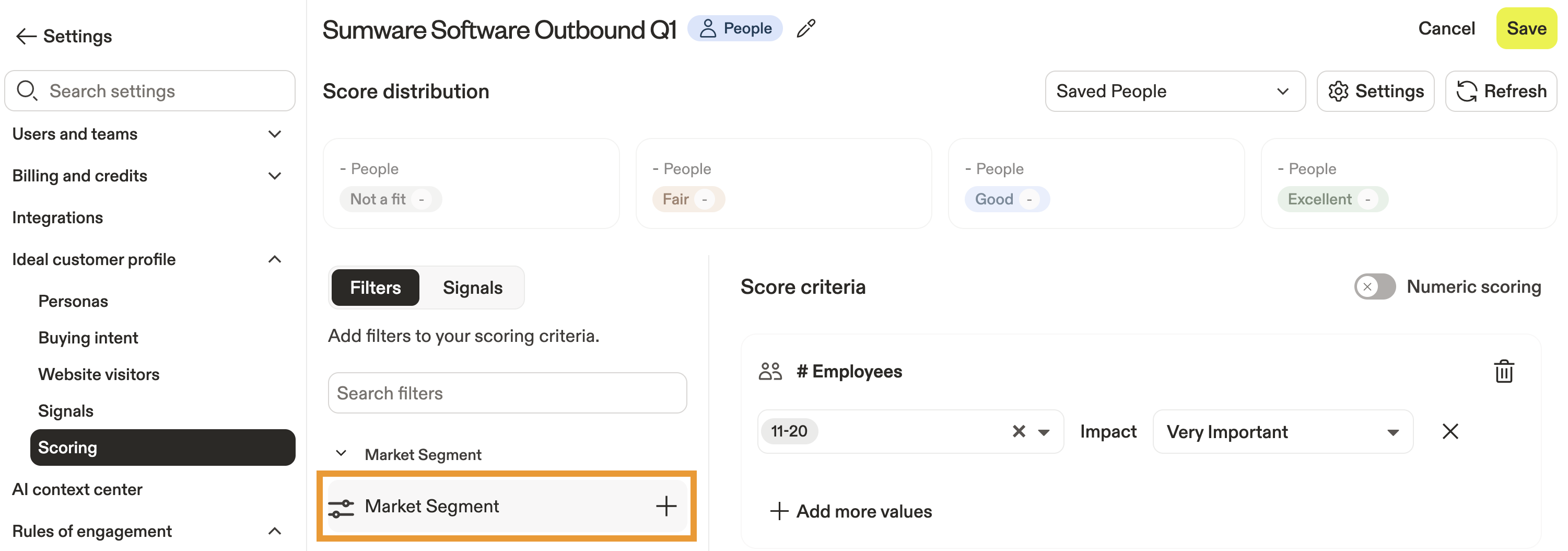
- Click Refresh, and Apollo shows how prospects stack up against your current score configuration.
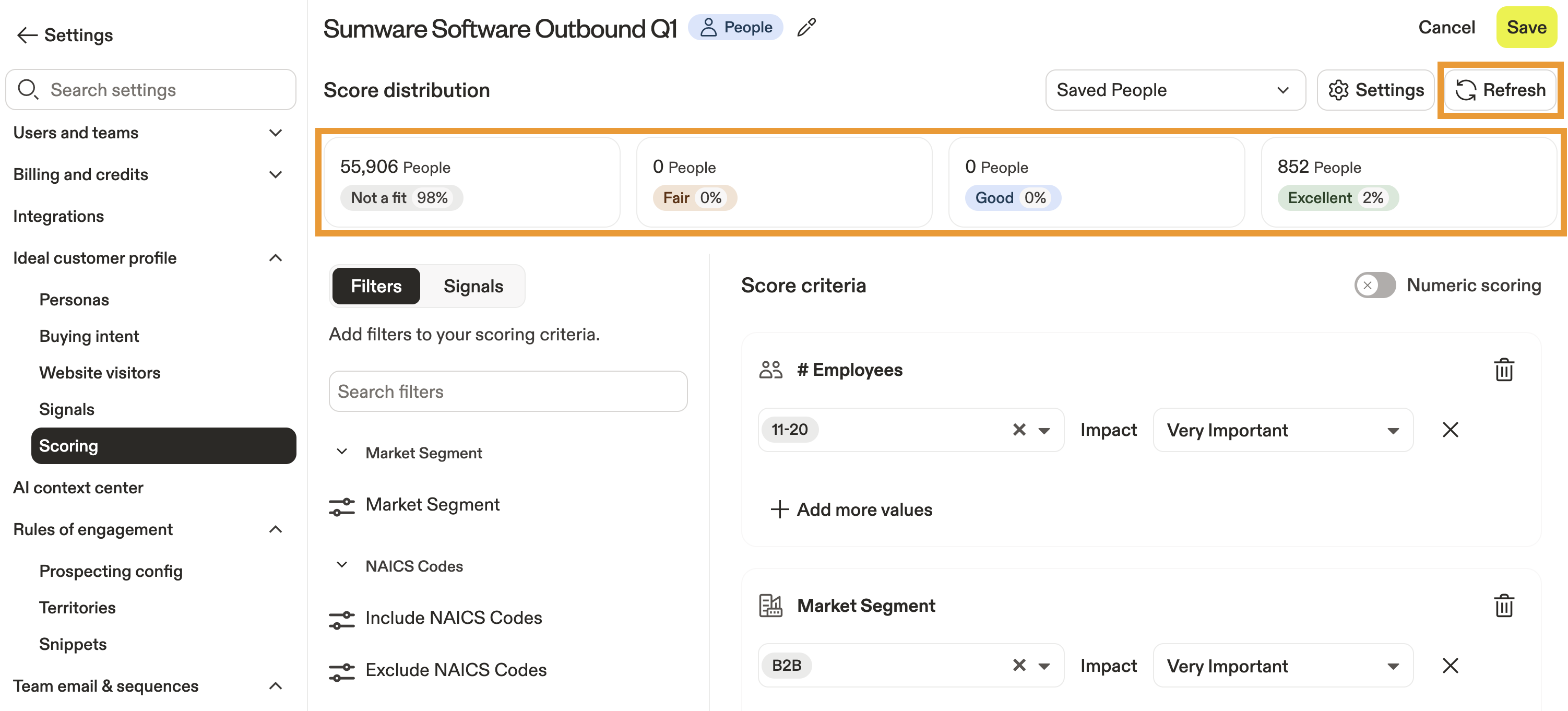
- If necessary, edit filters and signals to improve your score distribution.
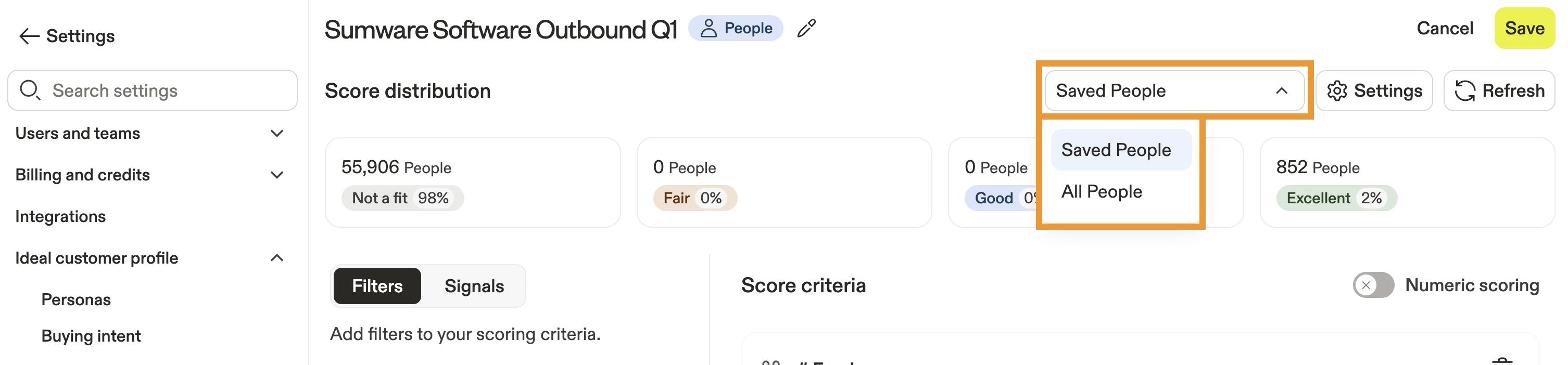
- Click Saved people to see the score distribution for all people instead.
Is your ranking too restrictive? If you aren't seeing many excellent or good ranked prospects, you may need to edit the score to be less restrictive. Avoid being overly specific with too many filters that can bottleneck your score distribution.
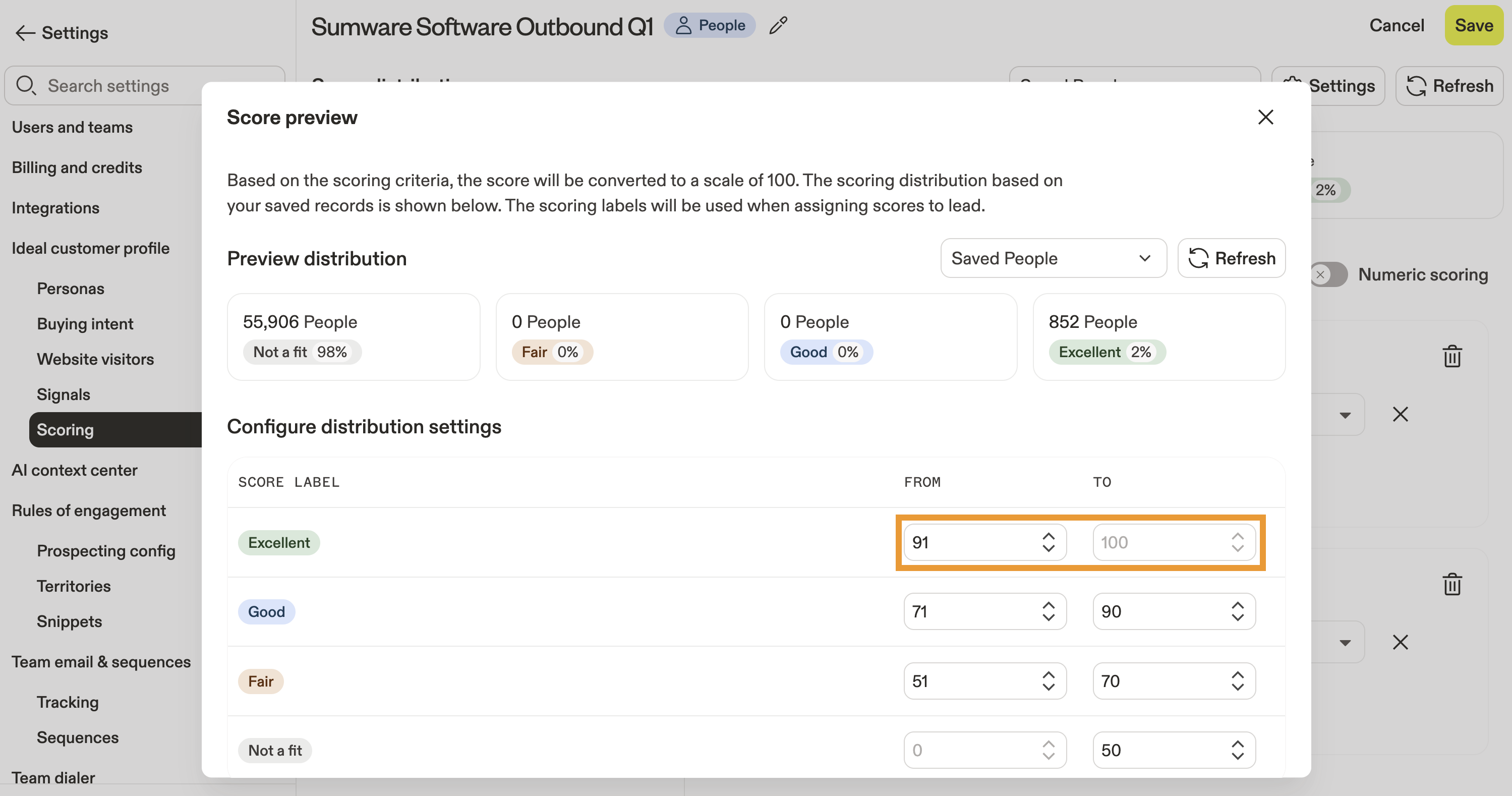
- (Optional) Click Settings to adjust the score distribution.
- When finished, click Save.
You have now created a new score. Set the score as your primary score, then use the score to prospect in Apollo.
To edit a score, navigate to Settings > Ideal customer profile > Scoring. Click . . . beside the score, then click > Edit or Delete to remove it.
Set a Primary Score
You need to be an admin on Apollo to set your organization's primary score. If you don't have permission, reach out to an Apollo admin for help.
When you create a score, you must set one primary people score and one primary company score. These scores replace auto-scores as the default when your teams search for people or companies.
To set your primary score:
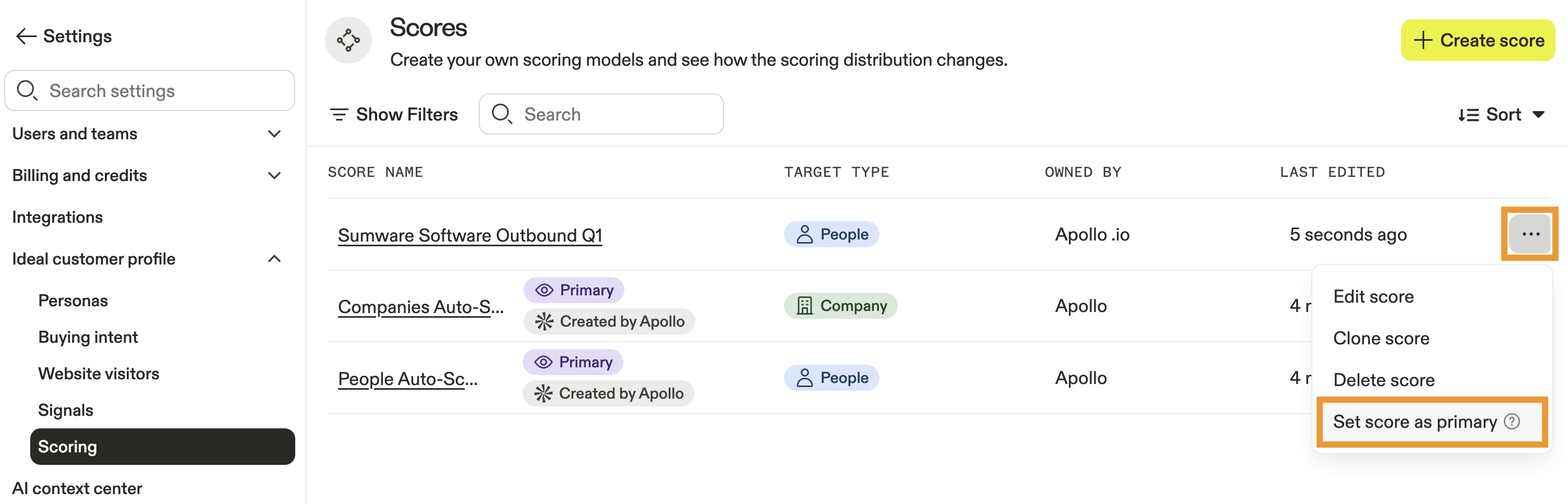
- Launch Apollo and click Settings > Ideal customer profile > Scoring.
- Click ... beside the score > Set score as primary.
- Click Confirm.
You have now set a primary score. You're ready to use the score to prospect.
Next Steps
Once your custom score is live, these next steps help you put it to work across prospecting, permissions, and day-to-day workflows.
| Scores Overview | Ground your team on how scoring works end to end by comparing auto-scores and custom scores to understand what actually drives ranking and prioritization. |
|---|---|
| Use Scores | Turn your new model into action by applying scores in searches and filters to focus outreach on the prospects most likely to convert. |
| Create and Assign Permission Profiles | Make sure the right people can manage scoring by assigning admin permissions so updates to primary scores don't get bottlenecked. |