
Overview
Accurate CRM data gives your team the context to identify the right prospects, personalize outreach, and make confident decisions.
HubSpot data enrichment helps keep existing contact and account records complete and current with Apollo data, so your team can spend less time maintaining records and more time acting on them.
The HubSpot data enrichment integration requires a paid Apollo plan with CRM enrichment access.
Check out the following sections to set up and use the HubSpot data enrichment integration.
Connect HubSpot
To connect this integration, you need permission to edit integration settings. If you don't have access, reach out to an admin for help.
To connect the HubSpot data enrichment integration:
- Launch Apollo and click Settings > Integrations > All integrations.
- Click Connect beside HubSpot Data Enrichment.
- Click Yes, continue.
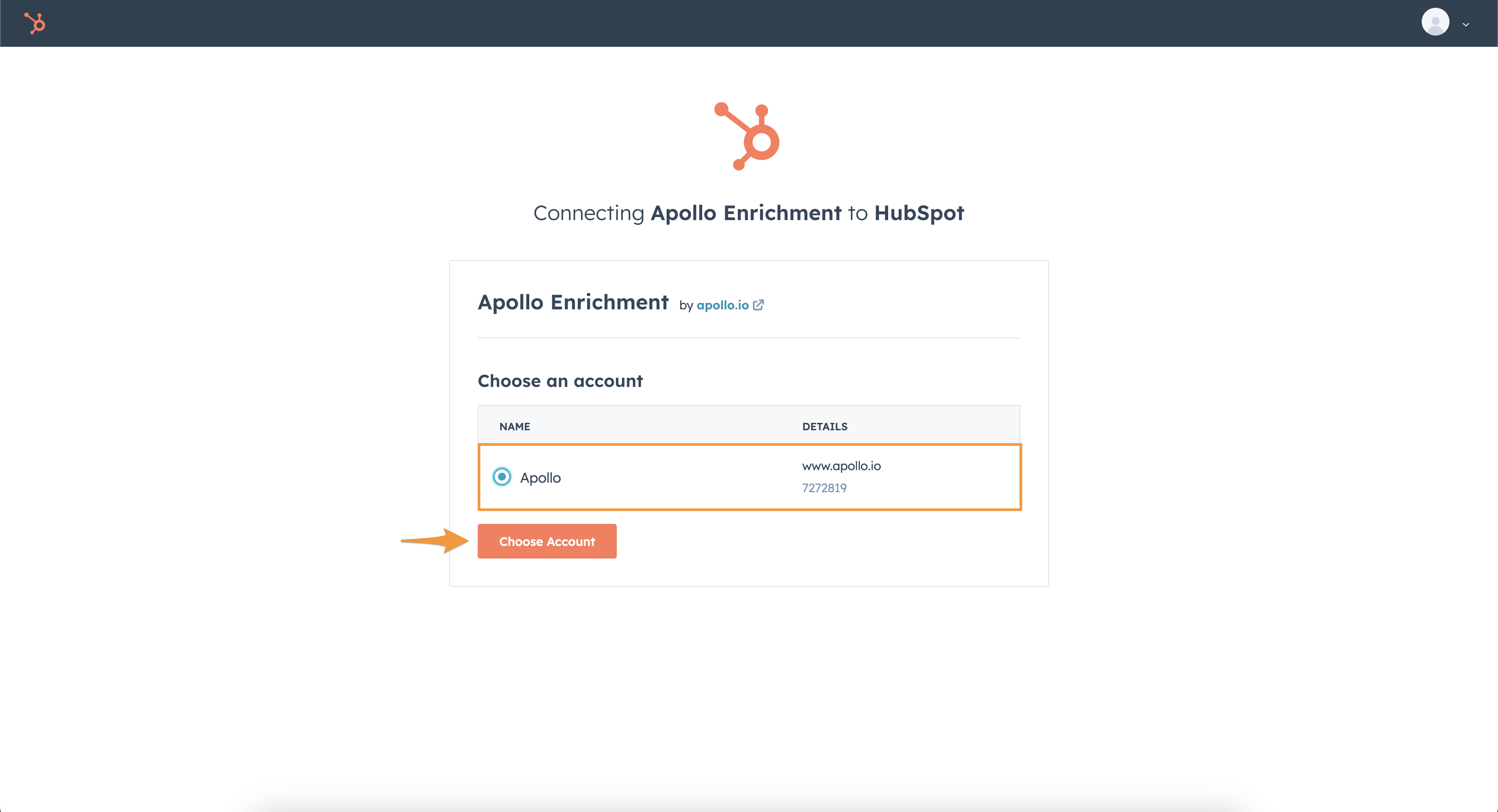
- Log in or create a new HubSpot account, then select the account you want to connect to Apollo. Click Choose account.
- Review and agree to the terms and permissions required.
- Click Connect app.
You have now connected Apollo to HubSpot. Next, configure how you want your data enriched.
Configure Data Enrichment
Before you enrich any records, map Apollo's default fields to HubSpot fields to ensure everything works as expected.
To map your fields:
- Launch Apollo and click Settings > Integrations > All integrations, then click View beside HubSpot.
- Click Contacts > Fields.
- Apollo automatically maps fields for you where possible. Double-check your field mapping and map additional fields as needed. Learn more about field mapping with the HubSpot integration.
- After mapping fields, click Data writing rules.
- Check Overwrite or Auto-fill beside each field on which you want to automate enrichment:
- Overwrite: Replace data in your CRM with data from Apollo.
- Auto-fill: Update empty fields in your CRM with data from Apollo.
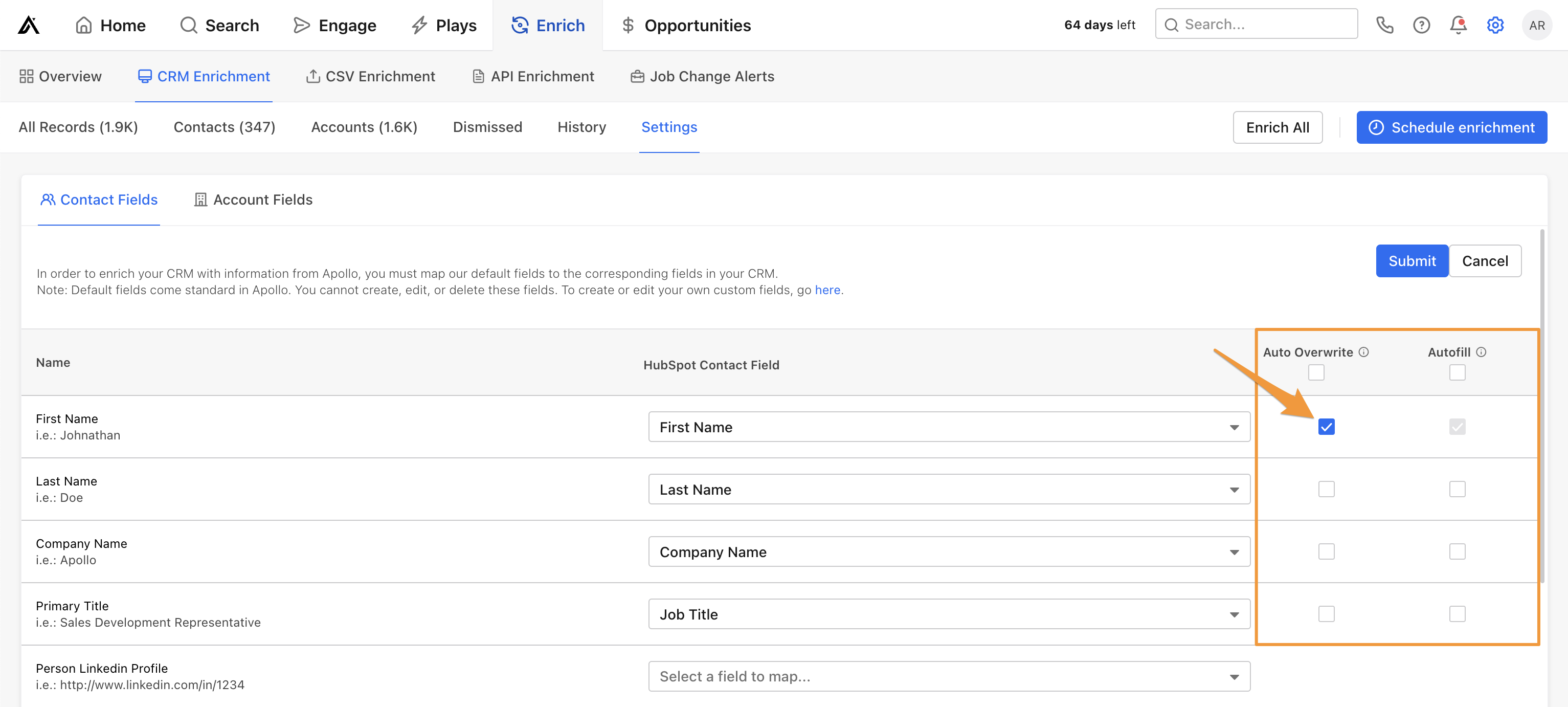
Apollo only overwrites a default field if Apollo has information available that differs from the data in HubSpot. Likewise, Apollo only auto-fills an empty default field in HubSpot if Apollo has data available. These settings run when Apollo pulls an update from HubSpot.
Learn more about data writing rules with the HubSpot integration.
- When finished, click Save.
You are now ready to enrich your HubSpot records.
Enrich Your HubSpot Data
After connecting the integration, enable real-time CRM enrichment and choose which fields Apollo can update. As Apollo syncs new or updated HubSpot records, it enriches matching records and writes changes back to HubSpot according to your data writing rules. You can also review and apply suggested updates manually.
To manually enrich your HubSpot data:
- Launch Apollo and click Data Enrichment.
- Click CRM.
- Apollo shows your enrichable records.
- Check each contact or account that you want to enrich, then click Enrich records.
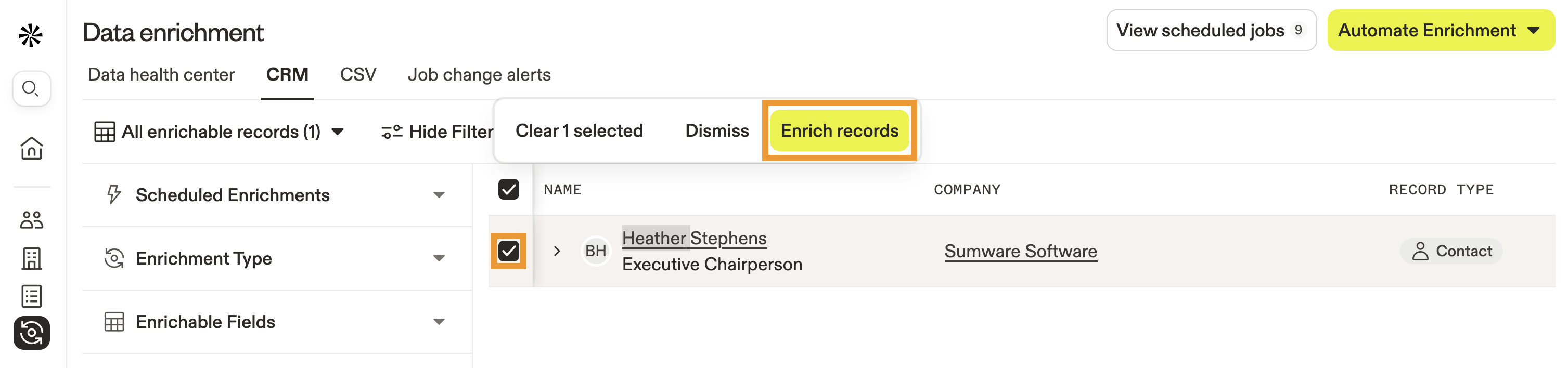
When you enrich records manually, you override any auto-fill, overwrite, or push settings that you have configured for the enriched field.
To dismiss an enrichable record, click Dismiss. You can review dismissed records by filtering for them.
You have now enriched your HubSpot data. If you want to find and enrich specific contacts or accounts, use search filters:
- Scheduled enrichment: Show scheduled enrichment jobs.
- Enrichment type: Select missing values in CRM or found new values.
- Enrichable fields: Filter for specific fields that require enrichment.
To learn more about a specific filter, check out Search Filters Overview.
View Enrichment History
To view your enrichment history:
- Launch Apollo and click Data Enrichment.
- Click CRM.
- Apollo shows your enrichable records.
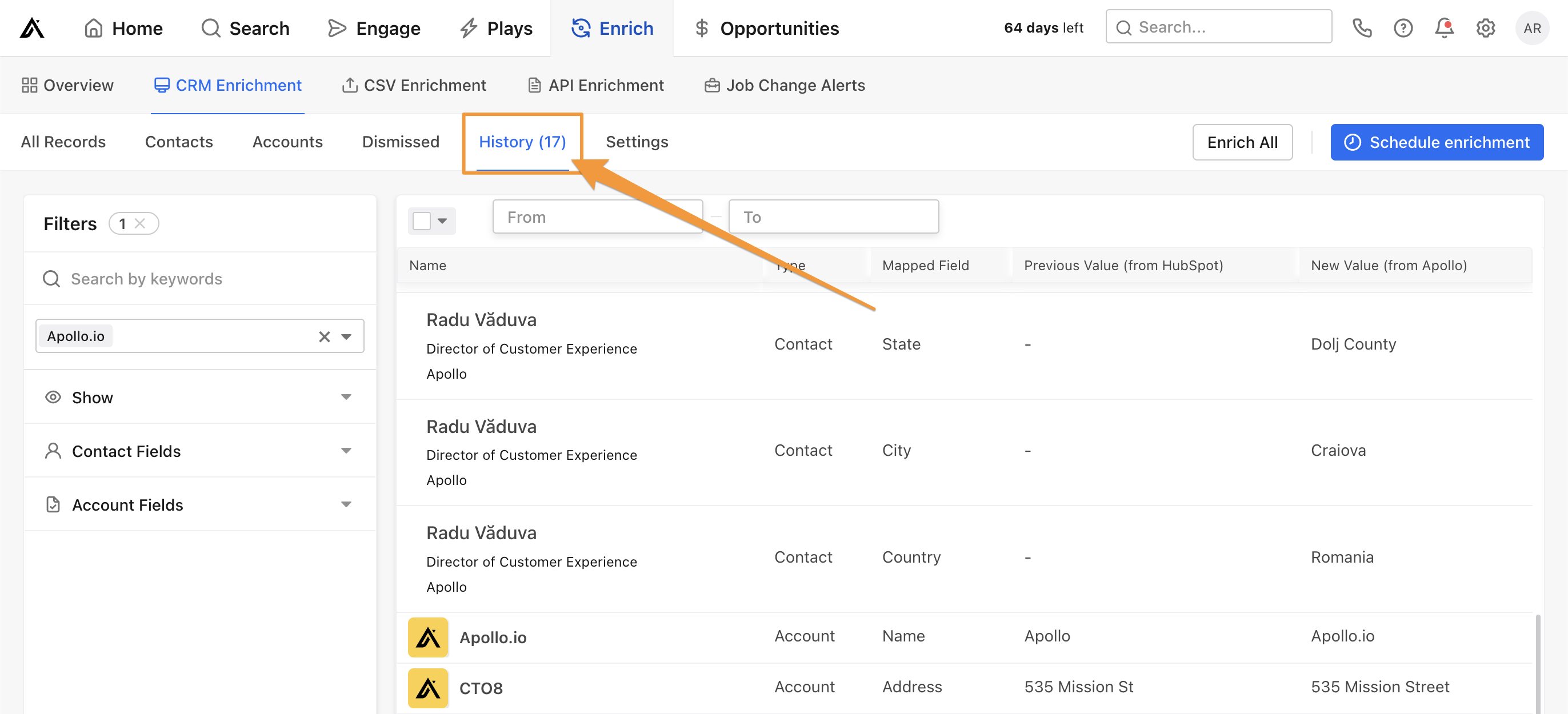
- Click All enrichable records and select History.
- Apollo shares your enrichment history.
Next Steps
Keep your HubSpot data accurate and your enrichment workflow running smoothly with these resources.
| Use CRM Enrichment | Enable CRM enrichment to keep contact and account information current as records change. |
|---|---|
| Configure HubSpot Data Mapping | Configure HubSpot field mapping to control how Apollo data is matched and written to your CRM. |
| Create and Assign Permission Profiles | Manage integration permissions to give the right teammates access to connect and configure HubSpot. |
| Search Filters Overview | Filter enrichment records to focus your team on the contacts, accounts, and fields that need attention. |