
Overview
If you're tracking website visitors, you receive data related to the prospects that visit your domains. You can view and use this data in several ways.
- View activity snapshots when prospects visit.
- View analytics for data across visiting prospects.
- Use filters to find website visitors to add them to lists, sequences, or workflows.
The following sections show how to view and use website visitors data.
Website visitor data may take up to 7 days to appear in your account.
Find Website Visitors
Once visitor data is available in Apollo, you can use it to target prospects based on the recency and volume of visits to your tracked domains.
To identify prospects that visited your website:
- Click Website Visitors, then Visited companies to see a list of companies that visited your website, or Visited people to see a list of contacts instead.
Contact-level tracking is available only for U.S.-based contacts. Prospects outside the United States can be tracked only at the company level.
- Apollo automatically filters website visitors based on your active domains from the past 90 days. You can adjust these filters by time period, intent level, visited domains or URLs, or to show only net-new contacts or companies.
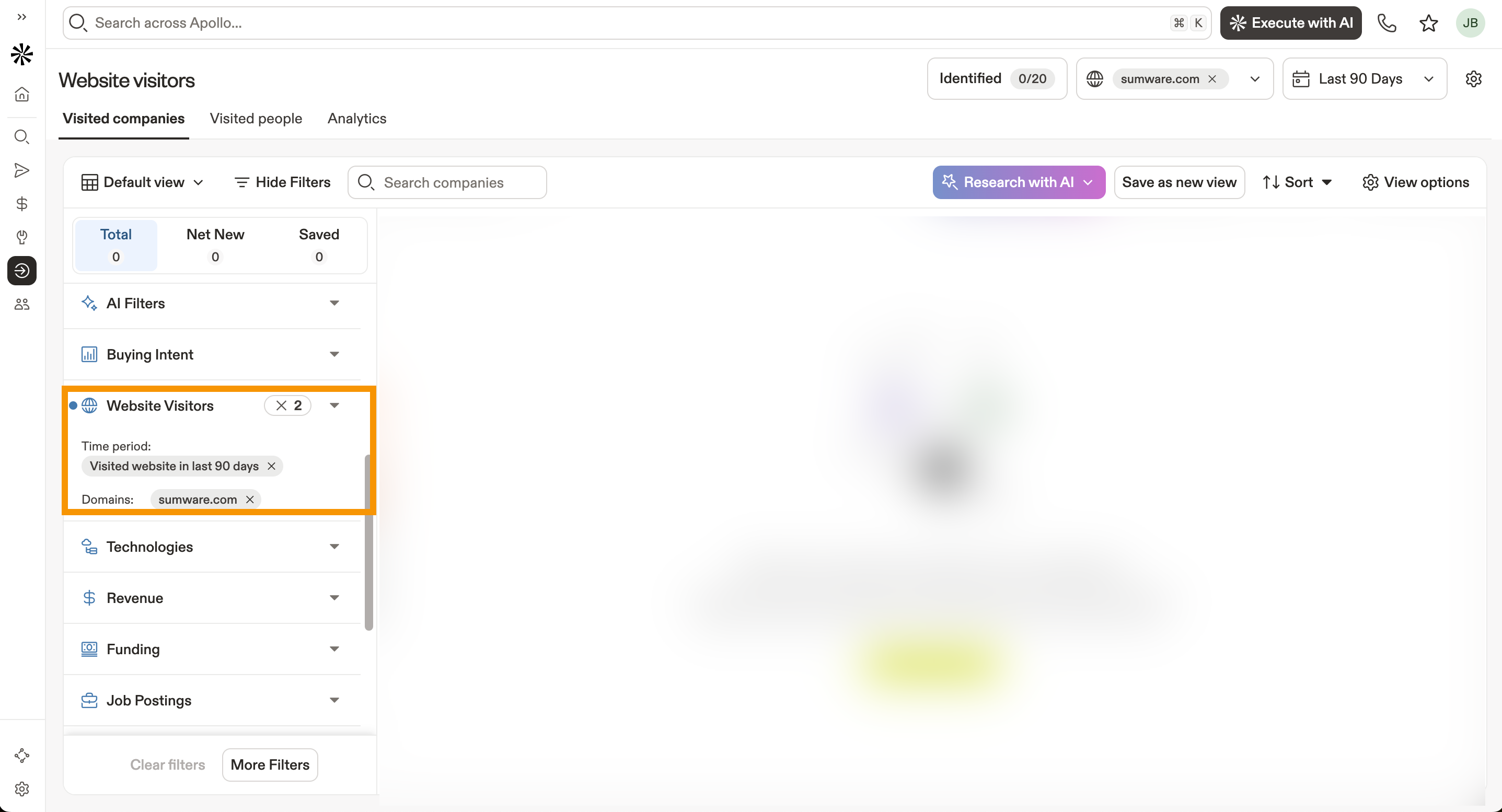
- Apply additional filters to refine your search. Apollo updates the search results as you change the filters.
- (Optional) To save your search, click Save Search. You can also set up alerts whenever new records match your saved search.
You've now filtered your company search using website visitors data.
The number of website visitors you can identify with the website visitor filter depends on your Apollo plan. For monthly plans, your website visitor limits reset at the start of each monthly billing cycle. For annual plans, you receive your full annual allocation, which resets at the start of your next billing year. If you need to identify more website visitors, upgrade your plan. If you have questions about upgrading, reach out to the Apollo sales team.
Use Website Visitor Data in Searches and Workflows
You can use website visitor data as a search filter for more targeted outreach. To get the most out of website visitor data, set up a trigger event-based workflow using the Website Visited trigger. Select the domain you've set up for tracking, then build your workflow steps to automate the next steps based on the visitors identified. Here are a few ways to use website visitor data:
- Save a contact or account and automatically enrich them with an email address or phone number.
- Send a Slack or email notification when a high-intent prospect visits your website so your team can take action quickly.
- Apply filter criteria to target ICP-matched visitors and automatically add them to a list to organize your outreach.
- Add contacts to sequences with your workflow to automate outreach for visitors who haven't signed up or booked a meeting yet.
- Create tasks for sales reps to follow up with website visitors.
View Website Visitor Activity Snapshot
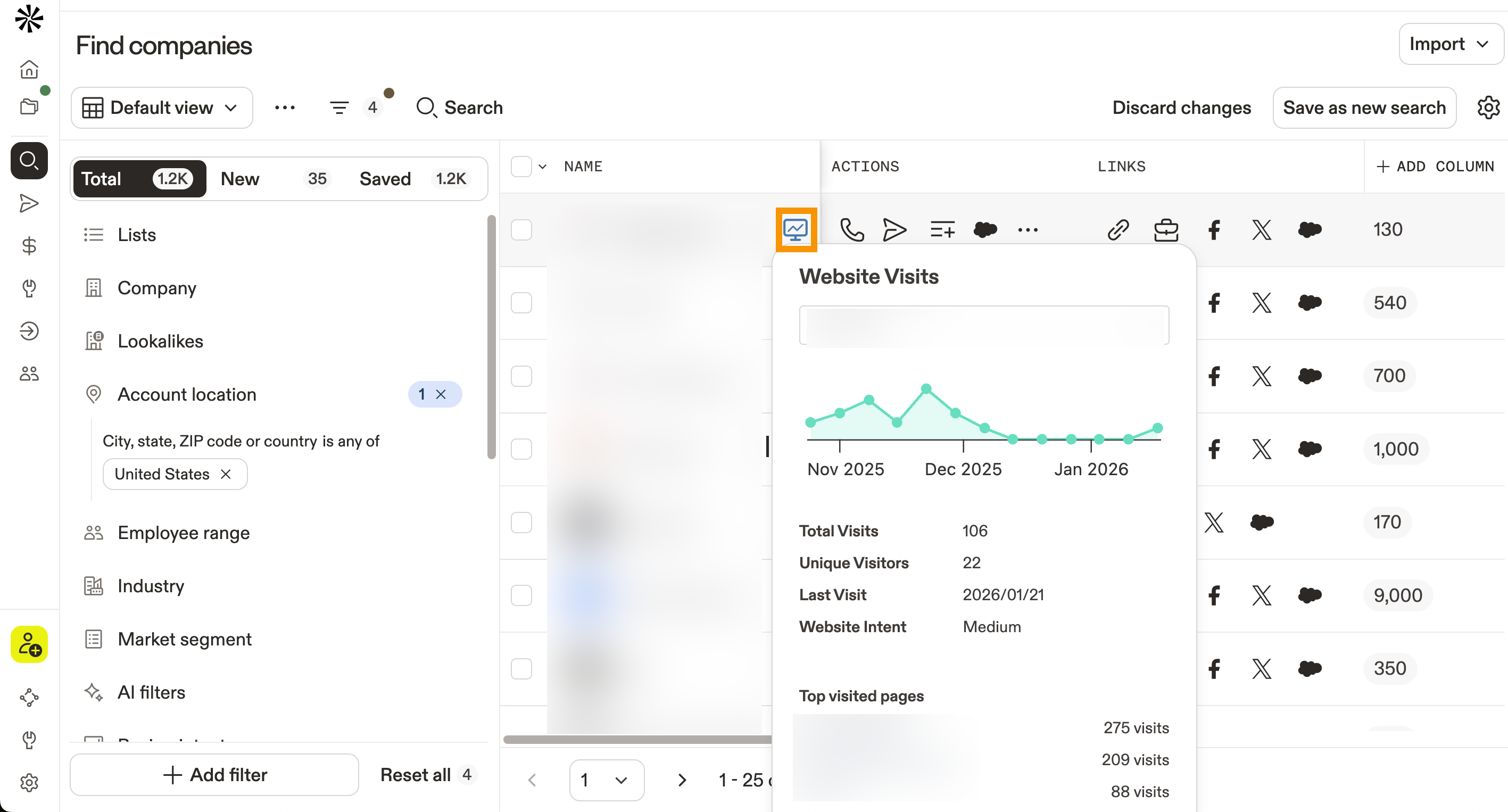
You can review visitor data for specific companies to understand how they interact with your website and evaluate how likely an opportunity is to convert. This includes total visits, unique visitors, last visit date, intent level, and the top pages visited.
To review visitor data for a specific company:
- Go to the company page, then hover over Website visits.

Alternatively, view visitor data directly from Website visits in the search results.

If a company hasn't visited your tracked domains, the icon won't appear. Website visitor data can be filtered for companies or U.S.-based contacts. To set up contact-level tracking, check out Track Website Visitors to Prioritize Prospects.
View Website Visitor Dashboard
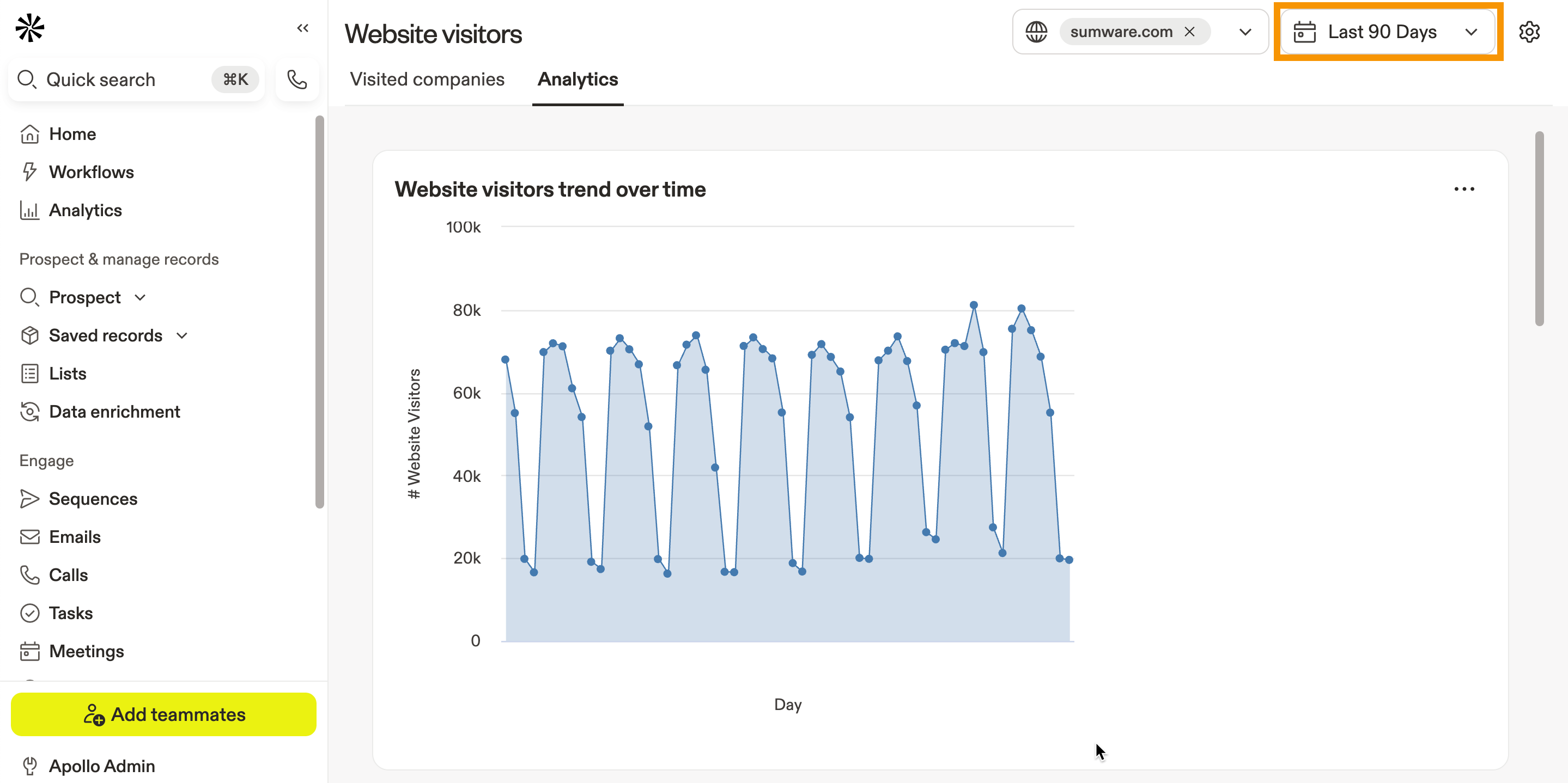
Website visitor data lets you track visitor trends, identify the top 10 companies visiting your site, see the top 10 pages viewed, and view visitors by industry, location, company size, and revenue segment.
To review high-level website visitor data:
- Click Website visitors > Analytics.
- (Optional) Refine the data by adjusting filters such as domain and time period. Apollo updates the results automatically.
Sort Companies by Visit Dates and Number of Visitors
If you've filtered company searches by website visitors, you can sort results by the most recent visit date or by the total number of visits generated by each company. Sorting this way helps you quickly prioritize companies showing the most recent or strongest interest in your website.
To sort results using these criteria:
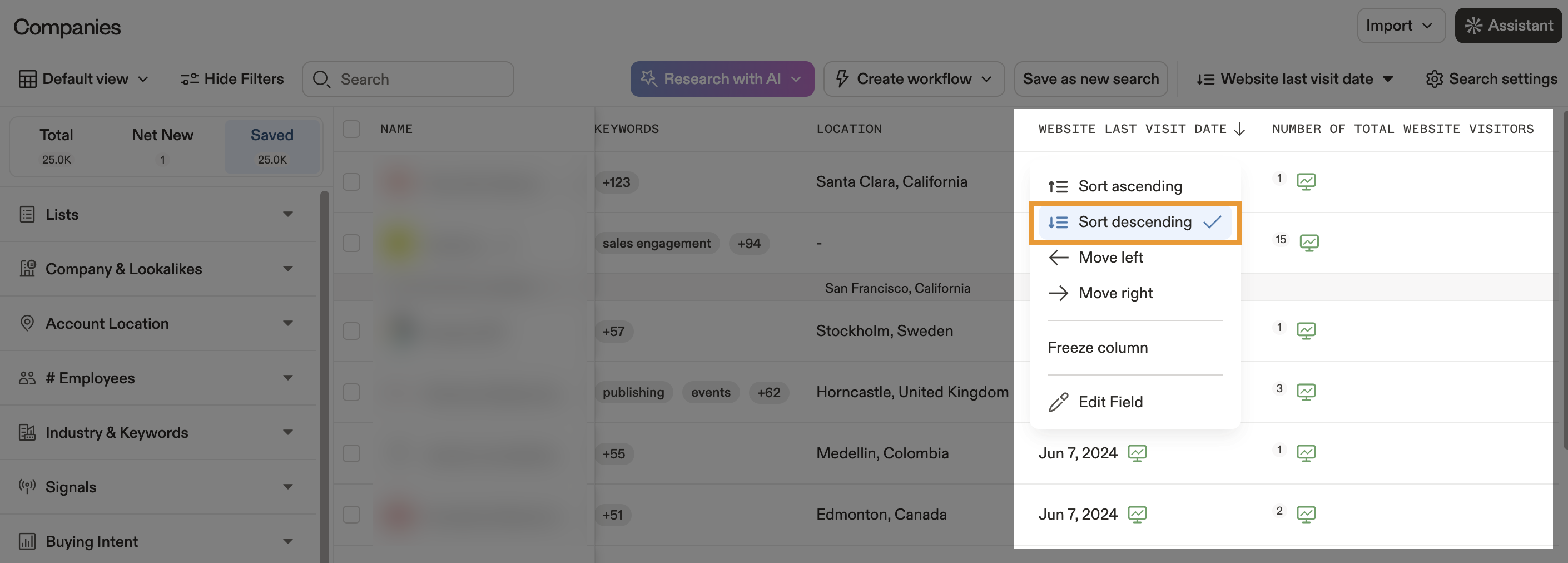
- Click Add Column to add a table column > Add existing column, then select Website last visit date and Number of total website visitors to add them as columns.

- Click Website last visit date to view the sorting options, then click Sort descending to view companies that visited most recently.
- The Number of total website visitors column shows the total count of visitors. Hover over the column icon to view more information, including the number of unique visitors for the company.
Next Steps
Want to turn anonymous traffic into real pipeline? Here are a few solid next moves.
| Track Website Visitors to Prioritize Prospects | Start strong by setting up website visitor tracking to get company-level visit signals flowing into Apollo. |
|---|---|
| Inbound Overview | Get your team aligned by running an inbound motion off intent signals to prioritize the accounts that are already raising their hands. |
| Search Filters Overview | Cut the noise fast by layering the right search filters to narrow visitor results down to your ICP before outreach starts. |
| Save and Share a Search or Set a Search Alert | Stay on top of fresh activity by saving your searches and turning on alerts to get notified the moment new matches hit your criteria. |
| Create a Workflow | Make it scalable by building a workflow from visitor-based conditions to route hot accounts into sequences, tasks, or notifications automatically. |