
Overview
Workflows automate actions in Apollo that would otherwise require manual clicks, like adding contacts to sequences and lists, scheduling tasks, or updating records.
You can create a workflow in a few clicks with Apollo AI, use a pre-built template, or build one from scratch. Workflows are private by default. Workflow owners can share a workflow.
Anyone with permission to access workflows can create one, but the available workflow actions depend on your permissions:
| Non-Admin | Non-admin can:
|
| Admin | Admin on Apollo can view and edit all workflows created by their team, including private workflows, as well as all related sequences and lists. Admin can grant non-admin permission profiles workflows super admin access to let them view and edit all workflows. |
Access to workflows depends on your Apollo plan. If you need access, upgrade your plan. If you have questions about upgrading, Apollo sales can help.
Check out the following sections to create and use a workflow.
Create a Workflow
To create a workflow, you need permission to access workflows.
To create a workflow:
- Launch Apollo and click Workflows.
- Click Create a workflow.
- You can create a workflow with the AI assistant, from a template, or from scratch:
To build a workflow with the AI Assistant:
- Describe the workflow you want to create in plain language, like:
Find rapidly growing companies and add them to a list.
- The assistant either creates your workflow or asks clarifying questions to understand your goal. The assistant asks you before activating the workflow.
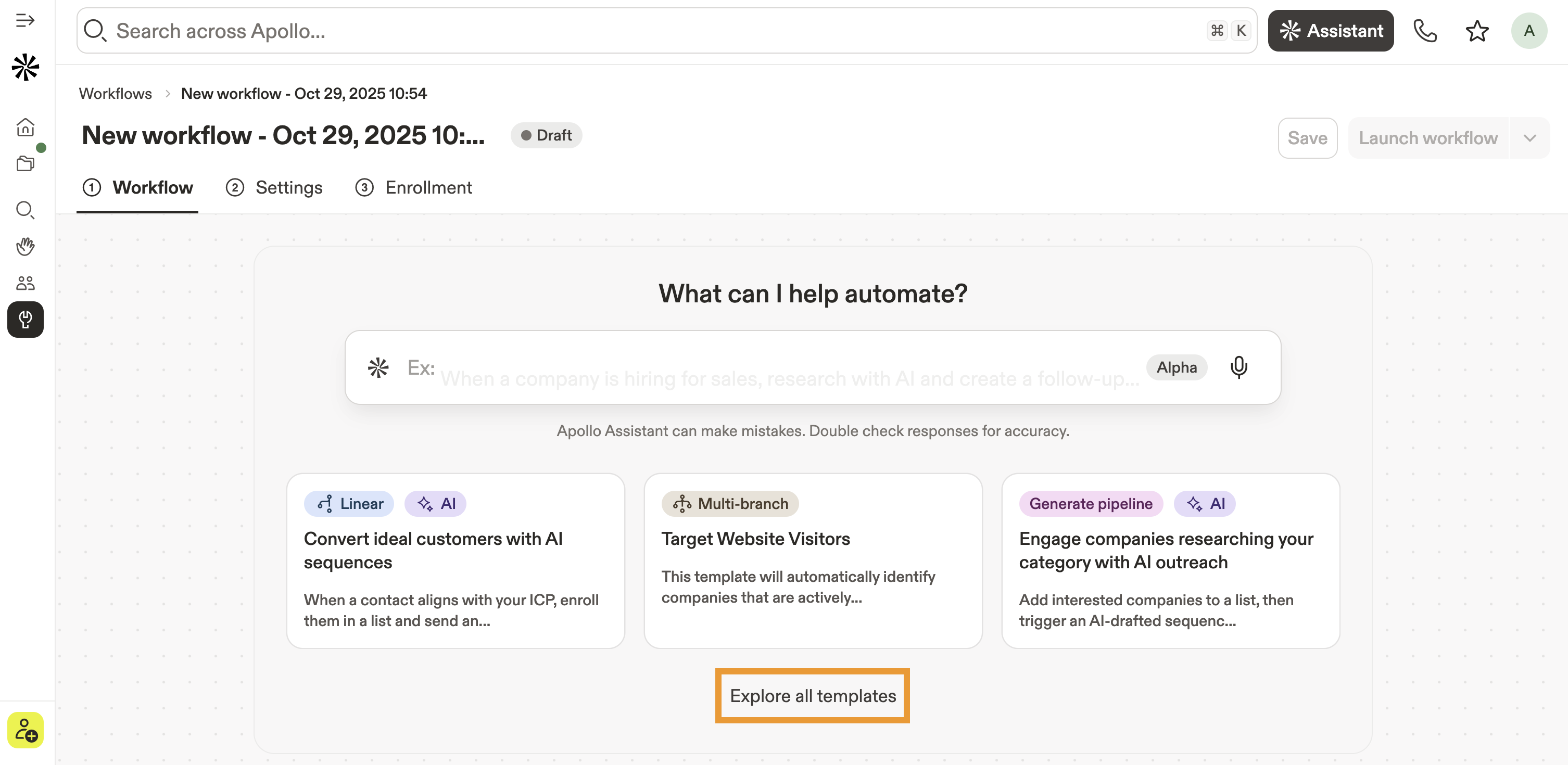
Pre-built templates constructed by Apollo and the Apollo community help you spin up workflows that work in just a few clicks.
- Click Explore all templates.
- Click Preview template beside a template.
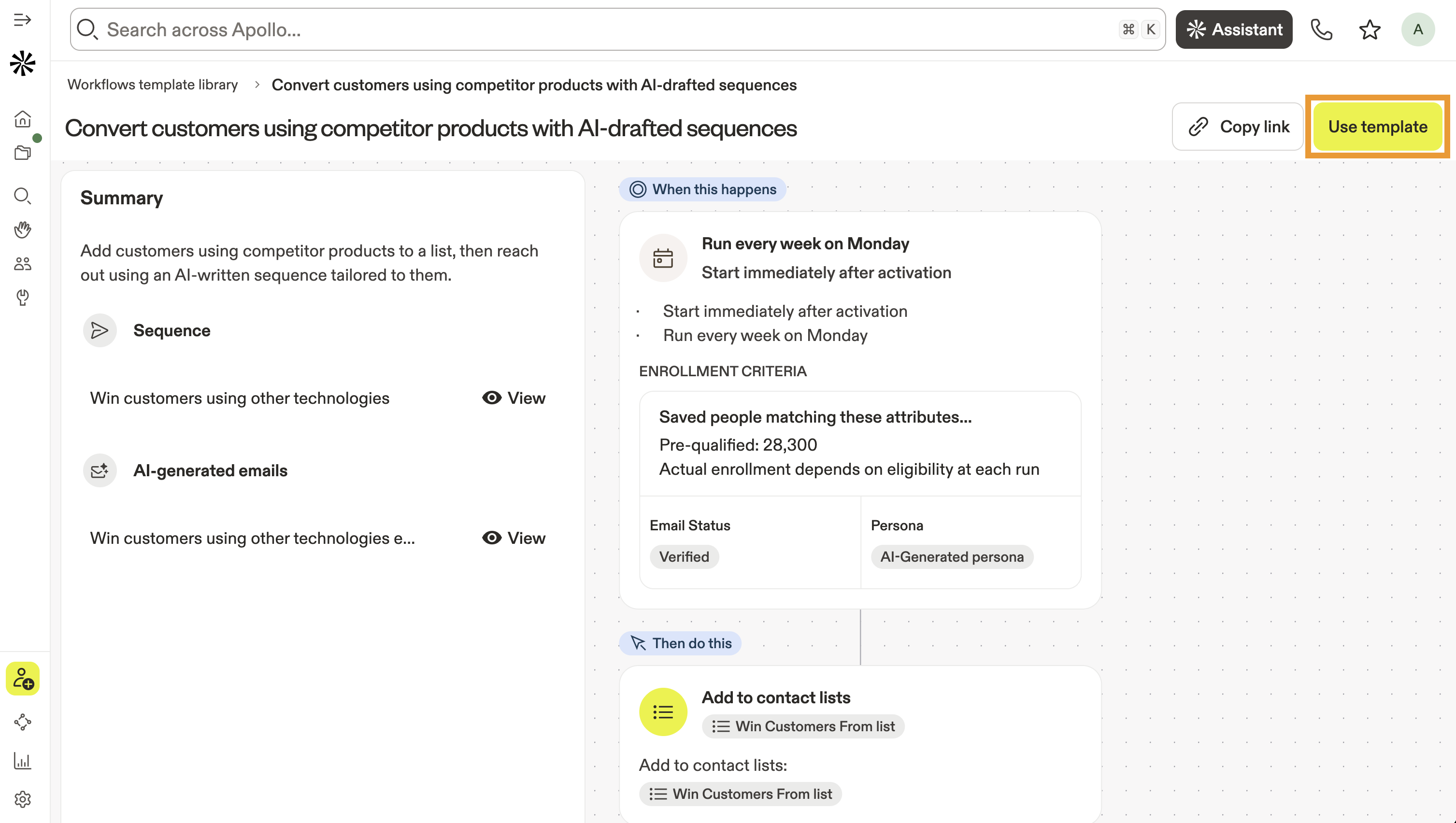
- Apollo shows the workflow.
- Click Use template.
- Personalize the template with your customer's pain points and your product's value proposition. Tailor these details to the specific persona that you're targeting with the workflow. If your workflow targets companies, you also need to provide relevant buying intent topics for your product.
- Add a meeting link from Apollo, or alternatively, add a link to any calendar or video conferencing platform you use. Apollo uses the meeting link in workflow emails.
- Click Save & continue.

- (Optional) Edit the workflow by adjusting the triggers or actions.
- (Optional) If your workflow uses a sequence, Apollo automatically activates it when the workflow runs for the first time. To preview the emails in the sequence, click Edit beside the sequence and select a contact. Apollo generates an email preview with the contact.
When a workflow adds contacts from a list to a sequence, allow 1 to 4 minutes for Apollo to process the contacts, enroll them in the sequence, and generate tasks for the first sequence step. If contacts don't appear in the sequence after 5 minutes, confirm that the workflow is configured correctly and that the contacts meet the sequence enrollment criteria.

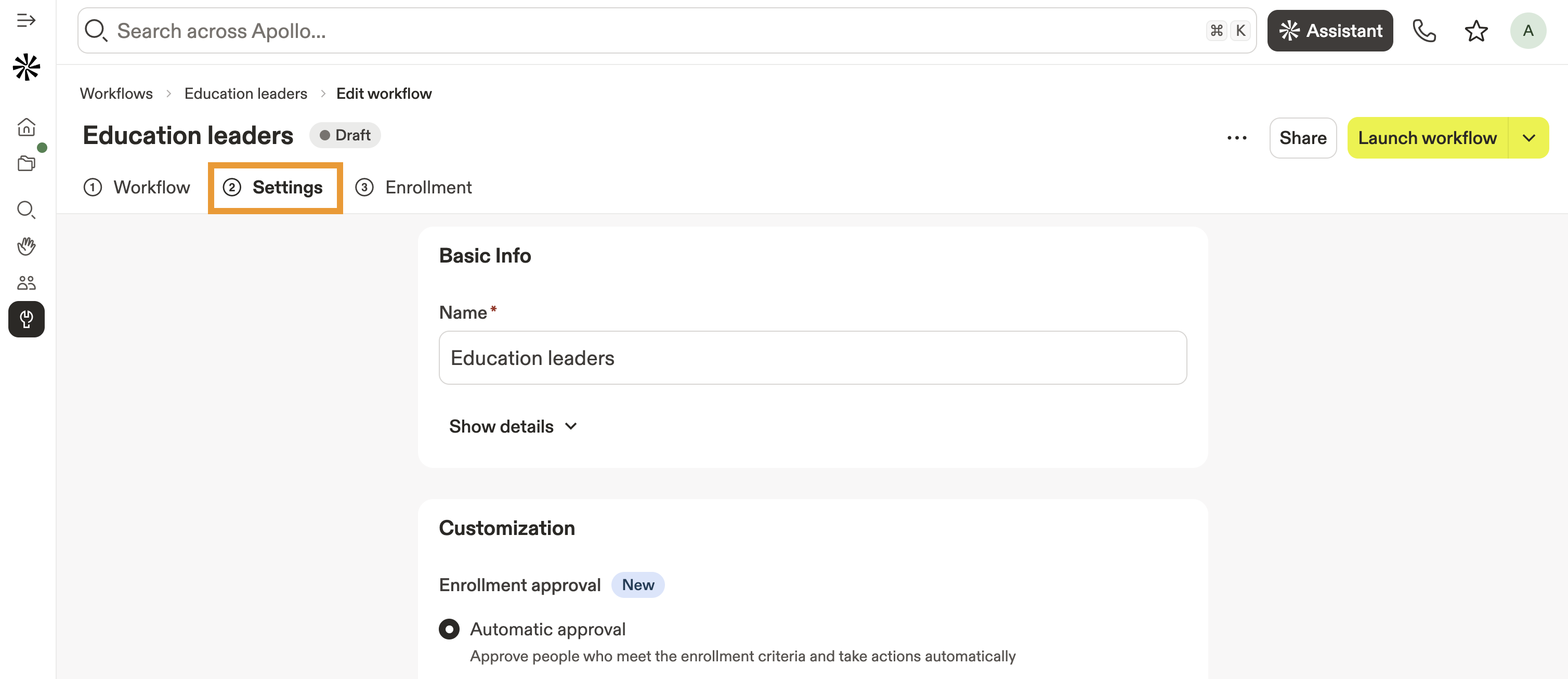
- (Optional) Click Settings to rename the workflow, add a description, or organize the workflow in a saved folder. You can also configure these additional settings:
- Enrollment approval: You can automatically approve people who meet the workflow's enrollment criteria, or let Apollo create tasks for manual review before workflow enrollment or actions can begin.
- Limit records processed: You can limit how many people are processed each time the workflow runs, or how often the same person should be added to the workflow. When a workflow reaches its record processing limit, Apollo queues any remaining eligible records until the next workflow run instead of skipping them.
- Re-enrollment: You can choose how often the same person should be added to the workflow, either every time the workflow runs, only once, or once per selected timeframe.
- Custom table layout: Select a custom table layout for workflow views, as well as default sort and sort order.
- Enrollment notifications: Check to get notifications when people meet enrollment criteria.
You have successfully created a new workflow from a template.
To create a workflow from scratch:
- Click Start from scratch.
- Choose when to run a workflow, either based on a schedule or based on a trigger event.
- Select your target: People, Companies, or Deals.
- Toggle whether the workflow should start immediately or on a specific date and time. The start time for the workflow is based on your device's timezone and not the timezone of the people or companies added to the workflow.
- Set a frequency. You can run the workflow only once, or repeatedly on a cadence.
- (Optional) Check to set an end date. If you don't set an end date, the workflow keeps running.
- Select your target: People, Companies, or Deals.
- Select a trigger event that will add the target to your workflow. Some events are customizable — like Contact updated which allows you to select specific contact fields for the trigger.
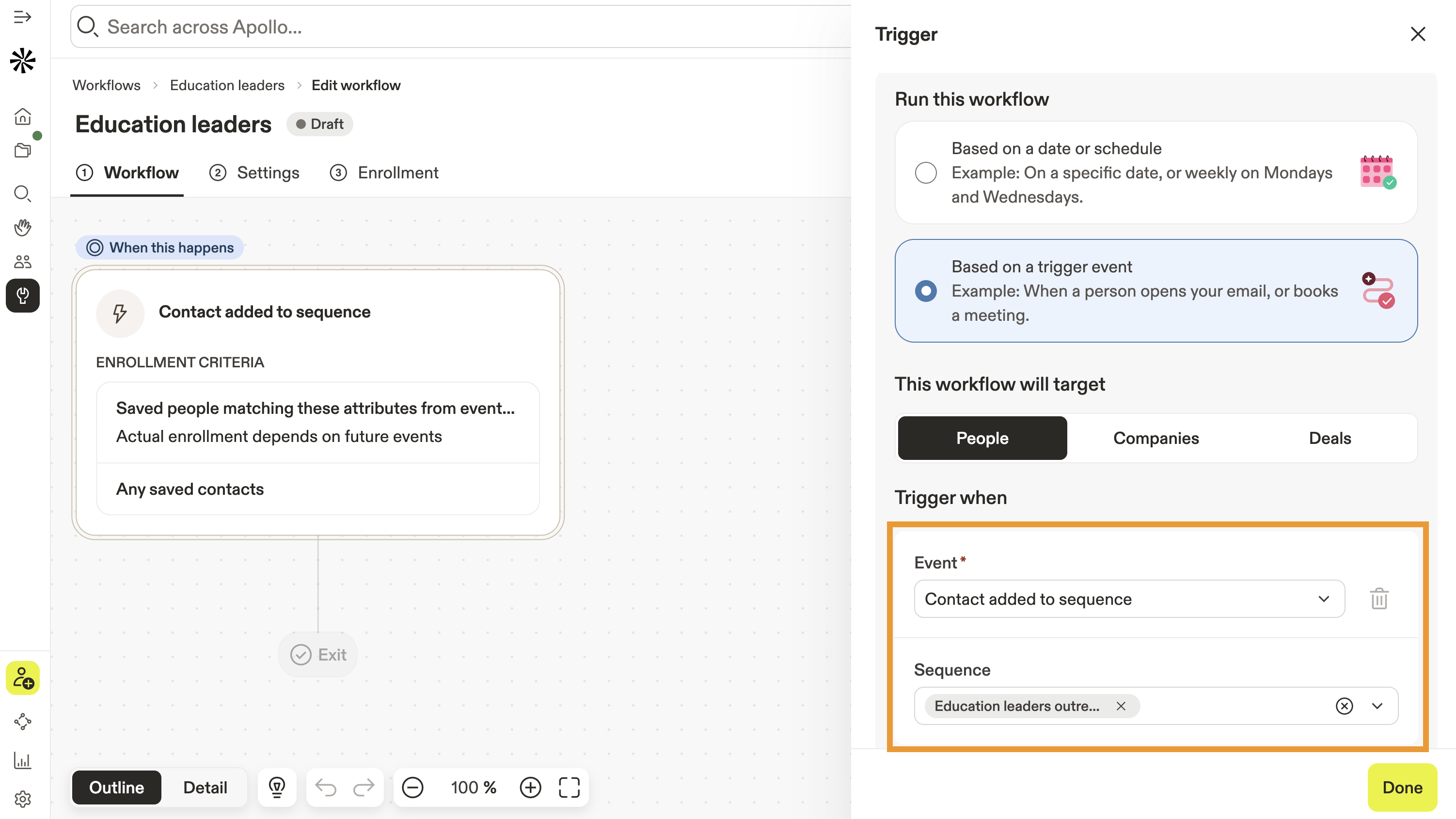
You can add individual records to a workflow without requiring them to run through triggers, making it easy to enroll records one-off.
The following triggers are available for people, companies, and deals:
People
| Trigger | Description |
|---|---|
| Call logged | Triggers when you log a call for a contact. |
| Contact added to list | Triggers when you add a contact to a list. |
| Contact added to sequence | Triggers when you add a contact to a sequence. |
| Contact changed jobs | Triggers when a contact changes jobs. |
| Contact finished sequence | Triggers when a contact finishes a sequence. |
| Contact finished step 1 of sequence | Triggers when a contact finishes the first step of a sequence. |
| Contact saved or created | Triggers when you save a contact, or create a contact by pulling them from your CRM. |
| Contact updated | Triggers when a contact's information is updated. |
| Conversation external invitees did not attend | Triggers when external meeting participants don't attend a scheduled meeting. |
| Conversation recorded | Triggers when Apollo records a conversation. |
| Email bounced | Triggers when an email sent to a contact bounces. |
| Email clicked | Triggers when a contact clicks a link in an email. |
| Email not sent | Triggers when Apollo couldn't schedule or deliver an email to a contact. |
| Email opened | Triggers when a contact opens an email. |
| Email replied | Triggers when a contact replies to an email. |
| Email sent | Triggers when an email is sent to a contact. |
| Email unsubscribed | Triggers when a contact unsubscribes from your emails. |
| Form abandoned | Triggers when a prospect stops filling out a form midway. |
| Form submitted | Triggers when a prospect submits a form. |
| Meeting booked | Triggers when a contact books a meeting. |
| Meeting booking incomplete | Triggers when a contact stops booking a meeting midway. |
| Meeting cancelled | Triggers when a contact cancels a meeting. |
| Meeting declined | Triggers when a contact declines a meeting invite. |
| Meeting rescheduled | Triggers when a contact reschedules a meeting. |
Companies
| Trigger | Description |
|---|---|
| Account added to list | Triggers when a company is added to a list. |
| Account created | Triggers when a company is saved. |
| Account updated | Triggers when an account's information is updated. |
| Call logged | Triggers when a call is logged for a contact in the account. |
| Email bounced | Triggers when an email sent to a contact in the account bounces. |
| Email clicked | Triggers when a contact in the account clicks a link in an email. |
| Email not sent | Triggers when Apollo couldn't schedule or deliver an email to a contact in the account. |
| Email opened | Triggers when a contact in the account opens an email. |
| Email replied | Triggers when a contact in the account replies to an email. |
| Email sent | Triggers when an email is sent to a contact in the account. |
| Email unsubscribed | Triggers when a contact in the account unsubscribes from your emails. |
| Website visited | Triggers when a contact from the account visits your website. |
Deals
| Trigger | Description |
|---|---|
| Deal created | Triggers when a deal is created. |
| Deal updated | Triggers when a deal's information is updated. |
- To add additional triggers, click Add event. With multiple triggers, the workflow triggers when any one of the events occurs.
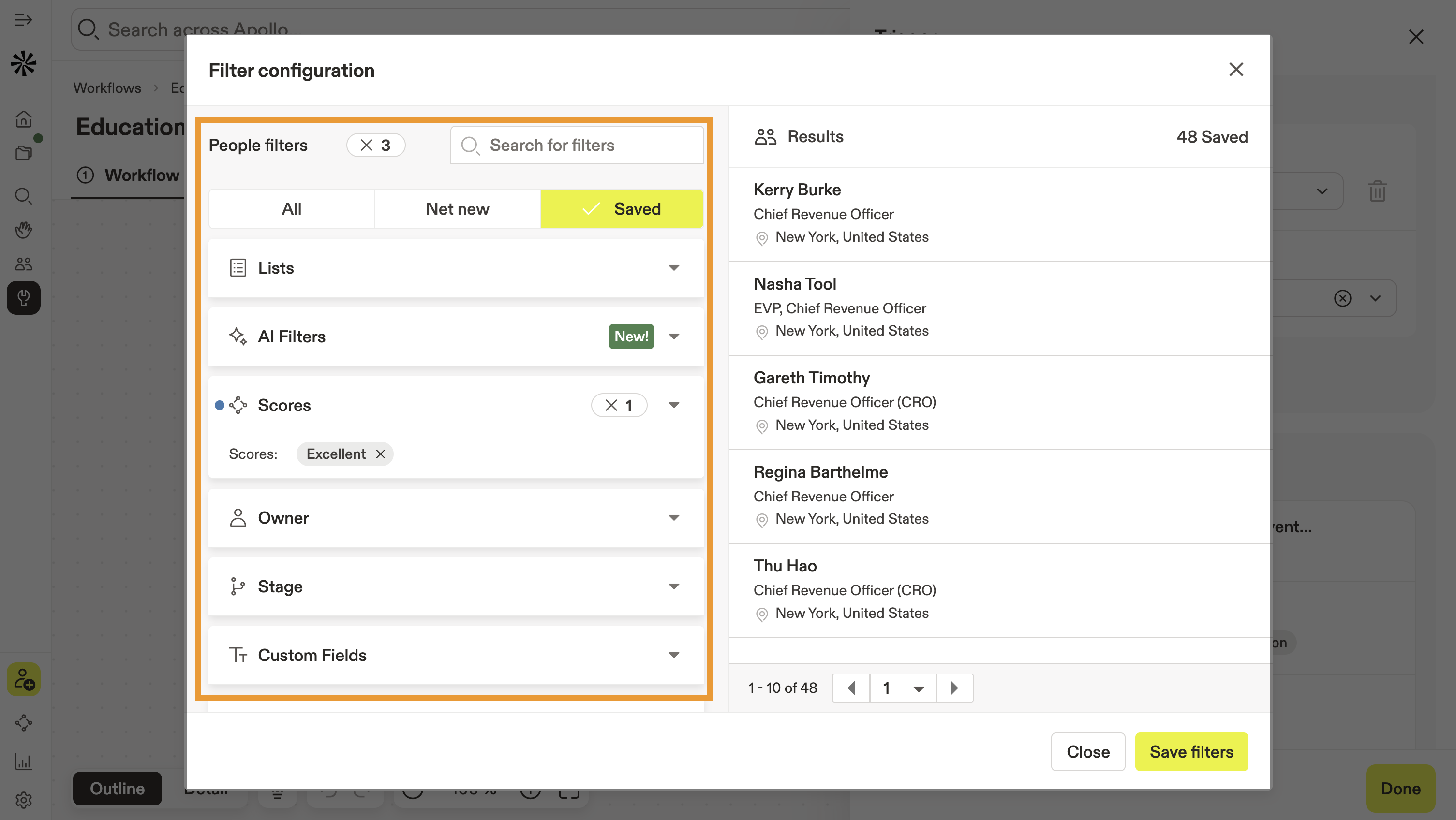
- Next, click Edit filters to set the enrollment criteria for your workflow. If you don't apply filters, your workflow targets all people, companies, or deals.
- Add search filters to refine your results, then click Save filters.
Rule
Rules let you create branches based on conditional logic and help you build more complex, nuanced workflows. You can use the following rules:
True-false branch
Branch the workflow based on whether a target matches the filters you choose.
- Click and drag True / false branch.
- Click Add configuration.
- (Optional) Enter a name for the branch.
- Click Add filters. People, companies, or deals that match the filters are moved through the
Truebranch. - When finished, click Save filters.
- Click Done.
Multi-split branch
Branch your workflow by applying different filters to each path. A multi-split branch allows more than two outcomes, unlike a simple true/false split.
- Click and drag Multi-split branch.
- Click Add configuration.
- (Optional) Enter a name for the branch and the specific branches.
- (Optional) Click Add Branch to add more branches.
- Click Add filters for each of the branches. People, companies, or deals that match the filters are processed through that branch.
- Targets that don't match the filters for any of the branches will be processed through a default
Elsebranch that's automatically added by Apollo. - When finished, click Done.
Traffic branch
Branch the workflow based on the percentage you set.
- Click and drag Traffic Branch into the workflow.
- (Optional) Click Add branch to add more branches.
- (Optional) Enter names for the branches.
- Enter a percentage for each branch. All branches must total 100%.
- When finished, click Done.
Delay
Pause time before the next action is taken in the workflow with a delay. You can delay workflow actions by minutes, hours, days, weeks, or months.
- Click and drag Delay.
- Click Add configuration.
- Enter a wait time.
Exit
Add an exit to any conditional branch on your workflow. People, companies, or deals that filter to the exit are removed from the workflow.
- Click and drag Exit.
- The exit block must be placed at the end of an existing conditional branch.
Action
Actions are automations that run when the branch is triggered.
- Drag and drop the action on a workflow branch.
- Click Add configuration.
Is your favorite app or action missing? Let Apollo know which third-party integrations you'd like to see available in workflows.
You can add the following actions:
- Integrations
- Manage sequences
- Manage lists
- Manage deals
- Enrich data
- Assign manual tasks
- Update contact or account
- Send notifications
- Send webhook
Integrations
Integrate workflows with a third-party app and automate actions.
- Click and drag Integrations.
- Click Setup.
- Select an app and click Connect to log in.
- Next, select an available action.
For the full list of available integrations and actions, check out Workflow Integrations and Actions.
Manage sequences
Manage contacts on sequences.
- Click and drag Manage sequences.
- Click Add configuration.
- Select how you want to manage sequences:
- Add contacts to a sequence: Choose the sequence and the linked mailbox you want to use. Check Rotate mailboxes to cycle outbound emails between multiple mailboxes.
- Remove contacts from a sequence: Choose to remove contacts from all sequences or specific ones.
- Mark contacts as finished within sequences: Choose to mark contacts as finished in all sequences or specific ones.
Manage lists
Automatically add and remove contacts or accounts from lists.
- Click and drag Manage lists.
- Click Add configuration.
- Add to lists: Select one or more lists.
- Remove from lists: Select one or more lists.
Manage deals
Automatically create or update deals.
- Click and drag Manage deals.
- Click Add configuration.
- Update deal: Select a deal field and value to update.
- Create deal: Choose the pipeline and deal stage, then assign a deal owner. Check Allow duplicates to allow the creation of duplicate deals for the same account.
- Link contacts or accounts to deals: Select whether the action should be exclusive to deals in specific stages and assign a contact role.
Enrich data
Automatically add or update people's email addresses, phone numbers, or job changes when data is missing or inaccurate.
- Click and drag Enrich data.
- Click Add configuration.
- Choose which data you want to enrich:
- Enrich emails
- Enrich phone numbers
- Enrich contacts with job changes: Select whether to update existing contacts or create new contacts. For new contacts, choose ownership and the action for existing contacts.
(Optional) Toggle Find data via waterfall to use waterfall enrichment for emails or phone numbers.
Data enrichment costs credits. You can view your credit usage on Apollo.
Assign manual tasks
Assign tasks to yourself or teammates.
- Click and drag Assign manual tasks.
- Click Add configuration.
- Select the type of task you want to create:
- Create contact task
- Create account task
- Create deal task
- Select the task type, assignee, and priority level. Then set a due date.
- (Optional) Add notes to describe the goal.
Update contact or account
Update a contact or account field.
- Click and drag Update contact / account.
- Click Add configuration.
- Choose whether to update a contact or account field.
- Select the field, then enter the new value.
- (Optional) Select to update the deal contact role.
Send notifications
Automatically send workflow notifications via email or Slack to inform teammates when they need to take manual actions. Apollo sends the notification each time the workflow is triggered. This action isn't available when you add a rule to create branches in your workflow.
- Click and drag Send notifications.
- Click Add configuration.
- Toggle Slack or Email.
- (Slack) Choose the users or channels you want to notify.
- (Email) Select yourself or teammates to receive email notifications, then edit the message.
Send webhooks
Configure webhooks to automatically sync events between Apollo and your third-party platform.
- Click and drag Send webhook.
- Select an HTTP Method.
- Enter your Webhook URL.
- Select an API Authentication.
- Enter your Header Key and Value.
- (Optional) Click Add to add more headers, or click Delete to delete a header.
- (Optional) Click Test connection to test the webhook. Apollo sends a test event to your endpoint to confirm the connection is working.
- When you're done, click Done.
Agent
Use Apollo AI to research or qualify people or companies.
You can use the following agents:
Use Apollo AI to research contacts or companies based on your configuration.
- Click and drag Research with AI.
- Click Add configuration.
- When finished, click Save > Done.
Use Apollo AI to research contacts and companies, qualify them using conditions and filters, and take action based on the qualification results.
- Click and drag Qualify Records.
- Click Create new > Start with a template to use an AI research template or click Run custom AI prompt to enter your own AI prompt.
- Choose a Qualification logic: Use true / false branch or multi-split branch.
- When finished, click Save > Done.
- (Optional) Next, click Settings to rename the workflow, add a description, or organize the workflow in a saved folder. You can also configure these additional settings:
- Enrollment approval: Automatically approve people who meet the workflow's enrollment criteria, or let Apollo create tasks for manual review before enrollment or actions can begin.
- Limit records processed: Set the maximum number of people, companies, and credits processed each time the workflow runs.
- Re-enrollment: Set the maximum number of people and companies added to the workflow, and cap the total credits consumed across the whole workflow.
- Custom table layout: Select a custom table layout for workflows views, as well as default sort and sort order.
- Enrollment notifications: Toggle on to receive notifications when people meet the enrollment criteria.
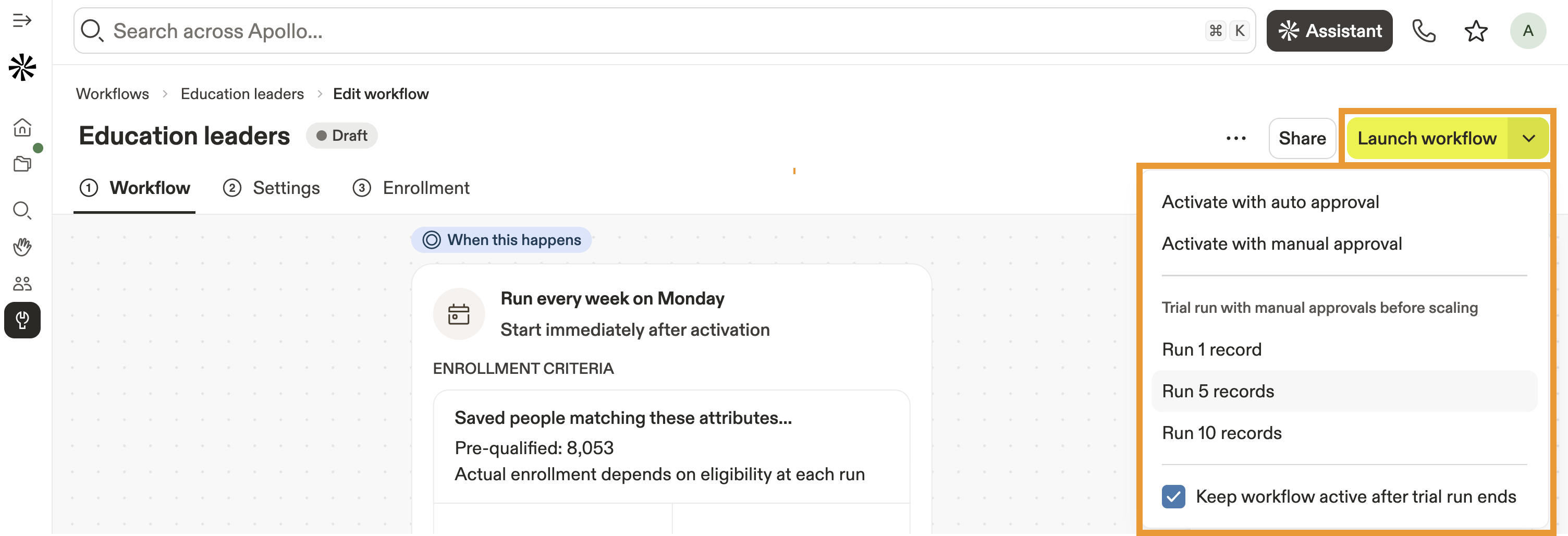
- When finished, click Launch workflow to begin the workflow.
- (Optional) To run a live trial of your workflow, choose the number of records that you want to process during the trial, then manually approve or reject the targets. You can remove pending approvals in the Enrollment tab.
- Check Keep workflow active if you want the workflow to continue to run after the trial.
You have now created a workflow from scratch.
Edit a Workflow
To edit a workflow:
- Launch Apollo and click Workflows.
- Select a workflow.
- Click Edit workflow to add or edit actions or branches.
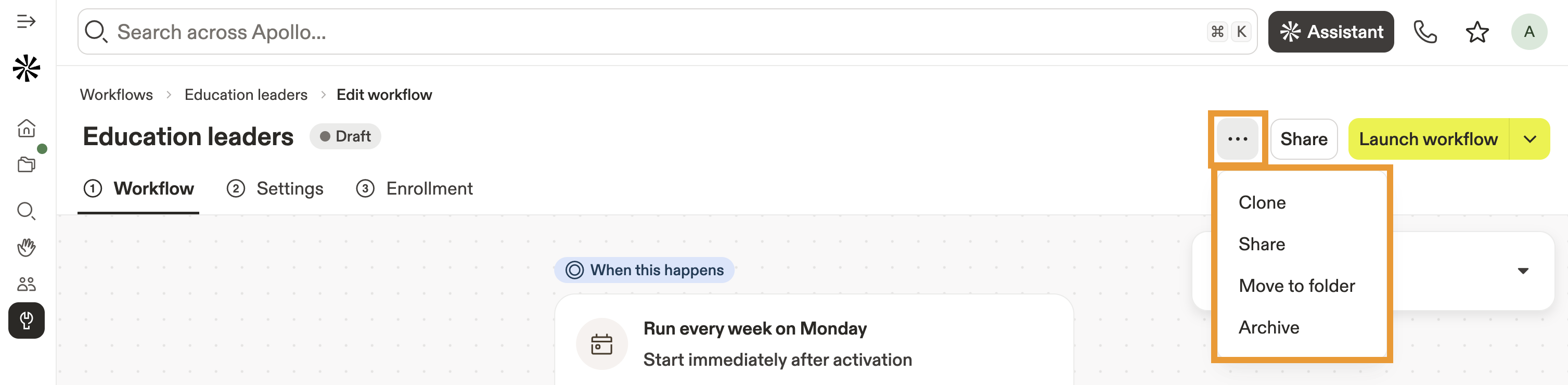
- Click ... to clone, move, or archive the workflow.
- Click Deactivate to turn the workflow off.
Add Records to a Workflow
To add individual records to a workflow:
- Launch Apollo, then click People.
- Apply your filters, then select the contacts you want to add. Apollo shows a new set of actions.
- Click Workflows. Apollo shows the list of workflows available for enrollment.
- Click a workflow to enroll the records.

New records bypass the workflow's triggers and are added directly. If Apollo detects previously enrolled records, select them and click Add records to re-enroll, or click Cancel to exit.
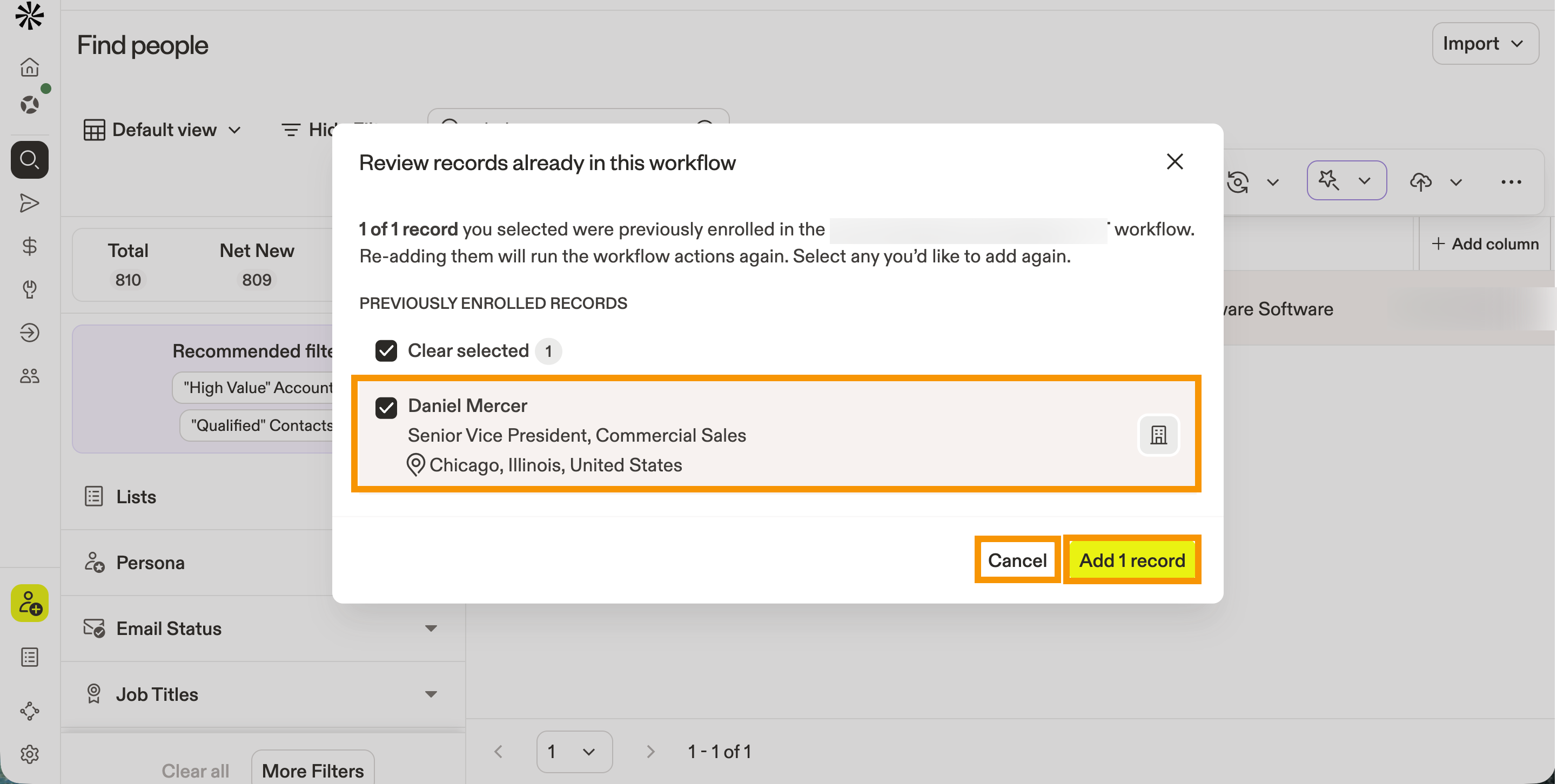
If you re-enroll records, they'll go through the workflow steps again.
You have now added individual records to a workflow.
Review Enrollment in a Workflow
Apollo tracks a workflow's run history and the contacts, companies, or deals that completed or failed the workflow.
To review a workflow's enrollments:
- Launch Apollo and click Workflows.
- Select a workflow.
- Click Enrollment. Apollo shows you the workflow's limits, run history, and the contacts, companies, or deals that completed or failed the workflow.
Manually added records appear as a line item that includes the name of the user who added them.
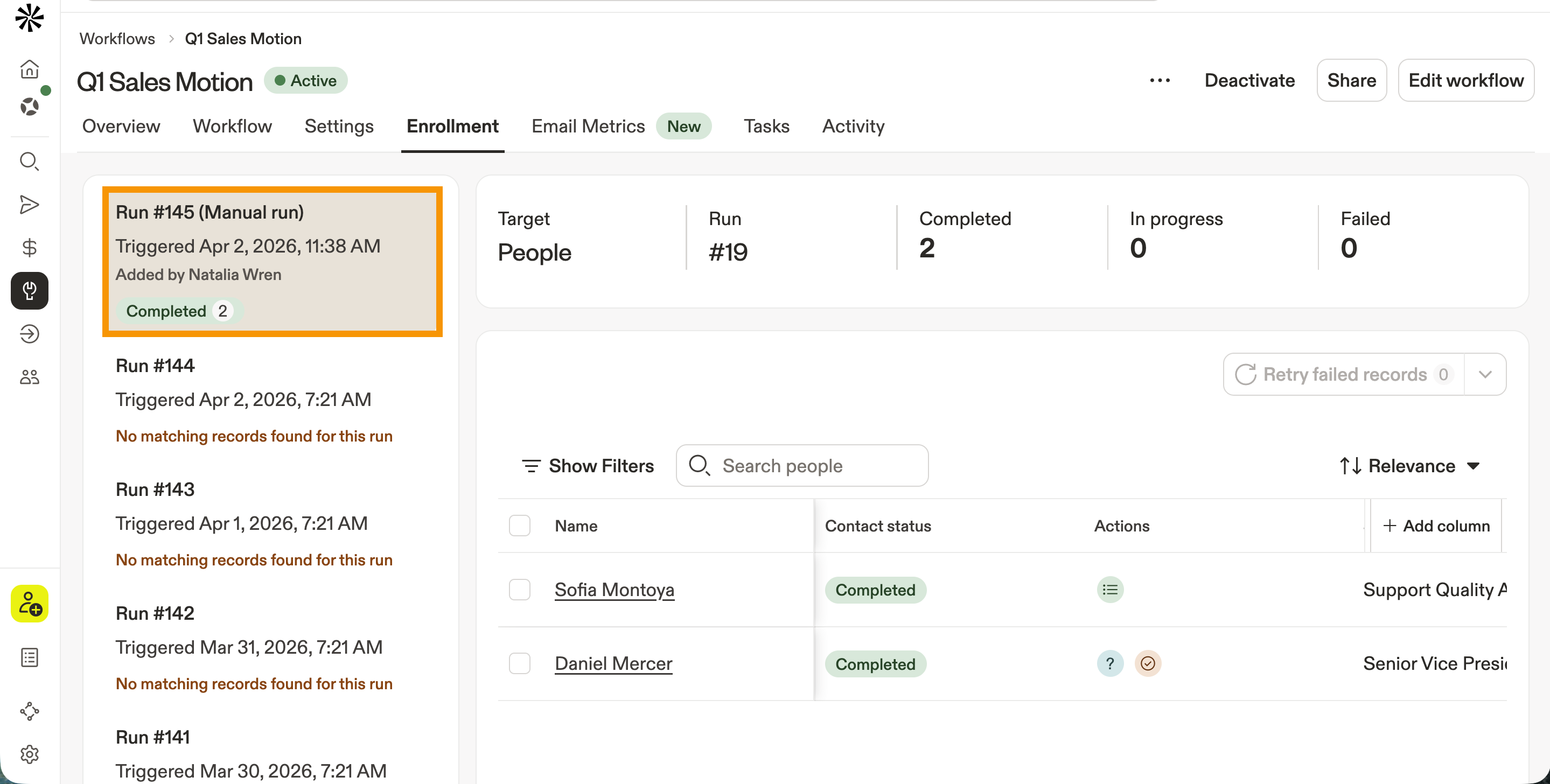
- (Optional) Click another run to review it.
A record fails when the workflow can't complete all required actions. The reasons for record failures are below:
- Credit limit: The record fails because the workflow or workflow owner's credit limit was reached. To fix, review the workflow settings or the workflow owner's credit limits.
- Missing contact owner: The record fails because the contact doesn't have a contact owner. To fix, assign a contact owner.
- Missing account owner: The record fails because the account doesn't have an owner. To fix, assign an account owner.
- Inactive mailbox: The record fails because the contact owner doesn't have an active mailbox. To fix, the contact owner must link a mailbox.
- (Optional) To retry failed records:
- To retry all failed records, click Retry failed records. Apollo reruns the records through the workflow steps.
- To retry specific failure types, click ▾ next to Retry failed records, then select Retry credit limit failures, Retry missing contact owner failures, Retry missing account owner failures, or Retry inactive mailbox failures.
- To retry an individual record, click ⟳ on the contact's status.

You have now reviewed your workflow enrollments.
Share a Workflow
You can share workflows with your team or externally via social media to accelerate collaboration and promote best practices for sales automation.
To share a workflow:
- Launch Apollo and click Workflows.
- Select a workflow, then click Share.
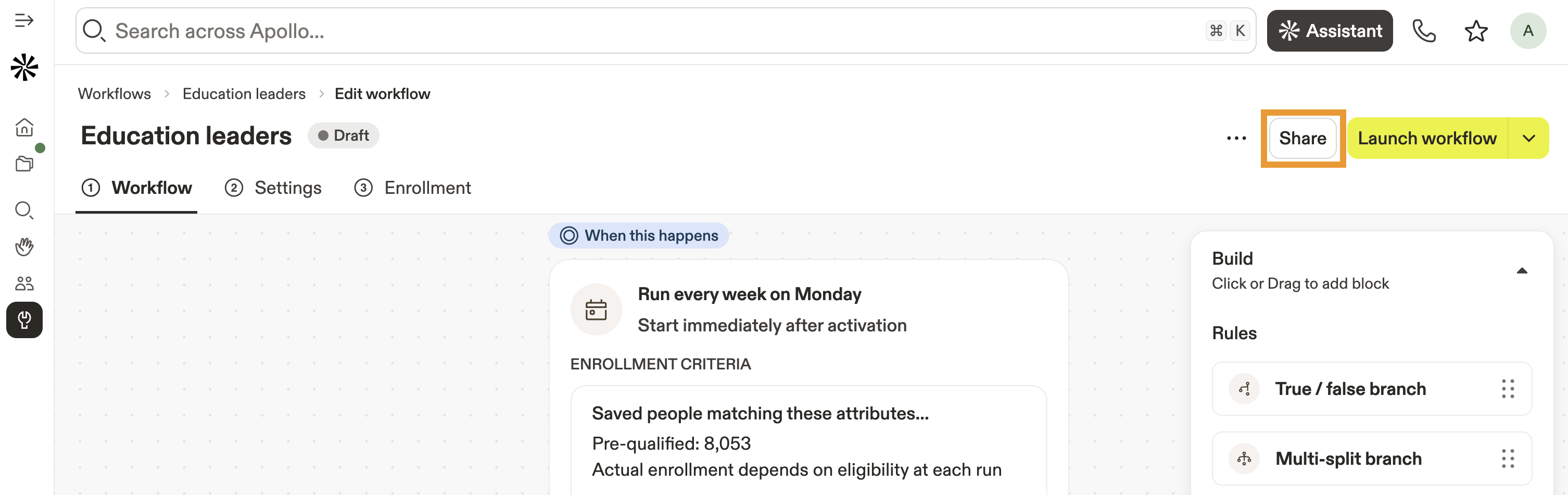
- Select a workflow access setting:
- Restricted: Apollo restricts access to your workflows by default. Use this setting to keep your workflow private to you or to share this workflow with select teammates only.
- Everyone at company: Make your workflow visible to everyone on your team.
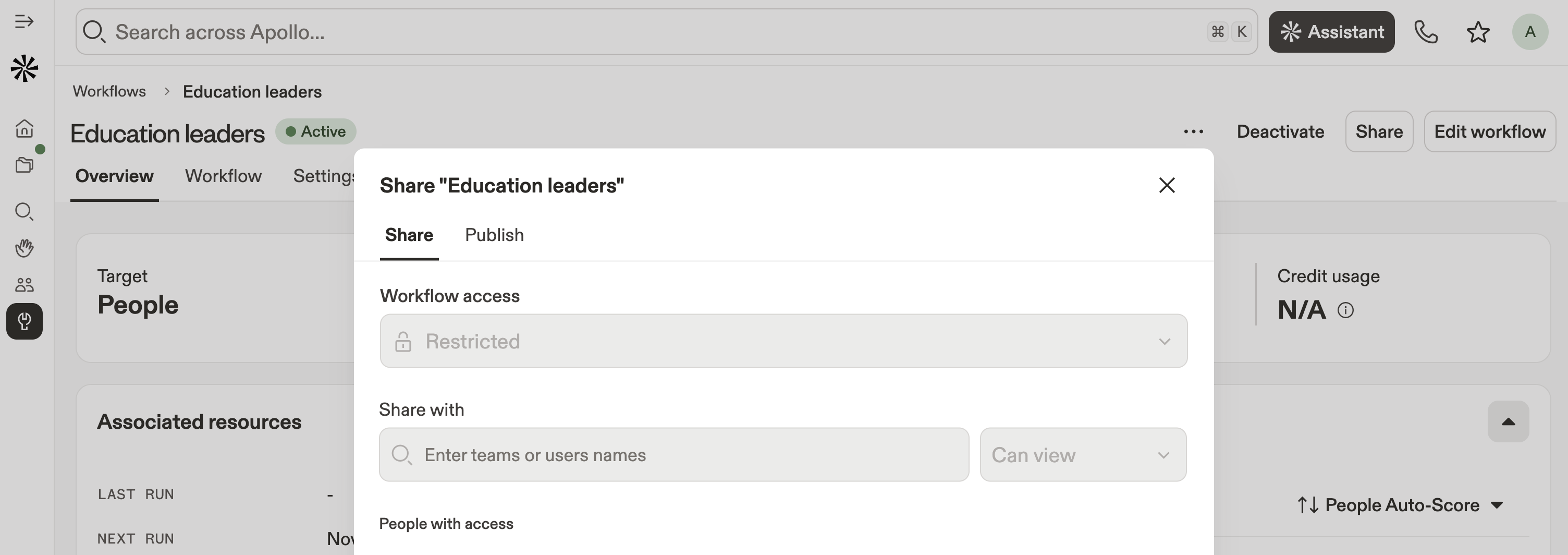
- (Optional) Give specific users or teams access to your workflow. Click a user's email or team name.
- Next, set permissions:
- Can view: People can view your workflow but can't edit or share it with others.
- Can edit: People can view and edit your workflow but can't share it with others.
- Full access: People have full access to view, edit, and share your workflow.
- Remove: Remove a user's access to your workflow.
- Click Publish after sharing your workflow to publish it externally.
- Toggle Make workflow public as a template to make the workflow viewable to anyone.
- Click Post on LinkedIn or Post on X to share your workflow in a post.
- Click Copy link.
- When finished, click Done.
When you publish your workflow, anyone with the link can view or copy your template. Apollo shares your workflow's overall structure but keeps your individual sequence steps and lists private.
FAQs
|
Frequently asked questions |
||
| Do workflows enroll existing records retroactively? | What does "contact created" or "account created" mean? | How do I add filters or conditions to a workflow? |
| How do true / false conditions work? | Why isn't my workflow trigger firing? | Why aren't contacts enrolling in my workflow? |
| How do I test a workflow before activating it? | Which workflow actions use credits? | Can multiple users work with the same workflow? |
Do workflows enroll existing records retroactively?
It depends on the workflow type. Scheduled workflows evaluate currently matching records on the first scheduled run and enroll records that haven't already been processed. Triggered workflows only run when a trigger event happens after the workflow is active.
What does "contact created" or "account created" mean?
It means a brand-new Apollo contact or account record was created, such as through manual creation, CSV import, CRM sync, saving from search, or enrichment. Updating an existing record uses a different trigger.
How do I add filters or conditions to a workflow?
Add conditions to narrow which contacts or accounts continue through the workflow after meeting the trigger criteria. Use the available filters to define the records you want the workflow to act on.
How do true / false conditions work?
True / false conditions evaluate whether a specific criterion is met. Configure the condition, then define what should happen when the result is true or false. For example, you could check whether a contact's job title contains "VP." If true, add the contact to a priority sequence; if false, they exit the workflow or continue down a different path.
Why isn't my workflow trigger firing?
Confirm that the workflow is active, the contact or account meets the trigger criteria, and the selected trigger applies to that record type. Also check any conditions that could prevent the record from continuing.
Why aren't contacts enrolling in my workflow?
Confirm that the workflow is active and that the contacts meet its trigger and conditions. If a downstream action has additional eligibility requirements, confirm that the contacts meet those as well.
How do I test a workflow before activating it?
Use Trial Run in the workflow builder to run the workflow against a small sample of matching records. Trial Run is not a dry run: actions really execute and may send emails, update fields, or use credits. It's only available for scheduled workflows, not triggered or deal-based workflows.
Which workflow actions use credits?
Email enrichment, email waterfall enrichment, phone enrichment, waterfall enrichment, AI Research, Qualify AI, and AI custom field actions use credits. Labels, sequences, tasks, alerts, field updates, opportunities, wait steps, and webhooks do not.
Can multiple users work with the same workflow?
Yes, when workflow sharing is available for your team. You can share workflows with everyone or specific users and subteams and assign view, edit, or full-access permissions. Users with Workflows super admin access can manage any workflow regardless of sharing.
Next Steps
Keep building on your workflows with these resources for targeting, outreach, AI, integrations, and follow-up.
| Available Workflow Integrations and Actions | Explore available workflow integrations and actions to connect Apollo with the tools your team already uses and automate work across your GTM stack. |
|---|---|
| Search Filters Overview | Apply search filters to define precise workflow enrollment criteria and focus your automations on the people and companies that matter most. |
| Sequences Overview | Put sequences to work to turn workflow-qualified contacts into coordinated, multichannel outreach without adding repetitive manual steps. |
| Apollo AI Overview | Put Apollo AI to work to research and qualify prospects, build automations faster, and move from prospect signals to action with less manual effort. |
| Tasks Overview | Organize your team's tasks to keep the human steps in automated workflows prioritized, assigned, and moving toward completion. |