
Overview
If you're an Apollo admin, you can manage both private and shared search views across your team.
Use the Team sharing & defaults page to set access permissions for shared people and company views. This allows you to set default searches and have more granular control over who can view, edit, or share saved searches.
By default, only Apollo admins for teams on Professional plans or above can manage search sharing and defaults in Settings.
Admins can give non-admins access to manage shared search views via their permission profile with the following permissions:
- Can view and edit all saved searches and sequences including private and read-only.
- Can manage team sharing & defaults.
Don't have access to share saved searches? Upgrade your Apollo plan or reach out to the Apollo support team for assistance.
Check out the following sections to learn how to access and manage search sharing and defaults.
Access Shared Searches
To review your team's shared search views:
- Go to Settings > Team sharing & defaults.
- Click People searches or Company searches to manage default search views for the People page or Companies page.
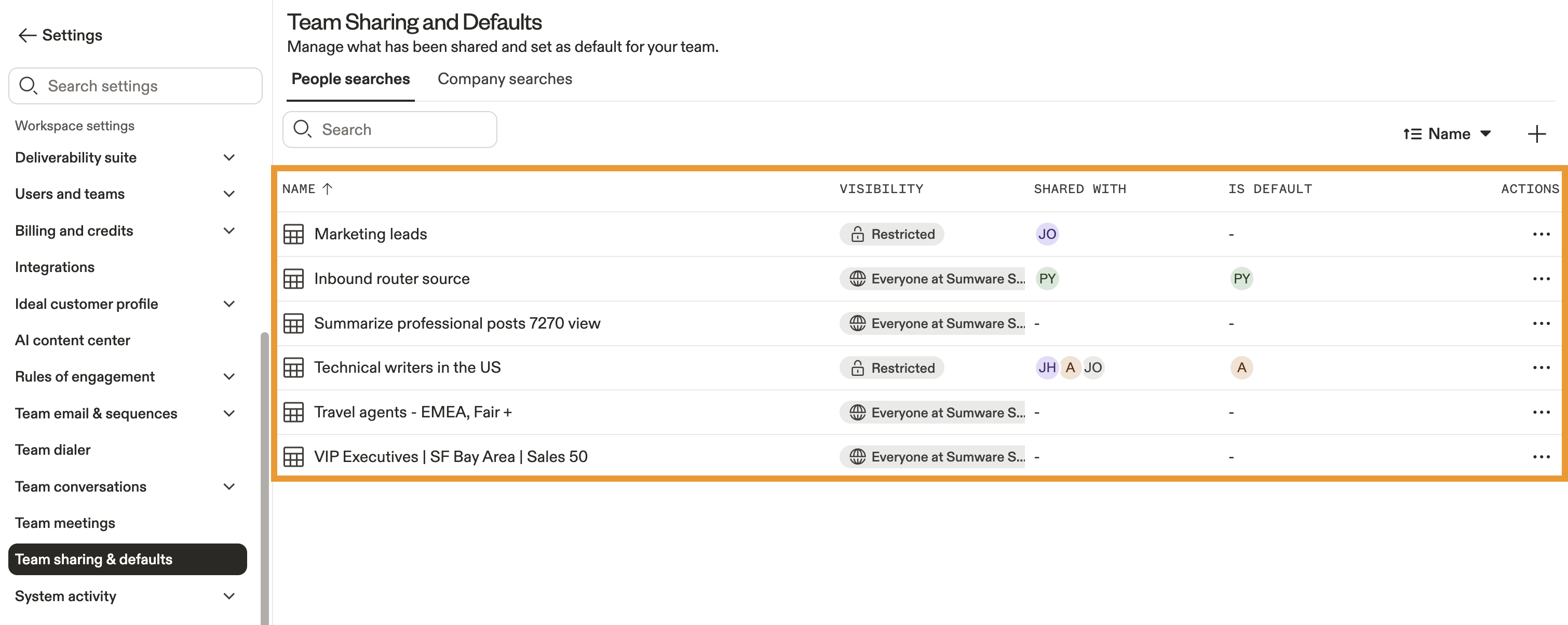
- Apollo displays shared searches, organized by name. You can review the following details for each shared search:
| Visibility | Shows whether a saved search is set to private or public. Restricted means that the search view's owner has only shared this view with specific teammates. Everyone means that the search view is publicly visible to all users on your team. |
|---|---|
| Shared With | Lists the individual users or teams who have been given view, edit, or full access to this search view. Learn more about sharing search views. |
| Is Default | Lists the individual users or teams who have this search view set as their default. Default search views are pinned to the top of a user's saved searches list and are applied each time the user starts a new search. |
Edit Shared Search Access
To update access permissions for a shared search:
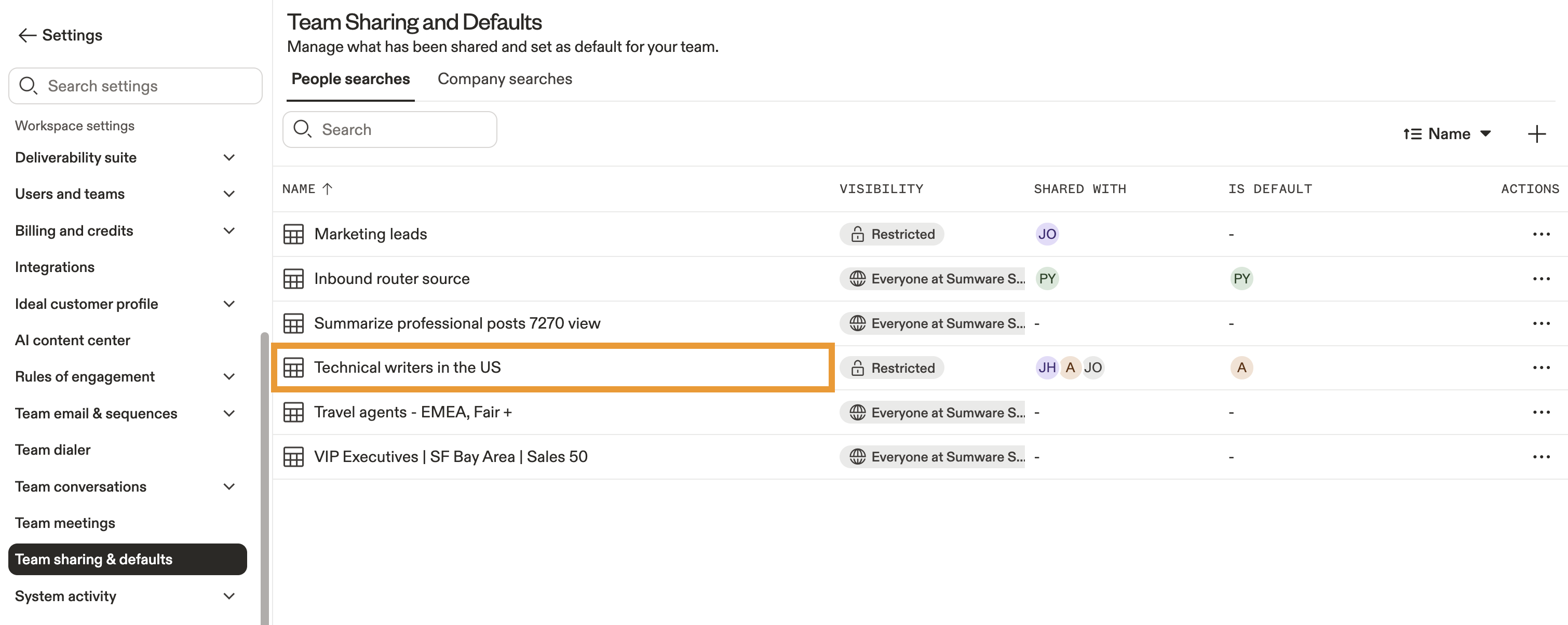
- Click on the shared search you want to edit.
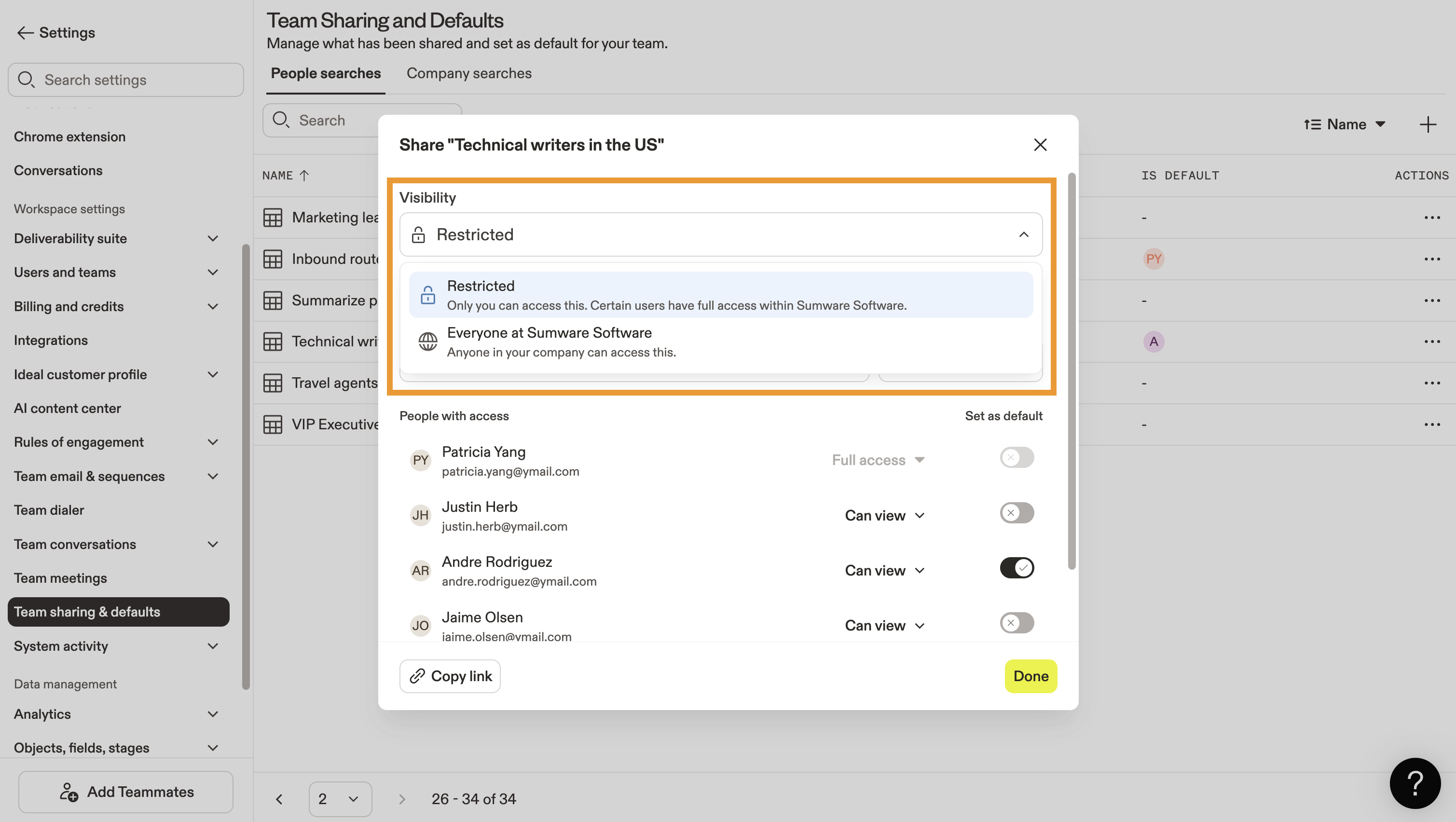
- Use the Visibility dropdown to keep this search view private (restricted) or make it public to everyone on your team.
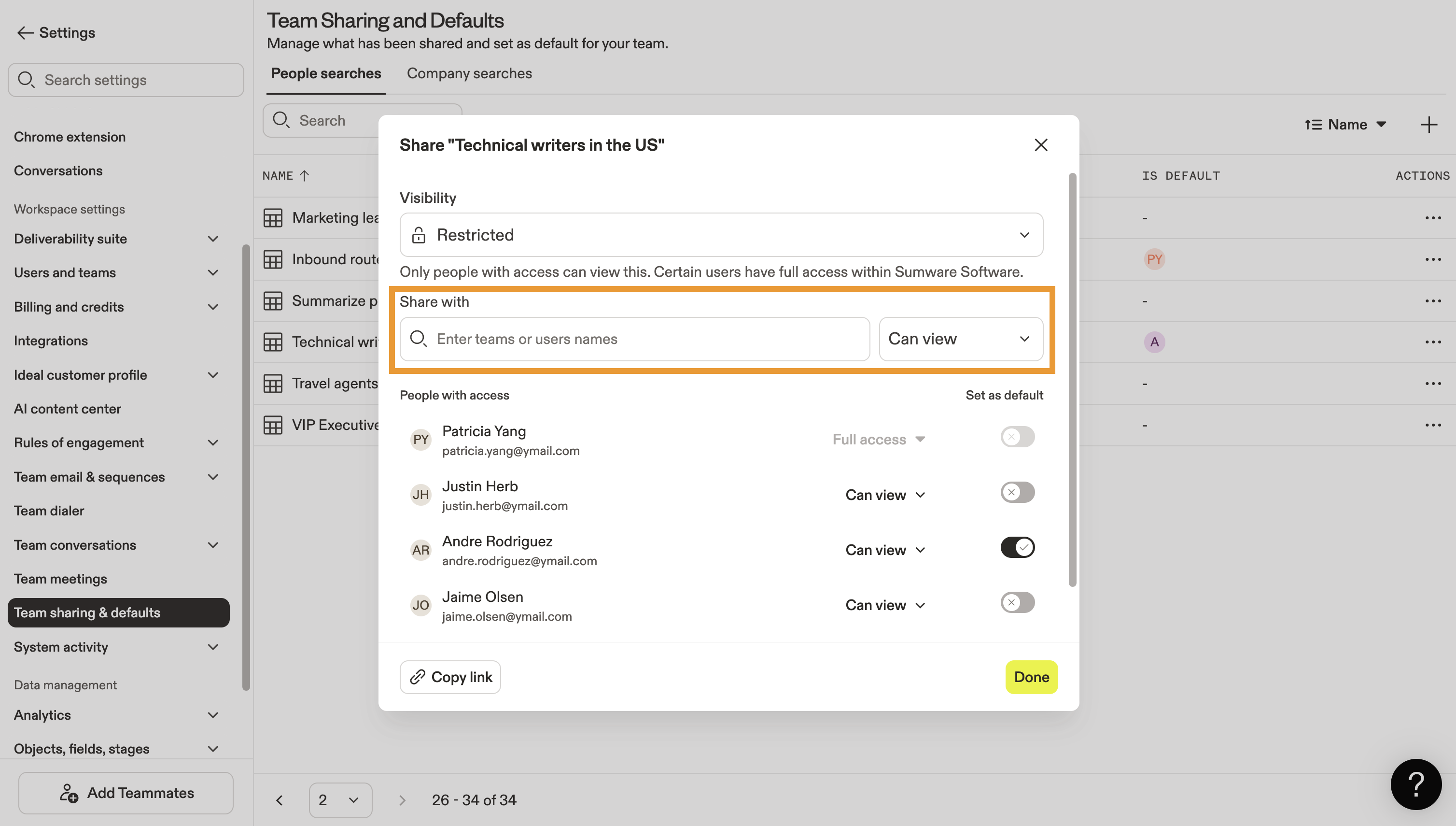
- Under Share with, enter the names or emails of teammates you want to give access to this search.
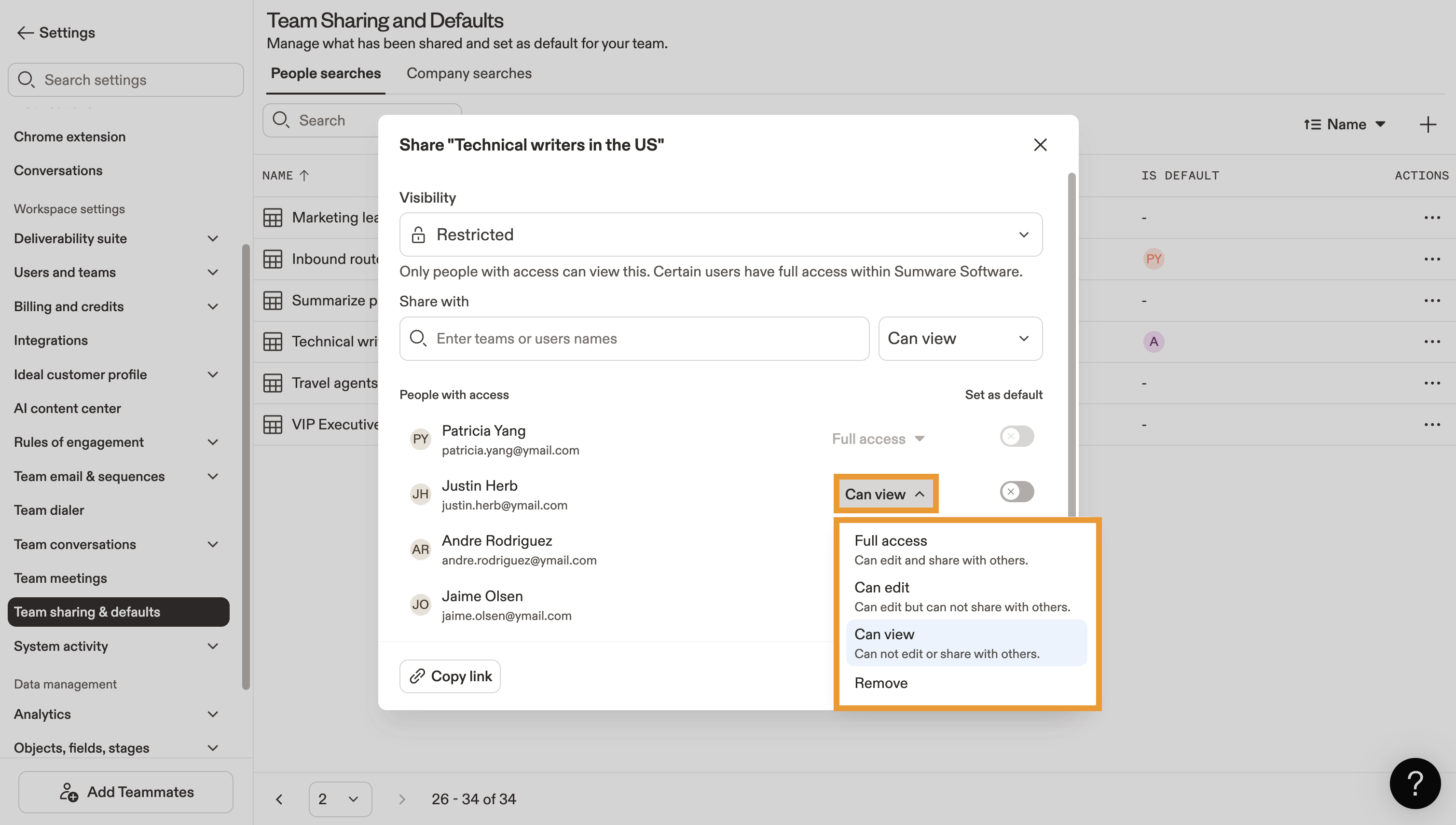
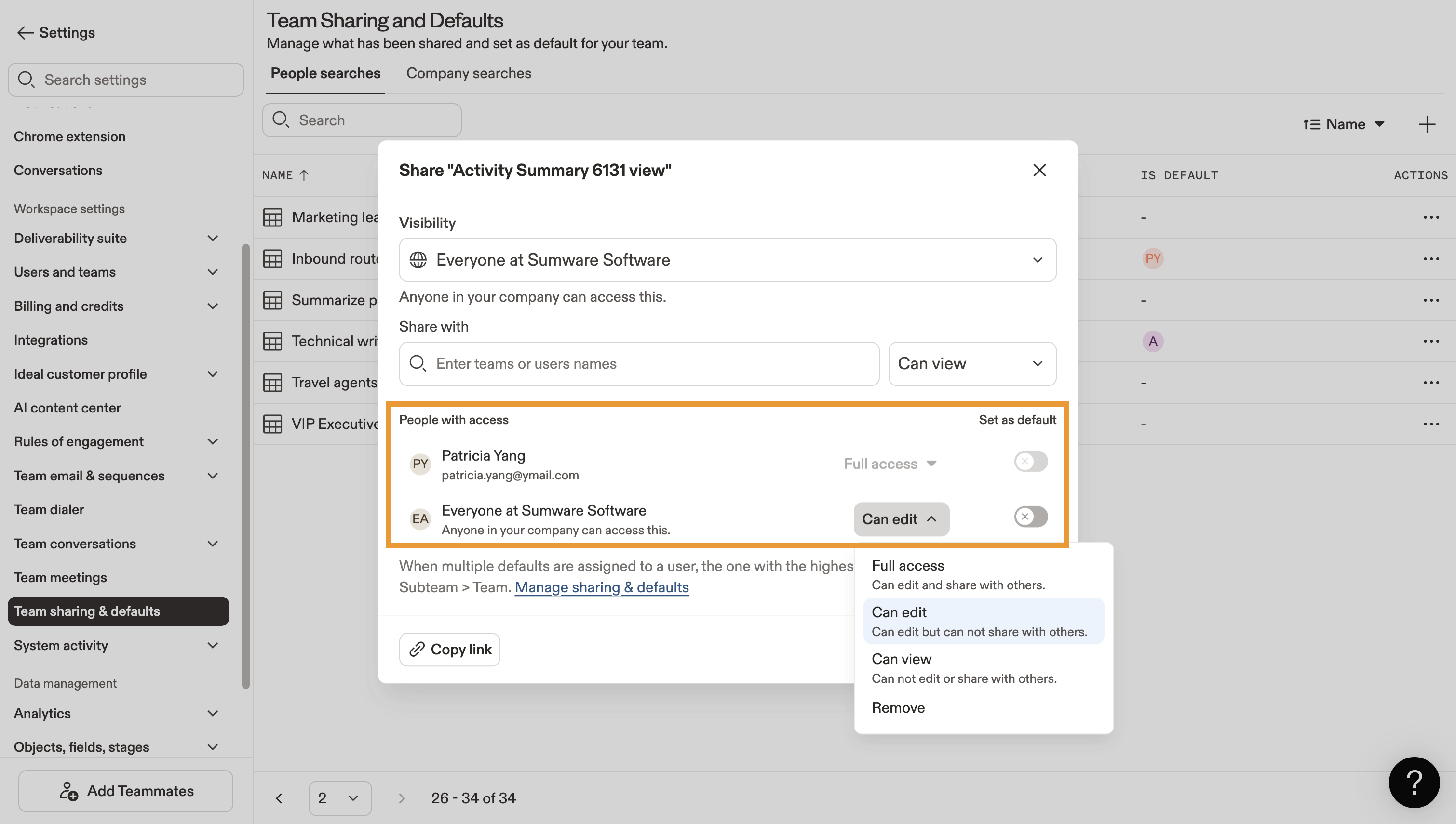
- Review People with access to manage each individual user's level of access to this shared view. Select one of the following options:
- Can view: Gives users view access only. Users can prospect with this search view, but can't edit search filters or share the view with other teammates.
- Can edit: Users can edit the filters in a shared search and prospect with this search view, but can't share it with other teammates.
- Full access: Gives users full access to view, edit, and share this search view.
- Remove: Remove the user's access to this search view.
- Click the Set as default toggle to make this shared search the default search view for an individual user, team, or everyone at your company.
When you set a search view as default, Apollo pins it to the top of the user's saved searches list. Default search views apply automatically when the user begins a new search session.
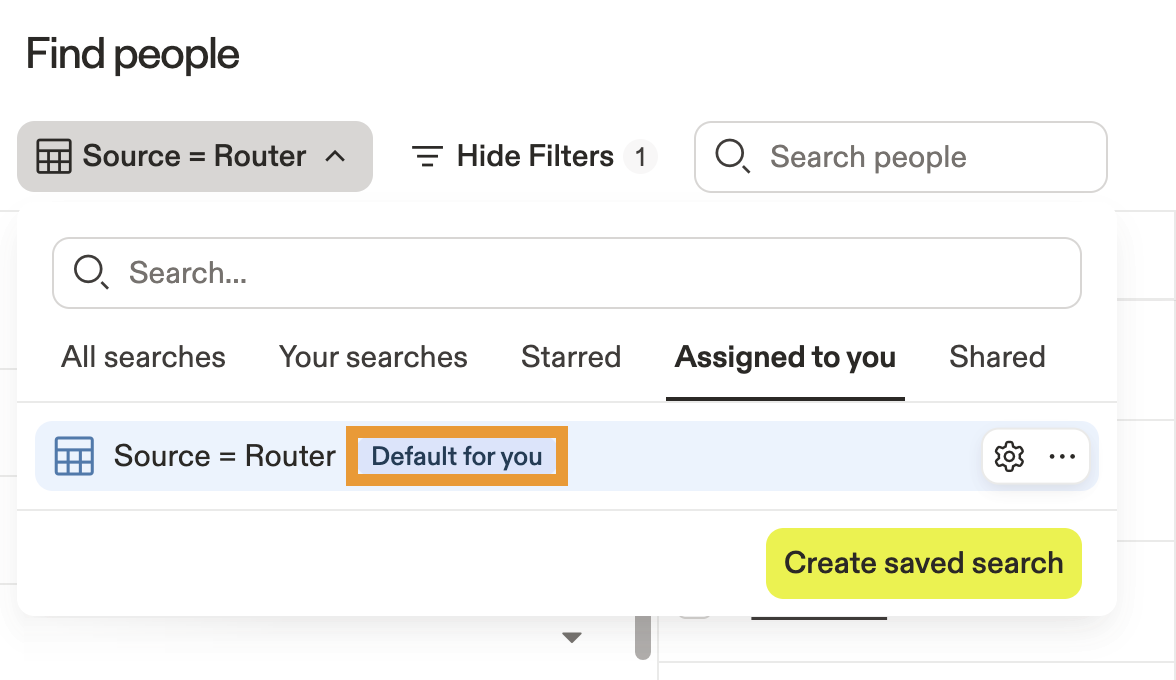
As an admin, you can assign one default search at the user, team, and company level. With this in mind, an individual user may see multiple default searches depending on what you've set:
- Their individual default search.
- One or more team default searches, organized alphabetically.
- The company-wide default search.
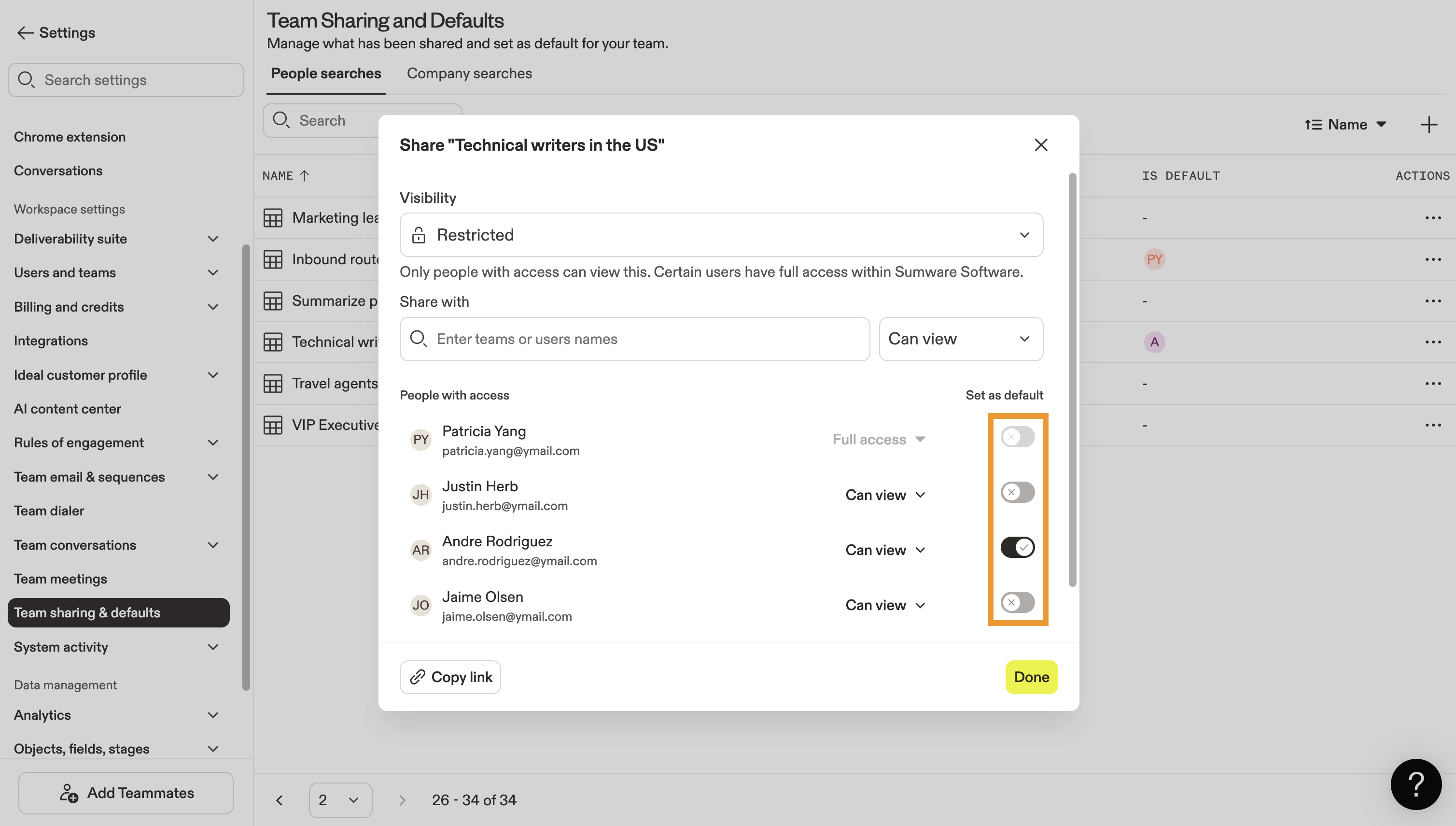
- Click Done to save your changes.
Share a Private Search View
By default, the Team sharing & defaults page only displays shared searches that meet one of the following conditions:
- Visibility set to Everyone.
- View, edit, or full access shared with individual teammates beyond the search owner. Visibility can be set to Everyone or Restricted in this case.
If you don't see a search view listed, that means access is fully private (restricted) to its owner. As an admin, you can also change a restricted search view's visibility or share it with specific users on your team.
To do this:
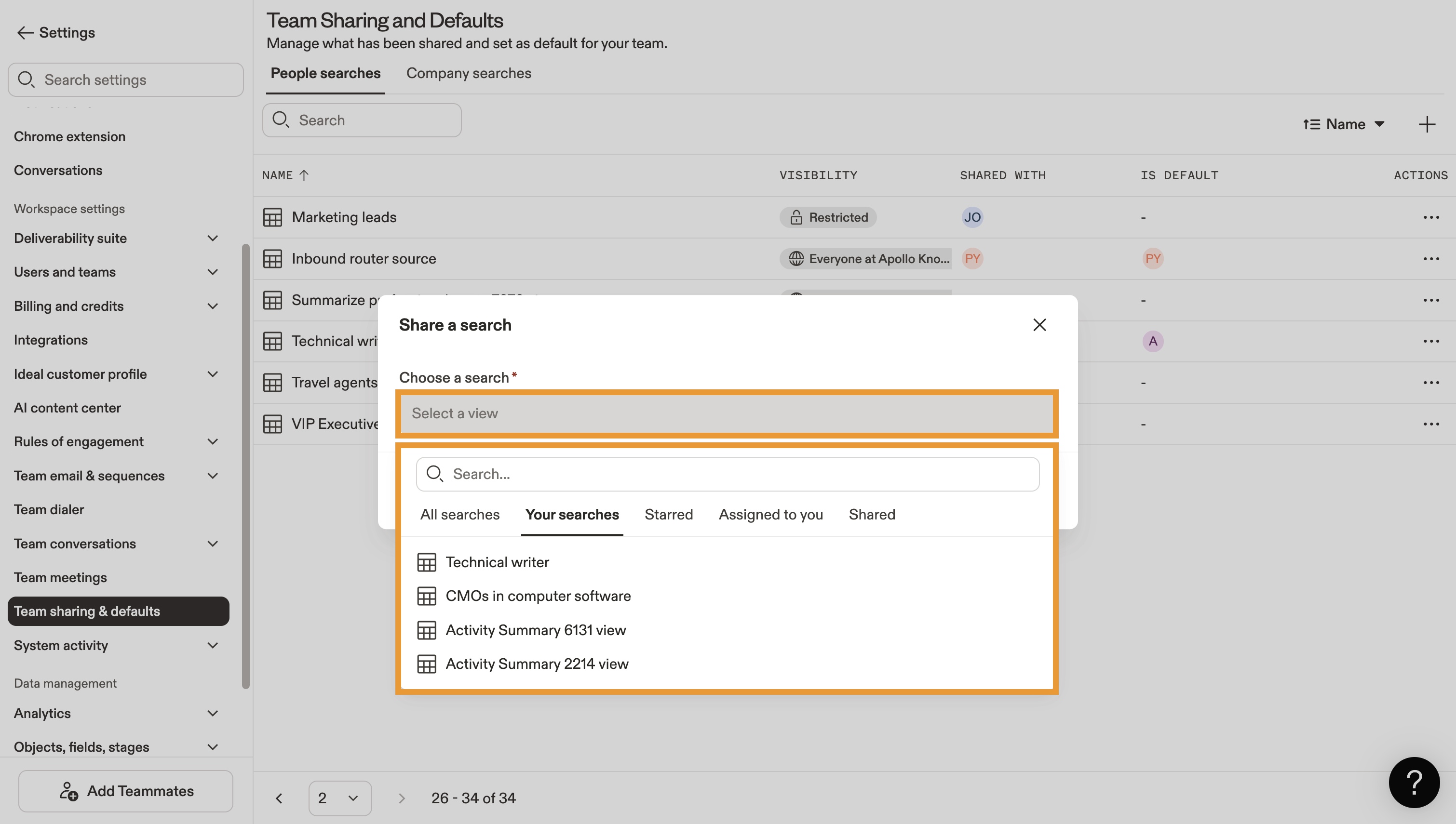
- Click +.
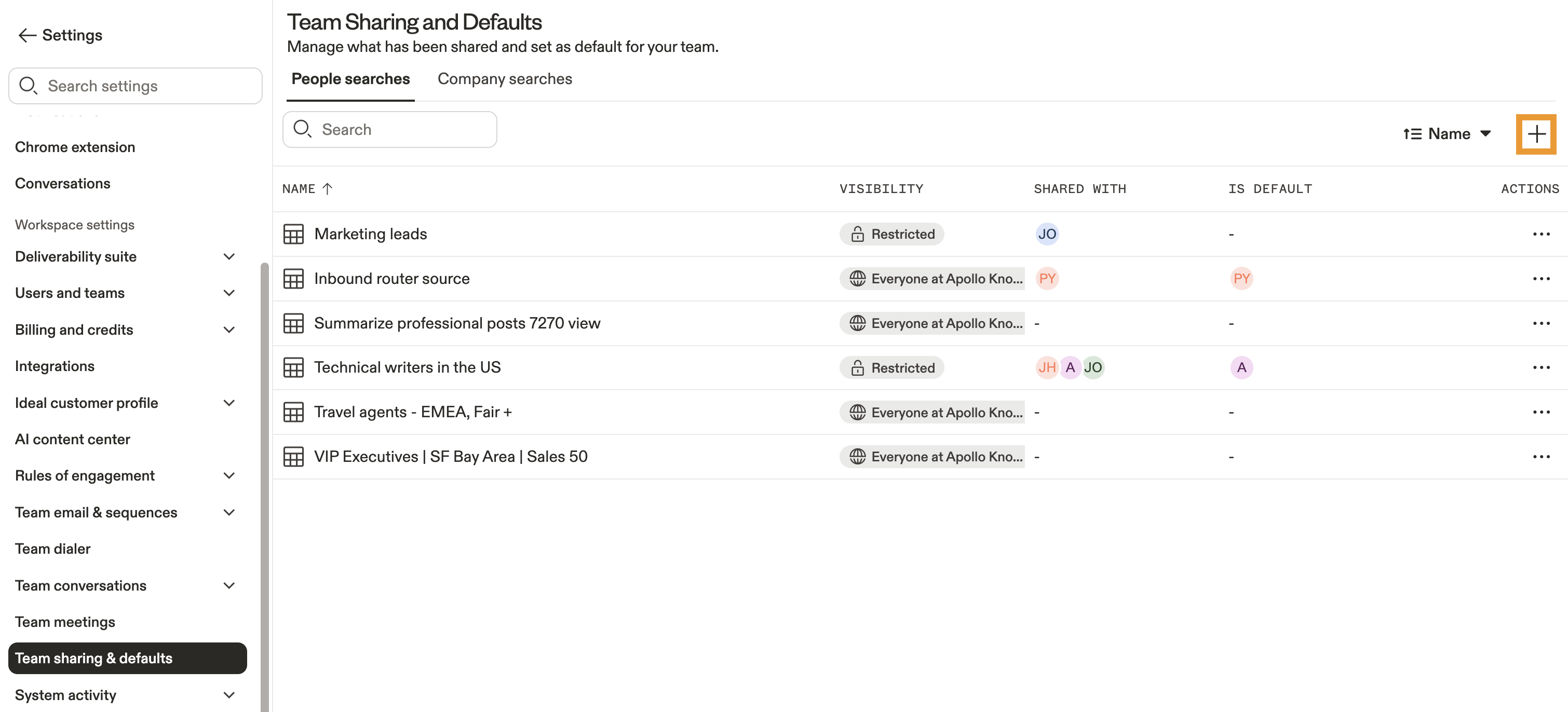
- Use the dropdown to select any of your team's private search views.
- Set visibility to Everyone to share the search with your entire team, or set it to Restricted to keep it private to yourself and specific users with shared access.
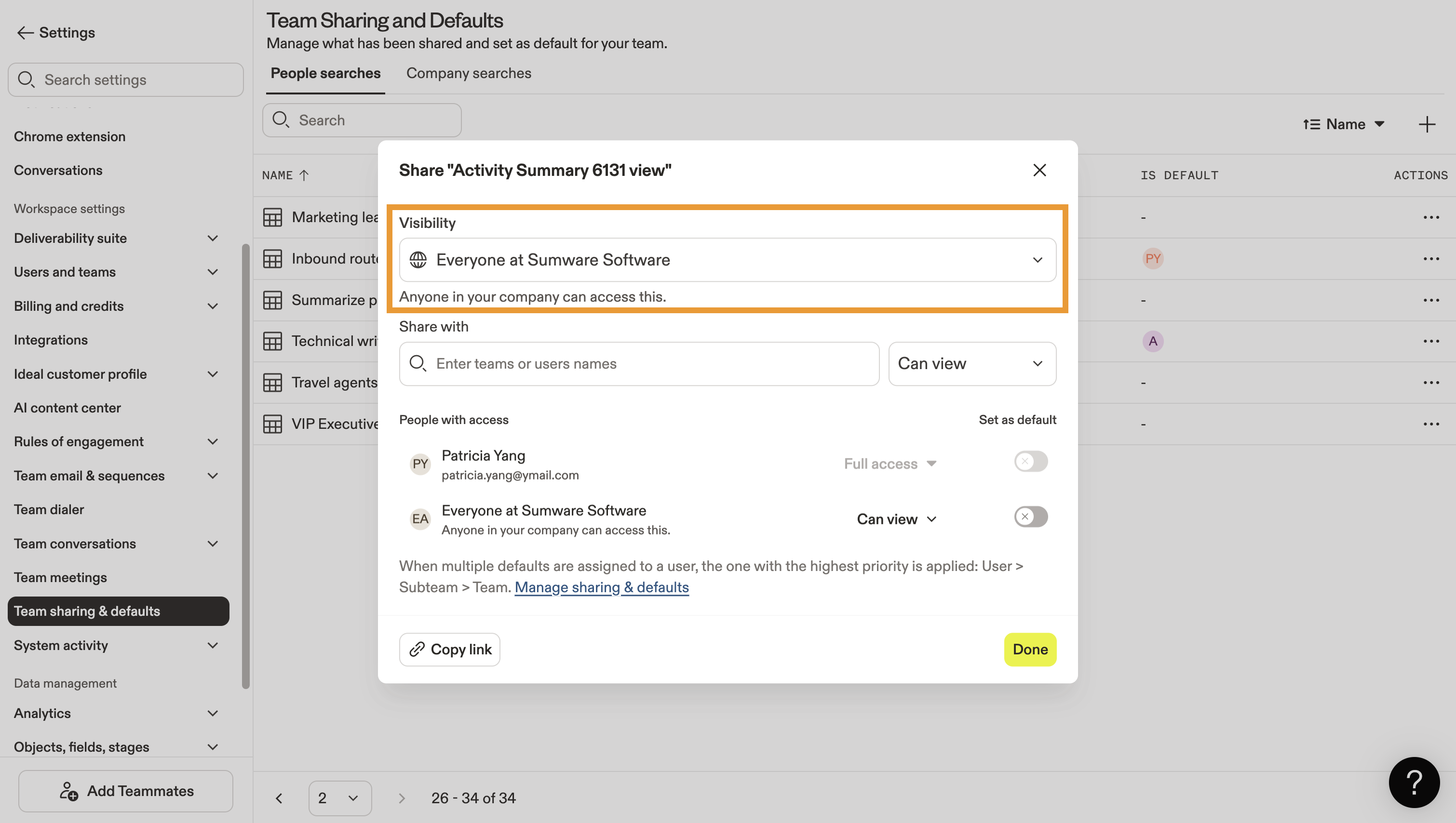
- Under Share with, enter the emails of individual users to share it with them.
- Selected users appear under People with access. Set each user's level of access to edit or share this search, or click the toggle to make this search their default view.
- Click Done to save your changes.
You've successfully shared a private search view. You can follow the above steps to update this view's visibility or share access with additional users at any time.
Next Steps
Ready to fine-tune how your team searches and shares in Apollo? Here's where to go next to stay in control and make every search count:
| Save, Share, And Set Alerts For Search Views | Give your team quick access to what matters. Save, share, and set alerts for key search views to keep everyone aligned and up to date. |
|---|---|
| Search For People | Search for people using filters that surface the right contacts in seconds, helping your team build targeted prospect lists faster. |
| Search For Companies | Search for companies to identify high-value accounts and refine your targeting strategy, making your outreach smarter. |
| Admin Settings Overview | Get the full picture of your control as an Apollo admin — explore Admin Settings to manage users, permissions, and global configurations efficiently. |
| Create And Assign Permission Profiles | Create and assign permission profiles so each team member has the right level of visibility and control. |