
Overview
Want to protect your deliverability, build trust with your audience, and stay compliant with anti-spam laws? Start by giving recipients a clear way to opt out.
Include an unsubscribe link to help prevent spam complaints, protect your domain reputation, keep you compliant with Gmail and Yahoo policies, and improve long-term inbox placement.
Apollo makes it easy by allowing you to automatically include an unsubscribe link in each sequence email sent from your mailboxes. You can customize the unsubscribe message, control where the link appears, and even add one-click unsubscribe headers for improved inbox placement and compliance with email provider guidelines.
Unsubscribe links are available on paid Apollo plans. If you need to use unsubscribe links, upgrade your plan. If you have questions about upgrading, reach out to the sales team.
Check out the following sections to configure and use unsubscribe links in your outreach.
Configure Your Unsubscribe Link
To configure your unsubscribe link:
- Launch Apollo and click Settings > Profile > Email settings.
- Toggle on Append a sequences opt-out message after my signature.
- Customize your opt-out message with the text and links you want to include. Add
<%and%>around the words that you want Apollo to hyperlink with the unsubscribe link. This bracket becomes the link your recipient can click on to unsubscribe.
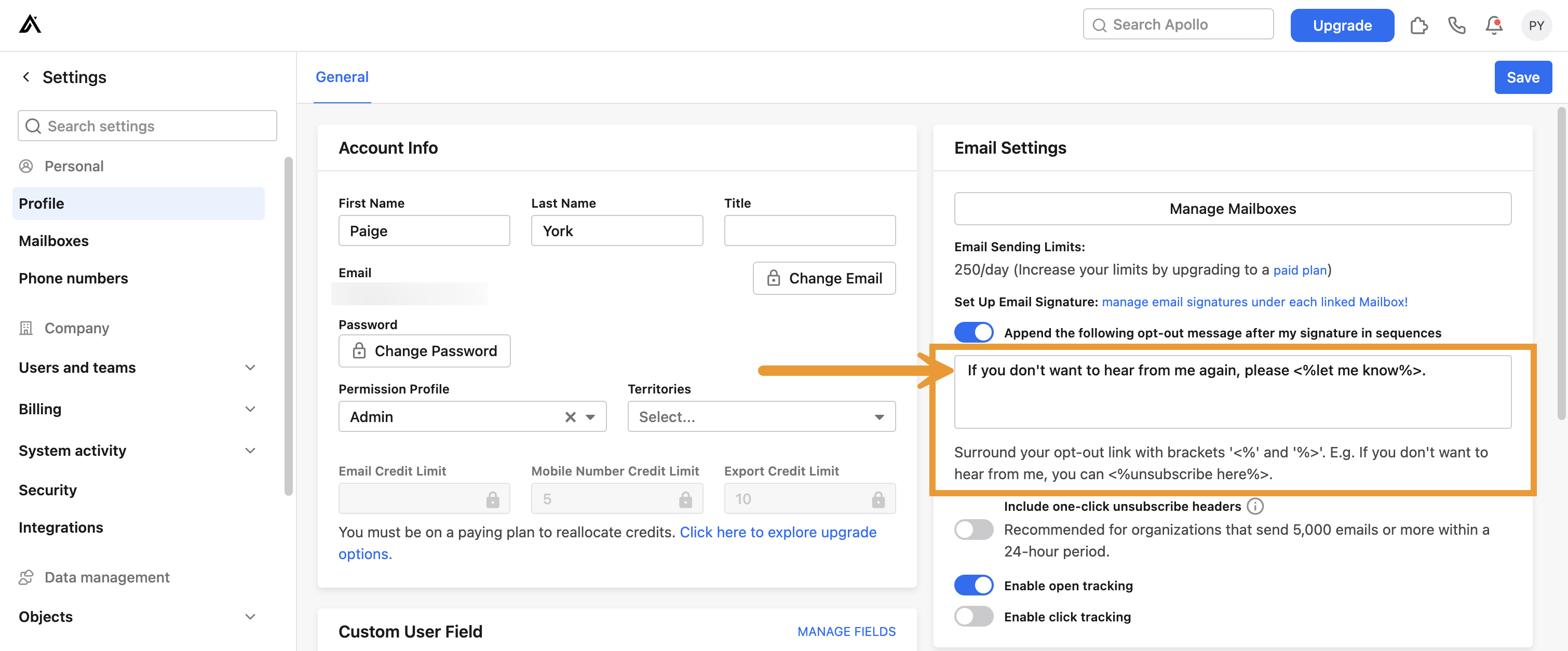
Looking for unsubscribe inspiration? Here are a few effective opt-out messages you can use or adapt:
Not the right time? You can <%unsubscribe here%>.
If you'd rather not hear from me again, feel free to <%unsubscribe%>.
No hard feelings—<%unsubscribe here%> if this isn't a fit.Tips:
- Keep it short, casual, and human-sounding.
- Avoid legalese like "To opt out, please click here in accordance with CAN-SPAM..."
- Match your brand's tone, like warm, professional, or playful.
- Make sure your unsubscribe message is visible and respectful. This helps improve trust and deliverability.
- When finished, click Save.
You have now created an opt-out message and unsubscribe link that Apollo automatically includes below your email signature.
Once you configure your unsubscribe link, Apollo automatically uses it in all emails sent from your connected mailboxes. No need to set it up for each mailbox individually.
When you email prospects from sequences in Apollo, your unsubscribe link is automatically attached, giving recipients the option to opt out instead of mark you as spam.
While it isn't recommended, you can turn off your unsubscribe link by toggling off Append a sequences opt-out message after my signature. To deactivate your opt-out message, you need permission to disable opt-out messages. If you don't have permission, reach out to an admin on Apollo for help.
Next, configure one-click unsubscribe headers for your emails.
You can also manually add an unsubscribe link to direct emails, email templates, or your signature with the {{opt_out_message}} dynamic variable. Apollo replaces the variable with your configured opt-out message when you send the email. For sequence emails, toggle on Append a sequences opt-out message after my signature to add the opt-out message automatically.
Enable One-Click Unsubscribe Headers
To prevent mailbox providers like Gmail from treating your emails as spam, Apollo strongly recommends you enable one-click unsubscribe headers. One-click unsubscribe headers make it easy for a recipient to opt out if they no longer want to receive your messages. It also ensures you remain compliant with Google and Yahoo's email policies if you send large volumes of emails as part of your sales outreach strategy.
One-click unsubscribe headers are only available for Gmail, SendGrid, and Mailgun users.
To turn on one-click unsubscribe headers:
- Launch Apollo and click Settings > Profile > Email settings.
- Check Include one-click unsubscribe headers.

- When finished, click Save.
Once enabled, Apollo adds the one-click unsubscribe code to your headers. Google reviews the snippet and once approved, the unsubscribe link appears in your email headers when you send emails via mailboxes connected to Apollo.
As a best practice, Apollo recommends that you also include an unsubscribe link in your signature or the body of your email as well.
Preview and Test an Unsubscribe Link
When recipients click an unsubscribe link in your emails, Apollo directs them to an unsubscribe page. From there, they can choose to continue and unsubscribe, or stay subscribed.

If a prospect clicks Unsubscribe, Apollo prompts them to provide more feedback about why they unsubscribed.

Apollo then automatically removes the recipient from future steps in any sequences you've added them to. If you try to enroll a contact into a sequence after they unsubscribe, Apollo warns you that the contact has opted out of receiving your emails and prevents you from adding them to the sequence. If they change their mind, recipients can resubscribe from the same page.
Heads up: unsubscribe links expire 47 days after you send the email. If someone clicks the link after that time, it won't work.
Unsubscribe links don't work in test emails. Since test emails don't include a real message ID, the link can't complete the unsubscribe flow and may show an error message.
Instead, to test your unsubscribe link:
- In Apollo, go to People and click Import > Single contact.
- Create a test contact and add an email address you can access, like an alternate or personal email you own.
- Add the contact to your sequence, then send a sequence email.
- Open the delivered email and click the unsubscribe link.
- Back on Apollo, go to People and apply the email unsubscribed filter to confirm the contact is opted out.
You have now tested your unsubscribe link.
If the contact appears in the email unsubscribed results, your unsubscribe link is working as expected.
Report on Unsubscribes
Report on unsubscribes to understand when messaging is driving prospect communication opt outs.
You can report on a single sequence or on sequences across Apollo:
To review unsubscribes for one sequence:
- Launch Apollo and go to Sequences.
- Open the sequence you want to inspect.
- Under email statistics per individual, review the email metrics, including the opt out rate which indicates the percentage of unsubscribes from the total number of emails sent.

- Hover over the percentage to see the exact number of unsubscribes.

You have now reported on unsubscribes for a sequence.
For more info on sequence reporting, check out Report on Sequences.
To compare unsubscribe performance across multiple sequences:
- Launch Apollo and go to Sequences > Analytics.
- Use the date range and filters to focus on the sequences, users, or time period you want to compare, then review the email sentiment stats aggregate table and visualization to see your org's unsubscribe rate across sequences.

- Use the email sentiment visualization graph to see unsubscribe trend over time. Click a point on the graph to view more details.

You have now reported on unsubscribes across sequences.
You can also create a custom report that includes the email metrics # emails unsubscribed or % emails unsubscribed. Combine these with other metrics for a unique analysis.
Check out Report on Sequences and Use Analytics Reports to dig in.
To identify prospects who unsubscribed:
- Launch Apollo and go to People.
- Click Show filters, then select the email unsubscribed filter.
- Set the filter to Yes to identify prospects who unsubscribed, or No to see those who didn't.
- Combine the filter with other search filters to continue prospecting.
You have now identified prospects who unsubscribed.
Next Steps
Now that you've set up an unsubscribe link and one-click headers, keep up the momentum with these next steps:
| Email Deliverability Best Practices | Follow Apollo's guide to email deliverability to improve your chances of reaching the inbox. For a deeper dive, explore Apollo's Outbound Sales email deliverability guide and the live Email Deliverability 101 webinar. |
|---|---|
| Use Email Warmup | Use email warmup to help build a positive sender reputation and signal to mailbox providers that your emails are safe and trustworthy. Email warmup is best for brand new domains and mailboxes. |
| Configure Email Sending Limits | Learn how to manage your email sending limits to stay under provider thresholds and reduce the risk of getting blocked or marked as spam. Includes step-by-step setup instructions. |
| Manage Mailboxes and Domains | Manage mailboxes and domains to spot mailbox issues, fix bottlenecks, and keep your team's emails hitting inboxes instead of spam. |
| How to Write Effective Sales Emails | Get practical advice on how to write sales emails that convert. This guide includes tips on personalization, tone, structure, subject lines, and calls to action. |