
Overview
Custom dynamic variables let you personalize emails and AI research prompts with data from custom fields in Apollo. When you create a supported custom field, Apollo adds a matching custom dynamic variable to the dynamic variables menu that you can use in sequences, emails, and AI research.
Access to custom fields depends on your Apollo plan. If you need access to custom fields, upgrade your plan or reach out to the Apollo sales team.
Custom dynamic variables can reference contact custom fields, account custom fields, user custom fields that appear as sender fields, or AI research fields stored on contacts or accounts. Use them to add personalized details like a prospect’s pain point, account research, a sender calendar link, or an AI-generated opener without manually editing every message.
Check out the following sections to use a custom dynamic variable.
Use a Custom Dynamic Variable in a Sequence Email
Create the contact custom field, account custom field, user custom field, or AI research field you want to reference before you add it to an email template or AI research prompt. Once the field exists, Apollo adds the matching variable to the dynamic variables menu.
To use a custom dynamic variable in a sequence email:
- Launch Apollo and click Sequences.
- Create a sequence or click an existing sequence.
- Open an existing email step, or add a new one.
- Click in the email body where you want to add a custom dynamic variable, then click { }.
- Find the custom field you want to use. Apollo groups custom dynamic variables based on the field type and your team’s field setup.
- Select the custom dynamic variable.
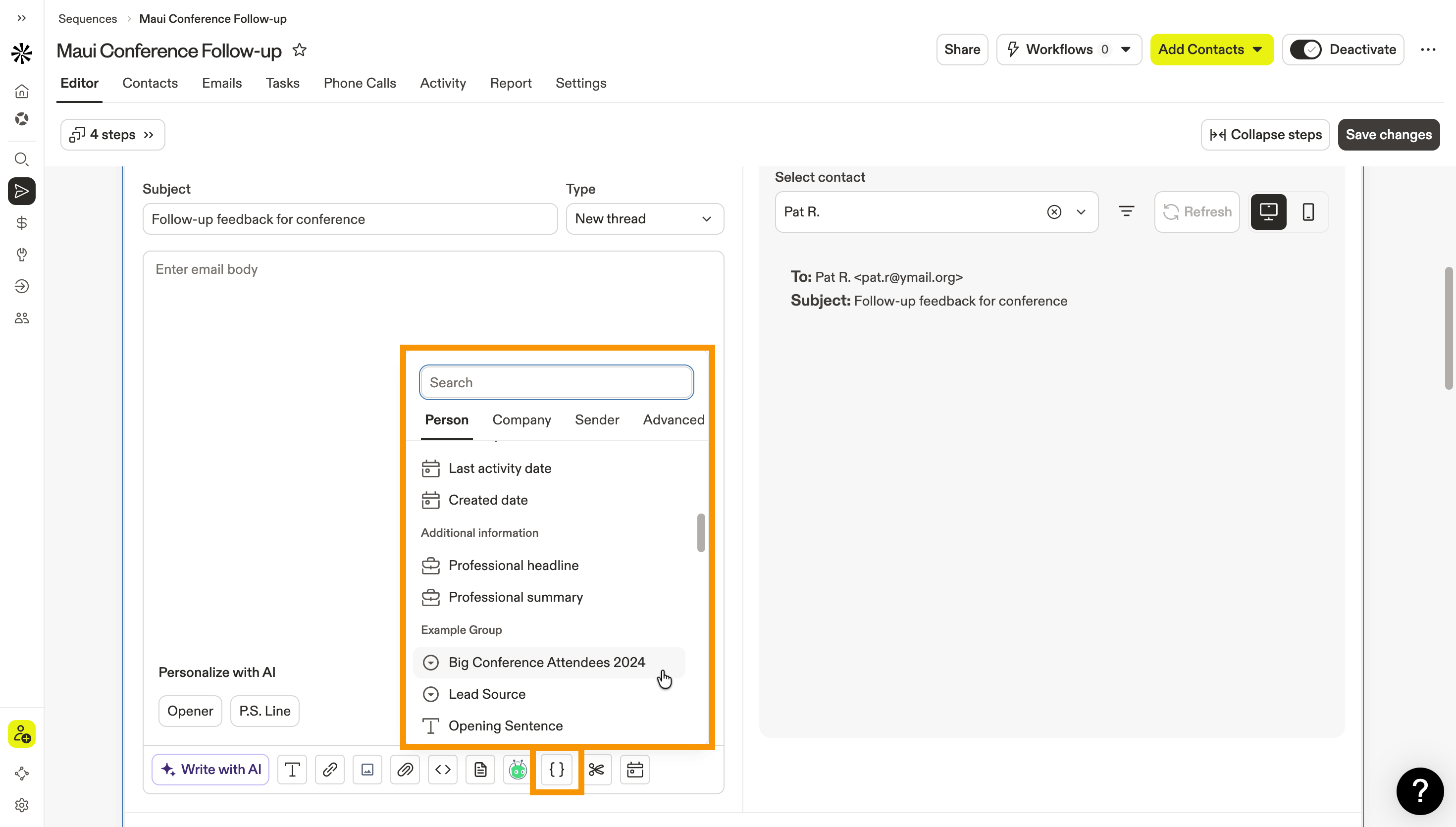
- Add more dynamic variables or edit the email as needed, then select a contact to preview the email.
- To use the dynamic variable in the subject line, cut and paste it into the subject.
- Click Save.
You have now added a custom dynamic variable to a sequence email.
If a required custom dynamic variable references a blank or missing field, Apollo treats the variable as unresolved. In preview, Apollo highlights unresolved variables in red in the email body or signature. If the missing variable appears in the subject line, the token may stay visible.
Apollo blocks sequence emails with unresolved required variables. The email moves to Not sent with a missing dynamic variable or missing snippet reason. To fix the issue, add the missing field value, remove the variable, or use advanced dynamic variable fallback logic.
Custom fields also support conditional blocks, comparisons, and -> modifiers in sequence email subject lines and bodies. To add fallback logic or transform a custom-field value, check out Use Advanced Dynamic Variables.
For AI email steps, add plain-language fallback instructions in Custom Instructions. Apollo may treat conditional tags in this field as unresolved variables.
Use a Custom Dynamic Variable in AI Research
To use a custom dynamic variable in AI research:
- Launch Apollo and click People or Companies.
- Open a person or company record.
- Click Research with AI, then choose an option that lets you edit an AI prompt, such as Run custom AI prompt or Start with a template.
- Click in the prompt where you want to add a custom dynamic variable, then click { }.
- Choose the custom field or AI research field you want to use. Apollo inserts the variable into the prompt. The fields available in the dynamic variables menu depend on where you start:
- From People, you can choose contact custom fields, account custom fields, or sender fields.
- From Companies, you can choose account custom fields or sender fields. Contact fields may only apply when the prompt is scoped to a person or contact.
- Write the rest of the prompt around the variable.
Wondering how to write great AI prompts? Check out AI Prompt Best Practices.
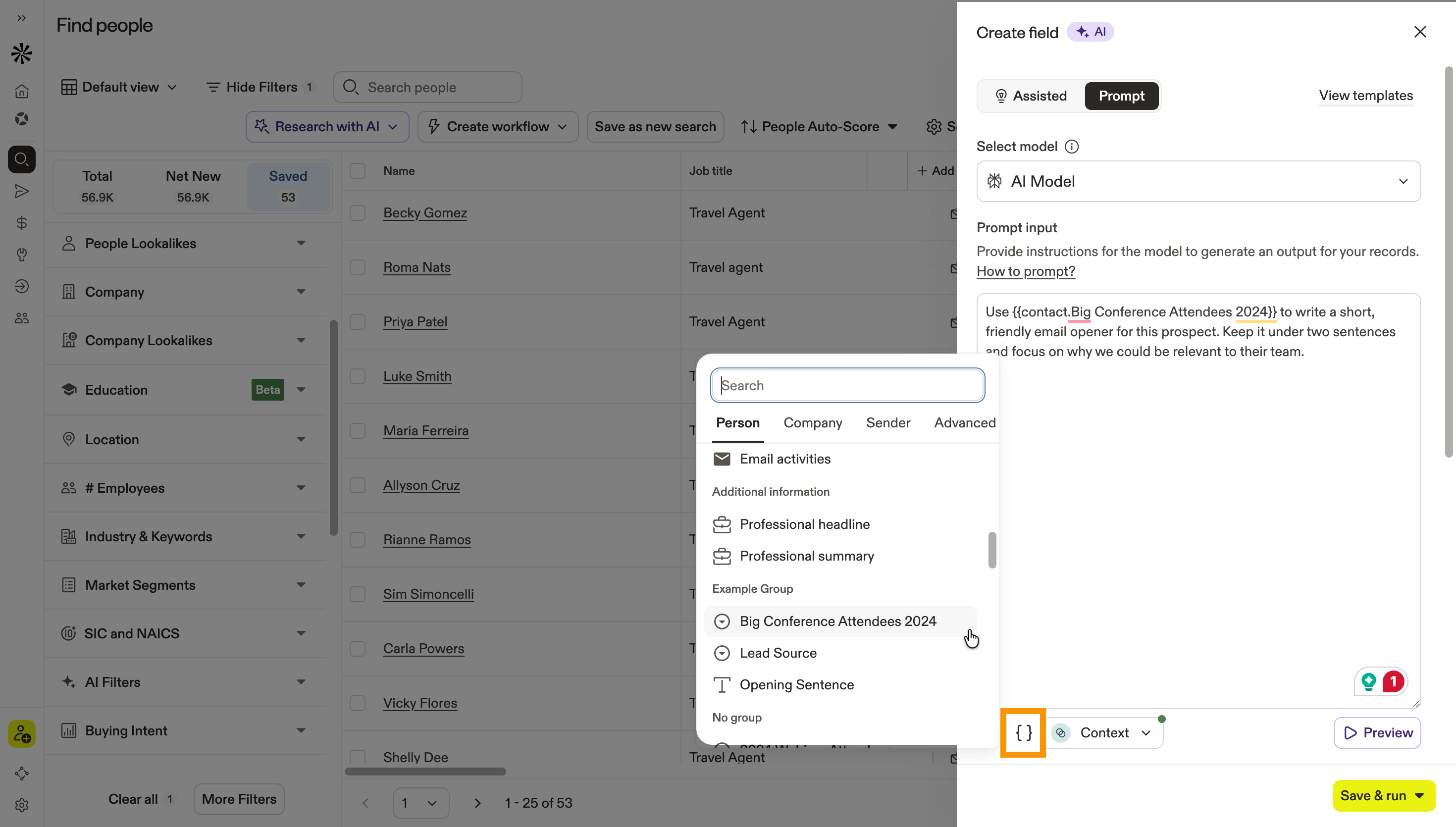
- Click Preview to preview the AI research result on a real contact.
- Save or run the AI research.
You have now used a custom dynamic variable in AI research.
If an AI research prompt includes a required custom dynamic variable that references a blank or missing field, Apollo doesn’t generate the AI research. Instead, Apollo may show an unfilled dynamic variable error.
To fix the issue, add the missing value to the referenced field, or update the prompt to use a field that contains data.
AI research fields appear as contact or account custom fields, depending on where Apollo saves the output.
Troubleshoot Custom Dynamic Variables
If a custom dynamic variable doesn’t work as expected, use this table to troubleshoot the issue.
| Issue | How to Fix It |
|---|---|
| The variable doesn’t appear in the dynamic variables menu. | Confirm that you created a supported custom field and that you're checking the right variable group. Apollo groups variables based on field type and your team's field setup, so fields may appear in different groups. Deal or opportunity custom fields don't appear in the dynamic variables menu for sequence email templates or AI research prompts. |
| The variable appears in red during preview. | The selected contact is missing a required value. Add the missing field value, remove the variable, or use advanced dynamic variable fallback logic. |
| The email moves to Not sent. | Review the not sent reason. Missing custom dynamic variables can block the send when Apollo can't resolve a required value. Fix the missing value or fallback logic, then retry the email. |
| AI research doesn't generate. | Check whether the prompt includes a blank or missing variable. Apollo blocks AI research generation when required variables can't be resolved. Add the missing value to the referenced field, or update the prompt to use a field that contains data. |
Next Steps
Keep building your personalization workflow with these related articles.
| Create Custom Contact Fields | Set up custom contact fields to capture prospect-specific details your team can reuse in emails, sequences, and AI research. |
|---|---|
| Create Custom Account Fields | Use custom account fields to add company-level context to your personalization. |
| Create and Use Email Templates | Add dynamic variables to email templates so your team can reuse personalized messaging at scale. |
| Use Advanced Dynamic Variables | Add fallback logic with advanced dynamic variables so missing values don’t stop your emails from sending. |
| AI Research Overview | Use AI research to generate insights that can support stronger fields, prompts, and outreach. |