
Overview
Apollo lets you create custom fields for contacts, accounts, users, and deals. Picklist field types allow your users to select from a predefined set of options.
You can use global picklists to leverage the same list of values across different custom fields.
Imagine you have three custom fields: one each for contacts, accounts, and deals — all named "Health" with various options to select from, like good or poor health.
Rather than manually enter the same options for each custom field picklist, a global picklist lets you quickly apply the same list of options across all three fields.
Check out the following sections to create and use a global picklist.
Create a Global Picklist
To create a global picklist:
- Launch Apollo and click Settings > Data management > Global picklists.
- Click New Global Picklist Value Set.
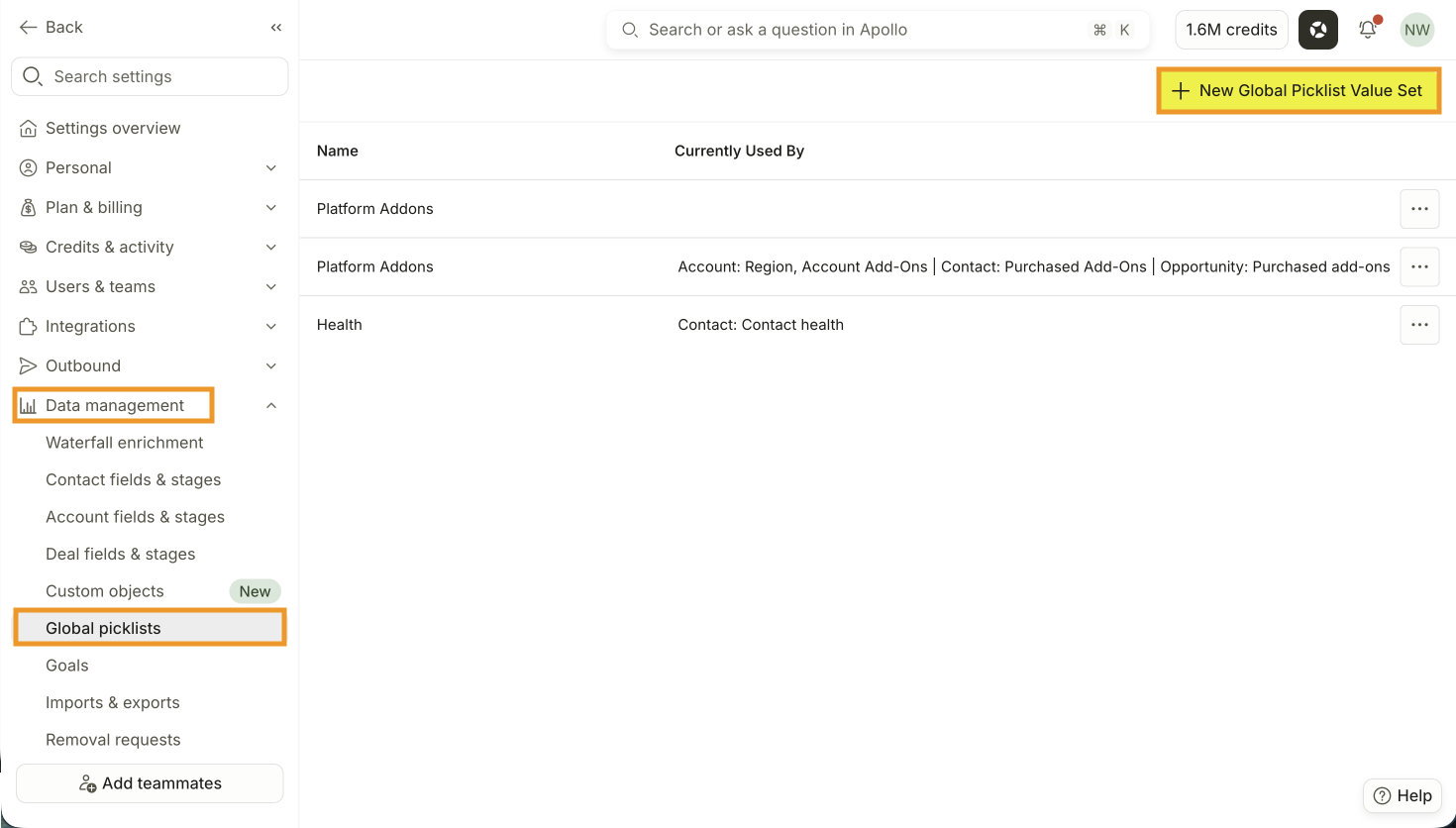
- Enter a name for the global picklist.
- Click + Add Option to enter an option for the field.
- Repeat to include additional options.
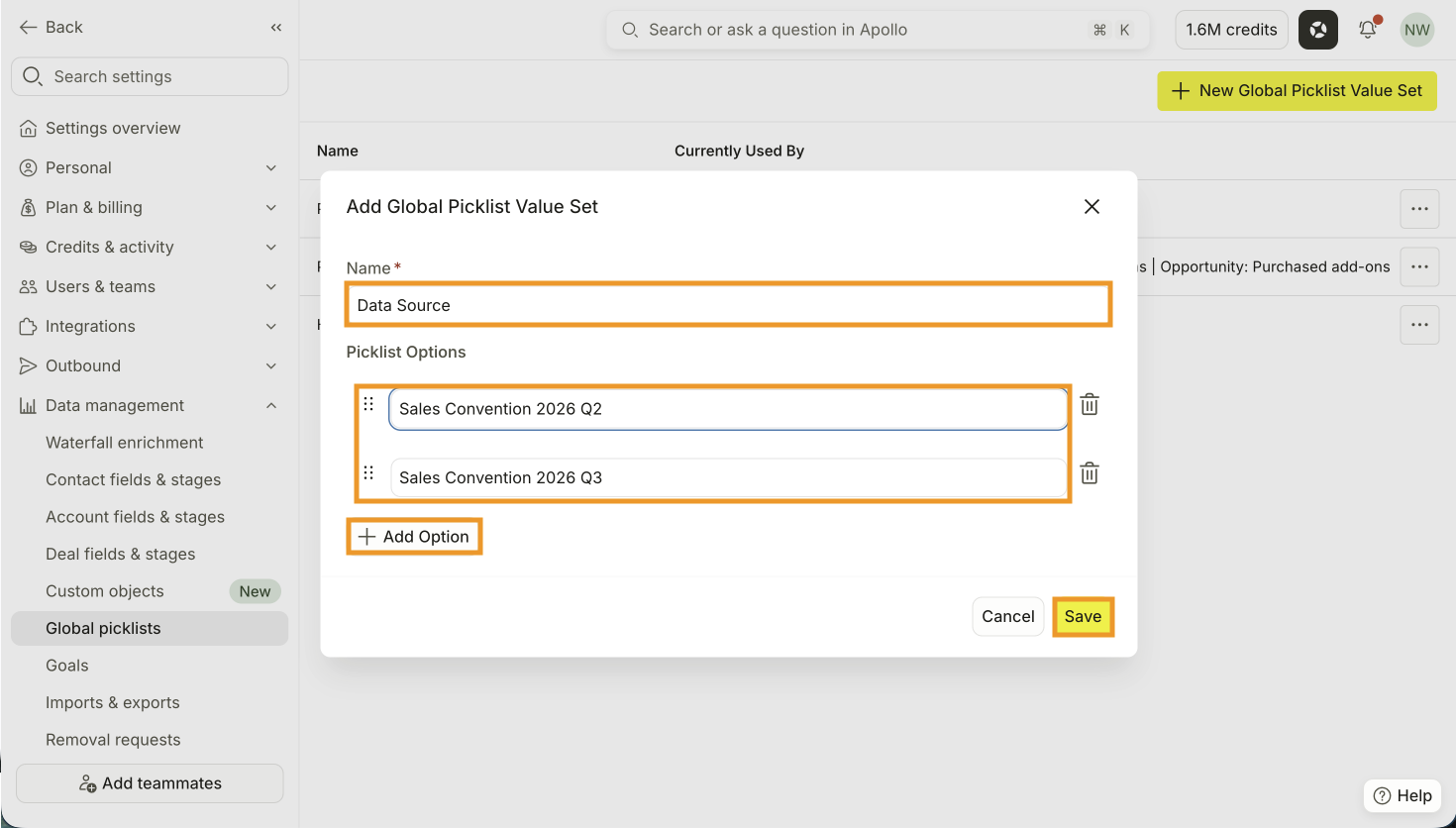
- When finished, click Save.
You have now created a global picklist.
Use a Global Picklist
To use a global picklist:
- Create a custom field for contacts, accounts, users, or deals.
- Toggle on Use global picklist options, then select the picklist you created.
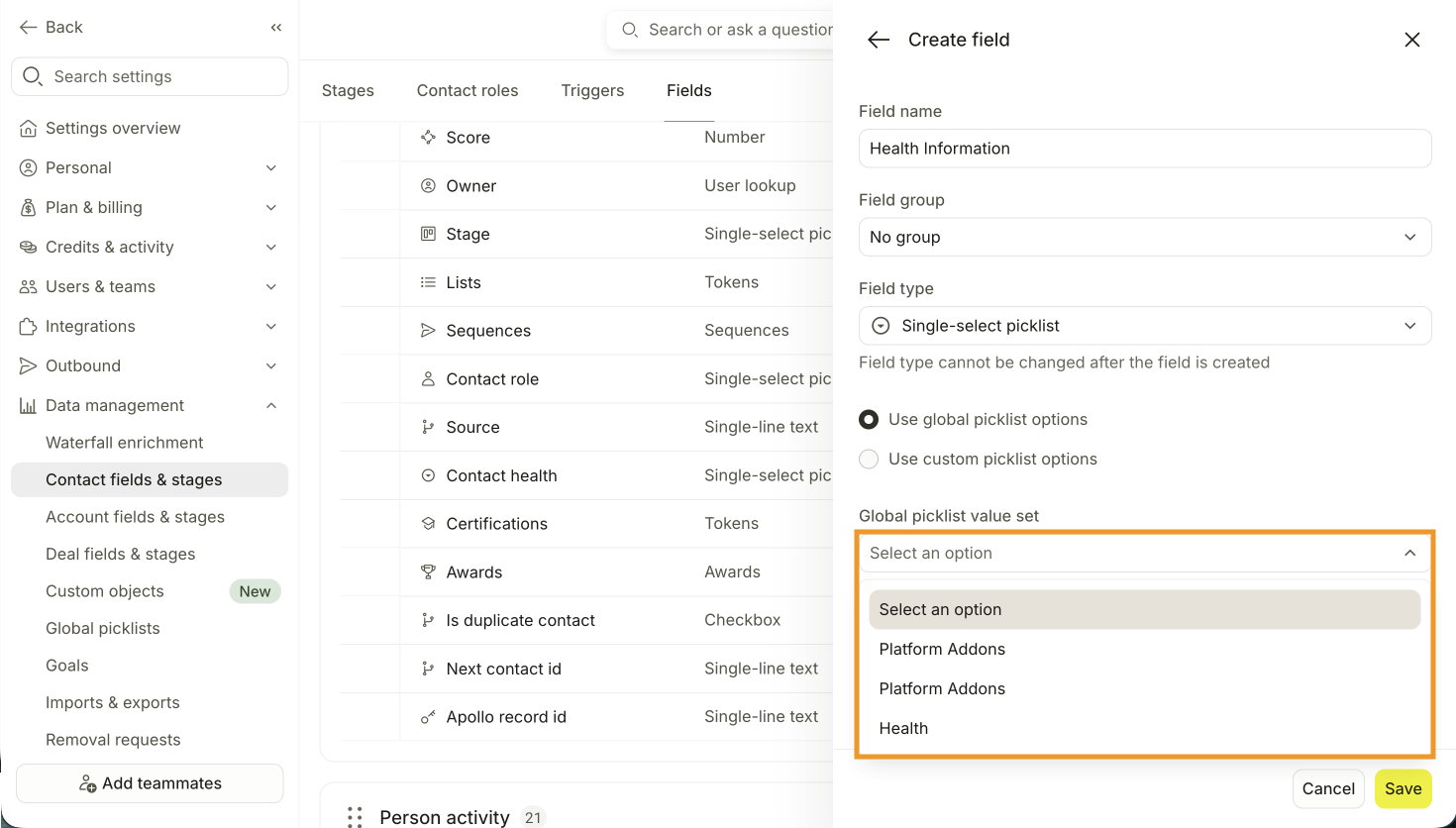
- When finished, click Save. The custom field automatically uses the options from the global picklist you selected.
You have now used a global picklist.
Manage Global Picklists
To review which custom fields are using a global picklist:
- Launch Apollo and click Settings > Data management > Global picklists.
- Apollo displays your global picklists and which custom fields are currently using each.
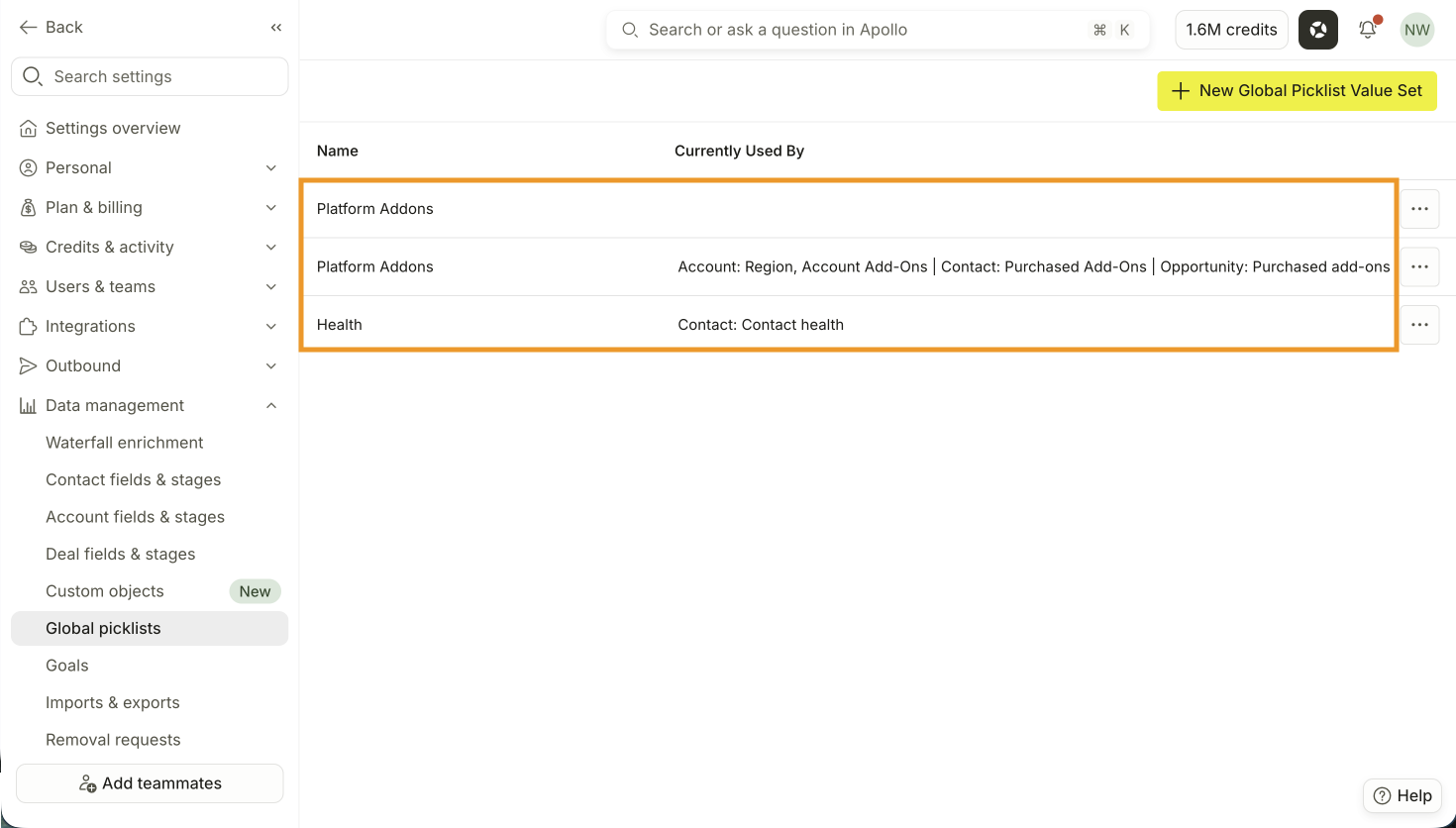
- Click ... beside a picklist to edit or delete it.
You can repeat these steps any time you want to review, edit, or delete a global picklist.
Next Steps
Global picklists locked in! Here's what to check out next to get the most out of your custom fields setup.
| Create Custom Contact Fields | Ready to put your global picklists to use? Create custom contact fields and attach your shared picklist values so your whole team captures and categorizes contact data consistently across every record. |
|---|---|
| Create Custom Account Fields | Need the same standardized options on your company records too? Create custom account fields and link them to your global picklist value sets so account data follows the same structure as your contact fields across the workspace. |
| Link Custom Salesforce Fields to Custom Apollo Fields | Using Salesforce? Map your custom Apollo fields to their corresponding Salesforce fields so the standardized picklist data your team captures in Apollo flows cleanly into the right places in your CRM without manual cleanup. |
| Follow Apollo's Recommended Default Field Mapping | Custom fields are only as useful as the mapping behind them. Review Apollo's recommended field mapping for contacts and accounts to make sure your core data syncs correctly to your CRM before you layer in custom picklist fields on top. |
| Admin Settings Overview | Want a full picture of what else you can configure as an admin? Explore the Admin Settings Overview to see every data management, enrichment, and workspace control available so you know exactly where to go for each configuration your team needs. |