
Overview
After you add contacts to a sequence, you can review their progress and manage how they move through the sequence. Use the sequence contact list to check statuses, pause outreach, resume contacts, mark contacts as finished, remove contacts, or re-enroll contacts.
Need to add contacts to a sequence first? Check out Add Contacts to a Sequence.
Not sure which action to take? Use this guide to decide how to manage contacts in a sequence.
| Your Goal | Best Action |
|---|---|
| Check where contacts stand in a sequence. | Review contact status to see whether contacts are active, paused, finished, bounced, or not sent. |
| Temporarily stop outreach for specific contacts. | Pause contacts to stop outreach for selected contacts without turning off the entire sequence. |
| Continue outreach for paused contacts. | Resume contacts when paused contacts are ready to continue moving through the sequence. |
| End outreach, but keep activity history. | Mark contacts as finished when contacts replied, booked a meeting, unsubscribed, changed jobs, or no longer need follow-up. |
| Remove contacts from the wrong sequence. | Remove contacts when contacts were added by mistake or shouldn't continue in the current sequence. |
| Start finished or removed contacts over from step one. | Re-add the contacts to the same sequence. Re-adding the contacts starts them at step one. |
Review Contact Status
Check a contact's sequence status from the sequence's Contacts tab to understand their current state and choose the appropriate next step.
To review a contact's sequence status:
- Launch Apollo and click Sequences.
- Open the sequence.
- Click Contacts.
- Search for the contact.
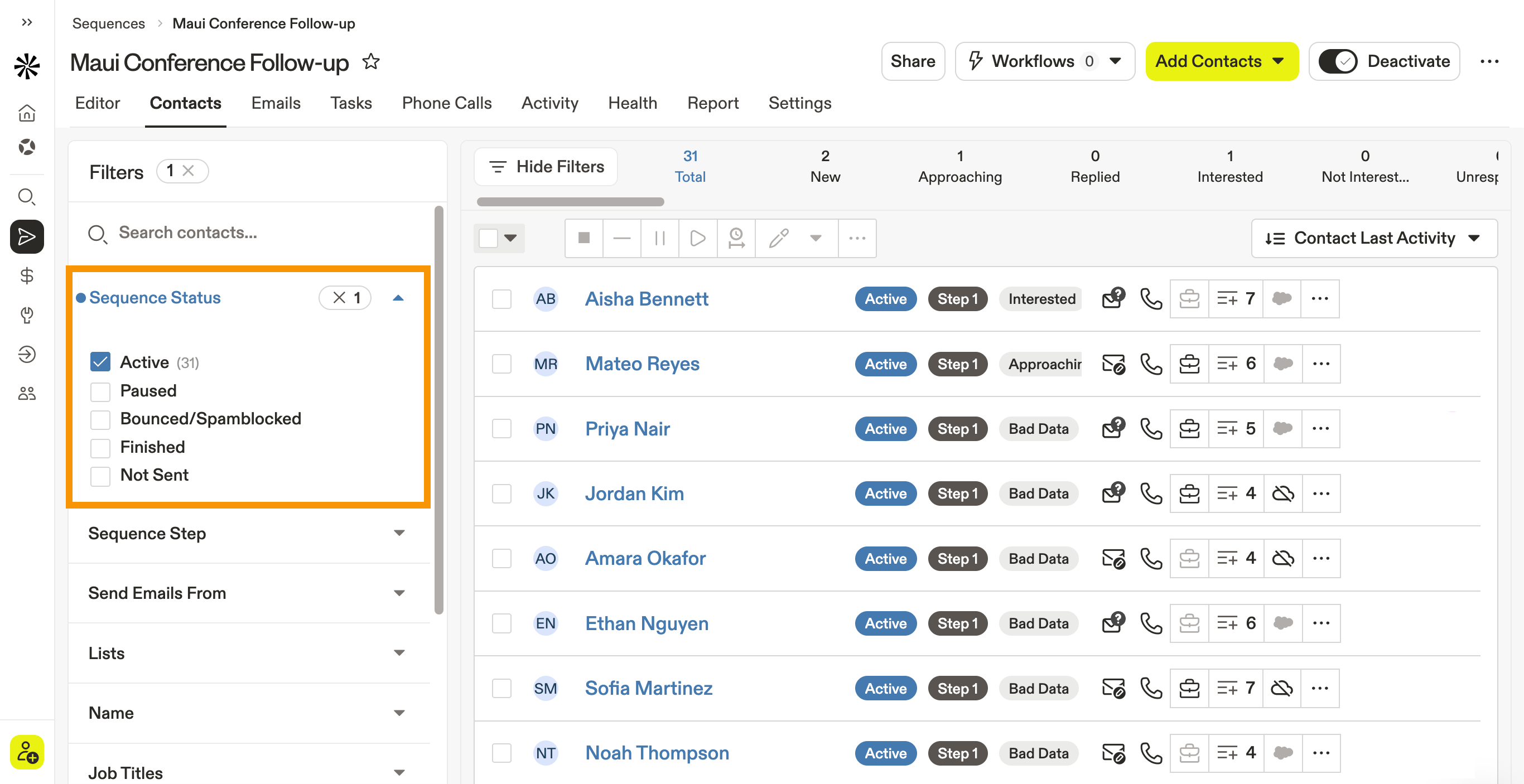
- Review the sequence status in the contact's row.
Not sure which action to take? Use this guide to decide how to manage contacts in a sequence.
| Sequence Status | What It Means |
|---|---|
| Active | The contact is actively enrolled. |
| Paused | Resume the contact to continue from their existing sequence state. |
| Finished | Re-add the contact to restart from step one. |
| Bounced or Not sent | Use the available retry action instead of re-adding the contact. |
| Not Sent - Blocked Location, Failed, or Unknown | These statuses are informational. There is no confirmed universal corrective action. |
Apollo doesn't display Removed as a sequence status. To confirm removal, check that the contact no longer appears on the sequence's Contacts tab and that the sequence is no longer listed on the contact profile.
If you don't see the contacts you expect, clear your filters and search again. A status filter may hide contacts that are paused, finished, bounced, or not sent.
If a contact is Active but isn't progressing, it may be waiting on an overdue task. If Apollo displays a blocked task badge, hover over the badge and click View task. Complete or skip the task to advance the contact.
Pause a Contact in a Sequence
Pause contacts to temporarily stop outreach for specific people without turning off the entire sequence. Other contacts can continue moving through the sequence.
To pause contacts:
- Launch Apollo and click Sequences.
- Click the sequence.
- Click Contacts.
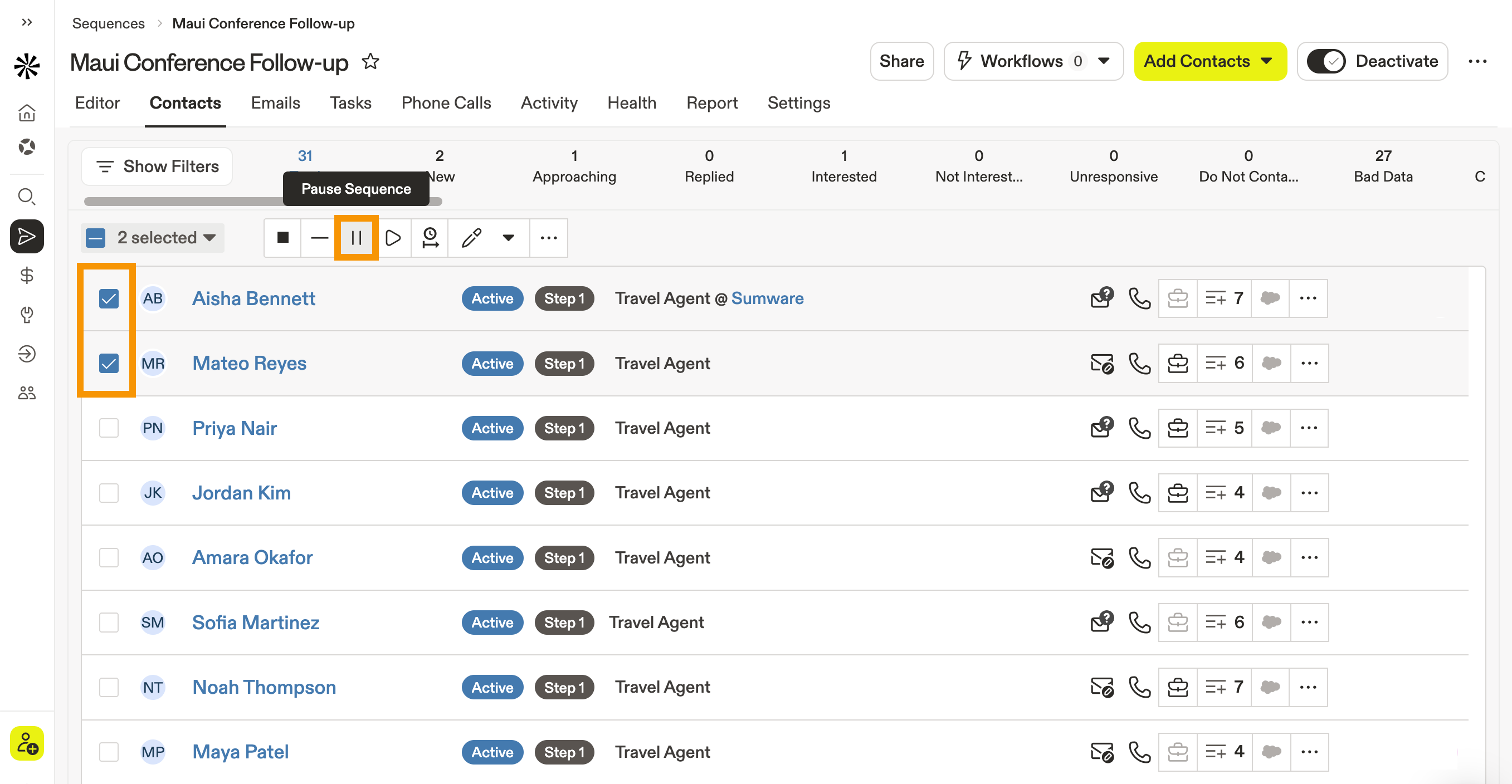
- Check the contacts you want to pause.
- Click Pause Sequence.
- Optional: Choose an automatic resume date.
- Click Pause.
Pausing the selected contacts stops their scheduled outreach. Other contacts continue moving through the active sequence. You can resume the paused contacts manually or use an automatic resume date.
Resume a Contact in a Sequence
Resume contacts when paused contacts are ready to continue moving through a sequence. You control how they progress through the sequence.
To resume contacts:
- Launch Apollo and click Sequences.
- Click the sequence.
- Click Contacts.
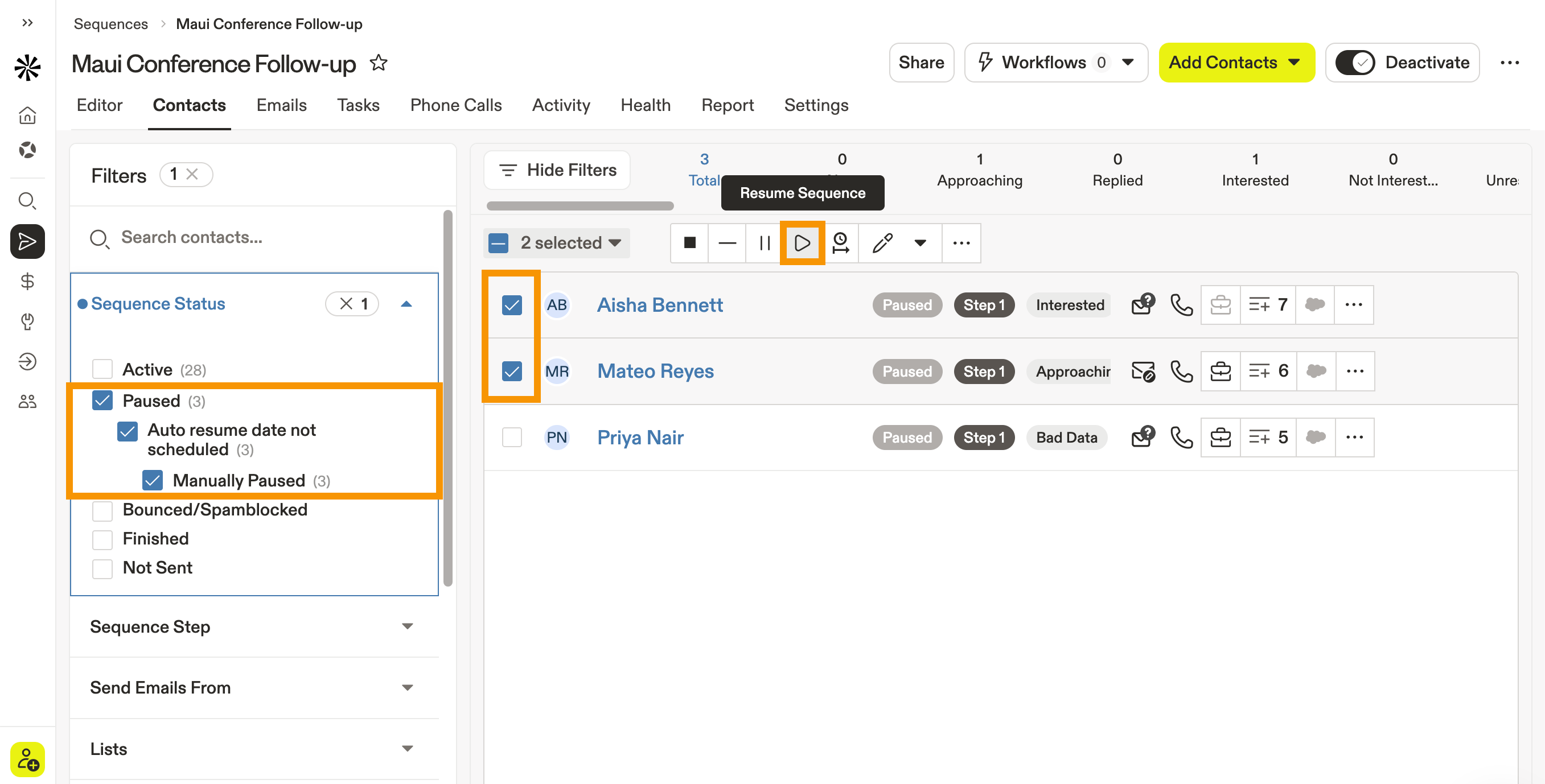
- Use Sequence Status filters to find paused contacts.
- Check the contacts you want to resume.
- Click Resume.
- Optional: Click Set Auto-resume date to choose a future resume date.
Resuming the selected contacts reschedules their future outreach from their current sequence step and state.
If Apollo pauses a contact because it detects an out-of-office reply, you may not need to resume the contact manually. Apollo can resume the contact based on the out-of-office response when a return date is available.
Mark a Contact as Finished
Mark contacts as finished when you want to end their time in a sequence without removing their activity history, such as emails, opens, clicks, and replies.
To mark contacts as finished:
- Launch Apollo and click Sequences.
- Click the sequence.
- Click Contacts.
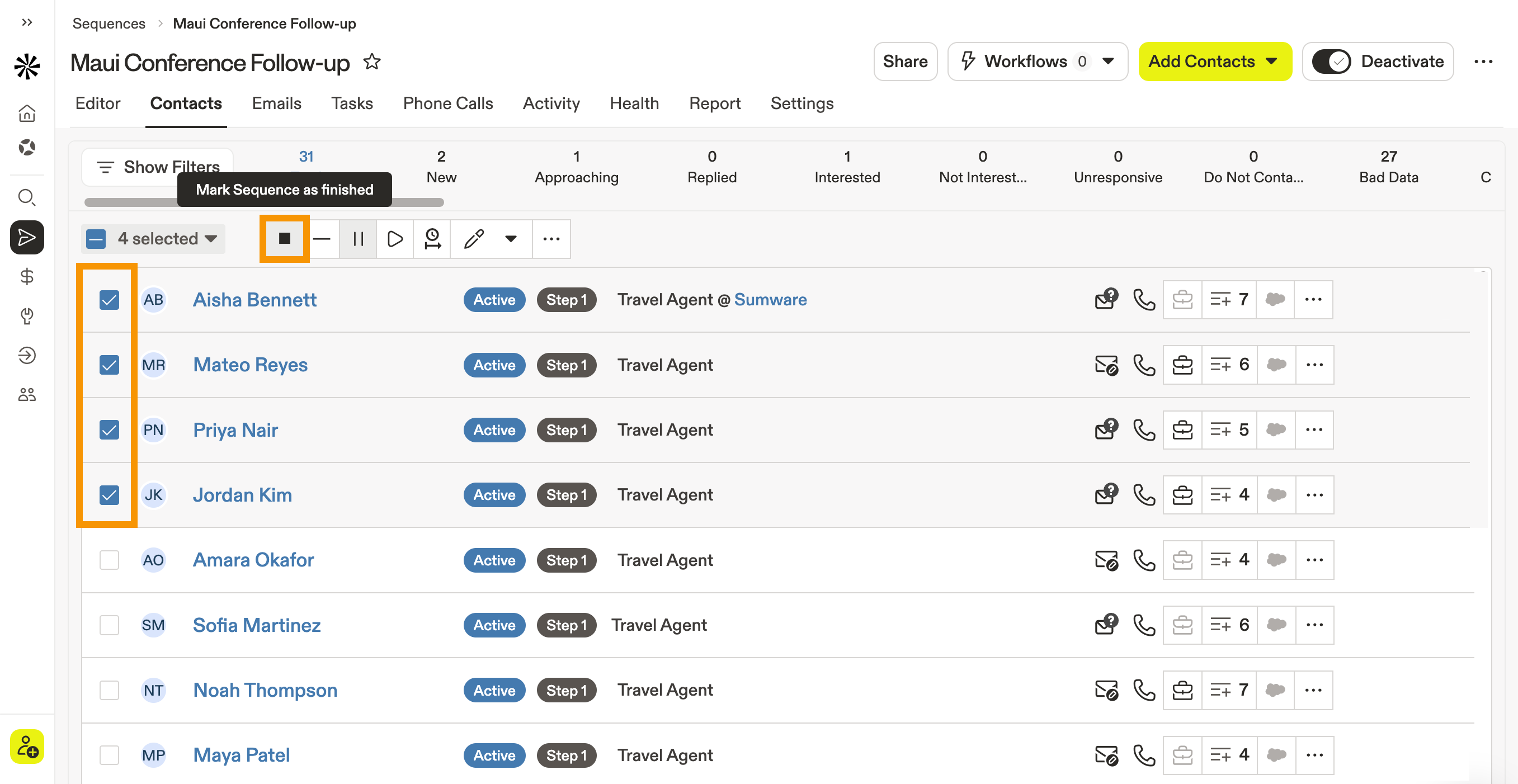
- Check the contacts you want to finish.
- Click Mark as Finished.
- Choose a reason for marking contacts as finished.
- Click Mark Finished.
Marking the selected contacts as finished prevents additional outreach.
Remove a Contact
Remove contacts when they were added to the wrong sequence or shouldn't continue in the current sequence. For most completed outreach, use Mark as Finished instead.
Use Remove from Sequence carefully. It's best for correcting enrollment mistakes, moving contacts out of the wrong sequence, or removing contacts that don't match the sequence audience.
To remove contacts:
- Launch Apollo and click Sequences.
- Click the sequence.
- Click Contacts.
- Check the contacts you want to remove.
- Click Remove from Sequence.
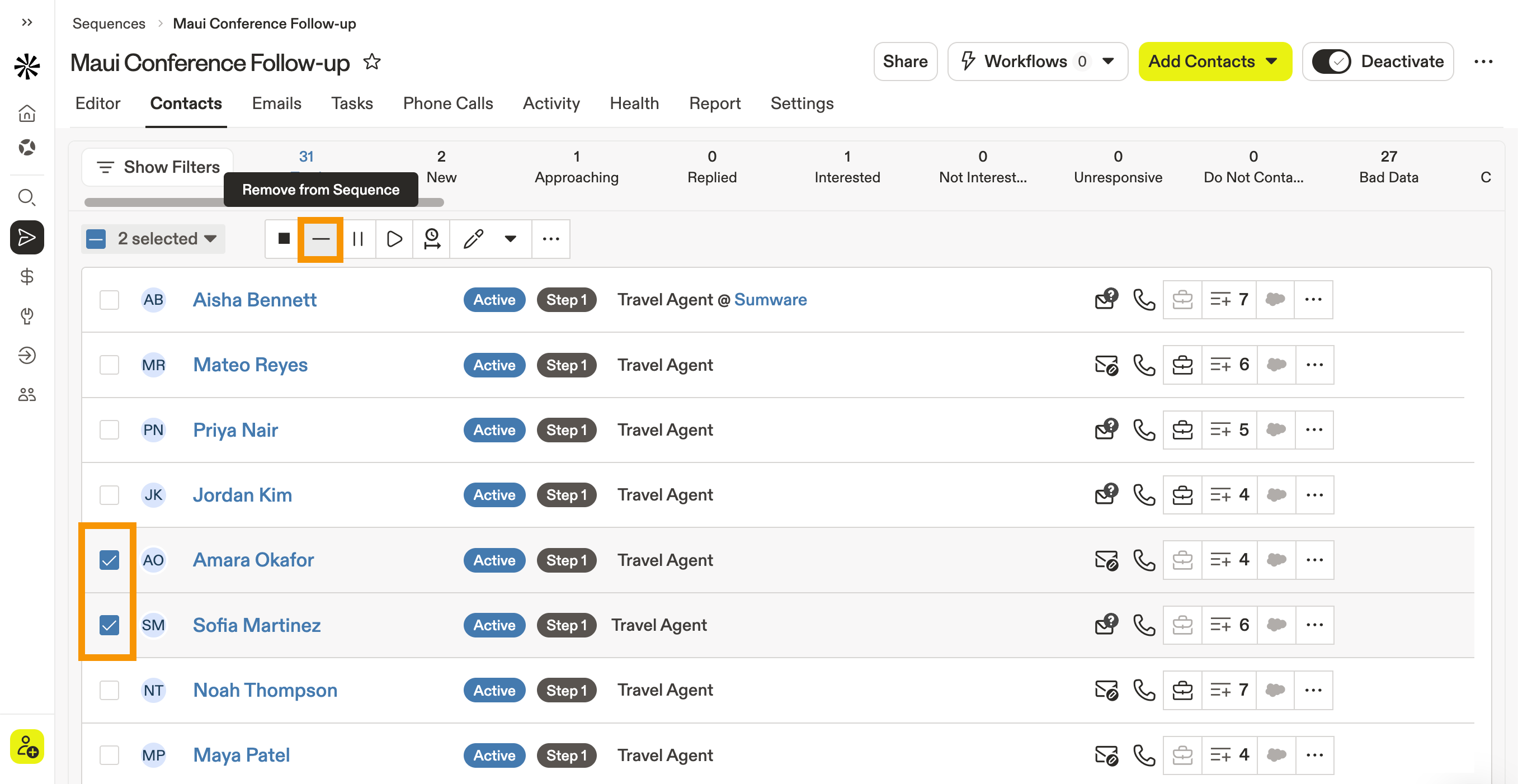
- Click Remove.
Removing the selected contacts from the sequence deletes their pending outreach.
Use Mark as Finished when the contact has completed outreach or no longer needs follow-up. Use Remove from Sequence when the contact was added by mistake. Both actions keep the contact's activity history.
Re-add Finished or Removed Contacts
Re-add a contact when they have finished a sequence or were removed from it, and you want them to restart the same sequence from step one. You don't need to clone the sequence.
Before you re-add the contact, review their sequence status. Resume paused contacts and use the available retry action for bounced or not-sent emails instead of re-adding them.
To re-add a finished or removed contact:
- Launch Apollo and click People > Saved.
- Search for the contact, then click their name.
- Click Add to sequence.
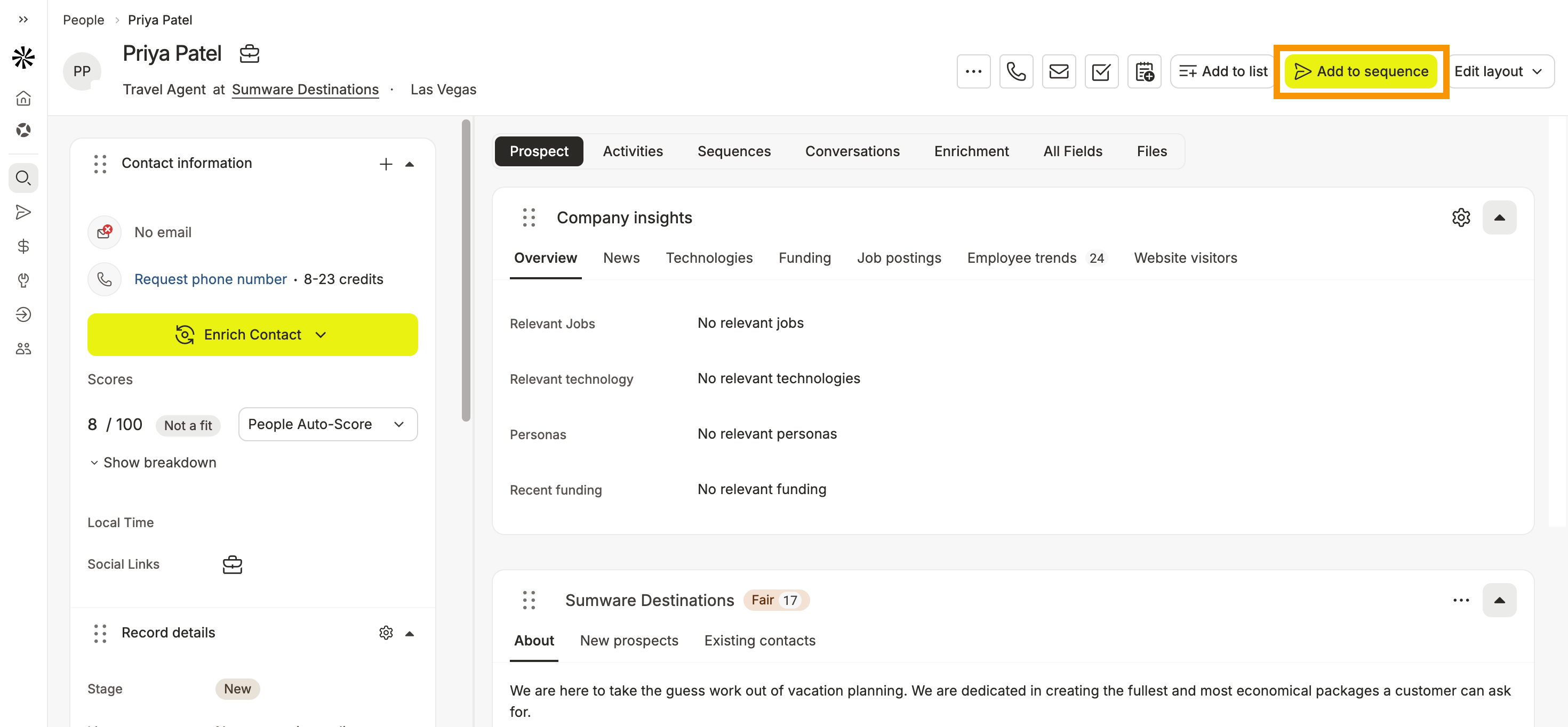
- Click Add to Apollo sequence.
- Select the sequence you want the contact to restart from step one.
- Choose the sending mailbox. You can also select a list, if needed.
- Review any enrollment warnings, then click Add 1 contact.
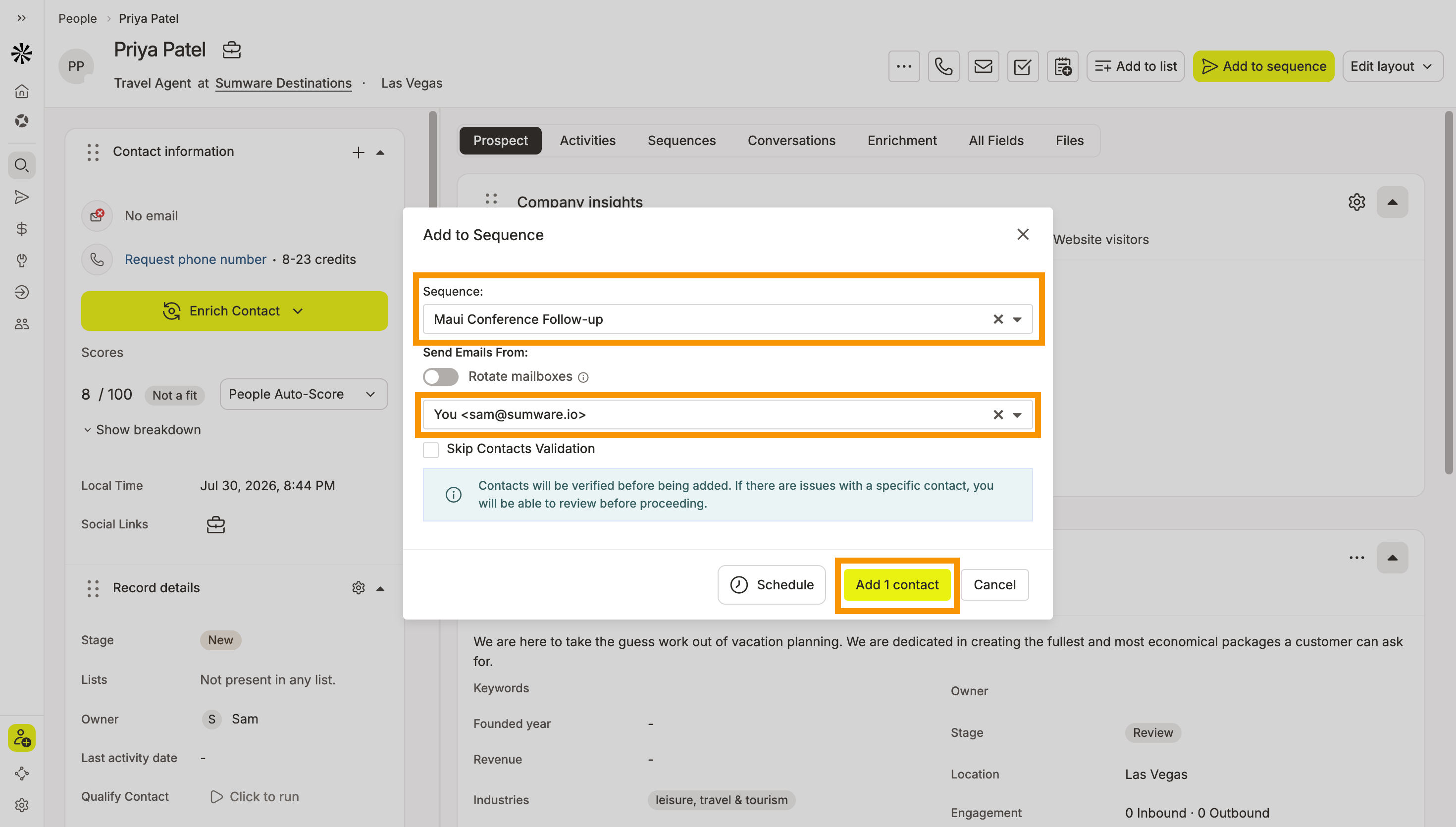
You have now re-added the contact to the sequence from step one.
If Apollo prompts you to link a sending mailbox, link a mailbox first. Then return to the contact profile and repeat the steps to add the contact to an Apollo sequence.
Next Steps
Keep your sequence momentum going with these related resources for setup, timing, safety rules, and performance tracking.
| Add Contacts to a Sequence | Ready to grow your outreach list? Add contacts to a sequence to enroll the right prospects and start tracking their progress from the Contacts tab. |
|---|---|
| Create a Sequence | Need to adjust the outreach flow before re-adding contacts? Create or edit a sequence to set up the steps, schedule, and ruleset. |
| Configure a Sequence Sending Schedule | Set the right pace before contacts move forward and configure a sequence sending schedule to control when Apollo sends emails across time zones and business hours. |
| Manage Sequence Rulesets | Want fewer blocked or skipped sends? Manage sequence rulesets to protect deliverability and keep outreach aligned with your team's sending requirements. |
| Report on Sequences | After contacts move through your sequence, report on sequence performance to spot what's working, compare results, and improve future outreach. |