
Overview
Sequences are outreach campaigns that sales teams use to reach out to contacts over a planned period of time, with sequential touchpoints like phone calls, emails, social media engagement, and other tasks. Tasks on Apollo help you organize and complete your outreach to-do list. LinkedIn tasks on a sequence let you plan, prioritize, and complete actions on LinkedIn, like sending a connection request or responding to a prospect's LinkedIn post. These interactions can be a great way to support a multichannel outreach campaign in a sequence.LinkedIn tasks need to be manually completed, like by manually visiting a contact profile to send a connection request. Apollo doesn't automatically complete LinkedIn tasks for you.
Check out the following sections to learn more about creating and completing LinkedIn tasks on Apollo.
LinkedIn Tasks
These are the types of LinkedIn tasks that you can add as steps to your sequence:
| Send connection request |
Connection requests enable you to direct message a contact later in your sequence, and are often necessary to view and interact with their posts. Use this step as a reminder to send a connection request to a contact. Although you can send connection requests without a message, pairing a cold connection request with a personalized message is more likely to be accepted than when you send a request without a message. |
|---|---|
| View profile |
View a contact's LinkedIn profile to gain specific information such as their posting and commenting activity, education and job history, and current company details and colleagues. |
| Interact with post |
Manually engage with posts on LinkedIn, remembering to avoid generic comments. Opt for thoughtful, value-add comments that showcase who you are and what you can offer. |
| Send message |
This should be the last step in developing a relationship with a contact through LinkedIn. Message only after you've warmed up interactions with other touchpoints, like sending an email or engaging with their posts, and keep it personalized to build a meaningful relationship rather than feeling like spam. |
When you add a LinkedIn task to your sequence, Apollo reminds the assignee to complete the task by visiting LinkedIn to take action.
Now that you understand the types of LinkedIn tasks, add a LinkedIn task to your sequence.
Add a LinkedIn Task to a Sequence
To add a LinkedIn task to your sequence:
- Launch Apollo, and click Sequences.
- Create a new sequence or open active sequence.
- Click Add a step.

- Choose a LinkedIn task to add to your sequence.

- Depending on the type of LinkedIn task, configure the sequence step:
- When to start: Select when to schedule the task after the previous sequence step.
- Set a task priority: high, medium, or low.
- Task note: (Optional) Add a task note.
- LinkedIn message: Enter the exact message you want to share with the prospect when you send a connection request or a LinkedIn message. You can use dynamic variables to personalize a message at scale, like with "Hey {{first_name}}!" You or your team can then copy the message and paste it into LinkedIn.

- Finally, activate the step on your sequence.
You have now added a LinkedIn task as a step in a sequence.
Next, complete the task.
Learn more about how to create and edit a sequence on Apollo.
Complete a LinkedIn Task
To complete a LinkedIn task:
Executing too many LinkedIn actions rapidly can lead to your LinkedIn account being temporarily restricted. Additionally, if too many of your connection requests have been ignored, left pending, or marked as spam by recipients, you put your LinkedIn account at risk. Monitor your volume of connection requests and messages, and ensure your outreach is authentic and tailored to the individual recipient.
- Launch Apollo and click Tasks.
- Click LinkedIn Tasks.
- Apollo displays your LinkedIn tasks.

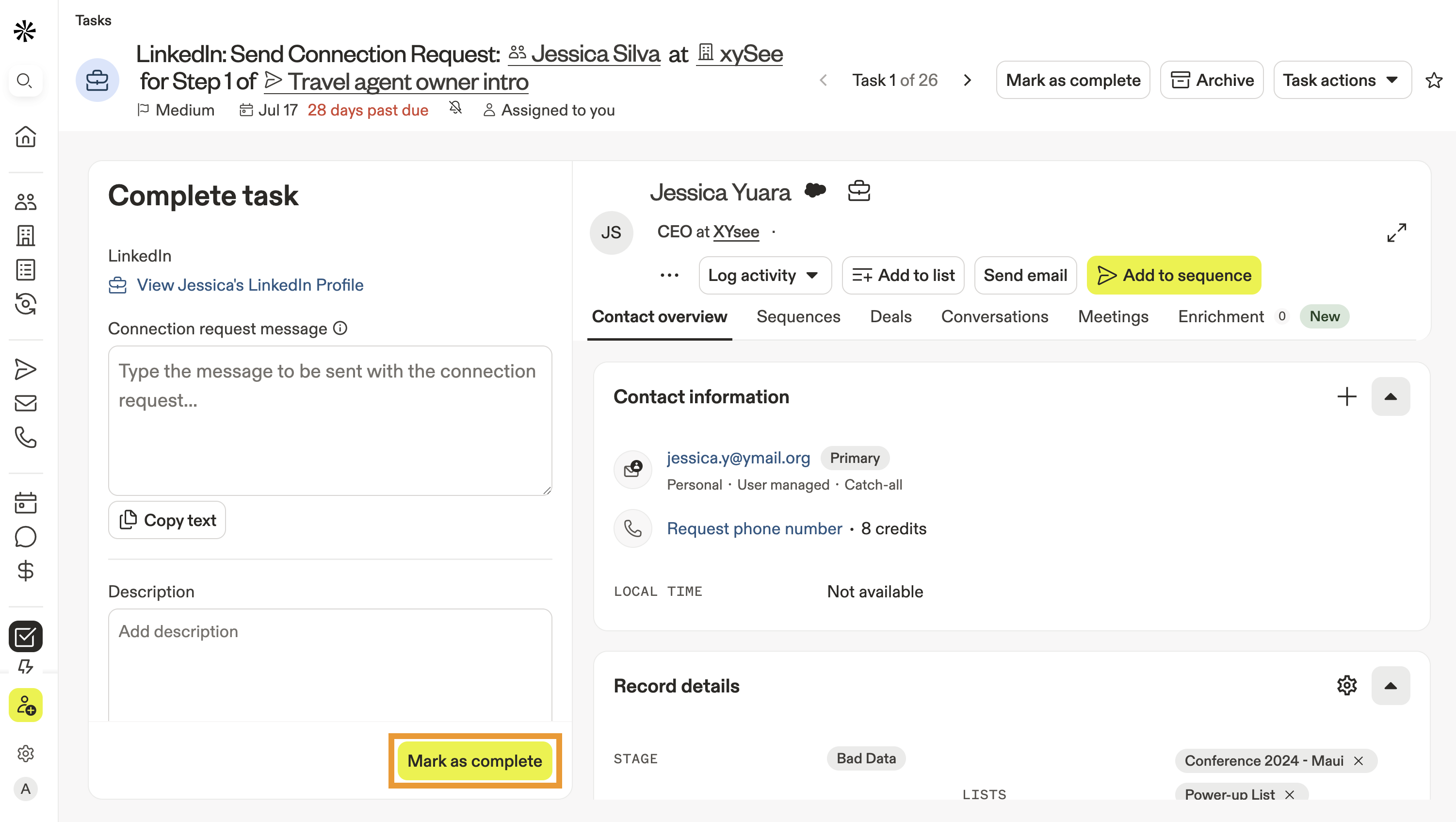
- Select a task to open and review it. Apollo shares a link to the prospect's LinkedIn profile and context about the task.
- Click Copy to copy any related message, then click the link to view their LinkedIn profile, send a connection request, interact with a post, or send a message.
- When finished, click Mark as complete.
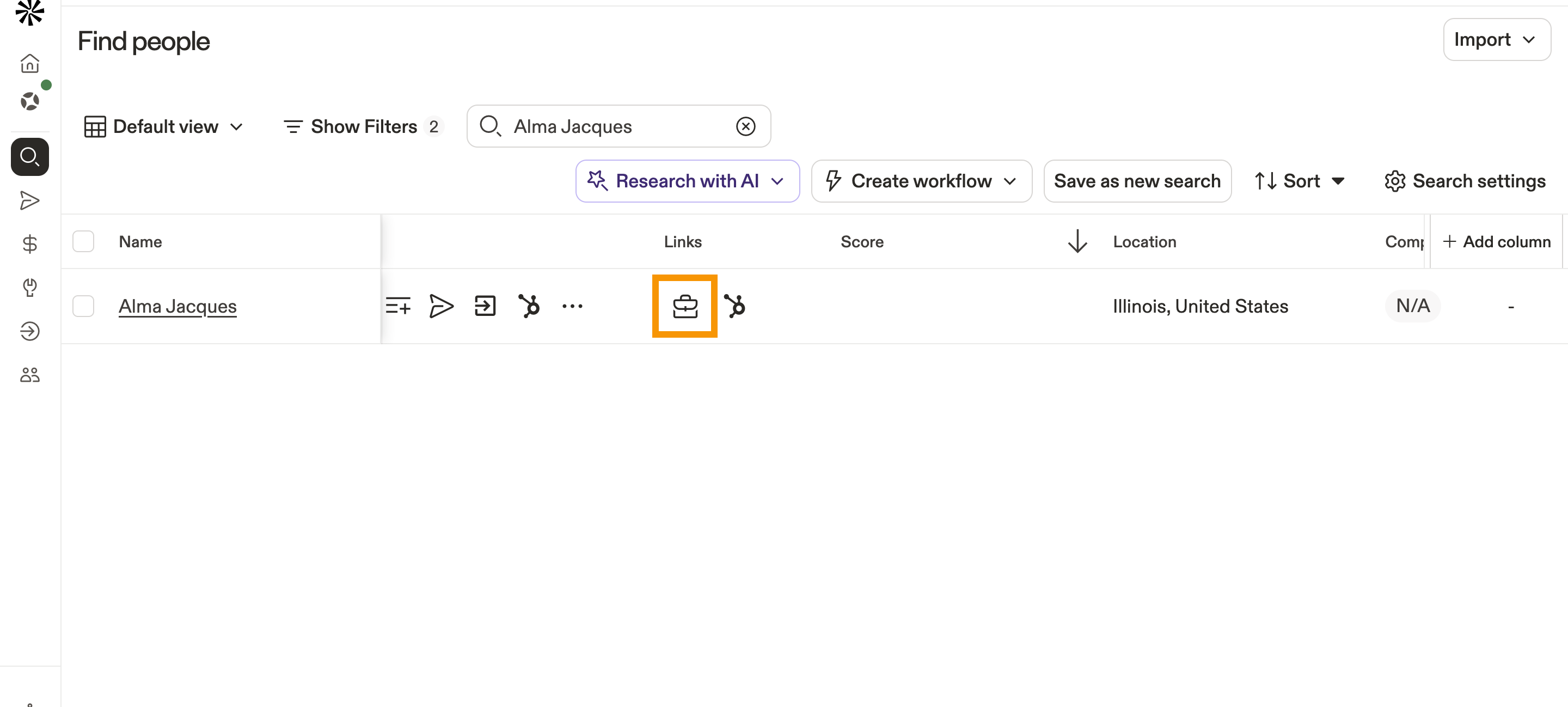
Apollo doesn’t currently include a LinkedIn connection status column. To check a contact’s connection status, search for or open their profile in Apollo, then review their LinkedIn profile directly.
You have now completed a LinkedIn task.
Check out some next best steps to keep up the momentum.
Next Steps
Here are a few resources to help you master LinkedIn tasks in your sequences:
| Use Apollo with LinkedIn to Send Personalized Messages | When you’re ready to dial in your outreach, personalize your messages to hyper-focus your approach and spark more conversations. |
|---|---|
| Sequences Overview | To keep your team on track, get to know sequences on Apollo and ensure each LinkedIn touch lands at just the right moment. |
| How to Run Multichannel Outreach Sequences in Apollo | If you need inspo, learn how to run multichannel outreach sequences to blend emails, calls, and LinkedIn steps seamlessly for higher response rates. |