
Overview
Sequences are outreach campaigns that sales teams use to reach out to contacts over a planned period of time. With sequential touchpoints like phone calls, emails, social media engagement, and other tasks, you can customize each step in a sequence on Apollo to engage your target contacts and help your sales teams speed prospects through your pipeline.
Use sequences to enroll your highest priority leads into tailored, automated, multichannel sales campaigns that help you start meaningful conversations and set up meetings to convert prospects into customers as efficiently as possible.
You can combine automated email steps with manual tasks, such as phone calls and LinkedIn actions, to build a multichannel sequence.
Here's an example sequence for tier 1 prospects, where automated touchpoints are minimal:
Day 1
| Manual email | A hyper-personalized manual is a good strategy to begin outreach. Check out Apollo's book Outbound Sales for tips on cold emailing. |
| LinkedIn — Interact with post | By liking a contact's LinkedIn posts, you gain familiarity with your name. |
Day 4
| Dialer | Give your contact a call, and if they don't answer, leave a voicemail that references your email or LinkedIn message. |
| LinkedIn — Connection request | Send a connection request on LinkedIn with the goal to keep your name top of mind. |
Day 7
| Automated email | A single automated reply to your original email helps resurface the value props you shared. Check out Apollo's book Outbound Sales for tips on cold emailing. |
Day 10
| Action item | Use an action item task as a reminder to send a handwritten note or gift. This brings something tangible to your multichannel outreach. |
Day 23
| Manual email | After you've sent a gift or note, give it a few weeks to resonate, then send another manual email referencing the gift with more personalization to make it sing. |
Day 25
| Dialer | Give it your last best shot with a final call and voicemail. |
In this example sequence, hyper-personalized messages are key. Your own sequences may differ significantly, but no matter how they look, by standardizing your pipeline you can ensure your sales reps better manage outreach.
Get your hands on Apollo's free ebook Outbound Sales for more sequence tips and tricks.
Check out the following sections to learn how to set up and use sequences for success, and discover answers to some frequently asked questions.
Get Started
Ready to dive in? Connect your mailbox, build and activate a sequence, enroll and manage contacts, and review performance.
| Link Your Mailbox to Apollo | Connect the mailbox you want to use to send sequence emails in Apollo. |
|---|---|
| Create a Sequence | Build a sequence manually, use a template, or generate one with AI. Add and configure steps, then activate the sequence when you're ready to begin outreach. |
| Add Contacts to a Sequence | Add contacts from searches, lists, CSV files, contact profiles, or workflows. Review enrollment warnings before you add them. |
| Manage Contacts in Sequences | Review sequence statuses, pause or resume outreach, mark contacts as finished, remove contacts, or re-add finished or removed contacts. |
| Report on Sequences | Review sequence health, engagement metrics, and diagnostics to identify delivery issues and improve performance. |
FAQs
|
Frequently asked questions |
||
| What happens if a contact replies midway through the sequence? | Can I email a contact in the middle of a sequence? | What happens if a contact is enrolled in multiple sequences? |
| How are contacts prioritized in a sequence? | Does an out-of-office reply pause a contact in a sequence? | |
What happens if a contact replies midway through the sequence?
Use sequence rulesets to define what happens when a contact replies in a sequence. You can choose to stop sending messages to the contact or keep them enrolled in the sequence outreach.
Can I email a contact in the middle of a sequence?
Yes, you can always reach out to a contact individually outside of a sequence. Just navigate to the contact profile, then select to email or call them directly. If the contact remains in the sequence, they'll also receive any messaging configured in the sequence. You can always pause or remove a contact from a sequence to avoid sending them too many emails.
What happens if a contact is enrolled in multiple sequences?
When you add contacts to a sequence, Apollo will flag if any of those contacts already exist in other sequences. You can choose whether to continue adding the contacts. If a contact is enrolled in multiple sequences despite this warning, the contact will receive messaging from all the sequences they're enrolled in. Check out Add Contacts to a Sequence to learn more.
How are contacts prioritized in a sequence?
Apollo prioritizes contacts in a sequence based on their prospect score. Contacts with a higher score are more likely to be a good fit for your outreach, and they will move through the sequence ahead of contacts with lower scores.
When multiple automated emails are eligible to send at the same time across different sequences, your team's email priority settings determine which emails Apollo sends first across active sequences.
Does an out-of-office reply pause a contact in a sequence?
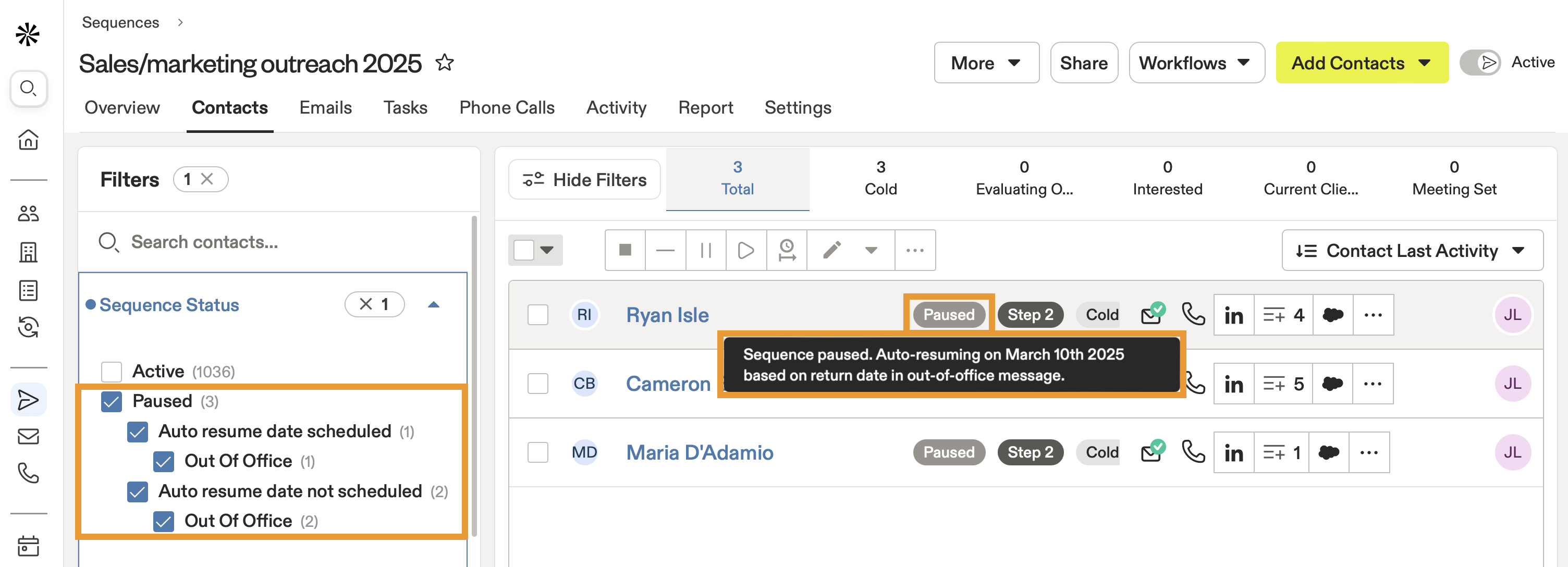
If you send a message to a contact that has set up an out-of-office auto-reply, Apollo pauses the contact in the sequence. Apollo can automatically resume messaging the contact if the contact specifies the return date in their out-of-office email. If Apollo can't detect a return date, you can manually resume messaging a paused contact.
When Apollo identifies an out-of-office message, Apollo pauses the contact and doesn't count the out-of-office message as replied.
In order for Apollo to detect a recipient's out-of-office return date, the date must be written with the month first, either in numeric format (MM/DD/YYYY, like 12/25/2025) or in long-form (like December 25, 2025). Apollo can detect auto-response messages in English, Spanish, French, German, Portuguese, Swedish, and Dutch.
To identify when Apollo has paused a contact in a sequence:
- Launch Apollo and click Sequences.
- Select your sequence, and click Contacts.
- Click Show filters, then click Sequence Status.
-
Set the status to Paused, then select Auto resume date scheduled or Auto resume date not scheduled to filter your contacts:
- Auto resume date scheduled: Hover over the Paused status on a contact to view the auto resume date.
- Auto resume date not scheduled: Hover over the Paused status for more details. Select one or more contacts to manually resume them in the sequence.
Can't find those filters? These filters only appear as options on your sequence if Apollo has detected an out-of-office reply from one of your contacts.
Was an out-of-office reply not detected? Reach out to Apollo support to share the message so Apollo can get better over time.
Learn More
Explore more ways to configure, automate, optimize, and manage your sequences.
| Configure a Sequence Sending Schedule | Set when Apollo can send automated sequence emails, including business hours, time zones, holidays, and email priority. |
| Manage Sequence Rulesets | Control when Apollo sends, stops, or skips sequence emails based on prospect activity and contact stages. |
| Use an A/B Test in a Sequence | Compare versions of an automated email to identify the subject lines and messaging that generate the most engagement. |
| Use Stage Triggers in a Sequence | Automatically update a contact or account stage when specific sequence events occur. |
| Edit the Sending Mailbox on Contacts in a Sequence | Change the sending mailbox for contacts already enrolled in a sequence to manage mailbox capacity or continue outreach from another mailbox. |
| Complete LinkedIn Tasks in a Sequence | Add and complete LinkedIn tasks as part of your multichannel sequence outreach. |
| Organize Sequences and Email Templates with Folders | Organize sequences and email templates into folders so your team can find and manage outreach content. |
| Archive a Sequence | Archive inactive or completed sequences to reduce clutter while preserving them for future reference. |