
Overview
Stage triggers are conditions in sequences that automatically change the stage of a contact or account based on conditions you set. For example, you can set a trigger to change a contact's stage to approaching when your email is delivered, and then to replied when the contact replies, or use stages as a condition to enroll contacts or accounts in a workflow.
Check out the following sections to set up sequence stage triggers.
Set Up Stage Triggers
To set up contact or account stage triggers:
- Launch Apollo and click Settings > Objects, fields & stages > Contact fields & stages or Accounts fields & stages > Triggers.
Contacts
- Apollo displays different triggers for when a contact stage should change to a selected stage. Use the dropdown to map new stage changes for each condition. Click Save when you're done.

Contacts have email and call trigger conditions. Check out the tables below to review the available triggers, conditions, and recommended stage.
Email Trigger Conditions
| Trigger | Condition | Recommended Stage |
|---|---|---|
| Prospect created | The initial stage for contacts when you add them to your Apollo account. This is generally done with lead requests, CSV uploads, or data pulls when you integrate with your CRM. | Cold |
| Email Delivered | Apollo successfully delivers an email to the contact. This is only delivery, and not whether the email is opened. | Approaching |
| Email Bounced | An email to the contact bounces. | Bad data or no email |
| Spam blocked | An email to the contact is blocked for spam-related reasons. | N/A |
| Prospect Unsubscribed | A contact opts out of email contact. This happens if you turn on unsubscribe links in your emails. | Do not contact This stage should always be set to do not contact. |
| Prospect Replied | A contact responds to an email you sent. | Replied |
| Appointment or Email Marked as Interested | When you book a meeting with a contact or click Mark Interested on a sent sequence or manual email, Apollo applies the stage mapped to this trigger. | Interested |
| Unresponsive | A contact doesn't respond, but you may want to reach out to them again later. | Unresponsive |
Toggle on Only mark contacts as Interested for meetings booked through Apollo Meetings links to limit meeting-based stage updates to meetings booked through Apollo Meetings. You can still use Mark Interested on sent sequence and manual emails.
Call Trigger Conditions
Call triggers are based on the call dispositions you have set up. This happens for calls when a prospect opts out of calls, or when your team calls a contact and marks them with a call disposition. Check out the different default triggers and conditions below.
| Trigger | Condition |
|---|---|
| Prospect opted out of calls | The contact opted out of being called. |
| Gatekeeper | You called but reached a gatekeeper rather than the target contact. |
| No Answer | You called but the contact didn't answer. |
| Connected - Neutral | You connected with the contact and the outcome was neutral. |
| Connected - Negative | You connected with the contact and the outcome was negative. |
| Left Voicemail | You left a voicemail for the contact. |
| Not in Service | The number is disconnected or no longer active. If you requested the number from Apollo, consider flagging the data as inaccurate. |
| Connected - Positive | You connected with the contact and the outcome was positive. |
| Bad / Wrong Number | The number is incorrect or doesn't belong to the contact. If you requested the number from Apollo, consider flagging the data as inaccurate. |
| Busy | A contact's line was busy. |
Accounts
- The available trigger for accounts is When an account is created, which is the initial stage for an account when you add them to your Apollo account. This is generally done with lead requests, CSV uploads, or data pulls when you integrate with your CRM. Use the dropdown to select a new stage.
- (Optional) Use account stage exclusions to define the account stages you always want to exclude from data requests for new prospects. Select one or more stages to warn the team if they try to prospect from the stage.
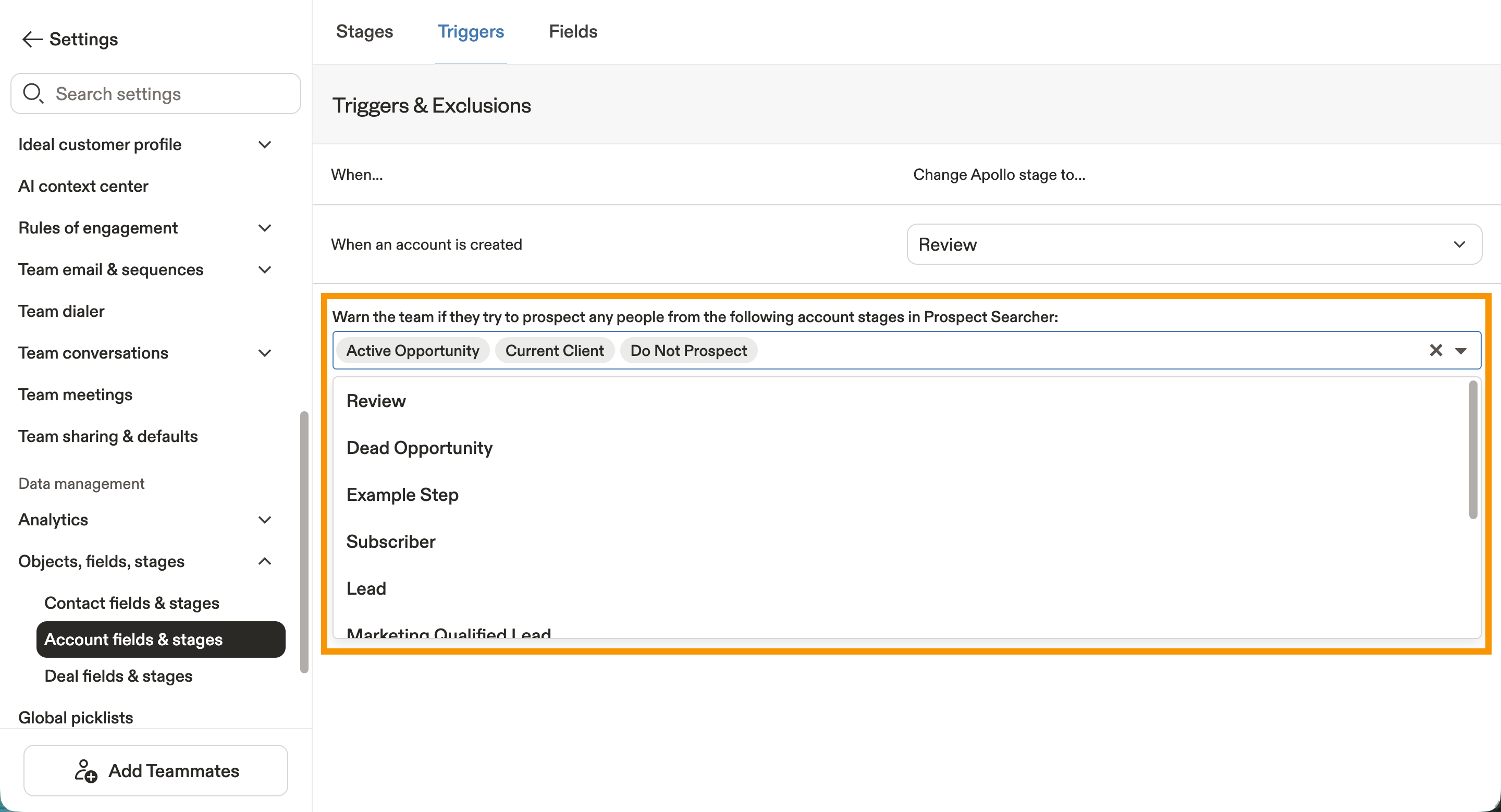
- When you're done, click Save.
You have now edited a stage trigger.
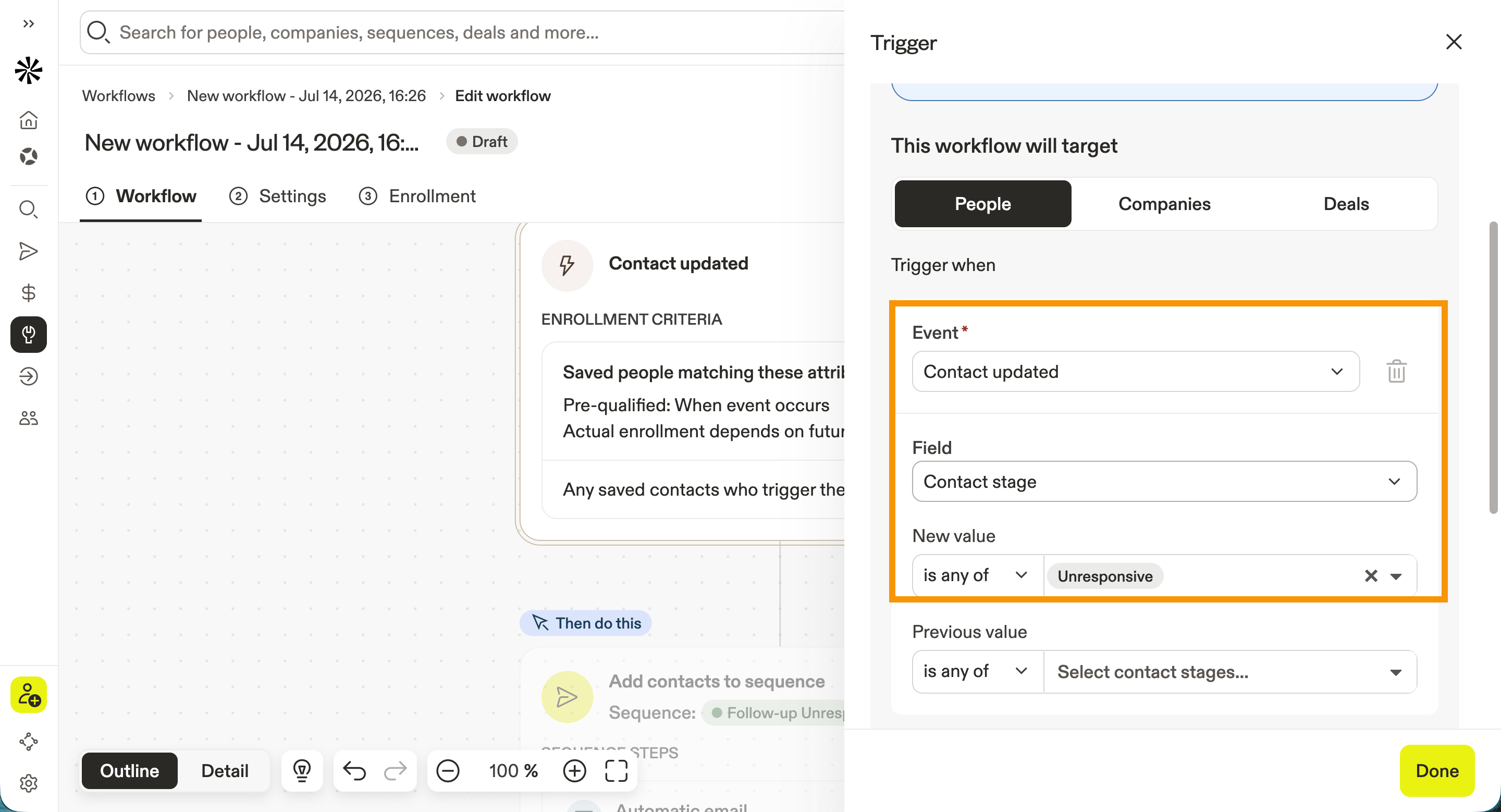
Want to take stage triggers further? Use them with workflows. For example, use workflows to automatically add contacts to a follow-up sequence when their stage changes to Unresponsive.
Next Steps
Once you've set up stage triggers, these related resources can help you automate more of your pipeline and keep your sequences running smoothly.
| Contact and Account Stages Overview | Customize your contact and account stages to build a consistent lifecycle that works seamlessly with your stage trigger automations. |
|---|---|
| Manage Sequence Rulesets | Configure sequence rulesets to automatically stop or pause outreach when contacts or accounts reach specific stages. |
| Create a Sequence | Build a sequence with the right steps and rules to make the most of your automated stage updates and engagement strategy. |
| Add Contacts to a Sequence | Enroll contacts into your sequences to start tracking engagement events that can automatically move them through your defined stages. |
| Sequences Overview | Explore how sequences work together to create automated, multichannel outreach that keeps your pipeline moving forward. |