
Overview
Snippets make it easy for you to create engaging, high-performing emails at scale. You can use snippets to collaborate with your team to create and share quality messaging that converts. When you use snippets in Apollo, you can piece together the best parts of different emails and personalize your approach without friction to drive more success from your sequences. Check out the following sections to learn how to create and use snippets.
Create a Snippet
To create and edit snippets, you need permission to edit email snippets. If you don't have permission, reach out to an Apollo admin at your org for help.
You can customize a snippet built by Apollo, create a new snippet, or clone an existing snippet.
Customize a snippet built by Apollo
To customize a snippet built by Apollo:
- Launch Apollo and click Settings > Rules of engagement > Snippets.
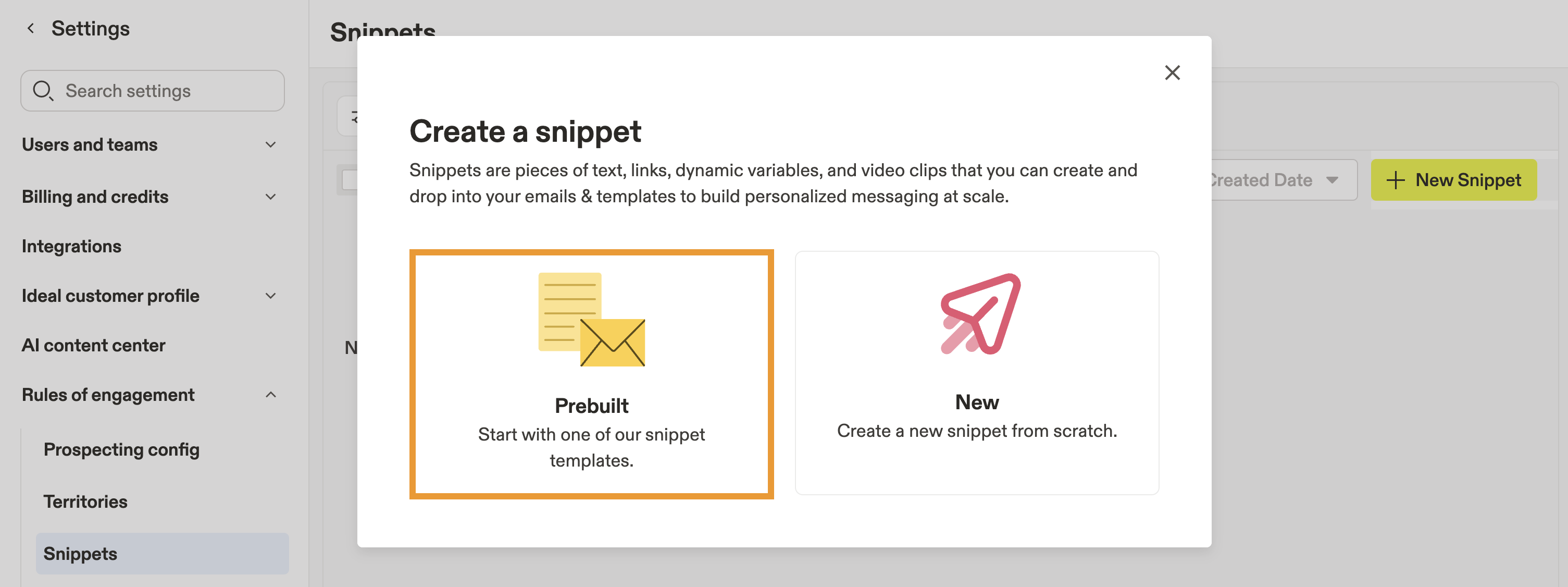
- Click New snippet, then select Prebuilt.
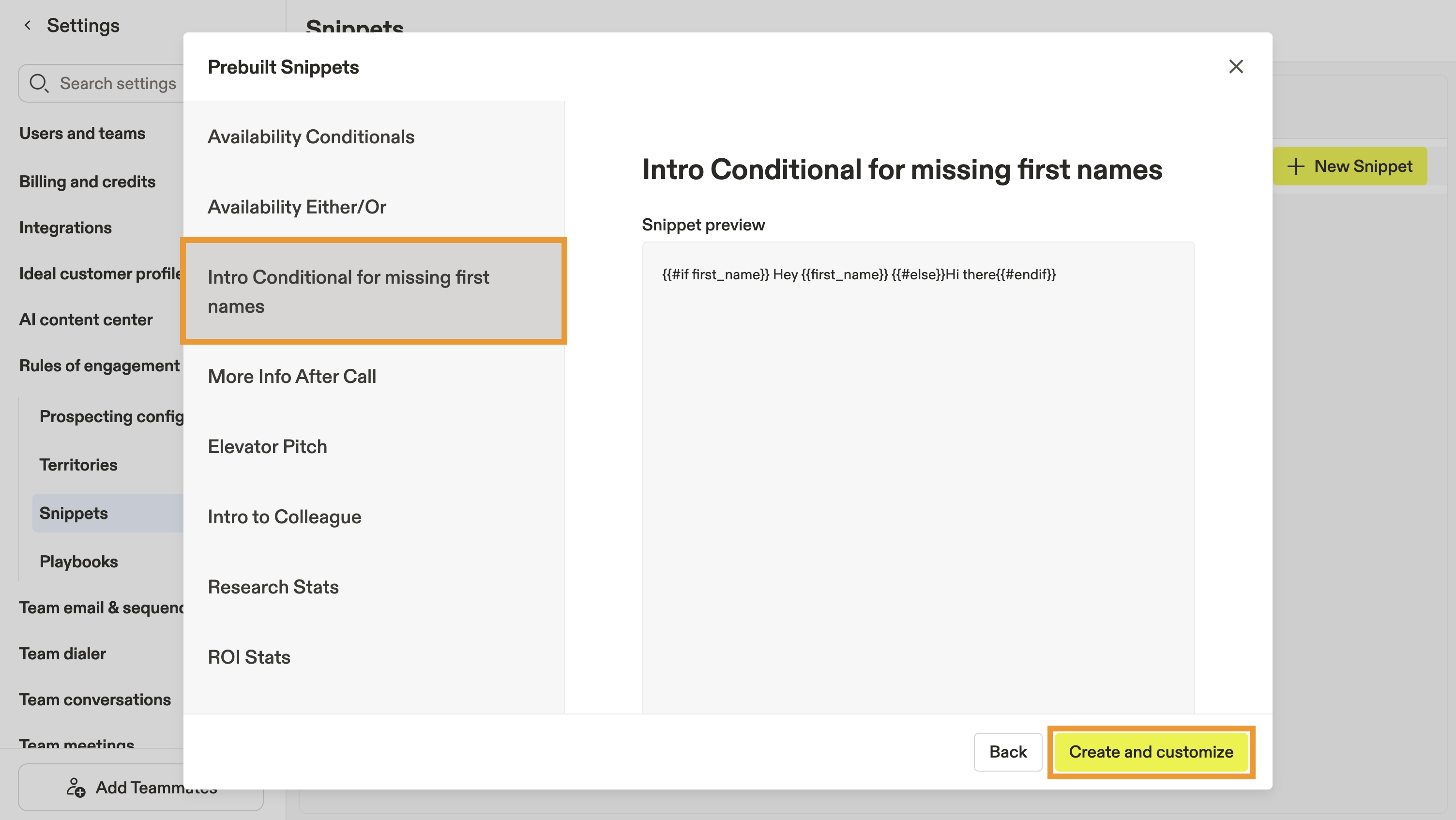
- Select a snippet like Intro conditional for missing first names, then click Create and customize.
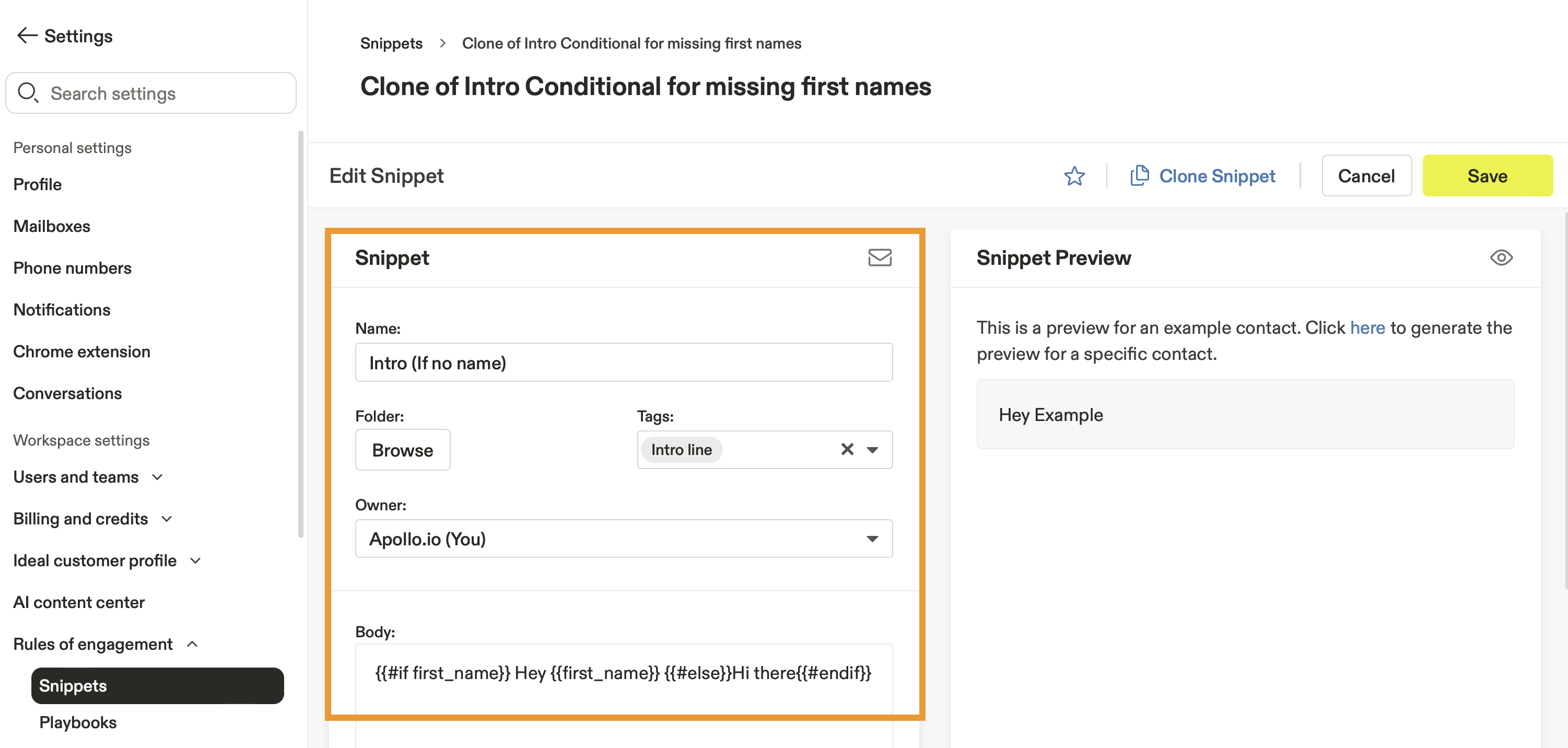
- Next, customize the snippet:
- Name: Change the snippet name so you can easily find it.
- Folder: If you have a large team or use many snippets, you can organize snippets by folders. Click Browse then select a folder or create a new one.
- Tags: Use descriptive tags to make it easier to find and use the snippet.
- Owner: By default, you're set as the owner. If another person should maintain the snippet, you can can reassign the owner.
- Body: Enter the actual text to be used in emails to prospects. You can use text formatting like bold or italics, insert links, add images, edit the raw HTML, insert a Vidyard video, use dynamic variables, reference other existing snippets, or add a meeting.
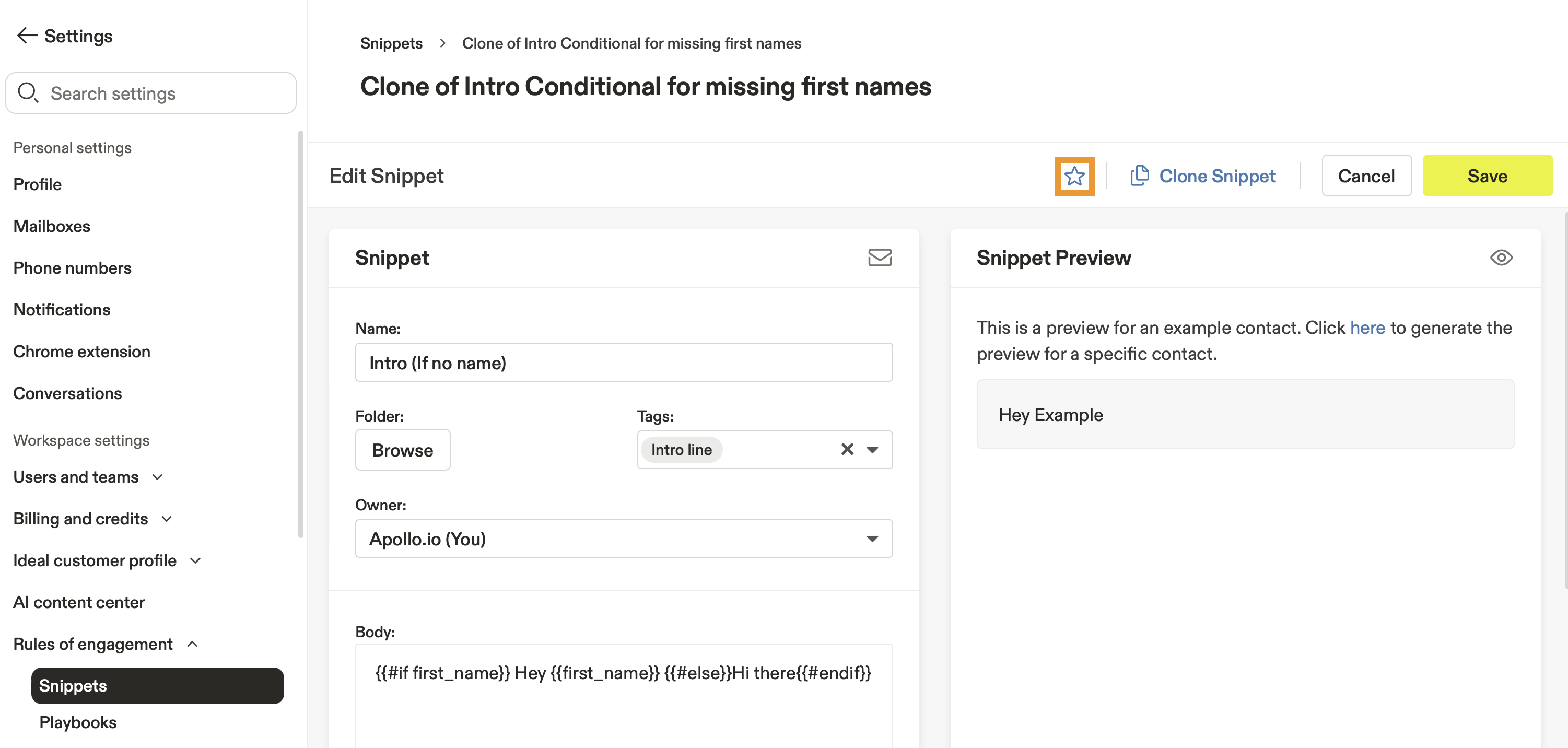
- To add the snippet to your favorites, click ☆.
- To preview your snippet on a real contact, select a prospect on the right.
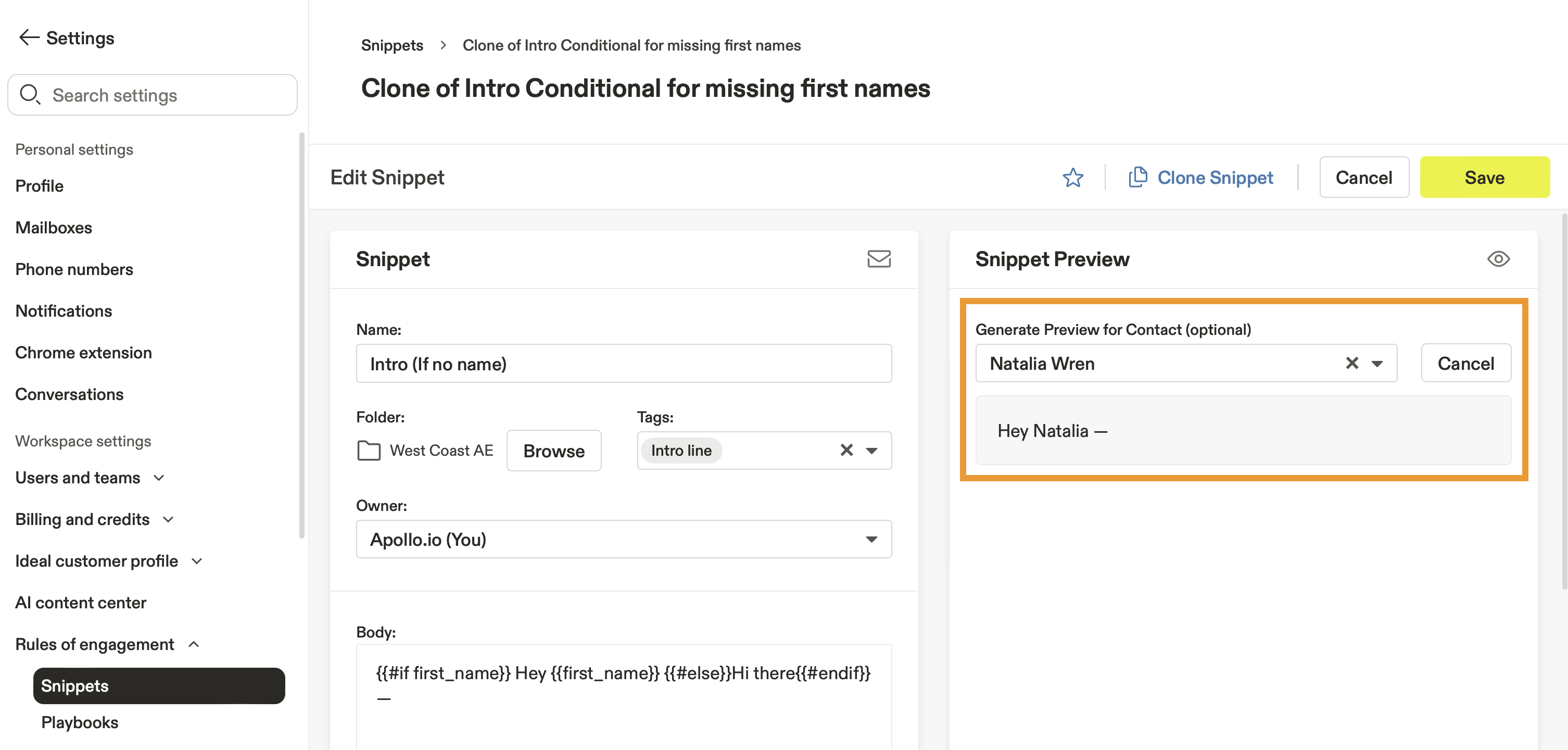
- When finished, click Save.
You have now customized a prebuilt snippet. You're ready to use the snippet in outreach.
Create a new snippet
To create a new snippet:
- Launch Apollo and click Settings > Rules of engagement > Snippets.
- Click New snippet, then select New.
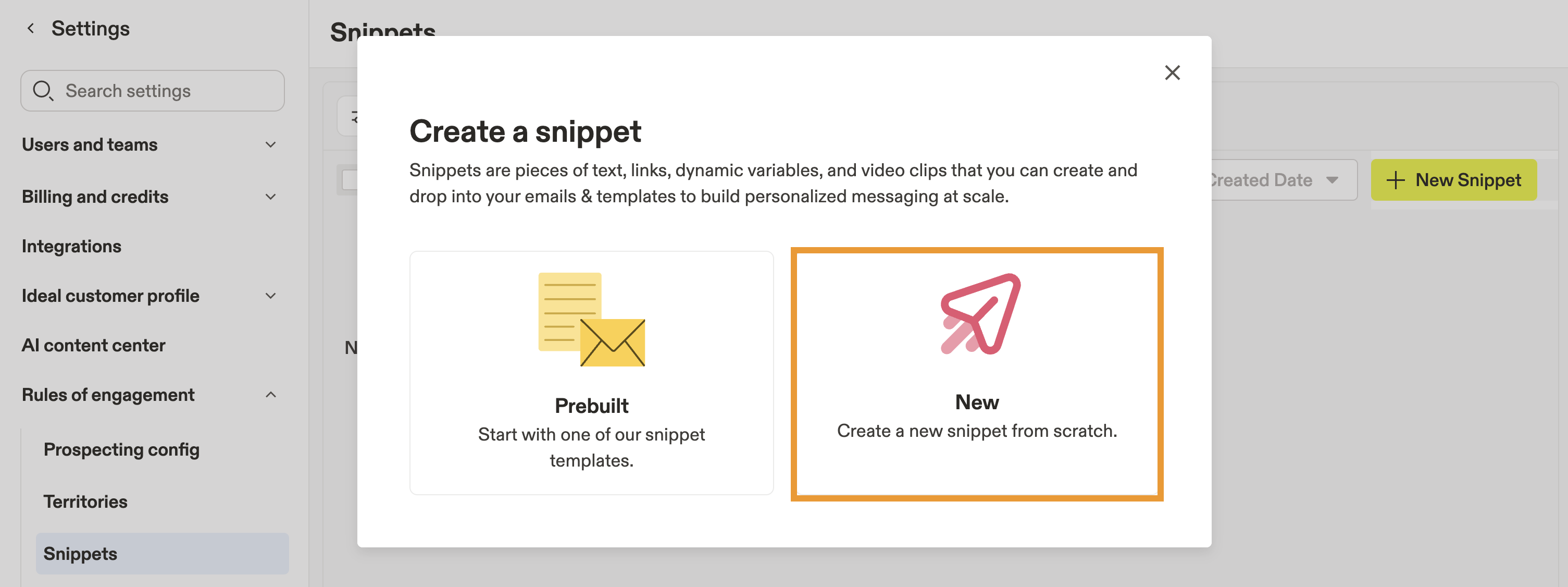
- Next, customize the snippet:
- Name: Enter a name so you can easily identify the snippet.
- Folder: If you have a large team or use many snippets, you can organize snippets by folders. Click Browse then select a folder or create a new one.
- Tags: Use descriptive tags to make it easier to find and use the snippet.
- Owner: By default, you're set as the owner. If another person should maintain the snippet, you can can reassign the owner.
- Body: Enter the actual text to be used in emails to prospects. You can use text formatting like bold or italics, insert links, add images, edit the raw HTML, insert a Vidyard video, use dynamic variables, reference existing snippets, or add a meeting.
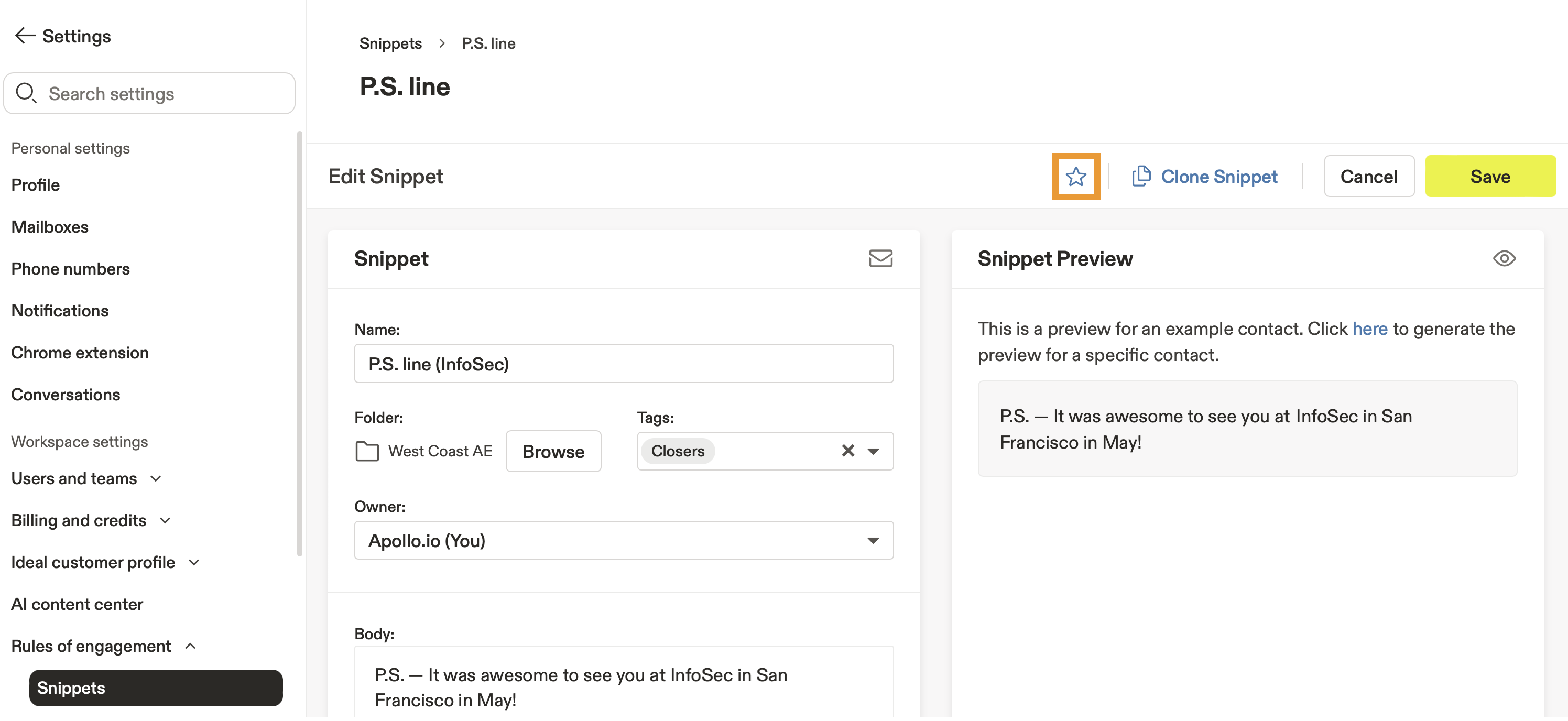
- To add the snippet to your favorites, click ☆.
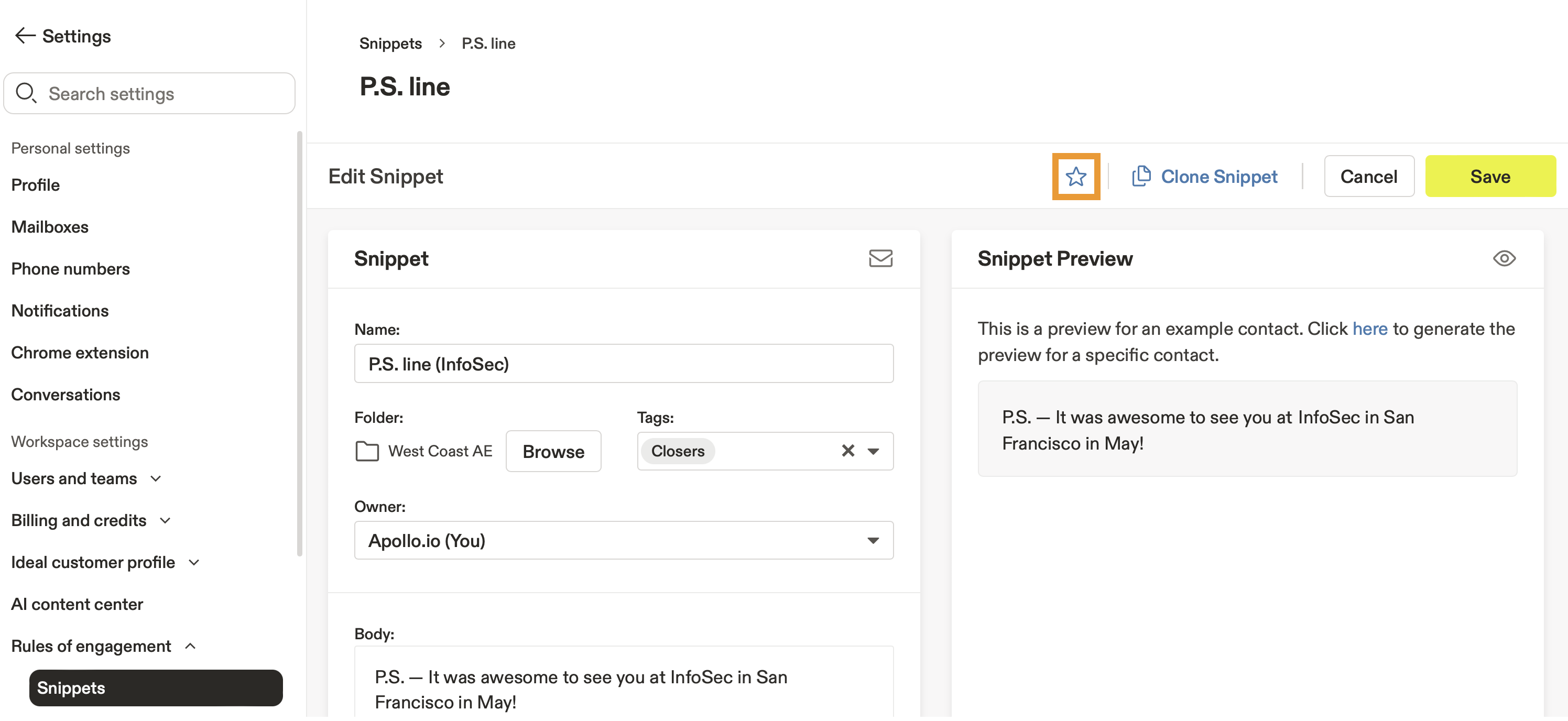
- To preview your snippet on a real contact, select a prospect on the right.
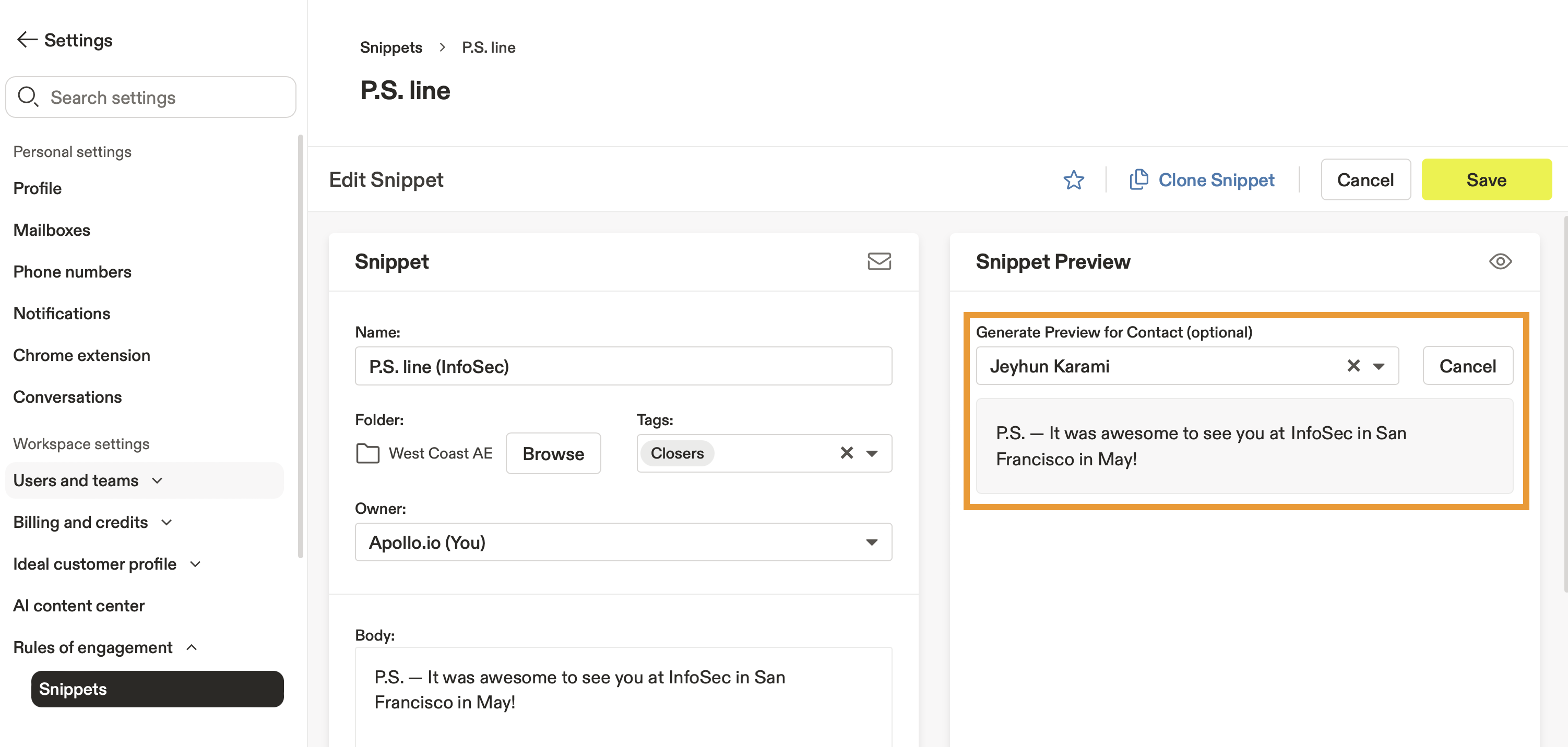
- When finished, click Save.
You have now created a new snippet. You're ready to use the snippet in outreach.
Clone an existing snippet
After creating your first snippets, you can clone existing ones.
To clone a snippet:
- Launch Apollo and click Settings > Rules of engagement > Snippets.
- Click New snippet, then select Clone.
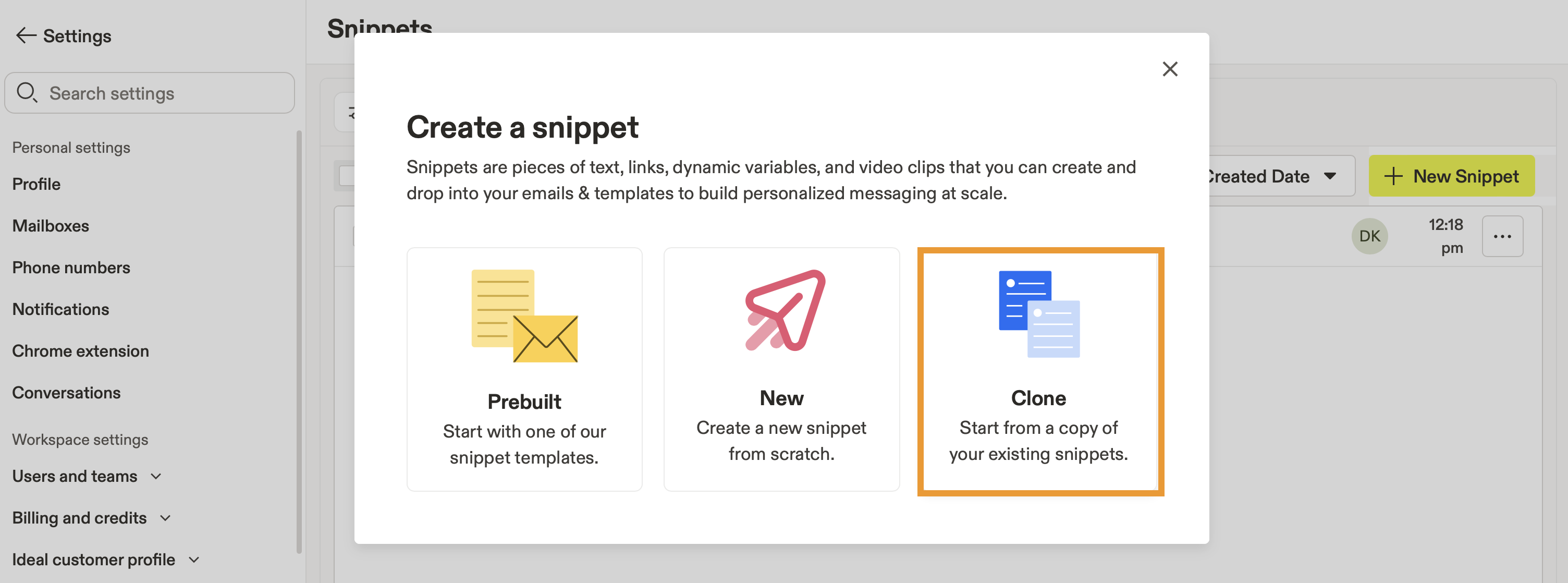
- Search for and select a snippet, then click Clone.
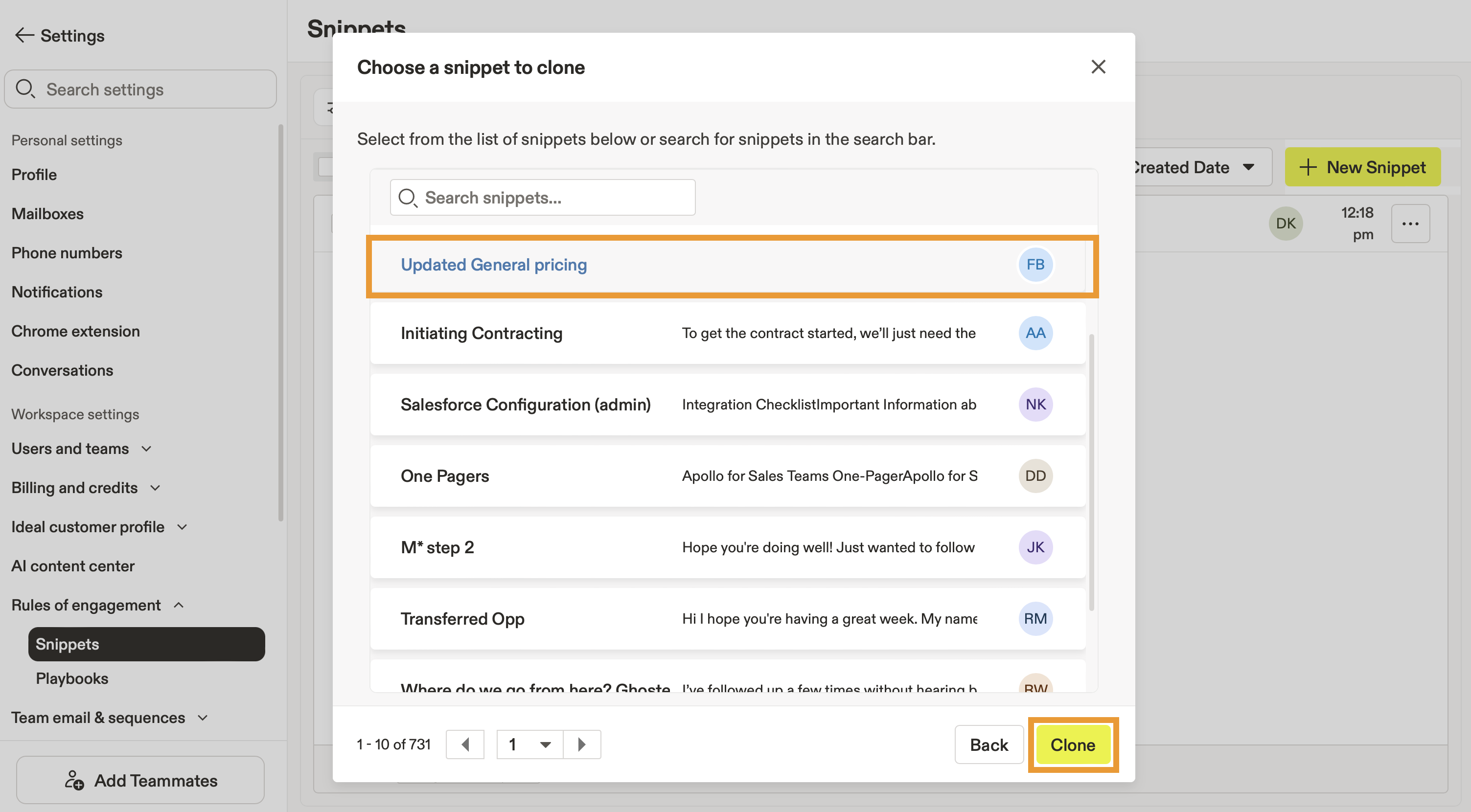
- Apollo clones the snippet. You can further customize it as needed:
- Name: Enter a name so you can easily identify the snippet.
- Folder: If you have a large team or use many snippets, you can organize snippets by folders. Click Browse then select a folder or create a new one.
- Tags: Use descriptive tags to make it easier to find and use the snippet.
- Owner: By default, you're set as the owner. If another person should maintain the snippet, you can can reassign the owner.
- Body: Enter the actual text to be used in emails to prospects. You can use text formatting like bold or italics, insert links, add images, edit the raw HTML, insert a Vidyard video, use dynamic variables, reference existing snippets, or add a meeting.
- When finished, click Save.
You have now cloned a snippet. You're ready to use your snippet in outreach.
Manage Snippets
To manage and organize snippets:
- Launch Apollo and click Settings > Rules of engagement > Snippets.
- Apollo lists snippets owned by you.
- Click Show filters to find a specific snippet with filters.
- Alternatively, search snippets by name or sort by created date.
- Click ★ to add a snippet to your favorites.
- Click . . . beside a snippet to add to favorites, clone, move to a folder, or delete.
- Select one or more snippets to take an action in bulk:
- Tag: Add tags to make snippets easier to sort and find.
- Folder: Organize snippets by folders if you have a large team or use many snippets.
- Export: Export your snippets as a .csv file.
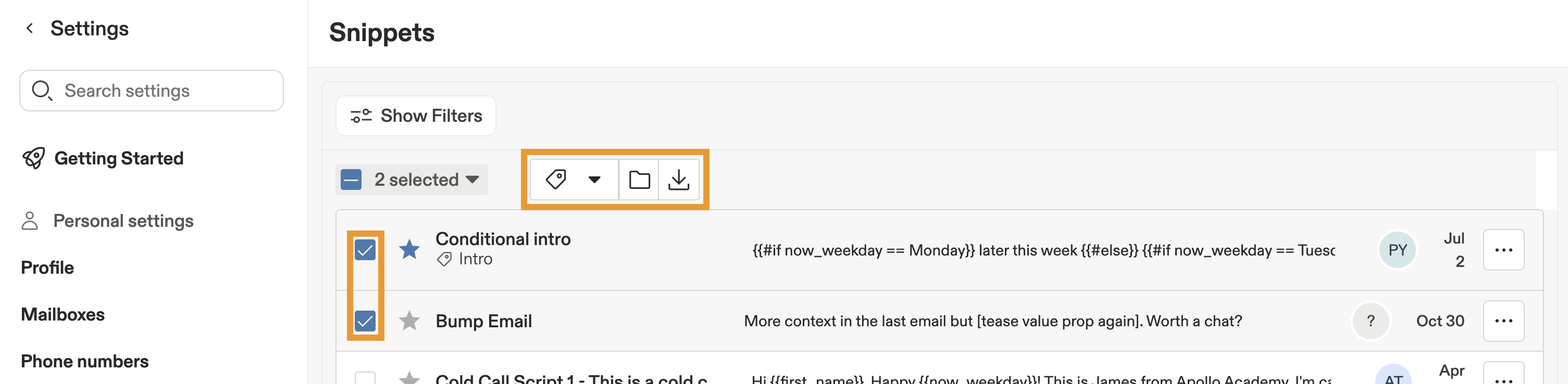
You have now organized and managed your snippets. Check out how to use snippets in sequence emails
You can edit a snippet at any time. To keep your snippets up-to-date, navigate to Settings > Rules of engagement > Snippets then select a snippet to update. When finished, click Save.
Use Snippets
To use snippets in outreach, you need permission to add email snippets. If you don't have permission, reach out to an Apollo admin at your org for help.
You can use snippets when you email prospects on Apollo. There are a couple of ways to reach out via email:
Email in bulk with a sequence
To use snippets in a sequence:
- Launch Apollo and click Sequences.
- Select a sequence, and add or edit a manual or automatic email step.
- Click ✂ in the email where you want to insert a snippet.
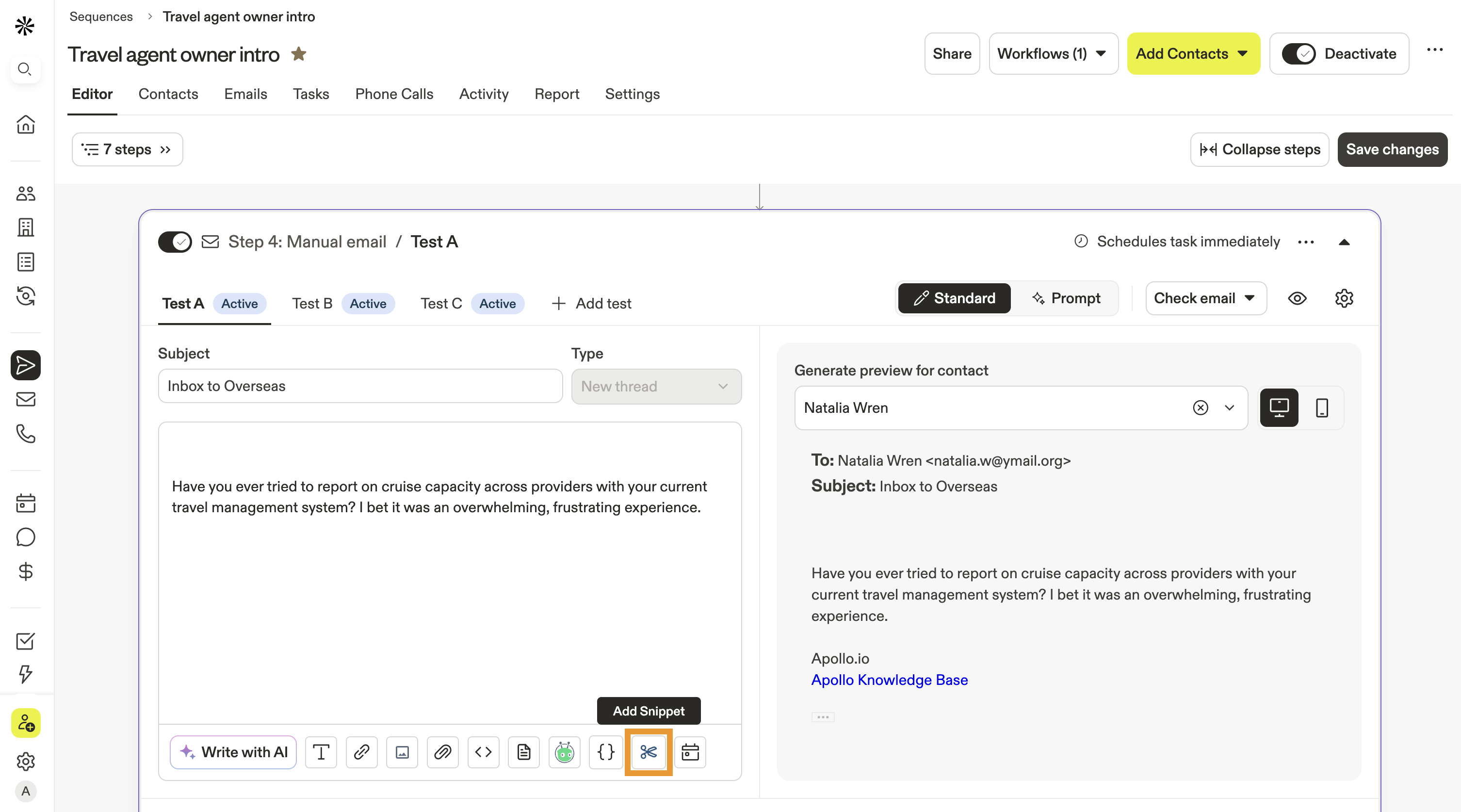
- Select a snippet, or create a new one.
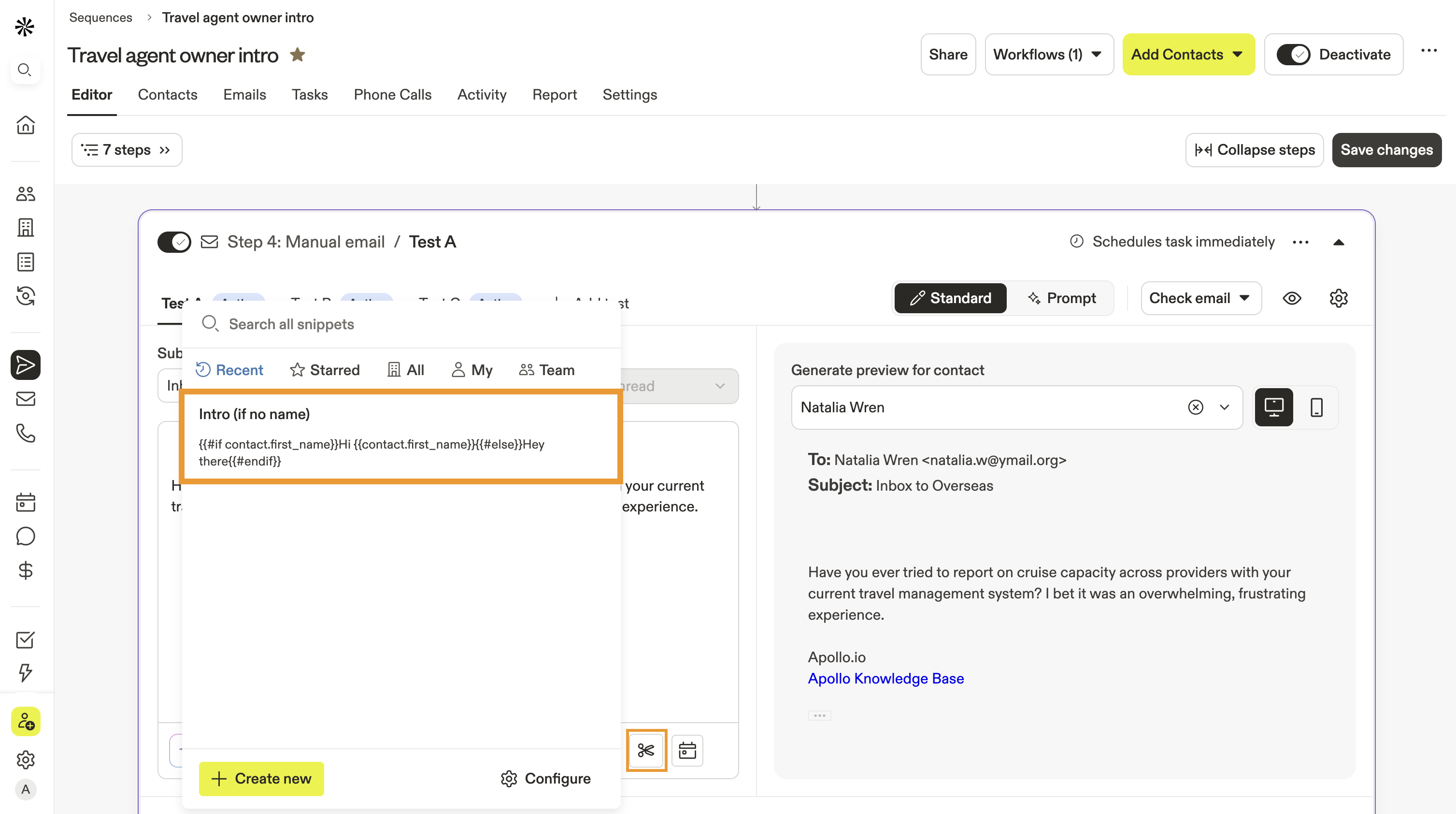
- Apollo inserts the snippet into your email. You can preview the result on a real prospect.
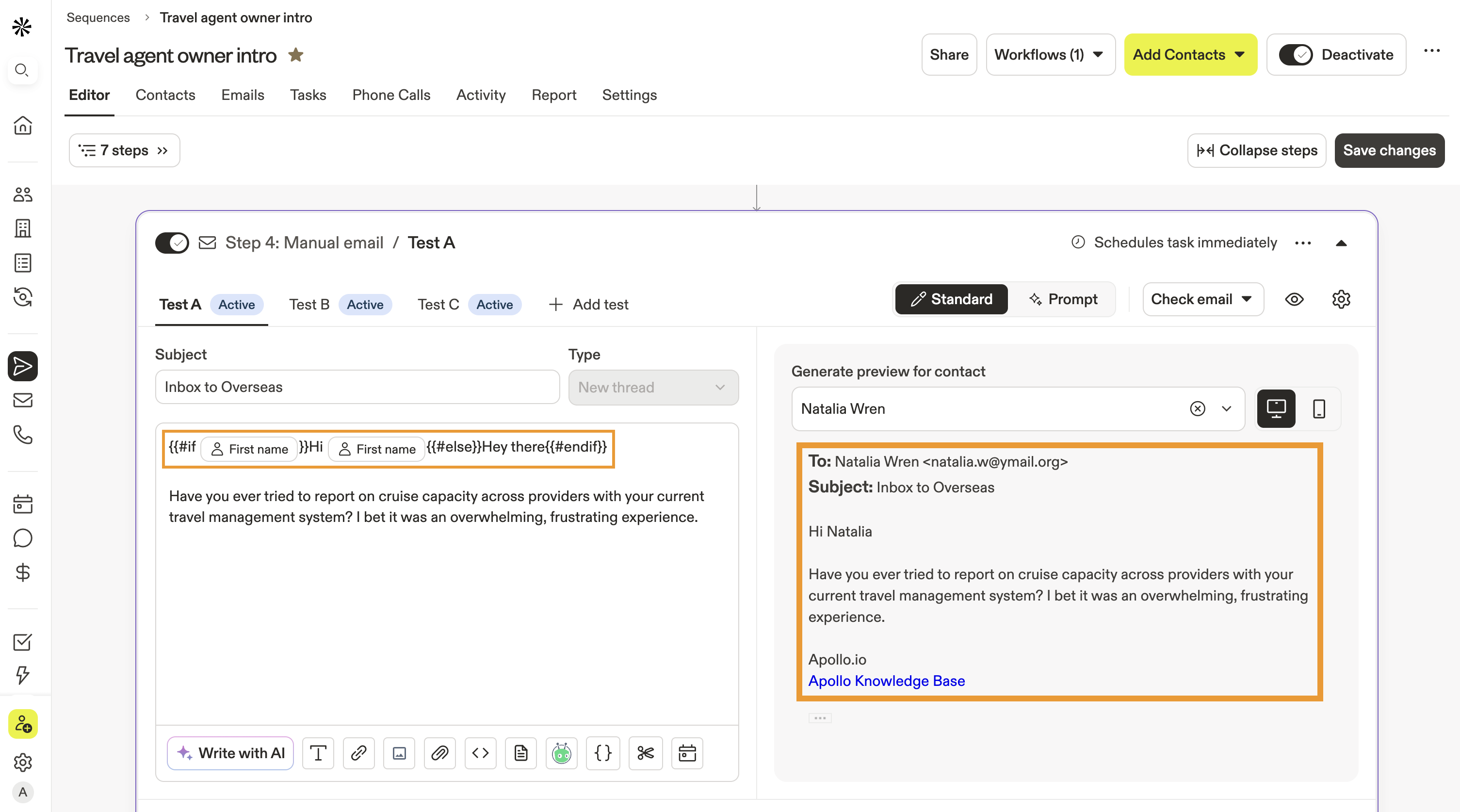
You have now used a snippet in a sequence. Learn more about creating and managing sequences on Apollo.
Email an individual from a prospect profile
To use a snippet in an email to an individual:
- Launch Apollo and click People.
- Use search filters to find a specific contact.
- Click the contact, then click their email address to create a one-off email.
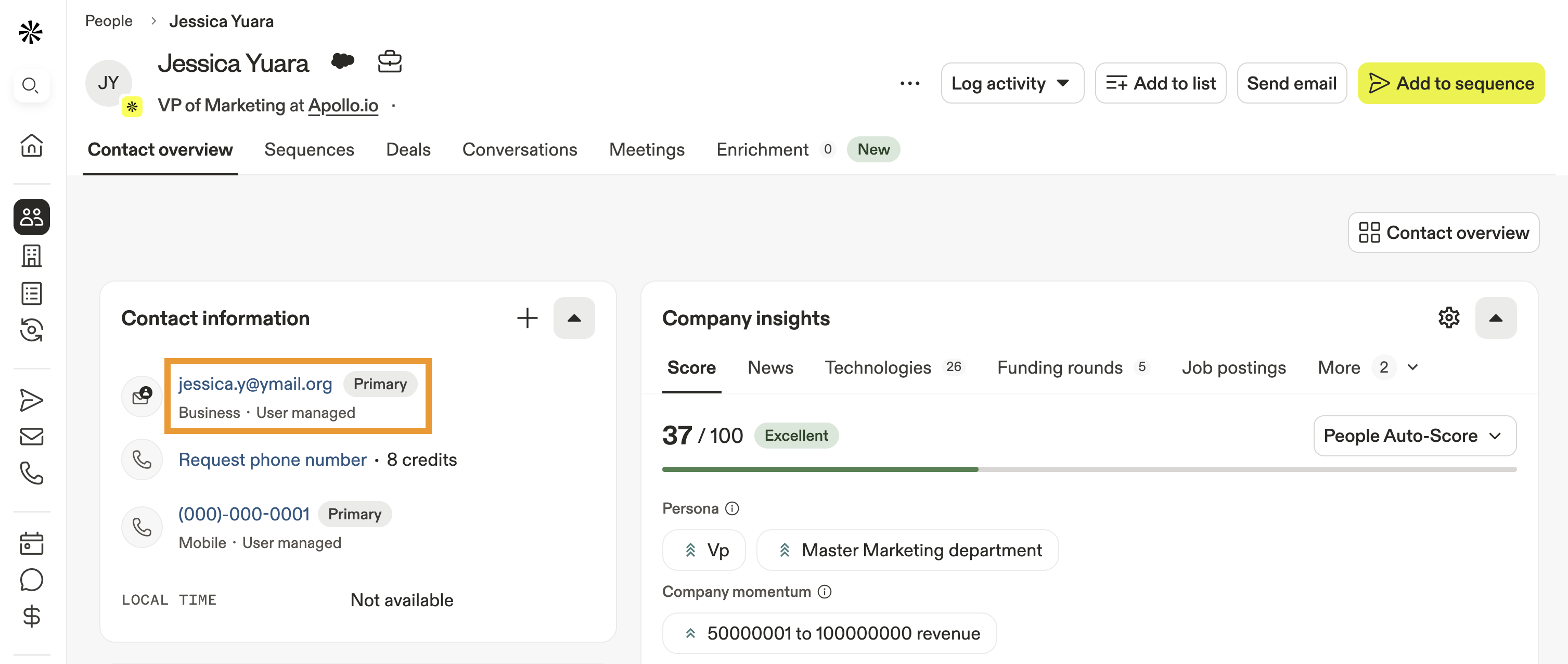
- Click ✂ in the email where you want to insert a snippet.
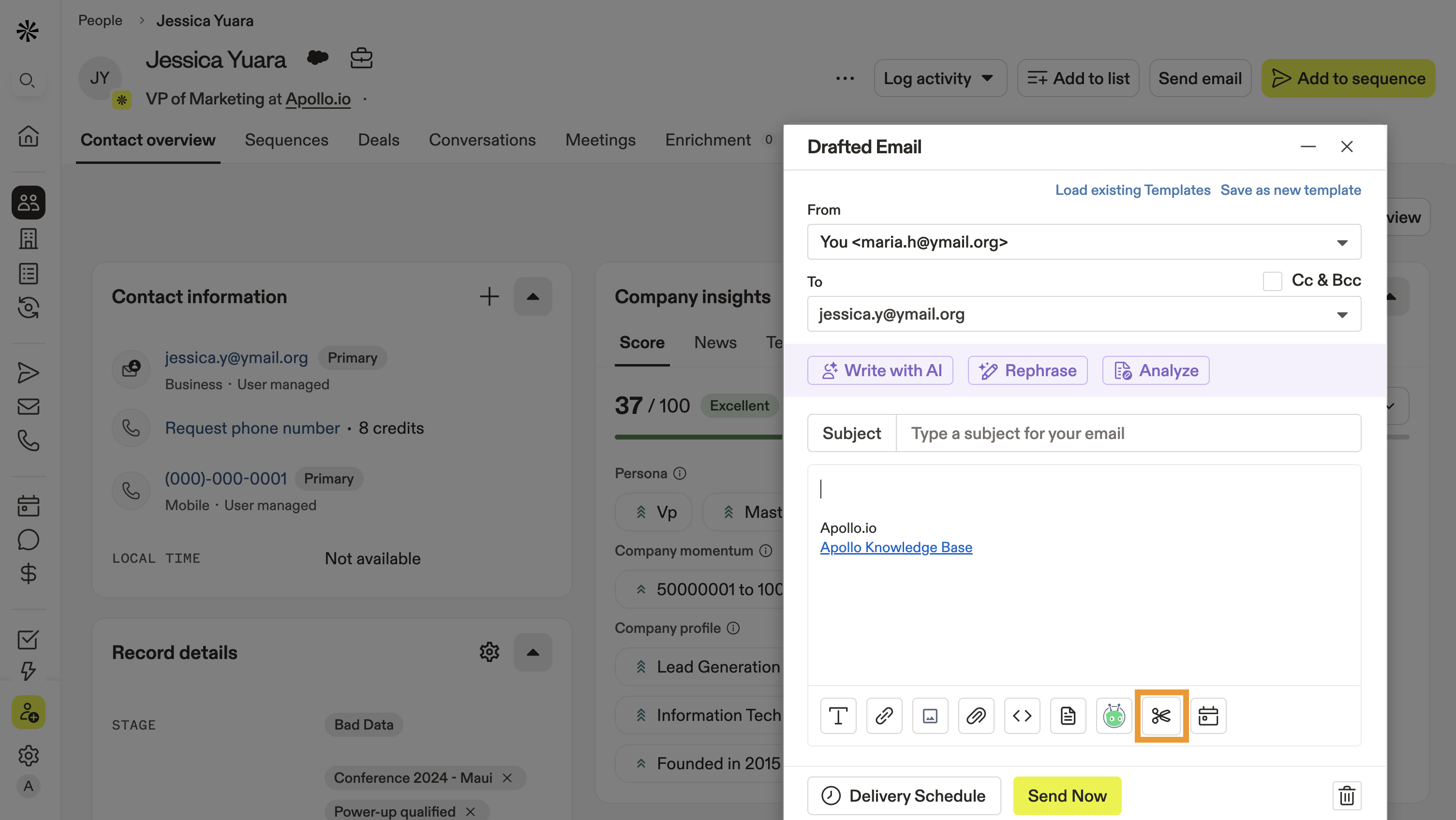
- Select a snippet or create a new one.
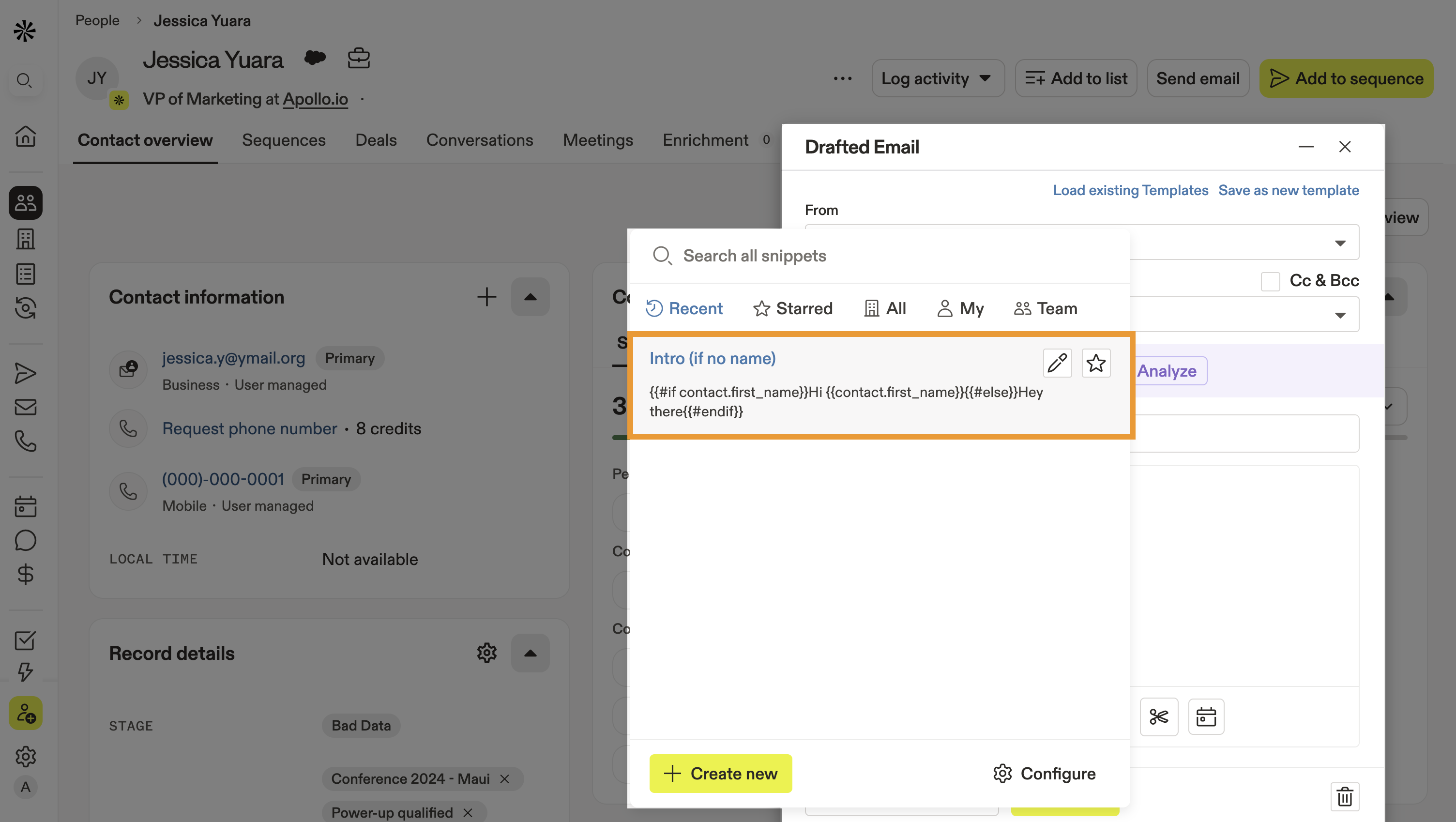
You have now used a snippet in a one-off email. Learn more about viewing and responding to emails on Apollo.
Next Steps
Want to get even more value from your snippets? These next steps can help you scale faster and write smarter:
| Sequences Overview | Use snippets sequences to build, automate, and personalize messaging that boosts reply rates with less manual work. |
|---|---|
| Use Basic Dynamic Variables | Add a human touch to your snippets when you use dynamic variables to automatically personalize content for each prospect. |
| Use Custom Dynamic Variables | Make messaging hyper-relevant by creating custom dynamic variables to pull in the fields your team cares about across snippets, emails, and AI research. |
| Create a Sequence | Streamline outbound when you create sequences that combine personalization with automation. |
| Meetings Overview | Speed up scheduling byinserting a meeting link into your outreach, so prospects can book time instantly. |