
Overview
Emails are a powerful engagement tool. With the right messages, you can build and strengthen relationships with prospects and customers. But writing emails can be time-consuming and can tank valuable energy.
With the writing assistant powered by Apollo AI, you can create and send effective personalized messaging to prospects at scale to maximize your productivity and outreach.
Instead of overthinking every line, Apollo AI can generate subjects, email copy, and personalized openers for you. Additionally, Apollo analyzes your emails against millions of successful exchanges to provide you with the latest email best practices, actionable tips to improve your copy, and real-time scores to improve your writing.
Check out the following sections to use the writing assistant on Apollo.
Looking to learn more? Check out Apollo AI Overview for a deep dive into all things AI.
Apollo takes data privacy seriously, including with AI-generated messaging. Check out Apollo's AI policy or reach out to privacy at Apollo with any data privacy concerns.
Write Emails with AI
The writing assistant only supports English.
Apollo limits each person to fifty AI email generations per 24 hours. All words generated by Apollo AI count toward your monthly AI word usage limit, including email copy and personalized openers. Your Apollo plan determines your total monthly AI word usage limit. Unused words don't roll over between billing cycles. You can view your team's total usage, reset date, and per-user breakdown in Settings > expand Credits and activity > Credit usage > Usage details. If you use AI research in AI-generated emails, each email incurs credit usage.
You can use the AI writing assistant to write an email to a single prospect or to write emails in a sequence:
To write an email to a single prospect:
- Launch Apollo and click People.
- Use search filters or the AI assistant to find the person you want to email.
- Select an email address, or click Send email to use the contact's primary address.

- Click Personalization settings to adjust how Apollo AI generates the email.

- Click the type of content you want to generate:
- AI full email: An entire email with subject line.
- Opener: A short opener for an email.
- PS line: A short closer for an email.
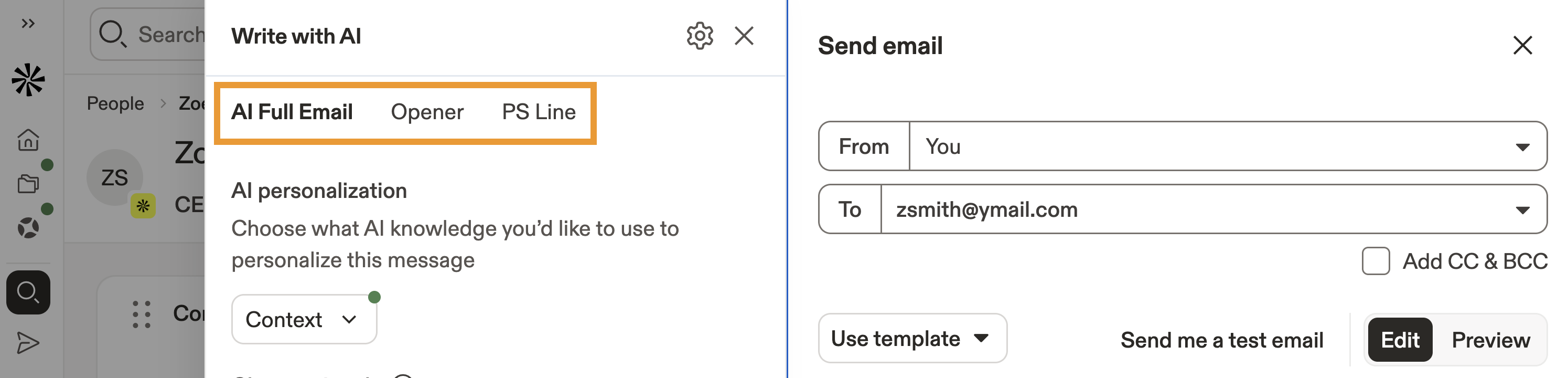
- Click Context to select a specific product or service to use when generating the email.

Context is information about your company, product, or service that Apollo AI uses to personalize your messages. You can view and update this information at any time in the AI context center, where your team manages details about your products and services.
- Next, generate AI research to personalize your message.
- Click Add new to choose from AI research templates.
- Click Add existing to choose from custom AI research you created.
- (Optional) Hover and click ✕ to remove suggested AI research.

Deep research powers personalization. Use AI research to make each email more relevant to your prospects. Apollo lists the credit cost per email for any AI research you choose to perform.
- Choose a tone to determine how your messaging sounds, like direct, formal, casual, or create a custom tone.

- (Optional) Provide any additional guidelines like specific goals, fallbacks, or words to avoid.
- Click Submit and preview.
- Apollo AI generates a personalized email for the prospect. Review the results, then click Insert to add the email to your draft, or click ⧉ to copy.

- When finished, click Send Now, or click Schedule to send the email at a specific time.
You have now written an email with AI.
You can also use the writing assistant to rephrase content or to analyze your emails to help you improve your writing.
To write a sequence email:
- Launch Apollo and click Sequences to select your sequence.
- Add or edit a manual or automatic email step.
- Click the email step, then click Write with AI.

- Select to create a full AI email, an AI snippet, or an AI subject line. Alternatively, click Existing AI variable to insert a custom field using custom AI research.

- Click Full AI email and Apollo AI generates an email using information you set in the AI content center.
- Click Context to select a specific product or service to use when generating the email.
Context is information about your company, product, or service that Apollo AI uses to personalize your messages. You can view and update this information at any time in the AI context center, where your team manages details about your products and services.
- Select an email type like outreach or follow-up.
- Next, generate AI research to personalize your message.
- Click Add new to choose from AI research templates.
- Click Add existing to choose from custom AI research you created.
- (Optional) Hover and click ✕ to remove suggested AI research.

Deep research powers personalization. Use AI research to make each email more relevant to your prospects.
- Select a tone like direct, formal, casual, or create a custom tone.
- (Optional) Enter additional guidelines like specific goals, fallbacks, or words to avoid.
- When finished, click Submit and preview.
- Apollo generates a custom email for each contact in your sequence.
You have now used the AI writing assistant to generate a full email in a sequence.
You should always proofread any AI-generated content before sending it. Learn more about AI best practices on Apollo AI Overview.
- Click AI snippet. Apollo AI generates snippets using information you set in the AI context center.
- Click Context to select a specific product or service to use when generating the snippet.
Context is information about your company, product, or service that Apollo AI uses to personalize your messages. You can view and update this information at any time in the AI context center, where your team manages details about your products and services.
- Select a snippet type like opener or P.S. line.
- Next, generate AI research to personalize your message.
- Click Add new to choose from AI research templates.
- Click Add existing to choose from custom AI research you created.
- (Optional) Hover and click ✕ to remove suggested AI research.
- Apollo uses the tone in the existing content in your email.
- (Optional) Enter additional guidelines like specific goals, fallbacks, or words to avoid.
- When finished, click Submit and preview.
- Apollo generates a unique snippet for the email.
You have now generated an email snippet with AI. You should always proofread any AI-generated content before sending it. Learn more about AI best practices on Apollo AI Overview.
When personalized openers are enabled, Apollo automatically chooses between potential openers based on the data available for each contact in the sequence. If Apollo doesn't have enough data to generate a personalized opener for a contact, or if your company reaches its AI word limit, you can choose to send the email with a generic opener or pause the sequence instead. However, you should avoid sending too many generic emails if you want to avoid spam filters.
- Click AI subject line and Apollo AI generates a subject line based on the email body.
You have now used the AI writing assistant to generate a sequence email. You can also use the AI writing assistant to rephrase email content.
Rephrase Emails
Is your email not quite right? Let Apollo AI rewrite sections of your email based on the guidance you provide. You can automatically make text shorter, break text into bullet points, or simplify language for better understanding. You can use AI to edit emails you write or to adjust AI-generated content.
To rephrase text:
- Highlight a few words, a sentence, or a paragraph in your email and click Rephrase.

For the best results, highlight at least five words to rephrase.
- Click instructions like Make it shorter or Simplify.
- Alternatively, write your guidelines in natural language.
- Click Rephrase text.
- The writing assistant generates a suggested phrase. Click Insert text, or click Regenerate to try again.

You have now rephrased text with Apollo AI.
Analyze Emails to Improve Messaging
You can only use the AI writing assistant to analyze emails you write to individual contacts — not emails you write on sequences.
If you're unsure whether an email is good enough to send, use Apollo AI to rate it for reading time, reading level, clarity, and structure. This helps you optimize your messaging for engagement so you only send messages that your prospects want to open and read.
To analyze emails before you send them:
- Click Analyze after writing your email to an individual contact.
- Apollo analyzes your email and returns an overall score along with a detected tone and custom suggestions for improvement.

You should strive for a score of 90%+ to increase your reply rate.
If email analysis marks your email as not ready to send, review each suggestion and implement the advice, then click Refresh score.
You have now used the writing assistant to analyze your email.
Troubleshoot the Writing Assistant
If the writing assistant doesn't generate or display the expected content, select the issue you're experiencing:
|
Troubleshoot the Writing Assistant |
||
| AI generation is still in progress | AI snippet opener or variable appears in the editor | AI variable generation failed |
| Insufficient credits or AI word usage available | ||
AI generation is still in progress
If you're creating AI openers in a sequence, Apollo generates them asynchronously in the background. While generation is in progress, drafts and tasks may temporarily display only the AI variable, such as {{example_email_opener}}, instead of the final text.
Wait 1 to 2 minutes, then open the email directly from the sequence or associated task. Opening the email often triggers AI content to render in your browser.
AI snippet opener or variable appears in the editor
If you see the AI snippet opener in your email template editor, this is expected behavior. In some plain-text or non-editor views, Apollo may show the opener as a raw variable, such as {{ai_snippet_opener}}. This placeholder shows where Apollo inserts a personalized AI-generated opener.
Click Preview email to generate the opener for the sample contact and review the completed version. When the sequence step runs, Apollo generates a unique opener for each contact before the email sends. If the opener isn't ready, Apollo delays and retries the send instead of sending the raw placeholder.
AI variable generation failed
If Apollo marks an email Not sent - AI variable generation failed, Apollo couldn't generate the required AI content before sending the email. This is an AI content-generation issue, not a standard email-delivery failure.
To correct the AI content:
- Launch Apollo and click Sequences.
- Open the affected sequence, then open the email step.
- Open the Writing Assistant panel.
- Check for missing AI or dynamic-variable inputs and any credit or AI-usage issues shown in Apollo.
- Correct the missing inputs or resolve the usage issue.
- Click Submit & preview. To generate another version, click Re-generate.
- Review the corrected draft before you continue the sequence.
You have now corrected the inputs used to generate the AI email and reviewed the updated draft.
To locate the affected email and review its not sent reason, check out Troubleshoot Sending Emails.
Insufficient credits or AI word usage available
If your team doesn't have enough credits or AI words available when the emails are created or scheduled, Apollo doesn't generate the AI opener. Add credits to your account or manage your plan to raise your monthly AI word limit. Then check whether the opener generates automatically. You can also reduce the number of contacts in the sequence to align with the credits and AI word usage currently available.
Next Steps
Ready to level up your AI-powered outreach? Check out these resources.
| Apollo AI Overview | Get started with Apollo AI and explore all the ways it can streamline your workflows. |
|---|---|
| AI Content Center | Set up your AI content center to give Apollo AI the scoop on your brand's voice. |
| Use Sample Outbound Email Templates | Try out Apollo's sample outbound emails to jumpstart your outreach. |
| Use an A/B Test in a Sequence | Run A/B tests to test and iterative on your AI-generated emails. |
| AI Research Overview | Use AI research to get to know your contacts more deeply, then use AI custom fields to generate messages based on your findings. |