
Overview
With the Apollo Chrome extension installed, you can search for and request details about prospects from LinkedIn, LinkedIn Sales Navigator, or directly from the Apollo database.
View detailed information about a chosen prospect or company, build detailed lists for use in Apollo sequences, view insights about a company, or view a contact's colleagues. These details help you find the right prospects to engage and grow your business. Then, execute your LinkedIn tasks using the extension.
The following sections show how to find prospects on LinkedIn and execute related tasks.
Research an Individual Prospect
To research a prospect on LinkedIn using the Apollo extension:
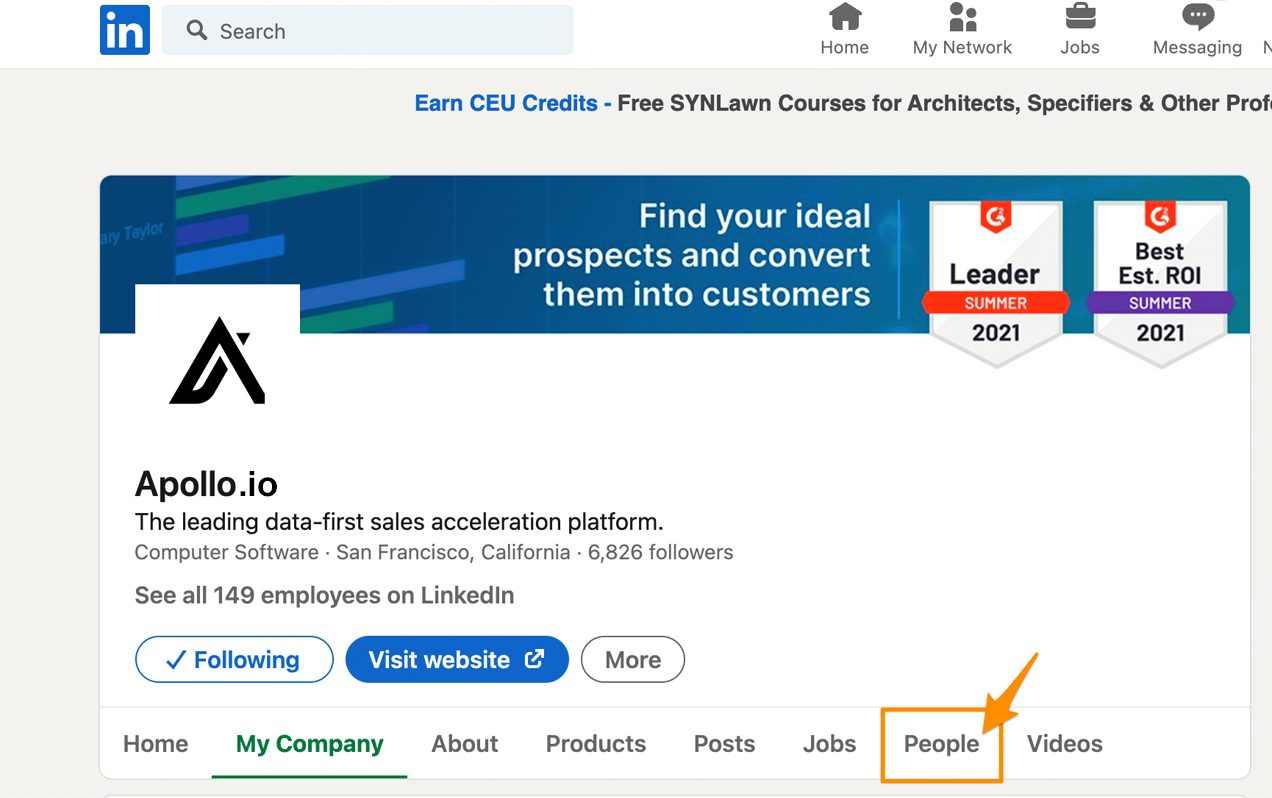
- Go to a user profile on LinkedIn. Then, click the Apollo Chrome extension to open it.

Apollo doesn't remove EU-based or UK-based contacts from the Apollo Chrome Extension. As a result, Apollo strongly recommends that you use caution and double-check a prospect's location on LinkedIn when prospecting contacts from the extension. Make sure you stay GDPR compliant before you enroll them in your multichannel outreach strategy.
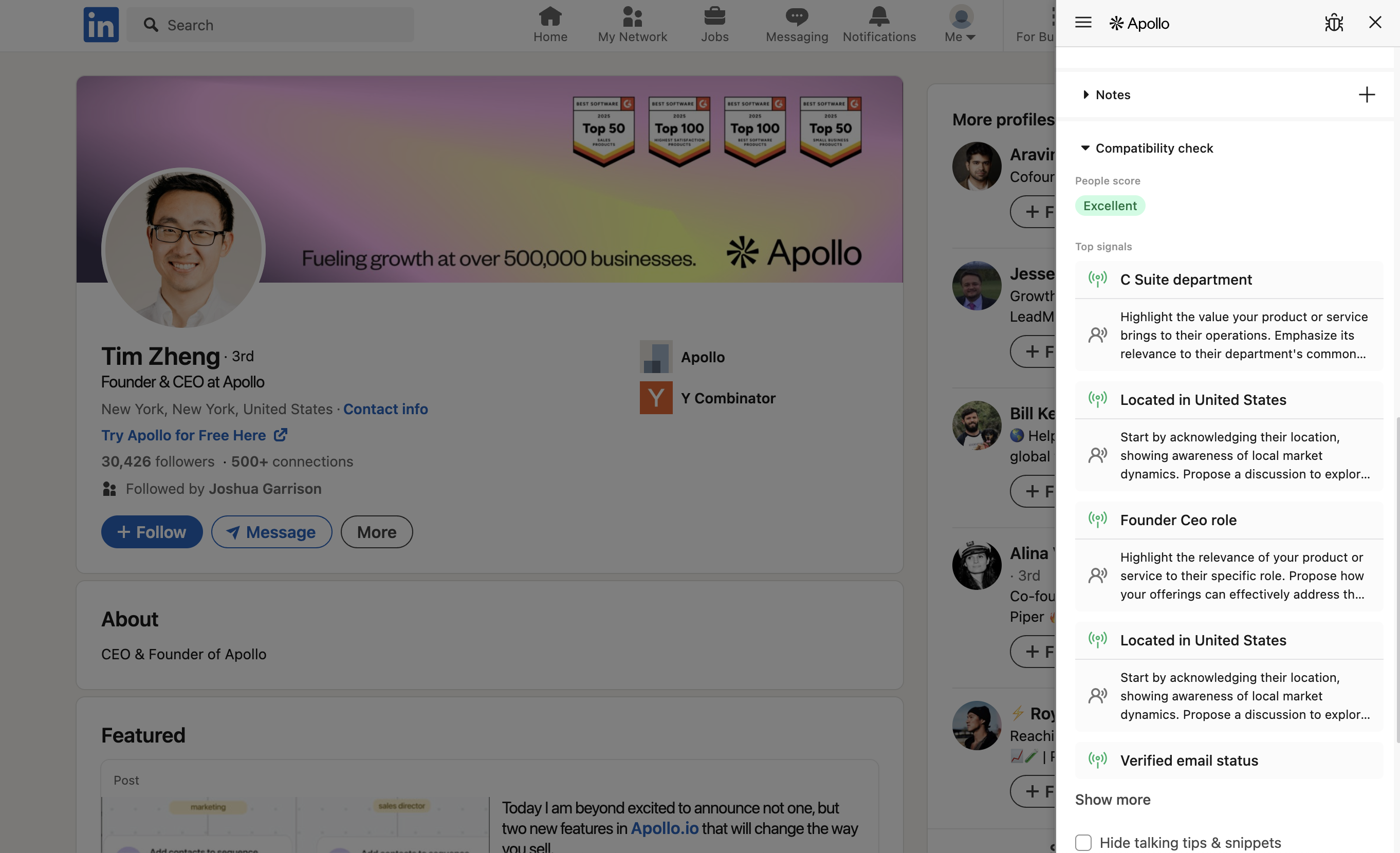
- (Recommended) Use the extension to uncover more information about the prospect and their company. Click ▸ Compatibility check to see signals related to the prospect and their score.
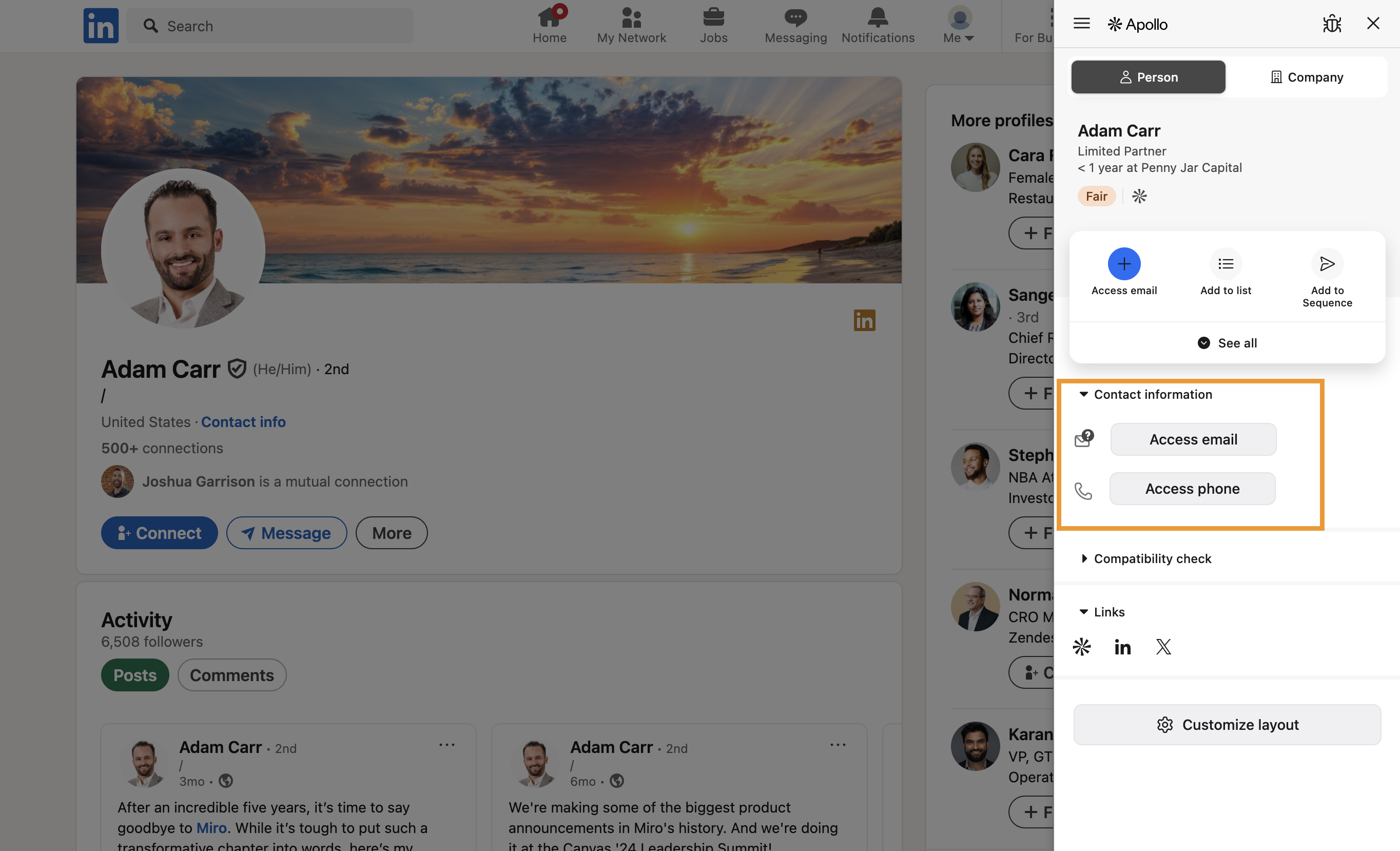
- Click Access email or Access phone to reveal their contact details. This costs credits on your Apollo plan.
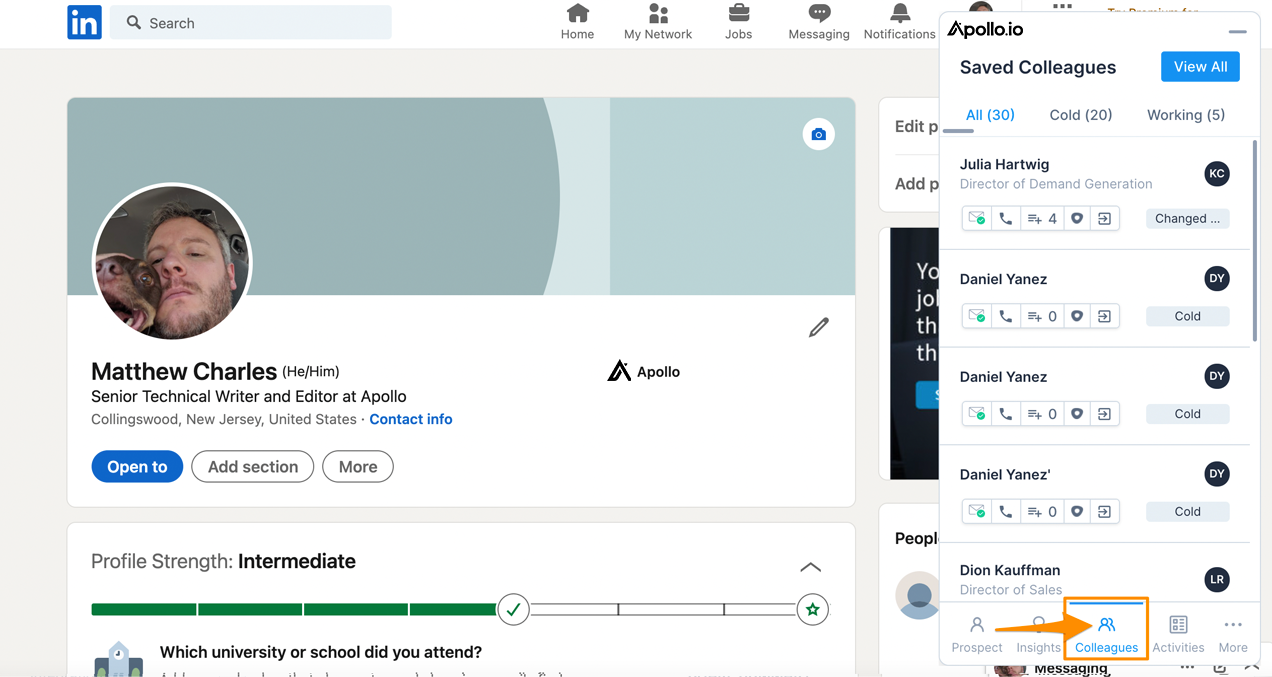
- You can take a variety of actions directly from the extension, including emailing prospects, adding them to lists and sequences, and viewing their work colleagues.
You've now prospected individuals on LinkedIn.
Apollo charges 1 credit each to enrich a contact with a verified email address or mobile phone number. If you're an Apollo admin and want to track how many credits your team has used, launch Apollo and click Settings > Credit Usage.
Find Bulk Prospects
To find several prospects on LinkedIn or at once using the Apollo extension:
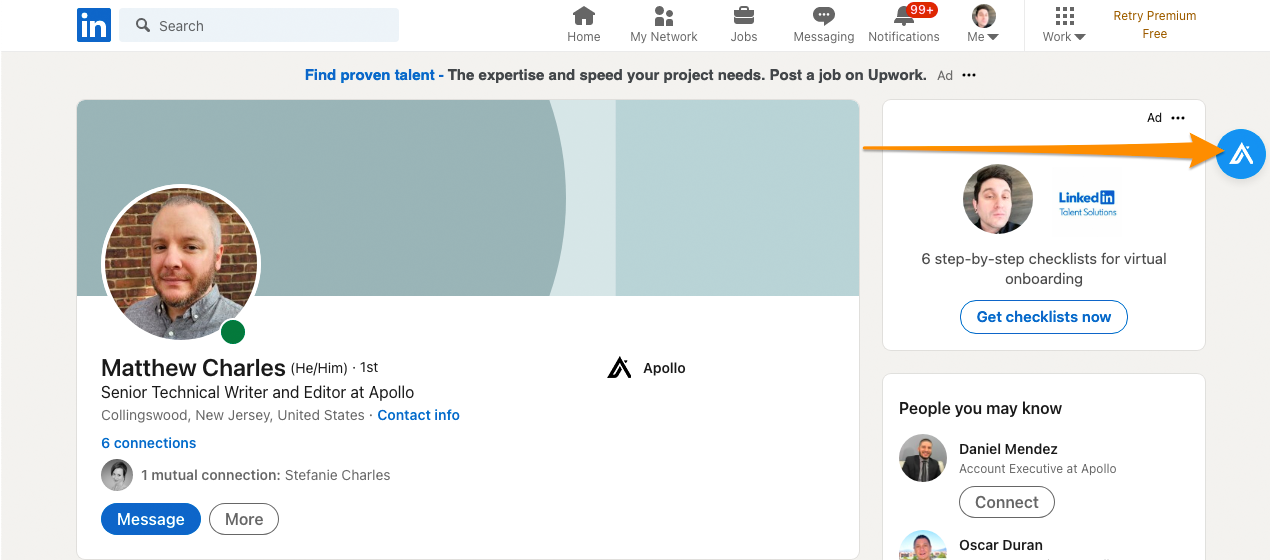
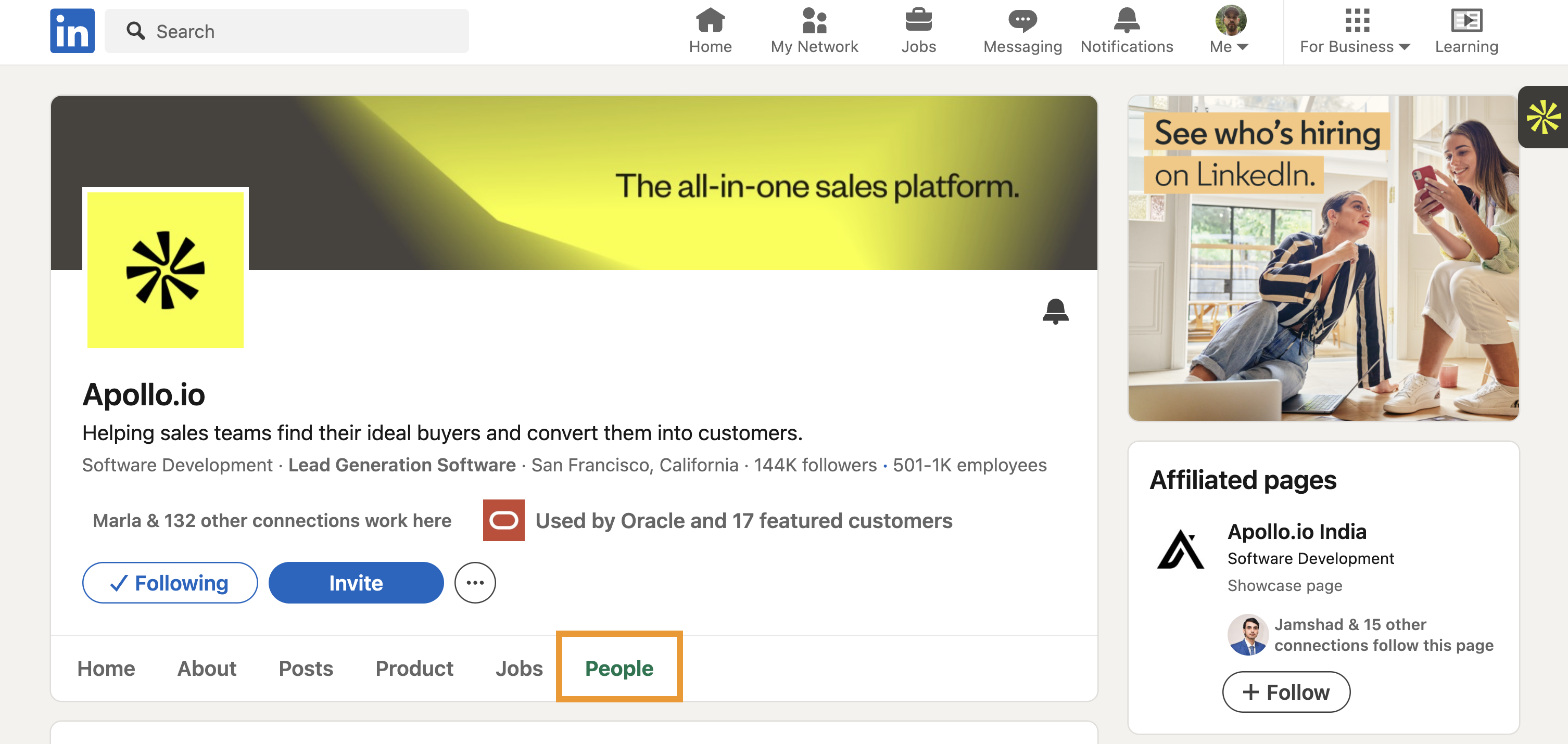
- Go to a company's profile page on LinkedIn, then open the Apollo extension.
- Click View beside the employee count.
- (Optional) Click View on the employee count to show a few suggested contacts. Apollo shows suggested contacts based on your target personas, past prospecting, and prospect score. Click View All to reveal the whole list.
- Use Apollo's search filters to narrow down the list of prospects within the company.
- Select the prospects you want to include for your next actions.
- Click your preferred action for the prospects. You can save the contact, add them to a list or sequence, push their information to your CRM, or send an email.
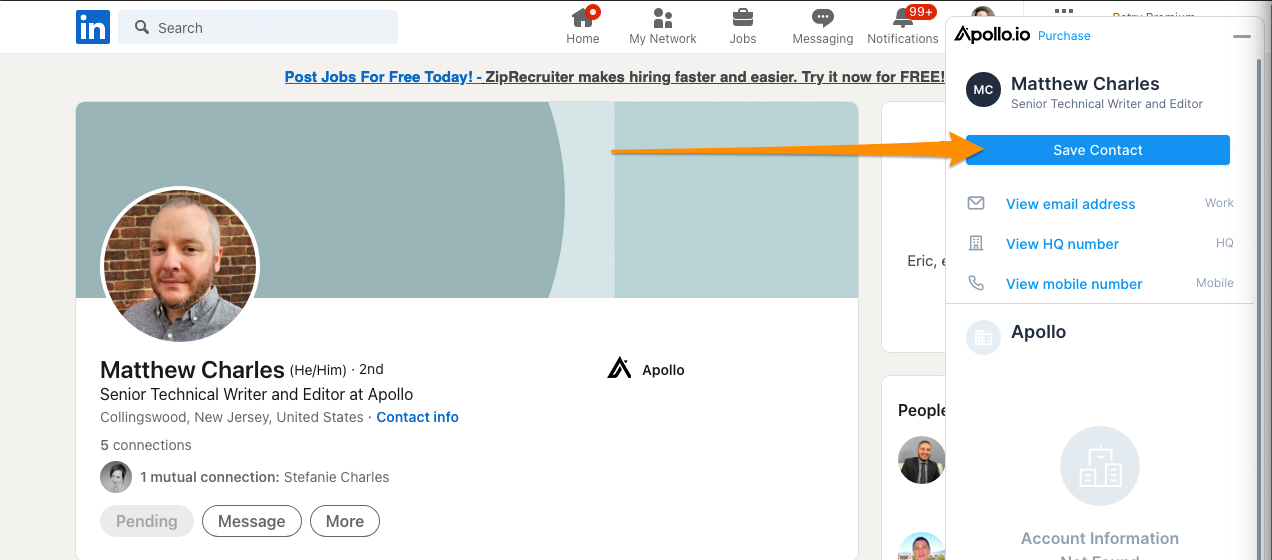
- Complete your action within the extension.
You've now prospected in bulk on LinkedIn.
Execute Your LinkedIn Tasks
If you use LinkedIn to find and engage with your ideal contacts in a personalized way, you can leverage Apollo to execute LinkedIn tasks directly from the extension. This helps you increase the efficiency of your workflow while keeping your engagement personal as you scale.
Before you can execute your LinkedIn tasks using the extension, you need to:
- Create LinkedIn tasks: If you haven't created any LinkedIn tasks for your Apollo sequences yet and need a helping hand, review Add and Execute LinkedIn Tasks in a Sequence. Refer to Sequences Overview for an introduction to Apollo sequences and Create a Sequence to add other types of steps to your sequence.
- Enroll contacts in a sequence: If you create a sequence, you also need to enroll a list of contacts into it before you can leverage LinkedIn task automation. For more information about how to add contacts to a sequence, check out Add Contacts to a Sequence.
Now that you have created new tasks or sequences, you can start to execute your LinkedIn tasks using the Apollo extension:
- Go to LinkedIn and click the Apollo Chrome extension to open it. If you navigate to a contact's LinkedIn page, Apollo moves any tasks related to the contact to the top of the queue so you can easily find them.
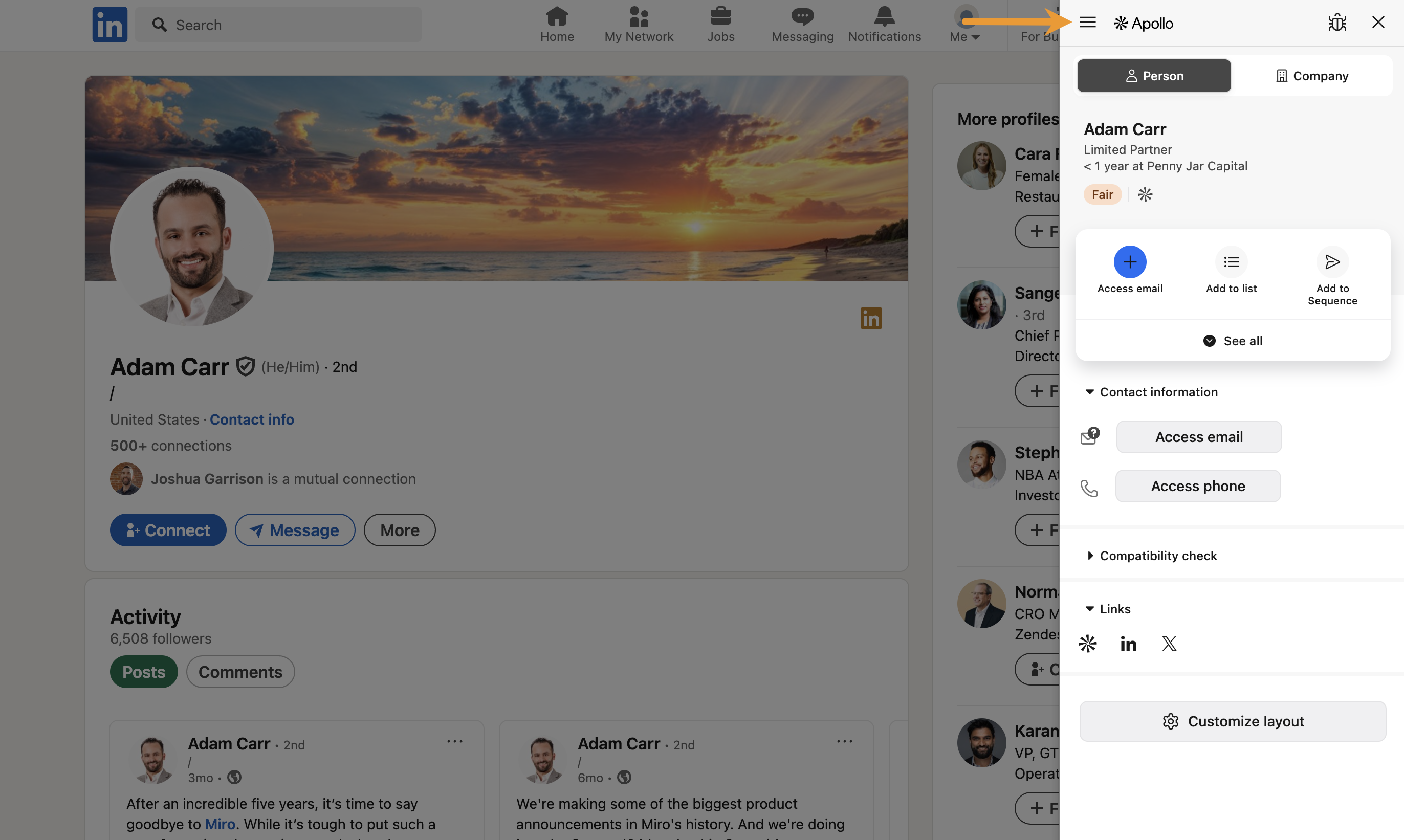
- Click ☰ at the top-left of the extension.
- Click Tasks.
- Check the box next to each task that you want to execute, or click Select all to execute every LinkedIn task in your queue. To review the details of a task, click > to the right of the prospect's name within the task tile.
- Click Execute tasks.
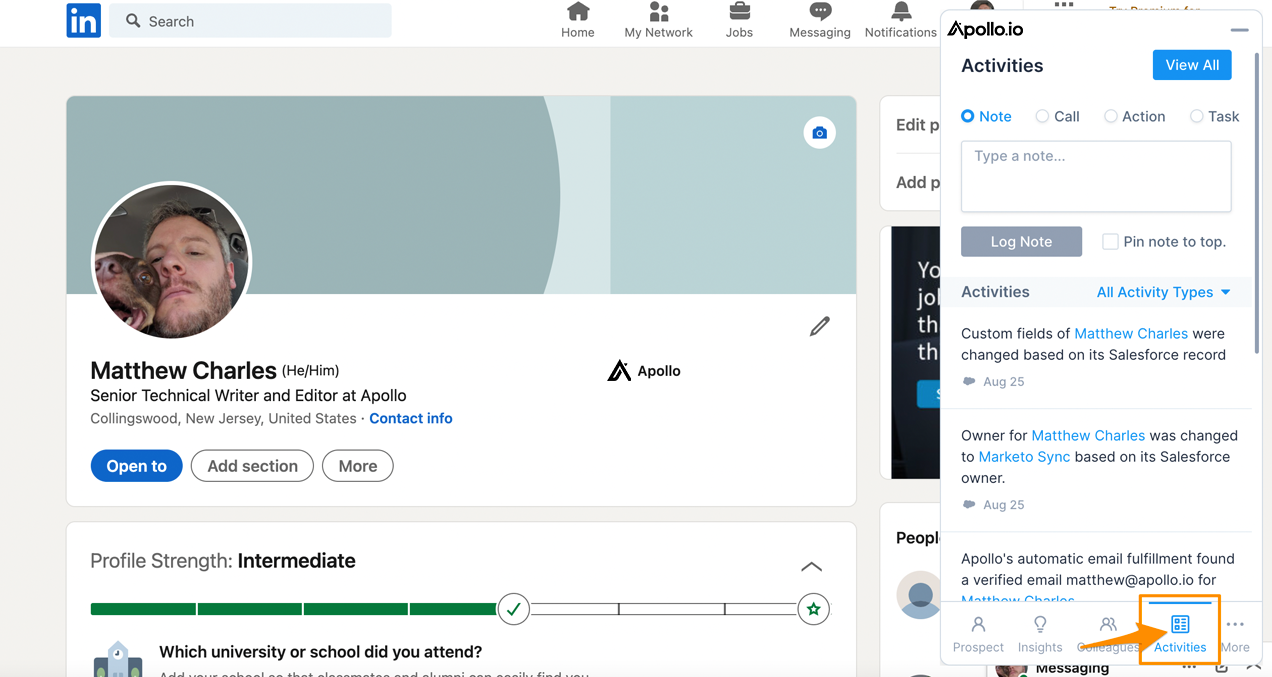
Apollo starts executing all the selected tasks. A pop-up appears to confirm the status of the LinkedIn tasks that you queued.
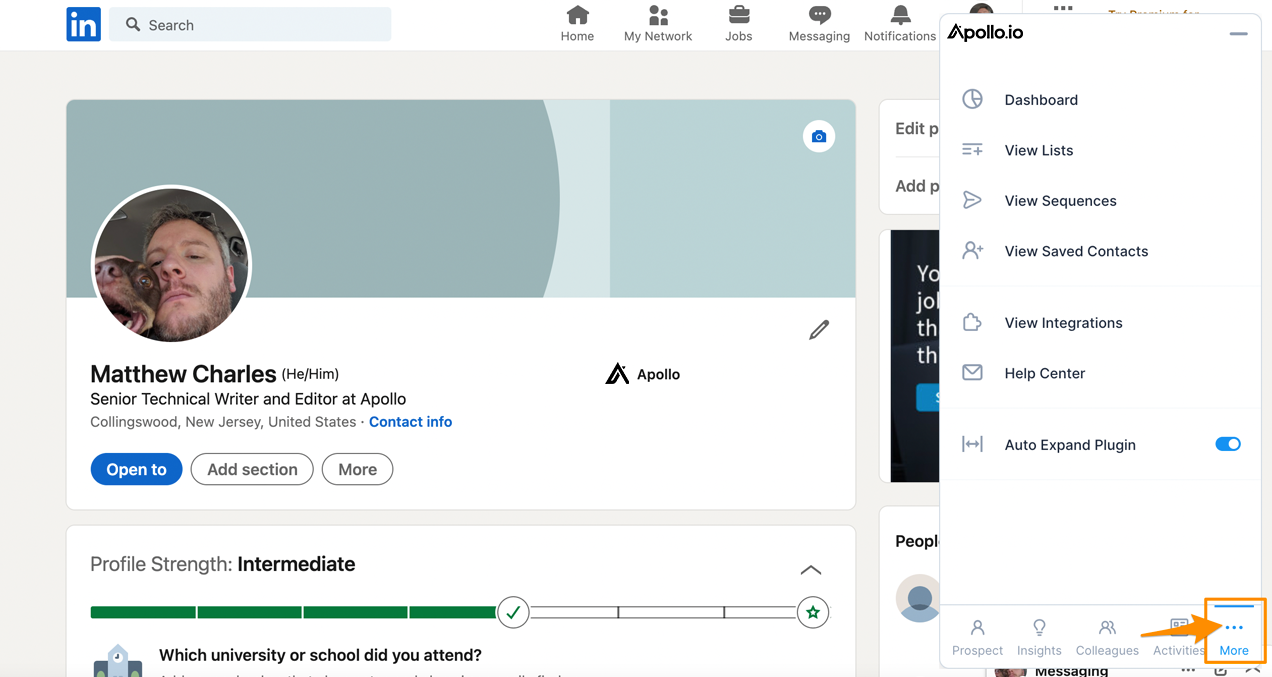
Encountering issues when executing your LinkedIn tasks? Don't worry, Apollo has your back. Check out the troubleshooting section of Add and Execute LinkedIn Tasks in a Sequence for help figuring out your issue.
Do More with the Extension
Check out Apollo Chrome Extension Overview to learn about more extension functionality, including how to use the Apollo extension with tools like Gmail, Google Calendar, Salesforce, and HubSpot.
Learn More
Want to uncover industry-leading social selling tips, tricks, and best practices? Hop into Chapter 5 of our shiny new book, Outbound Sales, to learn:
- How to build your top-of-funnel by posting high-value content.
- The best practices for post and activity engagement.
- The best strategies for LinkedIn messages. How to snowball these relationships offline.