
Overview
Call analytics helps you understand dialer performance across your team and target accounts by providing at-a-glance visibility into the call metrics that matter. Use analytics to track activity, measure conversion rates, and identify where calls drop off in your funnel so you can improve connections, conversations, and meetings booked.
You can view call performance in two ways: Rep performance shows how individual users are performing, making it easier to evaluate activity and identify coaching opportunities. Account performance shows how calls perform across different companies, helping you understand which accounts are more likely to connect and convert.
Use these insights together to improve both how your team calls and who they call.
Apollo is rolling out call analytics to users gradually. If you don't see them yet, check back soon.
Check out the following sections to use call analytics on Apollo.
Use Call Analytics
Need deeper reporting, or answers not available on call analytics? Use analytics reports, dashboards, or the AI assistant to create custom analysis that combines call data with other engagement metrics.
To use call analytics:
- Launch Apollo and navigate to Calls > Analytics.
- Select rep or account performance:
- Click Rep performance to report on calls by rep, across all the users in your Apollo instance. This helps you understand how your team is performing on calls.
- Click Account performance to report on calls by account. These stats help you understand how your target accounts are responding to dialer outreach.
- Apollo shows rep performance stats for a snapshot of how calls are progressing from dial to meeting.
- By default, the date filter is set to Last 30 days. Click to select a different time range.
- (Optional) Click Add filter to filter by one or more specific users, teams, phone number types, or inbound / outbound direction.
- Overall stats show rep performance across the team.
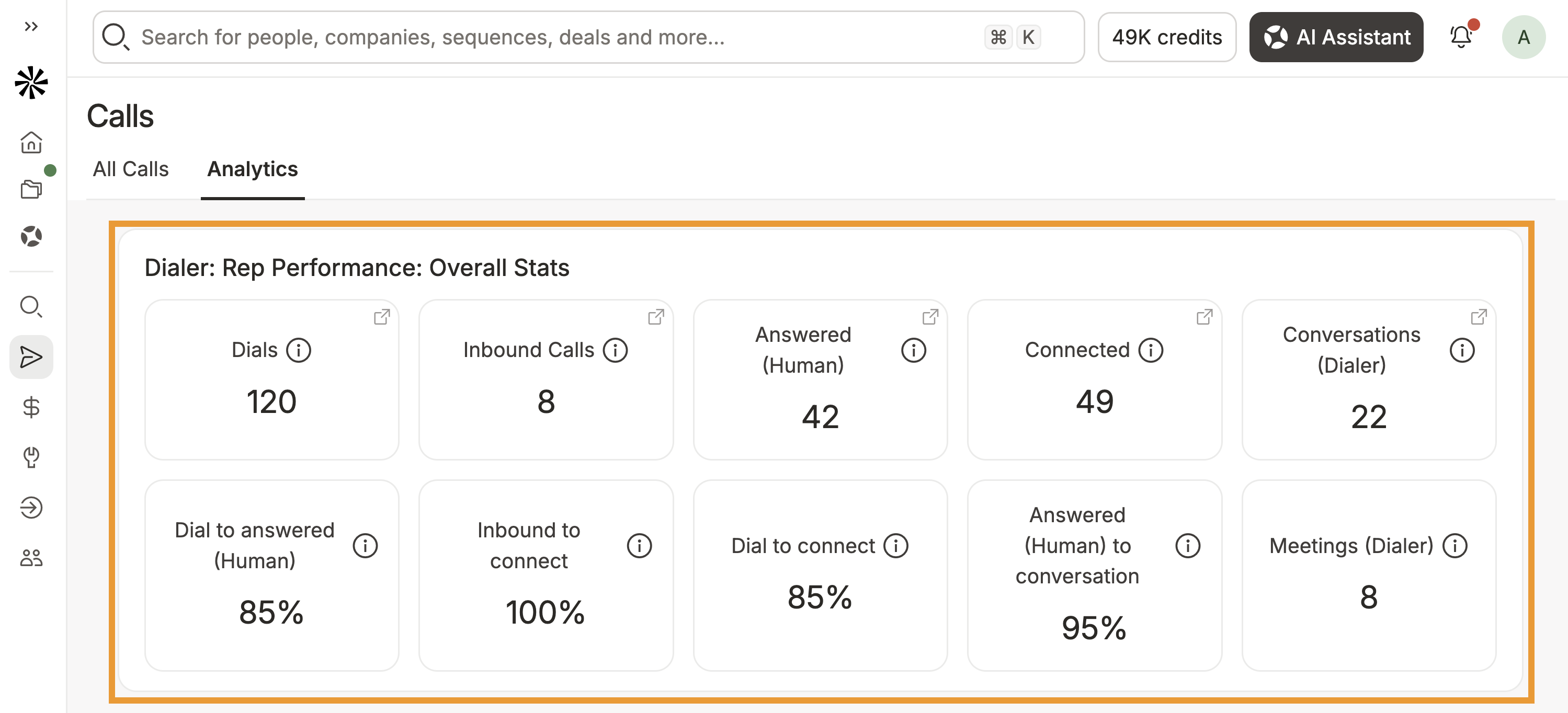
- Click any metric to see the phone calls behind the data.
| Dials | Total outbound and inbound phone calls. |
|---|---|
| Inbound Calls | Total inbound calls received. |
| Answered (Human) | Calls answered by a human. |
| Connected | Calls that reached either voicemail or a human. |
| Conversations (Dialer) | Calls with a connected disposition and a duration of at least 30 seconds. |
| Dial to answered (Human) | Percentage of dialed calls answered by a human. |
| Inbound to connect | Percentage of inbound calls that resulted in a connection lasting longer than one second. |
| Dial to connect | Percentage of dialed calls that reached either voicemail or a human. |
| Answered (Human) to conversation | Percentage of calls answered by a human that resulted in a conversation. |
| Meetings (Dialer) | Meetings booked in response to a phone call. |
- The rep performance table shows the same metrics by team member.
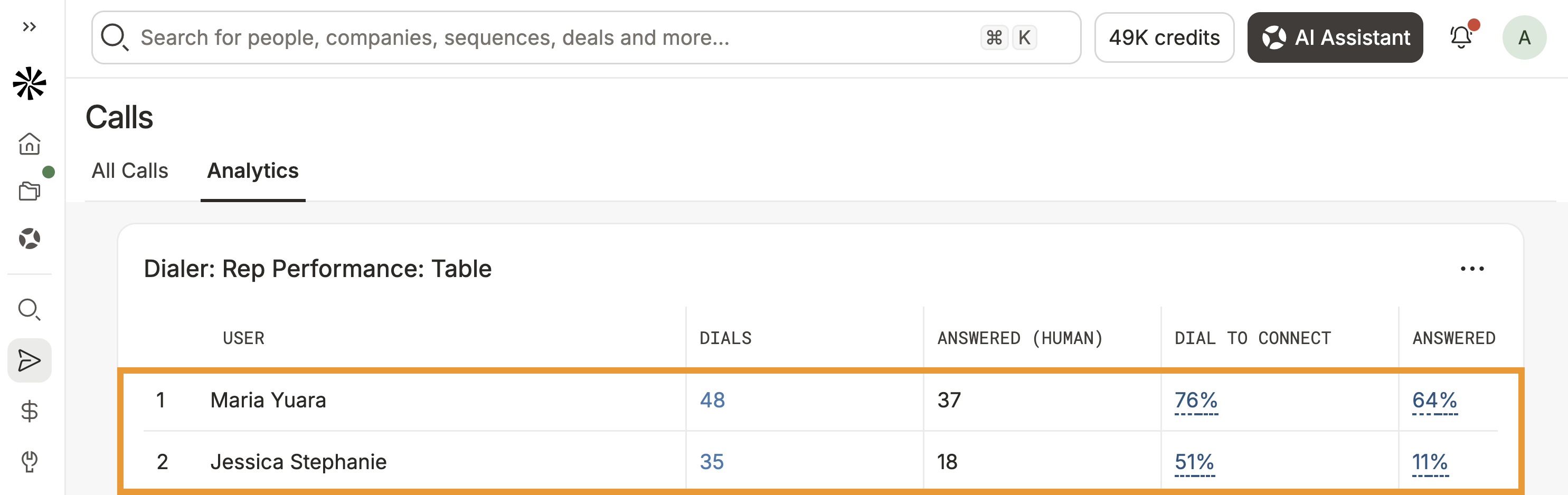
Tip: Click a hyperlinked number to see how it was calculated or to view the calls included in the data.
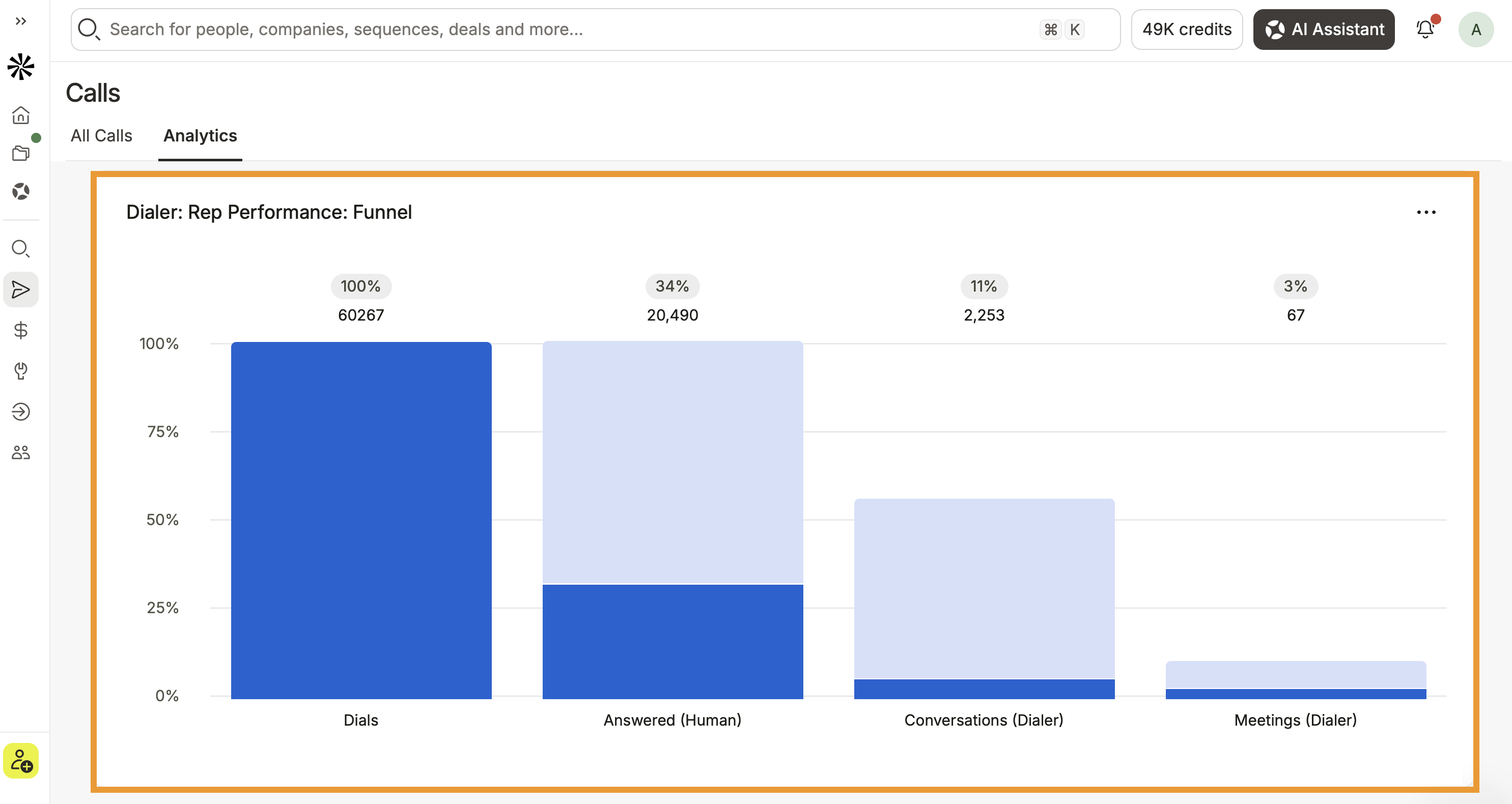
- The rep performance funnel shows a visualization of your rep performance pipeline.
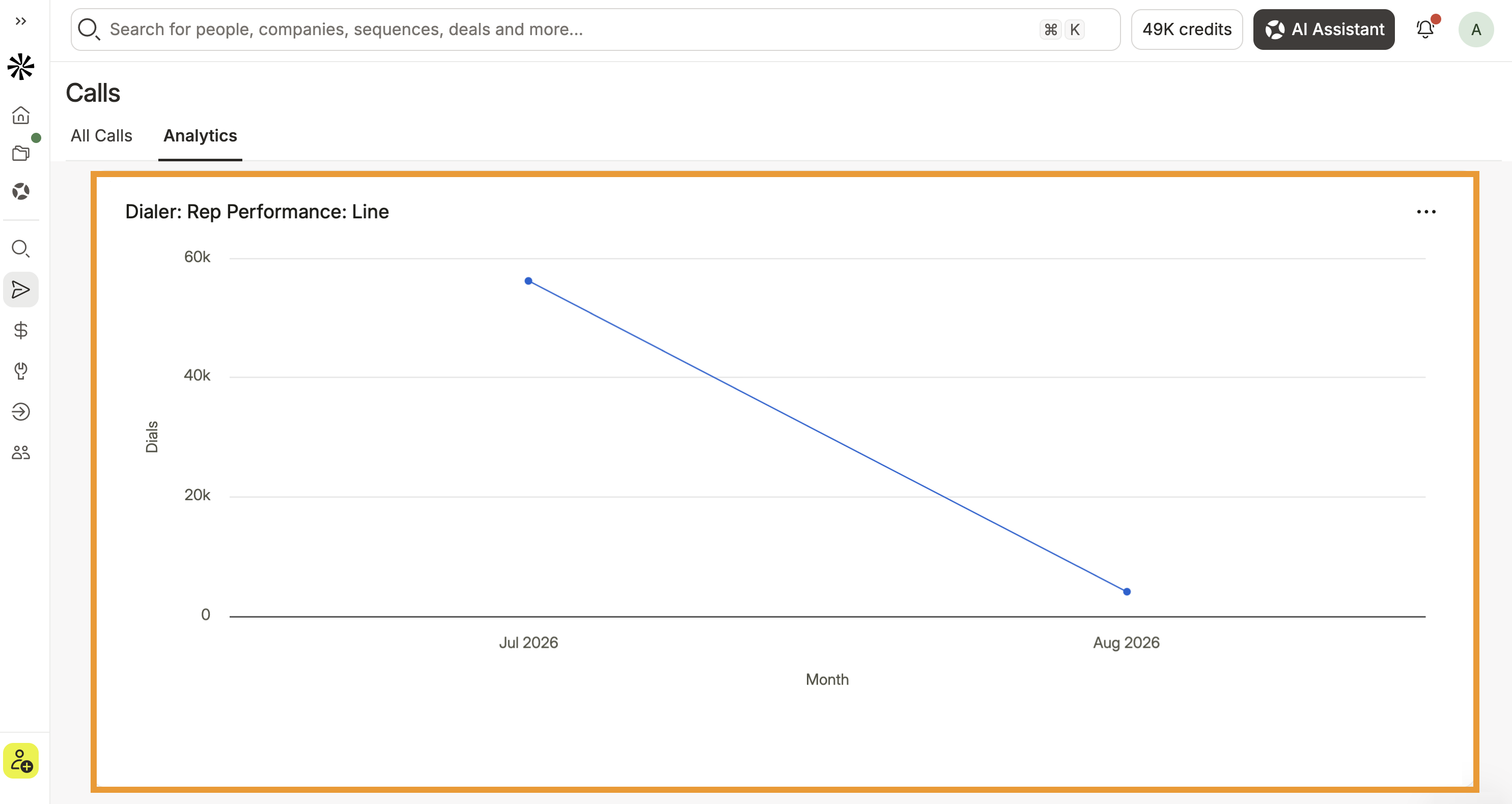
- The rep performance trend line shows performance by dials across the selected time frame.
You have now used call analytics to understand rep performance.
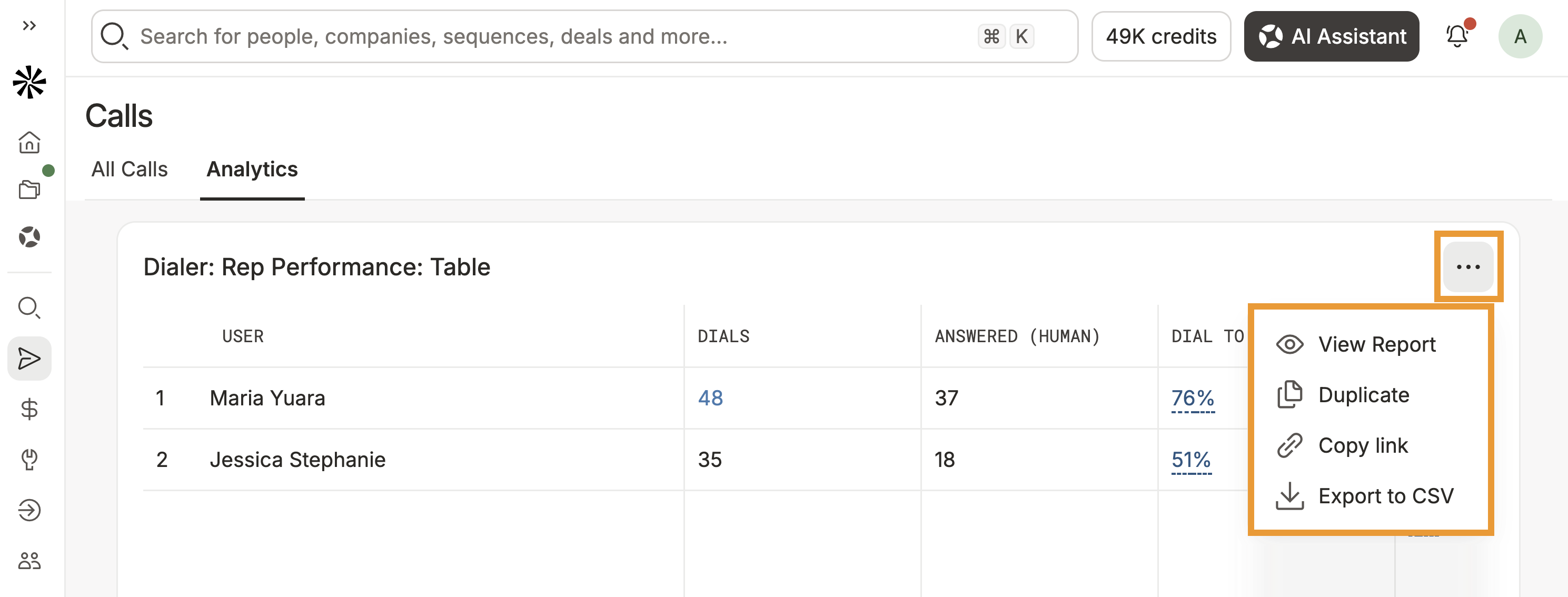
Click ... beside a visualization to take additional action:
- View report: Review the underlying data on an analytics report.
- Duplicate: Duplicate the data to a custom analytics report, then add more engagement metrics for a unique analysis.
- Copy link: Copy a link to the report to share with the team.
- Export to CSV: Export the data to a CSV.
- Apollo shows account performance stats for a snapshot of how calls are progressing from dial to meeting.
- By default, the date filter is set to Last 30 days. Click to select a different time range.
- (Optional) Click Add filter to filter by one or more accounts, users, teams, phone number types, or inbound / outbound direction.
- Overall stats show how your target accounts are responding to calls across the selected time range.
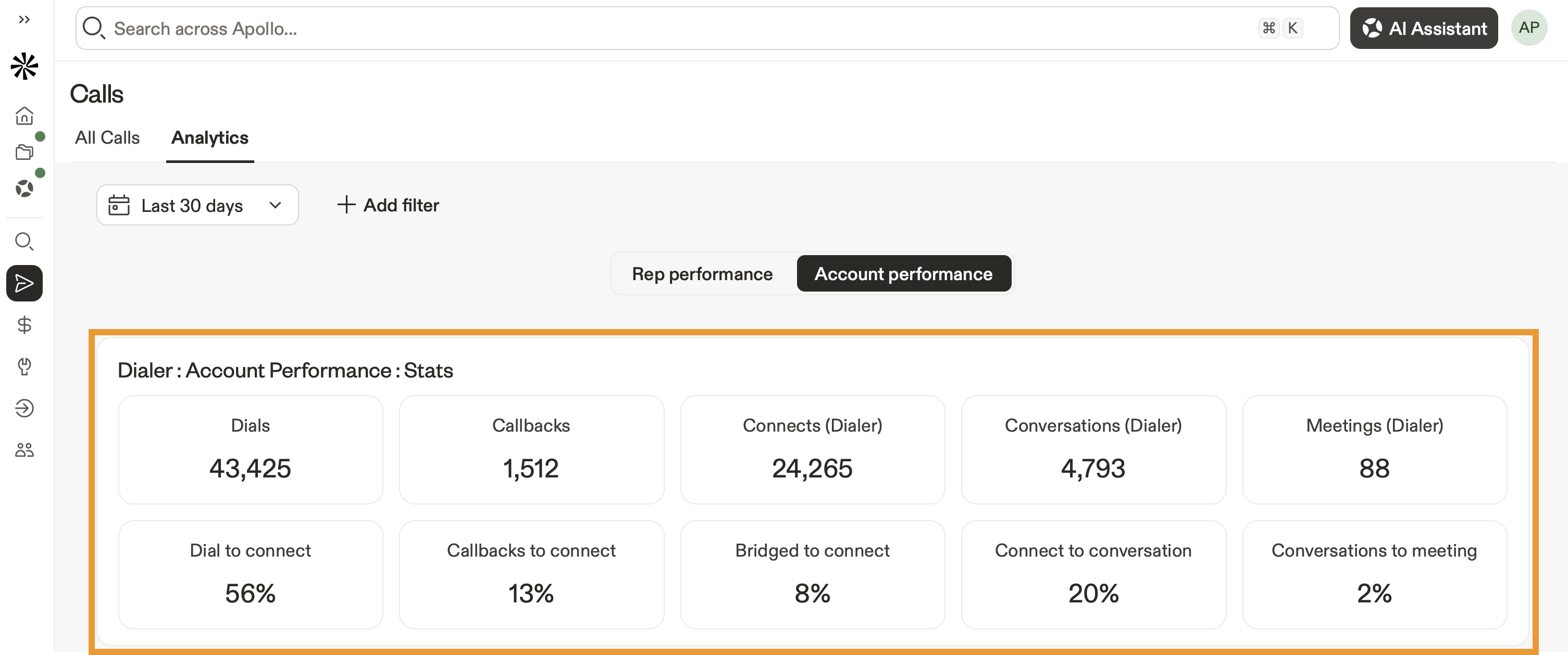
- Click any metric to see the phone calls behind the data.
| Dials | Total outbound and inbound phone calls. |
|---|---|
| Inbound Calls | Total inbound calls received. |
| Answered (Human) | Calls answered by a human. |
| Conversations (Dialer) | Calls with a connected disposition and a duration of at least 30 seconds. |
| Meetings (Dialer) | Meetings booked in response to a phone call. |
| Dial to answered (Human) | Percentage of dialed calls answered by a human. |
| Inbound to connect | Percentage of inbound calls that resulted in a connection lasting longer than one second. |
| Dial to connect | Percentage of dialed calls that reached either voicemail or a human. |
| Answered (Human) to conversation | Percentage of calls answered by a human that resulted in a conversation. |
| Conversation to meeting | Percentage of conversations that resulted in a meeting. |
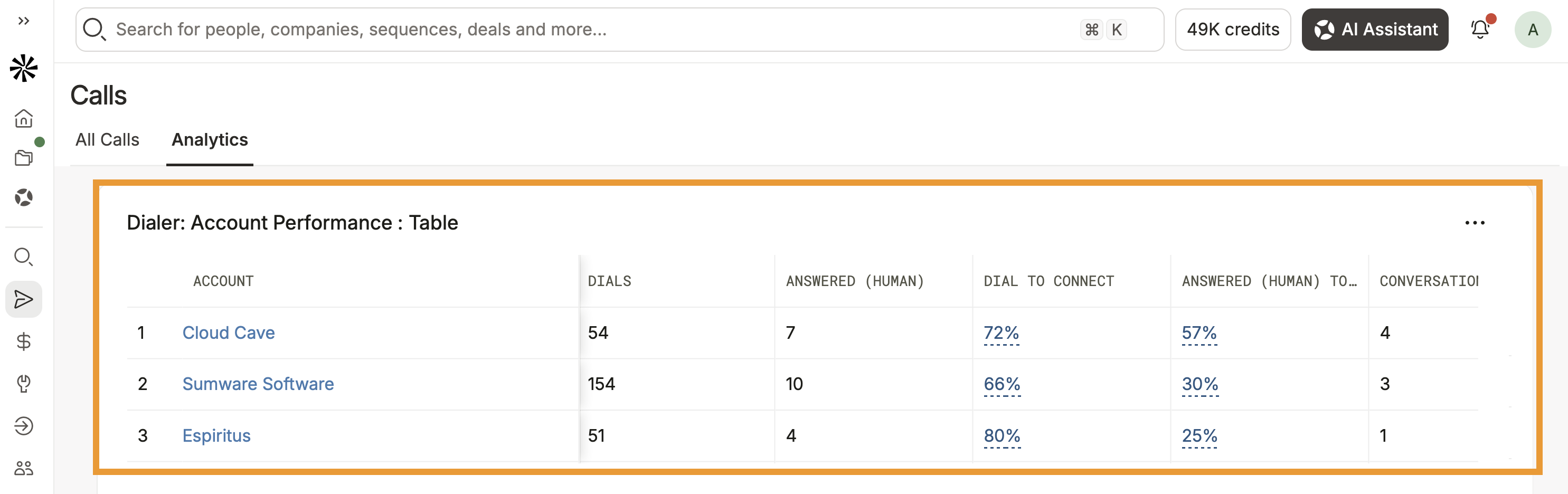
- The account performance table shows the same metrics by account.
You have now used call analytics to understand account performance.
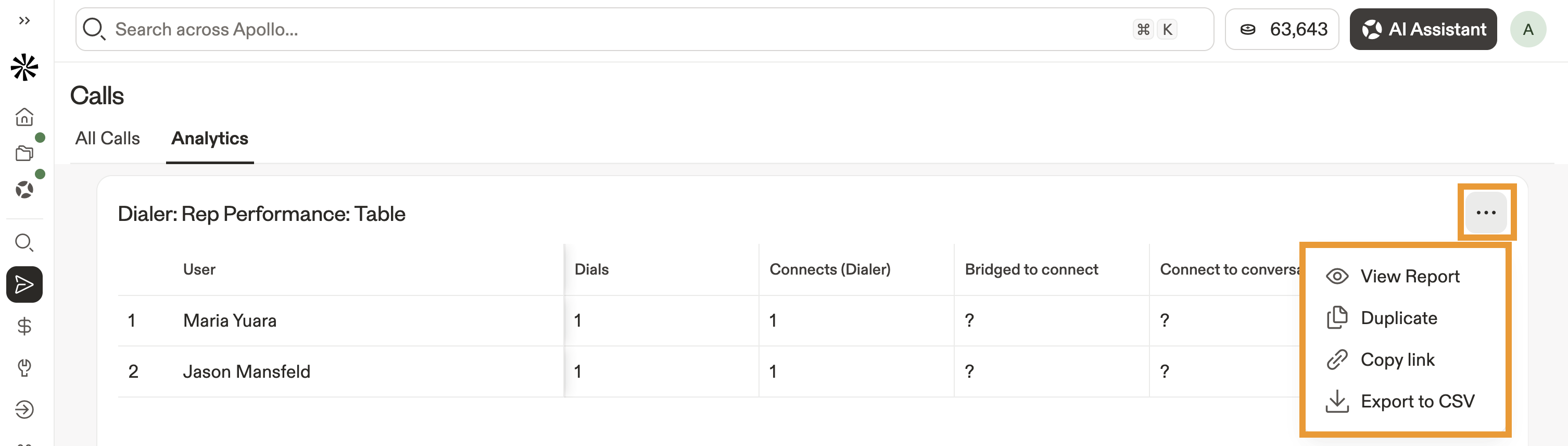
Click ... beside a visualization to take additional action:
- View report: Review the underlying data on an analytics report.
- Duplicate: Duplicate the data to a custom analytics report, then add more engagement metrics for a unique analysis.
- Copy link: Copy a link to the report to share with the team.
- Export to CSV: Export the data to a CSV file.
Next Steps
Keep optimizing your calling strategy with deeper insights and smarter dialer workflows.
| Use Analytics Reports | Want more flexibility? Build custom reports to combine call data with pipeline metrics and uncover exactly where performance breaks down. |
|---|---|
| Use Analytics Dashboards | Need a quick team snapshot? Create dashboards to monitor call performance alongside emails, tasks, and meetings in one place. |
| Analyze Your Performance with the AI Assistant | Short on time? Ask the AI assistant to surface trends and insights so you can act on what's working without digging through reports. |
| Access, Manage, and Share Call Recordings | Coaching your team? Review and share call recordings to highlight winning conversations and improve rep performance over time. |
| Dialer Overview | Wanna learn more about dialing on Apollo? Get to know the dialer and turn insights into real conversations that drive more connects and more meetings. |