
Overview
Once you’ve set up conversations, Apollo automatically transcribes your recordings and generates AI-written summaries. You can generate follow-up tasks, receive meeting insights through Slack, and associate conversations with deals to keep all prospect context in one place.
If you’re a manager, you can use conversations to score and coach your reps. Check out Coach Teams with Conversations for more information.
Check out the following sections to record and use conversations.
Conversation Recording Requirements
The following are requirements to ensure that Apollo records your video meetings:
- Link your mailbox to Apollo to enable Apollo to automatically schedule meetings to record based on the schedule of the connected mailbox.
- The Apollo recorder must be in the meeting. If the recorder is in the waiting room for your meeting, allow the recorder to join.
- A recorded user must join the meeting.
- Schedule meetings you want to record at least 30 minutes in advance. If you did not schedule a meeting 30 minutes in advance, use the manual recording option to send the recorder to your meeting.
- Check your upcoming meetings in Apollo. You can manually enable and disable recording for each meeting.
- Review your conversation settings in Apollo and adjust as needed. If you cannot access the settings, contact an admin for your team's Apollo account.
You've now reviewed the recording requirements.
Record Conversations
You can either automatically or manually record conversations with Apollo. For the best recording experience, make sure you meet the recording requirements before starting. If a meeting isn’t recorded automatically, use the manual recording option instead.
Automatically Record Conversations
If you meet the recording requirements, the Apollo recorder automatically joins your meeting. Depending on your video conference platform settings, the recorder can either auto-join your calls or you can choose to allow the recorder into the meeting each time. Make sure the Apollo recorder has joined before the meeting starts.
To confirm an upcoming call is scheduled to record:
- Launch Apollo and click Conversations.
- Review Upcoming meetings to confirm the recording status of your upcoming calls.
If you schedule a last-minute meeting that is to begin less than 30 minutes before it takes place, Apollo might not have enough time to analyze your inbox, so the Apollo recorder won’t join the meeting. In this case, consider manually recording the meeting instead.
Manually Record Conversations
To manually send the Apollo recorder to a meeting, use one of the following options:
- Add
recorder@apollo.ioas a guest. - In Conversations, click Record now, add your meeting URL, title, and participants, then click Record now.

You can manually record your calls even if you haven't linked your mailbox or connected your conferencing platform. If you don't have access to the Record now button, ask your Apollo admin to update your conversations settings. Admins can update the recorded user settings to determine which team members can record calls.
Generate Tasks from Conversations
Use conversation insights to surface next steps from your meeting recordings and keep your team on track with follow-ups to improve conversion and customer satisfaction.
To create next steps from conversations:
- Launch Apollo, then click Conversations.
- Select a conversation.
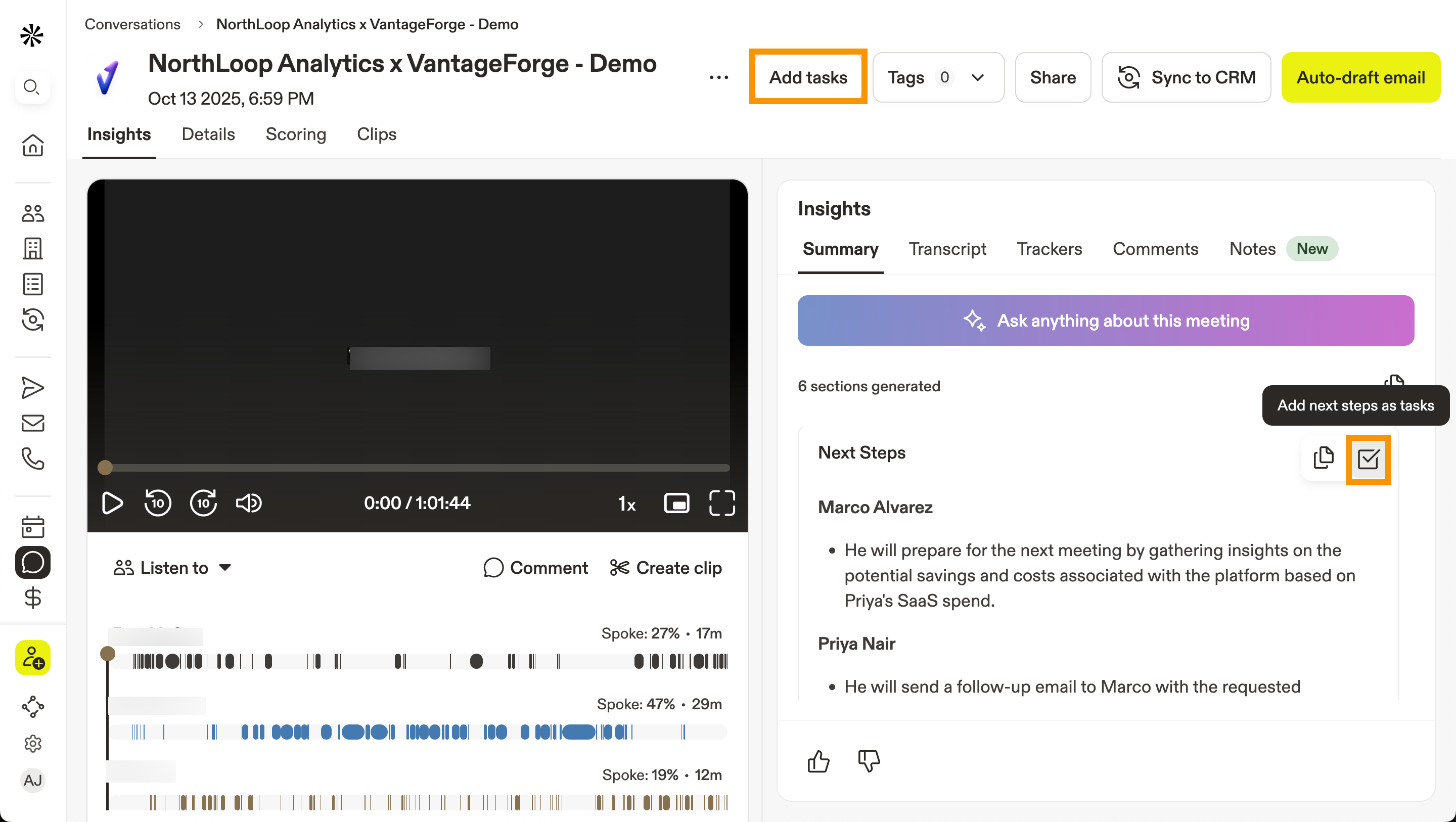
- Click Add tasks.
Alternatively, click Add next steps as tasks.
- Check the tasks you want to create.
- Edit the title, type, priority, due date, and assignee as needed.
- Click Add as tasks.
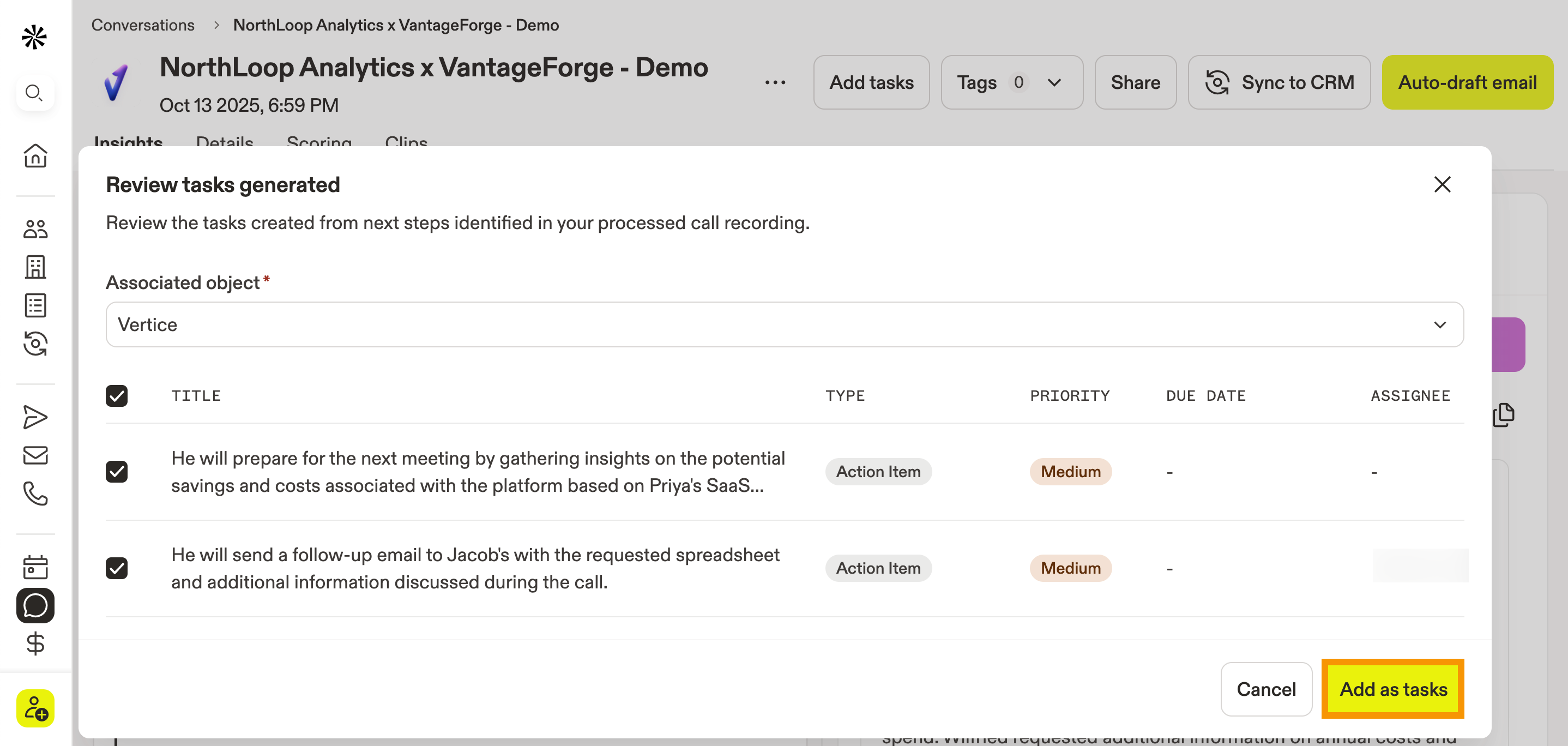
You’ve now generated tasks from your conversations.
Get Meeting Insights through Slack
When you integrate Slack with your account, Apollo sends AI-powered summaries of your meetings that include the call outcome as well as the following actions:
- View recording: open the call recording in the Apollo web app.
- Send follow-up email: write a follow-up email to the prospect. An auto-generated draft is provided, which you can edit before sending.
- Ask Apollo: open the Apollo AI Assistant, allowing you to ask questions in natural language to uncover information from your meetings.
- Next Steps: provides Apollo-generated suggested next steps based on your conversation, which you can add as tasks.
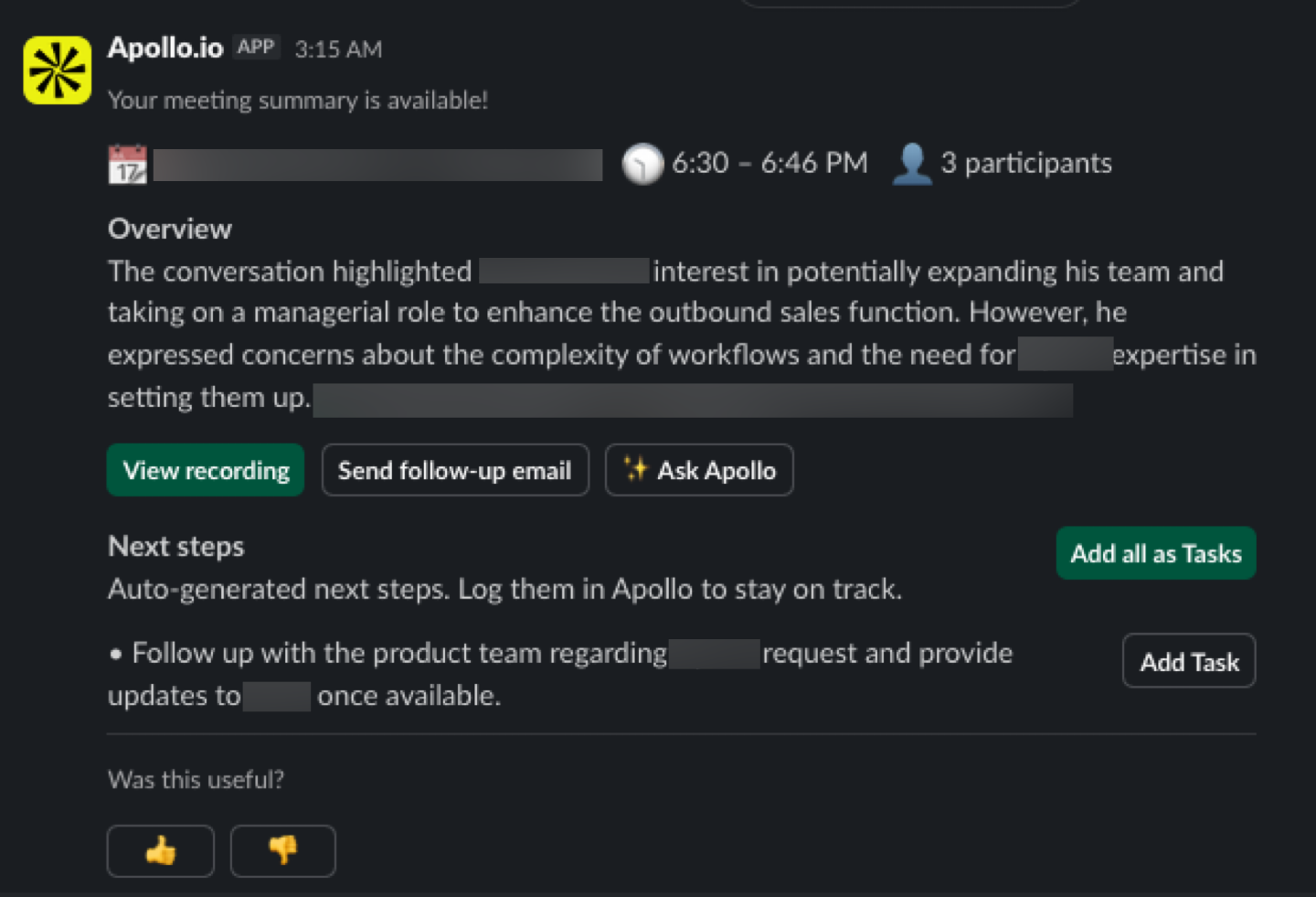
To start receiving meeting insights through Slack, integrate Slack with Apollo.
Associate Conversations with Deals
You can associate conversations with deals to keep all prospect context in one place.
To associate conversations with Deals, you’ll need to set up deals first. Check out Set Up Deals before continuing.
To associate conversations with deals:
- Launch Apollo and click Conversations.
- Use the filters to find and select a conversation, then click Associate deal.
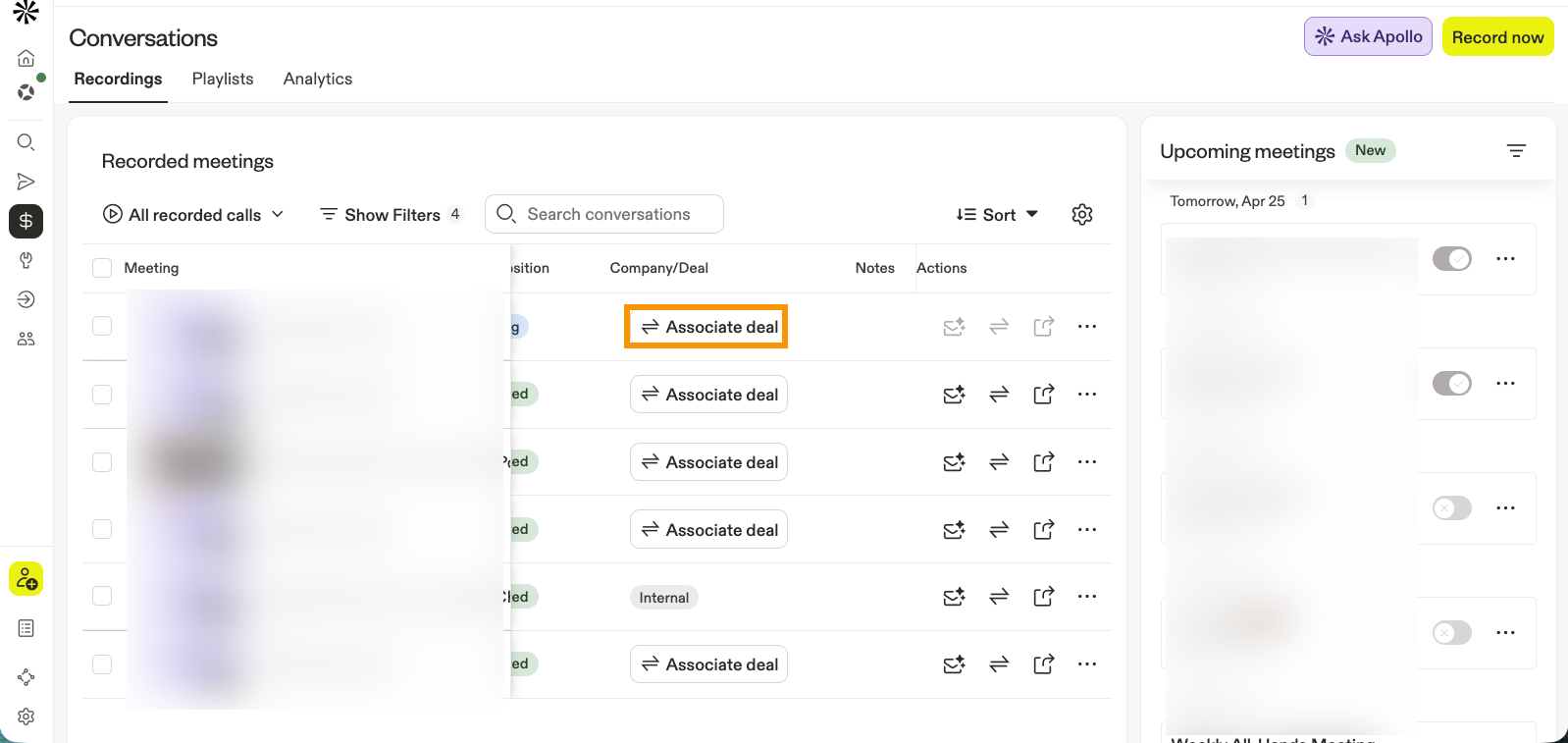
- Select a deal or create a new one, then click Apply.
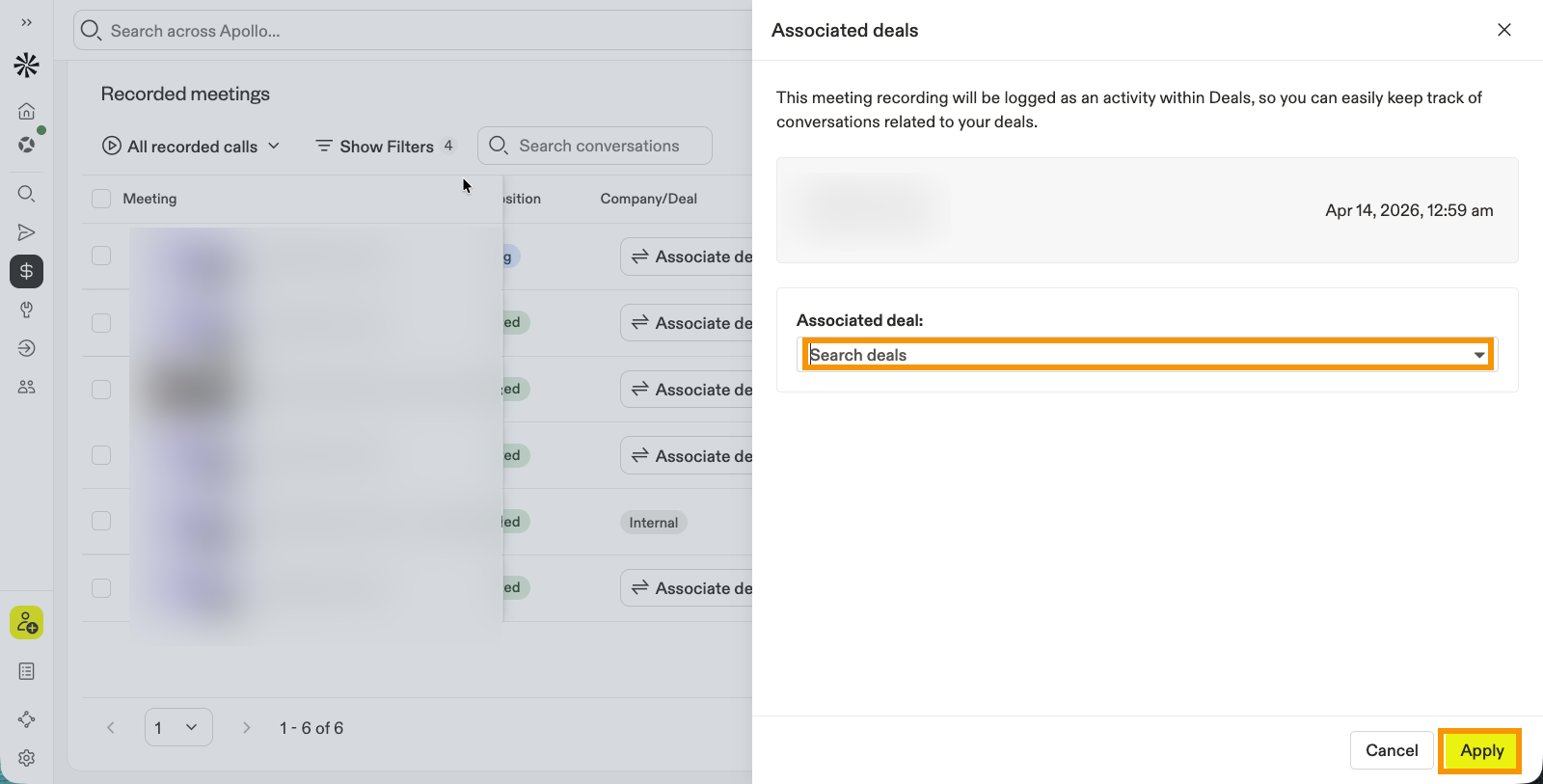
You’ve now associated a conversation with a deal.
Next Steps
Now that you’re using Conversations, these resources can help your team turn call recordings into better follow-up, cleaner coaching, and more complete CRM context.
| Set Up Conversations | Need to tighten the recording foundation first? Set up Conversations across Apollo to keep meeting providers, recorder access, and team permissions working the way you expect. |
|---|---|
| Access And Share Conversations | When a strong call shouldn’t stay siloed, share conversation recordings and summaries to keep reps, managers, and stakeholders aligned without extra recap work. |
| Uncover Conversations Insights With AI | Want the signal without replaying the whole meeting? Pull AI insights from your conversations to surface objections, next steps, and deal context your team can act on right away. |
| Coach Teams With Conversations | If you’re trying to make great calls repeatable, coach your team with scorecards and playlists to turn recorded meetings into real onboarding and performance improvement. |
| Auto-Populate CRM Fields Using Conversation Recordings | Map conversation details into your CRM fields to cut manual updates and keep critical meeting takeaways attached to the records your team already works from. |