
Overview
Deals help you to track sales opportunities with prospective customers so you can manage your entire sales pipeline directly within Apollo.
Check out the following sections to learn more about setting up deals in Apollo, including how to:
- Give non-admins to access and edit deals.
- Create deal pipelines.
- Manage deal currencies.
- Customize deal form fields.
- Integrate third-party CRMs with deals.
Configure Access to Deals
By default, only Apollo admins can access or edit deals. If you're an Apollo admin, you can also give non-admins access to edit deals via permission profiles.
To do this:
- Launch Apollo and go to Settings > Users & teams > Permission profiles.
- Select a permission profile to edit.
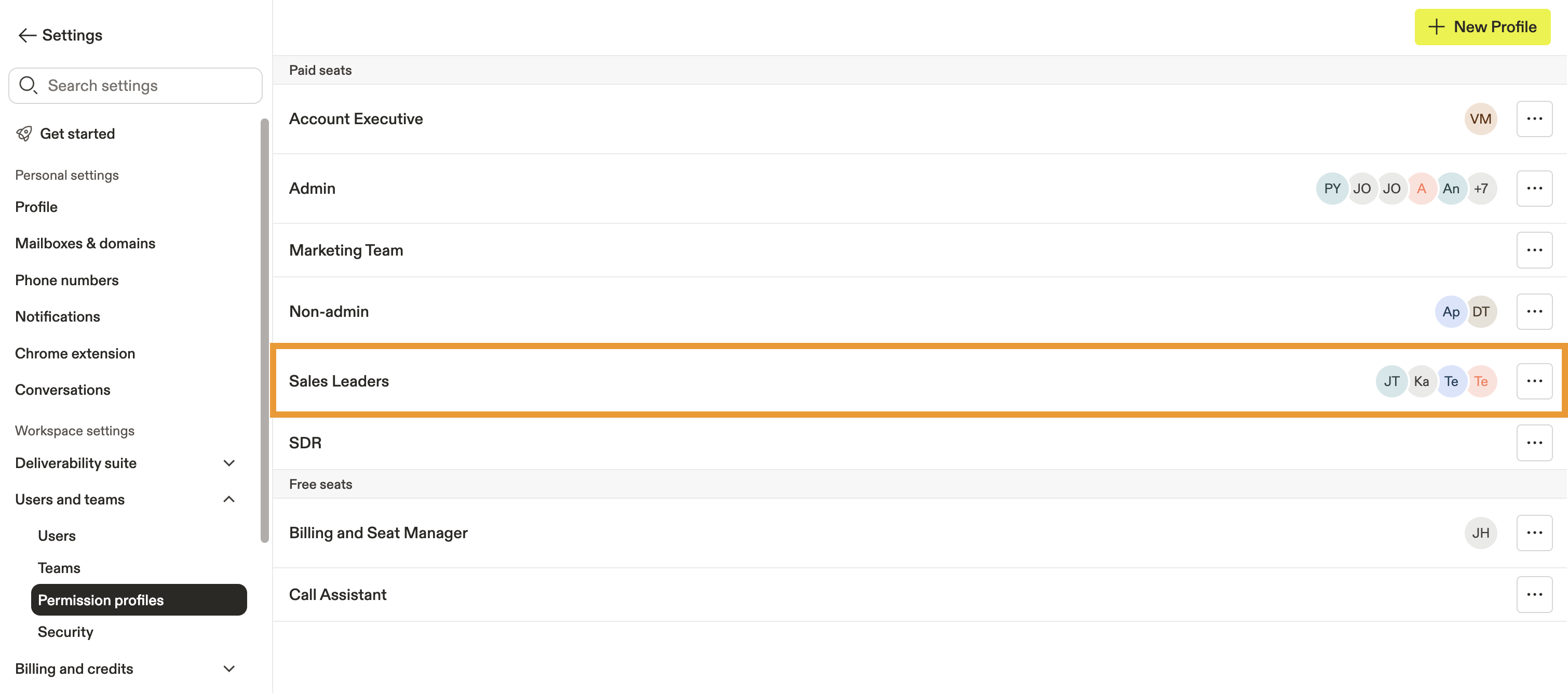
- Check Can access & view Deals data to allow non-admins to access and view deals. Review and adjust any other deal permissions, including the ability to delete deals, change deal ownership, assign deals, edit the default deal currency, or bulk import deals via CSV.

- When you're done, click Save Changes.
You can repeat these steps to assign deal permissions to other non-admin profiles.
Create a Deal Pipeline
Deal pipelines are structured steps or stages that your team's deals must follow.
If you've integrated your Salesforce or HubSpot CRM, Apollo uses your CRM opportunity stages and prevents you from creating new deal stages directly in Apollo. Learn more.
To create a deal pipeline:
- Launch Apollo and click Settings > Objects, fields, stages > Deal fields & stages.
- On the Pipelines tab, click Create Pipeline.

- Name your pipeline and click Save.

- Apollo includes default deal stages. To add another stage, click Create stage.

- Name your stage and choose the deal type, probability, and forecast category. Click Add.

- Hold and drag a stage to reorganize the order of your deal stages. To edit or remove a deal stage, click … > Edit or Delete.

Manage Deal Currencies
By default, Apollo lists all deal values in US dollars (USD $).
If your team prefers to use a different currency, you can change the default currency for deals. You can also configure multiple currencies, so you can set a different currency for individual deals depending on your lead's geographic location. If you use multiple currencies, you'll select a company currency used for reporting purposes, so your deals automatically convert no matter the individual deal currency.
Change Your Default Currency
By default, Apollo sets one company deal currency for your account to US Dollar (USD $). You can update your company's default currency at any time. To do this:
- Launch Apollo and click Settings > Objects, fields, stages > Deal fields & stages.
- Go to Currency.
- Use the dropdown to search for currencies and click a currency to select it as default. Your changes apply automatically.

Apollo updates the currency for your existing deals immediately. When you create a new deal, Apollo uses your new default currency.
The exchange rate updates automatically each day at 9:00 AM GMT.
Use Multiple Currencies
Your team can enable and add multiple deal currencies in Apollo. To do this:
- Click Enable multiple currencies.
If you have an active CRM integration like Salesforce or HubSpot, ensure multiple currencies are enabled in your CRM before you enable multiple currencies in Apollo to avoid syncing errors.

- Click Add currency to add a new currency for your deals.
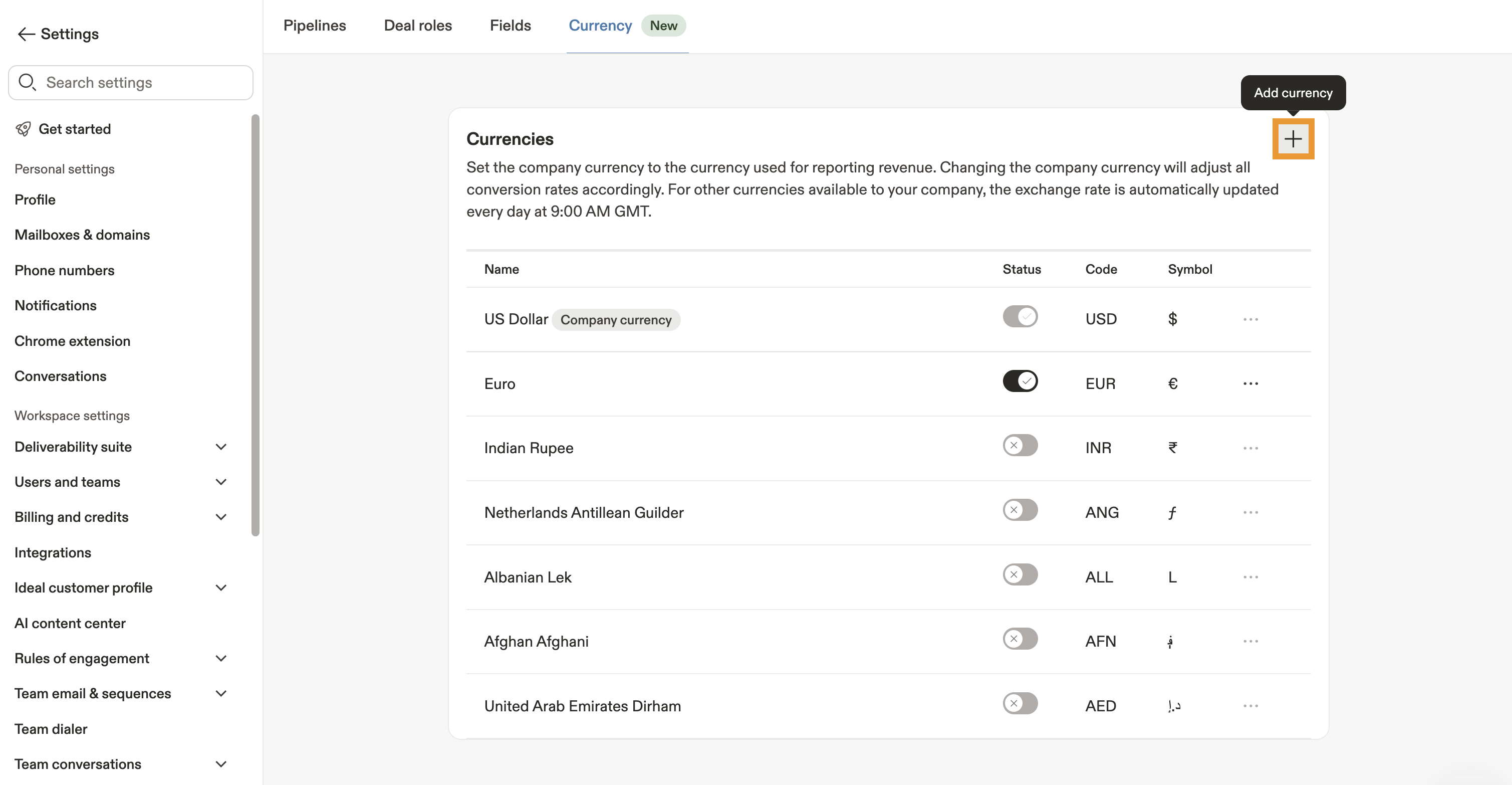
- Select a currency from the dropdown, then click Save.

- Toggle on a currency to enable it. US Dollar (USD) is enabled by default and can't be turned off.

- Click ... > Set as default to make another currency your company's default deals currency. New deals will default to this currency, but existing deals will keep their existing currency and reflect an auto-converted company currency value.

- Click Confirm after reviewing the conversion rate.

You've now set multiple currencies and a company default currency. On deals with non-default currencies, you can view the converted company value.

If you're an Apollo admin and want to allow non-admins to change the default currency, update their permission profiles.
Customize Your Deal Form
If you're an admin, you can customize which fields appear to your team when they create new deals.
To do this:
- Launch Apollo and click Deals.
- Click Create deal.
- Click Customize deal form.
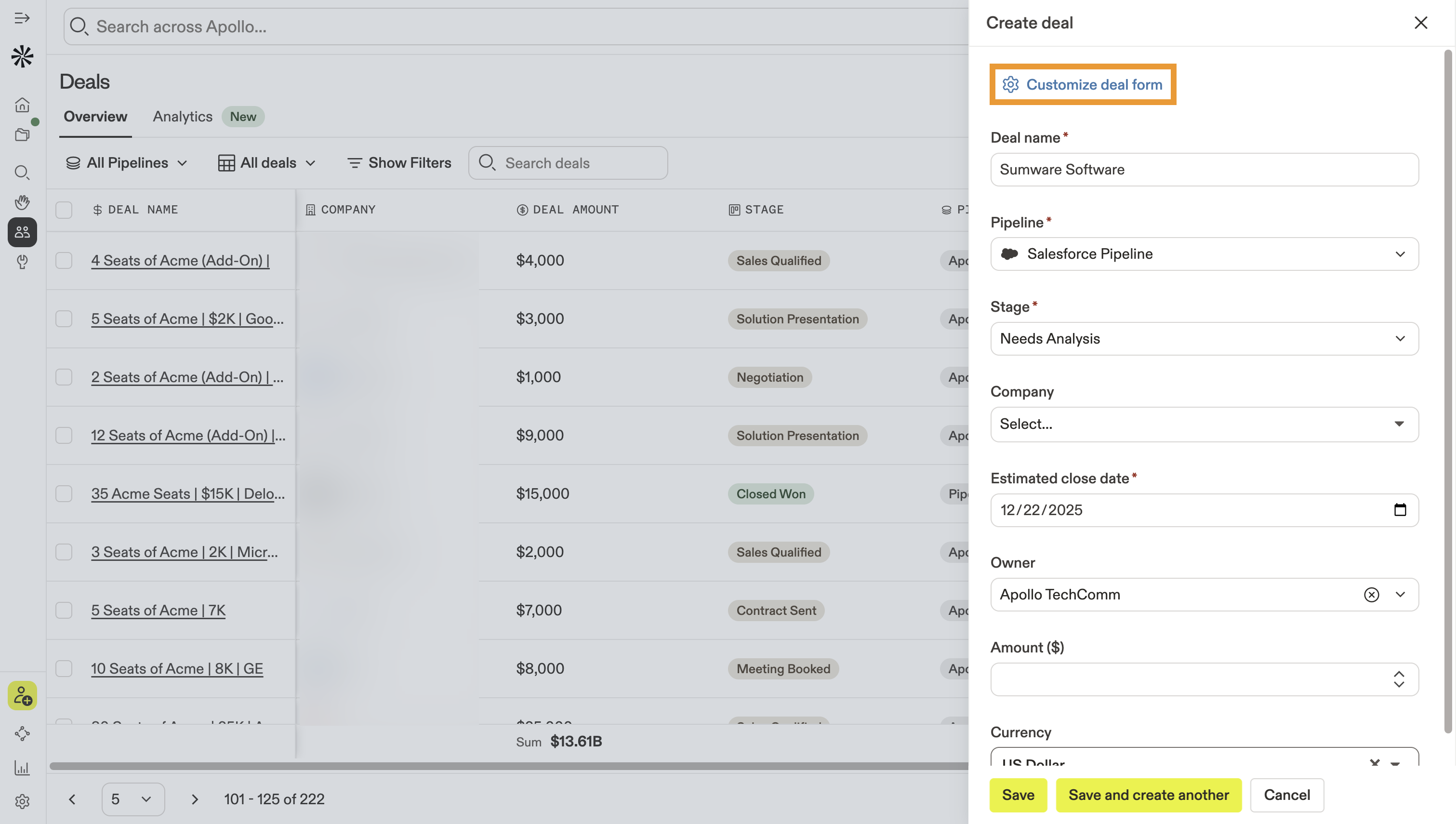
- Use the checkboxes in the left menu to add or remove fields to new deal forms by default. Check Set as required to make a field required.

If you're using multiple currencies for deals, enable the currency field on your deal form so teams can select the individual currency for their deal.
- Click and drag a field to change the order.

- Click Delete to remove a field from the deal creation form.

- Click Save when you're done.
You've now customized the deal creation form for your team. You can edit these settings at any time.
Integrate Your CRM with Deals
Salesforce
If you've integrated Salesforce, Apollo uses the opportunity stages configured in Salesforce for your deals stages. Check out Map Apollo Deals to Salesforce Opportunities for help mapping Salesforce fields to your Apollo deals.
Heads up! When you enable the Salesforce integration, Apollo automatically prevents you from creating new deal stages in Apollo.
In addition, deleting opportunity stages in Salesforce also deletes the corresponding deal stages in Apollo. Apollo won't delete stages with existing opportunities to help prevent data loss. If you need to track your deleted stages, go to the System activity log in Settings.
HubSpot
If you've integrated HubSpot with Apollo, you can create parity between deals in Apollo and HubSpot without tool switching.
To use the HubSpot integration with deals, connect HubSpot, configure push and pull settings, and then map deal fields. This integration doesn’t support forecasting, revenue models, or dependency / conditional logic in HubSpot.
Heads up! Apollo automatically syncs your deals from HubSpot and any deal updates you make in Apollo in real-time to HubSpot
You can also edit synced pipelines after onboarding to deactivate deals sync for specific pipelines. Apollo uses the opportunity stages in HubSpot for your deals stages and automatically deactivates the creation of new deal stages in Apollo.
Next Steps
Ready to take your pipeline management even further? Here are some quick next steps to keep building momentum with deals in Apollo.
| Deals Overview | Explore deals in Apollo to get a clearer picture of how you can set up, manage, and report on your ongoing deals. |
|---|---|
| Access and Manage Deals | Learn how to view and organize your deals to stay on top of every opportunity and update progress in real time. |
| Create a Deal | Quickly create new deals to capture every opportunity as soon as it hits your pipeline. |
| Import a CSV of Deals | Easily import a CSV of deals to migrate existing data and add multiple opportunities in bulk. |
| Report on Deals | Start reporting on your deals to uncover patterns, track performance, and forecast revenue with confidence. |