
Overview
The AI assistant uses memory to understand your personal preferences and work context across conversations, so you don't have to repeat them in every chat. Memory can include your role, preferred language, writing style, or recurring work preferences, territory, or target segment. You can allow the assistant to generate memories automatically, and you can manually add and edit memory.
Your memory is personal to you. Teammates and admins can't view or use it, and it only affects your own AI assistant experience. Your instructions in the current chat take priority over saved preferences.
Use memory for personal preferences and the AI context center for company information, products / services, and messaging that should apply to everyone in your Apollo account.
Check out the following sections to review, edit, remove, or turn off AI assistant memory.
Add and Edit Memory
Apollo automatically saves relevant preferences and work context from your chats. You can also add or edit memory yourself.
To turn off automatic memory, go to AI Assistant > Memory and toggle off Generate memory from chat history.
Turning memory off stops Apollo from saving new memories and using existing ones, but doesn't delete saved memories. Turn it back on to use them again.
To permanently remove memories, ask the assistant to forget them while memory is turned on.
To manually add memory:
- Launch Apollo and click AI Assistant.
- In a chat, tell the assistant what you want it to remember about you. For example:
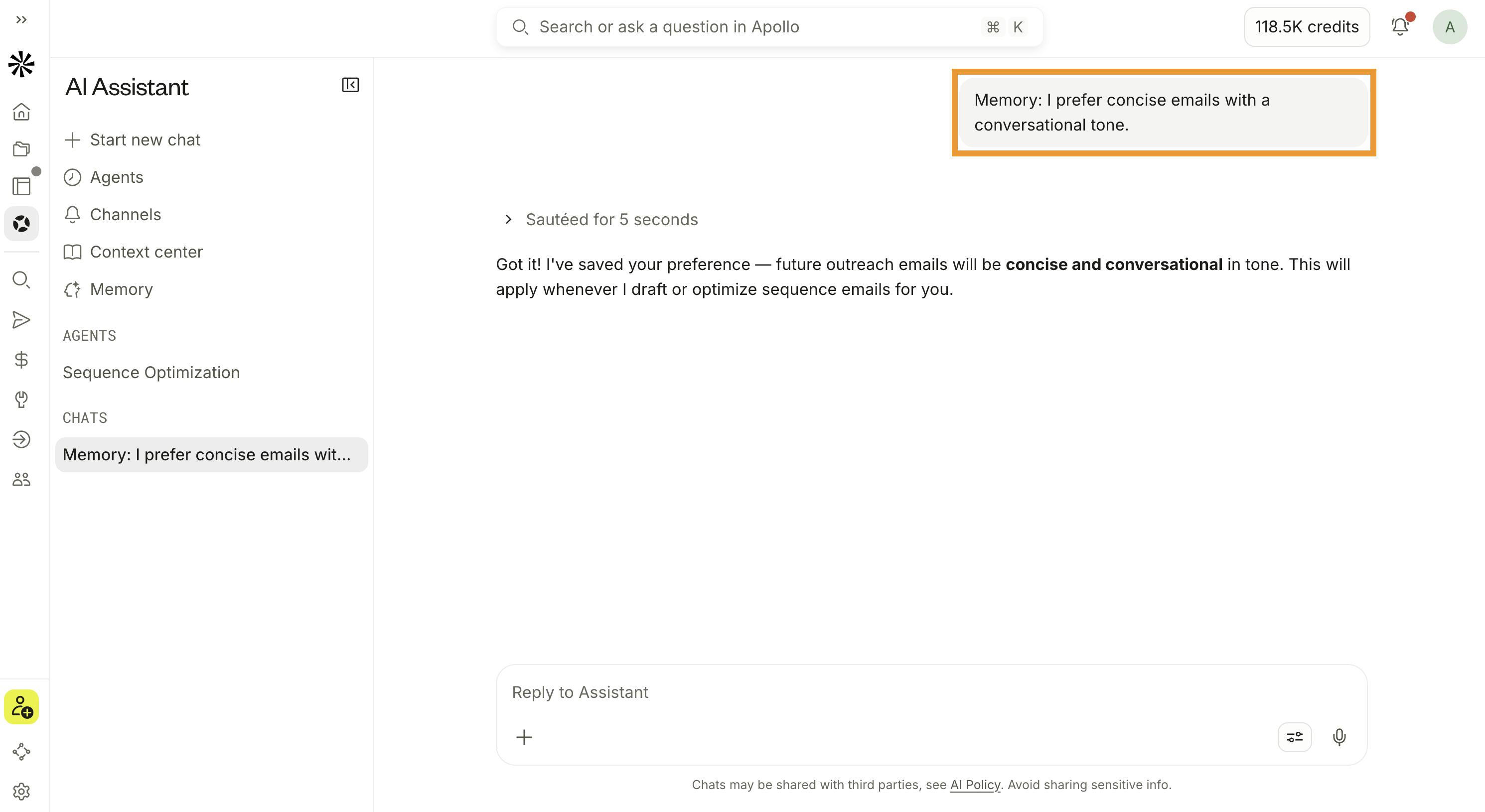
Memory: I prefer concise emails with a conversational tone.
- Alternatively, go to AI Assistant > Memory and click Edit memory. Then tell the assistant what to remember or forget. For example:
Remember that I focus on mid-market accounts in the western US.
Update my memory: I like to write concise, direct, and surprising emails.
Update my territory to the northeastern US.
You have now updated your memory with the AI assistant.
Memory provides guidance for the AI assistant, but your chat instructions take priority over saved preferences. For example, you can still request a lengthy email draft, even if your memory prefers concise ones.
Remove Memory
Ask the AI assistant to forget saved information when it's outdated or you no longer want it used in future chats.
To remove memory:
- Launch Apollo and go to AI Assistant > Memory.
- Make sure Generate memory from chat history is turned on so the assistant can remove saved memories.
- Click Edit memory and tell the assistant what to forget. You can also make the request directly in a chat. For example:
Forget my preference for a conversational email tone.
Forget my saved territory.
Forget all saved memories about me.
- Return to Memory and review Manage memory to confirm the information was removed.
You have now removed a memory with the AI assistant.
FAQs
|
Frequently asked questions |
||
| What's the difference between memory and the AI context center? | Does the AI assistant save everything from chat as memory? | Can I keep separate preferences for different brands, products, or audiences? |
| What's the difference between saved memory and chat history? | Why does the assistant still ask for information I've already saved in memory? | Does the assistant always follow saved preferences? |
What's the difference between memory and the AI context center?
Memory stores personal preferences and work context for your own assistant experience, such as your territory, preferred language, and writing style. You control your memory, and teammates and admins can't view or use it.
The AI context center stores shared company information, such as your products, services, value proposition, ideal customer profile, competitors, and product differentiators. It applies to everyone in your Apollo account and is managed by users with permission to modify team context. Adding, editing, or turning your memory off doesn't affect the AI context center.
Does the AI assistant save everything from chat as memory?
No, the AI assistant only stores relevant preferences and facts that help tailor future chats. Don't assume that every message, research result, or generated draft becomes a saved memory. To check what's saved, go to AI Assistant > Memory and review your stored memories.
Can I keep separate preferences for different brands, products, or audiences?
Yes, you can save preferences that vary by audience, segment, territory, or workflow. For example, ask the assistant to remember:
When writing to SaaS prospects, I prefer concise, surprising emails.
When writing to healthcare prospects, I prefer direct, holistic messaging.
Make the audience or use case clear in your request so the assistant can apply the relevant preference.
For shared company positioning or product messaging that everyone on your team should use, configure the AI context center.
What's the difference between saved memory and chat history?
Chat history contains your previous conversations with the assistant. Memory contains personal preferences and facts that the assistant can use across conversations. Starting a new chat doesn't erase saved memory or prevent the assistant from using it when memory is turned on. Learn how to remove memory.
Why does the assistant still ask for information I've already saved in memory?
The assistant may need more specific information for the current task. For example, a saved preference for mid-market accounts doesn't identify the industry or region you want to target in every search.
If a saved preference appears to be missing, check that Generate memory from chat history is turned on and that the information appears under your saved memories. Update incorrect or outdated information, and include any essential requirements in your current prompt.
Does the assistant always follow saved preferences?
Memory helps guide the assistant's responses, but these aren't strict rules. Your instructions in the current chat take priority over saved preferences. For example, if your memory calls for quick, high-level research, you can still request deep research in a chat. Include essential requirements in your chat, and review proposed actions before applying them.
Next Steps
Put your preferences to work with these resources for more focused prospecting and outreach.
| Configure the AI Context Center to Optimize Apollo AI | Give your team a shared foundation: configure your company and product context to tailor AI recommendations and messaging to your business. |
|---|---|
| AI Prompt Best Practices | Have specific requirements for a task? Write prompts with clear context and output requirements to get results that match the audience, tone, and format you need. |
| Find Prospects with the AI Assistant | Ready to target your next audience? Find and qualify prospects with the AI assistant to turn your targeting criteria into a focused list of people and companies. |
| Engage Prospects with the AI Assistant | Once you've found the right prospects, create and refine outreach with the AI assistant to build sequences and workflows with messaging tailored to your audience. |
| Analyze Your Performance with the AI Assistant | Want to know what's working? Analyze your outbound performance with the AI assistant to spot engagement trends and identify where your team can improve. |