
Overview
Your ideal customer profile defines the companies you want to sell to. Personas define the people within those companies who are most likely to buy, influence a purchase, or use your product.
On Apollo, a persona is a reusable set of filters, such as job title, seniority, department, location, and company attributes. Create personas for the roles involved in your sales process, then apply them when you prospect to find the right people without rebuilding your filters each time.
When you create a persona, it becomes available to everyone else on your team who has permission to prospect.
Check out the following sections to learn more about personas.
Create a Persona
You need permission to create or edit personas. If you don't have permission, reach out to Apollo admin at your organization for help.
To create a persona:
- Launch Apollo, and click Settings > Ideal customer profile > Personas > Add persona.
- Alternatively, click People > Show Filters > Persona, then click + Persona.
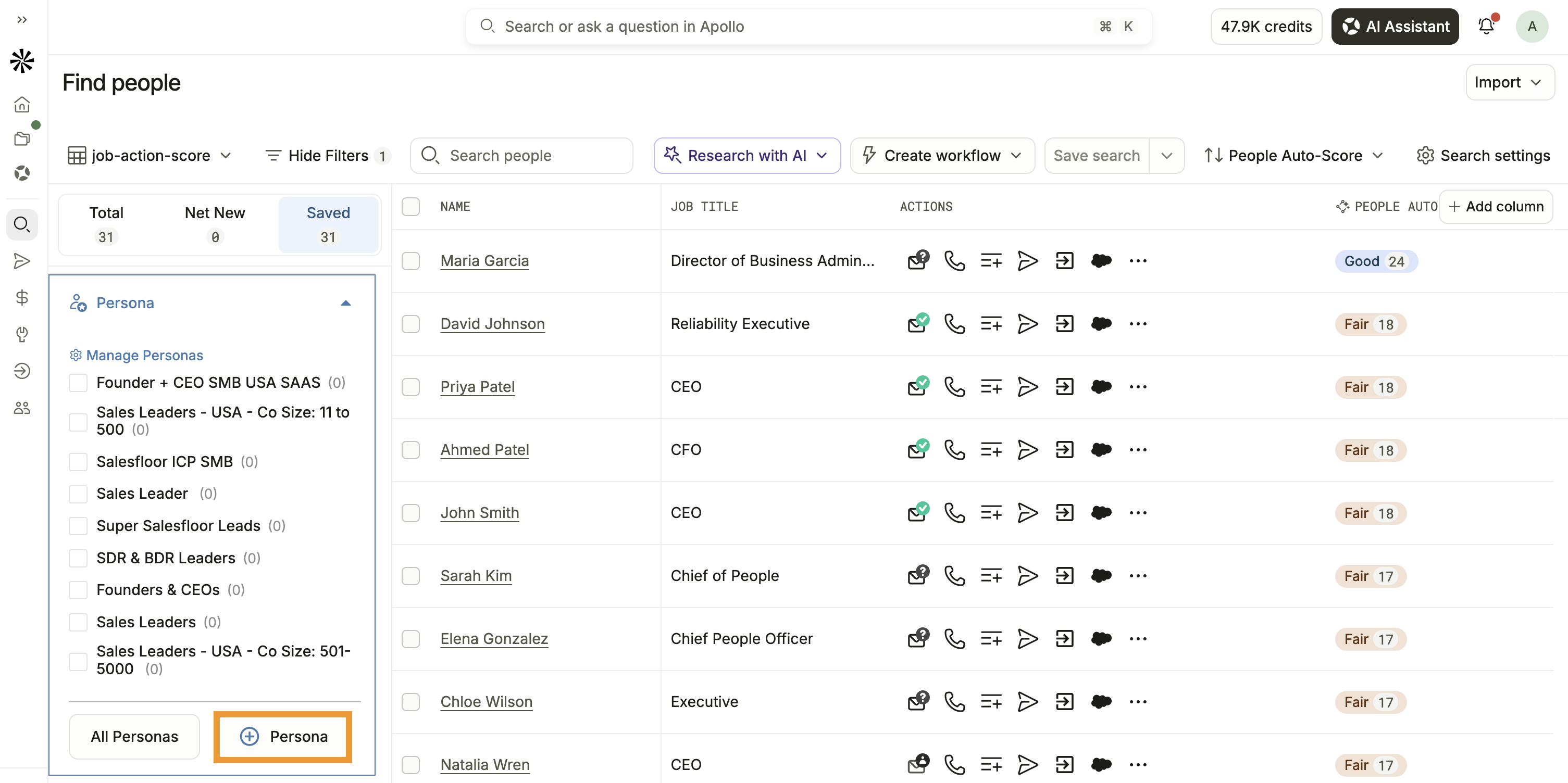
Pro-tip: In settings, click Generate personas with AI to let Apollo AI do the setup for you.
- Enter a name, then add filters like job title, industry, location, or number of employees to construct the persona.
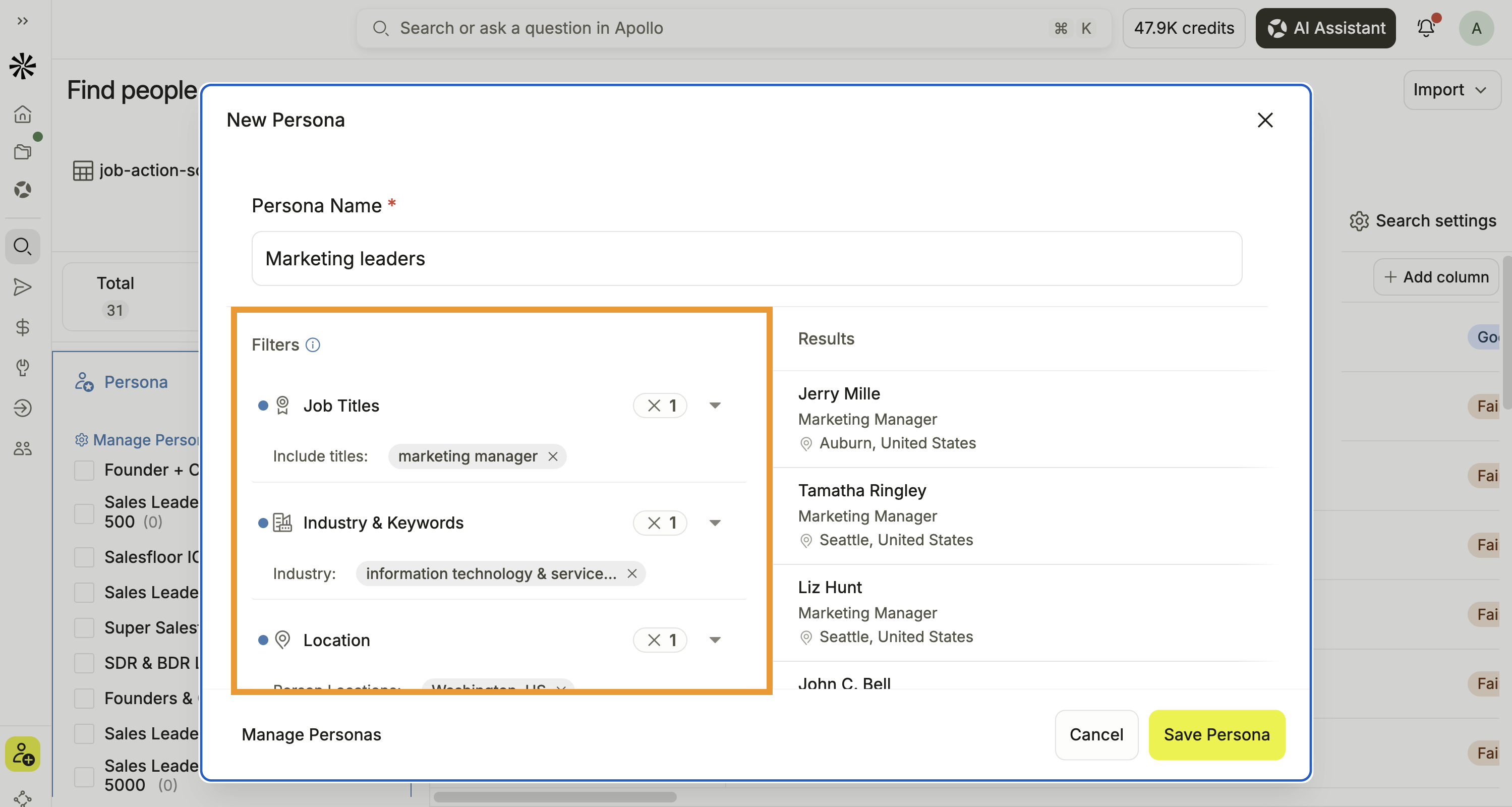
Check out the available filters when creating a persona:
| Filter | Usage |
|---|---|
| Job titles | Search by job title or job function. Use this filter to target contacts in the roles that best match your ideal customer profile. |
|
Restrict job titles or industries from appearing in your results. For example, filter out “Junior” or “Jr” to target individuals with more seniority. |
|
Include contacts who previously had the job title. |
|
Use Boolean operators like AND, OR, and NOT to target exact results. |
|
Target contacts whose job title is known. |
|
Target contacts whose job title is unknown. |
|
Target by seniority like owners, managers, or interns. |
|
Find contacts from specific departments or job functions, like finance or marketing. |
|
A Wide Net
Include common variations of each job title to find more relevant people. For example, add both "Chief Marketing Officer" and "CMO" to your persona. |
|
| Industry | Find contacts from specific industries like animation or hospitality. |
|
Find contacts with industry-specific keywords associated with the company's name, social media, or SEO descriptions. |
| Location | Target contacts by city, state, country, or zipcode. |
| # Employees | Find contacts by the number of employees at the company. |
Only add filters that are vital to your ideal persona. The more specific your persona, the fewer contact results you're likely to see. For instance, if you use a very specific job title, you may want to avoid additional filters. Learn more about using search filters successfully.
- Apollo previews the prospect results as you add and edit filters. Click a prospect to view their profile.
- When finished, click Save Persona.
You have now created a persona. You and your team can use the persona to prospect.
Use the persona in combination with other filters to narrow your search when prospecting in Apollo, and edit or deactivate personas as needed.
Use a Persona
A persona works as a reusable search filter so you narrow your prospecting results.
Apply one or more personas when you prospect for people, then combine them with other filters to focus on the people who are the best-fit for a specific campaign or sales motion.
To use a persona:
- Launch Apollo and click People.
- Click Show Filters > Persona.
- Select one or more personas. Apollo updates the results with people who match your persona filters.
- Apply additional filters as needed to refine your results.
Learn more about using the persona filter.
Apollo also uses your active personas to tailor suggested leads and organize persona-based data in other areas, including analytics and the Data Health Center.
To manage, edit, or deactivate personas, check out Manage Personas.
Next Steps
Put your personas to work with these resources for refining your targeting, finding prospects, and keeping your team's personas organized.
| Access and Manage Personas | Manage your team's personas to edit targeting criteria, clone useful personas, change their order, or deactivate personas you no longer need. |
|---|---|
| Search for People | Search for people who match your personas to build focused prospect lists and take action on the best-fit results. |
| Search Filters Glossary | Explore the available search filters to refine your personas and target people using the criteria that matter most to your sales motion. |
| Save, Share, and Set Alerts for Searches | Save and share your persona-based searches to reuse complete targeting criteria and keep your team aligned on priority audiences. |
| Use Suggested Leads for More Efficient Prospecting | Review leads suggested for your active personas to quickly identify high-value prospects and move them into your outreach workflow. |