
Overview
The dialer allows you to make and receive calls to prospects without leaving Apollo. You can configure the dialer to automatically record phone calls, then listen to your calls for areas to improve, or share calls with your team to celebrate success. As a manager or operations lead, you can access calls to calibrate and refine your team's outreach.
Check out the following sections to access and manage calls.
Access and Manage Calls
You can access your call recordings a couple of ways:
- From conversations: Analyze your call recordings in more depth and use Apollo AI to analyze the call and identify the tactics that worked best.
- From calls: View all your phone calls, access high-level insights about each call, and join active calls to help coach your team towards success.
Access calls from conversations
Apollo is busy launching conversations analysis for dialer recordings. While this feature is in beta, some functionality might change. Stay up to date with all the latest by joining the Apollo community.
To access the full analysis of your call recordings via conversations:
- Launch Apollo and click Conversations.
- Click All recorded calls, then select Dialer calls.

- Click a call recording.
- You can play back the call, read the transcript, or review the AI call summary. Click Ask anything to use Apollo AI to uncover insights about the call.
If your team uses location-based recording rules, Apollo AI will only transcribe and analyze the voices that were recorded on the call — any people excluded by the rules won’t appear in the transcript or summary.
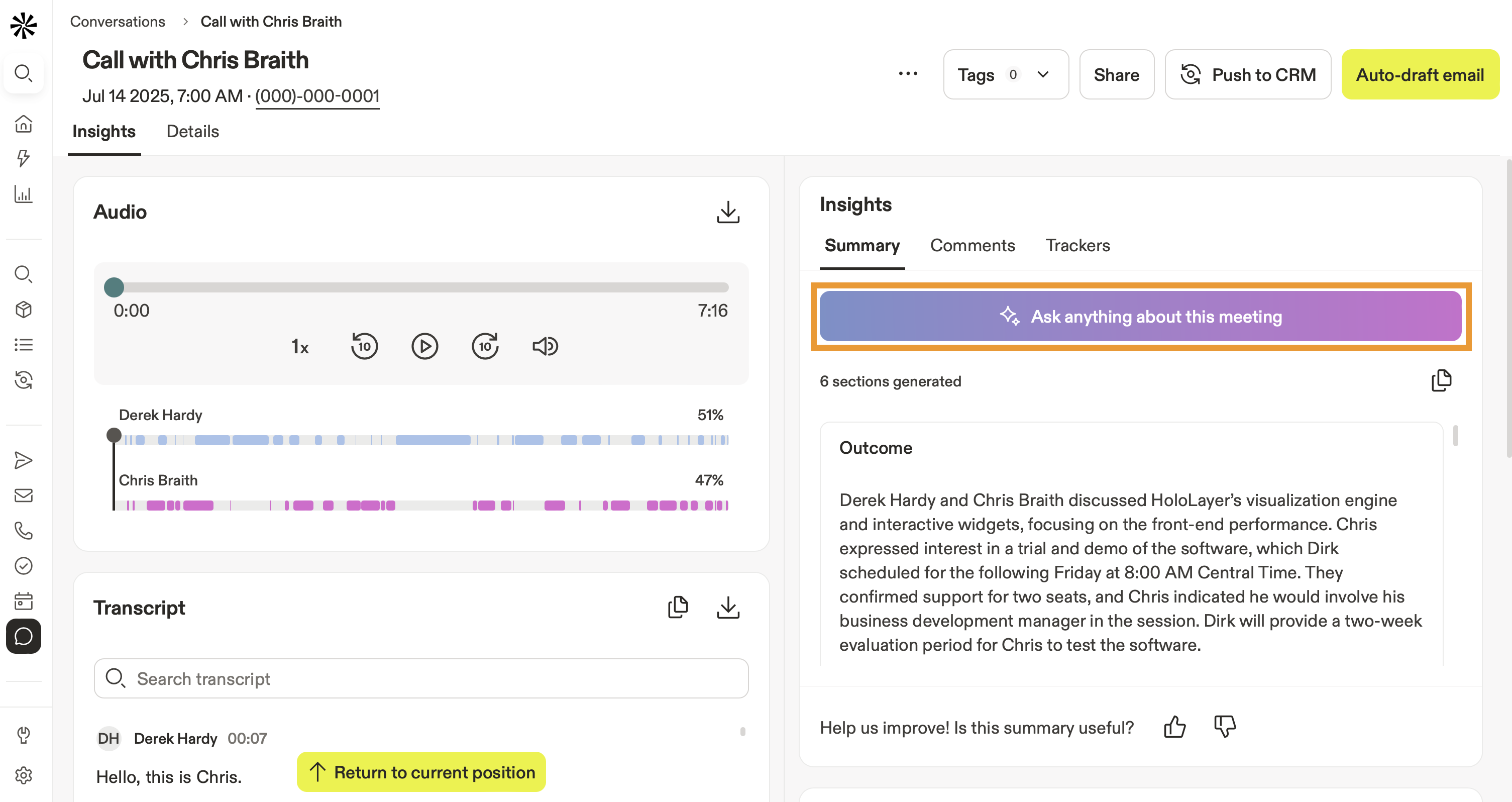
Wanna learn what else you can do with AI on Apollo? Check out Apollo AI Overview for a rundown of how AI can boost your outreach efficiency and turbocharge your prospecting.
- To download the recording, click Download.

You have now accessed and managed your call.
Looking to learn from team calls? Check out Cold Call Best Practices to report on calls with call analytics templates like call engagement performance or most engaged call demographics.
Access calls from calls
To access and manage your call recordings from calls:
- Launch Apollo and click Calls.
- Apollo shows all of the calls from you and your team.

- Click Call Insights to review the AI summary or to use ask anything to analyze the conversation.

- To find a specific call, click Show Filters and use a filter:
| Filter | Description |
|---|---|
| Show active calls | View and join active calls across your teams. |
| Contact | View and join active calls across your teams. |
| Show active calls | Search by specific contacts |
| Purpose | Filter by call purpose. |
| Disposition | Filter by call dispositions. |
| Direction | Filter for inbound or outbound calls. |
| Date | Filter for calls on a specific date or timeframe. |
| Duration | Filter calls by a minimum, maximum, or duration range, in seconds. |
| Contact lists | Filter calls by lists. |
- Click a call to view more details. Apollo shows you contact information, call notes, call purpose, and call disposition. If you enabled call recording, you can play back the call, or review the call transcript.

- Click ... beside a call to take an action:
- Edit: Edit the call details.
- Delete: Delete the call.
- CRM sync history: View the sync history for your CRM integration.

- Check multiple calls to take an action in bulk:
- Edit: Set the call purpose or disposition in bulk.
- Delete: Delete the calls.
- Export to CSV: Export the selected call details to a CSV file.

- Click New call to make a new call. You can dial a number directly or search for a contact.

You have now accessed and managed your calls.
Next Steps
Ready to supercharge your calling strategy? Here are some next steps to keep the momentum going:
| Cold Call Best Practices | Follow Apollo's cold call best practices to boost your connect rates and humanize every conversation. |
|---|---|
| Apollo AI Overview | Explore Apollo AI and how it can streamline your workflows and surface insights that help you move prospects from cold to closed faster. |
| Set Dialer Preferences | Configure dialer preferences, including team settings lke location based recording rules to ensure you stay compliant while capturing every key insight. |
| Make and Receive Calls | Make and receive calls to reach prospects directly on Apollo and capture key takeaways on every conversation. |