
Overview
If your team uses Pipedrive, Apollo's integration allows you to maintain data parity between both platforms. Use the integration to automatically sync contact and account data from your CRM, and choose when to sync data from Apollo to Pipedrive, reducing duplicative manual entry and the risk of human error.
Check out the following sections to connect the Pipedrive integration, map fields and stages, and set your sync preferences.
Once connected, it can take some time for contacts and accounts to sync from Pipedrive to Apollo.
You can only integrate one CRM with Apollo. If you already connected Salesforce or Hubspot, deactivate the integration before proceeding with Pipedrive.
Connect the Integration
Only people with permission to edit integration settings can access integrations in Apollo. If you don't have permission, reach out to a team member for help.
To integrate Pipedrive with Apollo:
- Launch Apollo and click Settings > Integrations.
- Scroll to Pipedrive and click Connect.

- Review the account access and click Yes, Continue.
- If you haven't already, log in to your Pipedrive account. Review the permission settings, then click Allow and install.
You have now connected Pipedrive. Apollo automatically pulls contacts and accounts from Pipedrive and de-duplicates them in Apollo.
You can't deactivate the automatic pull of contacts and accounts from Pipedrive. If you don't want your team to view them when prospecting in Apollo, you can configure record visibility in the sync settings.
Next, map stages and fields and configure sync settings for the integration.
Map Fields and Stages
Map fields and stages between Apollo and Pipedrive to ensure your data is represented correctly across both platforms.
Correctly mapping your fields allows you to sync data to Apollo to enrich your records. Fields left unmapped may not sync correctly.
When you connect your Pipedrive account, Apollo automatically syncs the following fields with Pipedrive by default:
| Sync type | Synced data |
|---|---|
| Apollo contact push |
|
| Apollo account push |
|
| Pipedrive contact pull |
|
| Pipedrive account pull |
|
Apollo auto-maps all the related fields found in Pipedrive, but you can make adjustments to the default field mapping, as well map additional default and custom fields.
To map more fields:
- Launch Apollo and click Settings > Integrations.
- Scroll to Pipedrive and click View.
- Click Contacts or Accounts > Fields.
- Apollo automatically maps all recognized fields for you. Click Add field mapping to map additional fields, such as custom fields.

The do not call field syncs a contact's stored DNC status between Apollo and Pipedrive. To use this field, you must first enable DNC phone screening on Apollo.
Apollo only syncs the DNC status already stored for the contact. Apollo doesn't run a live DNC check during CRM sync.
- Check the Apollo or Pipedrive fields you want to map, then click Add fields.
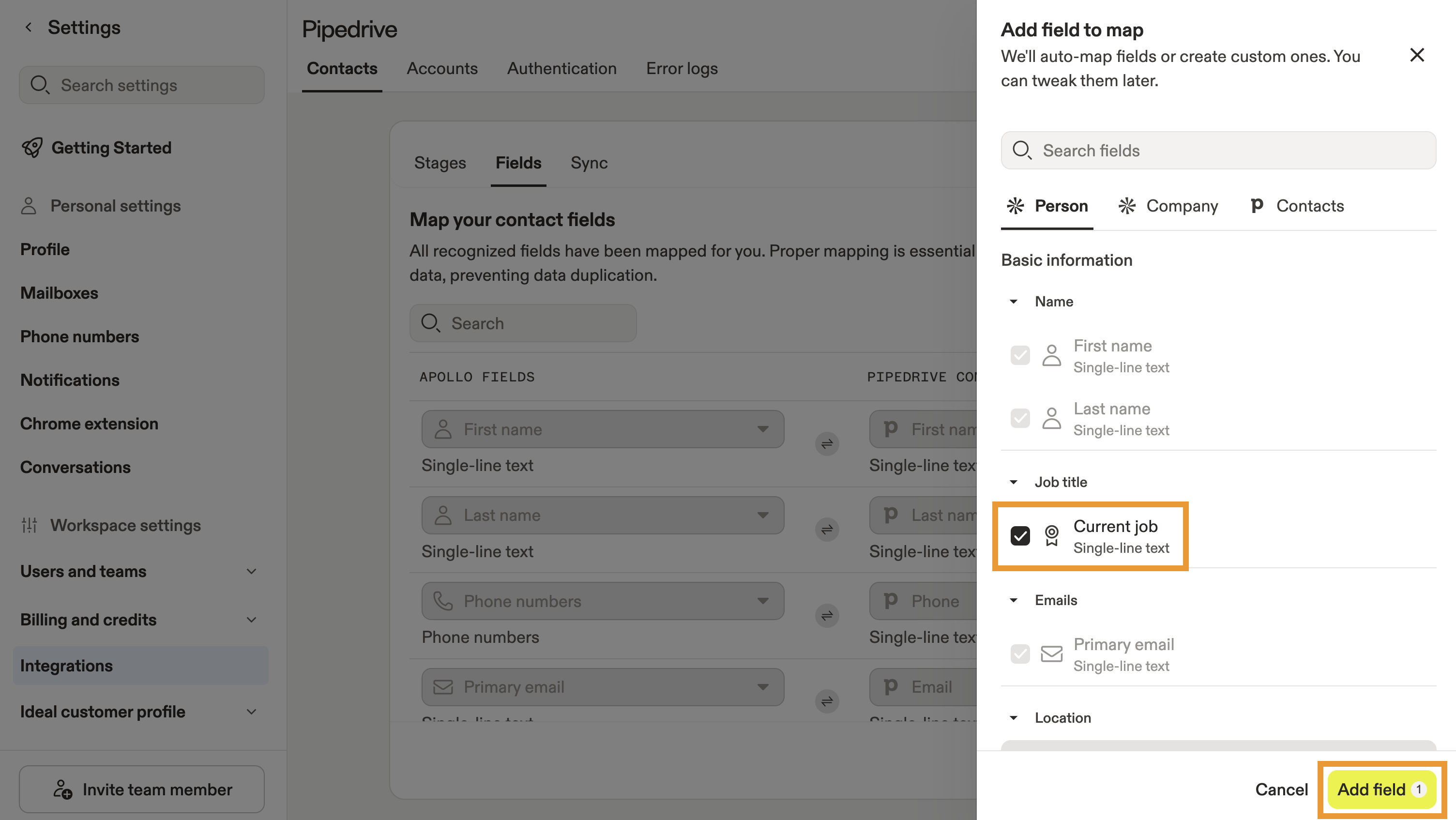
- Map the field to the corresponding Apollo or Pipedrive field.

- Repeat this process for any other fields you want to map, then click Save.
You have now updated the field mapping for the Pipedrive integration.
Next, map stages for the integration.
Map Apollo stages to Pipedrive statuses to track where Pipedrive contacts or accounts are in your sales pipeline. This way, you can easily filter by stage when prospecting or engaging in Apollo.
Map stages automatically with auto-map, then make adjustments as necessary, or manually map all stages.
If an unmapped value from Pipedrive doesn't match a stage in Apollo, Apollo will automatically create a stage and map the two together. If the value matches an existing stage, but that stage is already mapped to a different value, Apollo won't map the Pipedrive field to the existing stage and won't create a new stage to match the two since that would create a duplicate of an existing stage.
To map stages:
- Launch Apollo and click Settings > Integrations.
- Scroll to Pipedrive and click View.
- Click Contacts or Accounts > Stages.
- First, select a contact status field to sync with Apollo stages. Select a field from the dropdown, then click Auto-map all stages Apollo automatically maps the status field you selected. Repeat this process for any additional mappings you'd like to create.

- Next, map contact stages manually by selecting a corresponding Pipedrive stage from the dropdown.

- Repeat this process for any other stages you want to map, then click Save.
Only map one Apollo stage to one Pipedrive status and vice versa. If you try to map the same Apollo stage to multiple Pipedrive statuses, or the same Pipedrive status to multiple Apollo stages, the integration may not function correctly and contacts could be assigned to unexpected stages.
After mapping stages, if you need to change the name of a Pipedrive status, delete a status, or add a new status, update your mapping in Apollo. If you delete a status in Pipedrive, delete the Apollo stage to which you mapped it and move the contact or accounts to an active stage.
You have now mapped stages for the Pipedrive integration.
Next, configure sync settings for the integration.
Configure Sync Settings
Apollo automatically pulls contacts and accounts from Pipedrive, but you can configure when Apollo pushes data to Pipedrive. You can also configure record visibility for contacts and accounts synced from Pipedrive.
The Pipedrive integration doesn't sync activities from Apollo to Pipedrive, including emails, calls, meetings, tasks, notes, sequence activity, or conversation summaries. Apollo only syncs contacts and accounts. Additionally, there's no option to create a contact in Pipedrive when a sequence starts or to automatically create a contact when logging an email.
For workarounds, consider pairing Zapier or other middleware with the Pipedrive integration. Check out Pipedrive Integration Overview to learn more.
To configure sync settings:
- Launch Apollo and click Settings > Integrations.
- Scroll to Pipedrive and click View.
- Click Contacts or Accounts, then click Sync.
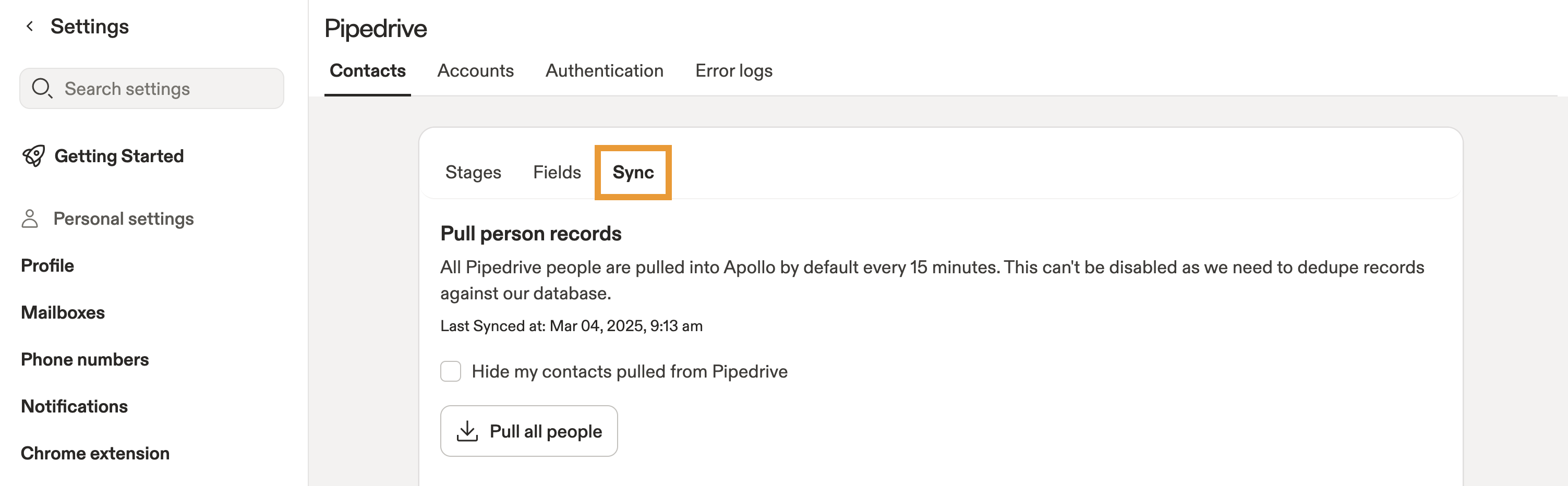
- Check Push Contacts or Push Accounts to automatically push newly created records to Pipedrive. This also updates any contacts or accounts in Pipedrive whenever a field in Apollo changes. When Apollo pushes a contact, it also syncs the contact's account if it isn't already in Pipedrive.

- (Optional) For contacts, choose from the dropdown whether to push all contacts or Only create contacts in Pipedrive if at certain stages, then select one or more stages. This means you only push contacts from Apollo on the stages you select. This may be useful for pushing interested or warm leads only, so you don't clutter up your CRM.

- When finished, click Save.
You have now configured push settings for the Pipedrive integration.
Record Visibility
Apollo enables record visibility by default so your team can search for and view Pipedrive records in Apollo. You can deactivate this setting if you don't want your team to view contacts and accounts synced from Pipedrive when prospecting in Apollo.
To update record visibility:
- Launch Apollo and click Settings > Integrations.
- Click Pipedrive > View > Contacts or Accounts > Sync.
- Check Hide my contacts pulled from Pipedrive, then click Save.
You have now configured record visibility for the Pipedrive integration.
Manually Sync from Pipedrive
When you connect your account, Apollo automatically pulls contacts and accounts from Pipedrive. After you add or change a field or stage mapping, manually sync to apply the mapping to existing records.
To manually sync from Pipedrive:
- Launch Apollo and click Integrations.
- Scroll to Pipedrive and click View.
- Click Contacts or Accounts > Sync.
- Click Push all Apollo contacts / accounts to apply Apollo data to existing Pipedrive records. Click Pull all Pipedrive contacts / accounts to apply Pipedrive data to existing Apollo records.

You have now manually synced records from Pipedrive.
FAQs
|
Frequently asked questions |
||
| How do I find records synced from Pipedrive? | How do I filter records by stage in Apollo? | How do I push an individual contact or account to Pipedrive? |
| How do I find records that I own? | Why can't I find pushed Apollo records in Pipedrive leads? | Why didn't phone numbers push to Pipedrive? |
| Why can't I find Pipedrive records using the source filter? | ||
Got more questions? Dig in to answers on Pipedrive Integration Overview.
How do I find records synced from Pipedrive?
To filter prospects and view records synced from Pipedrive:
Apollo displays the Pipedrive icon beside synced records.
Learn more about using the source filter.
How do I filter records by stage in Apollo?
To filter records by stage in Apollo:
- Launch Apollo and click People or Companies.
- Click Show filters > More filters, then click Stage.
- Select one or more stages, then click Apply filters.
Learn more about using the stage filter.
How do I push an individual contact or account to Pipedrive?
First, ensure you configured sync settings to allow pushing contacts or accounts.
To push an individual contact or account:
How do I find records that I own?
To filter for synced records that you own:
- Launch Apollo and click People or Companies.
- Click Show filters > Owner, then select yourself as the contact or account owner.
Learn more about using the owner filter.
Why can't I find pushed Apollo records in Pipedrive leads?
Apollo pushes people to Pipedrive contacts, not the separate Pipedrive leads section. If you're checking Pipedrive leads, pushed Apollo contacts won't appear there.
To confirm a successful push, search for the record under contacts in Pipedrive instead.
Why didn't phone numbers push to Pipedrive?
Apollo only pushes phone numbers that already exist on the Apollo contact. The Pipedrive push itself doesn't enrich or discover new phone numbers.
If you want phone numbers to appear in Pipedrive, first enrich the contact in Apollo so a phone number exists on the record, then push the contact to Pipedrive.
Why can't I find Pipedrive records using the source filter?
When you use the source filter and select Synced to CRM, the results reflect whichever CRM is currently connected to your Apollo account. The filter itself isn't specific to Pipedrive. If you disconnect Pipedrive or connect another CRM, saved filters may relabel themselves to match the newly connected CRM.
If you need to preserve a Pipedrive-specific group of synced contacts or accounts, create a list on Apollo or export the records before switching CRM connections.
Next Steps
Keep your CRM workflows tight and your data clean with these next steps.
| Search Filters Overview | Filter by synced stages and CRM data to target the right prospects and keep your outreach aligned with pipeline progress. |
|---|---|
| Create Permission Profiles | Set clear access controls when you configure who can manage integrations so your team avoids accidental changes. |
| Enable Do Not Call (DNC) Phone Screening | Stay compliant across systems when you sync and respect DNC statuses to protect your team from risky outreach. |
| Customize and Manage Your Apollo Plan | Align usage with your CRM strategy when you review plan limits and feature access to scale your workflows without friction. |
| Dialer Overview | Turn synced data into conversations when you start calling directly from Apollo to move deals forward faster. |