
Overview
Tasks in Apollo help you organize, prioritize, and complete manual outreach activities, including phone calls, emails, LinkedIn engagement, and other action items. Use tasks to assign ownership, schedule work, and keep outreach moving across contacts, accounts, deals, sequences, and workflows.
Each task includes a type, priority, due date, assignee, and relevant context. You can create tasks manually or generate them through sequences and workflows.
You can create the following types of tasks in Apollo:
- Phone call: Call a prospect using the Apollo dialer.
- Manual email: Review, personalize, and send an email.
- Action item: Complete another outreach activity, such as researching a prospect or sending a resource.
- LinkedIn: View a profile, interact with a post, send a connection request, or send a message. Learn more about LinkedIn tasks.
In a sequence, an Automatic email step doesn't create a task. Apollo sends the email according to the sequence schedule. Manual email, phone call, action item, and LinkedIn steps create tasks that the assignee completes.
A contact remains at a manual task step until the assignee completes the task, archives or skips it, or Apollo auto-skips it after a configured auto-skip window. Apollo may label the same skip action Archive task or Skip task, depending on the task view.
Get Started
Follow this path to start using tasks in Apollo:
| Create a Task | Create a task from Tasks, a sequence, or an account, contact, or deal. Select the task type, assignee, priority, and due date. |
|---|---|
| Organize Tasks | Sort, filter, or group your assigned tasks so you can focus on the right work. When available, use Recommended to review prioritized tasks. |
| Complete a Task | Review the task context, complete the required outreach, and mark the task complete. You can also update multiple tasks at once. |
| Report on Tasks | Use analytics reports and dashboards to monitor pending, completed, and overdue tasks across your team. |
FAQs
|
Frequently asked questions |
||
| How are tasks created in Apollo? | What is the difference between a task and an automatic email in a sequence? | What happens if a sequence task isn't completed? |
| How do I delete a task? | How do I change the owner of a task? | How do I find a task's source? |
| Which Apollo plans include tasks? | ||
How are tasks created in Apollo?
You can create tasks manually from Tasks or from an account, contact, deal, or sequence. Apollo can also generate tasks through sequence steps, sequence rulesets, and workflows.
Each task remains connected to its originating record or automation so the assignee has the context needed to complete it.
What is the difference between a task and an automatic email in a sequence?
A task represents an action that an assignee completes, such as making a call, sending a manual email, or interacting with a prospect on LinkedIn.
An automatic email doesn't create a task. Apollo sends it according to the sequence schedule without requiring an assignee to take action.
What happens if a sequence task isn't completed?
A contact remains at a manual task step until the assignee completes, archives, or skips the task. Apollo can also skip the task automatically when the configured auto-skip window expires.
Until one of these actions occurs, the contact doesn't proceed beyond that manual task step.
How do I delete a task?
To delete or skip a task, you need to archive it:
- Launch Apollo and click Tasks.
- Find and open the task, then click Archive.

You have now archived the task.
How do I change the owner of a task?
To change a task assignee:
- Launch Apollo and click Tasks.
- Find and open the task, then click Task actions > Reassign.

Tasks associated with a sequence may also be reassigned when you change a contact's sending mailbox. Learn more about editing the sending mailbox for contacts in a sequence.
How do I find a task's source?
Tasks can be manually created or generated automatically through a sequence or workflow.
To identify a task’s source:
- Launch Apollo and click Tasks, then find the task.
- Check the Source column to see where the task originated.
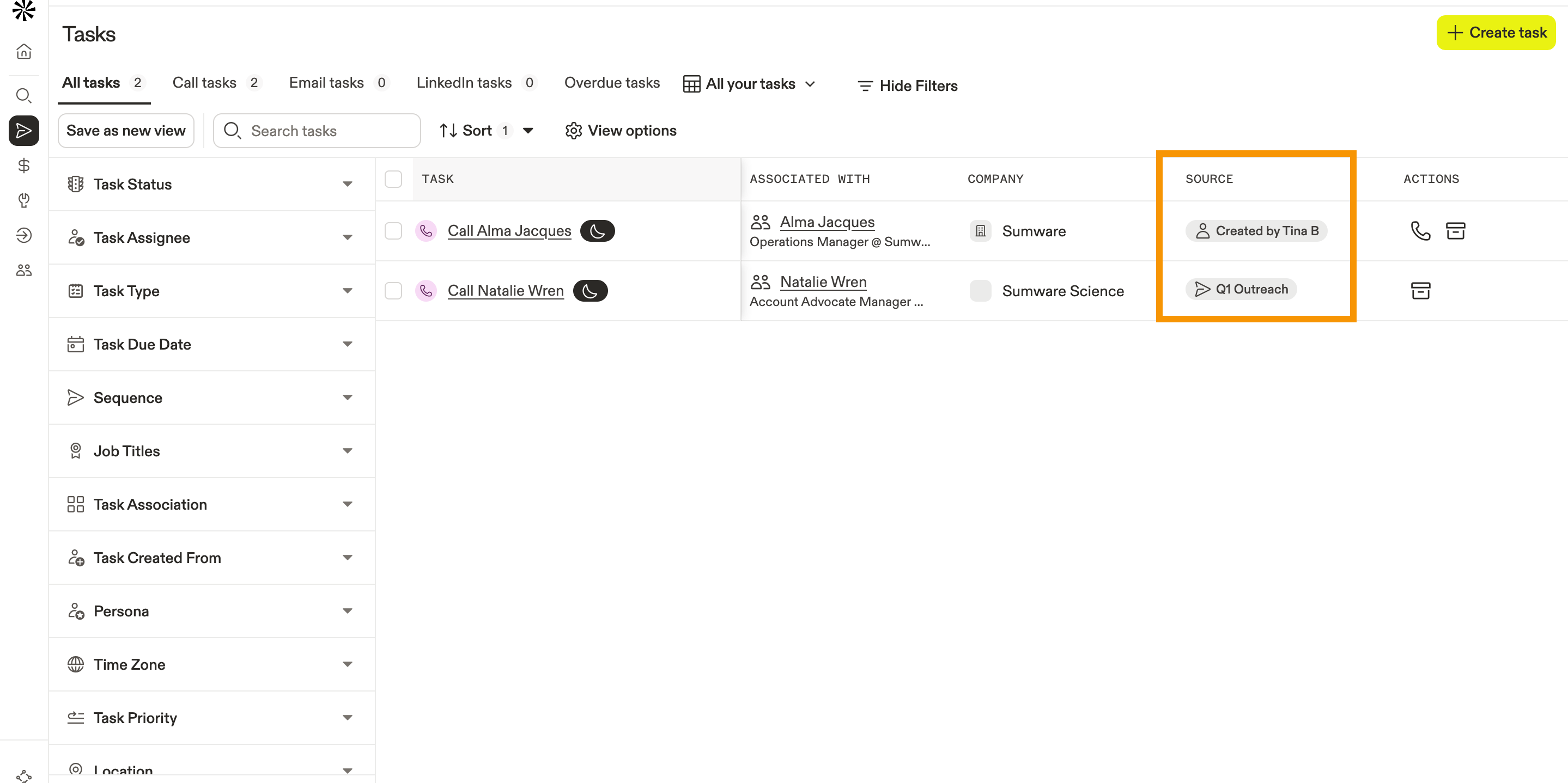
You have now identified a task's source.
Which Apollo plans include tasks?
Tasks are available on all Apollo plans, but free plans don't include the dialer or call tasks. If you need access to calls in Apollo, upgrade your plan. If you have questions about upgrading, reach out to the Apollo sales team.