
Enrich Saved Records in Apollo
Overview
After prospecting, use Apollo to enrich your saved records and access the most current data before beginning your go-to-market outreach.
Apollo makes it easy to quickly identify and update records with enrichable fields, so your team can spend less time on data maintenance and more time engaging with the right contacts and accounts at every stage of your sales pipeline.
This article covers how to enrich Apollo records only. If you've integrated a third-party CRM like Salesforce, HubSpot, or Pipedrive, go to Data enrichment > CRM to filter and enrich your CRM records. Check out Use CRM Enrichment to learn more.
Search for Enrichable Records
To start searching for saved records with available enrichment:
- Launch Apollo and go to Prospect & enrich > People or Companies.
- Click Saved to access your saved people or company records.

- Records with available enrichment display an enrichment icon next to the contact or account name. Click the icon to preview the enrichable fields available for a record.
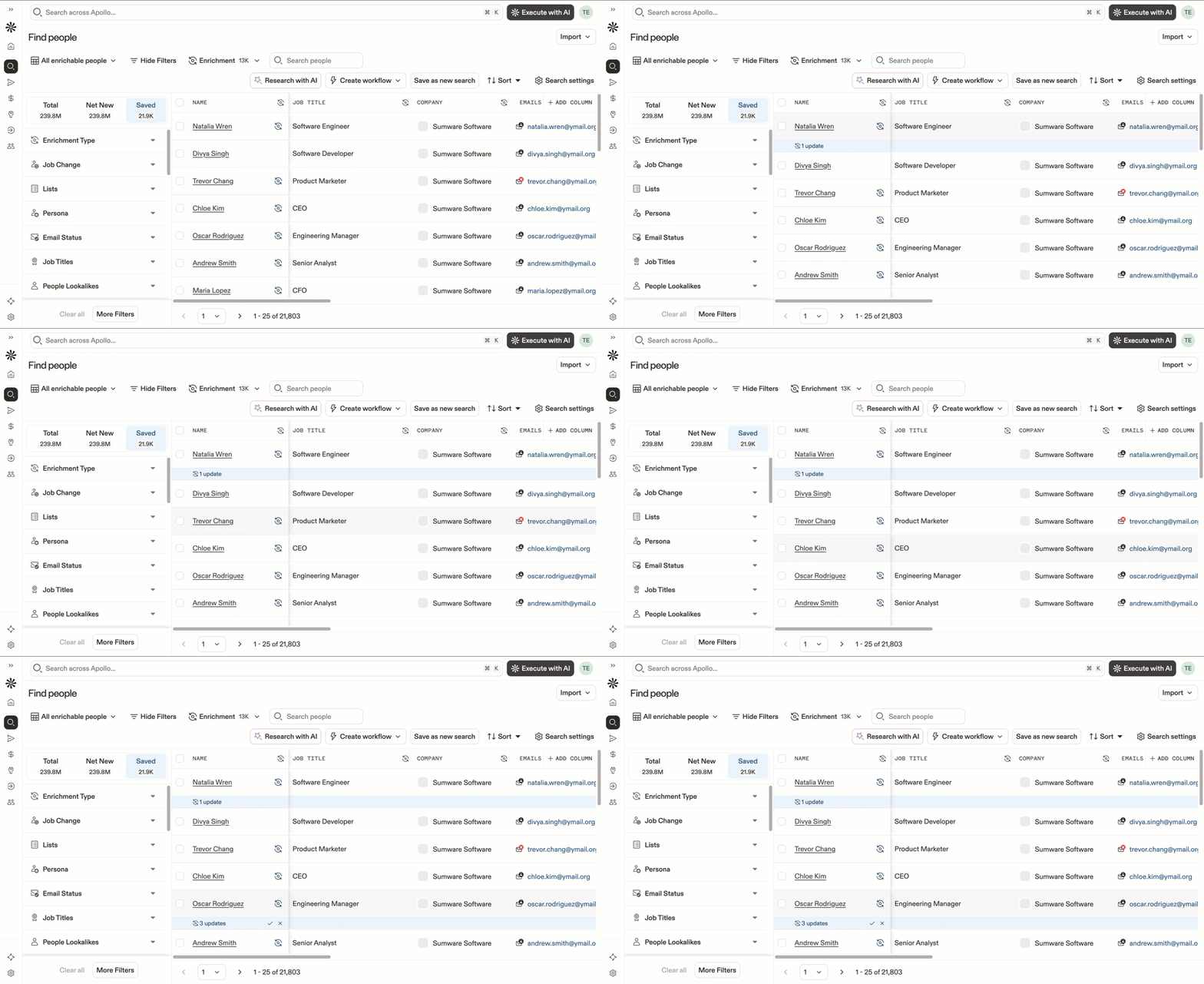
Want to access enrichable records more quickly? Check out the following sections to learn how to apply enrichment search views, enable enrichment mode for better visibility, and filter search results for enrichable records. These options are available only to teams who have not connected a third-party CRM, such as Salesforce, HubSpot, or Pipedrive.
Use Enrichment Search Views
Switch your default search view to an enrichment system view to quickly surface enrichable records. To do this:
- Go to People or Companies and click Default view.
- Select My enrichable people/companies to view only the enrichable records that you personally saved.
- Select All enrichable people/companies to view all enrichable records saved by you and your teammates.
Apollo updates your search results immediately based on your selected search view.

Enable Enrichment Mode
Enrichment mode makes it even easier to visually identify records with new enrichment data. Before you begin your search, enable enrichment mode to speed up the enrichment process.
To enable enrichment mode:

Apollo automatically highlights records with enrichable data. A blue bar appears below all enrichable records, allowing you to preview each field that has new data available.
Filter Enrichable Records
Use filters to further refine your search and locate specific records for enrichment. Apollo has two enrichment filters that help you filter for records depending on the fields you want to enrich:
Use the enrichment type filter to search for contact or account records with missing field values or new field values. You can also filter for specific enrichable fields like name, location, phone numbers, and more.
To filter for saved records based on enrichment type:
- From People or Companies, click Show Filters.
- Click More Filters to view all Apollo filters.
- Select Enrichment Type.
- Check Has missing value to search for saved records with missing field values, or Has new value to search for saved records with new field values available.
- Click Select value under Enrichable field and select one or more fields with enrichable data. The fields available depend on whether you’re enriching contact or account records. Click to include Any or All of your selected fields, or click Exclude to exclude the selected fields from search results.
Select Include Any Fields to view records with new enrichment data for at least one of your selected fields.
Select Include All Fields to view records with new enrichment data for every selected field. For example, if you select three enrichable fields in your filter, Apollo only displays records that have new data for all three fields.

Use the job change filter to search for contacts who have recently changed jobs.
To filter for saved contacts by job changes:
- From People, click Show Filters.
- Click More Filters to view all Apollo filters.
- Select Job Change.
- Check Contacts who have changed jobs to filter for contact records with job change data ready for enrichment.
- Check Contacts who have not changed jobs to filter for contact records without available job changes.
- You can also filter job changes by the contact's latest company or latest job title.

Apollo updates your page results automatically, displaying all records with available enrichment data based on the filters you set. Next, you can start enriching your saved records.
Enrich Saved Records
Once you've searched for enrichable records, it's time to select which records you'd like to enrich.
You can accept individual enrichments by field for each record, or select and update multiple fields and records to apply available enrichment data in bulk.
To update enrichable records:
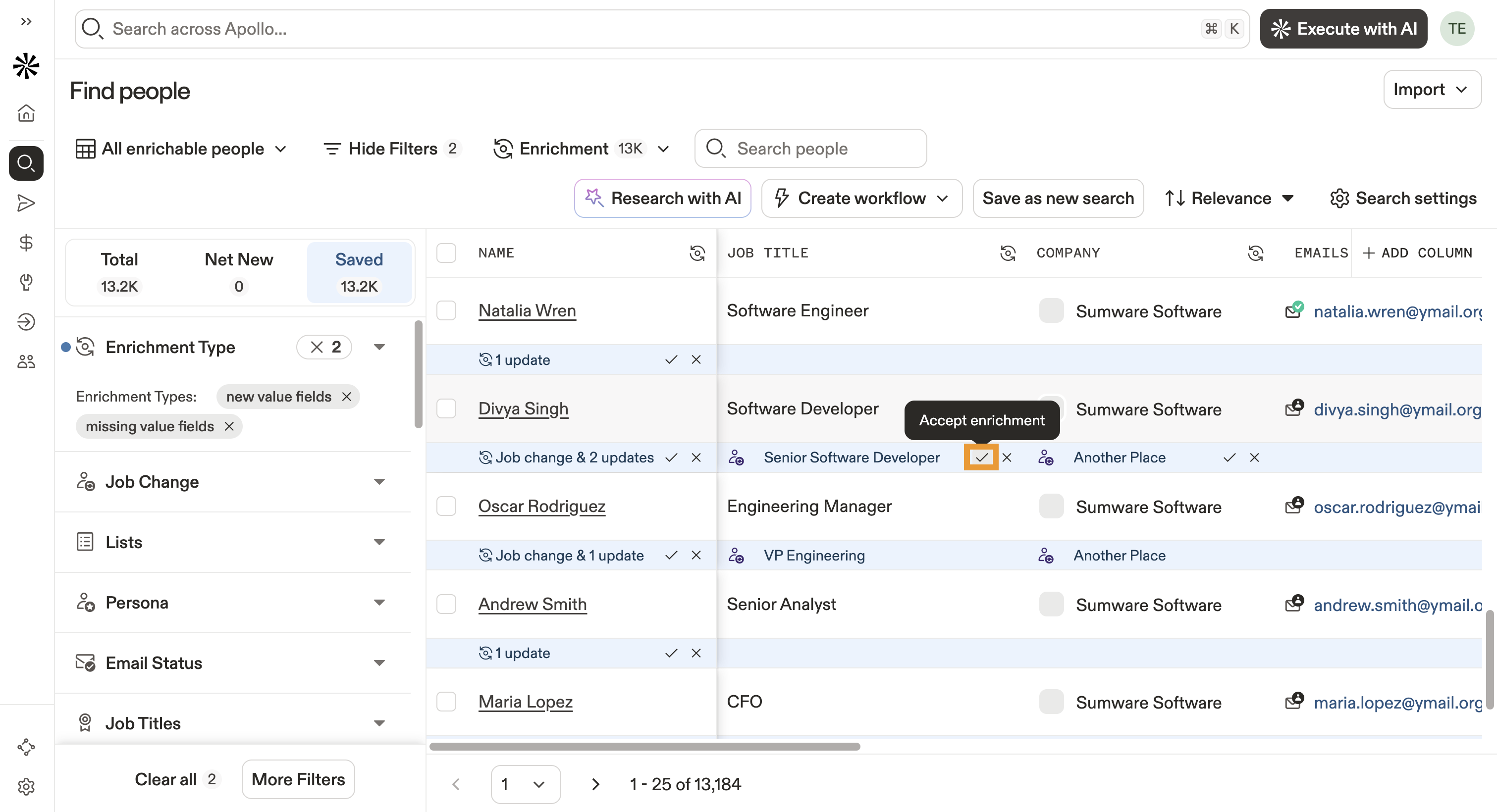
- You can manually enrich individual fields from the enrichment preview bar. For each record, scroll to review all available enrichment data by field. Hover over an enrichable field, then click Accept enrichment to enrich that field or Dismiss enrichment to decline the enriched data. Click Accept enrichment under the contact or account name to accept all enrichable fields for a record.
- You can also enrich multiple fields or records in bulk. Check one or more records, then click Enrich.

- Select one of the following options depending on your record type:
- Enrich emails: Run enrichment on selected contacts' emails.
- Enrich phone numbers: Run enrichment on selected contacts' phone numbers, including mobile phone, home phone, work direct, corporate, and other numbers.
- Enrich fields and job changes: Run enrichment on job changes and the following contact fields if they have missing values or new values: First Name, Last Name, Job Title, LinkedIn URL, Location.
- Enrich fields: This option is available for account enrichment only. Run free enrichment on the following account fields if they have missing values or new values: Name, Phone, Domain, LinkedIn URL, Location, Phone Numbers.
- Dismiss enrichment: Dismiss available enrichment data for all selected contacts or accounts.

Learn more about running each enrichment option below.
Enrich Emails or Phone Numbers
When you choose to enrich emails or phone numbers, Apollo provides an estimate for your enrichment cost before enrichment runs.
You can run waterfall enrichment to access broader data coverage when enriching your selected records. Toggle on Find data via Waterfall for selected records to use waterfall enrichment on your selected records. If you're an Apollo admin, click Waterfall settings to configure your team's waterfall enrichment settings and data source lineup.
Click Enrich emails or Enrich phone numbers to begin the enrichment process.
Enriching contact emails and phone numbers requires credits, even if you already have access to an associated email address or phone number for your selected records. You consume credits even if the enriched value is the same as the existing one.
You won't use credits if Apollo or connected third-party data sources can't find any data to enrich your contact.

Enrich Fields and Job Changes
If you choose to enrich fields and job changes, use the enrichment preview to review all available field and job change data for your selected contacts. Apollo also provides a credit summary to help you estimate how many credits you might use for enrichment.
Job change enrichment, which updates title and company fields, requires credits. Use the credit summary to preview how many credits you may need to enrich your selected contacts with job change data.
Enrichment is free for all account fields and the following contact fields: First Name, Last Name, Location, LinkedIn URL, and Role Transition.
To review and enrich fields or job changes:
- Under Select fields to enrich, select all the fields you want to enrich for your selected contacts. Job change enrichment requires credits to update a contact's job title, company, and work email.

- Under Settings, configure the following settings:
- Waterfall enrichment for job changes: Toggle on Find data via Waterfall for selected records to enable waterfall enrichment when enriching your selected contacts' work emails. This gives you access to broader data coverage via third-party sources, but it also requires additional credits. Learn more about waterfall enrichment.
- Contact settings: Tell Apollo whether to update existing contact records or create new contact records with available job change data. If you create new records, you'll also define how Apollo handles outdated contact, including moving old records to another contact stage (required) and marking their current sequences as complete.

- Under Preview, preview available enrichment data for each record based on your selected fields. Use the arrows to navigate between records.
- Review the final credit summary, then click Enrich contacts when you're ready to begin enrichment.

Create Enrichment Workflows
Build record enrichment workflows to simplify and streamline your team's enrichment processes, enabling you to launch outreach faster.
To create enrichment workflows:
- Launch Apollo and go to Prospect & enrich > People or Companies. Click Saved.
- Click Create workflow > Auto-enrich data.

- Use the workflow builder to set up your enrichment workflow. Apollo pre-fills your workflow with a When this happens trigger.
- Click on the trigger to edit your workflow's target, start date, frequency, and enrollment criteria. Click Done to save your edits and return to the workflow builder.

- Click Add configuration configure your workflow's data enrichment action.

- Select one of the following enrichment options:
- Enrich emails
- Enrich phone numbers
- Enrich job changes and other fields
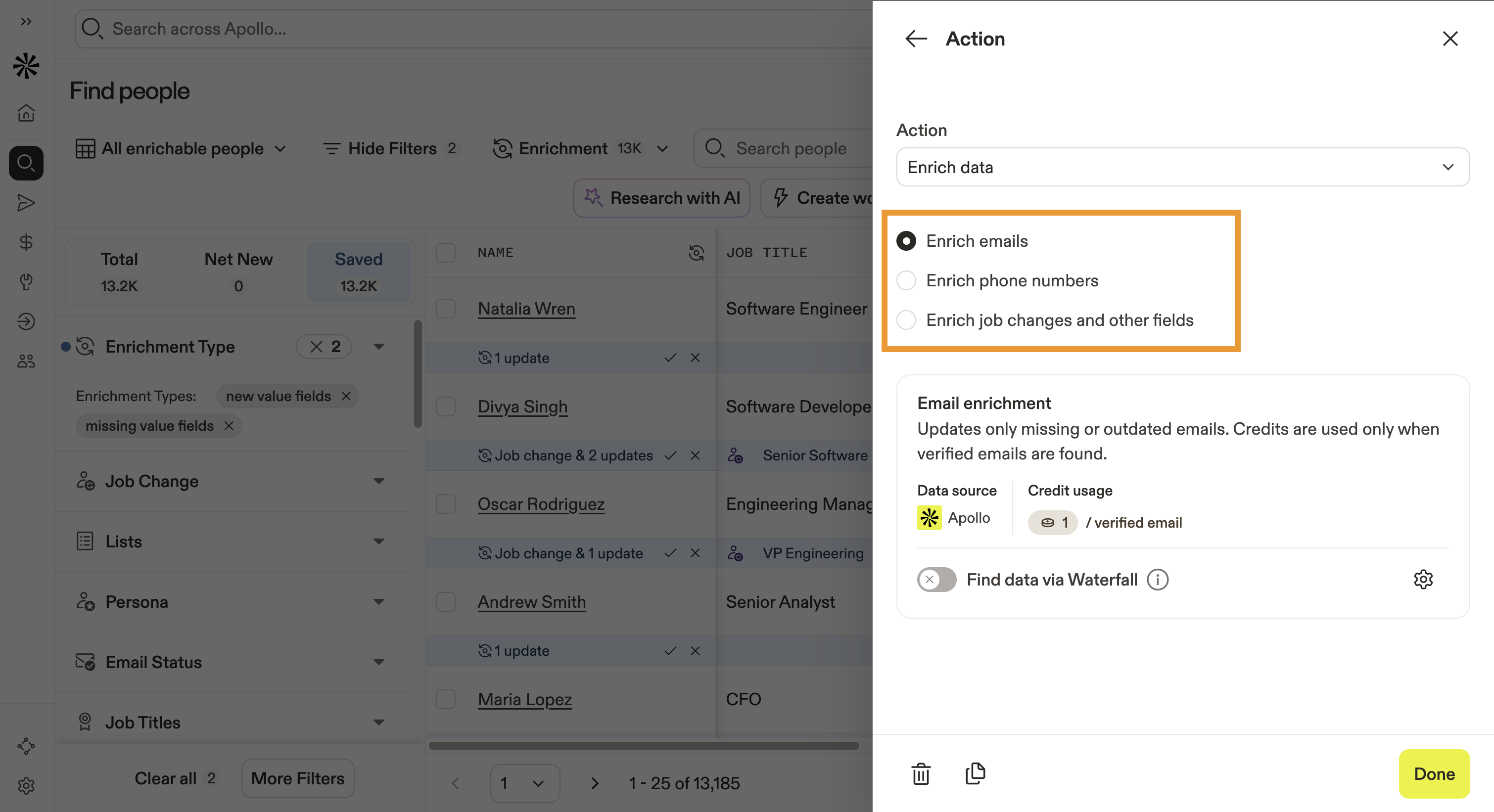
- For emails, phone numbers, or job changes, toggle Find data via Waterfall to use waterfall enrichment each time your enrichment workflow runs.

- If you're enriching job changes and other fields, use the Fields to enrich dropdown to select the fields you want this workflow to enrich each time it runs.

- For other fields enrichment, click Enrichment writing permissions to configure whether Apollo overwrites any existing record data for your select fields. These data writing permissions apply only to the records enriched via your workflow and won't impact your team's global data writing permissions in Settings. Click Save to save your configured permissions.

- Click Done to return to the workflow builder.
- Click Add block or Add action to configure any additional enrichment actions for your workflow.

- Click Settings to name your workflow and configure the following settings:
- Enrollment approval
- Record limits
- Re-enrollment criteria
- Layout and sorting
- Enrollment notifications

- Click Save workflow to save your workflow draft without launching. When finished, click Launch workflow.
Apollo runs your workflow based on the cadence you set in your workflow trigger and enriches records based on your enrollment criteria.
Next Steps
Keep the momentum going with these ways to turn enriched records into real pipeline impact.
| Waterfall Enrichment Overview | Get the big picture on how waterfall enrichment works behind the scenes to maximize data coverage and accuracy across your saved records. |
|---|---|
| Use Waterfall Enrichment | See how to run waterfall enrichment to fill in missing emails, phone numbers, and key fields with data from Apollo and other third-party data sources before outreach. |
| Create A Sequence | Ready to engage? Create a sequence that uses enriched data to drive consistent, multi-step outreach that converts. |
| Make And Receive Calls | Put those enriched phone numbers to work and make and receive calls directly in Apollo to connect with prospects faster. |
| Create A Workflow | Scale it up by creating a workflow that automates enrichment and follow-up actions so your team never misses the right moment to engage. |