
Overview
With the Apollo Chrome Extension enabled in Gmail, you can track email opens and clicks, inspect your deliverability, add Apollo templates and snippets directly to your emails, add contacts to follow up sequences, set nudges to remind yourself to follow up, insert meeting links so prospects can easily schedule time with you, and sync your email interactions from Gmail to HubSpot or Salesforce.
The following sections explain how to use Apollo’s added functionality in your Gmail mailbox.
If your team uses Microsoft Outlook instead of Gmail, you can also use Apollo features. Check out Integrate Apollo with Outlook to learn how to set up and use the Outlook integration.
Use the Apollo Chrome Extension in Gmail
To use the Apollo Chrome extension in Gmail, your Gmail email address must be associated with your Apollo user account or linked as a mailbox.
To use the Apollo Chrome Extension in Gmail:
- Launch your Apollo-synced Gmail mailbox, and then write a new email.
- (Optional) To add your templates or snippets, click Templates or Snippets, then select your preferred template or snippet.
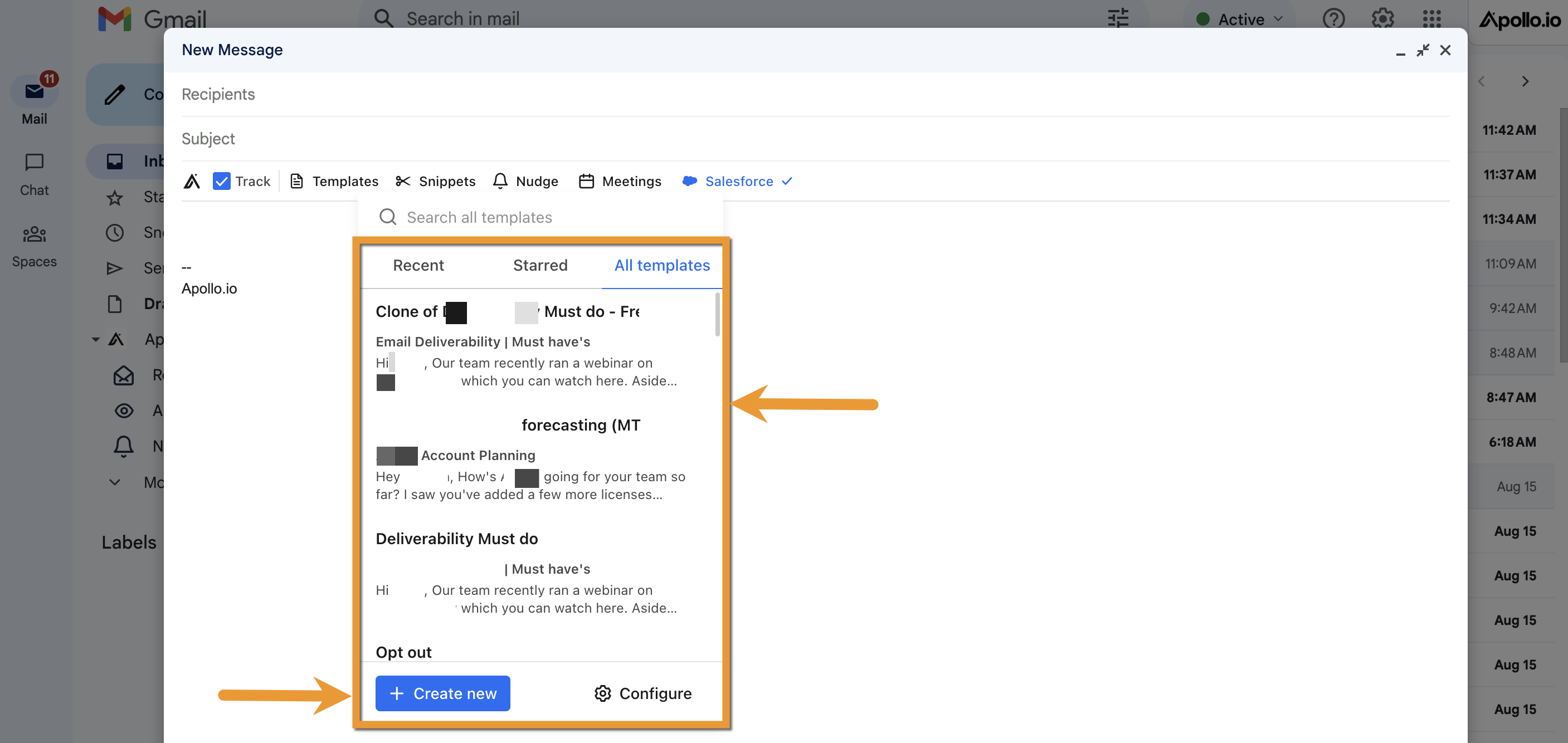 Apollo inserts your chosen template or snippet in the email.
 - To create a new template or snippet, click Create new. Apollo opens a new window where you can create your new template or snippet. Enter your template or snippet details, then click Save.
- (Optional) To send your meeting links, click Meetings > Hover your mouse over your preferred meeting type > Click Link.
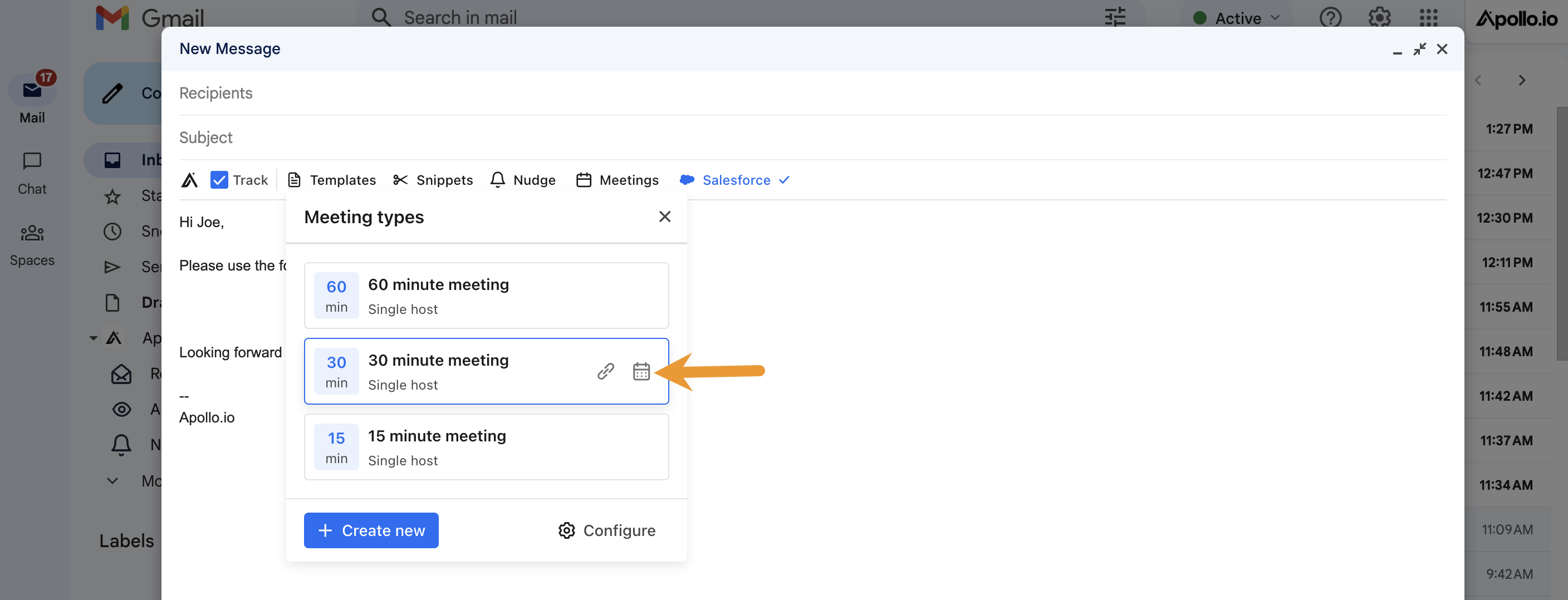
- To reserve specific time slots for your prospect, click on the meeting type's Calendar > Click the times on the calendar that you want to reserve for the prospect > Click Reserve time slots > Click Insert selected slots.
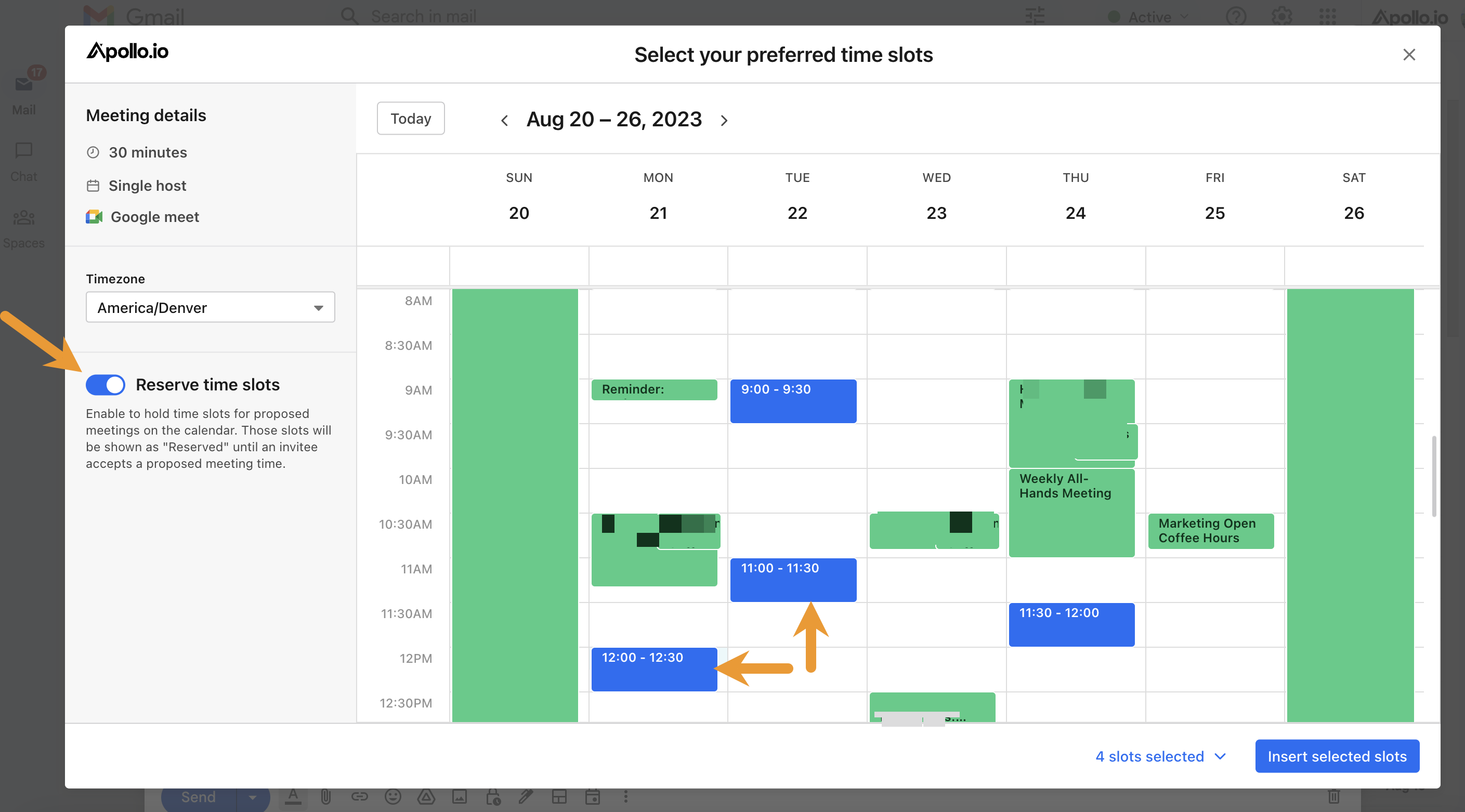 Apollo inserts the list of reserved time slots in your email.
- To reserve specific time slots for your prospect, click on the meeting type's Calendar > Click the times on the calendar that you want to reserve for the prospect > Click Reserve time slots > Click Insert selected slots.
- (Optional) To track your email opens and clicks, click Track.
- (Optional) To log your email in HubSpot or Salesforce, click HubSpot or Salesforce.
- To automatically track future interactions with this email address, click Log this email to HubSpot or Salesforce. If a lead or contact matches the email address you entered, Apollo auto-populates them. If there is no match, search and select the record you want to use to log this email exchange.

- To track the email exchange in a Salesforce opportunity, search for and add the opportunity.
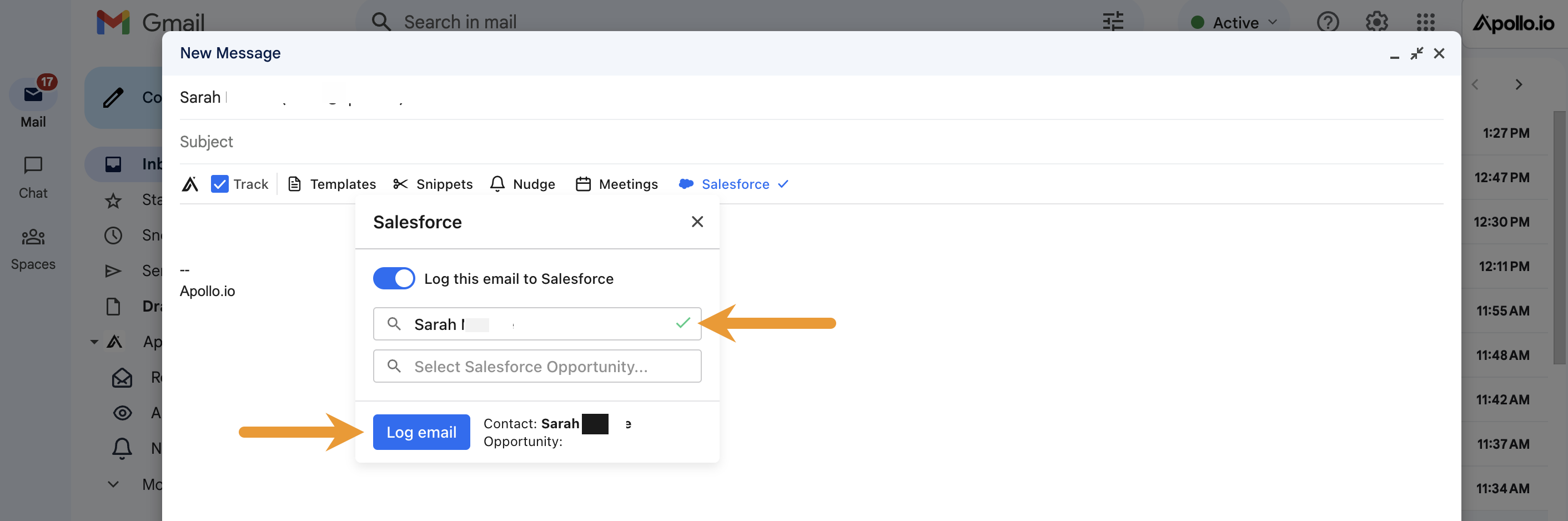
To log emails to your CRM, you must enable Apollo's integration with Salesforce or HubSpot first. If you haven't already integrated, refer to Integrate Salesforce with Apollo or Integrate HubSpot with Apollo to set up the integration.
- To set a follow-up reminder for your email, click Nudge.
- Choose whether you will still send a follow-up email if the recipient doesn't reply > Set a send time for the follow-up email > Click Schedule a nudge.

- Finalize your email, then click Send.
You have now used the Apollo Chrome Extension in Gmail.
Nice to know:
- Email attachments sent through Gmail don’t sync to Apollo. To review attachments, access them directly in Gmail.
- Apollo tracks emails sent from Gmail, and they appear in Apollo as long as tracking is enabled, the email isn’t sent to an external domain, and you’re logged into the same account in the extension.
- In the activity log, you can only view the dates emails were sent.
View Email Health in Gmail
The Gmail extension surfaces key deliverability signals directly in your inbox so you can stay on top of your sending health as you work. To access the deliverability suite in the extension:
- Launch your Apollo-synced Gmail mailbox, then click the Apollo extension.
- Click Email setup and health. Apollo shows you the deliverability suite. The following tabs are available:

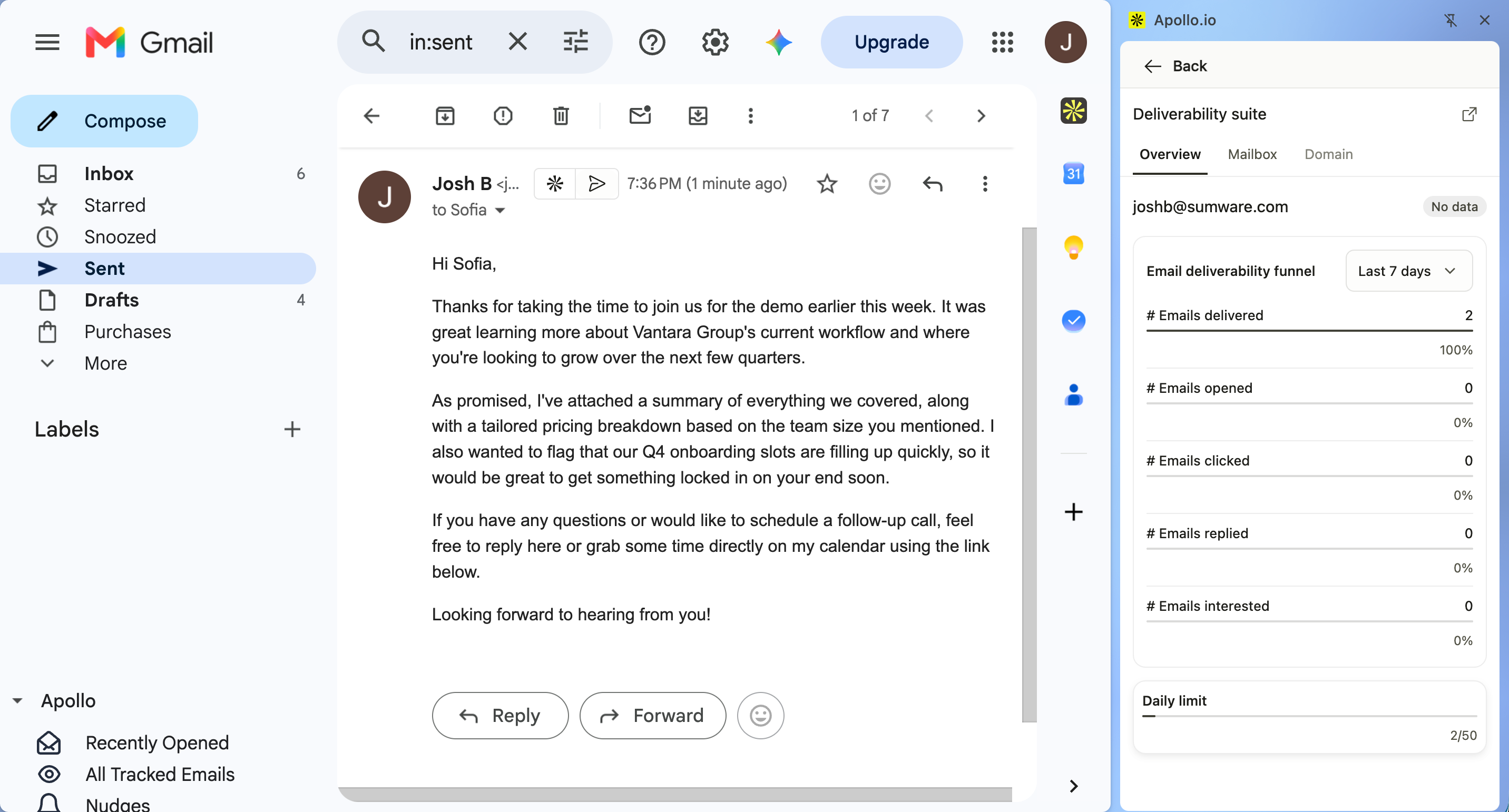
The Overview tab shows a summary of your email deliverability funnel for a selected time period. You can review the following metrics for your mailbox:
- # Emails delivered
- # Emails opened
- # Emails clicked
- # Emails replied
- # Emails interested
The Overview tab also displays your mailbox's daily limit.
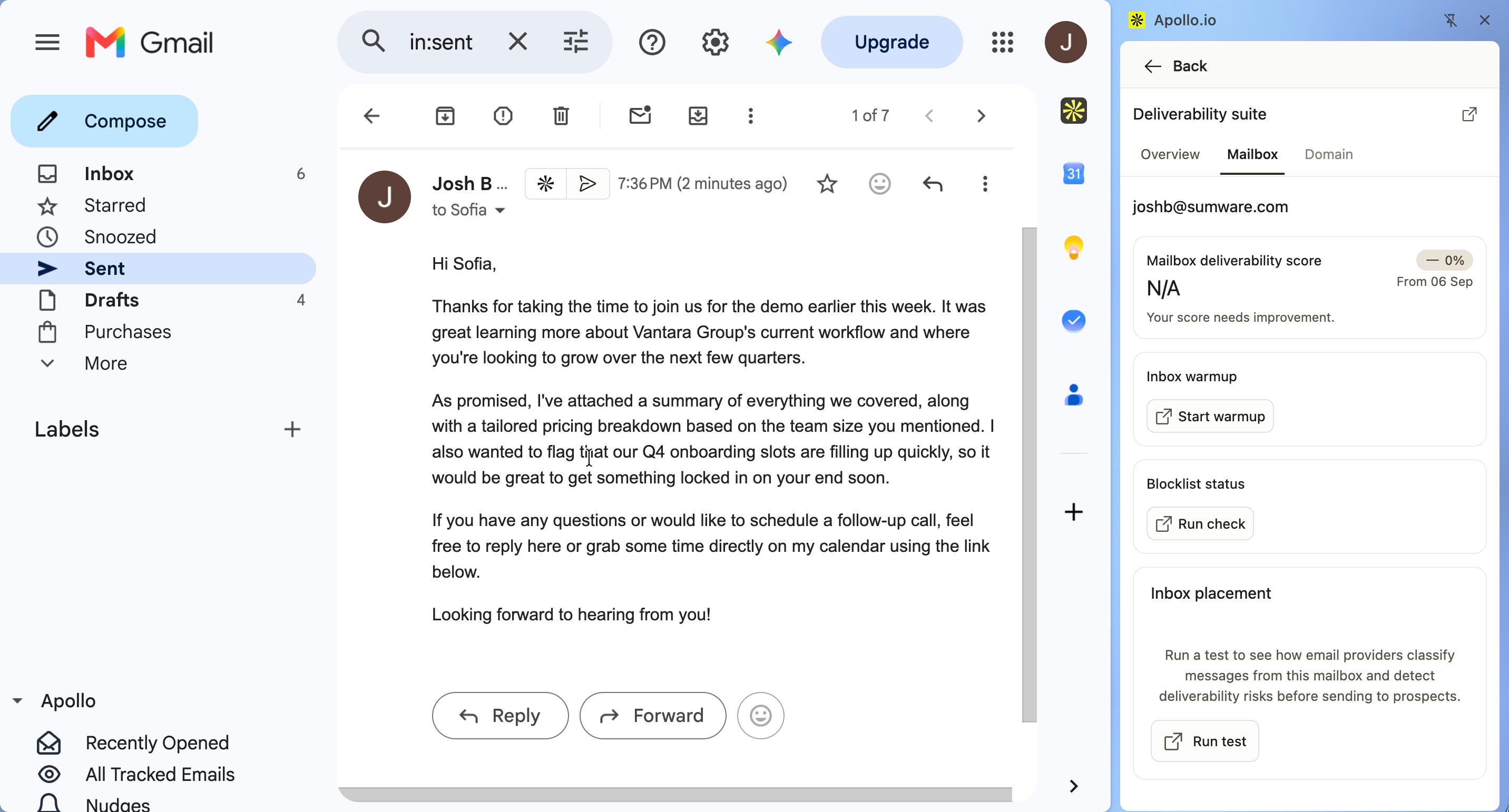
The Mailbox tab shows your mailbox deliverability score and gives you tools to monitor and improve your sending health. From this tab, you can:
- Review your Mailbox deliverability score and track score changes over time.
- Click Start warmup under Inbox warmup to begin warming up your mailbox.
- Click Run check under Blocklist status to check if your mailbox has been blocklisted.
- Click Run test under Inbox placement to see how email providers classify messages from your mailbox and detect deliverability risks before sending to prospects.
The Domain tab shows your domain's deliverability score and the authentication status of your tracking subdomain. You can review the following for your domain:
- Deliverability score.
- Tracking subdomain.
- SPF, DKIM, and DMARC status.

Get Desktop Notifications for Opens and Clicks
To get notified when a contact opens or clicks an email, use one or both of the following options:
-
Chrome extension desktop notifications
With the Apollo Chrome extension enabled in Gmail, you can:- Turn on desktop notifications for email opens and clicks in the extension settings.
- Receive real-time pop-ups while you’re browsing in Chrome.
These notifications are per user and configured in the extension, not in Settings > Notifications.
-
Workflows for email events
In Workflows, you can create rules such as:- Trigger: Email opened / Email clicked
- Action: Send an internal email or Slack notification to specific users or channels
This is the best way to get structured, auditable alerts for email engagement across your team. Check out Create a Workflow for more details.
Next Steps
Once the extension is working in Gmail, these next steps help you turn it into a faster, more consistent daily workflow.
| Install the Apollo Chrome Extension | Install and pin the extension to make Apollo tools show up in Gmail the moment you open an email thread. |
|---|---|
| Configure Chrome Extension Settings in Apollo | Set up tracking, reminders, and desktop alerts to match your team’s workflow and keep engagement signals from slipping by. |
| Meetings Overview | Drop an Apollo meeting link into your email to let prospects book time in your availability without the back-and-forth. |
| Troubleshoot the Apollo Chrome Extension | Run the quick extension fixes to restore the sidebar, resolve login issues, and get your Gmail integration behaving again fast. |