
Overview
Configure settings for the Apollo Chrome extension including enrichment, default list assignments, supported websites, and CRM push preferences. You may also enable email tracking, templates, send emails later, and reminders in Apollo.
The sections below walk you through configuring Apollo Chrome Extension settings in the extension and in Apollo.
If you haven't installed the Apollo extension yet, follow the steps here to download and install the Apollo Chrome extension.
Configure the Apollo Chrome Extension Settings Within the Extension
To configure the Apollo Chrome Extension settings in the Apollo Chrome Extension:
- Open the Apollo Chrome Extension.
- Click Settings.
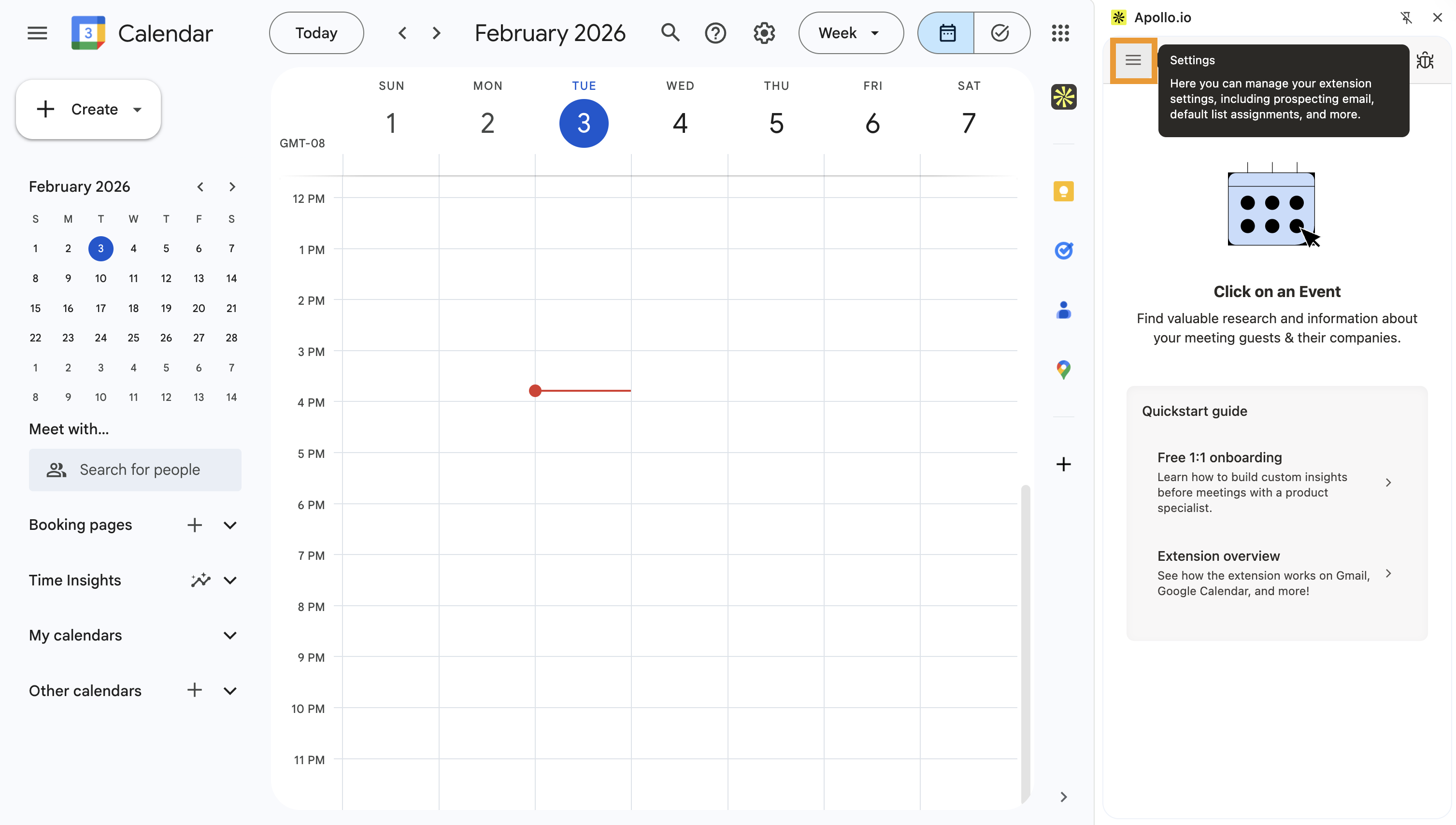
You may configure the following settings:
- Default list: Set the default lists that contacts are automatically added to when you save them.
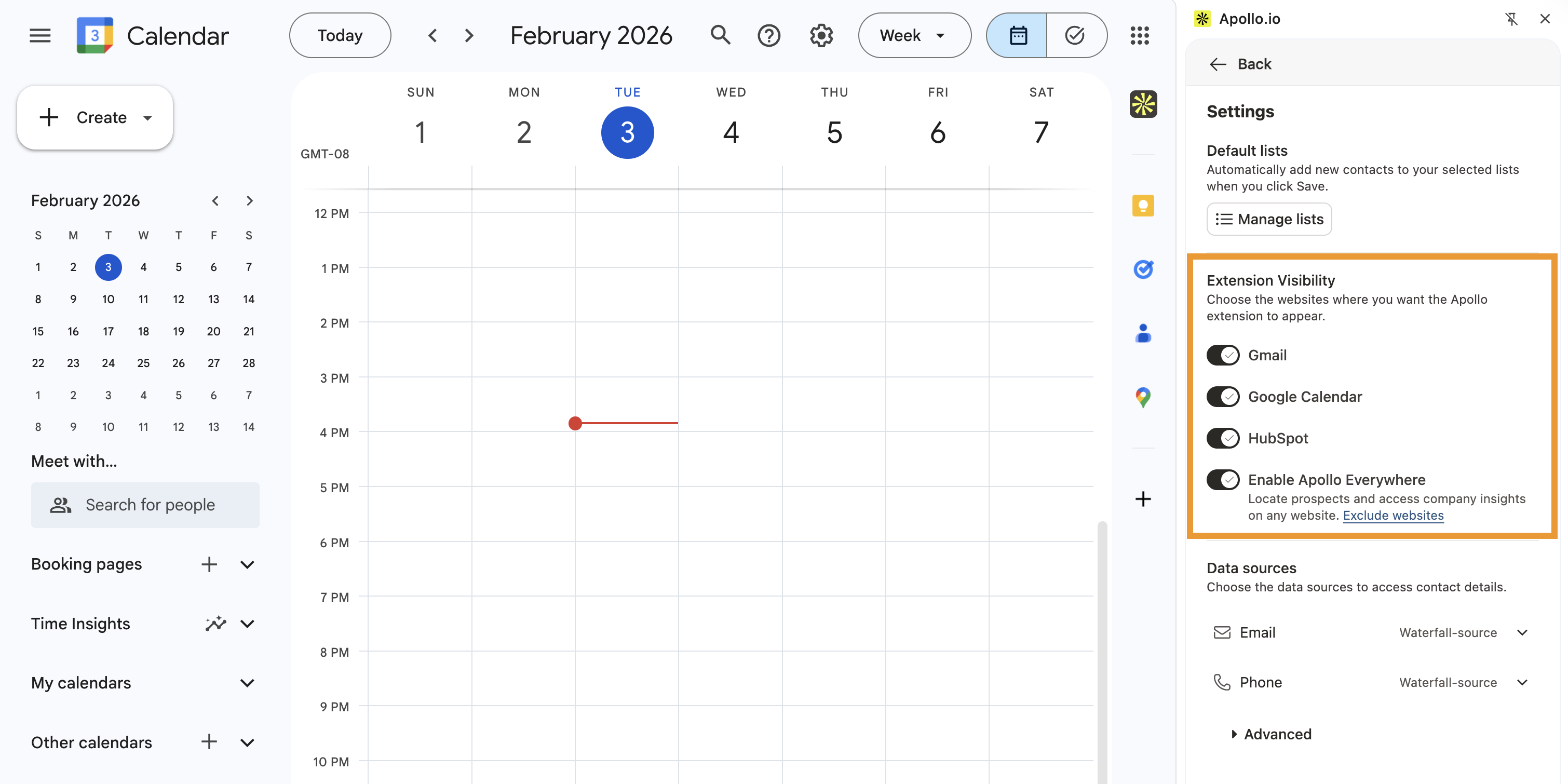
- Extension Visibility: Choose the websites where you want the Apollo Chrome Extension to appear.
- Data Sources: Choose the data sources from Waterfall Enrichment when saving contacts.
- Advanced: Configure how Apollo updates your CRM when enriching from the extension.
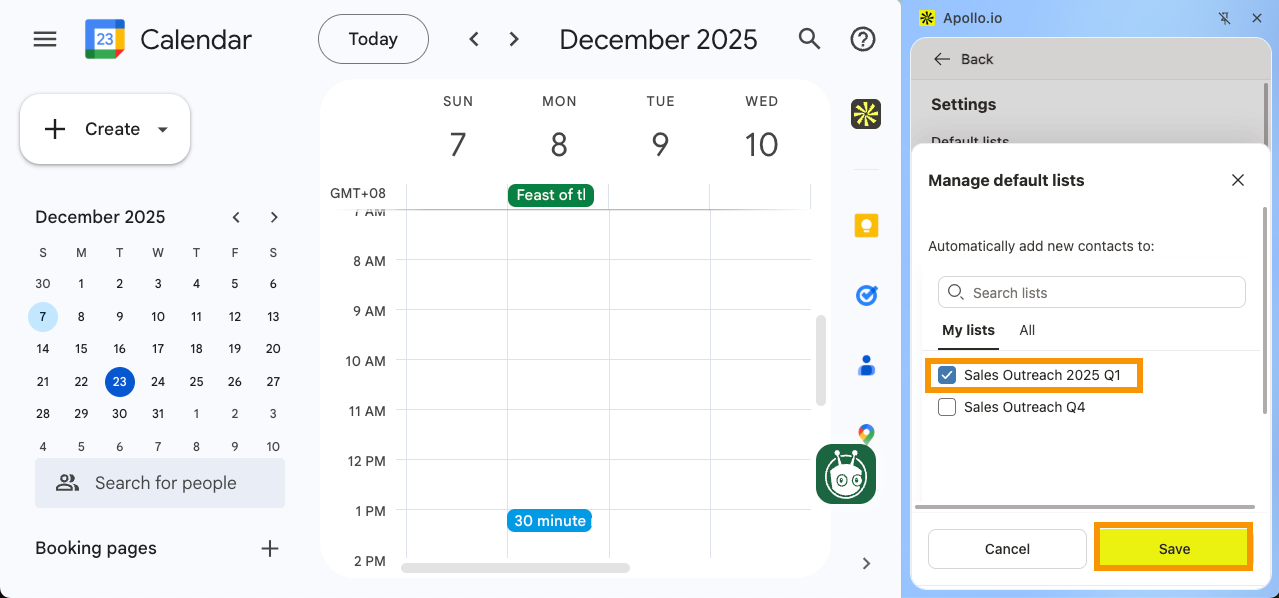
- Click Manage lists.
- Select your preferred lists.
- Click Save.
- Click the websites where you want the Apollo extension to appear. You can enable or disable the extension on Gmail, Google Calendar, your integrated CRM, or everywhere.
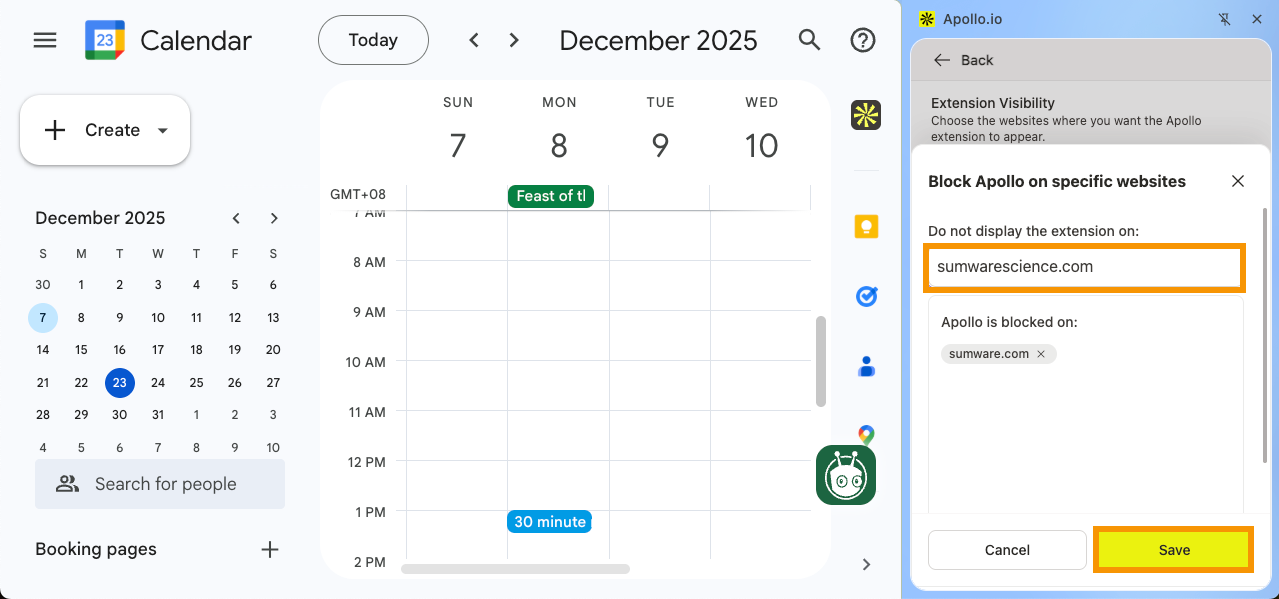
- (Optional) To block Apollo on specific websites, click Exclude websites > Enter the domain > Press Enter > Click Save.
- Click ▾ on Email or Phone.
- Click Waterfall-source to use Waterfall Enrichment or select Apollo-source to use Apollo as your only information source.
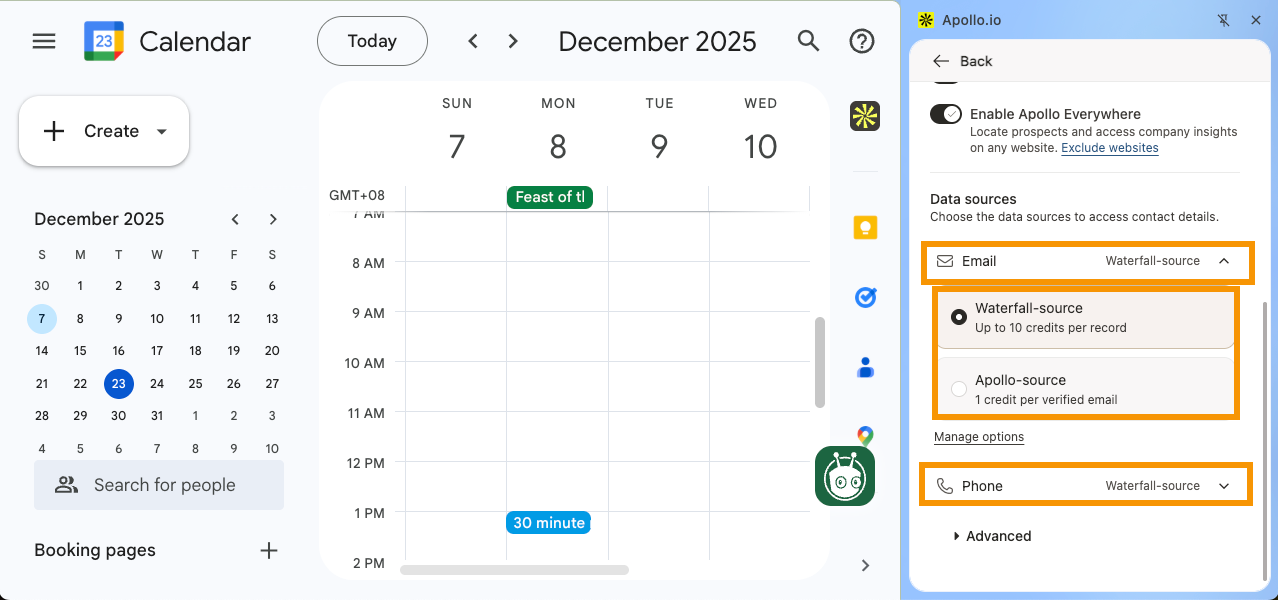
- (Optional) Click Manage options to select the data sources used for Waterfall enrichment.
Only admins can modify Waterfall Enrichment sources. Non-admins have view-only access. If you're not an admin, contact your admin to make changes to the Waterfall Enrichment sources.
- Click Update CRM contact information when enriching to update CRM contact details when enriching from the Apollo Chrome Extension.
You have now configured the Apollo Chrome Extension settings within the extension.
Back to TopConfigure the Apollo Chrome Extension Settings Within Apollo
To configure the Apollo Chrome Extension settings in Apollo:
- Launch Apollo and go to Settings > Chrome extension
- Use the checkboxes to enable the following settings:
| Setting | Description |
|---|---|
| Enable email tracking, templates, send later, and reminders | Turn on this setting to gain access to email tracking stats, use pre-built email templates from Apollo, schedule prospect emails to send at a later time, and set follow-up reminders. |
| Enable desktop notifications for email opens & clicks | Receive notifications from Chrome when a prospect opens your email or clicks a link in your email. When prompted by Chrome, you need to click Allow to allow the browser to send notifications. |
| Send reminder if there is no reply by default | Allow Apollo to send you a nudge when a prospect hasn't replied to your email. Nudges are sent based on the reminder time settings you select within the extension. |
| Log outgoing emails to Salesforce by default (except to team members) | If you've integrated Salesforce, enable this setting to automatically allow Apollo to log your outgoing emails in Salesforce. Please note that even when the setting is enabled for all emails, you can still manage whether Apollo logs individual emails to Salesforce directly in Gmail. |
| Log outgoing emails to the most recent Salesforce Opportunity by default | If you've integrated Salesforce, enable this setting to automatically allow Apollo to log your outgoing emails to your most recently created opportunity in Salesforce. |

- Click Save.
You have now configured the Apollo Chrome Extension settings.
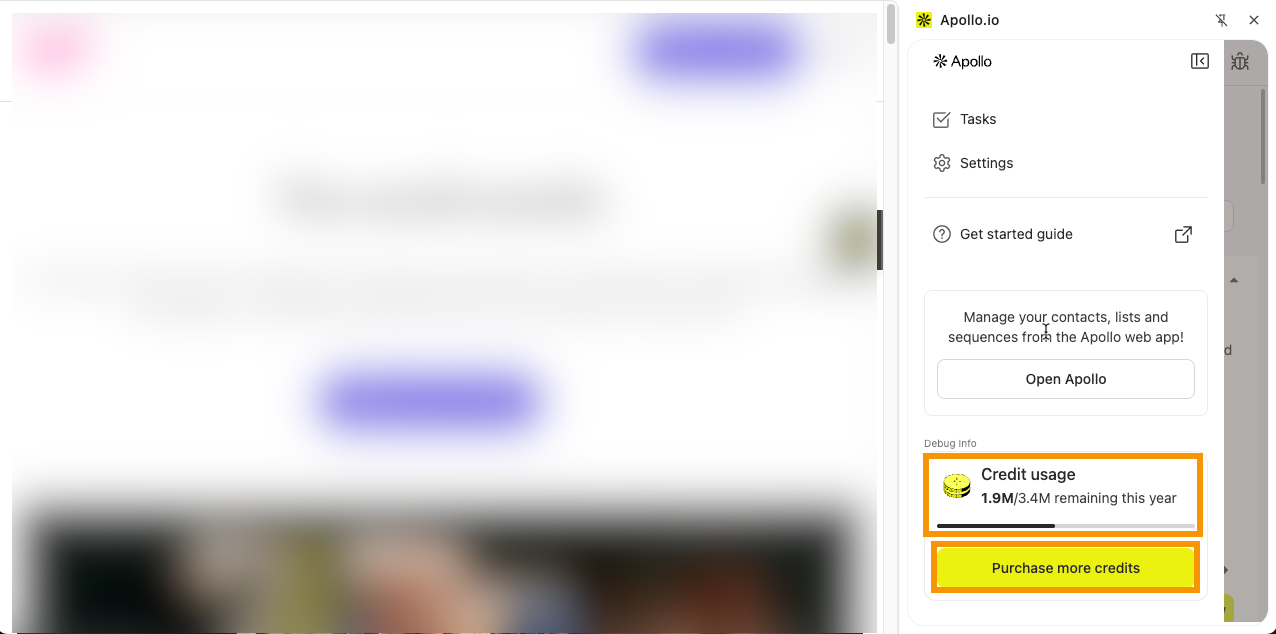
You can also keep an eye on your account’s credit usage right from the Apollo Chrome Extension settings. If you’re an admin and need a few more credits, click Purchase more credits to top up without leaving the extension.
Next Steps
Now that you’ve dialed in your extension settings, here are a few next moves to get real value out of the Apollo Chrome extension fast.
| Apollo Chrome Extension Overview | Map out what the extension can do to decide which workflows your team should activate first across Gmail, Salesforce, HubSpot, and the open web. |
|---|---|
| Use the Apollo Chrome Extension in Gmail | Drop templates, snippets, and nudges into Gmail to keep follow-ups moving from your inbox without losing context. |
| Use the Apollo Chrome Extension in Google Calendar | Pull pre-meeting insights inside Google Calendar to walk into every call with the right people, company context, and talking points already lined up. |
| Troubleshoot the Apollo Chrome Extension | Run through the quick-fix checklist to clear common extension issues (permissions, caching, conflicts) before they derail your outreach flow. |