
Overview
Custom contact fields let you capture information about individual contacts so you can use it to personalize outreach in Apollo sequences.
Check out the following sections to create and edit custom contact fields.
Create a Custom Contact Field
To create a contact field:
- Launch Apollo and click Settings.
- Go to Data management > Objects, fields, stages > Contact fields & stages > Fields.
- Click Create Field.
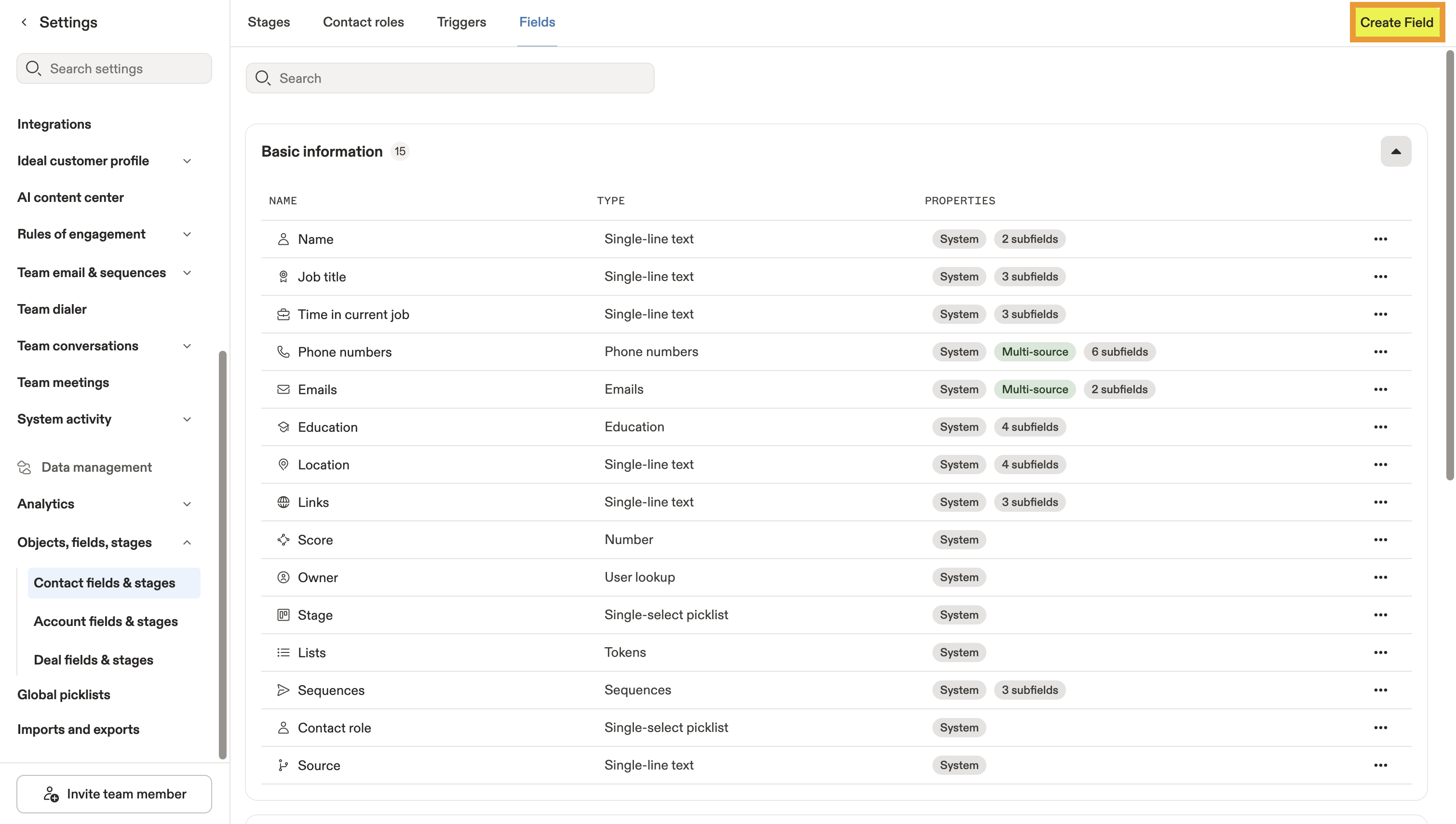
- Select a field type. You can't change the field type after creating the custom contact field. Available field types include:
| Field type | Description |
|---|---|
| Single-line text | Allows you to include a single line of text for the contact field. Specify the maximum number of characters for the field. |
| Multi-line text | Allows you to include a string of text that spans multiple lines. Specify the maximum number of characters for the field. Line breaks count against the total character count. |
| Number | Allows you to include a number with or without decimals. You can't use non-numeric characters. |
| Single-select picklist | Allows you to include an existing picklist or create a new picklist with defined values. You can select one value from the picklist. Check out Create Global Picklists to learn more. |
| Multi picklist | Allows you to include an existing picklist or create a new picklist with defined values. You can select multiple values from the picklist. Check out Create Global Picklists to learn more. |
| Date | Allows you to type a date in the format Month/Day/Year or select a date with the calendar. |
| Date/time | Allows you to type a date in the format Month/Day/Year or select a date with the calendar. You can select a time in half-hour increments. |
| Checkbox | Allows you to specify either True or False on the field. |
| User lookup | Allows you to specify a user from your account. |
- Enter a field name.
- If you're creating a single-line text or multi-line text field, define the field's maximum character count.
- If you're creating a single-select or multi picklist field, choose whether to use a global picklist value set or create custom picklist options. Global picklist options are shared across your team for any picklist fields. To create custom picklist options, click Add option, then enter text for each added option. Click Save as global picklist to save this list for later use and make it available to your team when they create picklist fields.
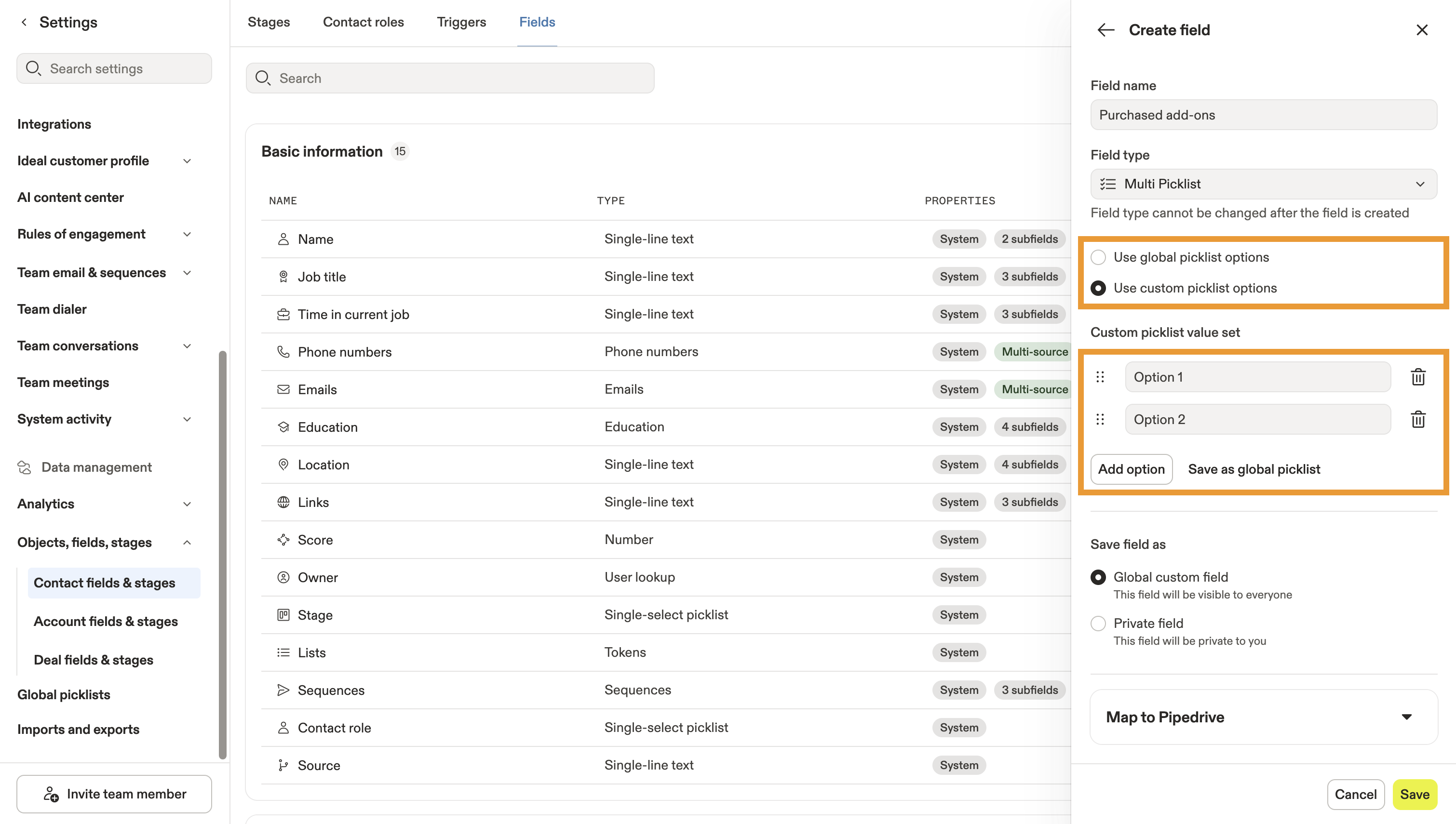
- Save your new custom contact field as a global custom field or a private field. Global fields are visible to everyone on your team. For private fields, select a saved search to display your new custom field. You need to select at least one saved search to use your private field.
- (Optional) If your new field is a global custom field and you've integrated Salesforce, HubSpot, or Pipedrive with Apollo, select a contact field from your CRM to map to your new custom contact field. Select the checkbox to make the custom field read-only in Apollo.
- Click Save.
You have now created a custom contact field. The field appears under Custom fields or My private fields, depending on the options you selected.
To edit a custom contact field, navigate back to Fields. Locate the field in Custom fields or My private fields, then click ... > Edit field. Make your changes, then click Save. You can't edit the field type. To edit a global picklist, click Go to global picklists.
Group Contact Fields
As you create custom contact fields, you can group and rearrange those fields to make them more accessible to your entire team.
To group custom fields:
- Launch Apollo and click Settings > Data management > Objects, fields, stages > Contact fields & stages > Fields.
- Click Create group.
- Name your field group, then click Save.
- To create a new field for your group, click + within the group, then follow the above instructions to create a custom contact field.
- To move an existing custom field into your group, click and drag a field into the group.
You have now created a new field group to store your custom contact fields.
Your field groups and order display across Apollo, including when you view all fields for a contact.
Next Steps
Put your custom contact fields to work with these next steps.
| View and Edit Contacts | View and edit contact profiles to add the details your team needs for more relevant outreach. |
|---|---|
| Use Custom Dynamic Variables | Add custom dynamic variables to your emails to personalize messages with the contact details you've captured. |
| Create Custom Account Fields | Create custom account fields to capture company details your team can reuse in outreach. |
| Follow Apollo's Recommended Field Mapping | Map your Apollo and CRM fields to keep contact and account data aligned across both systems. |
| Customize Your Apollo Layout | Customize your prospecting layout to keep the fields that matter most visible as you work. |